

Companies
The Companies page lists every customer company in your workspace: the business accounts your widget users belong to. Each row shows the company’s Company ID, how many customers and admins it has, when one of its customers last chatted, and whether it is active. Open it from CRMCompanies. Customer success teams use it to find a business customer, open its set-up, and switch a company off when the business leaves.
What you can do here
Section titled “What you can do here”- Find a company by name or reference. Search matches part of the name or of the Company ID, so
BWSfinds Example Studios. Find a company. - See which companies are in use. The member counts and the last activity show at a glance which business accounts chat with your assistant and which went quiet. Read the list.
- Open a company’s set-up. One click opens the company page with its settings, members, knowledge base, skills, workflows, shortcuts, notification channels and usage. Open a company · Company details.
- Create a company before its people arrive. New Company opens the form for a new customer company. Create a company · Onboard a business customer.
- Deactivate or reactivate a company. The switch in each row blocks or allows sign-in for every customer of that company at once. Deactivate or reactivate a company · Customer roles and access.
The screen at a glance
Section titled “The screen at a glance”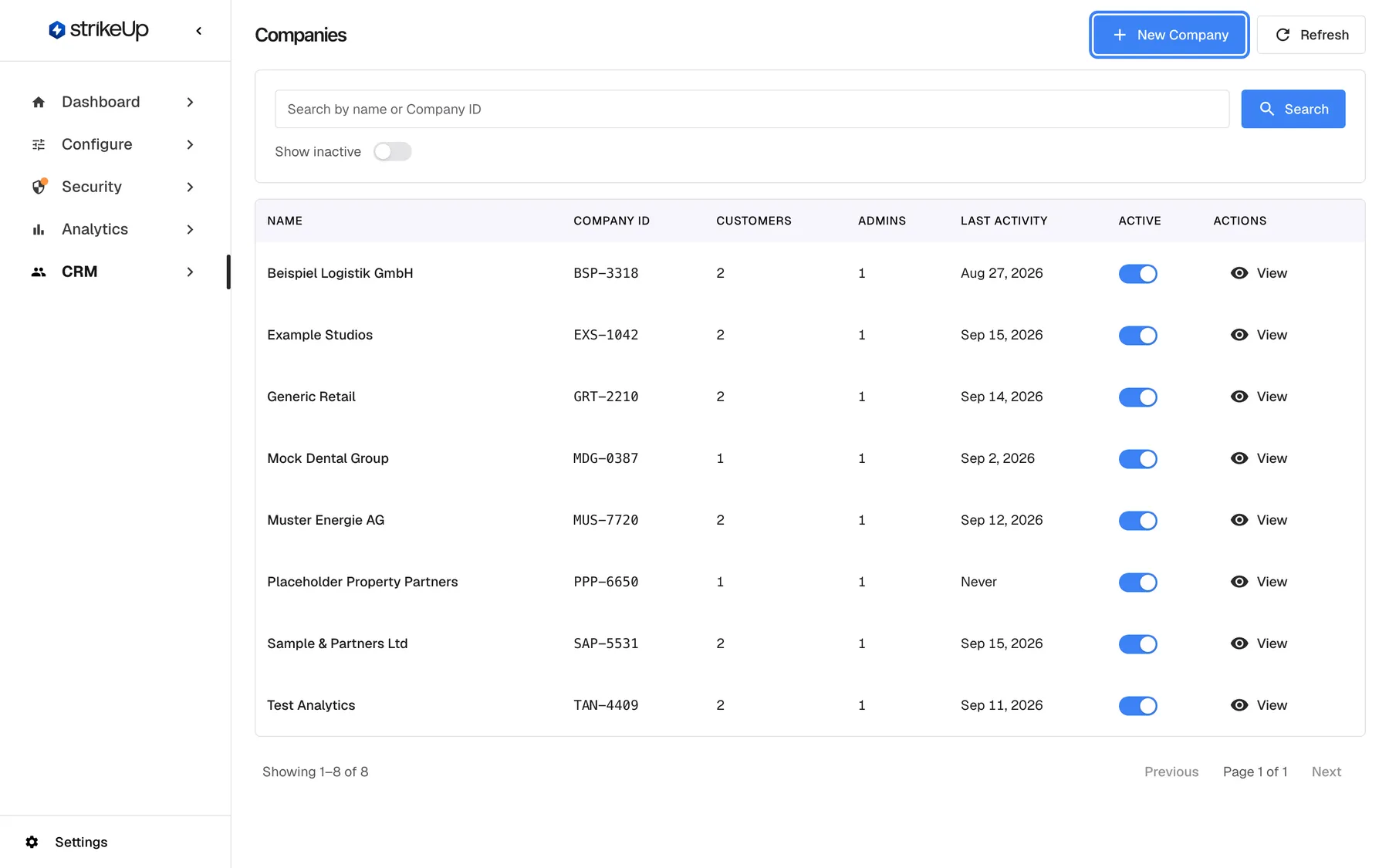
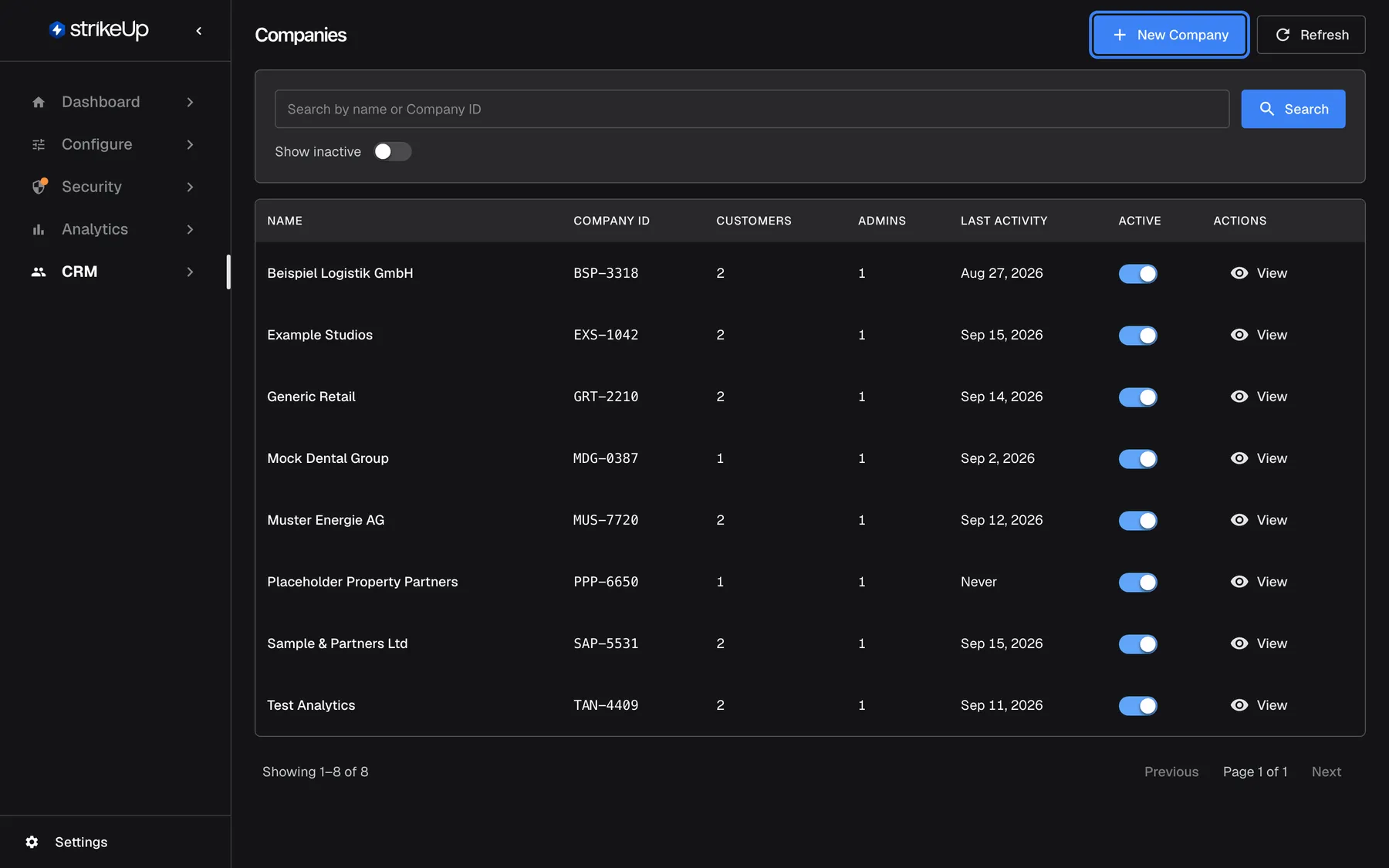
What this screenshot shows
- Screen
- Companies (/admin/customer-companies)
- Highlighted
- button “New Company”, top-bar-right, enabled. opens the New Company form
- Also visible
- 8 companies sorted by name with Company ID, Customers, Admins, Last activity, Active switch and View; Search box and Show inactive switch above the table; Pager: Showing 1–8 of 8
- Purpose
- entry point of the Companies list
| Region | What it shows | What you do there |
|---|---|---|
| Header | The title Companies, New Company and Refresh | Create a company, reload the list |
| Filter card | The search box, Search, the Show inactive switch, and Clear Filters while a filter is set | Narrow the list |
| Table | One row per company: Name, Company ID, Customers, Admins, Last activity, Active and View | Open a company, switch it on or off |
| Pages, bottom | “Showing 1–8 of 8”, Previous and Next | Move through the list, 20 companies at a time |
Read the list
Section titled “Read the list”Companies are sorted by name, A to Z, 20 per page. Deactivated companies are hidden until you turn on Show inactive.
| Column | What it shows |
|---|---|
| Name | The company’s name, unique in your workspace |
| Company ID | Your own reference for the business, such as EXS-1042, or N/A when none is set |
| Customers | How many customers belong to the company, disabled ones included |
| Admins | How many of them have the Admin role, disabled ones included |
| Last activity | The date of the most recent chat by any of its customers, or Never |
| Active | A switch: on means the company’s customers can sign in |
Example: “Placeholder Property Partners” shows 1 customer, 1 admin and Never. Its one customer was imported or created but has not chatted yet. “Example Studios” shows 2 customers and Sep 15, 2026: someone there chatted that day.
Last activity counts chats only. A customer who used the customer portal but did not chat does not change it.
Find a company
Section titled “Find a company”- Type part of a name or a Company ID into Search by name or Company ID. Upper and lower case do not matter.
- Press Enter or select Search. The list reloads from the first page.
- To include deactivated companies, turn on Show inactive. The list reloads at once.
Clear Filters appears while a search or Show inactive is set; it empties the search box and hides inactive companies again. If nothing matches, the list shows No matching companies..
Open a company
Section titled “Open a company”Select a row, or View at its end. The company page opens on its Overview tab, with tabs for Members, Knowledge base, Skills, Workflows, Prompt shortcuts, Integrations and Usage. See Company details.
Create a company
Section titled “Create a company”Select New Company at the top right. The form asks for a name, which must be unique in your workspace, and offers a Company ID, the self-registration switch, a credential hint, an agent instruction and the Active switch. After you save, the new company’s page opens. See New Company.
You do not have to create every company by hand. When your product passes a userCompanyId or userCompanyName to the widget, StrikeUp files the customer under the matching company and creates the company if none matches. A CSV import creates the companies named in the file.
Deactivate or reactivate a company
Section titled “Deactivate or reactivate a company”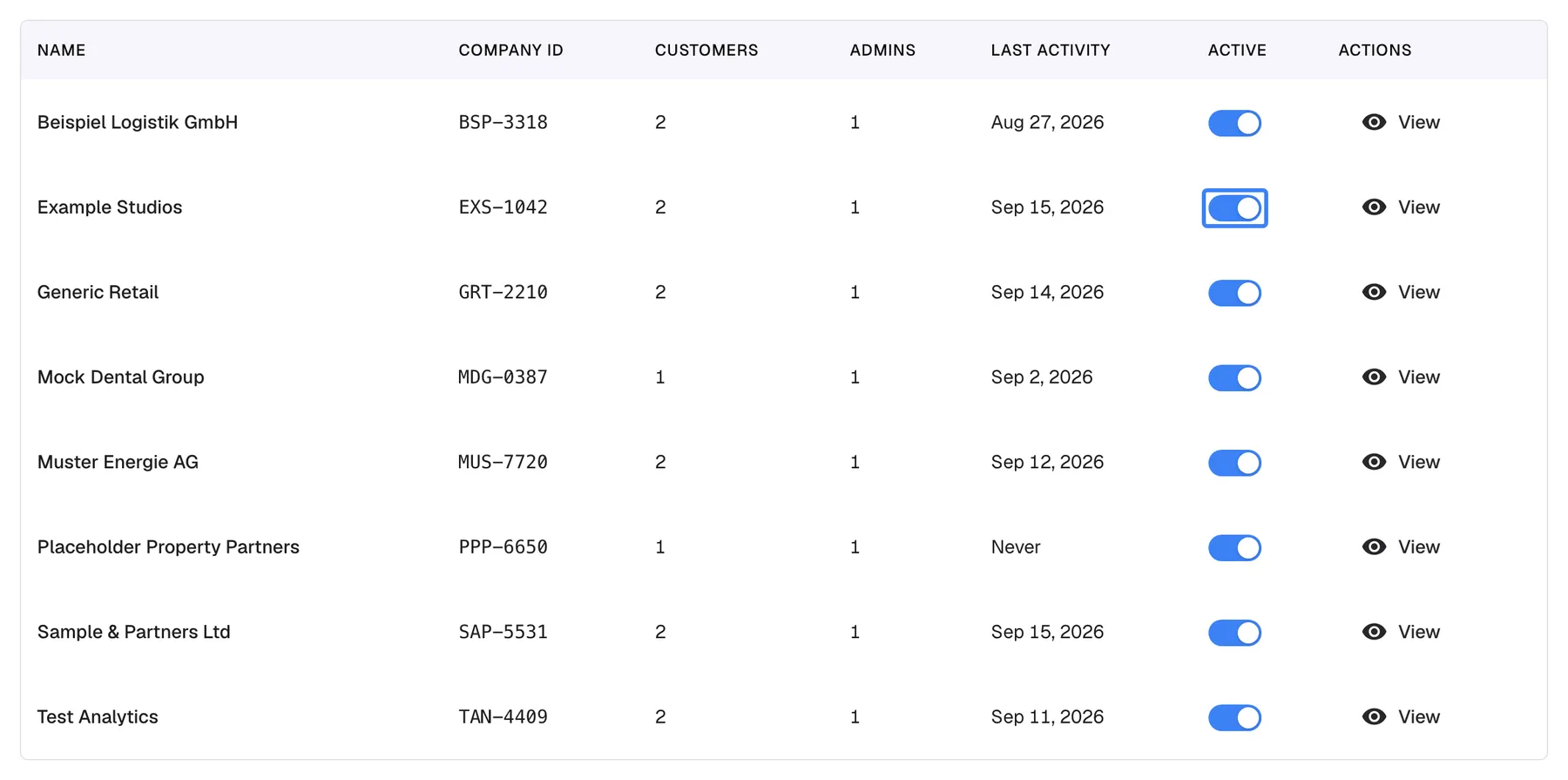
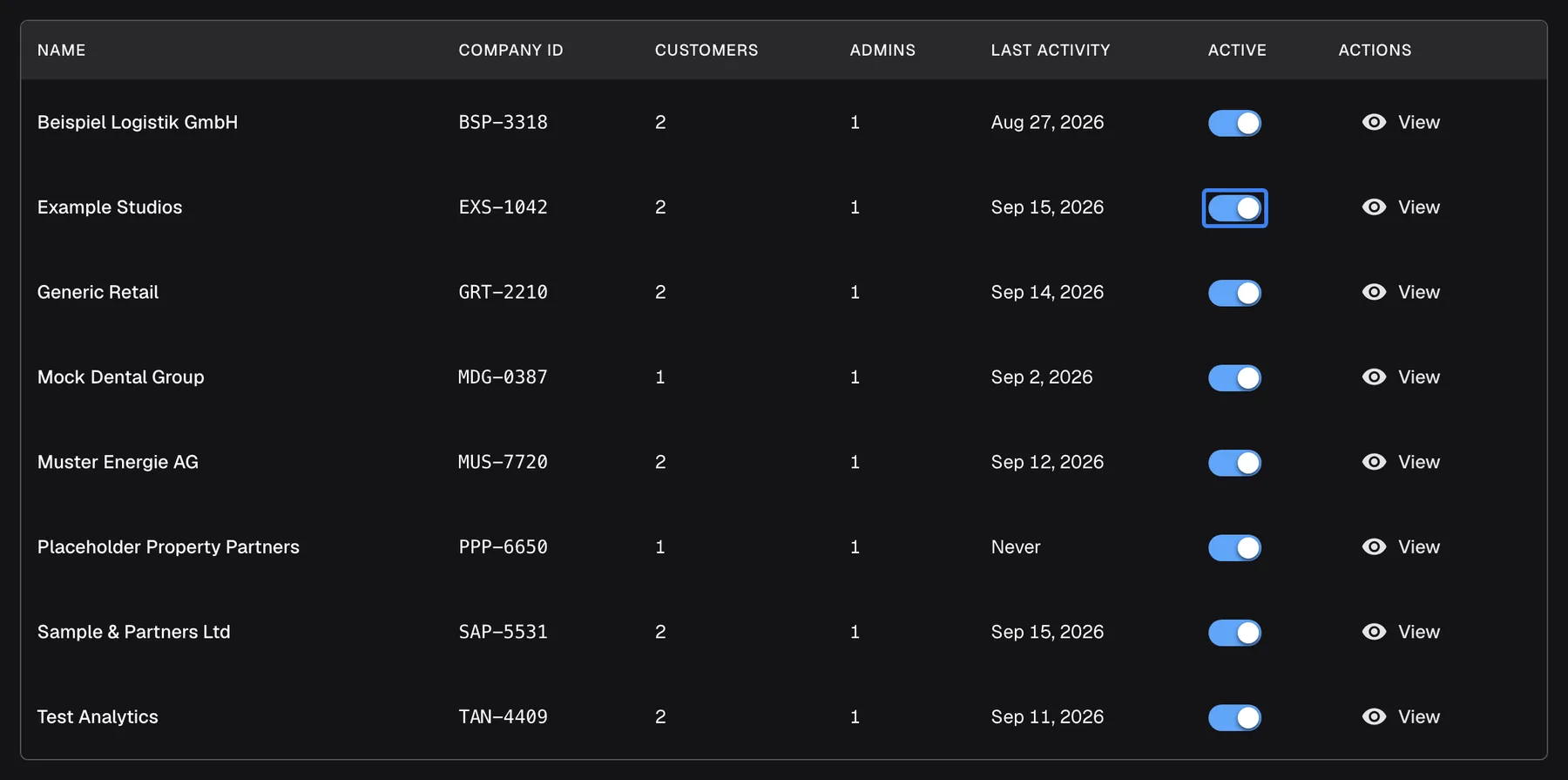
What this screenshot shows
- Screen
- Companies (/admin/customer-companies)
- Highlighted
- switch “Active”, table-row, on. deactivates the company immediately (no confirmation)
- Also visible
- Row Example Studios: EXS-1042, 2 customers, 1 admin, last activity Sep 15, 2026; All 8 companies active
- Purpose
- activate or deactivate a company from the list
Turn off the Active switch in a row to deactivate that company. The change happens at once, with no confirmation, and the toast Company deactivated. Its customers are signed out and its scheduled workflows are skipped. appears. Turn it back on to reactivate the company; the toast Company activated. appears.
What deactivating does today:
| Area | Effect |
|---|---|
| Sign-in | None of the company’s customers can sign in, renew their session or register. The widget shows them that their account is unavailable. |
| Sessions already open | They end. Every customer of the company who is signed in is signed out on their next request. |
| Scheduled workflows | They are skipped. Each run that comes due is recorded as “Cancelled” with “The customer’s company is deactivated — the run was skipped.” Nothing is paused or deleted. |
| Data | Nothing is deleted. Members, chats, documents, skills and settings are kept, and you can still edit the company. |
| The list | The row stays visible until you reload the page. After that it is hidden unless Show inactive is on. |
Reactivating the company lets its customers sign in again, and its workflows run again from their next due time. Runs skipped in the meantime are not made up. To sign out just one person, disable that member on the company’s Members tab instead.
When the list is empty
Section titled “When the list is empty”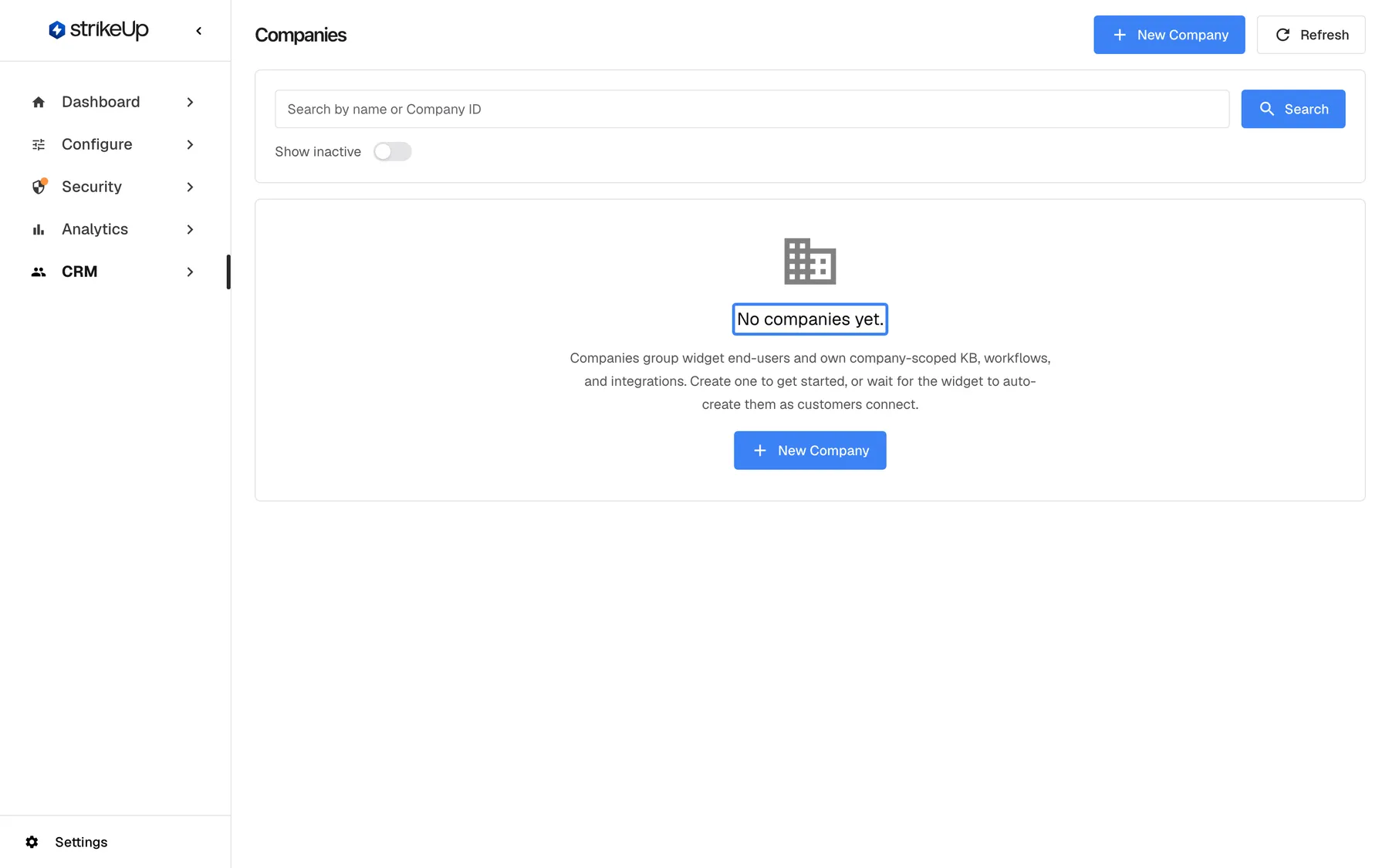
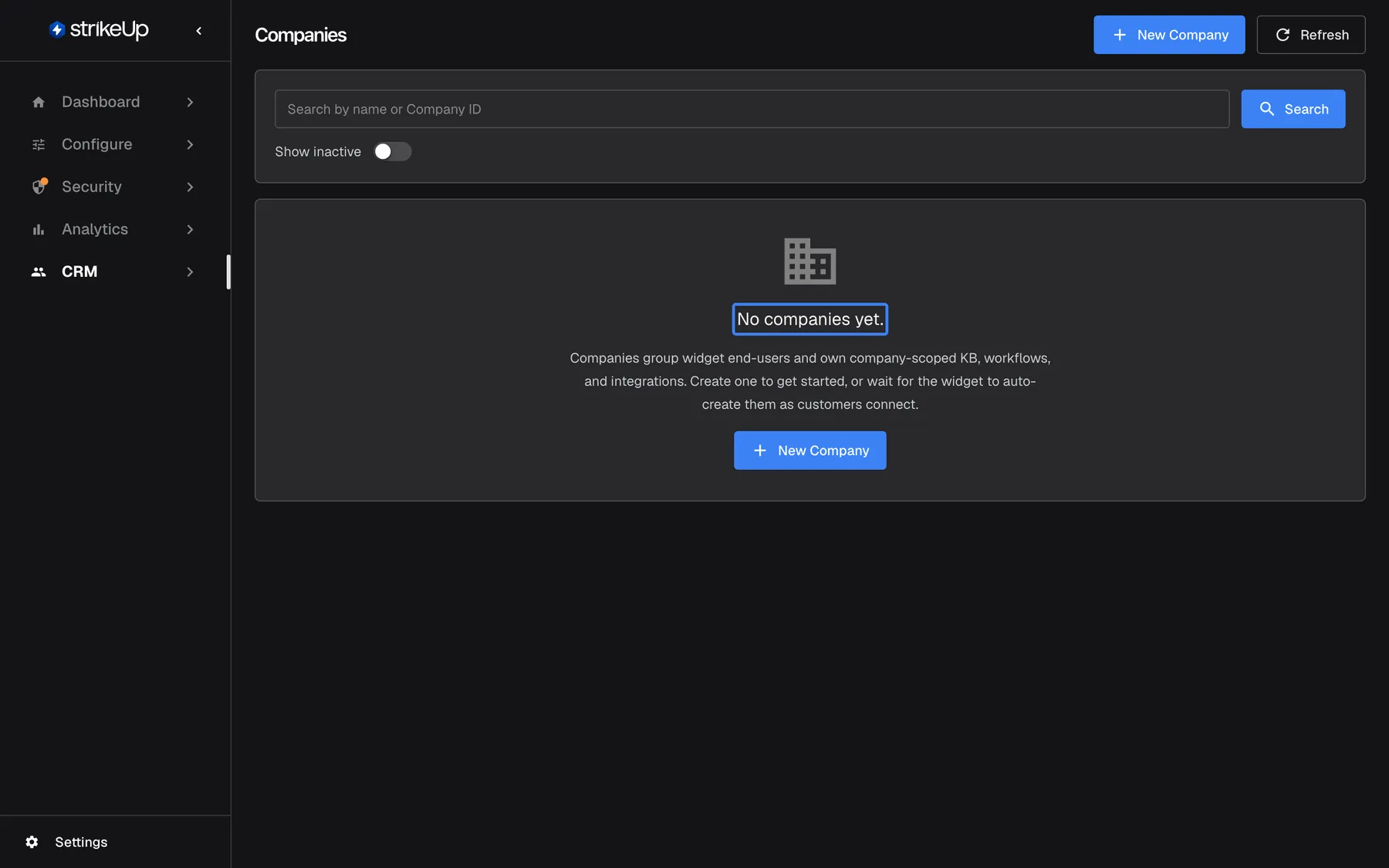
What this screenshot shows
- Screen
- Companies (/admin/customer-companies)
- Highlighted
- text “No companies yet.”, content, shown. none
- Also visible
- Empty-state message with description and create button; New Company and Refresh buttons in the header
- Purpose
- empty state of the Companies list
A workspace without customer companies shows No companies yet. with a short explanation and a button to create the first company. The list fills on its own as identified customers chat, sign in or are imported, so an empty list on a new workspace is expected.
Every control, explained
Section titled “Every control, explained”New Company
Section titled “New Company”The blue button New Company at the top right of the page, and in the empty state.
Opens the form for a new customer company. Saving it needs the Admin role.
Create the company before its people sign in or are imported, so you can set its knowledge base, skills and instruction in advance.
Refresh
Section titled “Refresh”The button Refresh beside New Company.
Reloads the list with the current search and filter. The page does not update on its own.
Counts and last activity change while you work; Refresh shows the current state.
Search
Section titled “Search”The box Search by name or Company ID in the filter card. It applies when you press Enter or select Search.
Shows companies whose name or Company ID contains the text, ignoring case. An empty box shows every company.
Your team often knows the business by its reference in your own systems; both work.
Show inactive
Section titled “Show inactive”The switch Show inactive under the search box. It reloads the list as soon as you switch it.
Off (the default): deactivated companies are hidden. On: they are listed with their switch off.
Deactivated companies are kept, not deleted. This is how you find one again to reactivate or edit it.
Clear Filters
Section titled “Clear Filters”Beside the filters, shown only while a search or Show inactive is set.
Empties the search box and turns Show inactive off.
One click back to the full list of active companies.
Columns
Section titled “Columns”| Column | What it shows | Why |
|---|---|---|
| Name | The company’s name | Recognise the business |
| Company ID | Your own reference, matched against the userCompanyId your product passes | Check that widget users land in the right company |
| Customers | Number of customers, disabled ones included | See the size of the account |
| Admins | Number of customers with the Admin role, disabled ones included | Spot companies where too many people can manage the set-up |
| Last activity | Date of the latest chat by any of its customers | Find accounts that went quiet |
| Active | The active switch | Block or allow sign-in for the whole company |
| Actions | View | Open the company page |
Active switch
Section titled “Active switch”In the Active column of each row. It saves the moment you switch it.
Off deactivates the company: its customers are signed out on their next request and can no longer sign in, and its scheduled workflows are skipped. On reactivates it. There is no confirmation on this list; the same switch on the company’s Overview tab asks first. Needs the Admin role.
When a business customer leaves or stops paying, one switch signs all its people out and stops its scheduled workflows, while keeping everything in case they return.
Paging
Section titled “Paging”Under the table: the count “Showing 1–8 of 8”, Previous, the page number and Next.
Shows 20 companies per page, in name order. The search and filter apply across all pages.
A workspace with many business customers can have hundreds of companies.
Who sees what
Section titled “Who sees what”| Part of the screen | Who can use it |
|---|---|
| The list, search, filters and View | Every signed-in user of your workspace |
| New Company (saving the form) and the Active switch | Users with the Admin role. For anyone else the change fails with Request failed and “This action requires the Admin role.” |
What you need to know
Section titled “What you need to know”| Topic | Fact |
|---|---|
| Sorting and paging | By name, A to Z, 20 per page. |
| Unique names | Two companies cannot share a name; upper and lower case and extra spaces are ignored. Two companies can share a Company ID. |
| Counts | Customers and Admins include disabled customers. |
| Latest activity | The latest chat of any customer in the company; customer portal use is not counted. |
| No delete | Companies cannot be deleted. Deactivate them instead. |
| Deactivation | Immediate: customers are signed out on their next request, and scheduled workflows are skipped until you reactivate the company. |
| Dates | Shown in the English format “Sep 15, 2026” in every language. |
Frequently asked questions
Section titled “Frequently asked questions”The list
Section titled “The list”Where did these companies come from?
Section titled “Where did these companies come from?”Most customer companies are created automatically. When your product passes a userCompanyId or userCompanyName to the widget, StrikeUp files the customer under the matching company on CRMCompanies and creates the company if none matches. CSV imports create the companies named in the file, and you can create companies yourself with New Company.
Why does a company have a long random name?
Section titled “Why does a company have a long random name?”A customer who signs in without belonging to any company gets a placeholder company of their own, named with a long random identifier. Open it from CRMCompanies, give it a real name on its Overview tab and select Save.
A company has disappeared from the list. What happened?
Section titled “A company has disappeared from the list. What happened?”It was most likely deactivated, and deactivated companies are hidden by default. Turn on Show inactive above the table on CRMCompanies to list it again, then switch it back on if it should be active.
What does the Admins column count?
Section titled “What does the Admins column count?”Admins counts the company’s customers with the Admin role, including admins whose access is disabled. Admins can manage the company’s set-up in the customer portal, so a high number means many people can change its knowledge base, skills and members.
Why does a company show Never under Last activity although it has customers?
Section titled “Why does a company show Never under Last activity although it has customers?”Last activity is the date of the latest chat by any of the company’s customers. Customers who were imported or created but never chatted, or who only used the customer portal, leave it at Never.
Managing companies
Section titled “Managing companies”Can I delete a customer company?
Section titled “Can I delete a customer company?”No. StrikeUp has no way to delete a customer company. Turn off its Active switch on CRMCompanies instead; the company and all its data are kept and can be reactivated at any time.
What happens when I deactivate a company?
Section titled “What happens when I deactivate a company?”None of its customers can sign in, renew a session or register from then on, and anyone who is signed in is signed out on their next request. Its scheduled workflows are skipped and recorded as “Cancelled” until you reactivate the company. All data is kept.
Does deactivating a company sign its customers out straight away?
Section titled “Does deactivating a company sign its customers out straight away?”Yes, on their next request. Every customer of the company who is signed in is signed out the next time their widget or customer portal contacts StrikeUp, and cannot sign in again. To sign out just one person, open the company’s Members tab and select Disable in their row.
Can two companies have the same name or Company ID?
Section titled “Can two companies have the same name or Company ID?”Two companies cannot share a name: StrikeUp ignores upper and lower case and extra spaces when it compares names, and refuses the duplicate. Two companies can share a Company ID, but then the widget files new customers under only one of them, so keep each reference unique.
Can I merge two companies?
Section titled “Can I merge two companies?”There is no merge. To move customers from one company to another, import a CSV file on CRMCustomers › Import from CSV with their Customer IDs and the target company’s name in the CustomerCompanyName column, then deactivate the company you no longer need.
Who can create or deactivate companies?
Section titled “Who can create or deactivate companies?”Every signed-in user of your workspace can see CRMCompanies, but only users with the Admin role can create a company or use the Active switch. For anyone else the change fails with Request failed and “This action requires the Admin role.”
Troubleshooting
Section titled “Troubleshooting”| Symptom | What to check |
|---|---|
| A company you know exists is not listed | Turn on Show inactive; it may be deactivated. Then check the spelling in the search box, or search by its Company ID. |
| Switching a company on or off shows Request failed | If the message says “This action requires the Admin role.”, ask a user with the Admin role. Otherwise reload the page and try again. |
| Customers of a deactivated company still look signed in | They are signed out on their next request, for example when they send a message. Check that the company’s Active switch is off. |
| A company’s workflow runs show “Cancelled” with “The customer’s company is deactivated — the run was skipped.” | The company is deactivated. Reactivate it to let the workflows run again. |
| The list shows Failed to load companies. | Reload the page. If it persists, check your connection and sign in again. |
| Many companies have long random names | They are placeholder companies for customers who signed in without a company. Pass userCompanyId from your product, or import customers with a company, and rename or deactivate the placeholders. |