

AI models, spend and budgets
Every answer your assistant gives is made of calls to AI models, and the model behind each call decides most of what it costs. StrikeUp lets you choose those models, see what they cost, and set limits on spend, across three screens: AI Gateway decides which model and which provider account answer, Budgets & limits sets ceilings that alert or stop work, and AI Spend shows the estimated result. This guide explains how the three fit together.
What it does
Section titled “What it does”A support assistant that runs every message through the most capable model gives good answers and an unpredictable bill. One that runs everything through the cheapest model is predictable and often wrong. Most conversations need both: a quick model for greetings, titles and safety checks, and a strong one for the few questions that need careful reasoning.
StrikeUp splits your assistant into stages and lets you decide which model each stage uses, then prices every call as it happens from a published price list, in US dollars. From there:
- You choose models by level, or pin single stages to an exact model. Setting it up in 6 steps.
- You can bring your own provider account and key. Connectors.
- You can let StrikeUp judge each question and answer easy ones more cheaply. Judging each question.
- You see the estimated cost by model, stage, widget, customer and run. Where cost is shown.
- Budgets warn you when spend passes a level, and can stop new work when it reaches the amount. Budgets.
Every call is recorded with the model that answered, the setting that chose it, its tokens and its estimated cost, so any figure on AI Spend can be traced back to the calls behind it in AI actions.
Before you start
Section titled “Before you start”| Requirement | Details |
|---|---|
| Feature | Choosing models and connecting keys needs the AI Gateway feature, which StrikeUp switches on per workspace. Without it, AI Gateway is not in the menu and your agents use StrikeUp’s default models. |
| Budgets and spend | ConfigureBudgets & limits and DashboardAI Spend are available to every workspace, with or without the AI Gateway feature. |
| Role | The Admin role to change models, connectors and budgets. Every other signed-in user can view them; their changes fail with “This action requires the Admin role.” |
| Agents | At least one widget with agents switched on, so there are stages to configure. |
| Cost figures | Estimates in US dollars from a price list StrikeUp maintains. |
Understanding how a call is priced
Section titled “Understanding how a call is priced”Each call to a model reports how many tokens went in and came out. StrikeUp multiplies them by the price listed for that model on that date.
| Part of the price | Charged per | Example use |
|---|---|---|
| Input | Million tokens | The conversation, instructions, skills and knowledge sent to the model |
| Cached input | Million tokens | Input the provider has already seen and charges less for |
| Output | Million tokens | The answer the model writes |
| Reasoning | Million tokens | The thinking some models do before answering |
- Prices are dated. A price change applies to calls from its start date. Calls already recorded keep the cost they were given.
- A price can be specific to a connection. When an account, such as an aggregator, has its own price for a model, that price is used.
- Costs are stored with 8 decimal places, so a fraction of a cent is never rounded away.
- A call without a price counts as nothing. That happens when no price is listed for the model on that date, or the provider reported no token usage. Such calls still count as calls and tokens. AI Spend says how many there are.
How StrikeUp decides which model answers
Section titled “How StrikeUp decides which model answers”For each stage, StrikeUp takes the first usable setting in this order:
| Order | Setting | Where it is set |
|---|---|---|
| 1 | A pin: this stage always uses this model | Advanced Mode |
| 2 | The agent’s own model setting | The agent’s settings |
| 3 | The model for the stage’s level | Standard Mode |
| 4 | StrikeUp’s default for the stage | — |
A setting that cannot be used, such as a withdrawn model or a switched-off connector, is skipped. The Current setup tab shows the result for every stage.
What does not get counted as your agents’ spend
Section titled “What does not get counted as your agents’ spend”- The stages StrikeUp runs on its own models: planning, safety checks, chat titles, conversation summaries, writing skills with AI, toolkit generation and similar services. These stages run on StrikeUp's own models. They are not charged to you and cannot be changed.
- Sample data that StrikeUp adds to a workspace for demonstrations.
- A connector test, which goes straight to the provider and is not recorded.
- Calls without a price, which count as nothing.
Setting it up in 6 steps
Section titled “Setting it up in 6 steps”-
Connect your own provider account (optional). Open ConfigureAI Gateway, select Add connector, enter the provider, the request format and your key, and select Save. Then select Test on the new row. Skip this to use StrikeUp’s default models.
-
Choose a model per level. On Standard Mode, under Model for each level, choose a small model for Basic, a capable one for Medium and your strongest for Difficult. Move only the stages that need it to Difficult, and select Save.
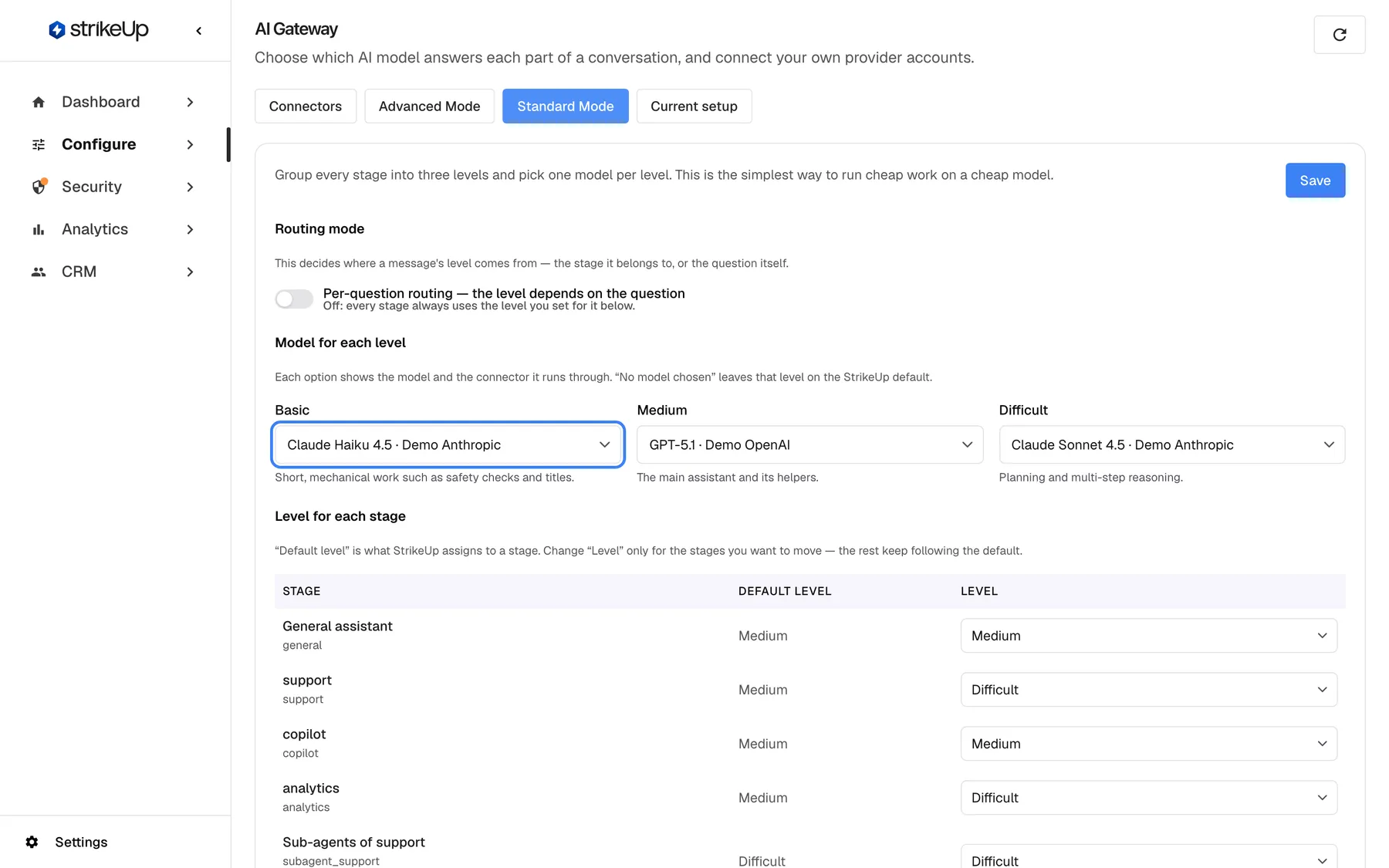
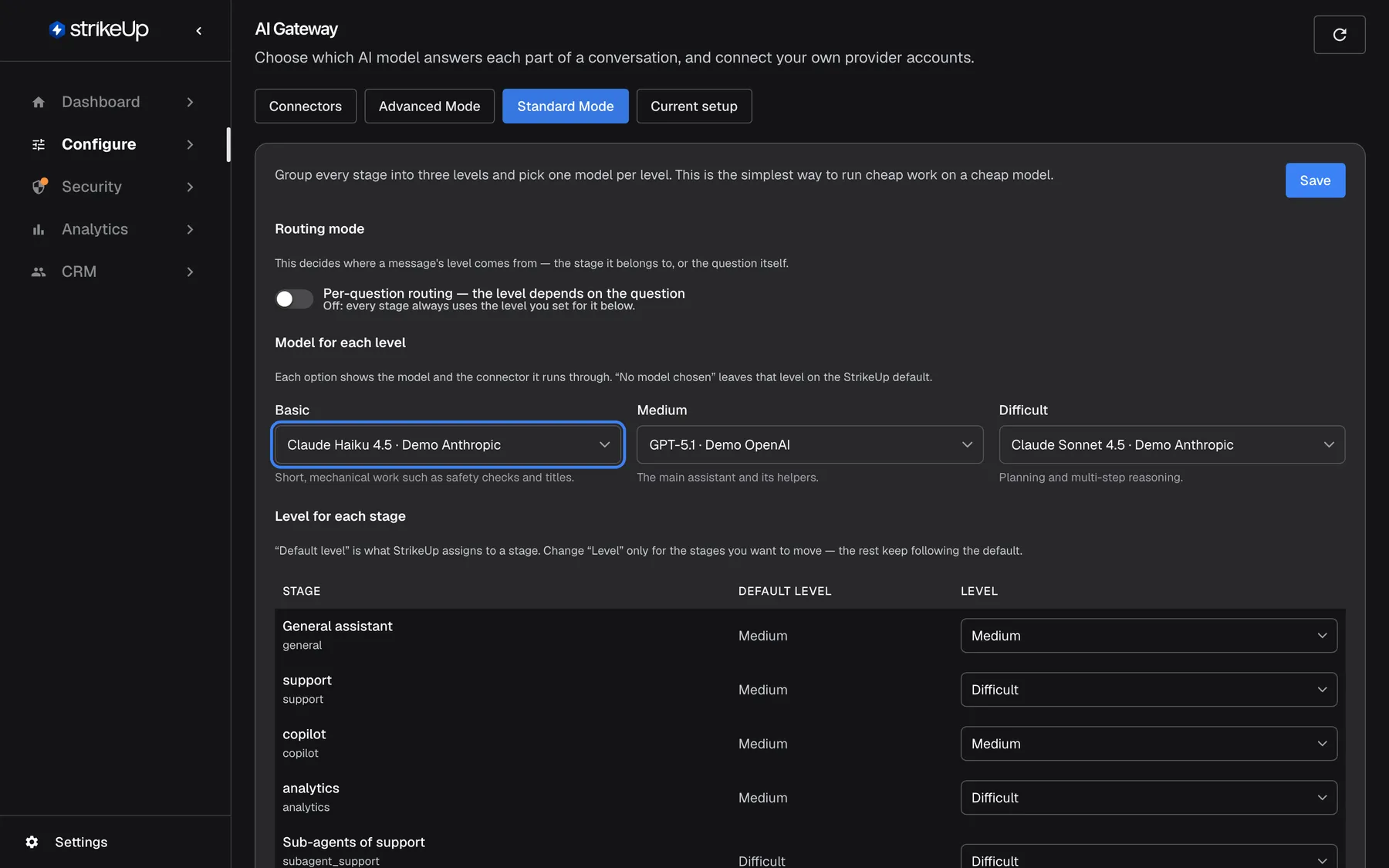
A cheap Basic model and only the demanding stages on Difficult is the easiest way to lower spend. What this screenshot shows
- Screen
- Standard Mode (/admin/configure/ai-gateway)
- Highlighted
- combobox “Basic”, models-section, Claude Haiku 4.5 · Demo Anthropic. chooses the Basic model
- Also visible
- Medium GPT-5.1, Difficult Claude Sonnet 4.5
- Purpose
- cost-aware model choice
-
Pin single stages (optional). On Advanced Mode, choose a model in a stage’s drop-down. It saves at once and overrides the level.
-
Check the result. On Current setup, read each stage’s model and Decided by.
-
Add a budget. Open ConfigureBudgets & limits, select Add budget, enter an amount per month and keep the alert levels 50, 80 and 100. Leave Enforce as a hard limit off for now and select Save.
-
Watch the spend. Open DashboardAI Spend and read the cost by model and by stage over the next days.
Every setting, explained
Section titled “Every setting, explained”Each setting below says where to find it, what it does to cost, and why you would use it. The pages for each screen cover every field in detail.
Connectors, whose account answers
Section titled “Connectors, whose account answers”ConfigureAI Gateway › Connectors. Saved with the connector dialog.
A connector is one provider account with its own key, stored encrypted. Without one, your agents use StrikeUp’s default models through the connector marked Managed by StrikeUp. Calls through any connector are priced from the same list and shown on AI Spend and in budgets alike. The provider bills the account that the connector’s key belongs to.
Use your own account when you have negotiated terms with a provider, need a model StrikeUp does not provide by default, or want the calls on your own provider invoice.
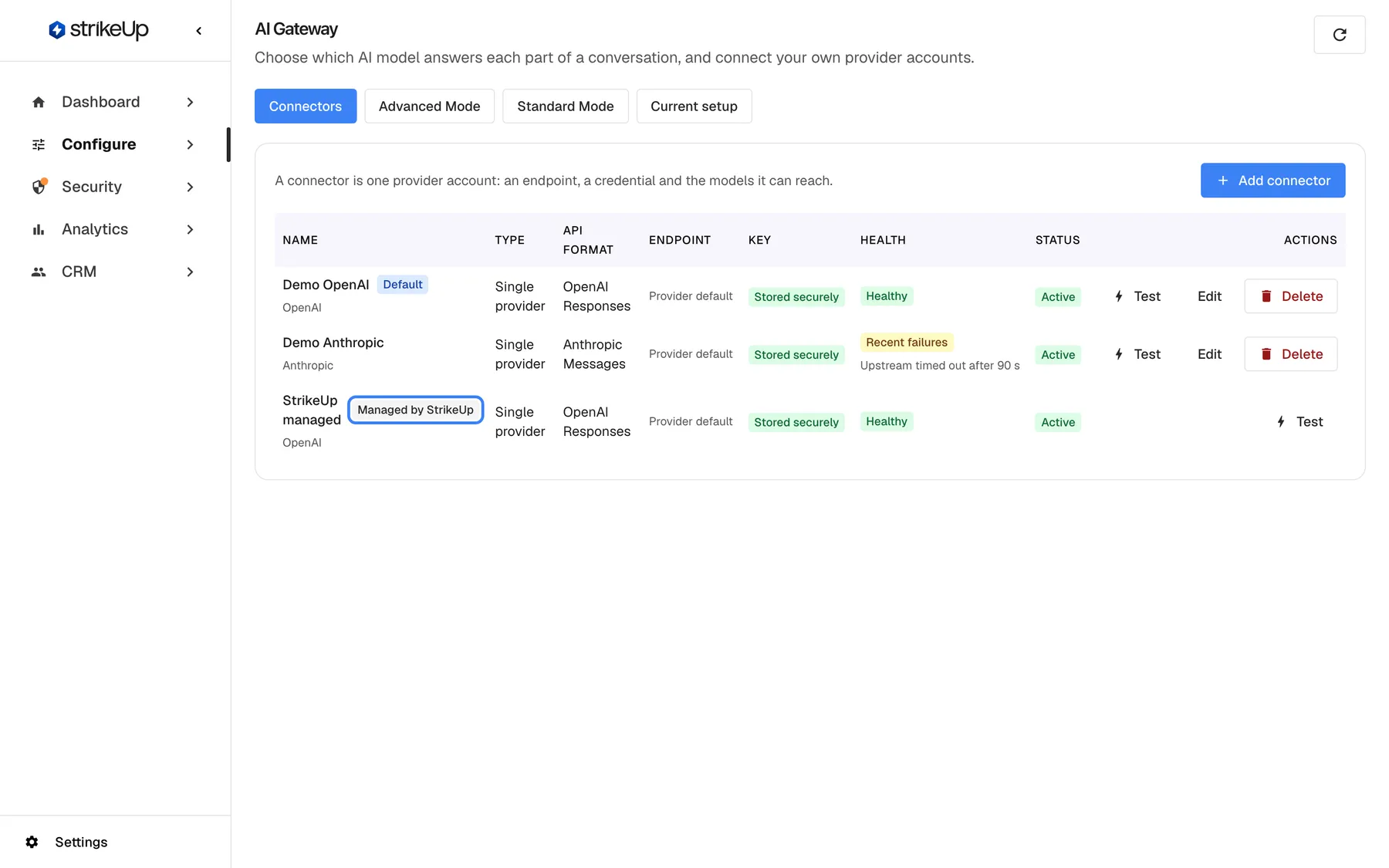
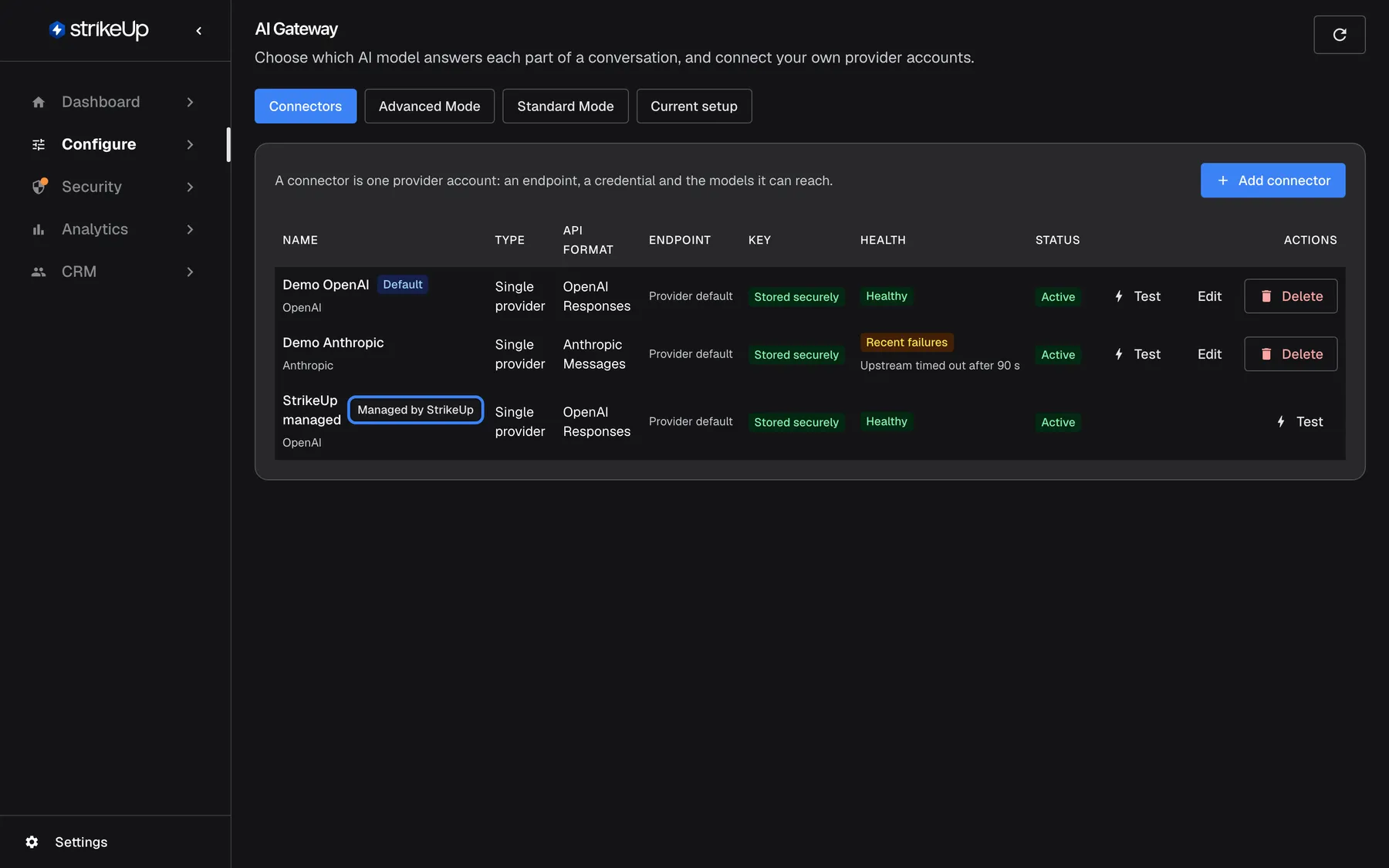
What this screenshot shows
- Screen
- Connectors (/admin/configure/ai-gateway)
- Highlighted
- “”, connectors-table, shown on StrikeUp managed. none
- Also visible
- Demo OpenAI (Default), Demo Anthropic, StrikeUp managed
- Purpose
- who pays for model calls
Model for each level, the main lever
Section titled “Model for each level, the main lever”Standard Mode › Model for each level and Level for each stage. Applies after Save.
One model per level, and a level per stage. By default all of your agents’ stages are on Medium, and sub-agents follow their parent. No model chosen leaves a level on StrikeUp’s default.
Three choices cover every stage. Moving one stage to Difficult raises the cost of that stage and of its sub-agents only.
Judging each question, cheaper answers for easy questions
Section titled “Judging each question, cheaper answers for easy questions”Standard Mode › Routing mode, the switch Per-question routing — the level depends on the question. Off by default. Applies after Save.
Each visitor message is judged first. A question judged easy is answered at a lower level than its stage; a question can never move a stage up, unless Raise the level for difficult questions is on. Short acknowledgements such as thanks or ok skip the judge. Every message that is not a short acknowledgement is sent to the judging model first. That model is small and cheap, but it is still billed and it adds a moment of delay.
Pays off when many questions to a strong stage are simple. The judge’s calls are shown under the stage difficulty_classifier, so you can weigh them against the savings.
Stage pins, one exact model
Section titled “Stage pins, one exact model”Advanced Mode, the Model drop-down of a stage. Saves the moment you choose.
The stage uses that model whatever its level, and per-question routing does not move it. The backup models, set by StrikeUp, take over when the model is unavailable.
For the one stage where quality matters more than price, or where you must use a specific model.
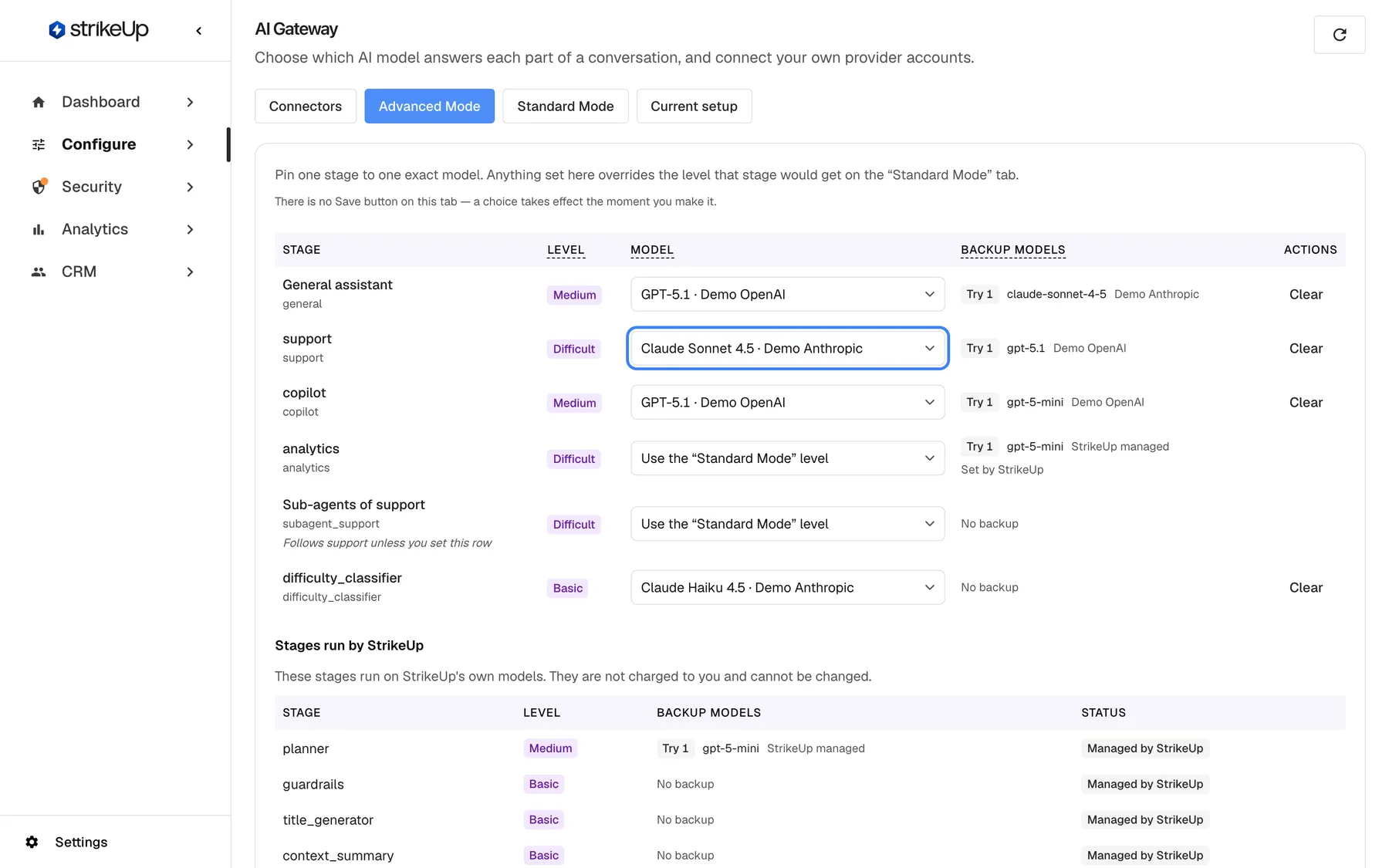
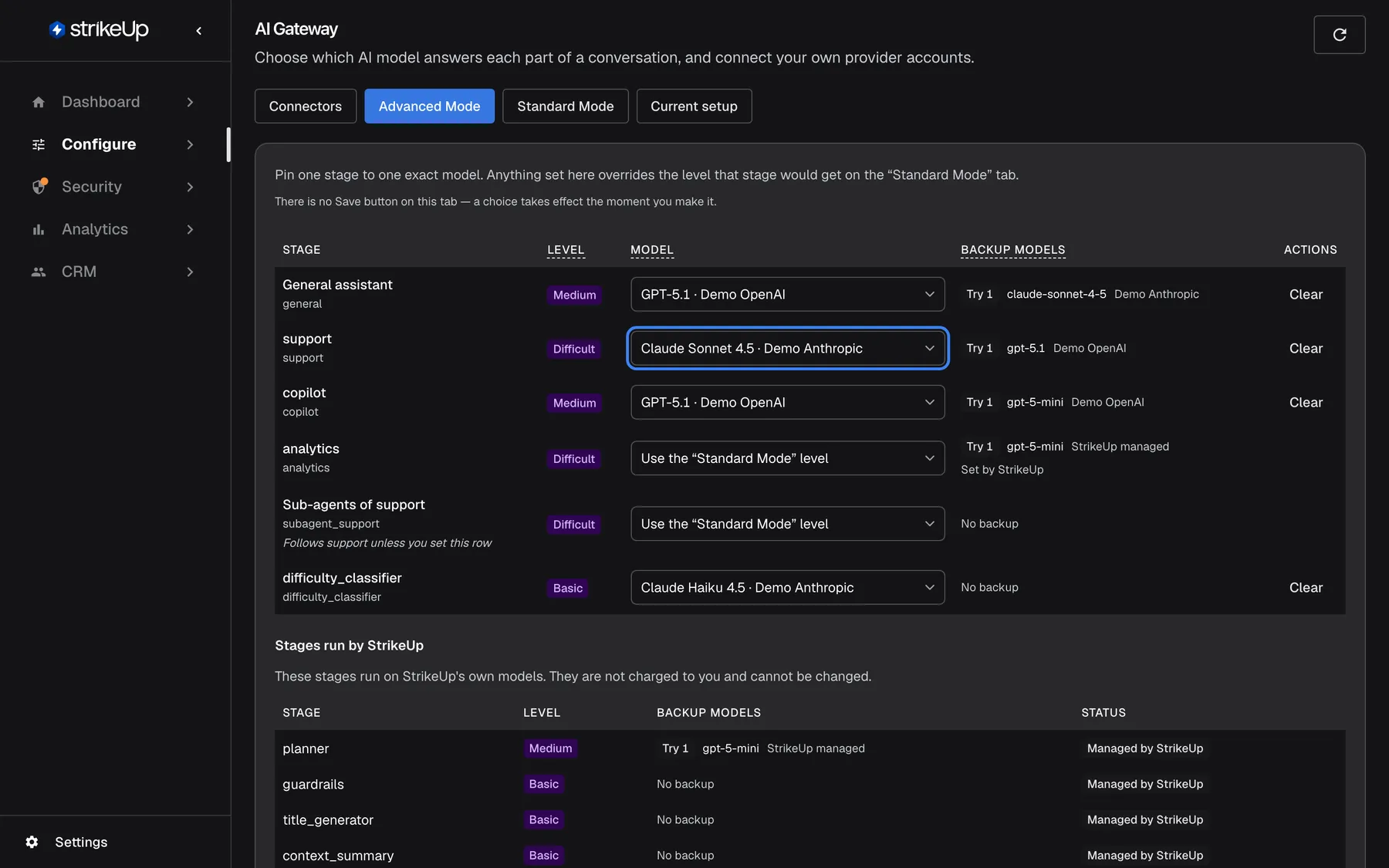
What this screenshot shows
- Screen
- Advanced Mode (/admin/configure/ai-gateway)
- Highlighted
- combobox “”, stage-table-model-column, Claude Sonnet 4.5 · Demo Anthropic. pins the stage
- Also visible
- Stages run by StrikeUp section
- Purpose
- overriding the level for one stage
Budget amount and alert levels
Section titled “Budget amount and alert levels”ConfigureBudgets & limits › Add budget or Edit.
An amount in US dollars per month, week or day (UTC calendar), for all usage, one widget or one customer company. Each alert level, 50, 80 and 100 by default, raises one alert per period, listed on the page and emailed.
Know about unusual spend while there is still time to act, without stopping anything.
Enforce as a hard limit
Section titled “Enforce as a hard limit”The switch Enforce as a hard limit in the budget dialog. Off by default.
When the amount is used up, new conversations in this scope are refused and running agent jobs pause until the period resets or the amount is raised. Off, the budget only alerts. The visitor whose message is refused sees the budget’s name and the reset date. When several enforced budgets apply, the one with the least left decides.
A firm ceiling for a trial, a pilot customer or a widget you cannot watch every day.
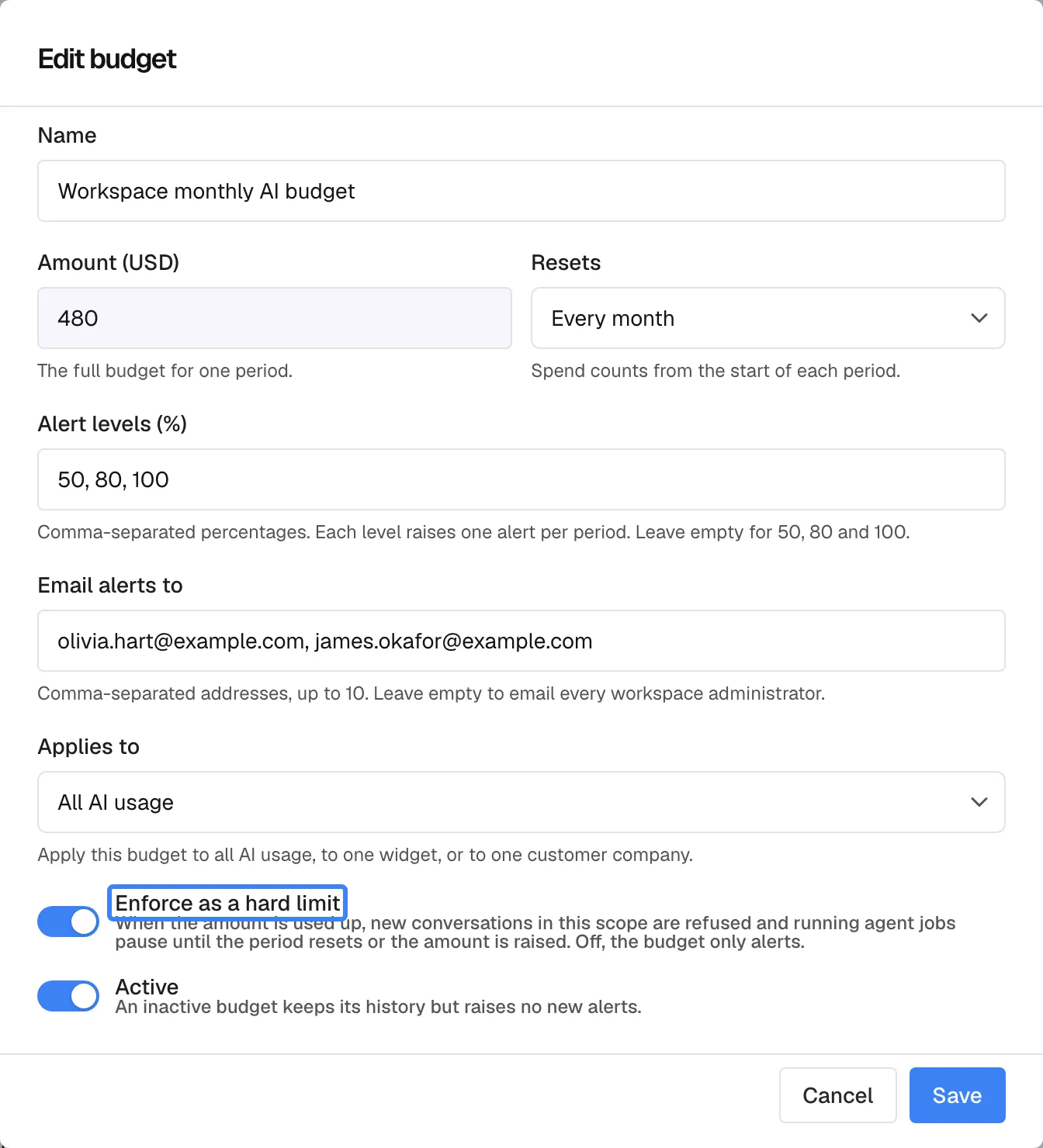
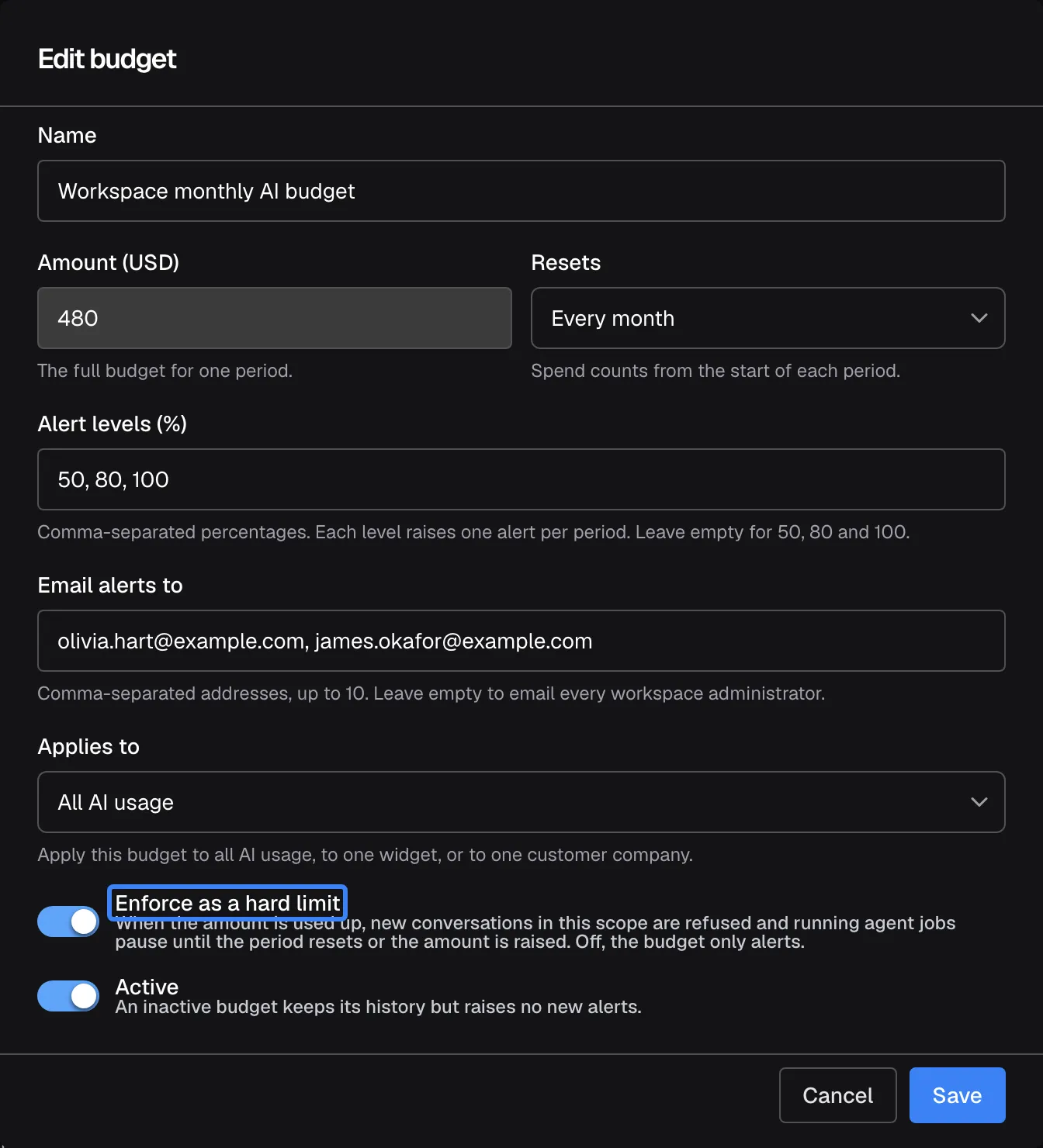
What this screenshot shows
- Screen
- Edit budget (/admin/configure/budgets)
- Highlighted
- “”, dialog-switches, on. makes the budget block usage when used up
- Also visible
- Amount 490, monthly, All AI usage
- Purpose
- turning spend into a limit
How the settings combine
Section titled “How the settings combine”| You set | Effect on which model answers | Effect on cost | Effect on visitors |
|---|---|---|---|
| A cheaper model on Medium | Every agent stage without a pin or own model uses it | Lower for most conversations | Answers may be less careful |
| One stage on Difficult | That stage and its sub-agents use the strong model | Higher for that stage only | Better answers there |
| Routing per question on | Easy questions drop to a lower level | Lower answers, plus one small judging call per message | Little difference on easy questions |
| Raising for difficult questions on | Difficult questions to the main stage move up | Higher per difficult question | Better answers to hard questions |
| A pin | That stage always uses that model | As that model costs | — |
| An alert-only budget | None | None | None |
| A hard limit, used up | None | Stops growing in that scope | New messages refused until the reset |
Where cost is shown
Section titled “Where cost is shown”| Where | What it shows | Which record |
|---|---|---|
| Current setup | The model each stage would use now | The current settings |
| AI Spend | The estimated cost, calls and tokens | Every call in the chosen period |
| Budgets & limits | Spend so far against each budget | The current period |
| Budget emails | A level was reached | One per level per period |
| The visitor’s chat | A refusal when a hard limit is used up | The current period |
Current setup, the model each stage uses
Section titled “Current setup, the model each stage uses”The Current setup tab lists each stage with its owner, model, connector and the setting that decided. It is what the next call would use, and so what its cost will be based on.
Why: a cheaper level you set has no effect on a stage that is pinned. This table shows it at a glance.
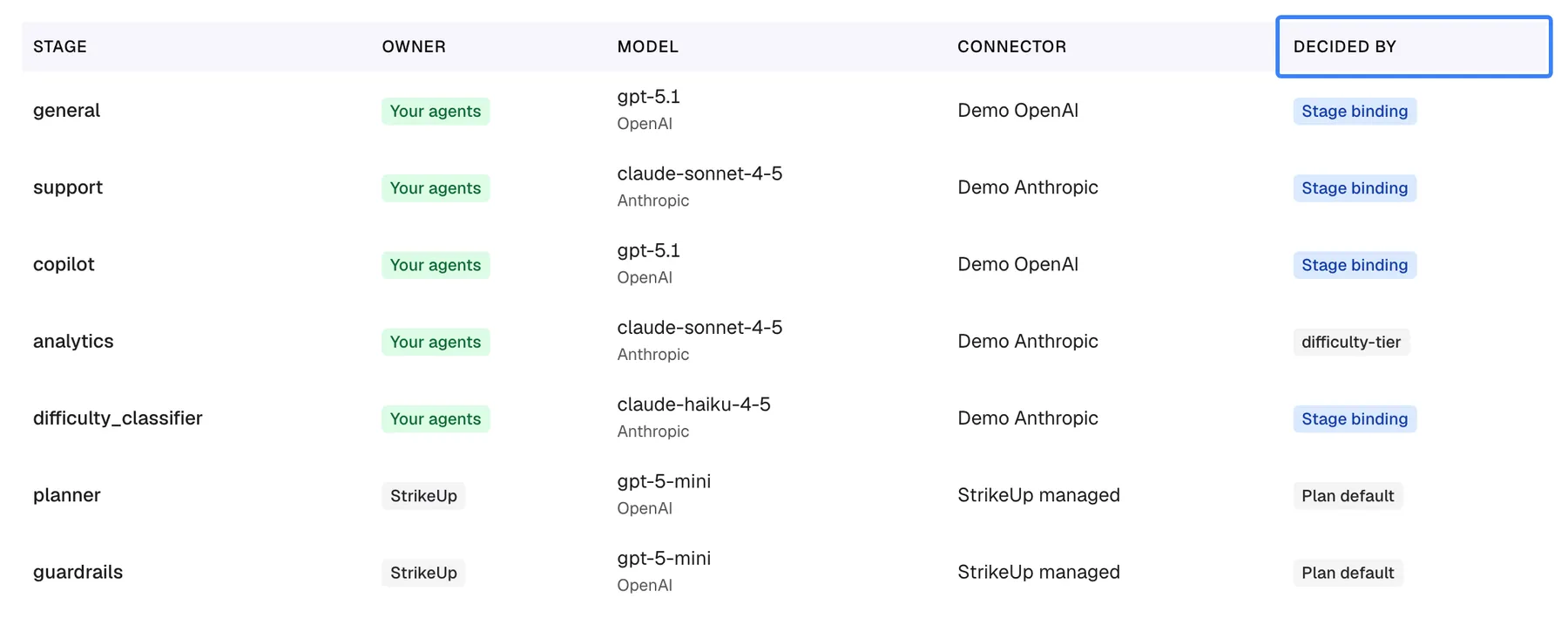
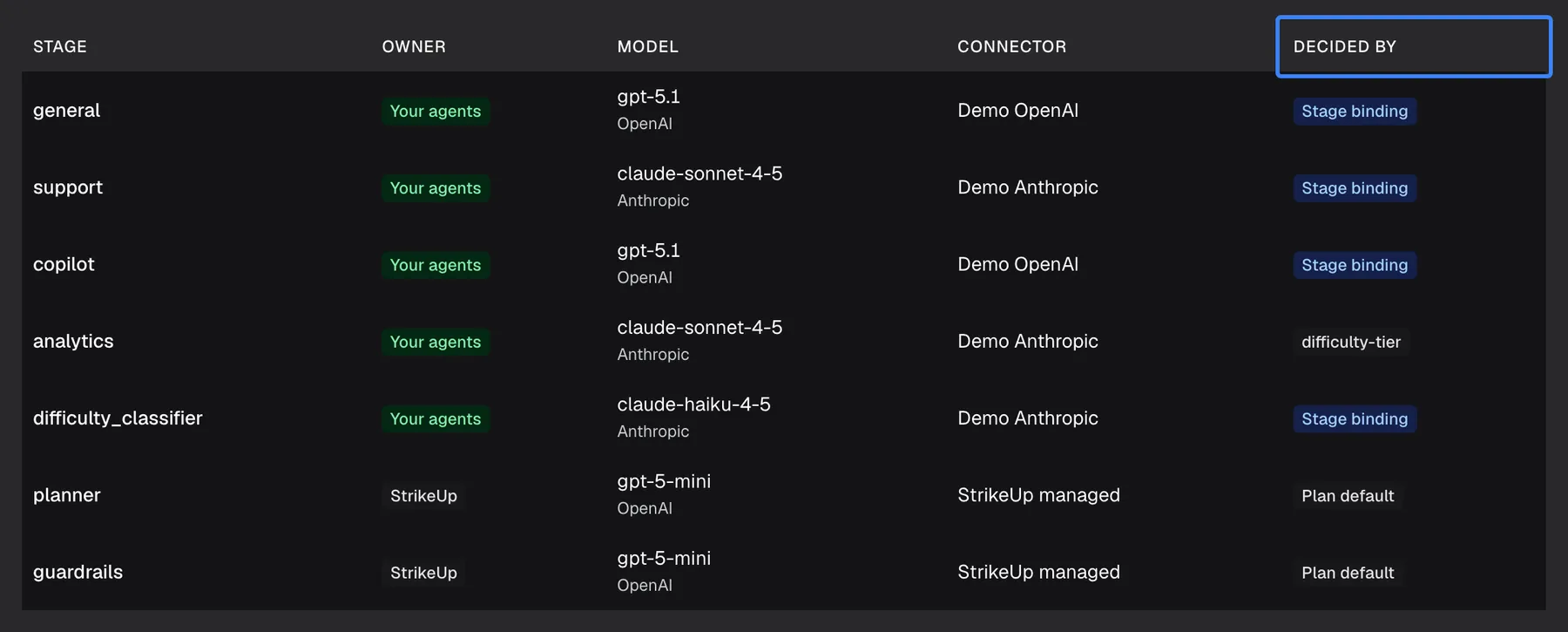
What this screenshot shows
- Screen
- Current setup (/admin/configure/ai-gateway)
- Highlighted
- “”, table-header, read-only. none
- Also visible
- Stage binding vs Plan default per stage
- Purpose
- verifying the effective models
AI Spend totals
Section titled “AI Spend totals”DashboardAI Spend opens on your agents’ calls for the last 7 days: Estimated cost, AI calls, Input tokens and Output tokens, then a chart of cost per UTC day. The range can be 7, 14 or 30 days or custom; at most 90 days are counted.
Why: the headline cost and its trend, for the same calls your budgets count.
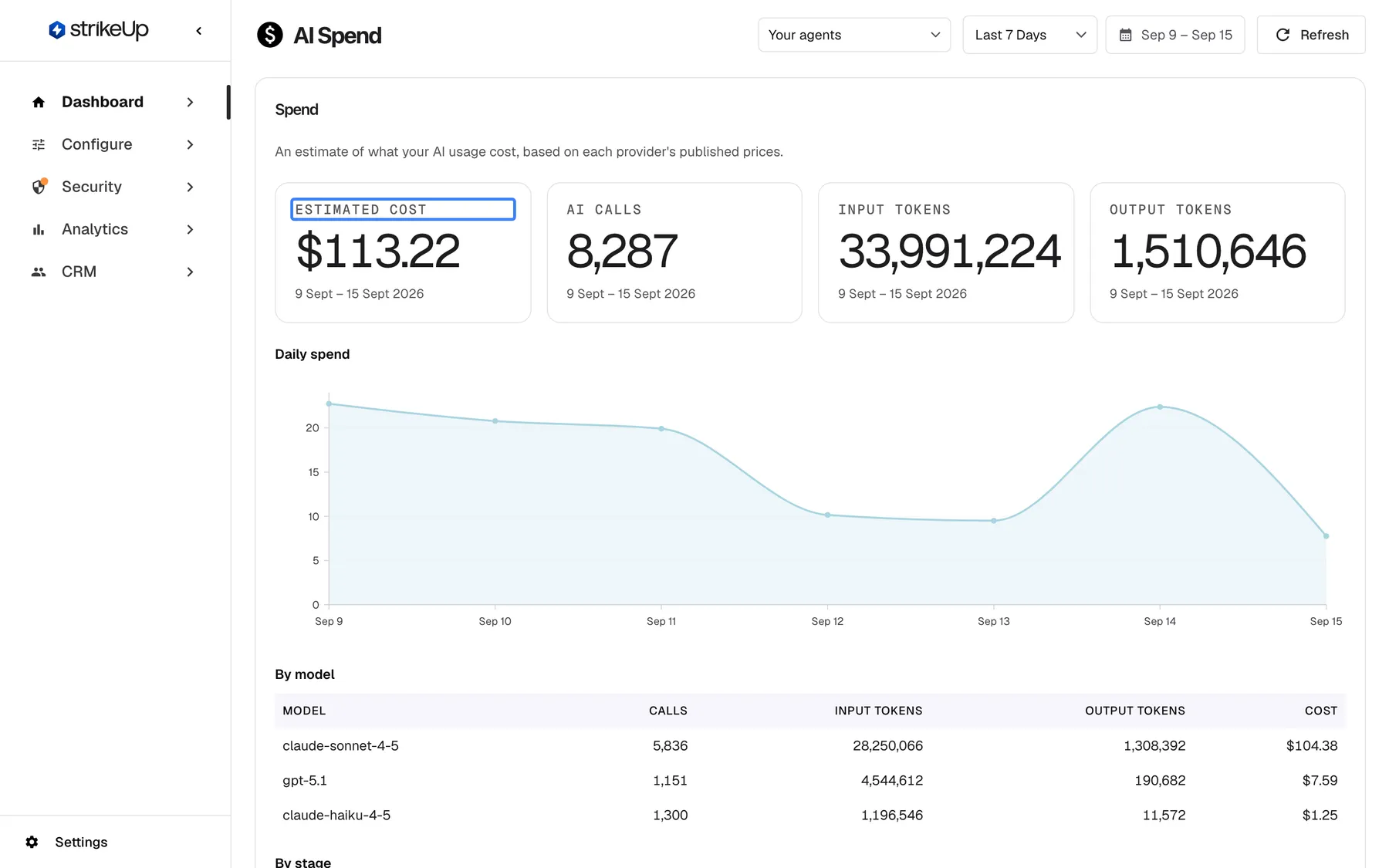
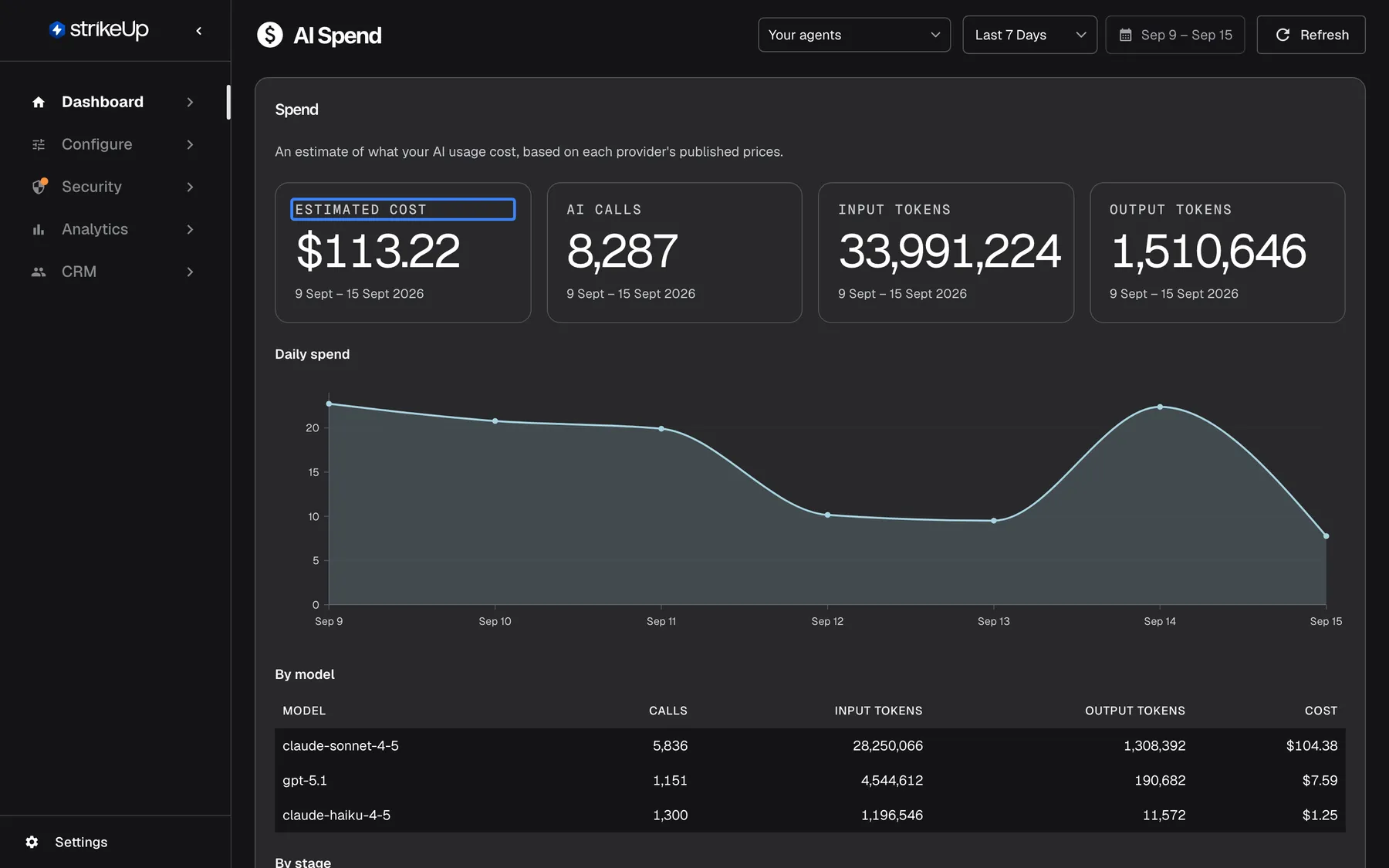
What this screenshot shows
- Screen
- AI Spend (/admin/dashboard/ai-spend)
- Highlighted
- “”, kpi-tiles, $115.29. none
- Also visible
- AI calls 8,287; input 33,991,224; output 1,510,646; Daily spend chart
- Purpose
- reading total AI spend
Spend by model, stage and widget
Section titled “Spend by model, stage and widget”By model, By stage and By widget split the total, highest cost first. Stages show their internal names, such as support or difficulty_classifier.
Why: the stage table tells you which stage to move to a cheaper level; the model table tells you whether the change worked.
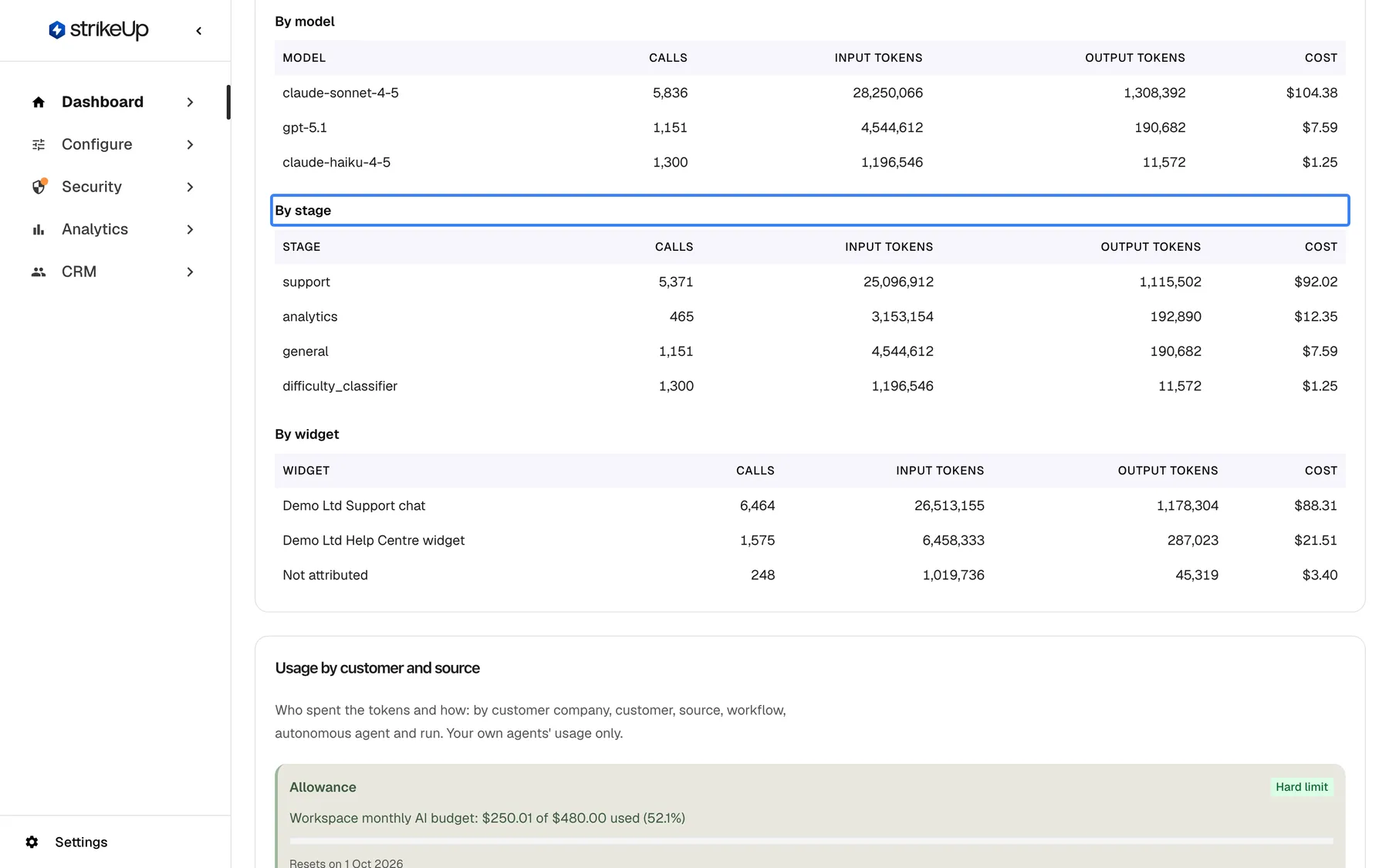
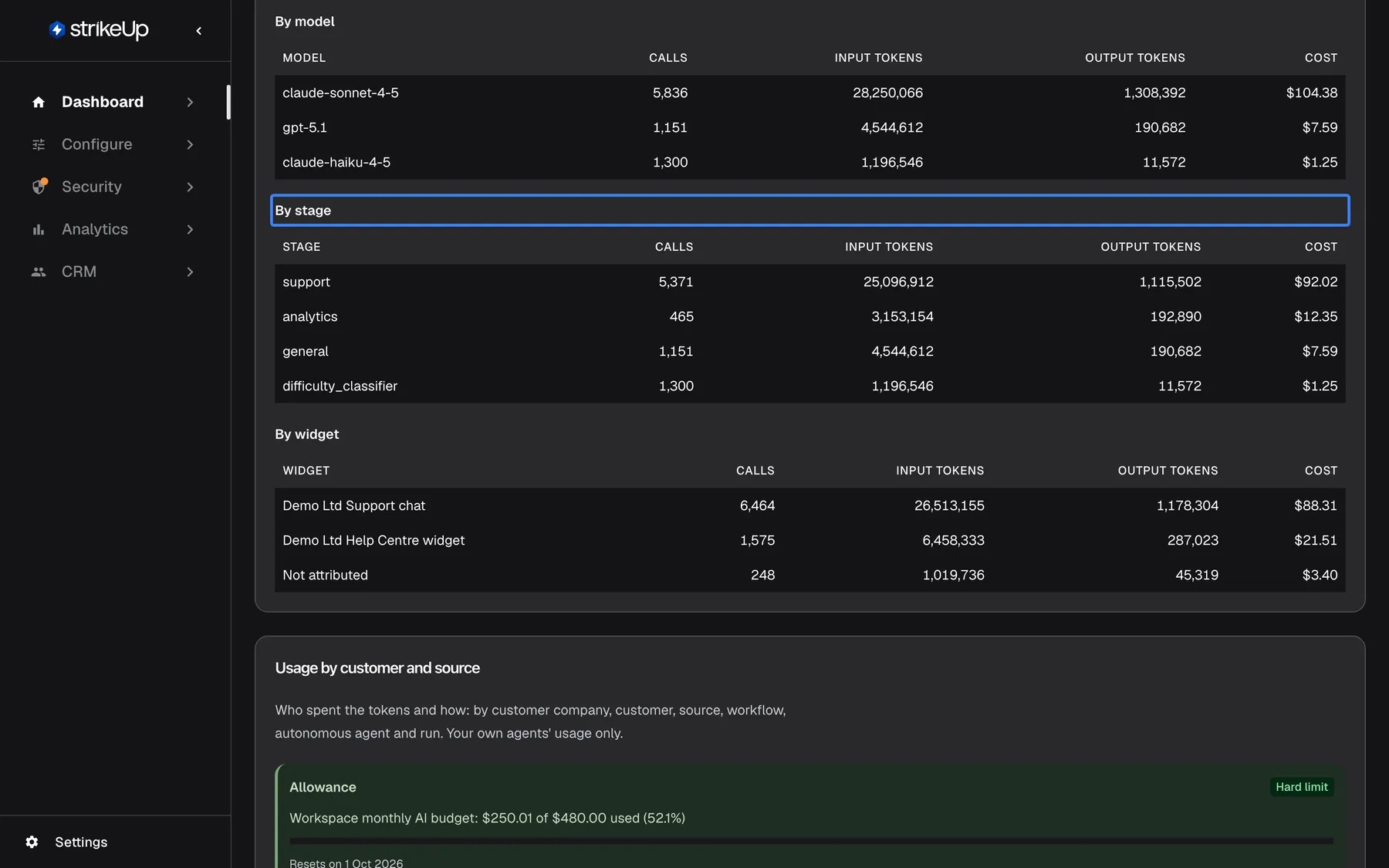
What this screenshot shows
- Screen
- AI Spend (/admin/dashboard/ai-spend)
- Highlighted
- “”, by-stage-table, read-only. none
- Also visible
- By model, By stage, By widget tables
- Purpose
- finding the expensive stage
StrikeUp’s own services
Section titled “StrikeUp’s own services”The drop-down at the top of AI Spend switches from Your agents to StrikeUp services or Everything. StrikeUp services shows the stages StrikeUp runs on its own models, for transparency. They never count towards your budgets.
Why: shows the whole AI effort behind your assistant, including what you do not configure.
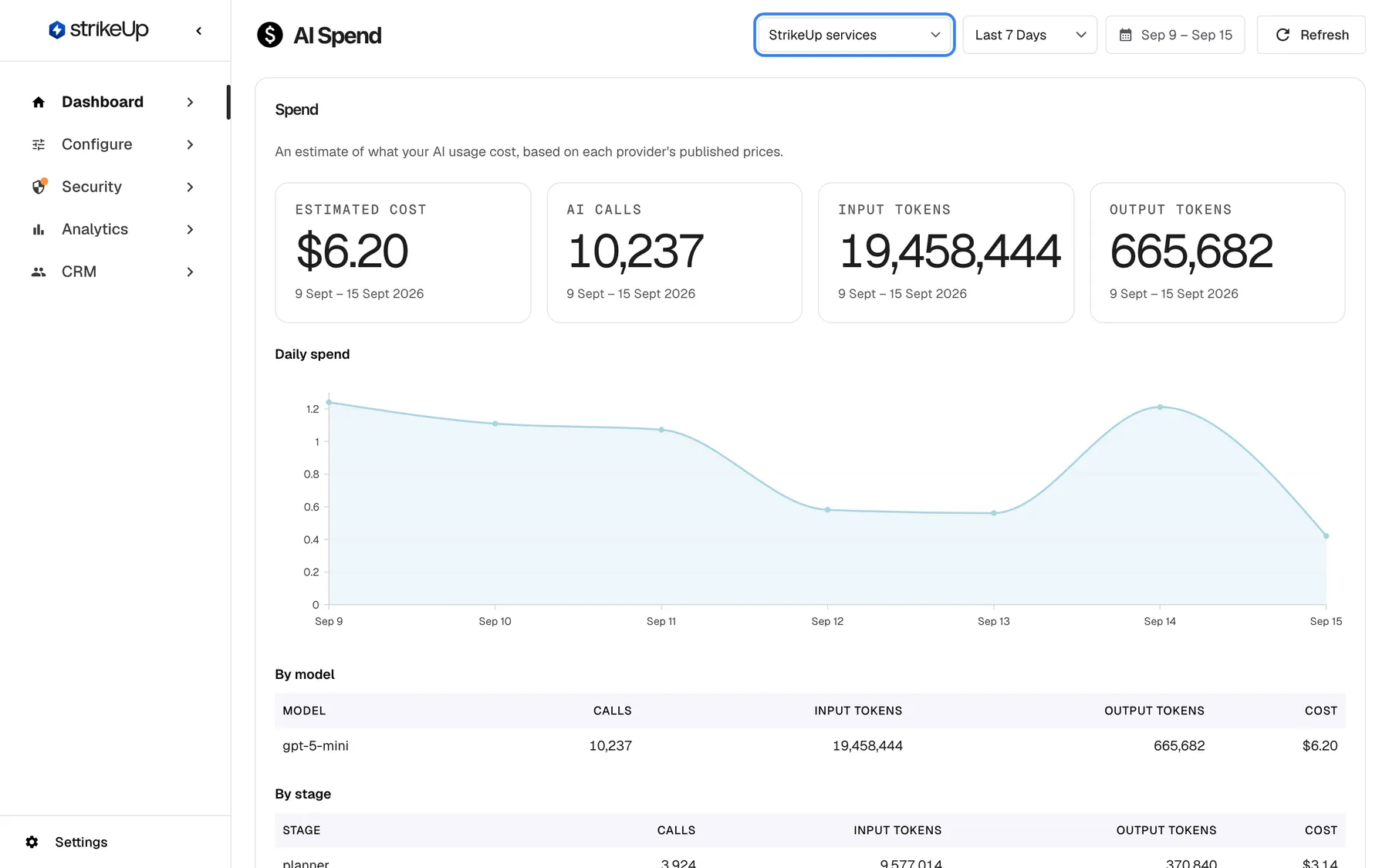
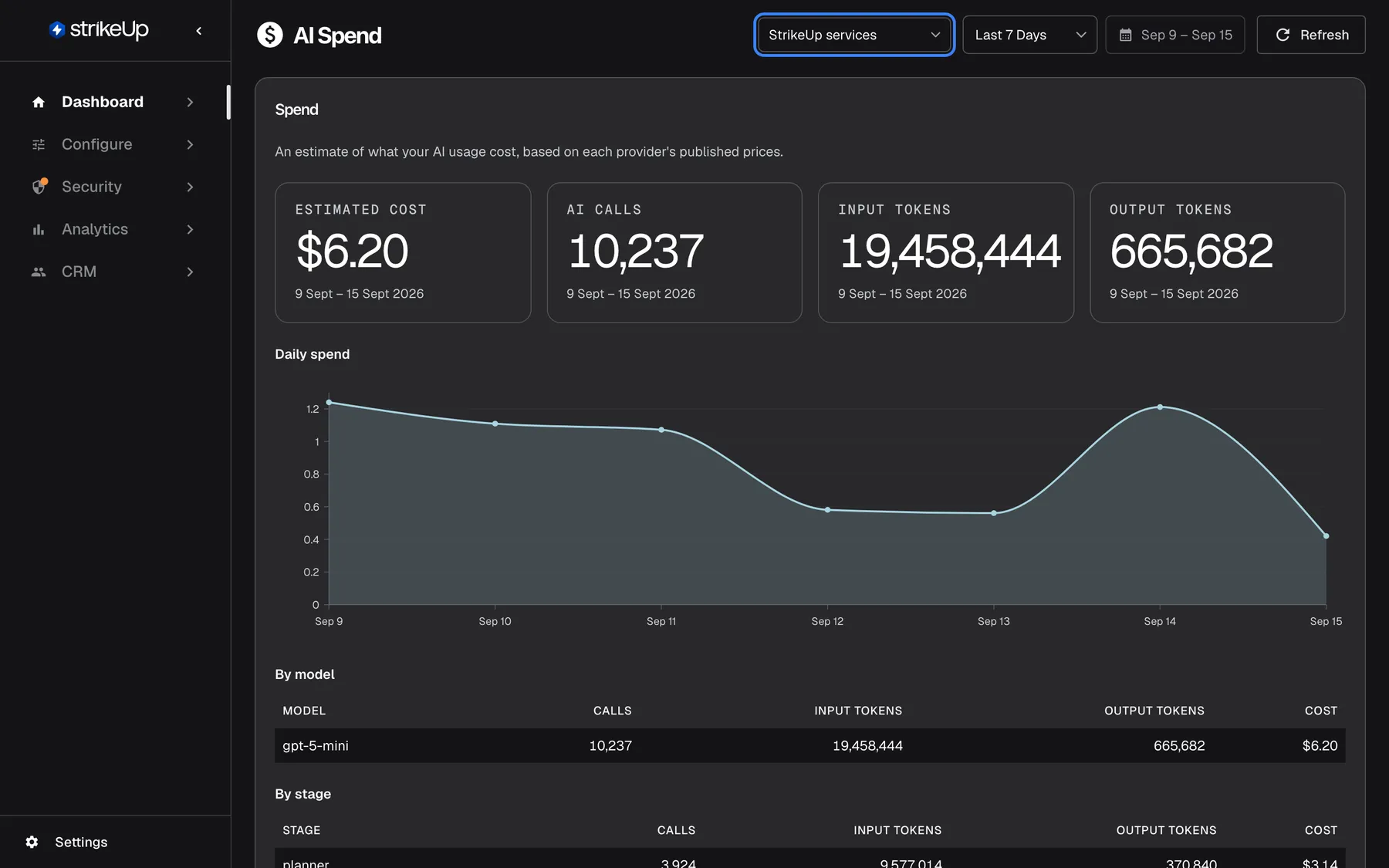
What this screenshot shows
- Screen
- AI Spend (/admin/dashboard/ai-spend)
- Highlighted
- combobox “”, header-right, [object Object]. switches the plane
- Also visible
- Spend KPIs and chart for platform stages
- Purpose
- telling billed from unbilled usage
Allowance
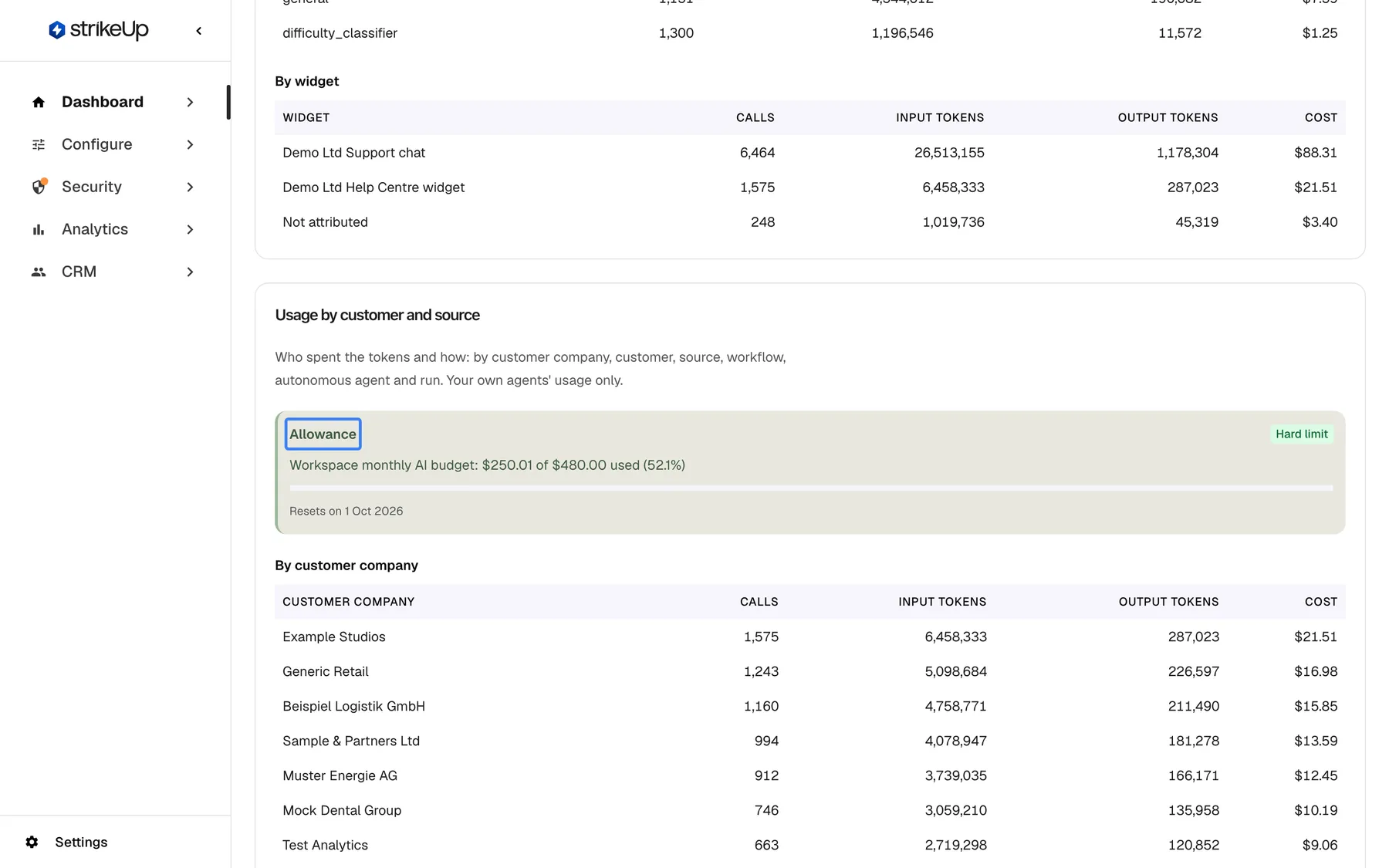
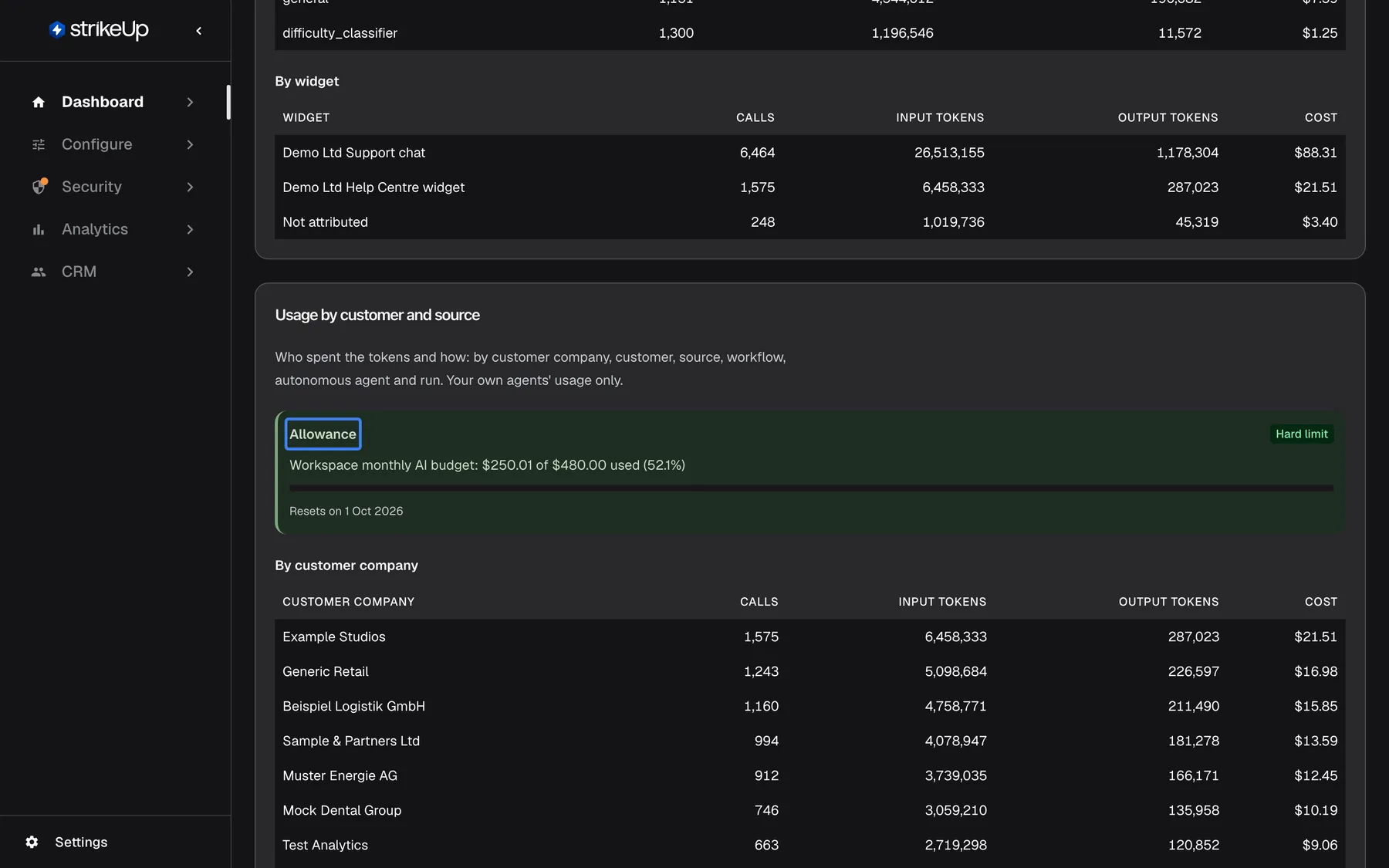
Section titled “Allowance”When an enforced budget covers the workspace, the usage card of AI Spend starts with an Allowance box: {{name}}: {{spent}} of {{amount}} used ({{percent}}), a bar and Resets on {{date}}. Below it, usage is split by customer company, customer, source, workflow and autonomous agent, with the costliest runs.
Why: tells you how close you are to the point where conversations stop.
What this screenshot shows
- Screen
- AI Spend (/admin/dashboard/ai-spend)
- Highlighted
- “”, usage-card-top, 51.9% used. none
- Also visible
- By customer company table
- Purpose
- tracking an enforced allowance
Cost when a provider fails
Section titled “Cost when a provider fails”| What happens | Calls made | What is priced |
|---|---|---|
| A temporary failure (rate limit, server error, timeout) | Up to 2 retries on the same connector, then backup models | Every attempt that reports token usage |
| The model refuses a conversation as too long | The next backup model | The attempt that succeeds |
| Every model fails | Retries and up to 3 backups | Any attempt that reported usage; the visitor reads “The assistant is temporarily unavailable. Please try again shortly.” |
On a bad day for a provider, the same answer can cost more than usual, because a backup model may cost more than the model it replaces. AI actions shows each attempt.
What you need to know
Section titled “What you need to know”| Topic | Fact |
|---|---|
| Currency | US dollars only, for prices, spend and budgets. |
| Accuracy | Estimates from listed prices, 8 decimal places. Calls without a price count as nothing. |
| Price changes | Apply to calls from their start date; recorded calls keep their cost. |
| When model changes apply | Within about a minute. |
| When budgets react | Alerts and blocks follow within about 5 minutes of the crossing, after the next priced call. |
| Periods | Budgets follow the UTC calendar. |
| History on the spend page | Up to 90 days per view. |
| StrikeUp’s stages | Never your agents’ spend, never in your budgets. |
| Your own keys | Priced and budgeted like every other call. |
| Demonstration data | Never counted. |
Frequently asked questions
Section titled “Frequently asked questions”General
Section titled “General”Is the cost on AI Spend exact?
Section titled “Is the cost on AI Spend exact?”It is an estimate. StrikeUp multiplies each call’s tokens by the price listed for that model on that date, in US dollars with 8 decimal places. Calls without a price count as nothing, and providers may round or apply minimum charges differently on their own invoices.
Which currency are prices and budgets in?
Section titled “Which currency are prices and budgets in?”US dollars only. The price list, the costs on DashboardAI Spend and the amounts of budgets under ConfigureBudgets & limits all use US dollars, whatever your interface language or location.
Why is a call shown without a price?
Section titled “Why is a call shown without a price?”No price was listed for that model on that date, or the provider reported no token usage, for example for a failed call. The call still counts as a call and its tokens are counted, but its cost is nothing, so the total on AI Spend is a minimum.
Do I pay for the planner and the guardrails?
Section titled “Do I pay for the planner and the guardrails?”The planner, guardrails and StrikeUp’s other stages run on StrikeUp’s own models. These stages run on StrikeUp's own models. They are not charged to you and cannot be changed. They never count as your agents’ spend on AI Spend and never count towards your budgets.
Choosing models
Section titled “Choosing models”What is the quickest way to lower my AI spend?
Section titled “What is the quickest way to lower my AI spend?”Open DashboardAI Spend and find the most expensive stage in By stage. Then, on Standard Mode, choose a cheaper model for its level or move that stage to a cheaper level, and save. Compare a week of spend afterwards.
Can I use a different model for each agent?
Section titled “Can I use a different model for each agent?”Yes. Pin each agent’s stage to a model on Advanced Mode, or move stages to different levels on Standard Mode. An agent’s own model setting also works. A pin wins over the other two.
Why did my costs rise after I moved an agent to Difficult?
Section titled “Why did my costs rise after I moved an agent to Difficult?”Sub-agents follow the level of the stage that starts them. Moving an agent to Difficult on Standard Mode also moves its sub-agents, unless you set the sub-agent row to a lower level yourself.
How fast do model changes take effect?
Section titled “How fast do model changes take effect?”Within about a minute of saving, normally from the next message. Pins on Advanced Mode save the moment you choose; changes on Standard Mode apply only after you select Save.
Where do I see which model answered?
Section titled “Where do I see which model answered?”Current setup on ConfigureAI Gateway shows which model each stage would use now. AI actions shows which model each past call actually used, including backups that took over, and which setting chose it.
Per-question routing
Section titled “Per-question routing”Does per-question routing cost extra?
Section titled “Does per-question routing cost extra?”Yes, one small call per visitor message to the judging model, except for short acknowledgements such as thanks or ok. It saves money when easy questions to an expensive stage are answered at a lower level. The judge’s calls appear under difficulty_classifier on AI Spend.
Can a visitor make the assistant use my most expensive model?
Section titled “Can a visitor make the assistant use my most expensive model?”Only when Raise the level for difficult questions is on, on Standard Mode. Without it, a question can only lower a stage’s level. With it, only the main answering stage can be raised, never a sub-agent, a pinned stage or a stage on Basic.
Your own keys
Section titled “Your own keys”Does my own key change what AI Spend shows?
Section titled “Does my own key change what AI Spend shows?”No. Calls through your own connectors are priced from the same list as every other call, appear on AI Spend and count towards your budgets. The provider bills the account the key belongs to.
Does testing a connector cost anything?
Section titled “Does testing a connector cost anything?”Test sends one minimal request to the provider, which the provider charges to the account as usual. StrikeUp does not record it, so it never appears on AI Spend or in a budget.
What happens when my provider is down?
Section titled “What happens when my provider is down?”StrikeUp retries temporary failures up to 2 times per connector, then tries the stage’s backup models, up to 3, set by StrikeUp. Only when all of them fail does the visitor read “The assistant is temporarily unavailable. Please try again shortly.” Each attempt that reported usage is priced.
Budgets
Section titled “Budgets”How fast do budgets react to spend?
Section titled “How fast do budgets react to spend?”StrikeUp checks budgets in the background after calls to AI models that have a cost, at most once every 5 minutes per workspace. Alerts and hard limits therefore follow within about 5 minutes of the crossing, once another priced call has happened.
Which budget blocks when several apply?
Section titled “Which budget blocks when several apply?”Every active enforced budget that covers a conversation is checked: the workspace’s, the widget’s and the customer company’s. The one with the least money left decides. Budgets that only alert never block anything.
What does a visitor see when a hard limit is used up?
Section titled “What does a visitor see when a hard limit is used up?”Their message is refused before the AI runs, and the chat shows that the workspace’s AI allowance for the current period is used up, with the budget’s name and the date it resets. Running agent jobs pause with Paused — the AI allowance for this period is used up; the run continues when it resets or the limit is raised..
Do StrikeUp’s stages or demonstration data count against my budget?
Section titled “Do StrikeUp’s stages or demonstration data count against my budget?”No. Budgets count only your agents’ calls, the same ones shown under Your agents on AI Spend. StrikeUp’s own stages and sample data added for demonstrations are never counted.
Where it is shown
Section titled “Where it is shown”What do the spend breakdowns group by?
Section titled “What do the spend breakdowns group by?”The spend card groups by model, by stage and by widget. The usage card groups by customer company, customer, source, workflow and autonomous agent, and lists the costliest runs. All of them use the same calls and period as the totals at the top.
How far back can I look on AI Spend?
Section titled “How far back can I look on AI Spend?”Up to 90 days at a time. A longer custom range is shortened to the 90 days before its end, and the dates under the totals show the period actually counted.
Why is StrikeUp services empty or small?
Section titled “Why is StrikeUp services empty or small?”StrikeUp services on AI Spend only shows the stages StrikeUp runs for you, such as planning and safety checks. If few conversations happened in the period, or their calls had no price, it can be small or empty.
Troubleshooting
Section titled “Troubleshooting”| Symptom | What to check |
|---|---|
| Spend shows $0.00 but there are calls | The calls have no price. Read the notice on AI Spend about calls without a price. |
| Costs did not drop after a cheaper level | On Current setup, check Decided by for the expensive stage: a pin or an agent’s own model wins over the level. Did you select Save? |
| A stage still uses the old model | Wait a minute and reload. Then check whether the new model or its connector is usable. |
| Costs rose after per-question routing | Check difficulty_classifier in By stage, and whether raising for difficult questions is on. Keep the judge on Basic. |
| A budget alert never arrived | Allow up to 5 minutes after the next priced call; check the budget is active and its email addresses. |
| Visitors are refused with an allowance message | An enforced budget is used up. Raise its amount, switch enforcement off or wait for the reset. |
| Jobs paused | The same: they show Paused — the AI allowance for this period is used up; the run continues when it resets or the limit is raised. and continue when the limit is raised. |
| AI Gateway is not in the menu | The AI Gateway feature is not switched on for your workspace. Budgets and spend still work. |
| Spend seems higher on certain days | Check AI actions for failed attempts: retries and backup models add calls when a provider has problems. |
| A change fails with Request failed and “This action requires the Admin role.” | Changes on this page need the Admin role. Ask an Admin to make the change, or to give you the Admin role under Settings › Users. |