

Autonomous agents: access tokens
Every call that starts an autonomous agent must carry an access token, and every token belongs to one of your end-users: the customer the runs it starts are attributed to. The Access tokens tab lists the tokens of your workspace with the end-user they belong to and when they were created and last used, and lets you revoke them. Tokens are created through the API, not on this tab. Open it from ConfigureAutonomous Agents and select Access tokens. Every signed-in user of your workspace can view it; revoking a token needs the Admin role.
What you can do here
Section titled “What you can do here”- See every token that can trigger your agents. One row per token with its name, its end-user and its dates. Read the token list.
- Find out which tokens are in use. Last used shows the last time a token started a run or checked one. Read the token list.
- Create a token for an end-user. A company admin exchanges the end-user’s PIN or password for a token through the API. Create a token · Autonomous agents end to end.
- Revoke a token. It stops working immediately and cannot be restored. Revoke a token.
The screen at a glance
Section titled “The screen at a glance”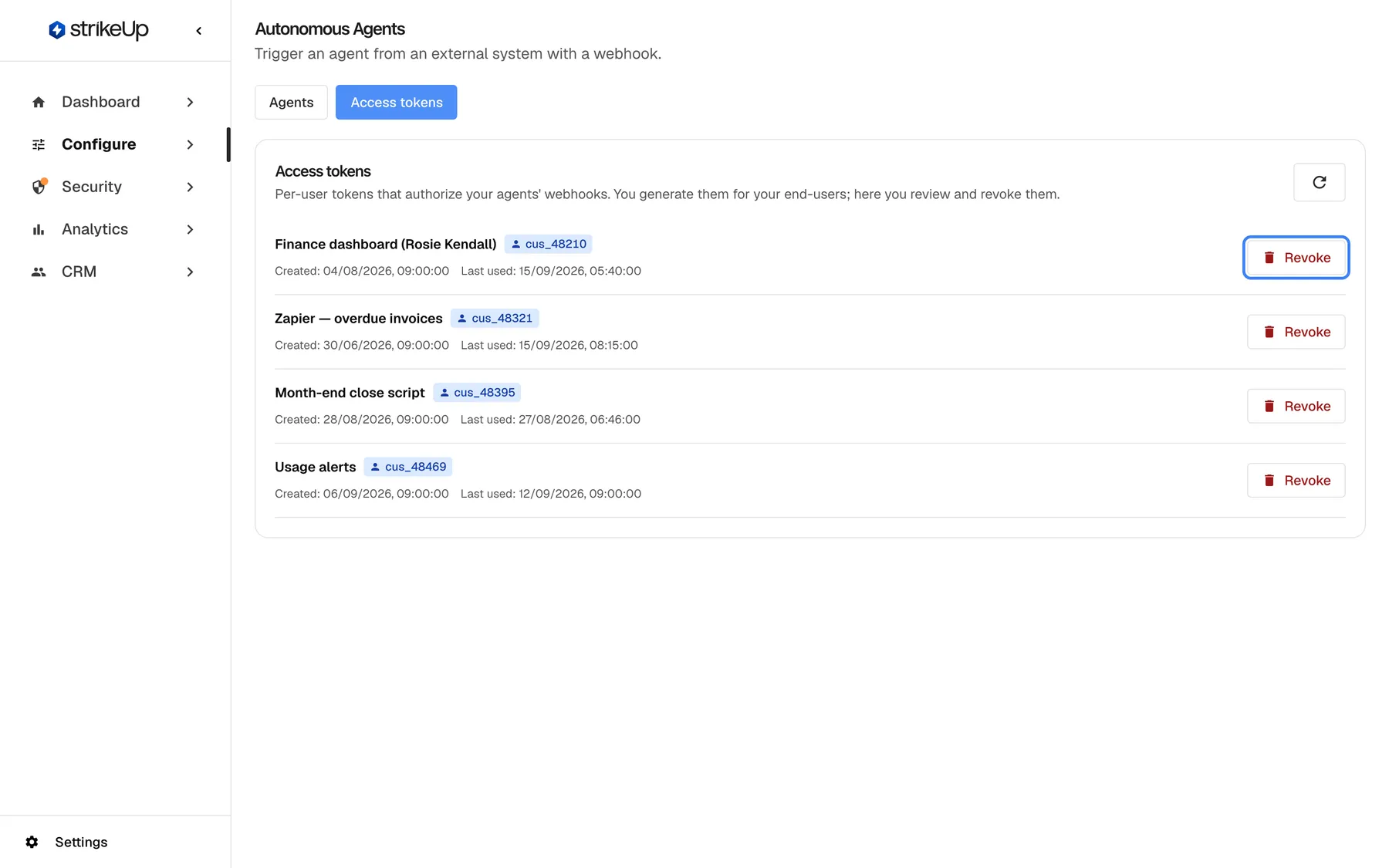
What this screenshot shows
- Screen
- Access tokens (/admin/configure/autonomous-agents)
- Highlighted
- button “Revoke”, first-token-row-right, enabled. opens the revoke confirmation
- Also visible
- 4 tokens with customer IDs cus_48210, cus_48321, cus_48395, cus_48469; Every token has a last-used time matching the run it started
- Purpose
- reviewing access tokens
| Region | What it shows | What you do there |
|---|---|---|
| Header | Access tokens and Per-user tokens that authorize your agents' webhooks. You generate them for your end-users; here you review and revoke them., with a refresh button | Reload the list |
| Token list | One row per token: name, end-user, Created, Last used and Revoke | Check and revoke tokens |
Read the token list
Section titled “Read the token list”| Part of a row | What it shows |
|---|---|
| Name | The name given when the token was created, or Unnamed token |
| End-user badge | The end-user’s customer ID. Hover it: Per-user token — runs triggered with it are attributed to this end-user. |
| Created | When the token was created |
| Last used | The last successful use, or Never |
- Polling counts as use. A token is used when it triggers an agent and also when the calling system polls a run’s status with it. A token that only polls still shows recent use.
- The list is newest first and shows only tokens that are not revoked.
- One token works for every agent in your workspace, not only the one it was created for.
Without any token, the tab shows No tokens yet. Generate them as a company admin by verifying an end-user's PIN or password — see the Webhook tab for the request.
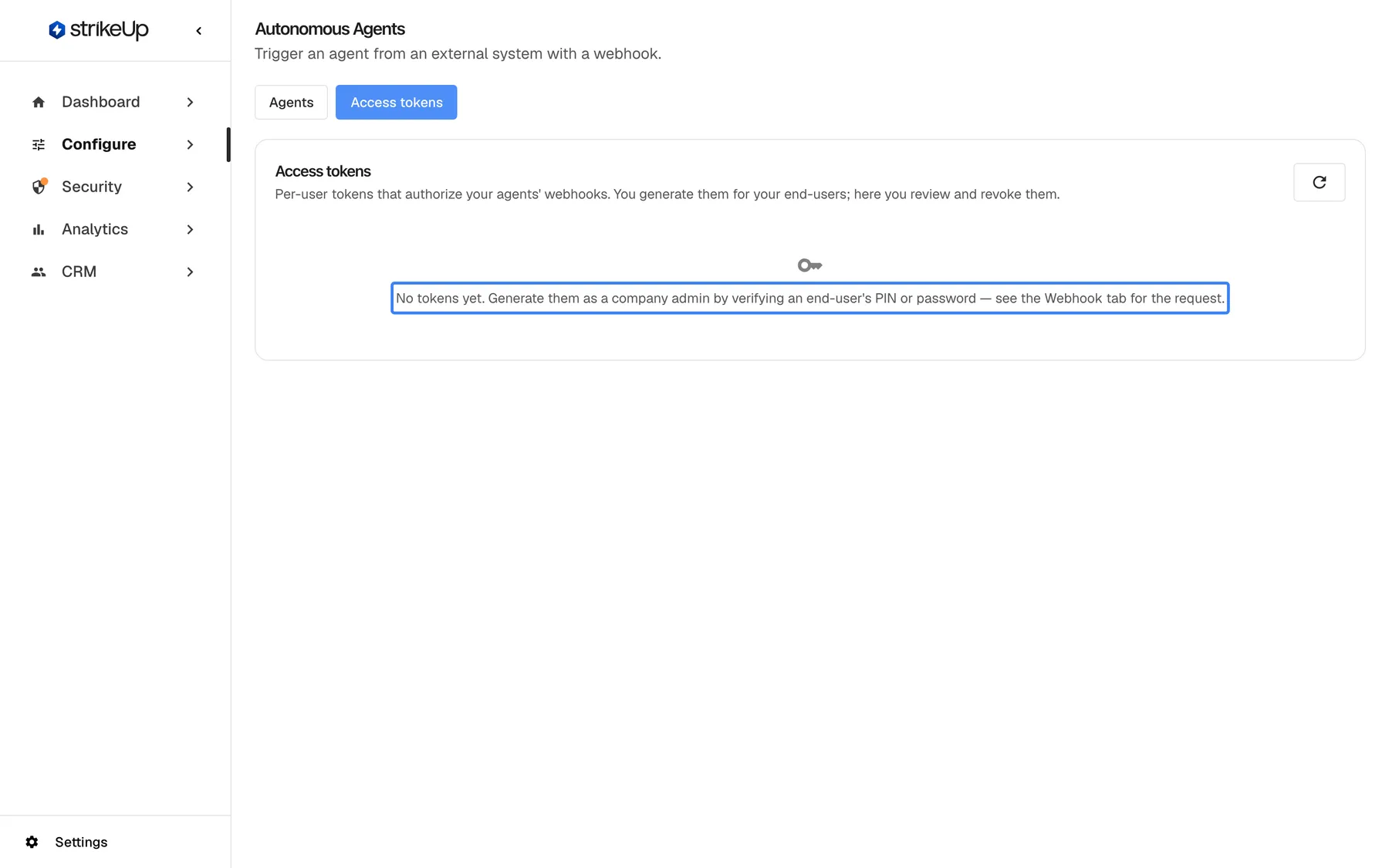
What this screenshot shows
- Screen
- Access tokens (/admin/configure/autonomous-agents)
- Highlighted
- “”, panel-center, empty list. none
- Also visible
- Refresh button
- Purpose
- what you see before any token exists
Create a token
Section titled “Create a token”Tokens cannot be created on this tab. A company admin creates one through the API, with the request shown in step 2 of the agent’s webhook panel.
-
Make sure the end-user exists as a customer in your workspace, with a PIN or password, and is active.
-
Open any agent on the Agents tab. In its Webhook panel, use Copy sign-in to sign in as a company admin and get an admin token.
-
Use Copy exchange. Fill in the end-user’s
externalUserId(up to 255 characters), their PIN or password ascredential, and optionally anamefor the token (up to 100 characters). Send the request with the admin token. -
Store the token from the response safely. It starts with
ahu_and is shown only once. -
Select the refresh button on this tab. The new token is listed with the end-user’s ID.
If the PIN or password is wrong, or the customer is unknown, disabled or locked, the request fails with HTTP 401 “Invalid credential”, with no detail on which part was wrong. Failed attempts count towards the customer’s sign-in lockout: after 5 failures, further attempts are delayed. More than 20 requests with a PIN or password from one network address in a minute are refused with HTTP 429 “Too many requests. Please wait a minute and try again.”.
Revoke a token
Section titled “Revoke a token”-
Find the token and select Revoke.
-
Read the popover Revoke token: This token will stop working immediately. Any integration using it will fail until you issue a new one. Confirm with Revoke.
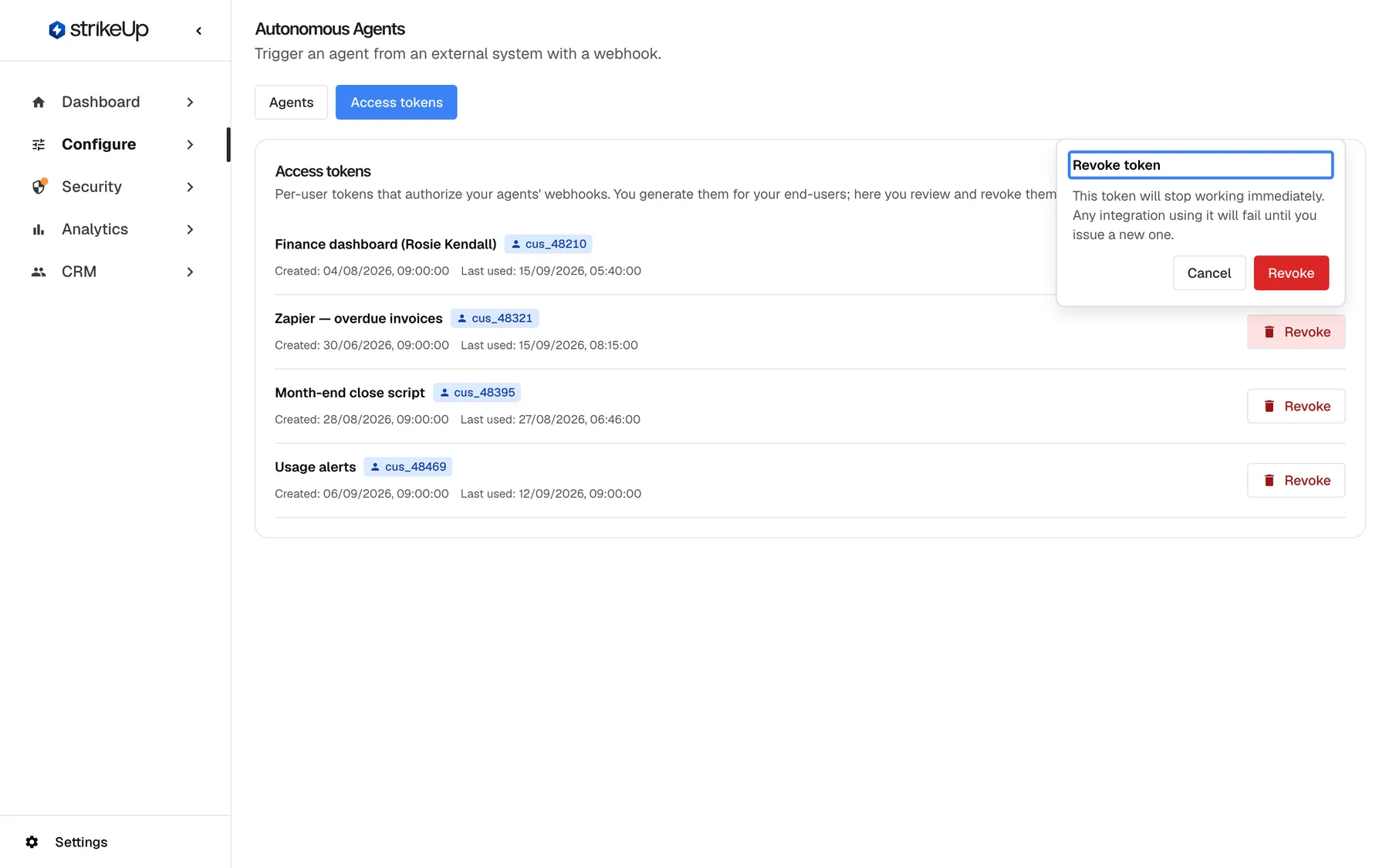
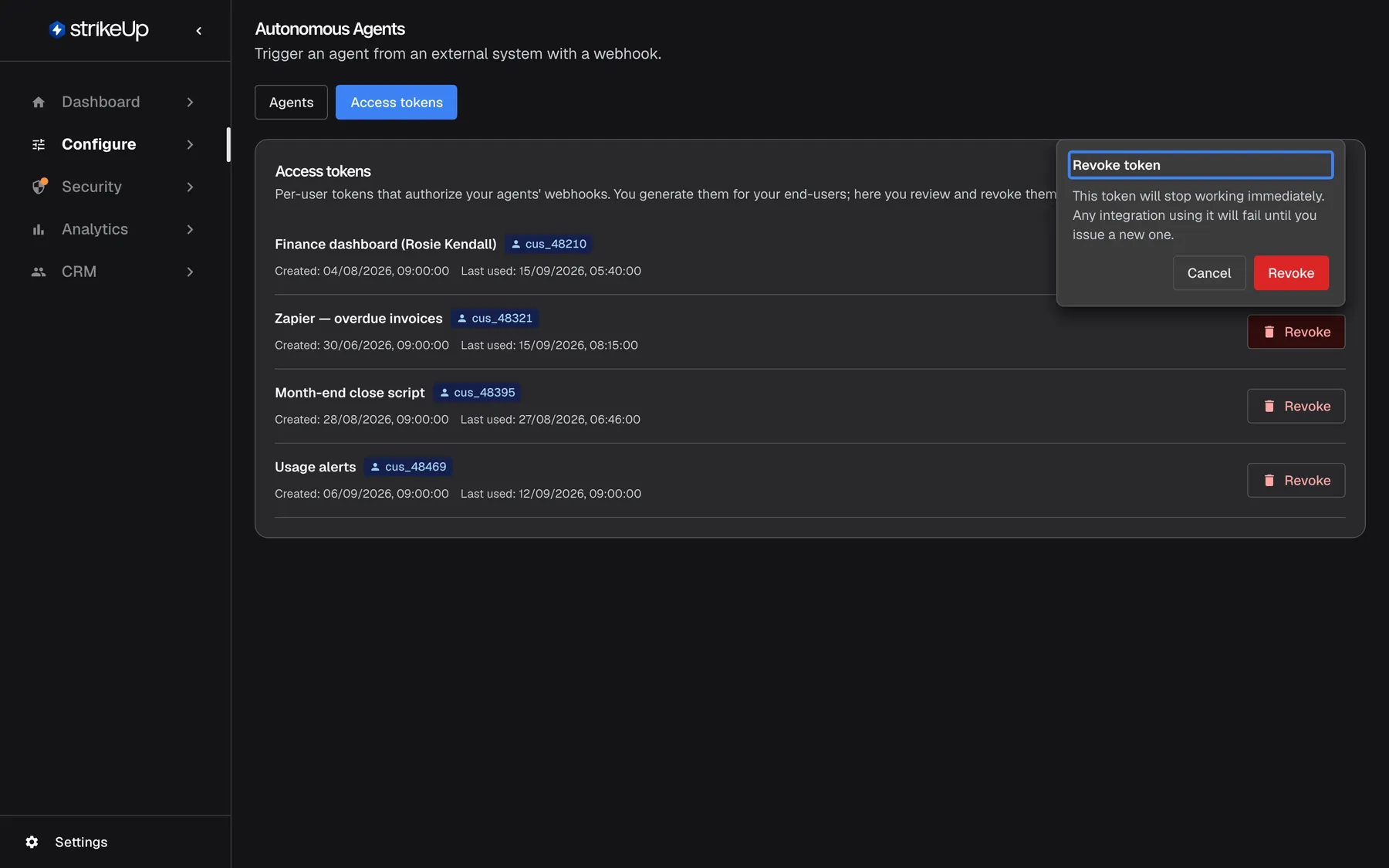
Revoking stops the token at once; the integration that used it fails until it gets a new token. What this screenshot shows
- Screen
- Access tokens (/admin/configure/autonomous-agents)
- Highlighted
- “”, revoke-popover, open. asks to confirm the revocation
- Also visible
- Cancel and Revoke buttons
- Purpose
- revoking a token
The notice Access token revoked appears and the token disappears from the list. Its next call is refused with HTTP 401 “Invalid access token”. Revoking cannot be undone; create a new token for the end-user if the integration should keep working. Runs that the token already started are kept.
Every control, explained
Section titled “Every control, explained”Refresh
Section titled “Refresh”The refresh button at the top right of the tab.
Reloads the token list, including Last used.
Tokens are created through the API, so a new one appears only after a reload.
End-user badge
Section titled “End-user badge”Next to each token’s name.
The customer ID of the end-user the token belongs to. Every run the token starts is attributed to that customer, and appears under Triggered for on the agent and by customer on AI Spend.
Tells you whose runs a token starts before you revoke it.
Revoke
Section titled “Revoke”At the end of each row, Revoke. Opens a confirmation popover.
Stops the token at once and removes it from the list. It cannot be restored.
The only way to end a token: tokens do not expire, and changing the end-user’s PIN or password does not affect them.
What you need to know
Section titled “What you need to know”| Topic | Fact |
|---|---|
| Creating | Only through the API, by a signed-in company admin, with the end-user’s PIN or password. |
| Revoking | Users with the Admin role. For anyone else Revoke fails with “This action requires the Admin role.” |
| Shown once | The token is returned once; StrikeUp stores only a hash of it. |
| Lifetime | No expiry. Revoking is the only way to end a token. |
| PIN changes | Changing the end-user’s PIN or password does not revoke their tokens. |
| Scope | One token works for every agent of the workspace. |
| Inactive customers | Calls with the token of a deactivated customer, or of a customer whose company is deactivated, are refused with HTTP 403 “Customer is not active”. |
| Rate limit | 5 runs per end-user per minute, and 300 calls per minute from one calling address to your workspace. Creating tokens: 20 requests per minute from one address. |
| Revoked tokens | Not listed, and refused with HTTP 401. |
Frequently asked questions
Section titled “Frequently asked questions”Creating tokens
Section titled “Creating tokens”How do I create a token?
Section titled “How do I create a token?”Not on the Access tokens tab. A company admin signs in through the API and exchanges an end-user’s PIN or password for a token, with the requests in steps 1 and 2 of an agent’s Webhook panel. The token is returned once and then listed here.
I lost a token. Can I see it again?
Section titled “I lost a token. Can I see it again?”No. A token is shown only once, when it is created, and StrikeUp keeps only a hash of it. Revoke the lost token on the Access tokens tab and create a new one for the same end-user.
Using and revoking tokens
Section titled “Using and revoking tokens”Does a token expire?
Section titled “Does a token expire?”No. A token works until it is revoked on the Access tokens tab. Review Last used from time to time and revoke tokens that are no longer used.
Does changing the end-user’s PIN stop their tokens?
Section titled “Does changing the end-user’s PIN stop their tokens?”No. Tokens are not tied to the PIN or password after they are created, so changing it leaves every existing token working. Revoke the tokens on the Access tokens tab when you want them to stop.
Is a token tied to one agent?
Section titled “Is a token tied to one agent?”No. A token works for every autonomous agent in your workspace, whichever agent’s webhook panel you used to create it. To limit what an integration can trigger, give it its own end-user and revoke that end-user’s token when needed.
Why does the last-used date change although no new run started?
Section titled “Why does the last-used date change although no new run started?”Last used is updated every time the token is accepted, which includes the calling system checking the status of a run it started earlier. A token that polls an old run therefore shows recent use.
What happens after I revoke a token?
Section titled “What happens after I revoke a token?”The token’s next call, whether it starts a run or checks one, is refused with HTTP 401 “Invalid access token”. It disappears from the list and cannot be restored. Runs it started before are kept on the agent and as jobs.
Can I see revoked tokens?
Section titled “Can I see revoked tokens?”No. The Access tokens tab lists only tokens that still work. Revoked tokens are hidden, and the runs they started stay visible on the agent and under Agent jobs.
Why does creating a token fail with Invalid credential?
Section titled “Why does creating a token fail with Invalid credential?”The PIN or password is wrong, or the customer is unknown, disabled or locked, or has no PIN or password. The answer is the same in every case, on purpose. Repeated failures lock the customer for a while, so check the details before retrying.
Troubleshooting
Section titled “Troubleshooting”| Symptom | What to check |
|---|---|
| A new token is not listed | Select the refresh button. Check that the creation request returned HTTP 201. |
| HTTP 401 “Invalid credential” when creating | The end-user’s ID, PIN or password is wrong, or the customer is disabled or locked. |
| HTTP 401 “Invalid access token” on a webhook call | The token was revoked, mistyped, or belongs to another workspace. |
| HTTP 401 “Missing access token” | The call has no Authorization: Bearer or X-Autonomous-Token header. |
| HTTP 403 “Customer is not active” | The token’s end-user was deactivated, or their company was. Reactivate the customer or their company, or create a token for another one. |
| HTTP 429 when creating | More than 20 requests with a PIN or password from your network address in a minute. Wait for the Retry-After time. |
| HTTP 429 on a webhook call | More than 5 runs for this end-user in a minute, or more than 300 calls (run starts and status checks together) from one calling address in a minute. Wait for the Retry-After time. |
| A change fails with Request failed and “This action requires the Admin role.” | Changes on this page need the Admin role. Ask an Admin to make the change, or to give you the Admin role under Settings › Users. |