

User Interface
The User Interface page decides what one chat widget looks like in your product and what your end customers get around the chat: how it opens, its size and colours, whether visitors sign in, which customer portal pages they see, the shortcut cards on its welcome screen and the pages it appears on. Open it from ConfigureUser Interface and pick the widget card at the top. All sections on the page are saved together with one button at the bottom, Save User Interface Settings. The page heading and the display and styling sections are in English in every language; this guide quotes them as the page shows them.
What your end customers then see, such as signing in with a PIN or using the portal, is described in the widget section.
What you can do here
Section titled “What you can do here”- Choose how the widget opens. Five display types, from a floating pop-up to a panel your own button opens, plus whether it overlays or pushes your page. Choose the display type and size · Display types and custom triggers.
- Match your brand. Override theme colours for light and dark mode, chart colours, borders and fonts. Match the widget to your brand.
- Ask visitors to sign in. Require a PIN or password before visitors can chat, and decide whether the chat links to the customer portal and which of its 9 pages customers see. Set sign-in and the customer portal · End-customer sign-in · The customer portal.
- Rename the chat labels. Replace the “Verified” badge on answers from your documents, and the wording of the buttons that bring a person from your team into the chat, with your own words, per language. Rename the chat labels.
- Design the welcome screen. Write the greeting and up to 8 shortcut cards that send a prompt with one click, in several languages. Design the welcome screen.
- Show the widget only on certain pages. Include and exclude path patterns, with a live test before you save. Limit the pages the widget appears on.
The screen at a glance
Section titled “The screen at a glance”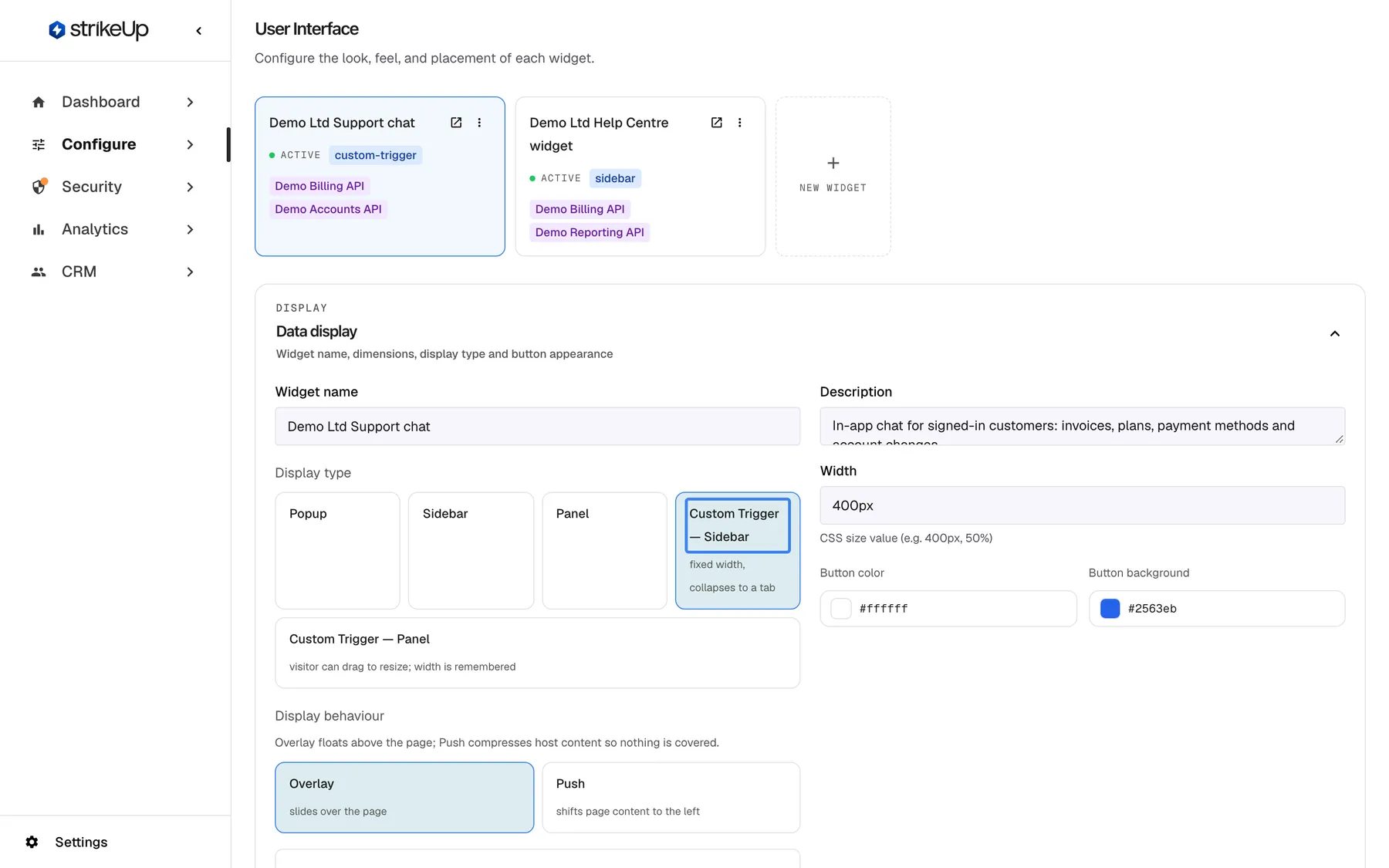
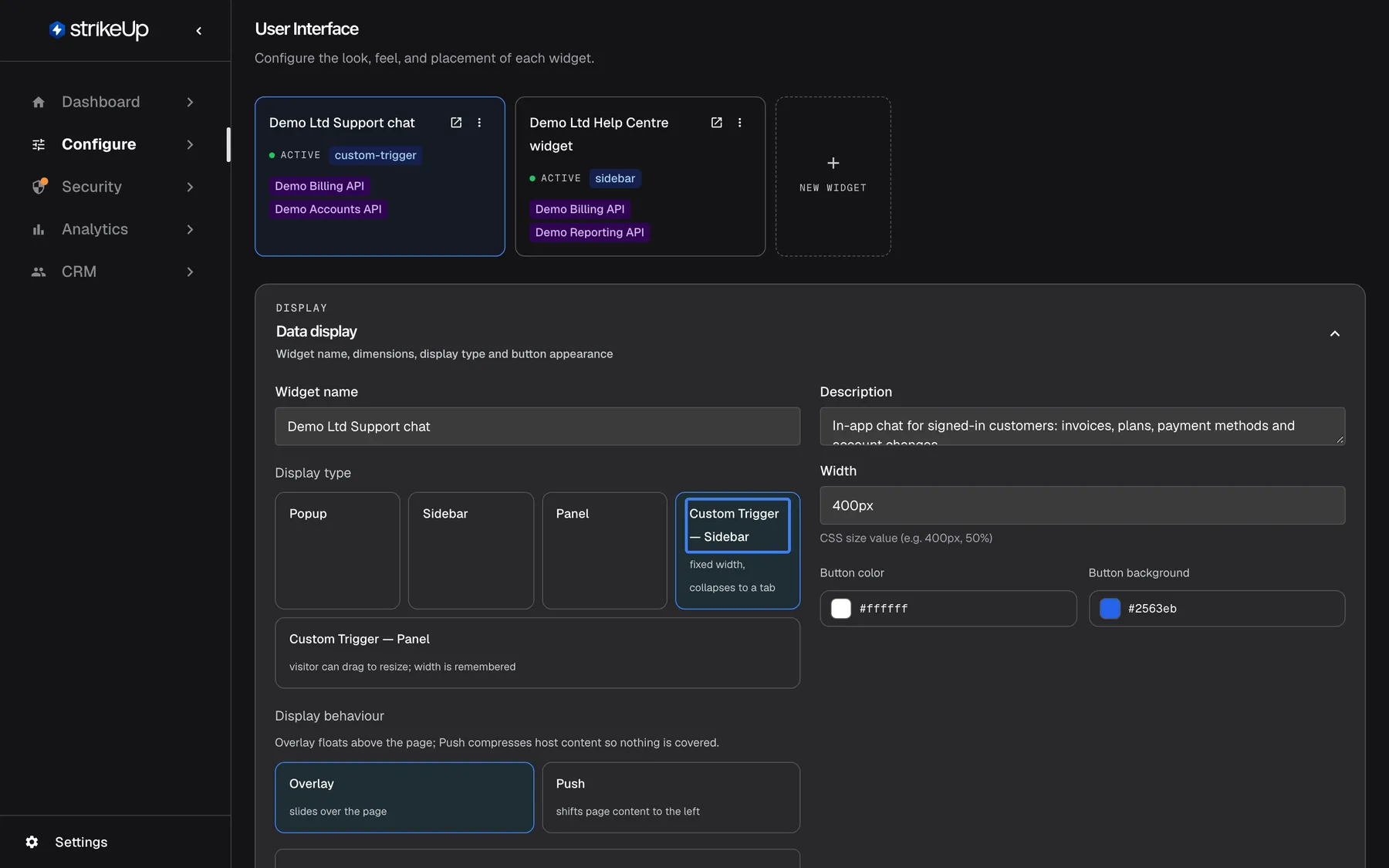
What this screenshot shows
- Screen
- User Interface (/admin/configure/user-interface?widgetId=…)
- Highlighted
- radio “Custom Trigger — Sidebar”, data-display-section-left, selected. sets the widget to a sidebar that the host page opens with StrikeUpChat.open()
- Also visible
- Widget cards with Demo Ltd Support chat selected; Display type options Popup, Sidebar, Panel, Custom Trigger — Sidebar, Custom Trigger — Panel; Width 400px, Button color #ffffff, Button background #2563eb; Display behaviour Overlay (selected) and Push
- Purpose
- entry point of the User Interface page and the display settings
| Region | What it shows | What you do there |
|---|---|---|
| Widget cards, top | Your widgets and a dashed “New widget” card | Pick the widget to edit |
Data display | Name, description, display type, display behaviour, feedback, width, height and launcher button | Set how the widget opens and its size |
Colours and styling | Theme colours, chart colours, borders, corner radius and typography | Match your brand |
| Customer Portal | End-customer sign-in, the portal switch and the visible portal pages | Decide what visitors must do and see |
| Shortcut cards | The welcome text and shortcut cards, per language | Design the welcome screen |
| URL Visibility Rules | Include and exclude patterns, and a URL test | Limit the pages the widget appears on |
| Bottom | Save User Interface Settings | Save everything above |
The selected widget is kept in the page address (?widgetId=…) and stays selected on AI & UX and Embed. Until you pick one, the page reads Select a widget above to configure its User Interface settings.
One Save for the whole page. Changes in any section, including shortcut cards you add in their dialog, are kept only when you select Save User Interface Settings. The message Widget saved successfully confirms it. If you leave the page first, the changes are lost.
Choose the display type and size
Section titled “Choose the display type and size”The display type decides how the widget appears on your site.
| Display type | What visitors get | Opened by |
|---|---|---|
| Popup (the default) | A launcher button and a floating chat window | The visitor, with the launcher |
| Sidebar | A pane that slides in from the side | The visitor, with the launcher |
| Panel | A pane that is always open and cannot be closed | Nobody; it is open while the page shows it |
| Custom Trigger — Sidebar | A side pane of fixed width that collapses to a tab | Your own button, through the widget’s JavaScript API |
| Custom Trigger — Panel | A side panel the visitor can drag to resize; the width is remembered | Your own button, through the widget’s JavaScript API |
- Pick the widget card. In
Data display, select the display type. - For a sidebar or custom-trigger type, choose
Display behaviour:Overlay, the default, floats above your page;Pushshifts your page content to make room. - Set
Width, such as400px. For a pop-up, also setHeight, such as600px, and the launcher’sButton sizeandButton margin. - Set
Button colorandButton backgroundfor the launcher. They are hidden for the panel type, which has no launcher. - Select
Save User Interface Settings.
A custom-trigger widget shows no launcher; it opens when your page calls StrikeUpChat.open(). The calls and copy-ready snippets are on Embed and in the Widget JavaScript API reference.
In the same section, Enable feedback lets visitors rate answers with thumbs up or down; it is off by default. Widget name and Description can also be edited on Embed.
Match the widget to your brand
Section titled “Match the widget to your brand”Colours and styling replaces the widget’s default theme with your own colours.
- Switch on
Override default theme colours. When it is off, the widget keeps its default theme and your colour choices are not saved. - Set the colours under
Light themeandDark theme, 13 swatches each, andColour 1toColour 10underChart coloursfor charts in answers. - Under
Border, setBorder radius,Border widthandBorder style(Solid, Dashed or Dotted). Widget corner radius (outer) rounds the widget’s outer corners on your page; leave it blank for the default. - Under Typography, enter Body font name and Body font URL, and optionally a heading font.
- Select
Save User Interface Settings.
Font rules. A font URL must start with https:// and either be a Google Fonts address (fonts.googleapis.com or fonts.gstatic.com) or end in .woff2, .woff, .ttf, .otf or .css. Anything else is refused with “Font URL must be an https link to a Google Fonts stylesheet or a .woff2/.woff/.ttf/.otf file.” The font name must match the font’s family name exactly, and the font must be served with CORS enabled.
Values that could run code in a page, such as javascript: or expression(, are dropped by the widget when it loads.
Set sign-in and the customer portal
Section titled “Set sign-in and the customer portal”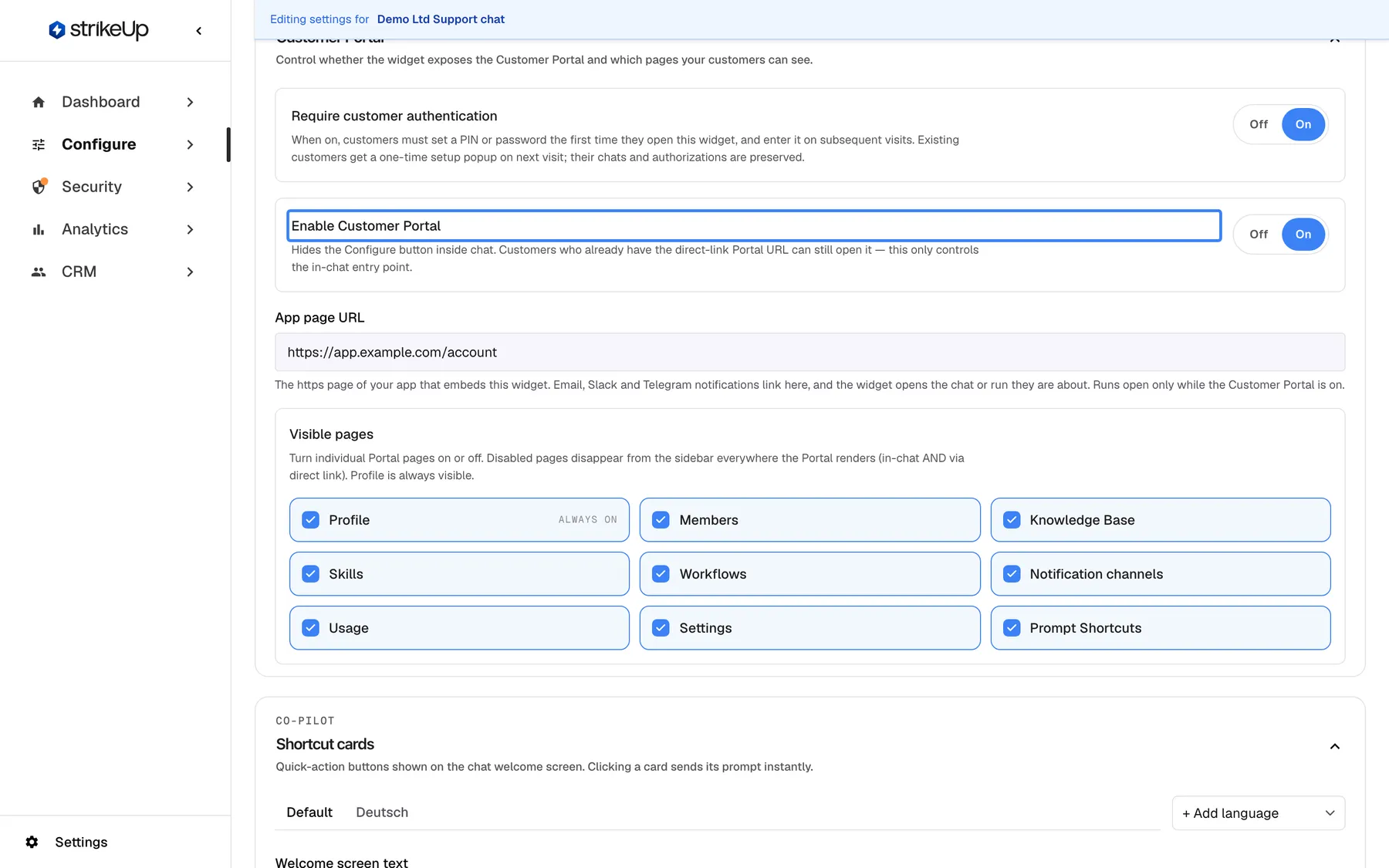
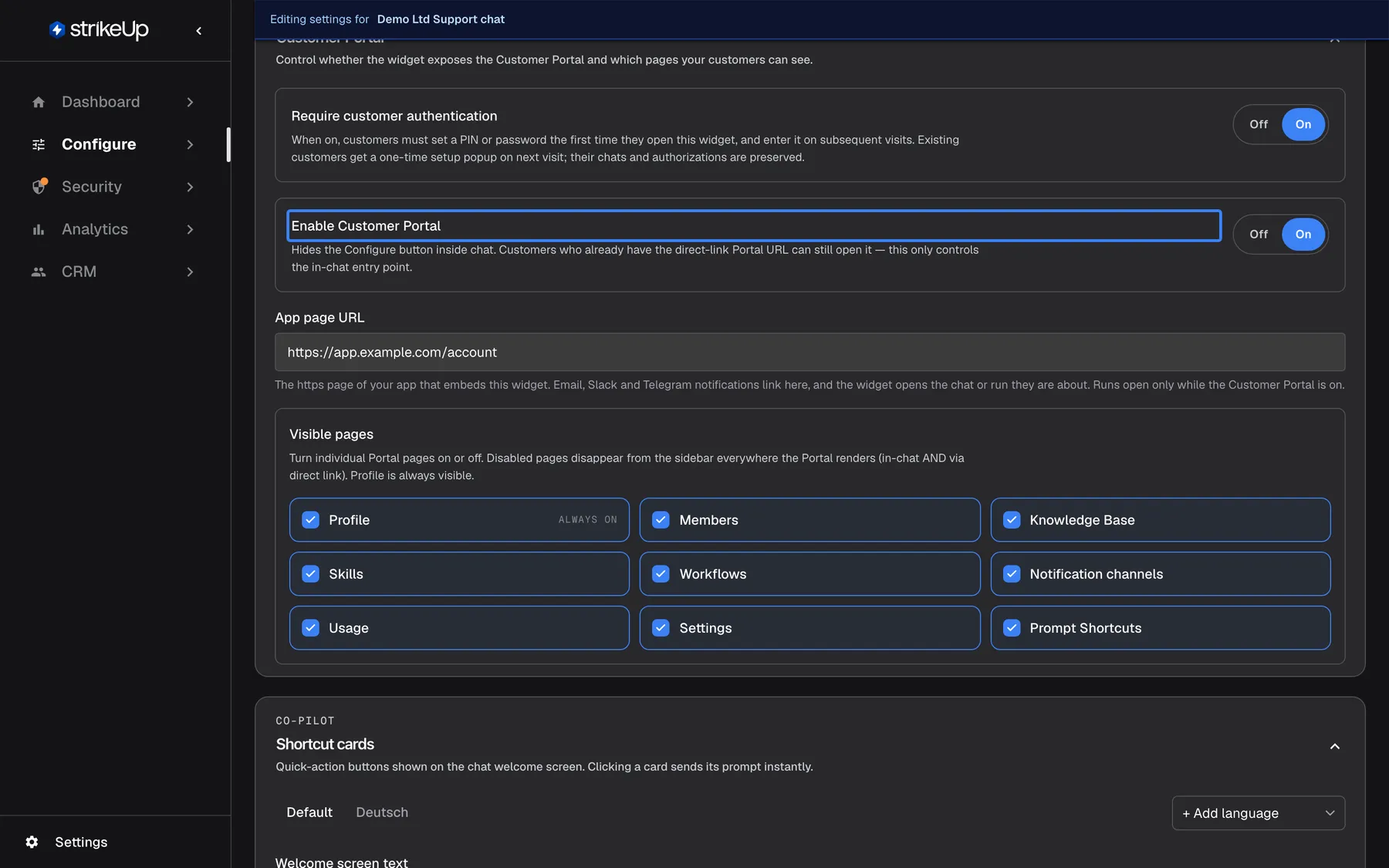
What this screenshot shows
- Screen
- User Interface (/admin/configure/user-interface?widgetId=…)
- Highlighted
- switch “Enable Customer Portal”, customer-portal-section, On. shows or hides the in-chat Configure button that opens the Customer Portal
- Also visible
- Require customer authentication: On; Visible pages: all nine ticked, Profile always on
- Purpose
- controlling customer sign-in and the Customer Portal for one widget
Require customer authentication is on by default. When it is on, a visitor sets a PIN or a password the first time they open this widget and enters it on later visits. Existing visitors get a one-time set-up pop-up on their next visit and keep their chats and stored credentials.
| Rule | Value |
|---|---|
| PIN | 4 to 8 digits |
| Password | At least 8 characters |
| Lock-out | From the 5th wrong attempt, for 1 minute, then 5 minutes, 15 minutes, 1 hour and 6 hours |
| Session | 12 hours, or 7 days when the visitor ticks “Remember me” on that browser |
Switch sign-in on for any widget whose tools read or change a visitor’s own data, and pass each visitor’s identity explicitly from your product in the embed code, as described in Identify users and pass context. How sign-in looks to your end customers, and how to sign them in from your own product, is in End-customer sign-in.
Enable Customer Portal (on by default) shows the Configure button, a gear, inside the chat, which opens the customer portal. Switching it off hides only that button: a customer who has the portal’s direct link can still open it.
Visible pages switches individual portal pages on or off: Members, Knowledge Base, Skills, Workflows, Notification channels, Usage, Settings and Prompt Shortcuts, all on by default. Profile is always on. A page switched off disappears from the portal everywhere, in the chat and through the direct link. Notification channels is the exception: switching it off hides only your customers’ own channels for their Admins, while every customer keeps the Notifications page with their own notification choices.
App page URL is the https page of your app that embeds this widget, such as https://app.example.com/account. Open buttons in email, Slack, Telegram and Teams notifications lead there, and the widget opens the chat or run the notification is about; runs open only while the portal is on. Leave it blank and chat notifications carry no Open link. See Job notifications and chat apps.
What each page does for your customers is in The customer portal.
Design the welcome screen
Section titled “Design the welcome screen”The welcome screen is what a visitor sees before the first message: your greeting and up to 8 shortcut cards. Selecting a card sends its prompt straight away.
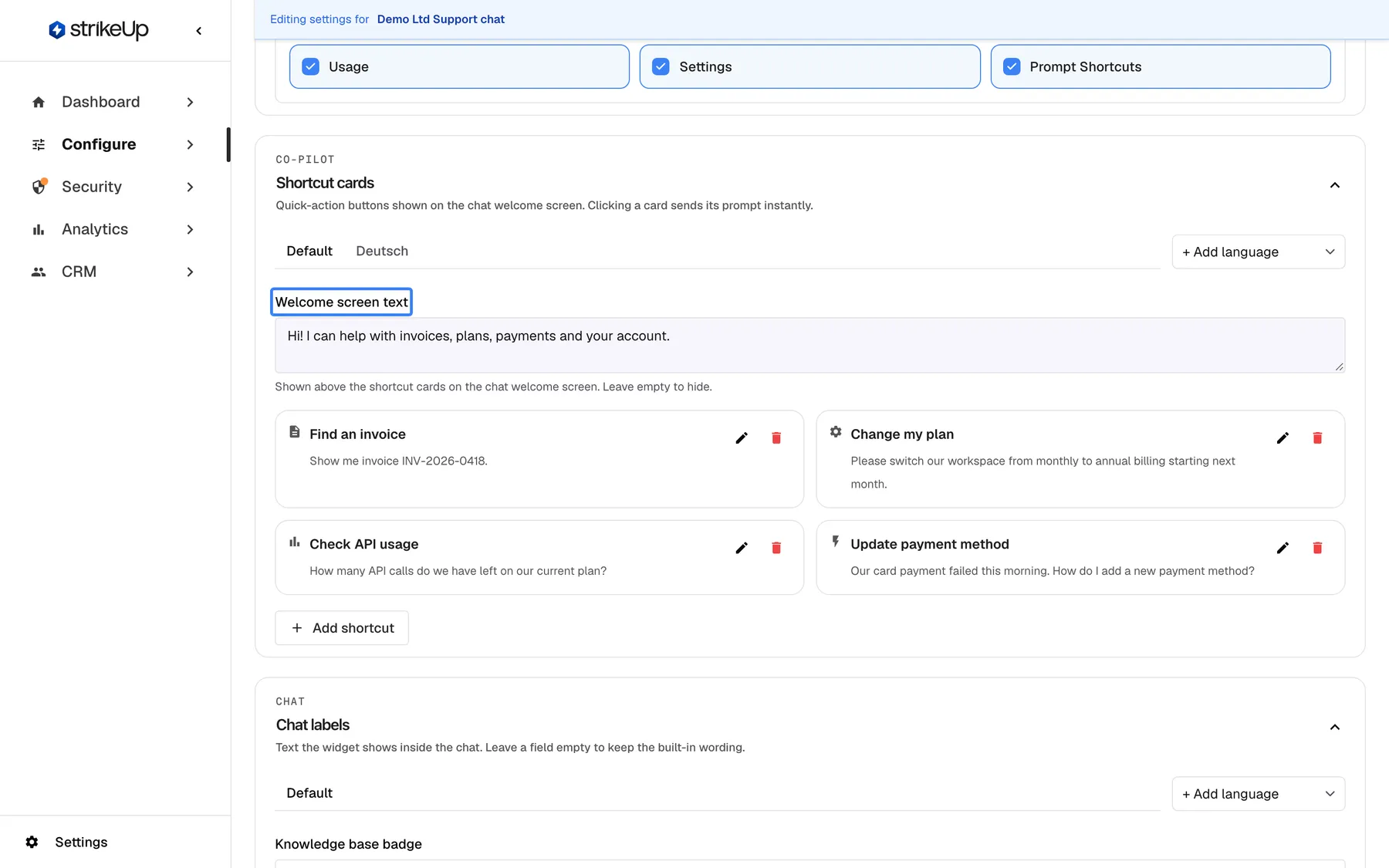
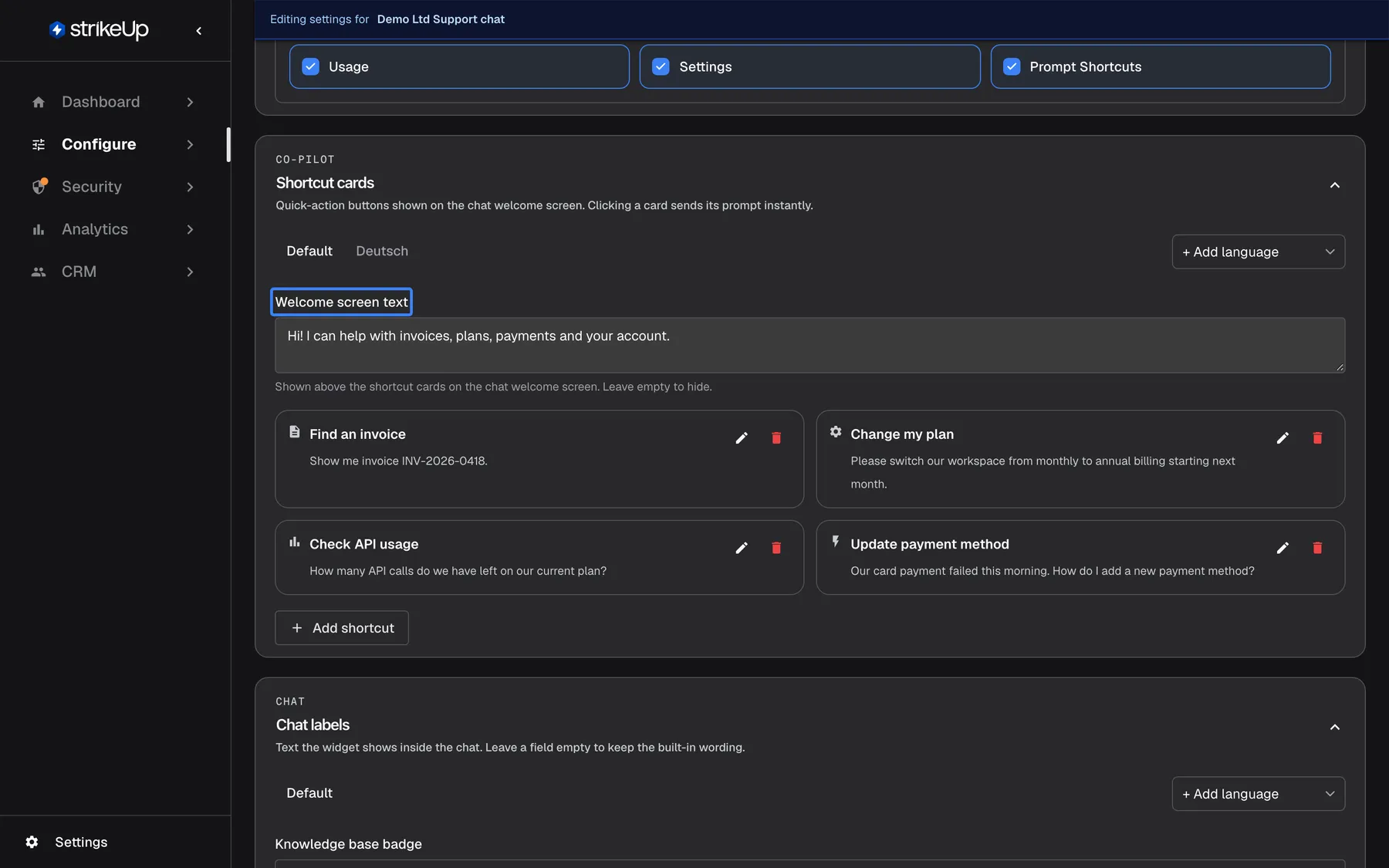
What this screenshot shows
- Screen
- User Interface (/admin/configure/user-interface?widgetId=…)
- Highlighted
- textbox “Welcome screen text”, shortcut-cards-section-top, filled: Hi! I can help with invoices, plans, payments and your account.. sets the text shown above the cards on the chat welcome screen; empty hides it
- Also visible
- Language tabs: Default, German, + Add language; Cards: Find an invoice, Change my plan, Check API usage, Update payment method; Add shortcut button
- Purpose
- designing the chat welcome screen
-
In Shortcut cards, write the Welcome screen text, such as Hi! I can help with invoices, plans, payments and your account. Up to 500 characters; leave it empty to hide it.
-
Select Add shortcut. In the dialog, pick an Icon from 16, then fill in Title (up to 200 characters) and Prompt text (up to 2,000 characters).
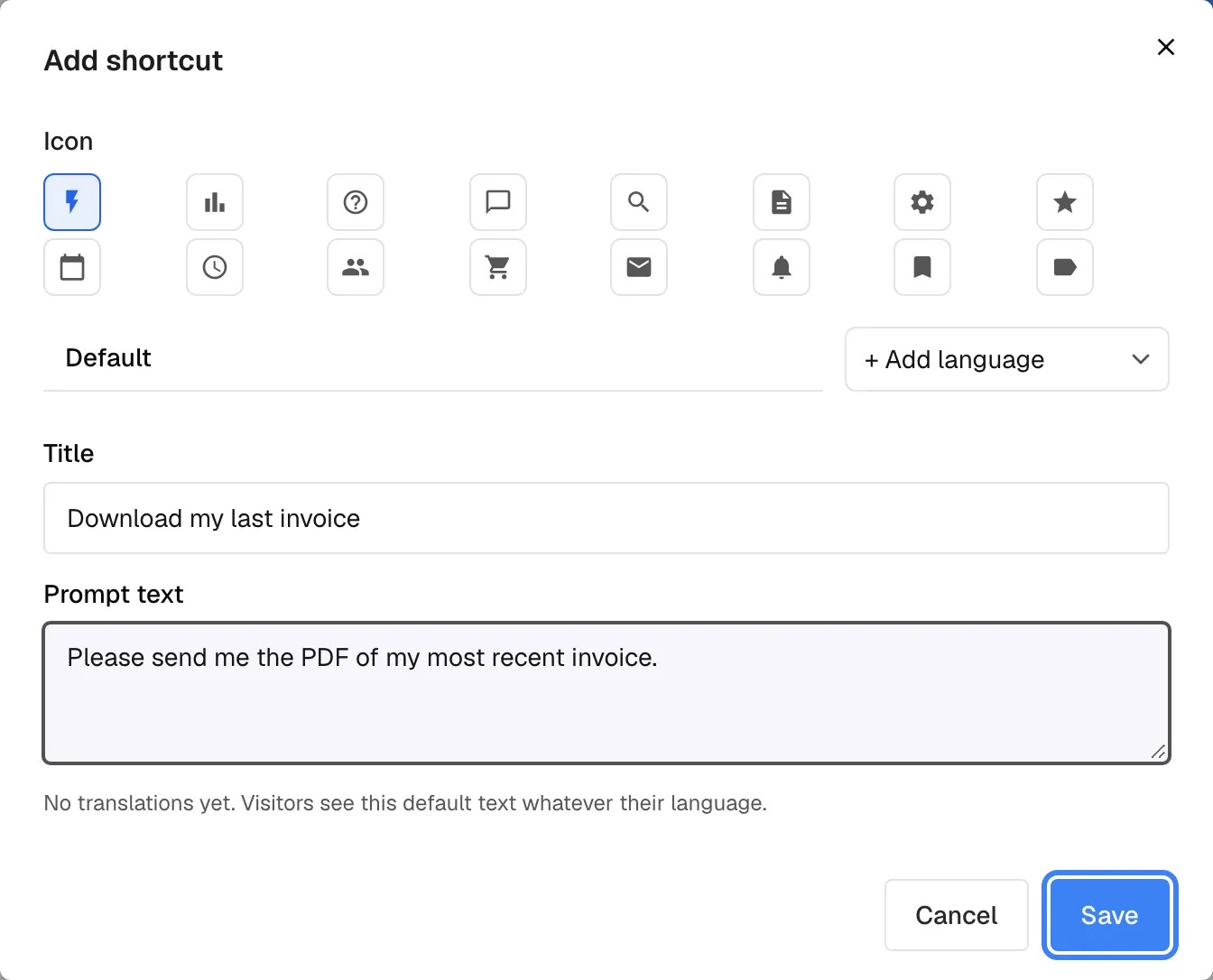
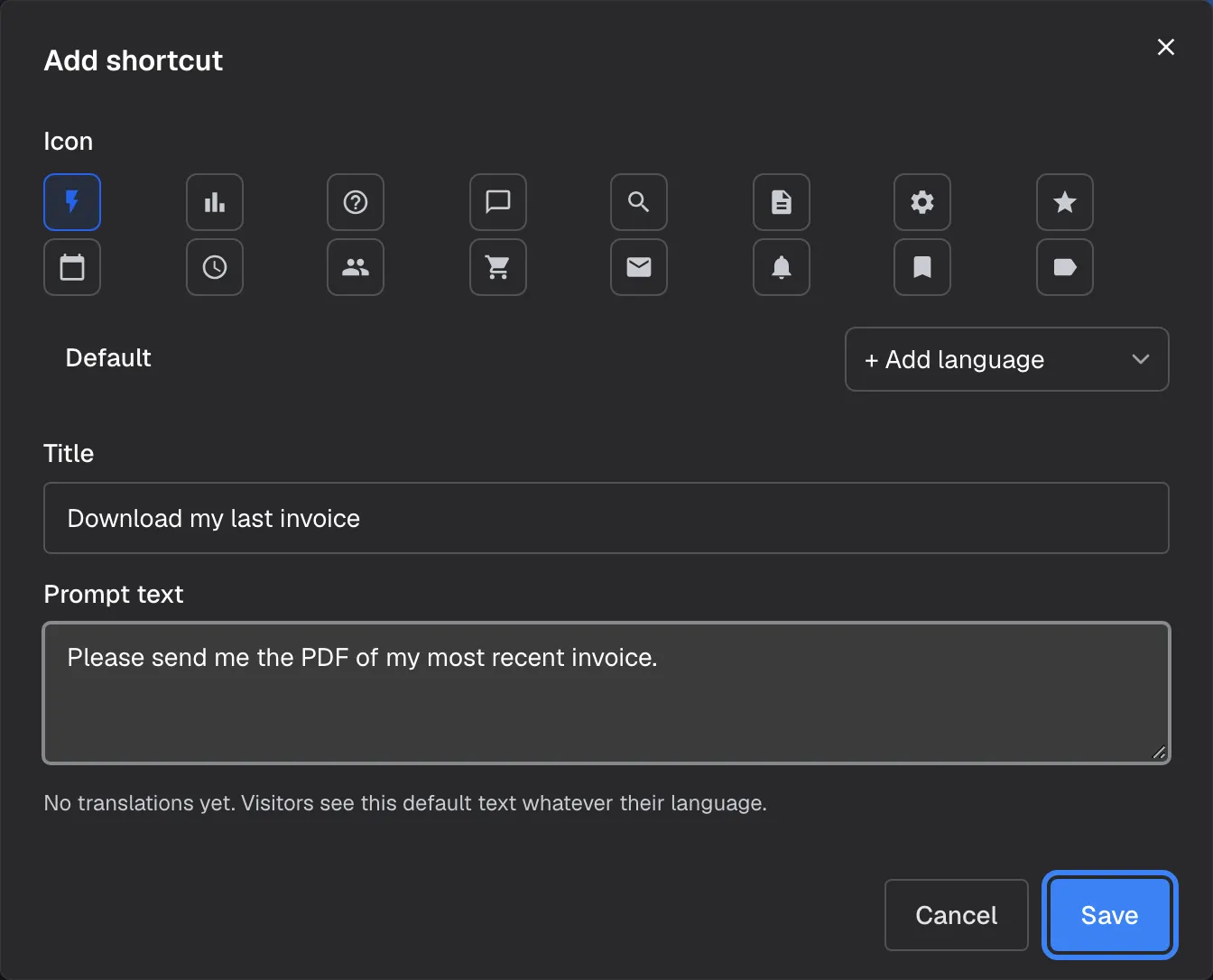
Give the card an icon, a title and the prompt it sends; then save the whole page to keep it. What this screenshot shows
- Screen
- User Interface (/admin/configure/user-interface?widgetId=…)
- Highlighted
- button “Save”, dialog-footer-right, enabled (title and prompt filled). adds the card to the page's card list; nothing is stored until Save User Interface Settings
- Also visible
- Icon picker with 16 icons, lightning selected; Title: Download my last invoice; Prompt text: Please send me the PDF of my most recent invoice.; Cancel button
- Purpose
- adding a shortcut card to the welcome screen
-
Select Save in the dialog. Its save button stays disabled until the title and prompt are filled. The card joins the list, but is not stored yet.
-
Edit or delete cards with the icons on each card.
-
Select
Save User Interface Settingsat the bottom of the page.
Example: a card titled “Download my last invoice” with the prompt Please send me the PDF of my most recent invoice. Selecting it in the chat sends that sentence as the visitor’s first message.
A new widget starts with two cards, “Get started” and “Build me a report”. Cards belong to this widget only; prompt shortcuts that work in every widget are on Shortcuts.
Translations
Section titled “Translations”The welcome text and every card can have translations. Select + Add language and enter a language code, such as de or pt-br; Copy from default fills the new tab with the default text to edit.
- Up to 20 languages per item. A code is two letters, optionally with a region, such as
deorpt-br; anything else is refused. - The widget picks the translation from the visitor’s browser language: an exact match first, then the same language without region, then another region of that language, alphabetically, then the default text.
- A field left empty in a translation falls back to the default text; such a tab shows Partial.
Rename the chat labels
Section titled “Rename the chat labels”The Chat labels section holds two texts the widget shows inside the chat. When a reply uses one of your uploaded documents, the widget marks it with a badge that reads “Verified” in the visitor’s language; type your own wording into Knowledge base badge. When human handoff is set up, the buttons that bring a person from your team into the chat read Invite an agent, “Invite again” and “Connect with agent”; type one wording for all three into Invite agent button. Each field takes up to 40 characters; add a translation per language in the tabs above the fields, then save the page.
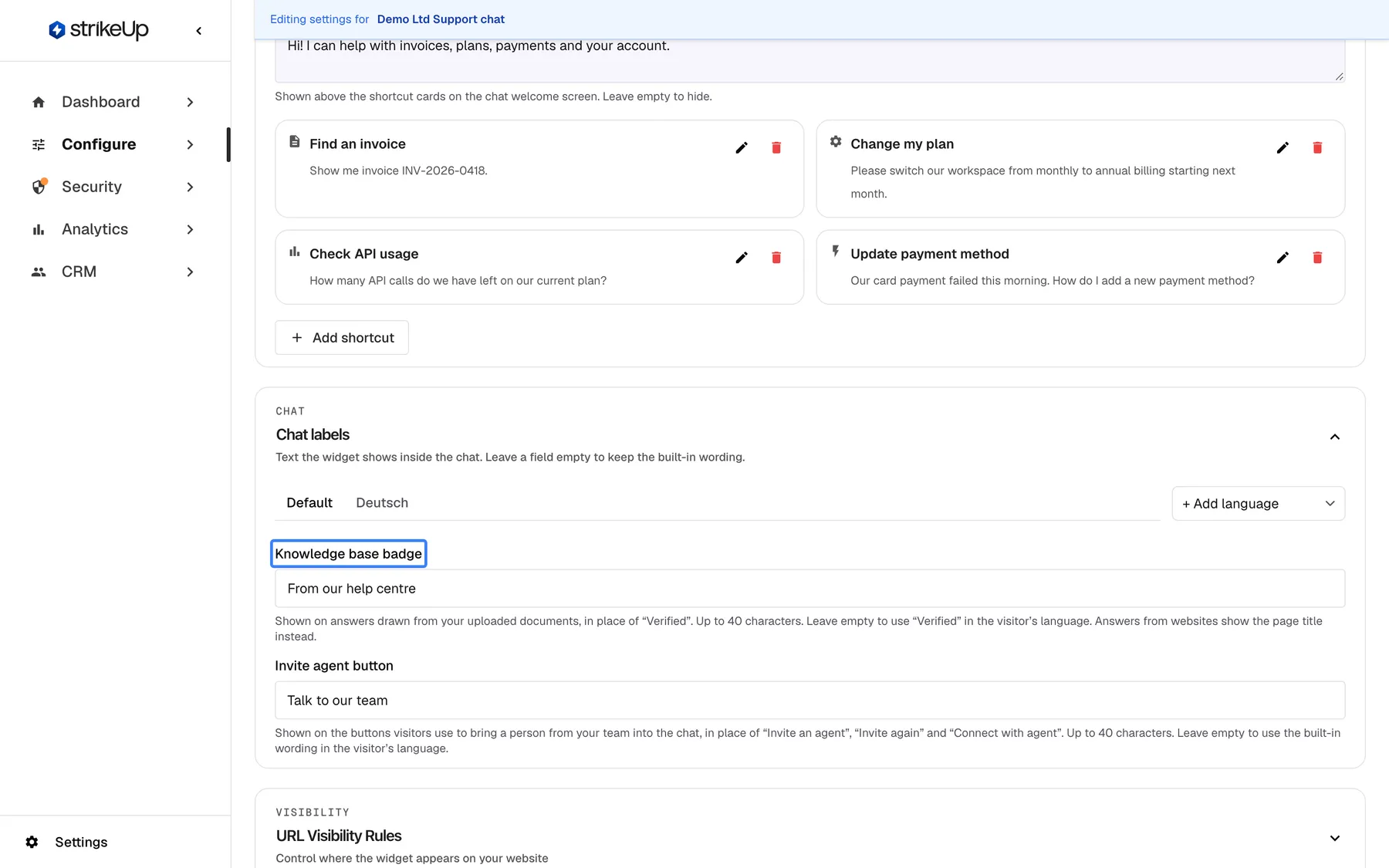
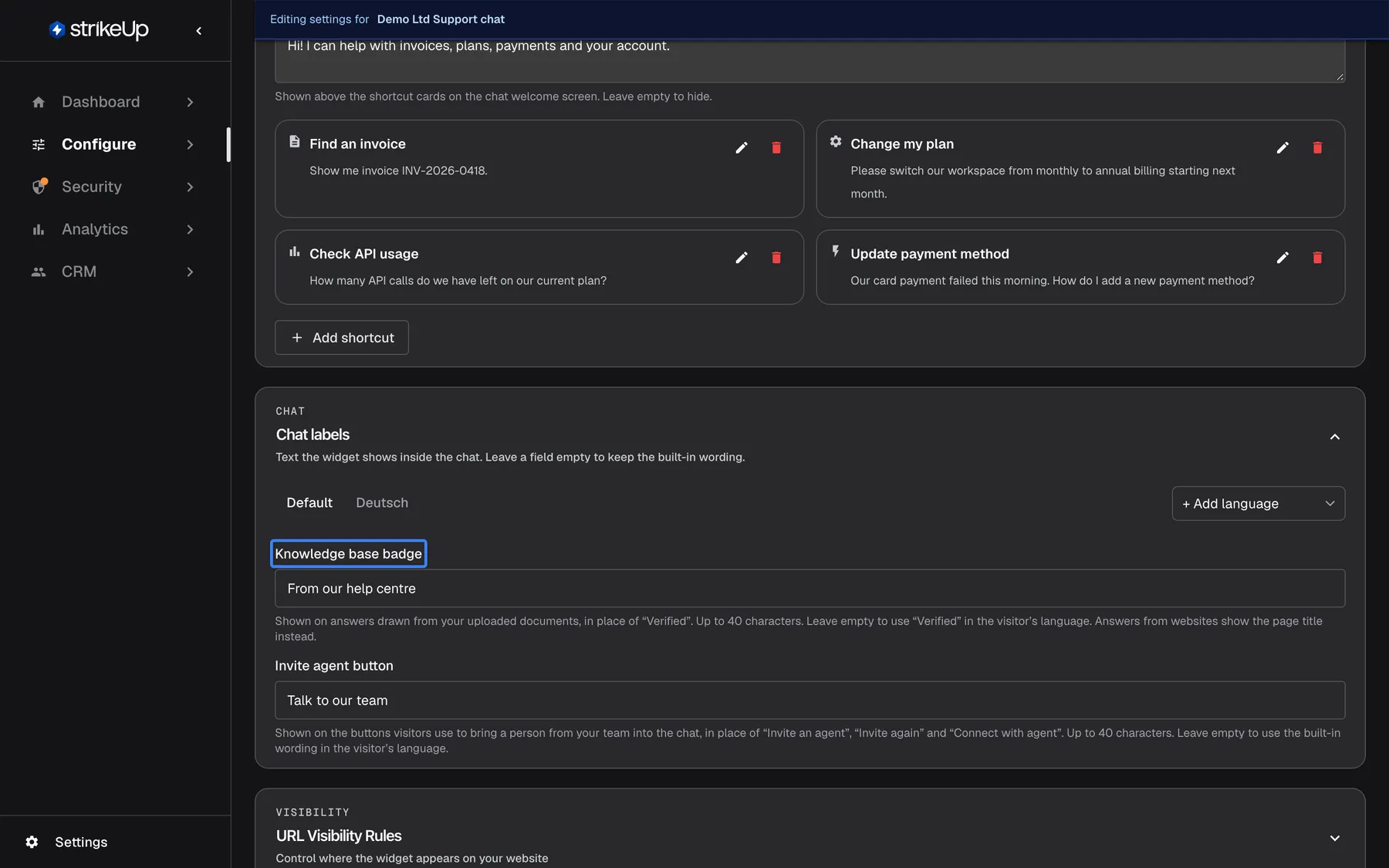
What this screenshot shows
- Screen
- User Interface (/admin/configure/user-interface?widgetId=…)
- Highlighted
- “Knowledge base badge”, chat-labels-section, From our help centre (German: Aus unserem Hilfe-Center). sets the badge text; saved with the page
- Also visible
- Chat labels section with language tabs; Invite agent button field: Talk to our team
- Purpose
- branding the chat labels
Leave a field empty to keep the built-in wording, translated into the visitor’s language. A language without its own translation shows your default text. Answers from a crawled website show the page title instead of the badge text either way.
Limit the pages the widget appears on
Section titled “Limit the pages the widget appears on”URL Visibility Rules lets you show the widget only on some pages of your product, or hide it on some.
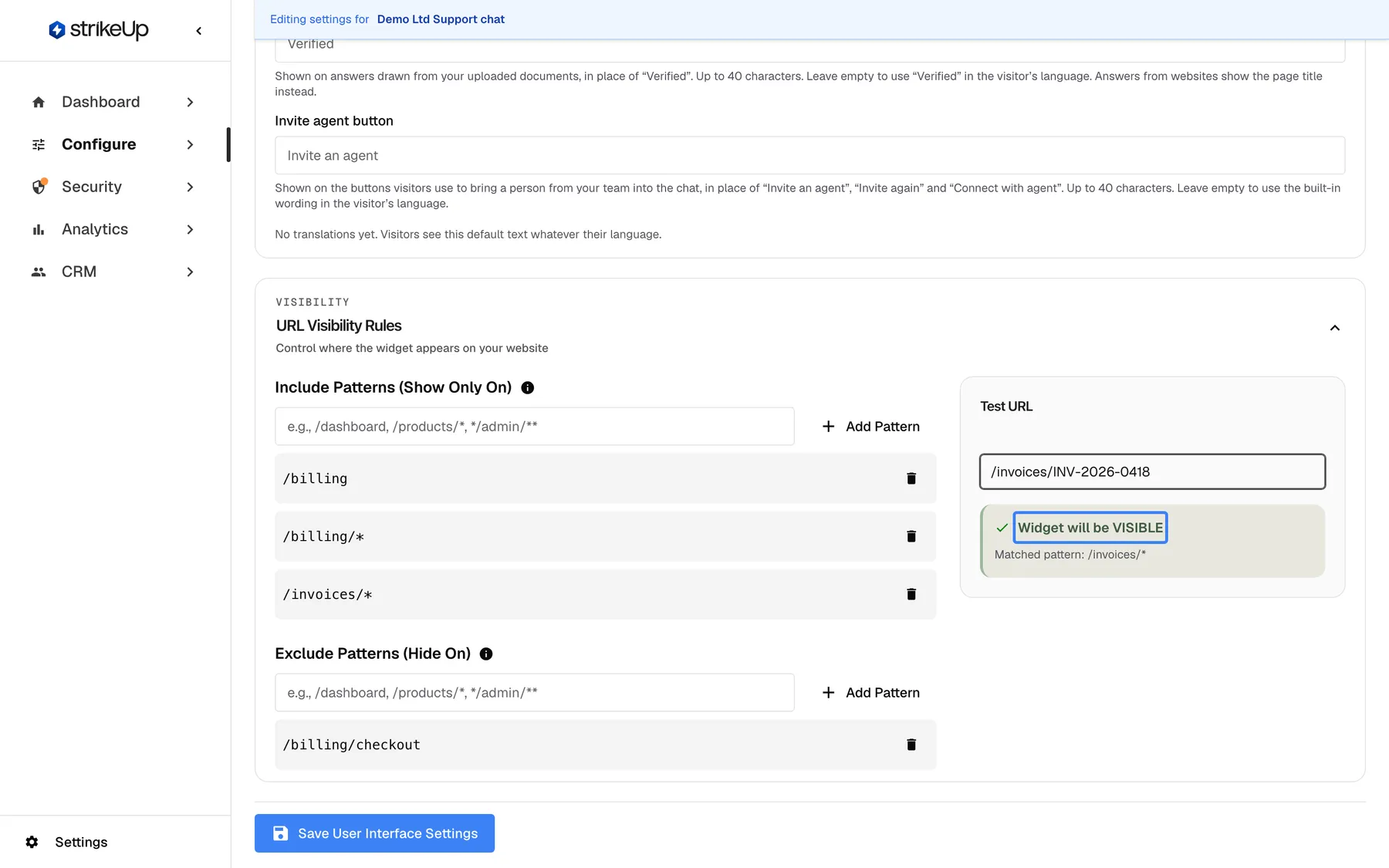
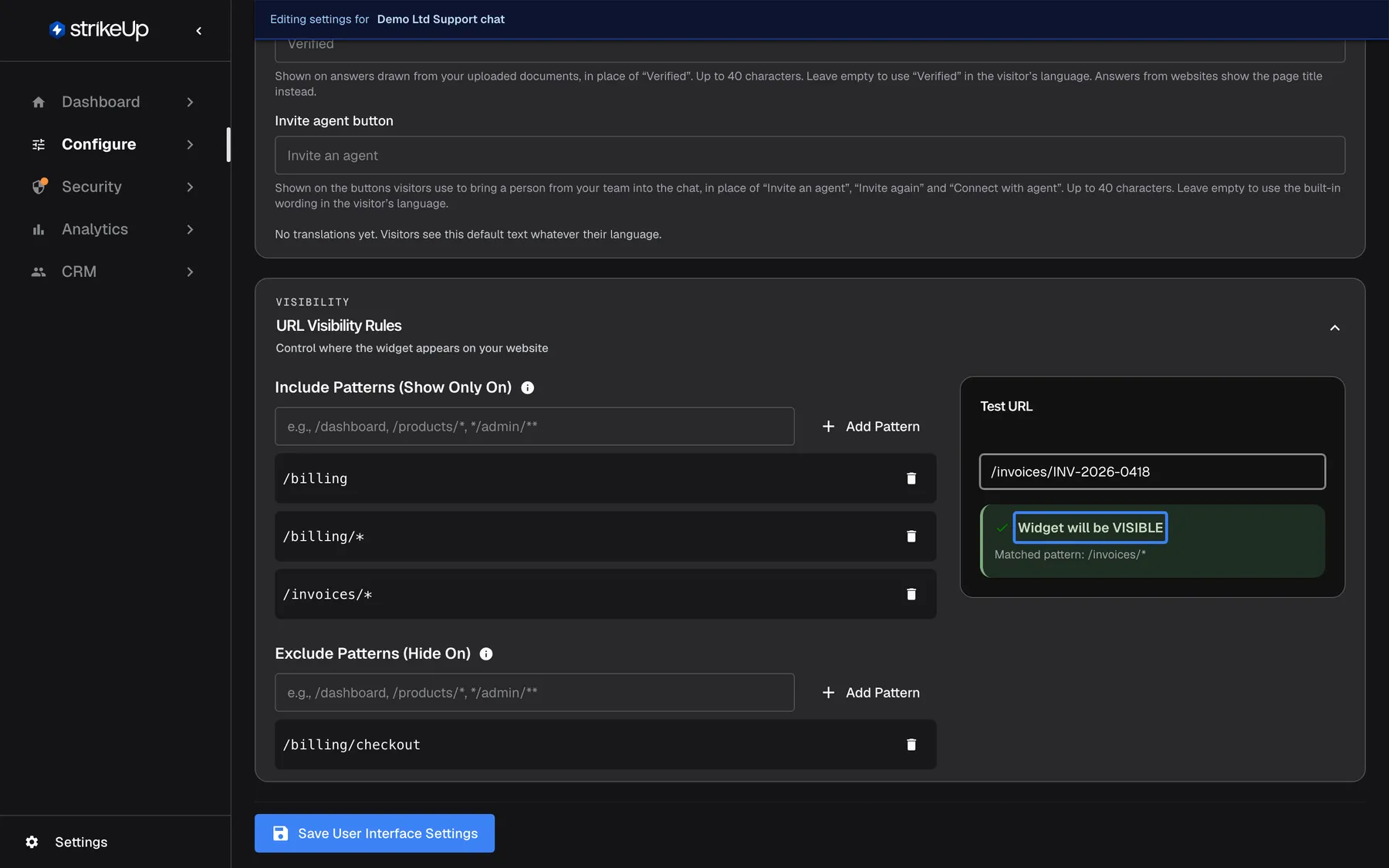
What this screenshot shows
- Screen
- User Interface (/admin/configure/user-interface?widgetId=…)
- Highlighted
- status “Widget will be VISIBLE”, url-visibility-test-panel, result for /invoices/INV-2026-0418, matched /invoices/*. none (live verdict); it uses the same matching rules as the widget on your site
- Also visible
- Include patterns: /billing, /billing/*, /invoices/*; Exclude pattern: /billing/checkout; Test URL: /invoices/INV-2026-0418; Save User Interface Settings button
- Purpose
- restricting the pages on which the widget appears
- Open URL Visibility Rules.
- Under Include Patterns (Show Only On), add the paths where the widget may appear, such as
/billingand/invoices/*, with Add Pattern. Leave it empty to show the widget everywhere. - Under Exclude Patterns (Hide On), add paths where it must not appear, such as
/billing/checkout. - Type a path into Test URL. The result reads Widget will be VISIBLE or Widget will be HIDDEN, with the Matched pattern. The test uses the same rules as the widget.
- Select
Save User Interface Settings.
How a page is matched. The widget checks only the path of the page address, without the domain, query string or # part. Matching ignores upper and lower case and a leading or trailing /.
- The whole path must match the pattern.
/dashboarddoes not match/dashboard/settings. - Each
*stands for exactly one path segment./products/*matches/products/123, but not/products/123/editand not/products.*/loginmatches/account/login, but not/a/b/login. **has no special meaning and never matches a path.- Exclude wins. With include patterns set, a page must match one of them; then any matching exclude pattern hides the widget.
| Path | Include /billing, /billing/*, /invoices/* · Exclude /billing/checkout | Result |
|---|---|---|
/billing | Matches /billing | Visible |
/billing/checkout | Matches /billing/*, then the exclude | Hidden |
/invoices/INV-2026-0418 | Matches /invoices/* | Visible |
/invoices/INV-2026-0418/pdf | Two segments after /invoices; no pattern matches | Hidden |
/dashboard | No include pattern matches | Hidden |
To cover a path at several depths, add one pattern per depth, such as /invoices/* and /invoices/*/*. In single-page applications the widget checks the rules again whenever the page address changes.
Every control, explained
Section titled “Every control, explained”Widget cards
Section titled “Widget cards”The row at the top of the page; selecting a card loads its settings.
One card per widget, with a dashed “New widget” card to create one and a ⋮ menu to delete one. The selected widget stays selected on AI & UX and Embed.
Each widget can look different, for example a sidebar in your app and a pop-up on your help site.
Data display
Section titled “Data display”| Control | What it does | Why |
|---|---|---|
Widget name, Description | The widget’s name and an internal description | Tell widgets apart |
| Display type | One of the five display types; Popup by default | Decide how the widget opens |
Display behaviour | Overlay (default) or Push; shown for sidebar and custom-trigger types | Keep your page visible beside the pane, or let the pane cover it |
Enable feedback | Thumbs up and down under answers; off by default | Collect visitors’ votes for Feedback |
Width, Height | The pane size, such as 400px and 600px; height for pop-ups only | Fit the widget to your layout |
Button color, Button background | The launcher’s icon and background colours; hidden for the panel type | Match your brand |
Button size, Button margin | The launcher’s size and distance from the corner; pop-up only | Keep the launcher clear of your own controls |
Colours and styling
Section titled “Colours and styling”The Colours and styling section, saved with the page.
Override default theme colours switches your colours on. Then Light theme and Dark theme (13 colours each), Chart colours (10), Border radius, width and style, Widget corner radius (outer), and Typography with body and heading font names and URLs. Font URLs must be https Google Fonts links or .woff2, .woff, .ttf, .otf or .css files.
A widget that looks like your product feels like part of it, which makes visitors more willing to use it.
Require customer authentication
Section titled “Require customer authentication”Customer Portal section, first switch. On by default.
On: visitors set a PIN (4–8 digits) or a password (at least 8 characters) on their first visit and enter it later; sessions last 12 hours, or 7 days with “Remember me”. Off: visitors chat without signing in.
When tools act on a visitor’s own data, sign-in ties each conversation to a person who proved they know the PIN or password.
Enable Customer Portal
Section titled “Enable Customer Portal”Customer Portal section, second switch. On by default.
Shows or hides the in-chat Configure button that opens the customer portal. The portal’s direct link keeps working either way.
Hide the button when your own product already offers the same pages, so customers have one place to go.
Visible pages
Section titled “Visible pages”Customer Portal section, under Visible pages.
One switch per portal page, all on by default; Profile is always on. A page switched off is gone from the portal in the chat and through the direct link.
Show customers only the pages that make sense for your product, such as hiding Workflows if you do not offer them.
App page URL
Section titled “App page URL”Customer Portal section, below Enable Customer Portal. Saved with the page.
The https page of your app that embeds the widget. Notification Open buttons lead there and the widget opens the chat or run. Blank means chat notifications carry no Open link.
People who tap Open in a notification should land on the conversation inside your product.
Knowledge base badge
Section titled “Knowledge base badge”Chat labels section, field Knowledge base badge, with language tabs. Saved with the page.
Up to 40 characters shown on answers drawn from your uploaded documents instead of “Verified”. Empty keeps the built-in label in the visitor’s language.
Match the badge to your brand voice, for example “From our help centre”.
Invite agent button
Section titled “Invite agent button”Chat labels section, field Invite agent button, with language tabs. Saved with the page.
Up to 40 characters shown on every button a visitor uses to bring a person from your team into the chat, in place of Invite an agent, “Invite again” and “Connect with agent”. Empty keeps the built-in wording in the visitor’s language. The buttons appear only on widgets with human handoff set up.
Use the words your support team uses, for example “Talk to our team”.
Welcome text and shortcut cards
Section titled “Welcome text and shortcut cards”Shortcut cards section. Cards are added with Add shortcut and kept when you save the page.
Welcome screen text: up to 500 characters, hidden when empty. Up to 8 cards, each with an icon, a title of up to 200 characters and a prompt of up to 2,000 characters. Both can be translated into up to 20 languages.
Most visitors do not know what to ask. Cards show what the assistant can do and start the conversation in one click.
URL Visibility Rules
Section titled “URL Visibility Rules”URL Visibility Rules section, saved with the page.
Include Patterns (Show Only On) and Exclude Patterns (Hide On) lists, each pattern starting with / or * and without spaces, plus Test URL. A pattern that breaks these rules is refused with Pattern must start with / or *, Pattern cannot contain spaces or Pattern cannot be empty.
Keep the widget off pages where it would get in the way, such as checkout, and on the pages where people need help.
What you need to know
Section titled “What you need to know”| Topic | Fact |
|---|---|
| One Save | Every section, including new shortcut cards, is stored only with Save User Interface Settings. |
| Per widget | Every setting on this page belongs to the selected widget. |
| Who can save | Users with the Admin role. Everyone else can open the page, but Save User Interface Settings fails for them with “This action requires the Admin role.” |
| Defaults | Popup, width 400px, sign-in on, portal on with every page, feedback off. |
| Load errors | If the widget’s settings cannot be loaded, the page shows default values; saving then would overwrite your settings. Reload the page first. |
| When changes reach visitors | The widget reads its settings when it loads on a page, so visitors see changes on their next page load. |
Frequently asked questions
Section titled “Frequently asked questions”Display and look
Section titled “Display and look”Which display type should I choose?
Section titled “Which display type should I choose?”On ConfigureUser Interface, pick Popup for a classic chat bubble, Sidebar for a pane that slides in, Panel for a pane that is always open, and one of the custom-trigger types when your own button should open the widget.
How do I open the widget from my own button?
Section titled “How do I open the widget from my own button?”Select Custom Trigger — Sidebar or Custom Trigger — Panel on ConfigureUser Interface and save. Then call StrikeUpChat.open() from your own button’s click handler. Copy-ready snippets for opening, closing and checking the widget are on ConfigureEmbed.
Can I use my own font?
Section titled “Can I use my own font?”Yes. Under Typography on ConfigureUser Interface, enter the font’s family name and an https URL that is a Google Fonts link or ends in .woff2, .woff, .ttf, .otf or .css. You are responsible for the font’s licence and for serving it with CORS enabled.
Why didn’t my colours change?
Section titled “Why didn’t my colours change?”Your colours apply only while Override default theme colours is switched on in Colours and styling on ConfigureUser Interface, and only after you select Save User Interface Settings. Visitors see the change the next time the widget loads on a page.
Sign-in and portal
Section titled “Sign-in and portal”How long do visitors stay signed in?
Section titled “How long do visitors stay signed in?”On a widget with Require customer authentication switched on, a session lasts 12 hours, or 7 days when the visitor ticks “Remember me” on that browser. The visitor makes that choice on the sign-in screen each time they sign in.
What happens when a visitor enters a wrong PIN several times?
Section titled “What happens when a visitor enters a wrong PIN several times?”From the 5th wrong attempt the visitor is locked out for 1 minute, then 5 minutes, 15 minutes, 1 hour and 6 hours as wrong attempts continue. The rules belong to widgets with Require customer authentication switched on.
Does switching off Enable Customer Portal block the portal?
Section titled “Does switching off Enable Customer Portal block the portal?”No. Switching off Enable Customer Portal on ConfigureUser Interface hides only the Configure button inside the chat. A customer with the portal’s direct link can still open it. To remove a page completely, switch it off under Visible pages.
Should I require sign-in?
Section titled “Should I require sign-in?”Switch on Require customer authentication for every widget whose tools read or change a visitor’s own data, and pass each visitor’s identity explicitly from your product in the embed code. For a widget that only answers general questions, sign-in is optional.
Welcome screen
Section titled “Welcome screen”Why did my new shortcut card disappear?
Section titled “Why did my new shortcut card disappear?”Saving the card’s dialog only adds it to the list on the page. The card is stored when you select Save User Interface Settings at the bottom of ConfigureUser Interface. Leaving the page before that discards it.
Which language do visitors see on the cards?
Section titled “Which language do visitors see on the cards?”The widget compares the visitor’s browser language with your translations: an exact match first, such as pt-br, then the language without region, such as pt, then another region of that language, then the default text. Empty fields in a translation fall back to the default text.
How many shortcut cards can a widget have?
Section titled “How many shortcut cards can a widget have?”Up to 8 cards per widget on ConfigureUser Interface, each with a title of up to 200 characters and a prompt of up to 2,000 characters. For more prompts, add prompt shortcuts on ConfigureShortcuts, which visitors reach by typing ”/”.
Why doesn’t the widget show on /products/123/edit?
Section titled “Why doesn’t the widget show on /products/123/edit?”In URL Visibility Rules each * matches exactly one path segment and the whole path must match. /products/* matches /products/123 only. Add /products/*/* as well, and check the result with Test URL before saving.
Does the widget check query strings in the URL rules?
Section titled “Does the widget check query strings in the URL rules?”No. URL Visibility Rules on ConfigureUser Interface compares only the path of the page address. The domain, the query string after ? and the part after # are ignored, and upper and lower case do not matter.
Troubleshooting
Section titled “Troubleshooting”| Symptom | What to check |
|---|---|
| Changes are gone after leaving the page | Select Save User Interface Settings before leaving; nothing on the page saves on its own. |
| The widget does not appear on a page | Test the page’s path in Test URL. Remember that each * is one segment, the whole path must match and exclude patterns win. |
| The widget never opens | With a custom-trigger type it opens only when your page calls StrikeUpChat.open(). Check your button’s code on ConfigureEmbed. |
| The font is refused | Use an https Google Fonts link or a URL ending in .woff2, .woff, .ttf, .otf or .css. |
| The font does not show | Check that the font name matches the family name exactly and that the font is served with CORS enabled. |
| Visitors see the default text instead of their language | Check the language code of the translation and that its fields are filled; empty fields fall back to the default. |
| The form shows default values for an existing widget | The settings could not be loaded. Reload the page before saving, or your settings will be replaced by the defaults. |
| A change fails with Request failed and “This action requires the Admin role.” | Changes on this page need the Admin role. Ask an Admin to make the change, or to give you the Admin role under Settings › Users. |