

Company
The Company Details page holds the settings that belong to your whole company rather than to one person: its name and contact details, your own OpenAI and Gemini keys, the AI memory switch and the rule that every member must use two-factor sign-in. Every member can open and read it from SettingsCompany; only administrators can change it.
What you can do here
Section titled “What you can do here”- Keep your company’s details current. Name, description, address, phone, email and website describe your business. The website is required when StrikeUp generates a guardrails policy for you. Edit your company details.
- Run calls to AI models on your own provider account. Paste an OpenAI or Gemini key and StrikeUp uses it instead of its shared key. A saved key is never shown again and cannot be removed here. Add or replace an AI provider key · AI Gateway › Connectors.
- Switch AI memory on or off for the whole workspace. The switch decides whether the assistant uses what it has remembered about your customers in its replies. Switch AI memory on or off · AI memory.
- Require two-factor sign-in for everyone. One switch makes an authenticator app mandatory for every member, including people who join later. Require two-factor sign-in for the team · Two-factor authentication.
- Check the company’s status at a glance. The bottom of the details card shows when the company was created and last changed, whether it is active and how many accounts it has. Every control, explained.
The screen at a glance
Section titled “The screen at a glance”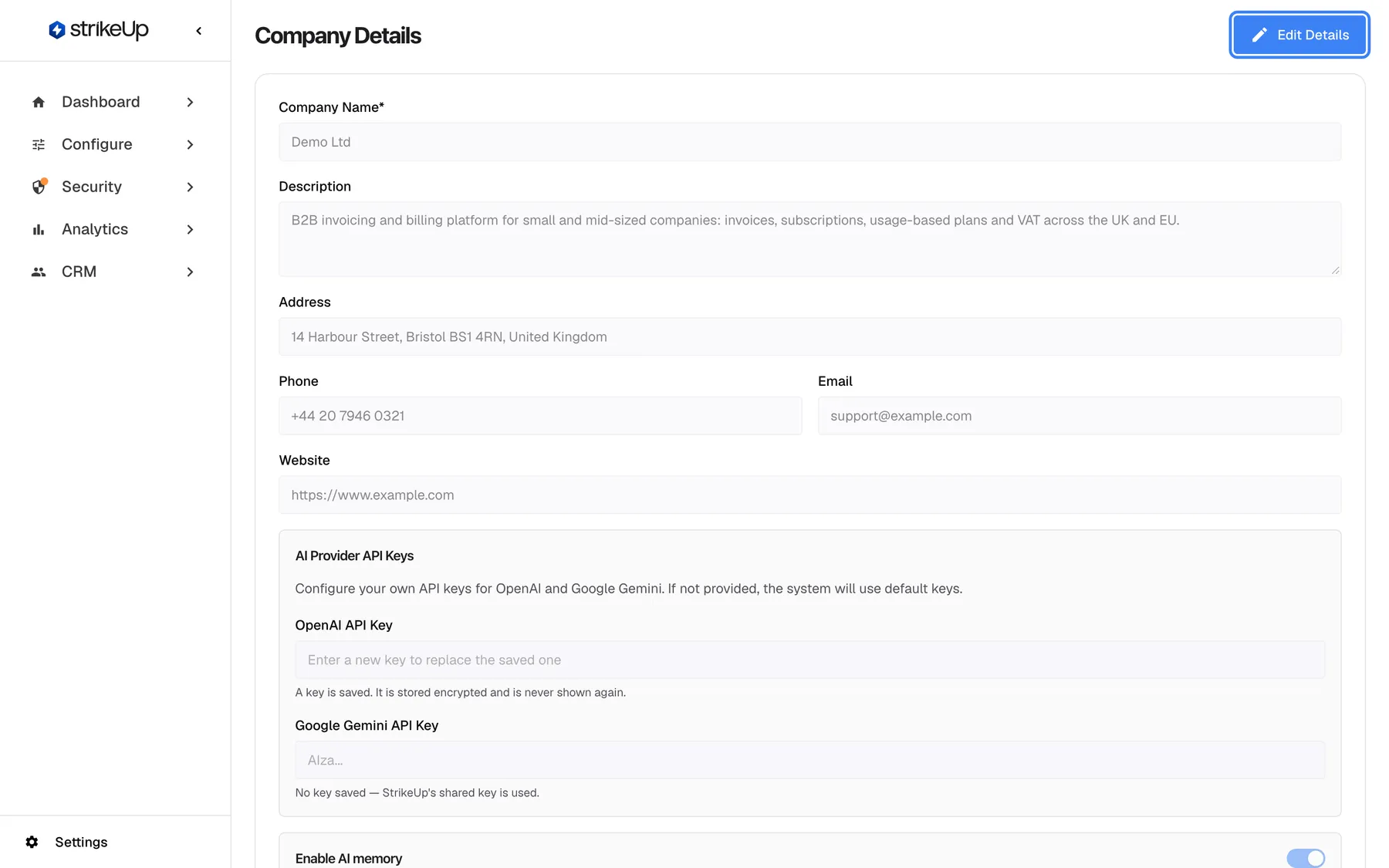
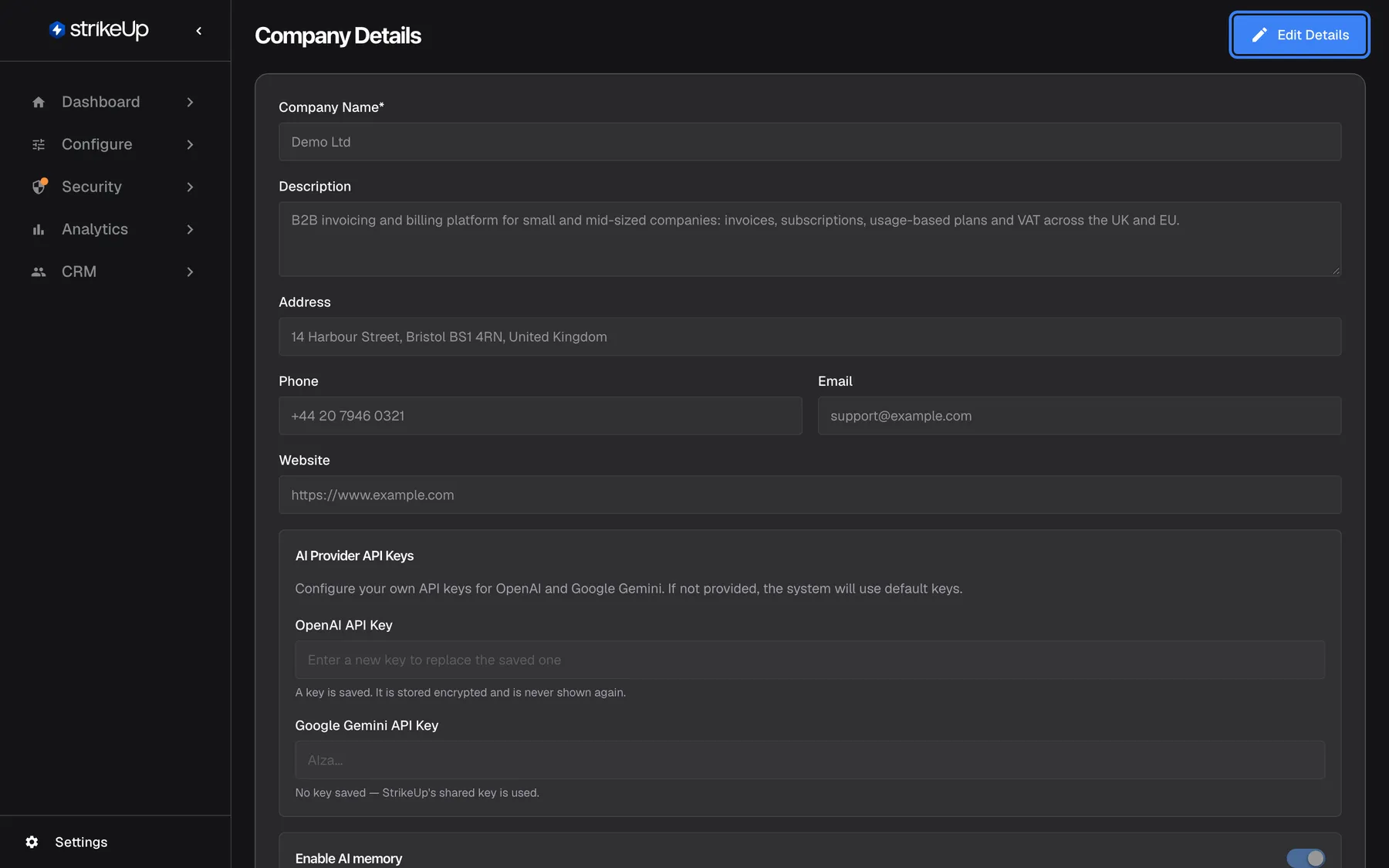
What this screenshot shows
- Screen
- Company Details (/admin/company)
- Highlighted
- button “Edit Details”, top-bar-right, enabled. switches the page to edit mode (Admin only)
- Also visible
- Company Name Demo Ltd, address, phone, email, website; OpenAI key saved, Gemini key not saved
- Purpose
- the company profile as it opens
| Region | What it shows | What you do there |
|---|---|---|
| Header, top | The heading Company Details, the Ask strikeUp button when available, and Edit Details for administrators | Start editing |
| Details card, upper part | Company Name*, Description, Address, Phone, Email and Website, greyed out until you edit | Read or change the company’s details |
| AI Provider API Keys box | OpenAI API Key and Google Gemini API Key, each with a line saying whether a key is saved | Add or replace a key |
| Enable AI memory box | The AI memory switch | Switch AI memory on or off while editing |
| Status row (read-only view only) | Created:, Last Updated:, Status: and Total Users: | Check the company’s state |
| Require Two-Factor Authentication card, bottom | The company-wide two-factor switch | Require two-factor sign-in |
The page opens in a read-only view for everyone. Administrators switch it into edit mode with Edit Details; everyone else only ever sees the read-only view.
Edit your company details
Section titled “Edit your company details”-
Open SettingsCompany and select Edit Details at the top right. The fields become editable, the status row disappears, and Cancel and Save Changes appear at the bottom of the card.
-
Change the fields you need. Nothing is checked as you type: StrikeUp accepts any text in Email, Phone and Website.
-
Select Save Changes. The button reads Saving... while StrikeUp stores everything on the card. A green banner Company details updated successfully! appears for three seconds and the page returns to the read-only view.
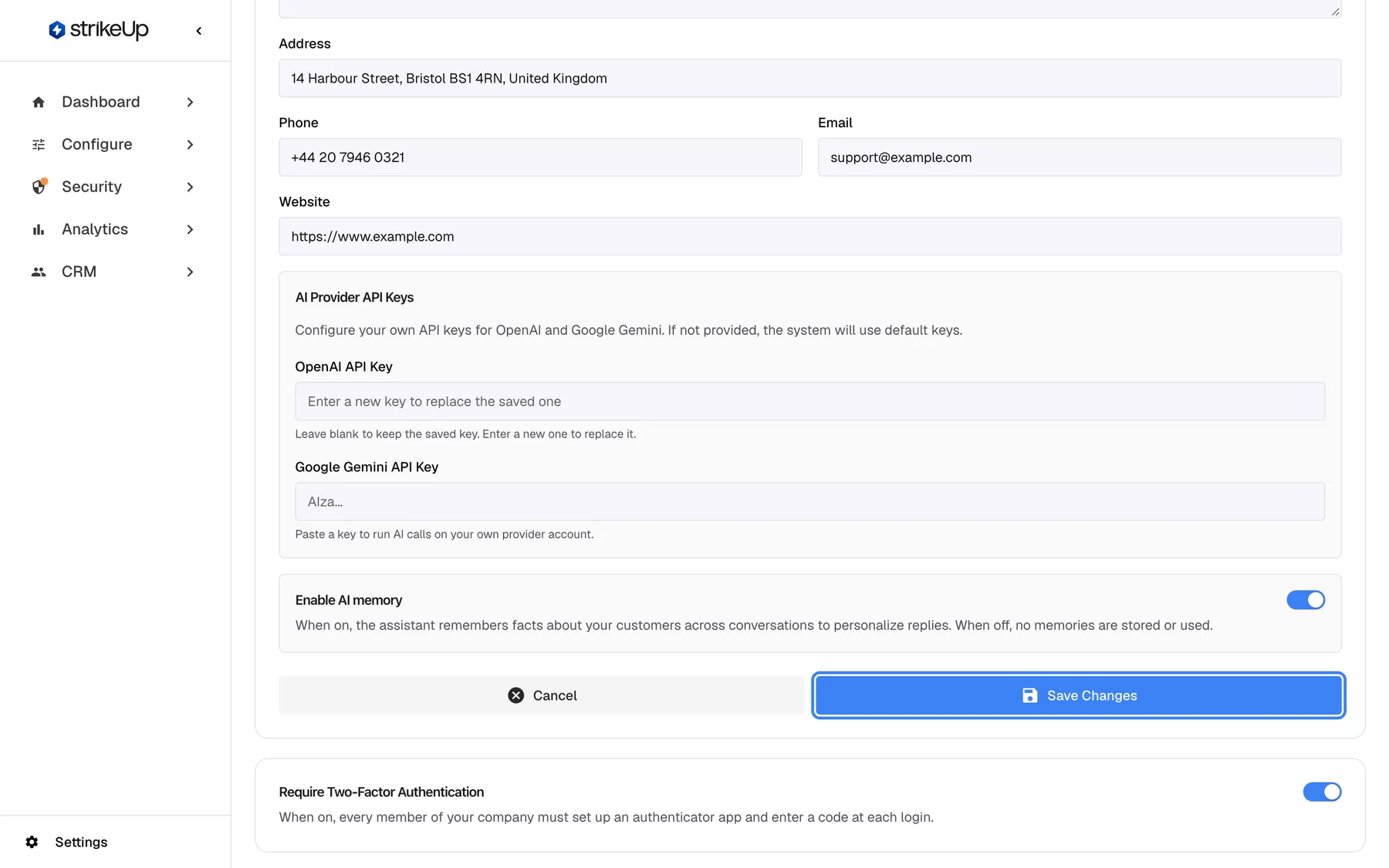
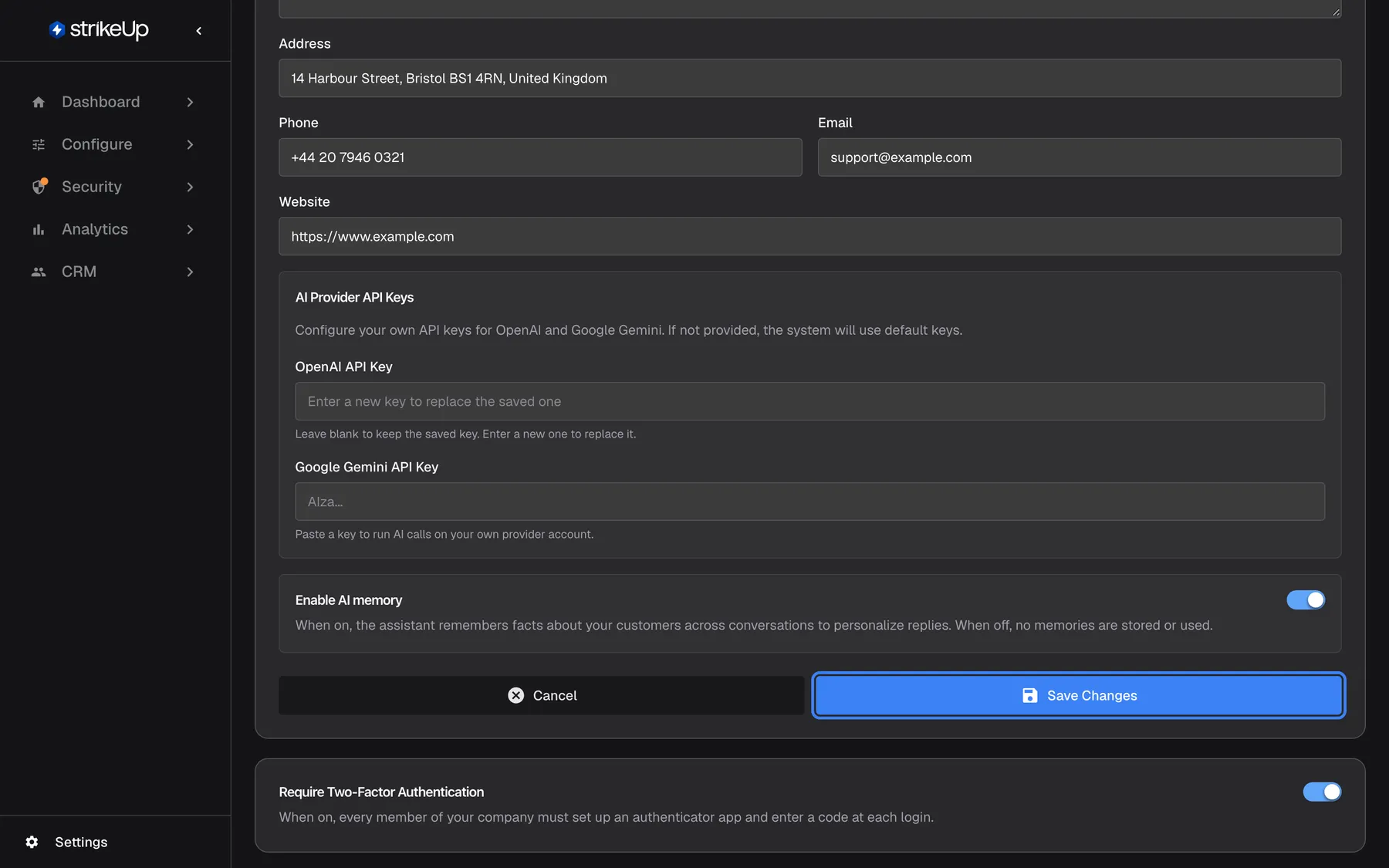
What this screenshot shows
- Screen
- Company Details (/admin/company)
- Highlighted
- button “Save Changes”, form-footer, enabled. saves the company details (PUT /api/company/{id})
- Also visible
- Cancel button; Require Two-Factor Authentication card
- Purpose
- saving company changes
Save Changes stores every field on the card at once: the details, any key you typed and the AI memory switch. Cancel throws away everything you changed and reloads the saved values.
Example: Demo Ltd moves to new offices. Olivia, an administrator, selects Edit Details, replaces the address with 14 Harbour Street, Bristol BS1 4RN, United Kingdom, leaves both key fields empty and selects Save Changes. The address changes; the saved OpenAI key stays as it was.
Two edges surprise people:
- The company name cannot be emptied. If you clear Company Name* and save, StrikeUp keeps the old name. Every other text field can be cleared: an empty field is saved as empty.
- The new name appears elsewhere later. Other screens that show your company name keep the old one until your session refreshes or you sign in again.
Add or replace an AI provider key
Section titled “Add or replace an AI provider key”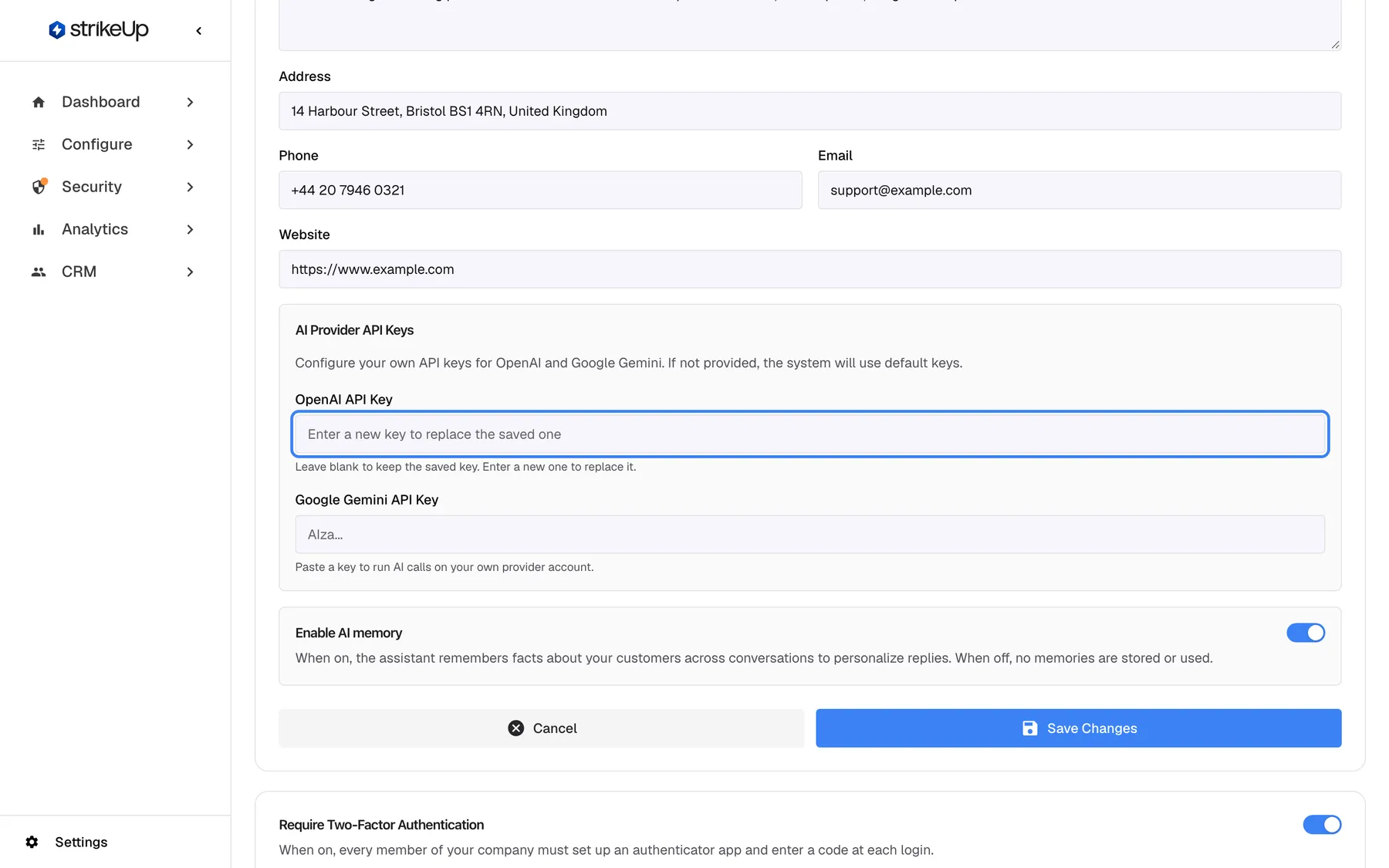
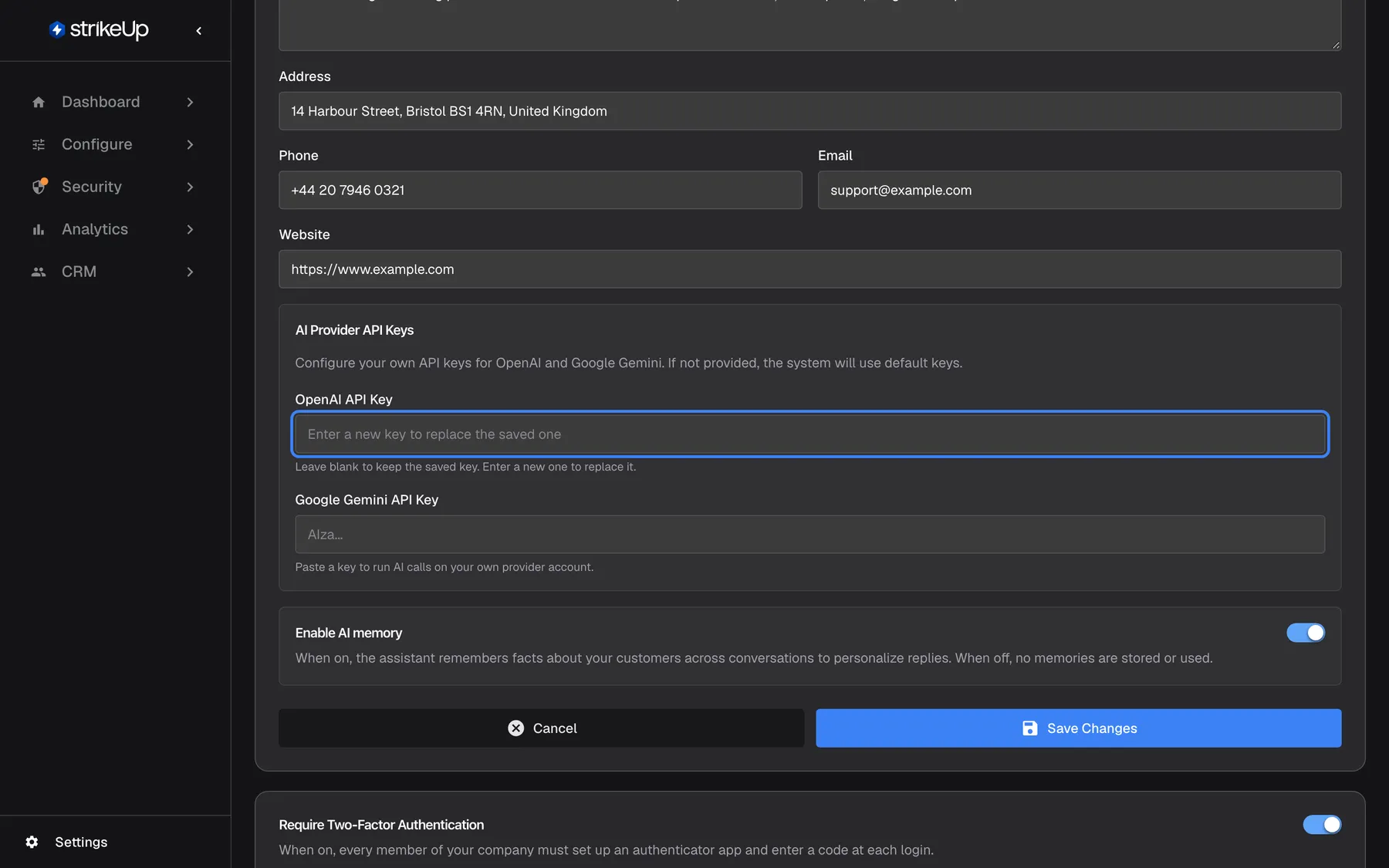
What this screenshot shows
- Screen
- AI Provider API Keys (/admin/company)
- Highlighted
- textbox “OpenAI API Key”, api-keys-box, empty (a key is saved). replaces the saved OpenAI key when a new one is entered and saved
- Also visible
- Google Gemini API Key empty; Enable AI memory switch
- Purpose
- bringing your own AI provider keys
-
Select Edit Details and scroll to AI Provider API Keys.
-
Paste the key into OpenAI API Key or Google Gemini API Key. The fields hide what you type. When a key is already saved, the field is empty and shows Enter a new key to replace the saved one; leave it empty to keep that key.
-
Select Save Changes. In the read-only view the line under the field now says that a key is saved.
From then on, calls to AI models for your company run on your provider account instead of StrikeUp’s shared key. The order is fixed:
| Key available | Which key StrikeUp uses |
|---|---|
| An AI Gateway connector of your own for that provider, with its own key | The connector’s key |
| No such connector, but a key saved here | The key saved on this page |
| Neither | StrikeUp’s shared key |
Calls StrikeUp makes for its own checks, such as guardrails and planning, always run on StrikeUp’s models and never use your key.
StrikeUp does not test the key when you save it, so check that it is correct and active in your provider account first. The key is stored encrypted and is decrypted only on the server when a call to your AI provider needs it.
Switch AI memory on or off
Section titled “Switch AI memory on or off”-
Select Edit Details. The switch in Enable AI memory becomes active.
-
Turn the switch on or off.
-
Select Save Changes. The switch is saved together with the rest of the card; it has no effect until you save.
The switch is off for a new company. While it is off, the assistant does not use remembered facts about your customers in its replies, and nothing new is learned from your conversations. Turning it off does not delete memories that already exist. How memory is learned, what is never stored and how to delete a memory is explained in the AI memory guide.
Require two-factor sign-in for the team
Section titled “Require two-factor sign-in for the team”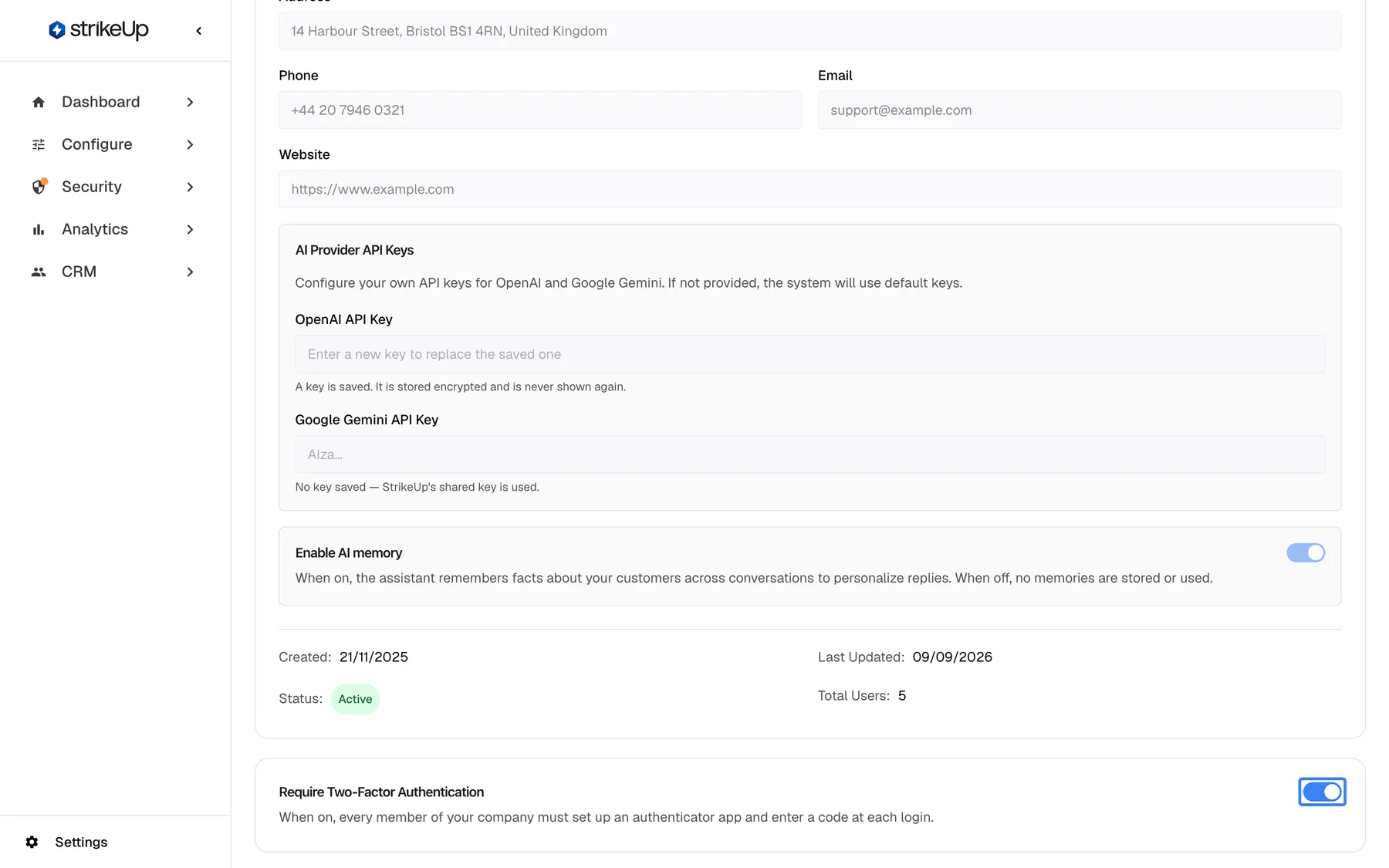
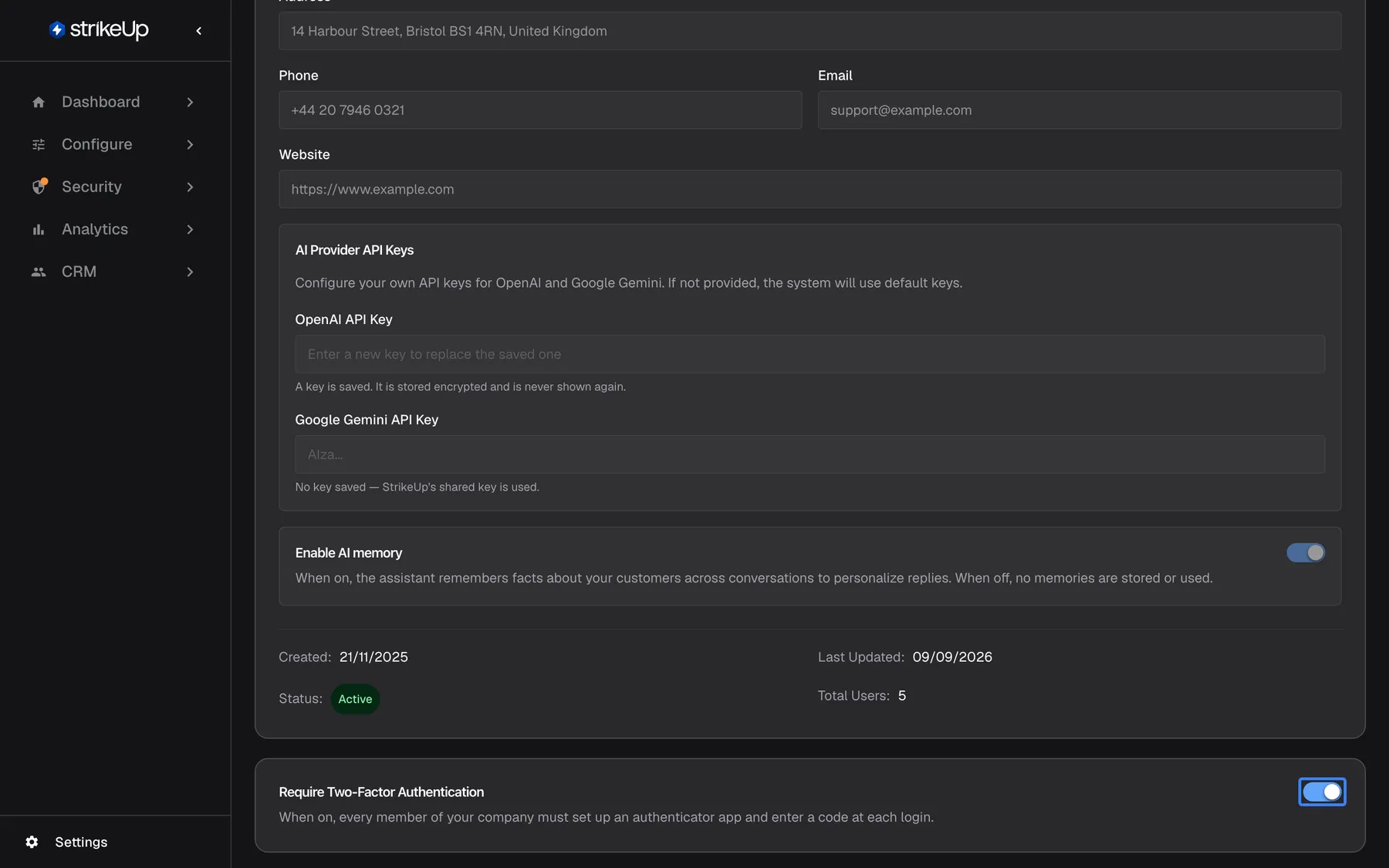
What this screenshot shows
- Screen
- Require Two-Factor Authentication (/admin/company)
- Highlighted
- switch “Require Two-Factor Authentication”, 2fa-card, on. requires 2FA for every user of the company; saves immediately
- Also visible
- Created 21/11/2025, Last Updated 09/09/2026, Status Active, Total Users 5
- Purpose
- company-wide two-factor requirement
The Require Two-Factor Authentication card sits below the details card and works on its own: its switch saves the moment you change it, without Edit Details or Save Changes, and shows Two-factor policy updated..
When it is on, members without an authenticator must set one up at their next sign-in, people you invite set one up while accepting their invitation, and nobody can switch their own two-factor sign-in off. Members who are signed in keep working until they next sign in. The full rules are in Two-factor authentication.
Every control, explained
Section titled “Every control, explained”Each control below says where it is, what it does and why it is there, in the order the page shows them.
Ask strikeUp
Section titled “Ask strikeUp”At the top right, before Edit Details, only when the StrikeUp assistant built into the admin app is set to open from buttons on the page. It is labelled Ask strikeUp.
Opens the built-in assistant with an opening message that offers help with company settings, API keys or onboarding decisions. When the built-in assistant opens another way, the button is not shown.
A quick way to ask what a setting means without leaving the page.
Edit Details
Section titled “Edit Details”The blue button at the top right, labelled Edit Details. Shown only to administrators, and only while the page is in the read-only view.
Makes the details card editable: the text fields, the two key fields and the AI memory switch. The status row is hidden while you edit. It does not affect the two-factor card, which has its own switch.
The read-only view protects company-wide settings from accidental changes; one deliberate click opens them.
Company details fields
Section titled “Company details fields”| Field | What it holds | Why |
|---|---|---|
| Company Name* | Your company’s name. Required: saving it empty keeps the old name. | Identifies your company in StrikeUp |
| Description | A free-text description of what your company does | Context about your business |
| Address | Your postal address | Contact record |
| Phone | A phone number, not checked for format | Contact record |
| Your company’s contact email, not checked for format. It is not anybody’s sign-in email. | Contact record | |
| Website | Your website address. Required when StrikeUp generates a guardrails policy for you, which reads it. | Lets StrikeUp draft guardrails that fit your business |
OpenAI API Key and Google Gemini API Key
Section titled “OpenAI API Key and Google Gemini API Key”In the AI Provider API Keys box of the details card: OpenAI API Key (an empty field shows sk-...) and Google Gemini API Key (an empty field shows AIza...). Editable after Edit Details; saved with Save Changes.
A key you paste makes calls to AI models for your company run on your own provider account, unless an AI Gateway connector of your own for that provider has its own key, which wins. A saved key is never shown again: the field always starts empty, and the line under it says whether a key is saved (No key saved — StrikeUp's shared key is used. when none is). While editing, an empty field keeps the saved key and a new value replaces it. There is no way to remove a saved key on this page, and the key is not tested when you save it.
Some companies want calls to AI models to run under their own provider contract and limits rather than StrikeUp’s shared key.
Enable AI memory
Section titled “Enable AI memory”The Enable AI memory box below the keys, with a switch at its right end. Greyed out until Edit Details; saved with Save Changes.
Off for a new company. On: the assistant may use what it remembers about a customer, and facts written for their customer company, in its replies. Off: the assistant does not use memories in its replies and learns nothing new from your conversations; existing memories are kept.
Memory personalises replies, but it is a company-wide decision whether remembered facts about your customers should shape what the assistant says.
Cancel and Save Changes
Section titled “Cancel and Save Changes”At the bottom of the details card, only while editing: Cancel on the left and Save Changes on the right.
Save Changes stores the whole card in one go and shows Company details updated successfully! for three seconds. If saving fails, a red banner shows StrikeUp’s message, or Failed to update company details when there is none. Cancel leaves edit mode and reloads the saved values.
One save for the whole card means details, keys and the memory switch never end up half changed.
Status row
Section titled “Status row”| Item | What it shows | Why |
|---|---|---|
| Created: | The date your company was created, in your browser’s date format | Reference for support |
| Last Updated: | The date of the last saved change | See whether someone changed the card recently |
| Status: | Active or Inactive. StrikeUp sets it; it cannot be changed on this page. Members of an inactive company cannot sign in. | Explains why nobody can sign in |
| Total Users: | Every account in your company, including disabled ones; pending invitations are not counted | A quick head count |
The row is hidden while you edit.
Require Two-Factor Authentication
Section titled “Require Two-Factor Authentication”The separate card at the bottom of the page, Require Two-Factor Authentication, with a switch at its right end. It saves the moment you change it.
When on, every member of your company must set up an authenticator app and enter a code at each login. Only administrators can change it; everyone else sees it greyed out with Only administrators can change this setting. Off for a new company.
One administrator decision protects every account in the company, without relying on each member to switch it on.
Who sees what
Section titled “Who sees what”| Part of the page | Admin | User or Guest |
|---|---|---|
| Company details, key status, AI memory switch, status row | Read and edit | Read only |
| Edit Details | Shown | Hidden |
| Require Two-Factor Authentication switch | Can change | Greyed out, with Only administrators can change this setting. |
StrikeUp checks the role again on every save. If an administrator loses the Admin role while the page is open, their next save is refused with “This action requires the Admin role.”
What you need to know
Section titled “What you need to know”| Topic | Fact |
|---|---|
| One save for the card | Save Changes stores the details, the keys and the AI memory switch together. |
| The two-factor switch is separate | It saves immediately and does not need edit mode. |
| Empty fields | An empty name keeps the old name; any other empty text field is saved as empty; an empty key field keeps the saved key. |
| No format checks | Email, phone and website are stored as typed. |
| Keys | Never shown again after saving, not tested, and not removable on this page. |
| Not on this page | Time zone, language, data retention and deleting the company. None of these exist in the admin app. |
| Dates | Shown in your browser’s date format. |
| Who changes it | Administrators only. Everyone can read it. |
Frequently asked questions
Section titled “Frequently asked questions”General
Section titled “General”Why can’t I see the Edit Details button?
Section titled “Why can’t I see the Edit Details button?”Edit Details is shown only to administrators. With the User or Guest role you can read every field under SettingsCompany but not change them. Ask an administrator to make the change, or to give you the Admin role under SettingsUsers.
Where do I set my company’s time zone or language?
Section titled “Where do I set my company’s time zone or language?”Nowhere: the Company Details page has no time zone or language setting, and neither does any other screen. The admin app shows its labels in your browser’s language, and dates in your browser’s date format.
Can I delete my company?
Section titled “Can I delete my company?”Not in the admin app. SettingsCompany has no delete option, and the company’s Status: is set by StrikeUp. Contact StrikeUp support if you want your company closed.
What does Total Users count?
Section titled “What does Total Users count?”Every account in your company, including disabled ones. Pending invitations are not counted until the person accepts. The full list, with each account’s role and status, is under SettingsUsers.
Company details
Section titled “Company details”Is the company email the address I sign in with?
Section titled “Is the company email the address I sign in with?”No. Email on the Company Details page is a contact field for your company. Each person signs in with their own email address, which is set when they sign up or are invited and cannot be changed in the admin app.
Why didn’t my company name change when I cleared it?
Section titled “Why didn’t my company name change when I cleared it?”Company Name* is required, so StrikeUp ignores an empty name and keeps the old one when you select Save Changes. Type the new name instead of leaving the field empty.
What is the website used for?
Section titled “What is the website used for?”When StrikeUp generates a guardrails policy for your company, it reads Website from SettingsCompany, and generation does not run without it. Enter your public website address, starting with https://.
AI provider keys
Section titled “AI provider keys”What does adding an OpenAI or Gemini key do?
Section titled “What does adding an OpenAI or Gemini key do?”Calls to AI models for your company then run on your own provider account instead of StrikeUp’s shared key. If you also have an AI Gateway connector of your own for that provider with its own key, the connector’s key wins. Calls StrikeUp makes for its own checks, such as guardrails and planning, never use your key.
Can I see the key after I have saved it?
Section titled “Can I see the key after I have saved it?”No. A saved key is never shown again, not even to administrators. In the read-only view of SettingsCompany, the line under OpenAI API Key or Google Gemini API Key only tells you whether a key is saved.
How do I remove a saved key?
Section titled “How do I remove a saved key?”You cannot remove it on the Company Details page. Leaving the field empty and selecting Save Changes keeps the saved key. You can replace it with a new key at any time, but once a key is saved the page offers no way back to StrikeUp’s shared key.
Does StrikeUp check that my key works?
Section titled “Does StrikeUp check that my key works?”No. StrikeUp stores the key you paste without testing it against OpenAI or Google. Check that the key is correct and active in your provider account before you paste it under AI Provider API Keys.
AI memory and two-factor
Section titled “AI memory and two-factor”Does turning AI memory off delete the memories?
Section titled “Does turning AI memory off delete the memories?”No. Turning Enable AI memory off and selecting Save Changes stops the assistant from using memories in its replies, but memories that already exist are kept. You delete individual memories on a customer’s page or a customer company’s page.
Why didn’t the AI memory switch save?
Section titled “Why didn’t the AI memory switch save?”The switch is part of the details card, so it is stored only when you select Save Changes. Leaving the page or selecting Cancel after moving the switch throws the change away.
Who can require two-factor sign-in for the company?
Section titled “Who can require two-factor sign-in for the company?”Only administrators. The Require Two-Factor Authentication switch at the bottom of SettingsCompany saves immediately; for everyone else it is greyed out with Only administrators can change this setting.
Troubleshooting
Section titled “Troubleshooting”| Symptom | What to check |
|---|---|
| Edit Details is missing | Your role. Only administrators see it; ask an administrator to make the change. |
| Saving shows Request failed with “This action requires the Admin role.” | Your role was changed after you opened the page. Reload the page; if you should still be an administrator, ask another administrator to check SettingsUsers. |
| The company name stays the same after saving | You saved an empty name, which is ignored. Type the new name and save again. |
| The key line still says a key is saved after you cleared the field | An empty key field keeps the saved key. Paste a new key to replace it; a key cannot be removed on this page. |
| Saving fails with an error right after you pasted a key | Save again without the key to confirm the rest saves. If only saving with a key fails, contact StrikeUp support with the time you tried. |
| The old company name still shows elsewhere in the app | Other screens use the name from your sign-in. Sign out and in again to see the new name. |
| Generating a guardrails policy refuses to start | Website is empty. Add your website address here and save. |
| Failed to load company details or Company not found | Reload the page. If it persists, sign out and in again; your session may be out of date. |