

Welcome to StrikeUp
The setup wizard takes a new StrikeUp company from an empty account to a working assistant connected to your API. It opens by itself over the Dashboard straight after sign-up, under the title Welcome to StrikeUp, and stays there until you finish it: there is no close button. In a few steps you point StrikeUp at your API specification, tell it how to authenticate, let it generate one tool per endpoint, review masking rules for sensitive fields and choose which tools the assistant may call. Your progress is saved after every step, so you can leave and come back.
What you can do here
Section titled “What you can do here”- Connect your API from its specification. Paste the address of your Swagger/OpenAPI or Readme.com specification; StrikeUp checks it and creates your first toolkit. Connect your API specification · Toolkits.
- Tell StrikeUp how to sign in to your API. Choose the authorization your API expects, from none to OAuth. This step also creates your first chat widget. Choose how StrikeUp authenticates.
- Let StrikeUp generate the tools. One tool per endpoint, written with AI, with live progress. Follow the generation.
- Protect sensitive fields. If StrikeUp finds fields such as card codes or IBANs, it suggests masking rules you can activate in one go. Review the suggested masking rules · Data masking.
- Choose what the assistant may do. Tick the endpoints the assistant may call; everything else stays switched off. Choose the tools.
- Finish and go to the Dashboard. The last screen lists what to do next. Finish the setup.
The screen at a glance
Section titled “The screen at a glance”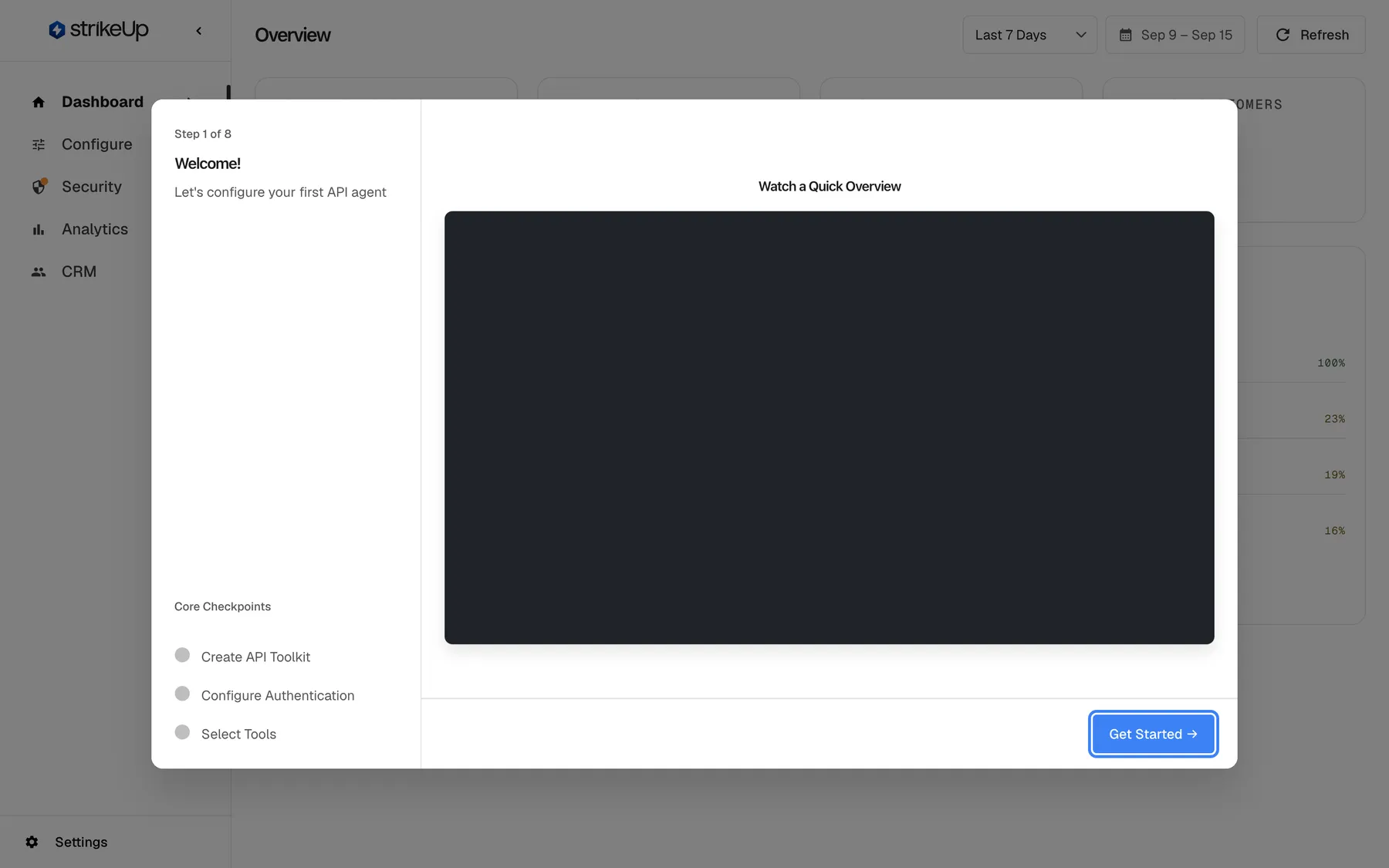
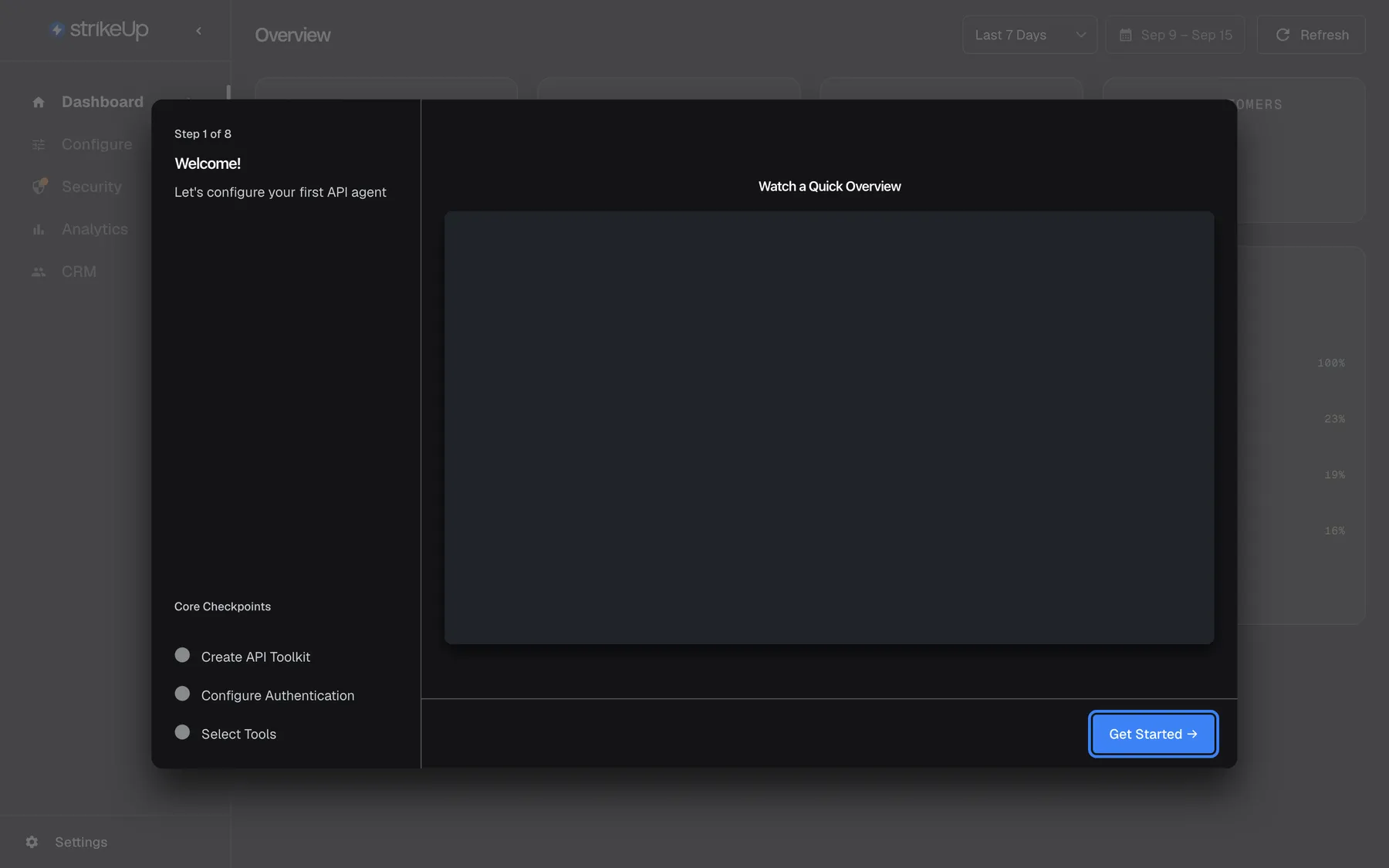
What this screenshot shows
- Screen
- Welcome to StrikeUp (/admin/dashboard/overview)
- Highlighted
- button “Get Started →”, wizard-bottom-right, enabled. opens the API Specification step
- Also visible
- Step 1 of 8, Welcome!; Core Checkpoints: Create API Toolkit, Configure Authentication, Select Tools (all open); Overview video area (empty in captures); Dimmed dashboard behind the modal
- Purpose
- entry point of the onboarding wizard
| Region | What it shows | What you do there |
|---|---|---|
| Left column, top | The step counter, the step’s title and a one-line description | See where you are |
| Left column, middle | What is this step about? with a short video for the step (from the second step on) | Watch an explanation if you want one |
| Left column, bottom | Core Checkpoints: Create API Toolkit, Configure Authentication and Select Tools, each ticked green when done | Check what is left |
| Right side | The current step’s form or progress | Do the step |
| Bottom right | The buttons that move you on, such as Get Started → | Continue |
The dimmed Dashboard behind the wizard cannot be used until the wizard is finished.
Start the wizard
Section titled “Start the wizard”Sign up, and the wizard opens on Welcome! with Let's configure your first API agent and an overview video. Select Get Started → to begin.
The counter in the left column reads “Step 1 of 8” here and counts up as you go. It does not always count in order: when masking rules are suggested, that step shows “Step 8 of 8” and the following tool selection shows “Step 6 of 8”. Not every step appears for everyone, so you do not necessarily see eight steps.
Connect your API specification
Section titled “Connect your API specification”-
Under Documentation Type, keep Swagger/OpenAPI or choose Readme.com.
-
Paste the address of your specification into API Specification URL, for example
https://api.example.com/accounts/v1/openapi.json. The address of a documentation page also works: StrikeUp looks for the specification behind it. -
Select Validate. StrikeUp reads the specification and shows Specification Valid with the number of endpoints, the toolkit name and its description. If it found the specification behind a documentation page, it replaces the address and shows We detected this specification URL from the documentation page you entered.
-
Check Company Website. If you gave a website at sign-up, it is filled in; otherwise StrikeUp suggests one from the API address, without
www.orapi.. Correct it to your public website if needed. -
Select Next →.
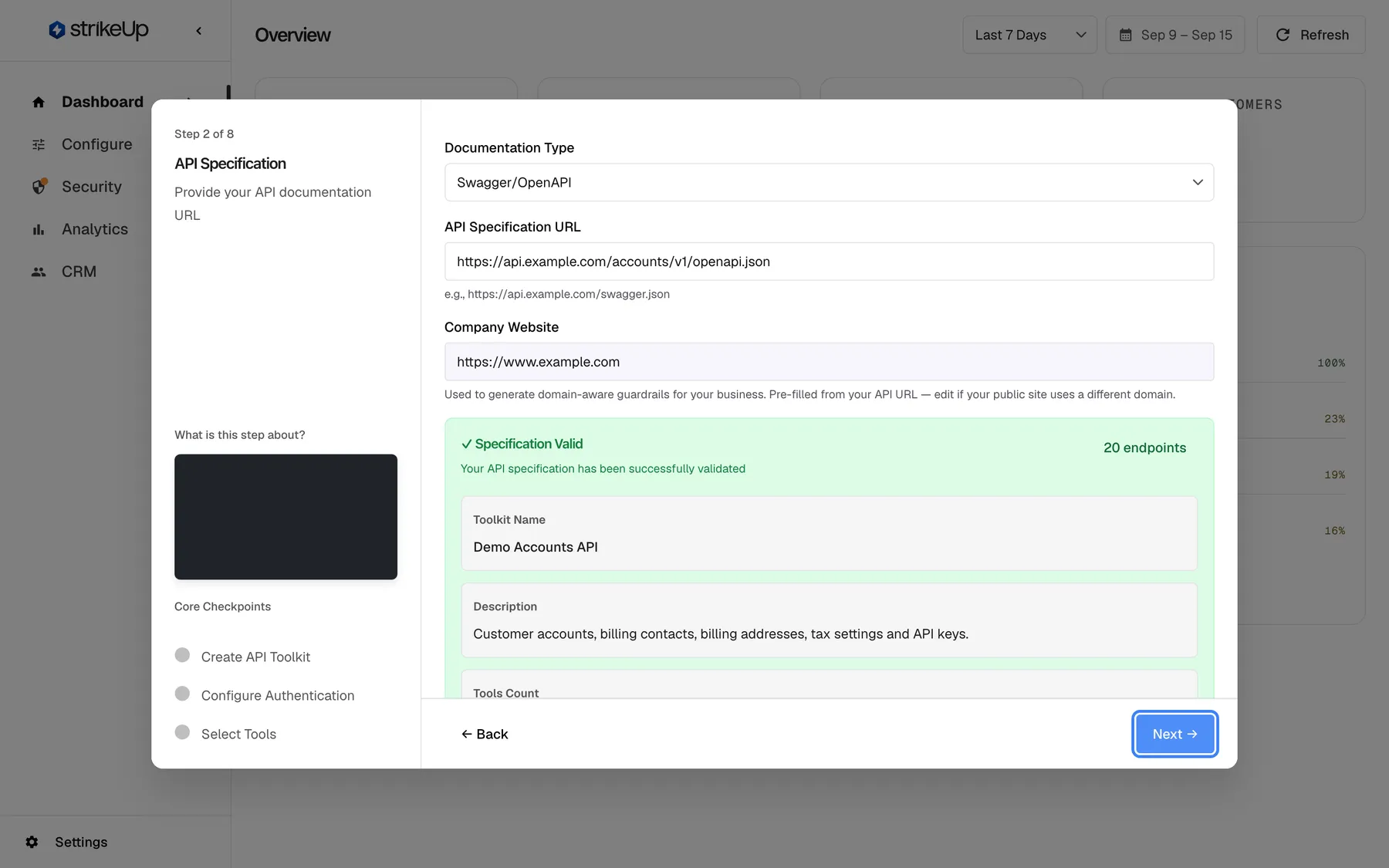
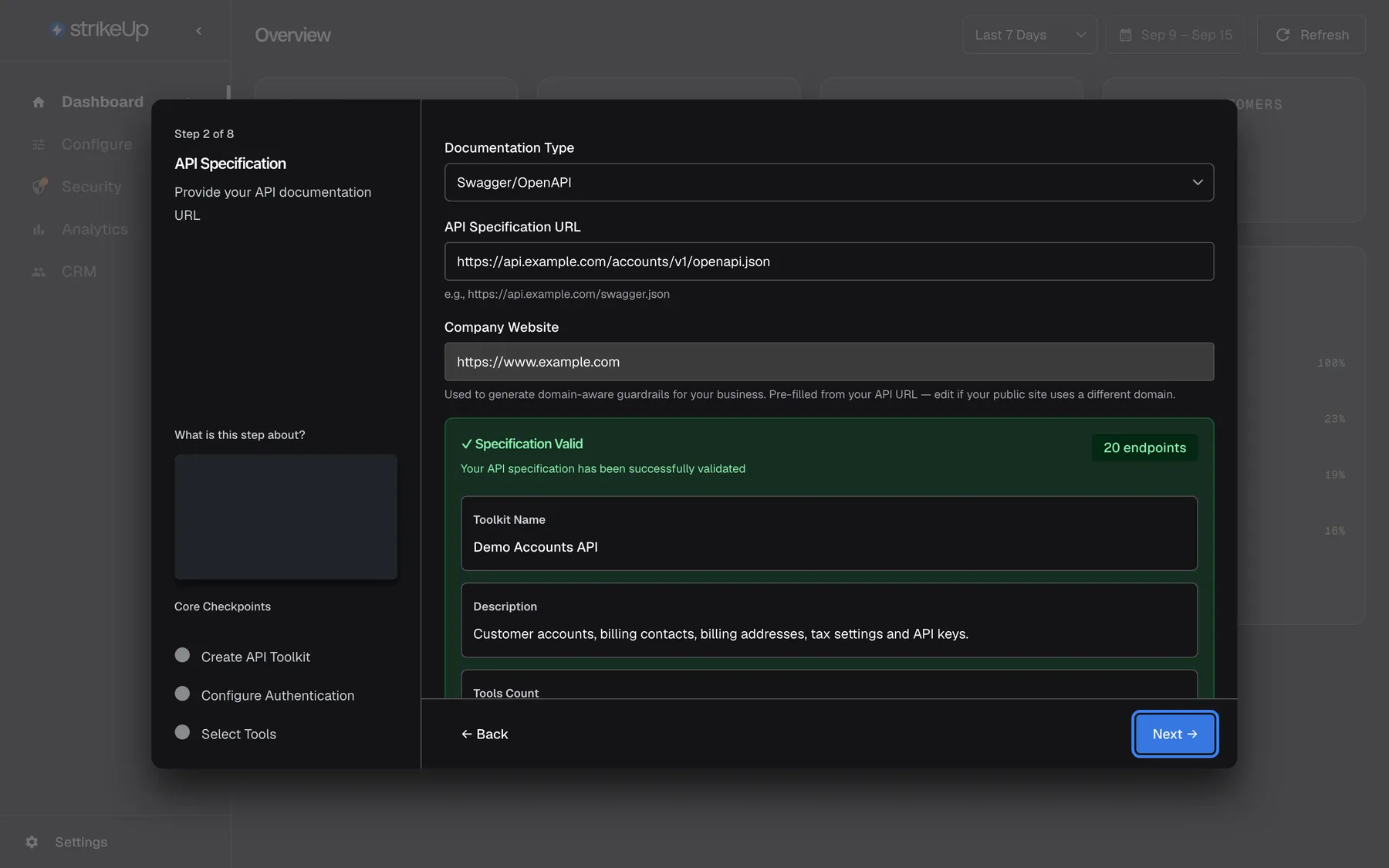
What this screenshot shows
- Screen
- API Specification (/admin/dashboard/overview)
- Highlighted
- button “Next →”, wizard-bottom-right, enabled. creates the toolkit (POST /api/servers/generate) and opens Configure Authorization
- Also visible
- Documentation Type: Swagger/OpenAPI; API Specification URL: https://api.example.com/accounts/v1/openapi.json; Company Website: https://www.example.com; Specification Valid, 20 endpoints, Toolkit Name Demo Accounts API
- Purpose
- the validated specification just before the toolkit is created
StrikeUp saves your website, creates the toolkit and starts generating its tools in the background while you continue. Example: for https://api.example.com/accounts/v1/openapi.json, StrikeUp suggests the website https://example.com, reports “20 endpoints” and names the toolkit “Demo Accounts API” after the specification’s title.
Only an address is accepted; you cannot upload a file or paste the specification’s text. If you change the address or the type after validating, validate again before continuing.
Choose how StrikeUp authenticates
Section titled “Choose how StrikeUp authenticates”The step Configure Authorization sets how StrikeUp signs in to your API when the assistant calls it.
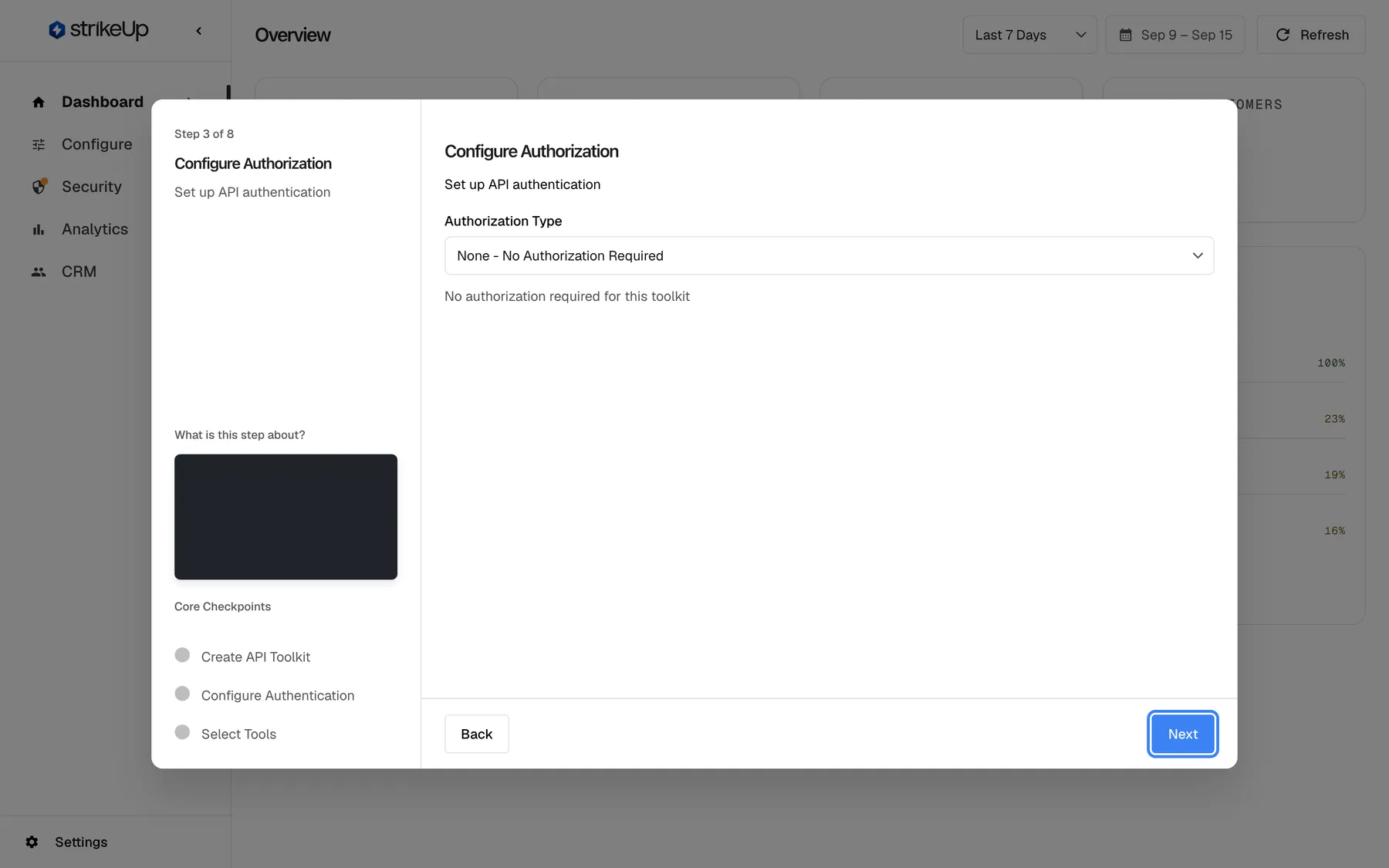
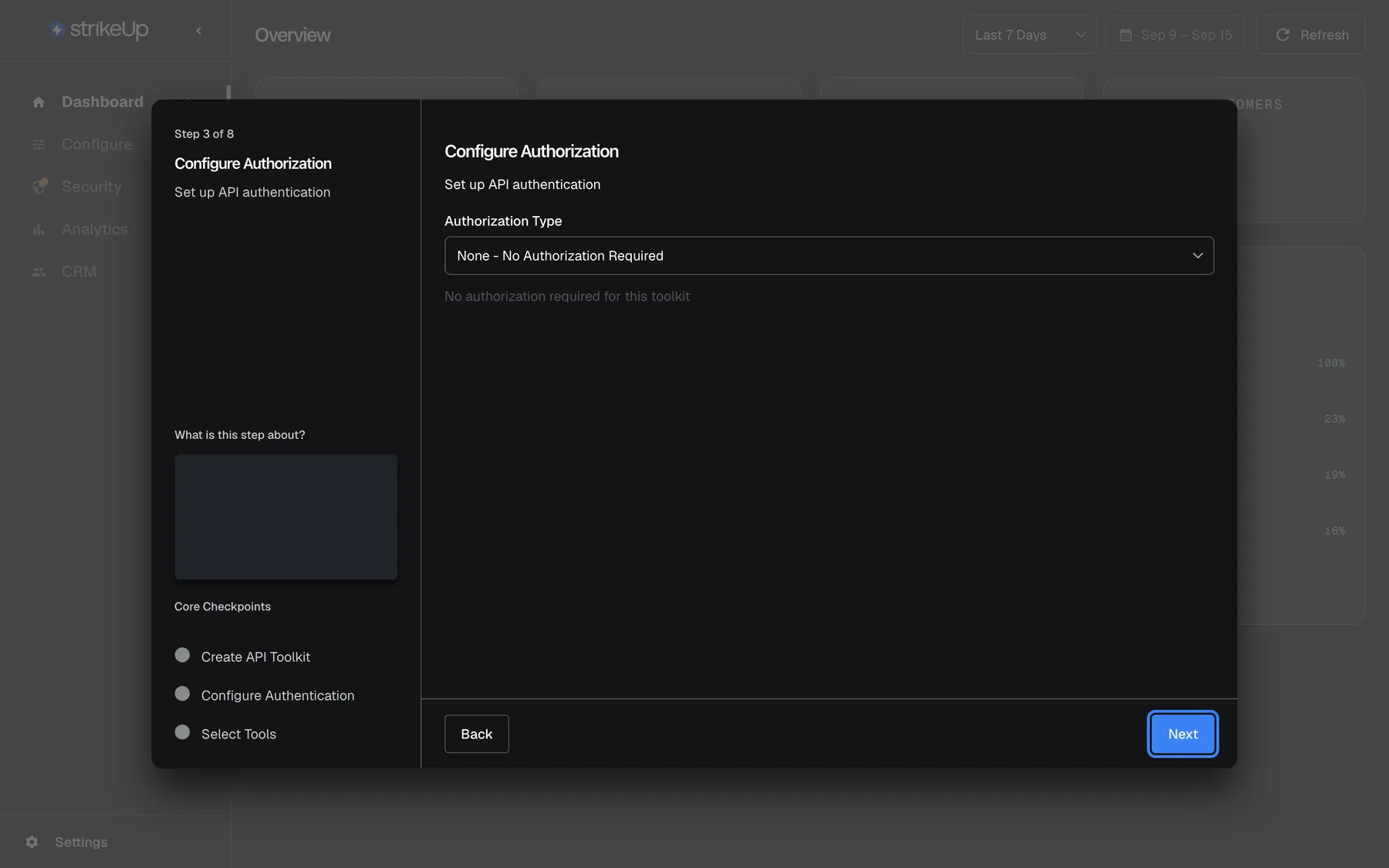
What this screenshot shows
- Screen
- Configure Authorization (/admin/dashboard/overview)
- Highlighted
- button “Next”, wizard-bottom-right, enabled. saves the toolkit authorization (PUT /api/servers/{id}) and creates the widget "<toolkit> Copilot" (POST /api/widget)
- Also visible
- Authorization Type: None - No Authorization Required; Step 3 of 8
- Purpose
- authorization step of the wizard
-
Choose the authorization type your API expects: no authorization, a custom token, basic authentication with a user name and password, OAuth, or a custom token endpoint.
-
Fill in what the chosen type asks for. Headers that are the same for everyone go under static headers; headers each of your users provides go under dynamic headers.
-
Select Next.
StrikeUp saves the authorization on the toolkit and creates your first chat widget, named after the toolkit with “Copilot” added, for example “Demo Accounts API Copilot”. A notification may show technical text such as app.onboarding.step2.success instead of a sentence; it means the step was saved. You can change the authorization later on the Toolkits page.
Follow the generation
Section titled “Follow the generation”The step Generating Toolkit shows the toolkit being built: Overall Progress, the schema models processed and the tools generated, with a status message. StrikeUp writes one tool per endpoint with AI, so a large specification takes longer. You do not need to do anything; the wizard moves on by itself at 100 %.
When generation completes, StrikeUp also starts generating a guardrails policy for your business from your website and the new tools, in the background. Then the wizard shows the masking step if there are suggestions, or goes straight to tool selection.
When generation fails
Section titled “When generation fails”If the live progress connection drops, the wizard shows Connection Interrupted and reconnects by itself, every 5 seconds, up to five times. The generation keeps running on the StrikeUp side meanwhile.
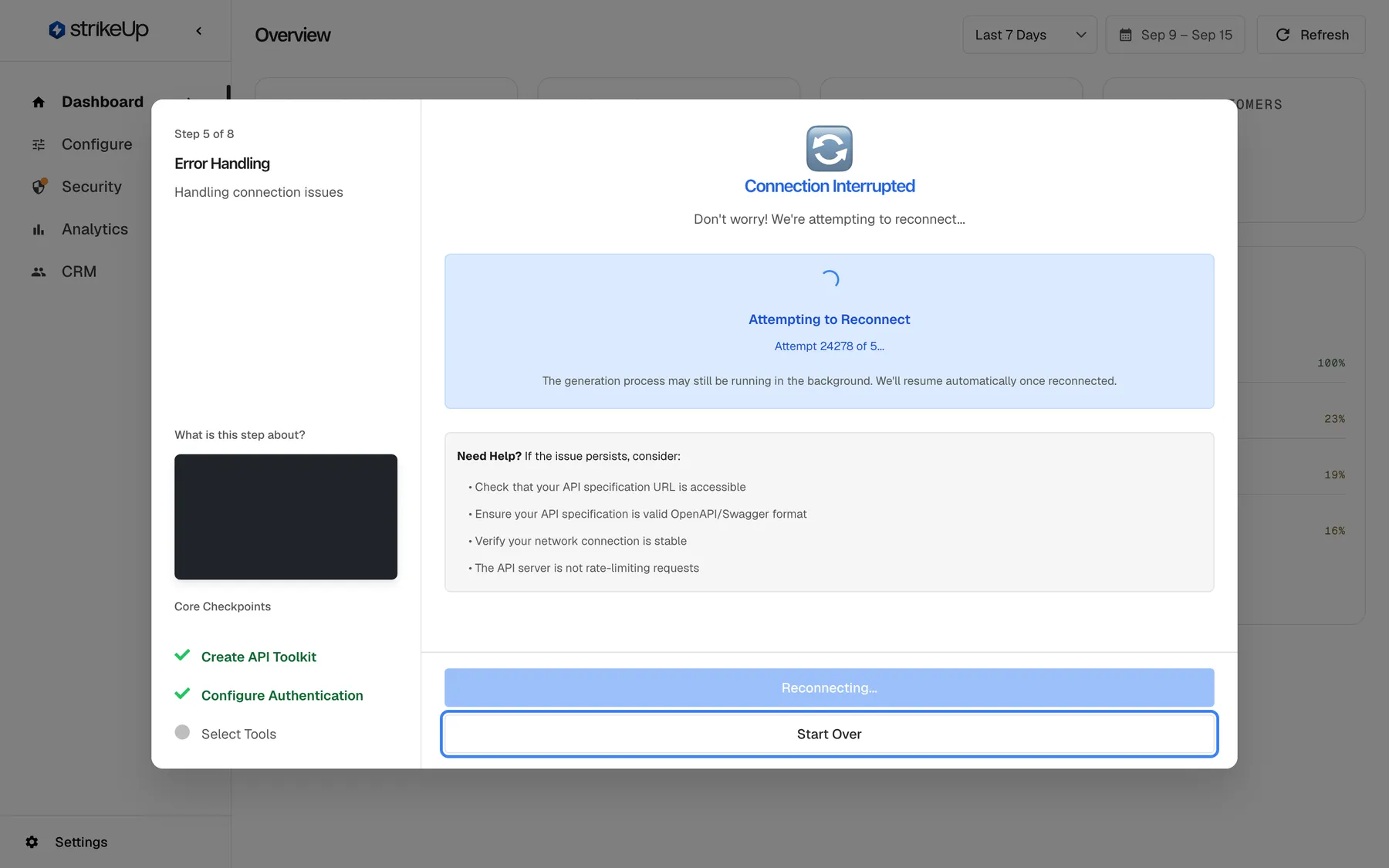
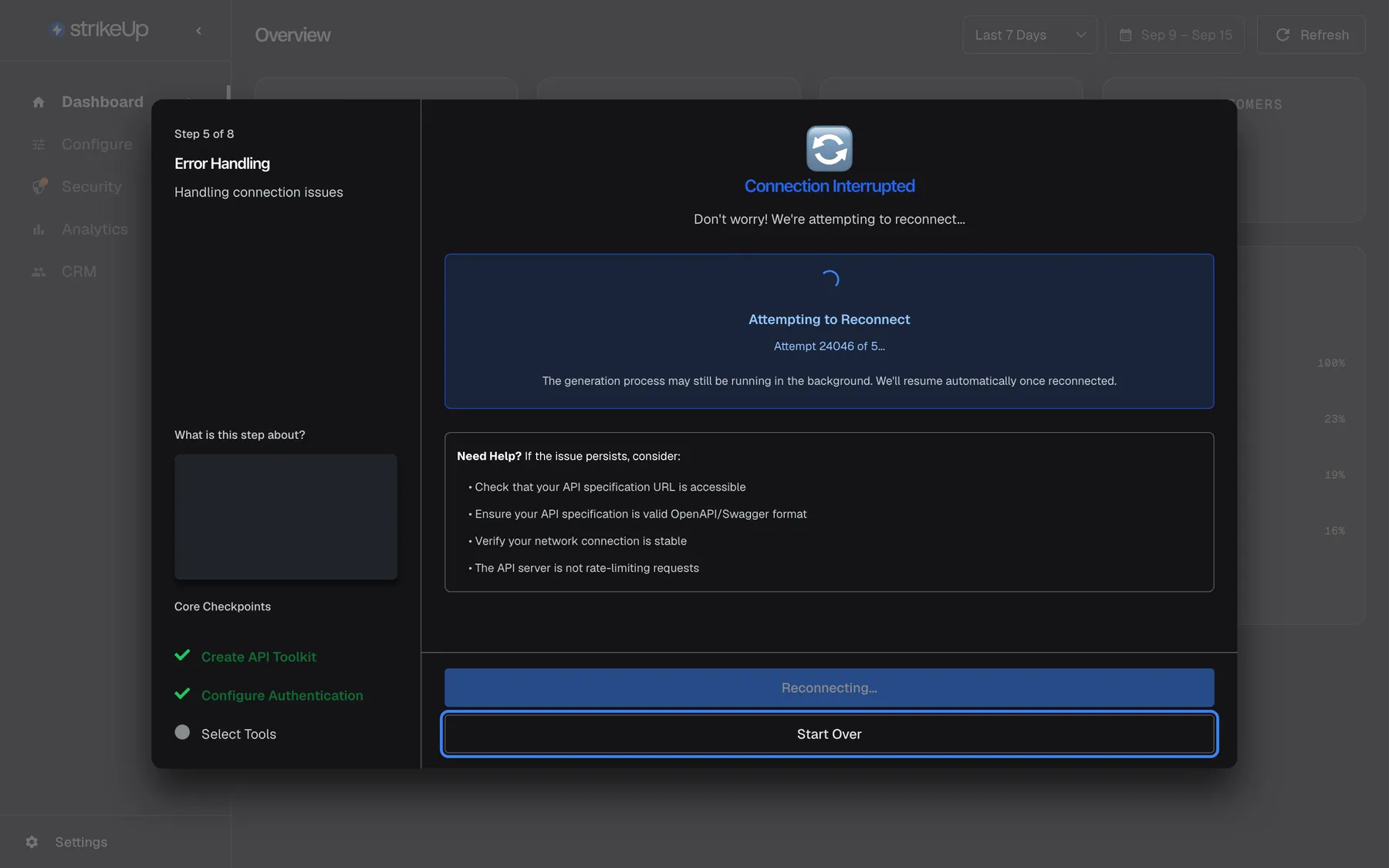
What this screenshot shows
- Screen
- Error Handling (/admin/dashboard/overview)
- Highlighted
- button “Start Over”, wizard-bottom, enabled. returns to the API Specification step
- Also visible
- Generation Error; Unable to Reconnect Automatically with causes; Try Reconnecting Now button
- Purpose
- error state of the generation step
If it cannot reconnect, or generation itself fails, the step Error Handling shows the reason. Try Reconnecting Now tries once more; Start Over takes you back to API Specification, where you can fix or replace the address.
Review the suggested masking rules
Section titled “Review the suggested masking rules”While generating, StrikeUp looks at the field names in your API for personal data and secrets. If it finds any, the step Review Masking Rules lists a masking rule for each, all ticked, with the field and a Masked preview such as *** for a card security code.
- Untick the rules you do not want, then select Activate Selected ({{count}}). Those rules start masking the fields in your API’s responses before the AI sees them.
- Or select Skip All to decline them all.
Declined suggestions are not lost: you can bring them back later on the Suggestions page and manage all rules under SecurityData masking. If StrikeUp finds nothing sensitive, this step does not appear.
Choose the tools
Section titled “Choose the tools”The step Select Tools lists every tool generated from your API, none of them ticked. The assistant can only call tools that are switched on.
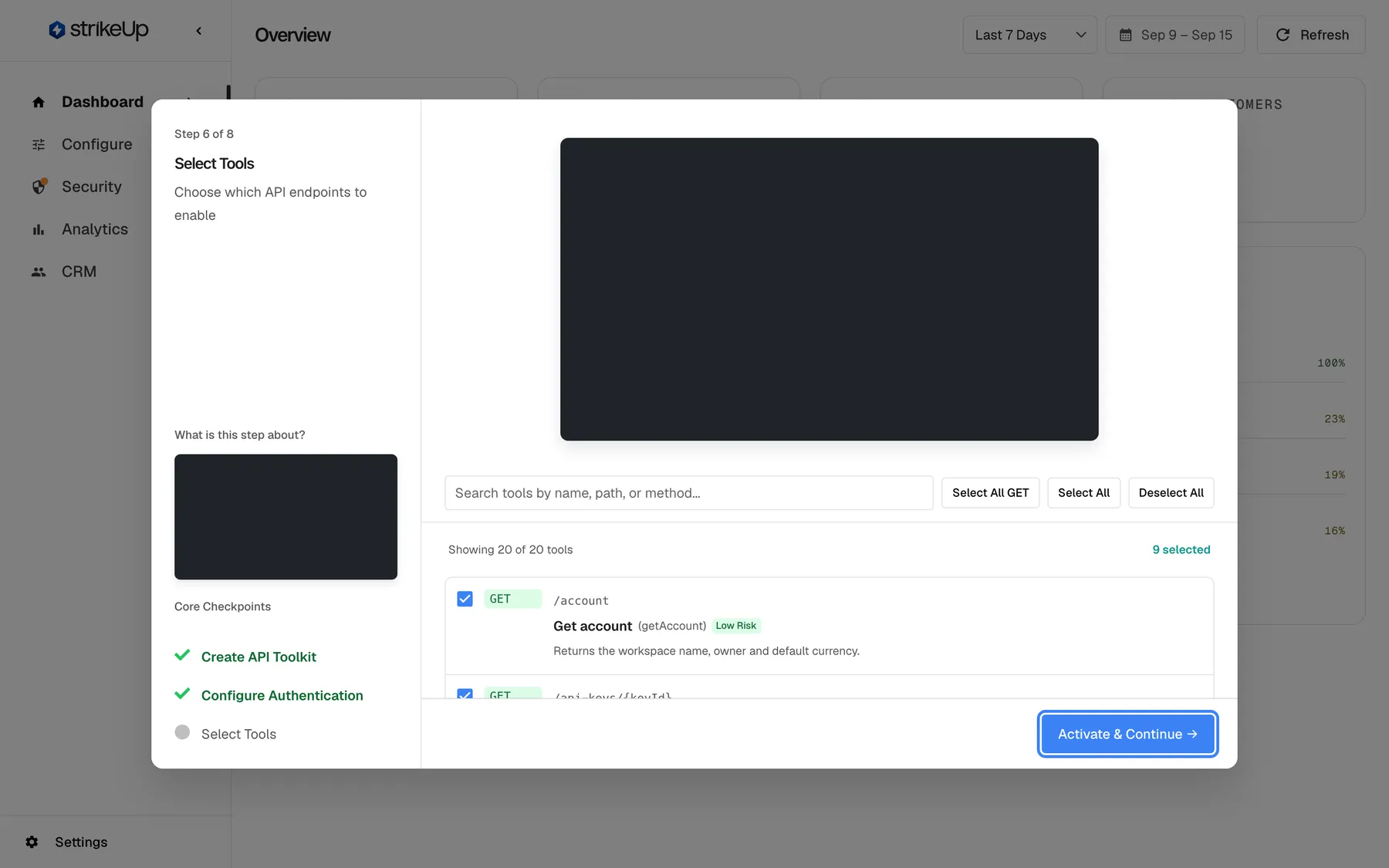
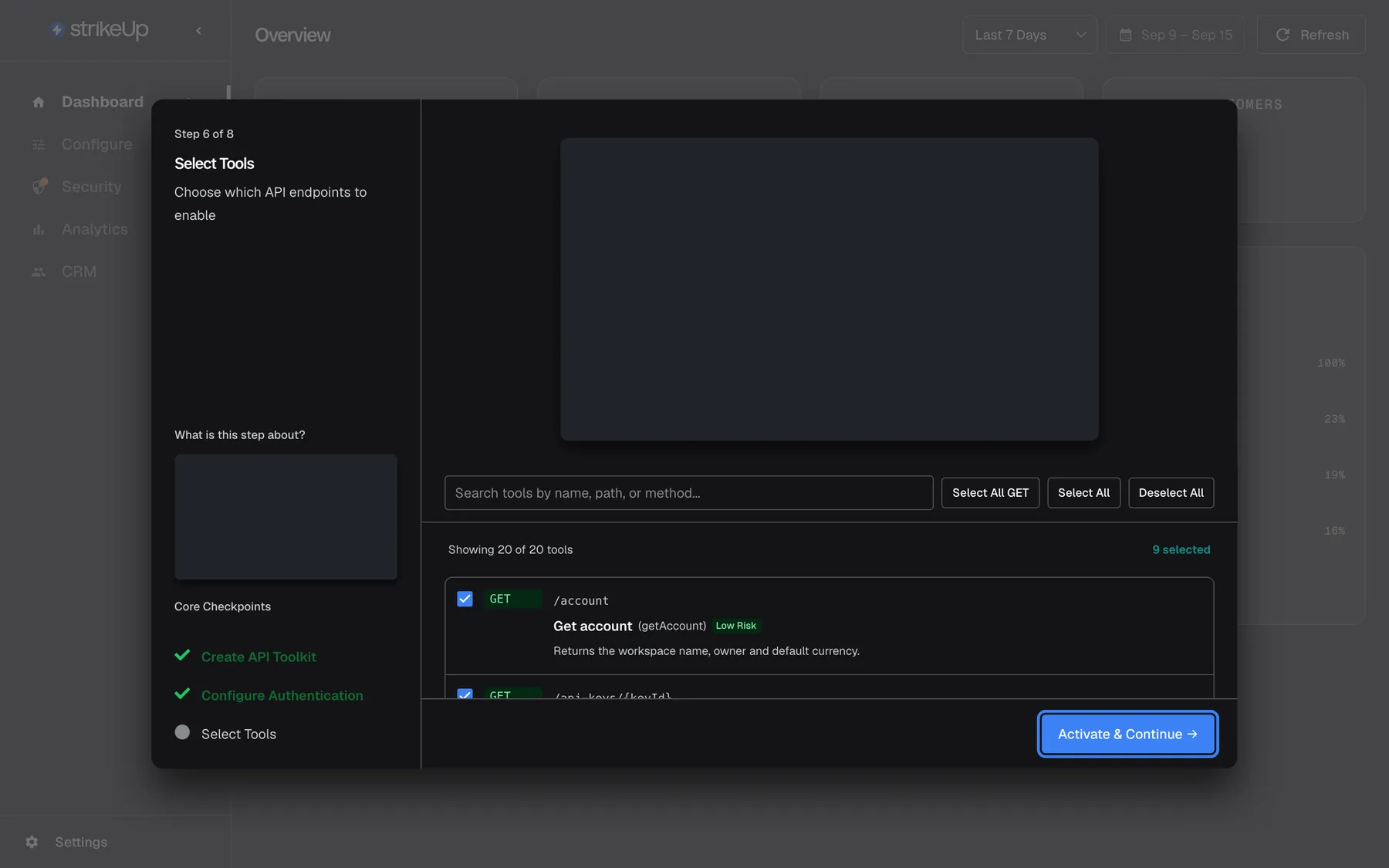
What this screenshot shows
- Screen
- Select Tools (/admin/dashboard/overview)
- Highlighted
- button “Activate & Continue →”, wizard-bottom-right, enabled. enables the selected tools (PATCH /api/servers/{id}/tools/bulk-enable) and completes onboarding
- Also visible
- Search field and Select All GET / Select All / Deselect All; GET tools ticked, risk badges; Core Checkpoints: two done
- Purpose
- choose which API endpoints the assistant may use
-
Tick the tools the assistant may use. Select All GET ticks every read-only endpoint, a safe start. Use the search field to find a tool by name, path or method.
-
Check the risk badge on each tool before ticking anything that changes data.
-
Select Activate & Continue →. The button is available once at least one tool is ticked.
StrikeUp switches the ticked tools on and marks the setup as finished. Tools are listed GET first, then POST, PUT, PATCH and DELETE, each group by name. Example: with 20 tools, Select All GET ticks the 9 GET endpoints, such as “GET /account”, and leaves every endpoint that creates, changes or deletes data off. You can switch tools on and off at any time later on the Toolkits page.
Finish the setup
Section titled “Finish the setup”The last screen, All Set! 🎉, confirms your workspace is ready and lists What's Next?: embedding the widget, watching conversations on the Dashboard, and adding toolkits for other APIs.
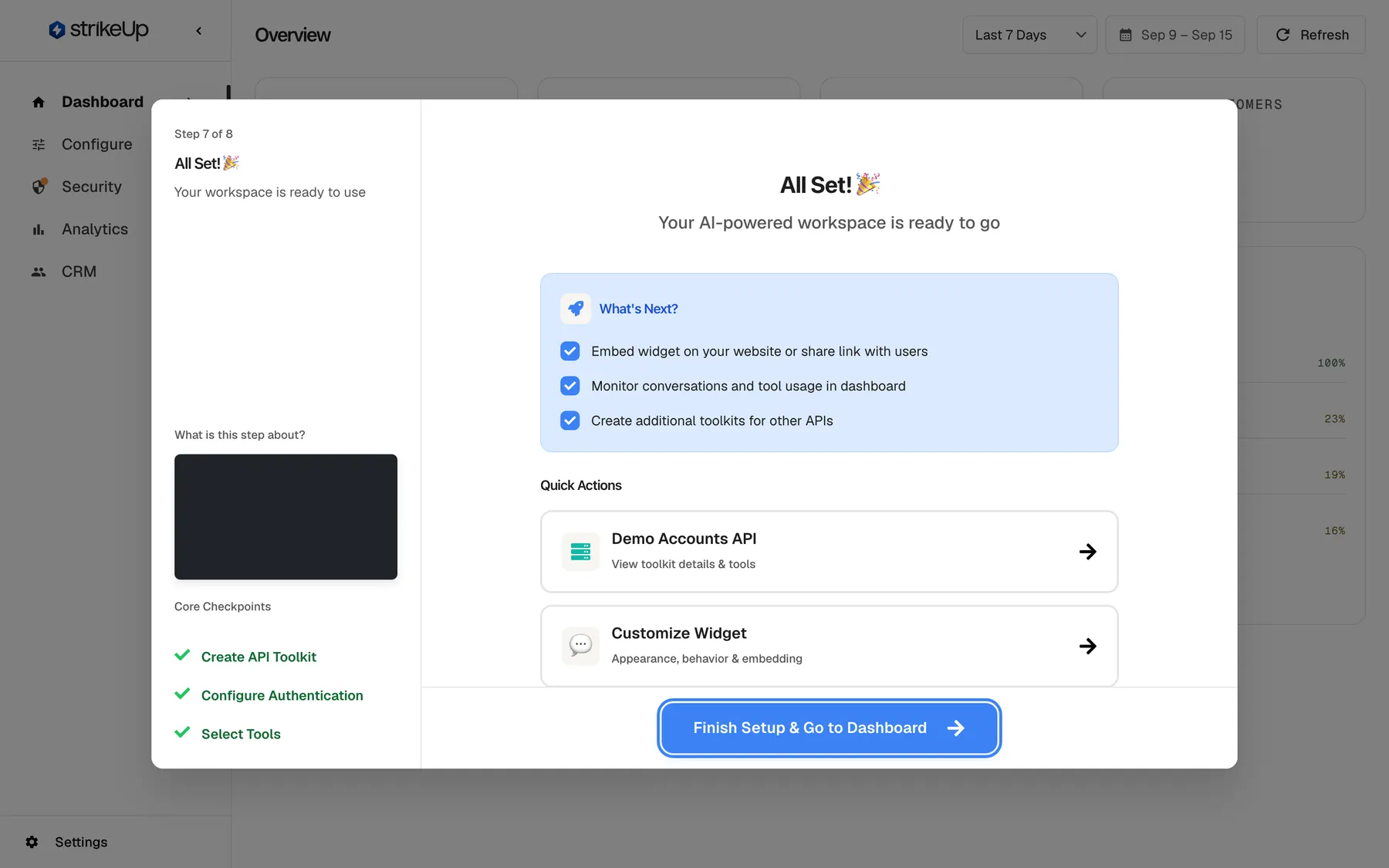
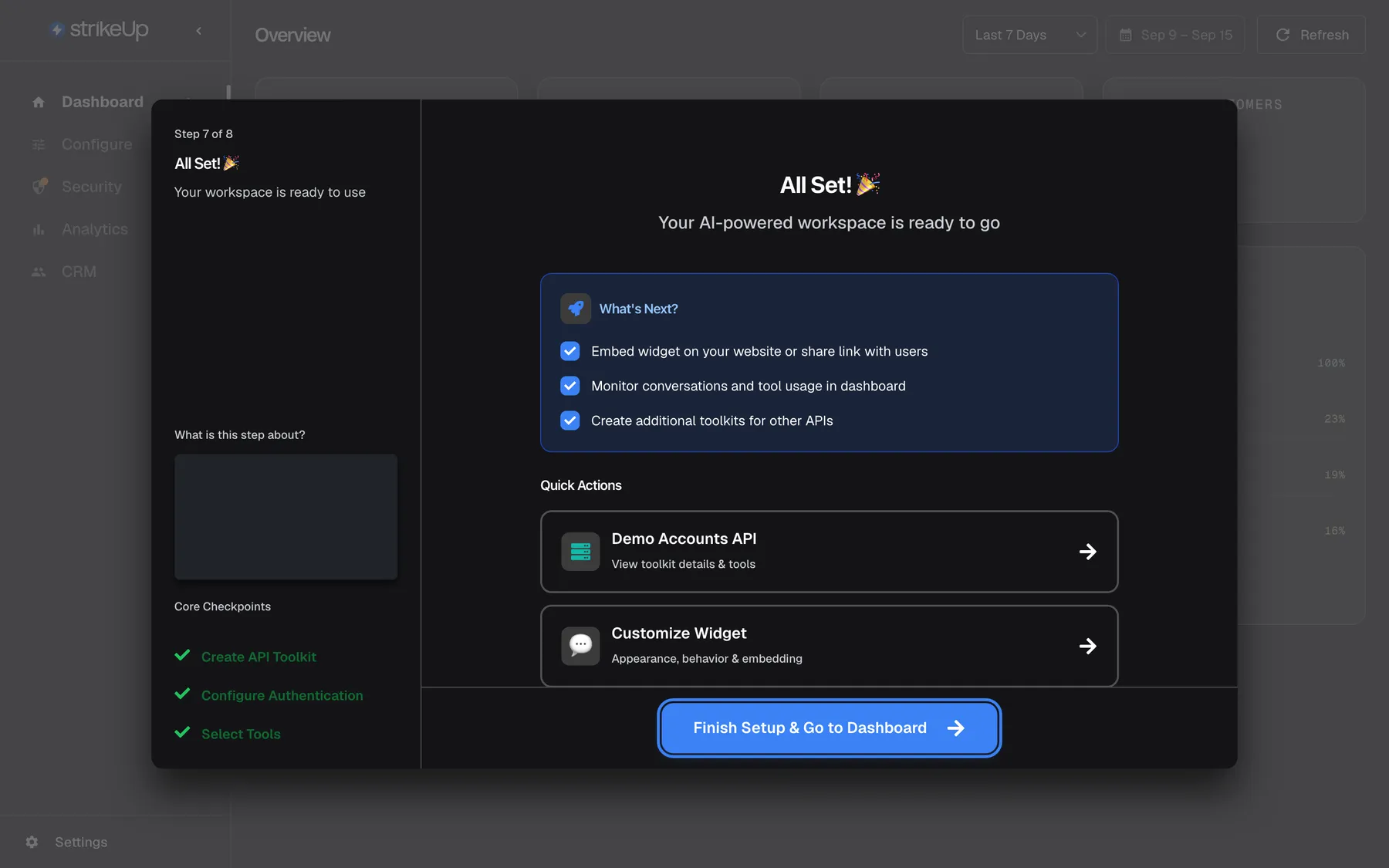
What this screenshot shows
- Screen
- All Set! 🎉 (/admin/dashboard/overview)
- Highlighted
- button “Finish Setup & Go to Dashboard”, wizard-bottom-centre, enabled. closes the wizard and reloads the app
- Also visible
- What's Next? list; Quick Actions: Demo Accounts API, Customize Widget; All Core Checkpoints done
- Purpose
- final step of the onboarding wizard
Select Finish Setup & Go to Dashboard. The wizard closes for good and the Dashboard reloads. The two cards under Quick Actions also close the wizard: View toolkit details & tools opens ConfigureToolkits with your new toolkit selected, while Customize Widget still opens the Dashboard rather than the widget. Continue with From sign-up to an assistant in your product to set up the assistant’s persona, the widget’s look, guardrails and the embed code.
Come back to an unfinished setup
Section titled “Come back to an unfinished setup”Every step is saved on the StrikeUp side as you go. If you close the tab, sign out or lose the connection, the wizard opens again the next time you sign in and continues where it makes sense: at the generation progress if the toolkit is still being built, at tool selection if the toolkit and widget exist but no tool is on, or at the first missing piece otherwise.
Every control, explained
Section titled “Every control, explained”The wizard’s controls in the order you meet them.
Step counter and checkpoints
Section titled “Step counter and checkpoints”The left column: the counter at the top, Core Checkpoints at the bottom.
The counter shows “Step N of 8”; the masking step shows “Step 8 of 8” although tool selection follows it as “Step 6 of 8”. The checkpoints turn green: Create API Toolkit and Configure Authentication once the toolkit and the widget exist and generation has started, Select Tools once you tick a tool.
The checkpoints show the three things the assistant needs before it can work: an API, a way to call it, and permission to use some of its endpoints.
Help video
Section titled “Help video”The left column, under What is this step about?, from the second step on.
A short video about the current step. Some steps may show an empty video area.
It explains the step without leaving the wizard.
Documentation Type and API Specification URL
Section titled “Documentation Type and API Specification URL”Step API Specification: Documentation Type and API Specification URL, with Validate beside the address.
Swagger/OpenAPI (the default) or Readme.com, and the address of the specification. Validation shows Validation successful! with the number of endpoints, or Validation failed with the reason. Continuing without an address shows Spec URL is required; without validating, Please validate your API specification first.
StrikeUp builds every tool from the specification, so it checks that it can read it before creating anything.
Company Website
Section titled “Company Website”Step API Specification, the field Company Website, under the validation result.
Required. Pre-filled from sign-up, or suggested from the API address after the first validation. Leaving it empty shows Company website is required to continue. StrikeUp saves it as your company website.
StrikeUp generates your guardrails policy from this website and your tools, so the assistant lets questions about your business through.
Authorization type and headers
Section titled “Authorization type and headers”Step Configure Authorization: the drop-down for the type, then the fields that type needs, and the static and dynamic headers.
The types are no authorization, a custom token, basic authentication, OAuth and a custom token endpoint. A custom token endpoint needs its address, the path of the token in the response, the header name and the header format; missing ones are named under the field. The setting is stored on the toolkit; Next also creates the first widget.
Your API decides who may call it. StrikeUp needs the same credentials your own app uses.
Masking rule selection
Section titled “Masking rule selection”Step Review Masking Rules, one row per suggested rule with a tick box, the field and a preview; Skip All and Activate Selected ({{count}}) at the bottom.
All rules start ticked. Activate Selected ({{count}}) activates the ticked rules and declines the rest; Skip All declines all. The step disappears by itself when there is nothing to review.
Masking keeps fields such as card codes from ever reaching the AI unmasked, and starting with the suggestions on is the safer default.
Tool selection controls
Section titled “Tool selection controls”Step Select Tools, above and inside the tool list.
| Control | What it does |
|---|---|
| Search tools by name, path, or method... | Filters the list by name, path or method |
| Select All GET | Ticks every GET endpoint |
| Select All | Ticks every tool in the list |
| Deselect All | Unticks everything |
| The tick box on a tool | Ticks or unticks that one tool |
| The risk badge | Shows the tool’s risk level, such as Low Risk |
| Activate & Continue → | Switches the ticked tools on and finishes the setup |
Starting with read-only tools lets you see the assistant at work before it can change anything in your system.
Finish Setup & Go to Dashboard and the quick actions
Section titled “Finish Setup & Go to Dashboard and the quick actions”Step All Set! 🎉: the cards under Quick Actions and the button Finish Setup & Go to Dashboard at the bottom.
The button closes the wizard and reloads the Dashboard, with the notification Welcome to StrikeUp!. View toolkit details & tools also leaves the wizard and opens your new toolkit on ConfigureToolkits; Customize Widget leaves it but lands on the Dashboard.
The setup is already saved at this point; the last screen only points you to what comes next.
Who sees what
Section titled “Who sees what”| Part | Who sees it |
|---|---|
| The wizard | Everyone who signs in to a company created through sign-up whose setup is not finished |
| Finishing the wizard | Admins only; for Users and Guests, every step that saves something is refused with “This action requires the Admin role.” |
| The masking step | Only when StrikeUp found sensitive fields in your API |
| The wizard at all | Nobody in a company whose setup is finished, or in which anyone has accepted an invitation |
What you need to know
Section titled “What you need to know”| Topic | Fact |
|---|---|
| Cannot be closed | No close button; the wizard covers the app until you finish it. |
| Cannot be reopened | Once finished, there is no menu entry to run it again. Use Toolkits, User Interface and Embed instead. |
| Progress | Saved after every step; reopening resumes. |
| Accepted invitations | When anyone accepts an invitation to your company, the wizard counts as finished for everyone. Finish it before inviting teammates. |
| Specification | An address only, Swagger/OpenAPI or Readme.com; no file upload. |
| Tools | All generated tools start switched off; at least one must be ticked. |
| First widget | Created automatically, named after the toolkit plus “Copilot”. |
| Cost | Tool generation and masking suggestions use AI. The cost appears on the AI Spend page. |
| Menu after finishing | Knowledge Base and Integrations may be missing until you sign out and in again. |
Frequently asked questions
Section titled “Frequently asked questions”General
Section titled “General”Can I close or skip the setup wizard?
Section titled “Can I close or skip the setup wizard?”No. The wizard has no close button and covers the admin app until you finish it, by ticking at least one tool and selecting Activate & Continue →. If you need to stop, close the browser tab: your progress is saved, and the wizard continues the next time you sign in.
I closed the tab half-way. Is my progress lost?
Section titled “I closed the tab half-way. Is my progress lost?”No. StrikeUp saves each step on its side. The next time you sign in, the wizard opens again and continues: at the generation progress if the toolkit is still being built, at tool selection if no tool is on yet, or at the first piece that is still missing.
Can I run the setup wizard again later?
Section titled “Can I run the setup wizard again later?”No. Once finished, the wizard cannot be reopened; there is no menu entry for it. To add another API, use ConfigureToolkits; for the widget’s look use ConfigureUser Interface, and for the embed code ConfigureEmbed.
The wizard disappeared before I finished it. Why?
Section titled “The wizard disappeared before I finished it. Why?”Someone accepted an invitation to your company. Accepting any invitation marks the company’s setup as finished for everyone, and the wizard does not come back. Continue the setup manually: switch tools on under ConfigureToolkits and follow the quick-start guide.
The specification
Section titled “The specification”Which specification formats does the wizard accept?
Section titled “Which specification formats does the wizard accept?”An address of a Swagger/OpenAPI specification, in JSON or YAML, or a Readme.com API address. You cannot upload a file or paste the specification’s text. The address must be reachable from the internet, because StrikeUp downloads the specification itself.
I pasted our documentation page instead of the specification. Does that work?
Section titled “I pasted our documentation page instead of the specification. Does that work?”Often, yes. When you select Validate, StrikeUp looks for the specification behind a documentation page and, if it finds it, replaces the address and shows We detected this specification URL from the documentation page you entered. If it cannot find one, paste the address of the .json or .yaml file directly.
Why does the wizard insist on a company website?
Section titled “Why does the wizard insist on a company website?”StrikeUp generates your guardrails policy from your public website and your new tools, so the assistant understands what your business does and lets ordinary questions through. The field is pre-filled from sign-up or from your API address, and you can correct it before continuing.
Tools, widget and masking
Section titled “Tools, widget and masking”What is the widget the wizard created?
Section titled “What is the widget the wizard created?”At the authorization step, StrikeUp creates your first chat widget, named after the toolkit with “Copilot” added, and connects it to the toolkit. You style it under ConfigureUser Interface and get its embed code under ConfigureEmbed.
Why did I see a masking rules step, when a colleague did not?
Section titled “Why did I see a masking rules step, when a colleague did not?”The step appears only when StrikeUp found fields that look like personal data or secrets in your API, such as card codes, IBANs or email addresses. If none were found, the wizard goes straight from the generation progress to tool selection.
Do I have to choose tools now, and can I change them later?
Section titled “Do I have to choose tools now, and can I change them later?”You must tick at least one tool to finish the wizard; Select All GET is a safe start. Later you can switch any tool on or off at any time under ConfigureToolkits.
Why does the counter show “Step 8 of 8” and then “Step 6 of 8”?
Section titled “Why does the counter show “Step 8 of 8” and then “Step 6 of 8”?”The counter follows the wizard’s internal order, in which the masking step comes last, although it is shown before tool selection. Nothing is skipped or repeated; continue with the step on screen.
After the wizard
Section titled “After the wizard”Where do the quick-action cards on the last screen lead?
Section titled “Where do the quick-action cards on the last screen lead?”View toolkit details & tools closes the wizard and opens your new toolkit on ConfigureToolkits. Customize Widget closes it too but opens the Dashboard; open your widget under ConfigureUser Interface.
Why are Knowledge Base and Integrations missing from the menu after the wizard?
Section titled “Why are Knowledge Base and Integrations missing from the menu after the wizard?”Right after sign-up and the wizard, the admin app does not yet show menu entries that depend on your company’s features, such as Knowledge Base and Integrations. Sign out and sign in again, and they appear; they also appear by themselves within about an hour.
Does the wizard cost anything?
Section titled “Does the wizard cost anything?”Writing the tools, field descriptions and masking suggestions calls AI models, and so does writing the guardrails policy. You find the cost of your toolkit generation on the AI Spend page of the Dashboard. The time it takes depends on the size of your specification.
Troubleshooting
Section titled “Troubleshooting”| Symptom | What to check |
|---|---|
| Validation failed | The address is reachable from the internet, points to a JSON or YAML specification, and the right Documentation Type is chosen. |
| Please validate your API specification first | You changed the address or did not validate. Select Validate again. |
| Company website is required to continue | Enter your public website, starting with https://. |
A notification shows app.onboarding.errors.createServerFailed | The toolkit could not be created. Check that you are an Admin; if too many requests were sent, wait a minute, then select Next → again. |
| Unable to Reconnect Automatically | Select Try Reconnecting Now. If it fails again, select Start Over and validate the address once more. |
| The progress stays still for a long time | Large specifications take longer. Leave the tab open; if the connection drops, the wizard reconnects by itself. |
| Activate & Continue → cannot be selected | Tick at least one tool. |
| Knowledge Base and Integrations are missing after finishing | Sign out and sign in again. |