

Customer company: members
The Members tab of a customer company lists the people who belong to it, with their role and whether they can sign in. Use it to decide who manages the company’s set-up in the customer portal and to cut off one person’s access at once. Open it from CRMCompanies: select the company, then the Members tab.
What you can do here
Section titled “What you can do here”- See who belongs to the company. One row per customer, with their id, name, email, role, status and last change. Read the members list.
- Find one person. Search by id, name or email. Find a member.
- Decide who manages the company. Make a member an Admin, who can manage the company in the customer portal, or a Member, who uses the assistant only. Change a member’s role · Customer roles and access.
- Cut off one person at once. Disabling a member signs them out of every session immediately and stops them signing in; enabling lets them back. Disable or enable a member.
- Open a member’s customer page. See their chats, memories, usage and workflows. Every control, explained · Customer details.
The screen at a glance
Section titled “The screen at a glance”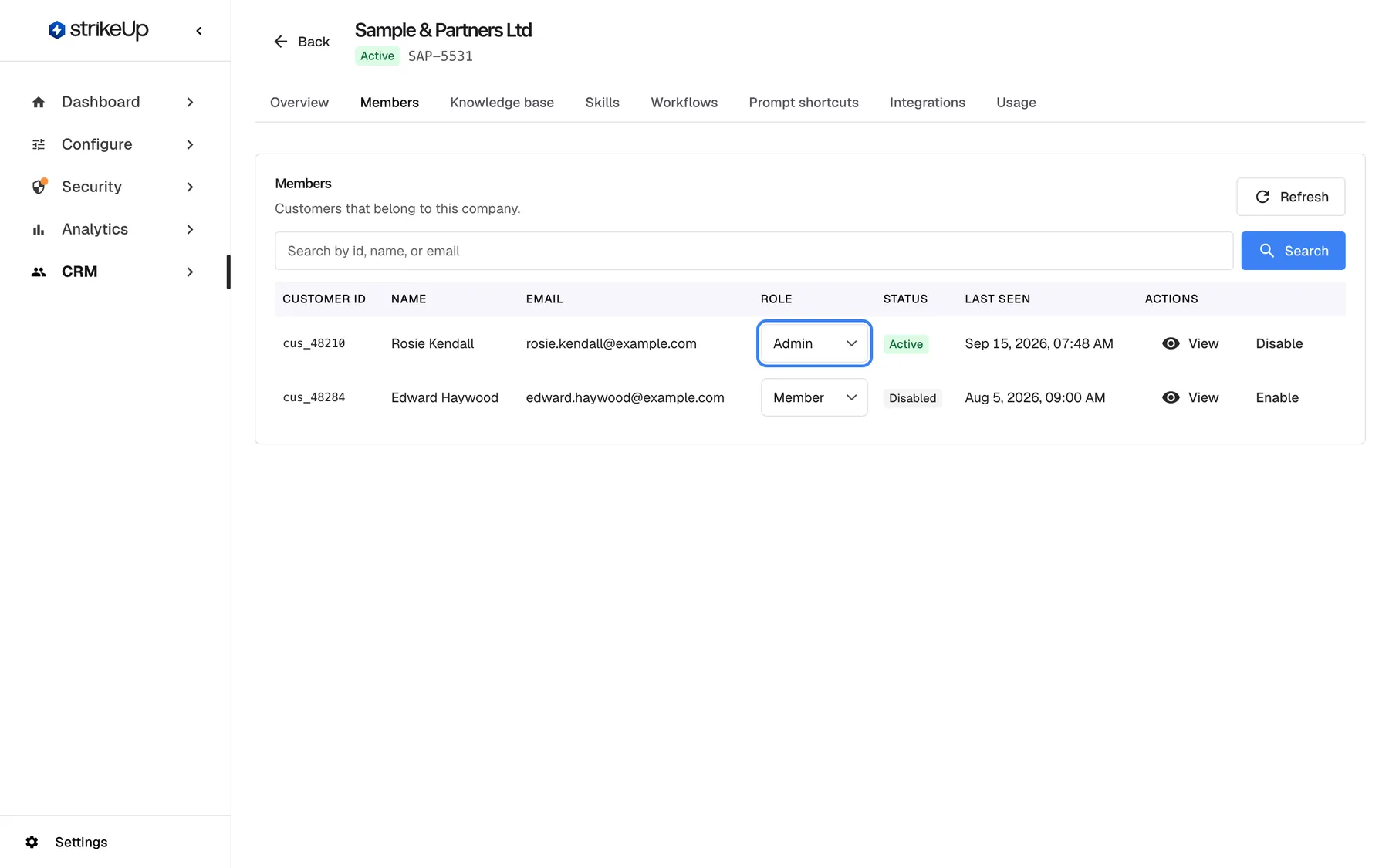
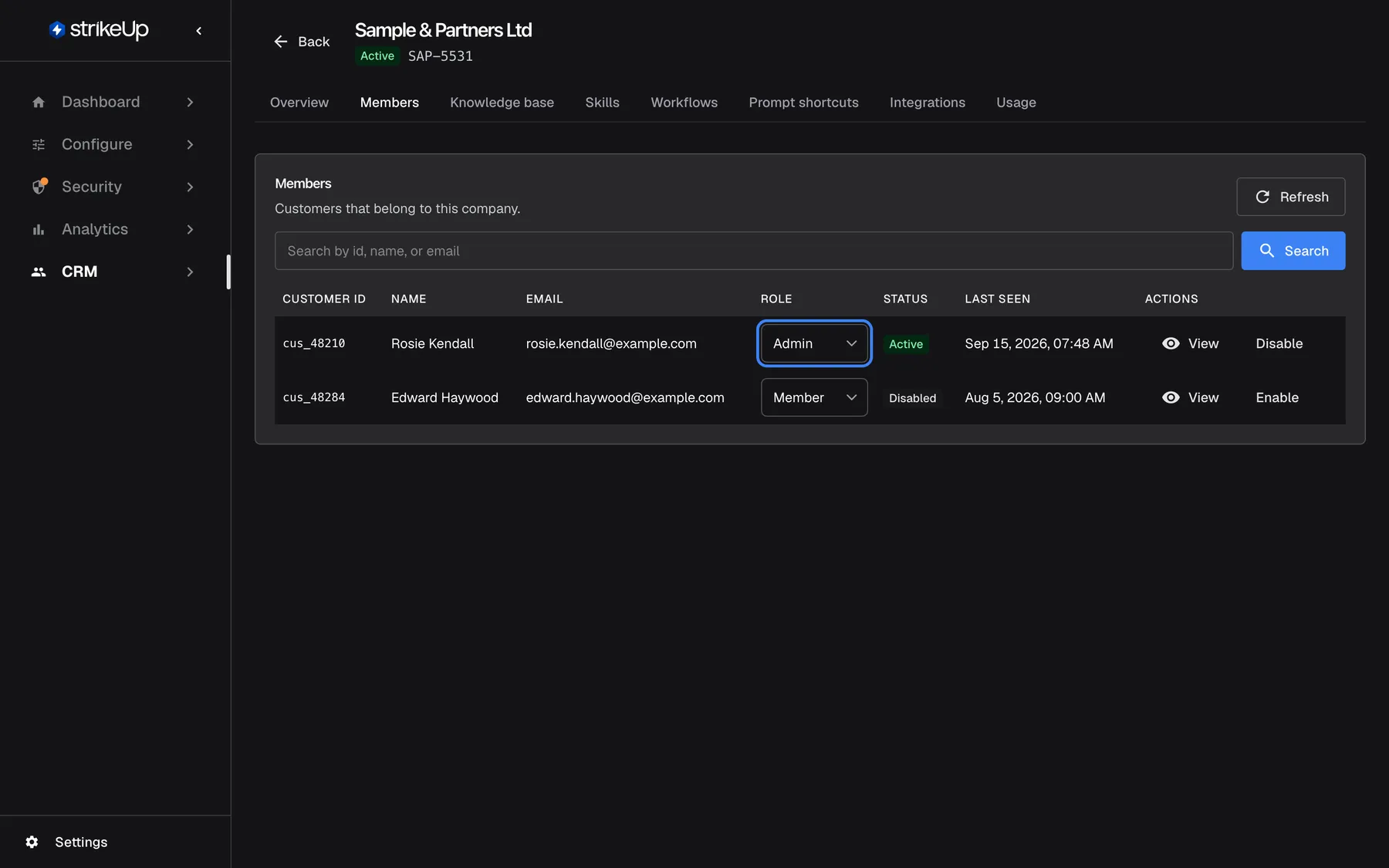
What this screenshot shows
- Screen
- Members (/admin/customer-companies/:id?tab=members)
- Highlighted
- combobox “Role”, table-row, Admin. changes the member's role immediately (Admin or Member)
- Also visible
- Rosie Kendall: Admin, Active, last seen Sep 15, 2026; Edward Haywood: Member, Disabled, last seen Aug 5, 2026; Actions View and Disable/Enable
- Purpose
- managing roles of a company's members
| Region | What it shows | What you do there |
|---|---|---|
| Card header | Members, Customers that belong to this company. and Refresh | Reload the list |
| Search | Search by id, name, or email and Search | Find a member |
| Table | Customer ID, Name, Email, Role, Status, Last seen, Actions | Change roles, disable or enable, open a customer |
| Pages, bottom | The count and page buttons, when there are more than 10 members | Move through the list |
Read the members list
Section titled “Read the members list”Members are listed with the most recently changed first, 10 per page.
| Column | What it shows |
|---|---|
| Customer ID | The id your product passes for this person, such as cus_48210 |
| Name and Email | As your product passed them, or as you edited them on the customer’s page |
| Role | A selector with Admin or Member |
| Status | Active in green, or Disabled in grey |
| Last seen | When the customer record last changed, for example after a chat began, a sign-in failed or a role changed. It is not the time of the last sign-in. |
| Actions | View, and Disable or Enable |
There is no button to add a member here. People join a company when your product passes the company’s reference to the widget, when you import them from a CSV file, or when they register with the company’s registration link.
Find a member
Section titled “Find a member”- Type part of an id, name or email into Search by id, name, or email.
- Press Enter or select Search. The list shows matching members from the first page.
- Select Clear Filters to show everyone again.
If nobody matches, the list shows No members match your search..
Change a member’s role
Section titled “Change a member’s role”Pick Admin or Member in the member’s Role selector. The change is saved at once, without a confirmation, and Member role updated. appears.
| Role | What the person can do in the customer portal |
|---|---|
| Admin | Manage the company: members, knowledge base, skills, workflows, prompt shortcuts, notification channels and settings |
| Member | Use the assistant and see their own profile, memories and runs; read the company’s prompt shortcuts |
Two things to know:
- A company always keeps one active Admin here. StrikeUp refuses to make the last active Admin a Member, with “Cannot demote the last Customer Admin in this customer company.” Make someone else an Admin first.
- Changing the role signs the person out. A customer who is signed in is signed out on their next request and gets the new rights when they sign in again.
Disable or enable a member
Section titled “Disable or enable a member”

What this screenshot shows
- Screen
- Members (/admin/customer-companies/:id?tab=members)
- Highlighted
- status “Disabled”, table-row, shown. none (Enable at the end of the row restores access)
- Also visible
- Edward Haywood: Member, Disabled, action Enable; Rosie Kendall: Admin, Active, action Disable
- Purpose
- what a disabled member looks like
-
Select Disable at the end of the member’s row.
-
A confirmation appears under the table with This member will no longer be able to sign in and their active sessions will be revoked. Their history is kept. Continue?. Its button reads “Delete”, but nothing is deleted.
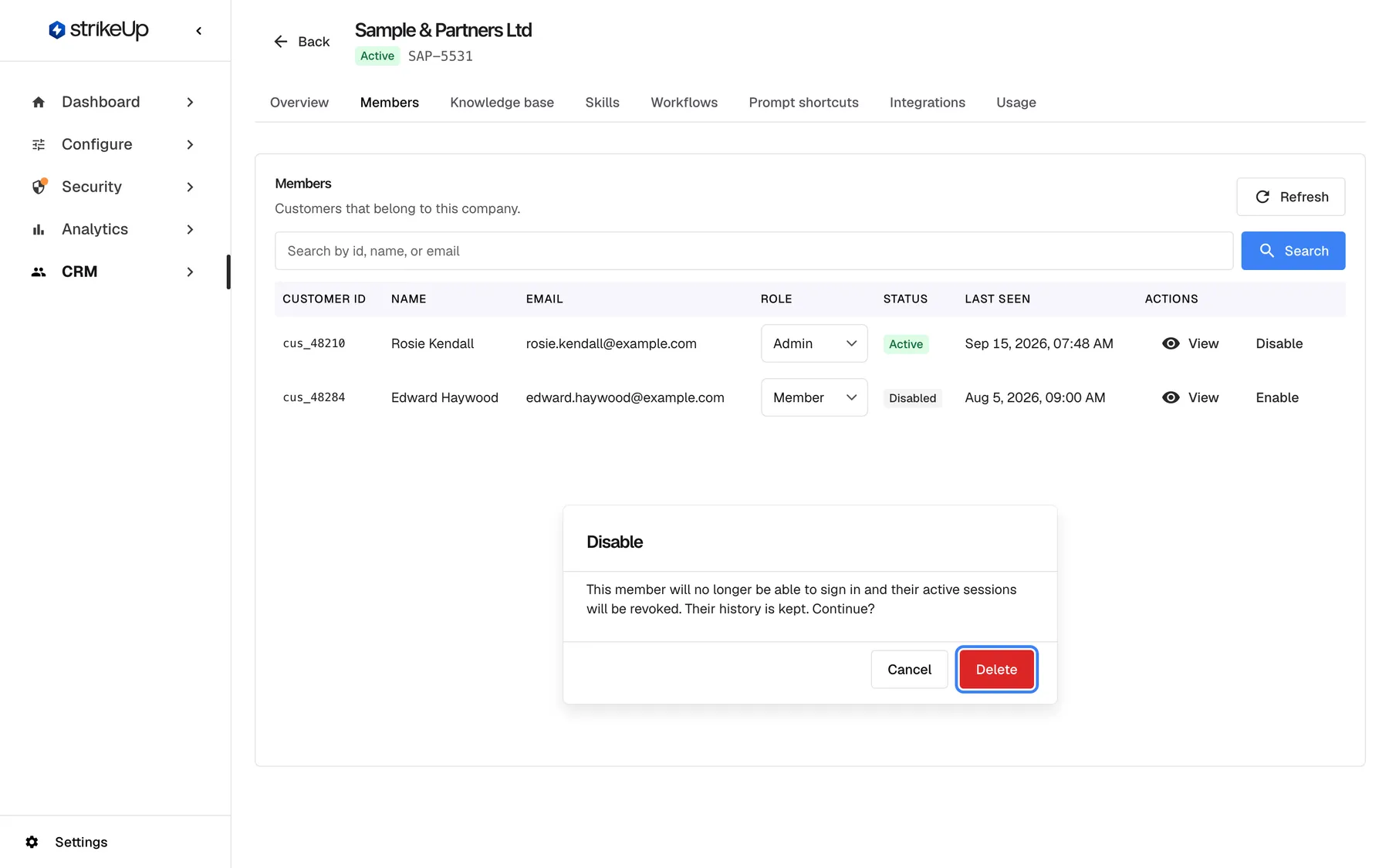
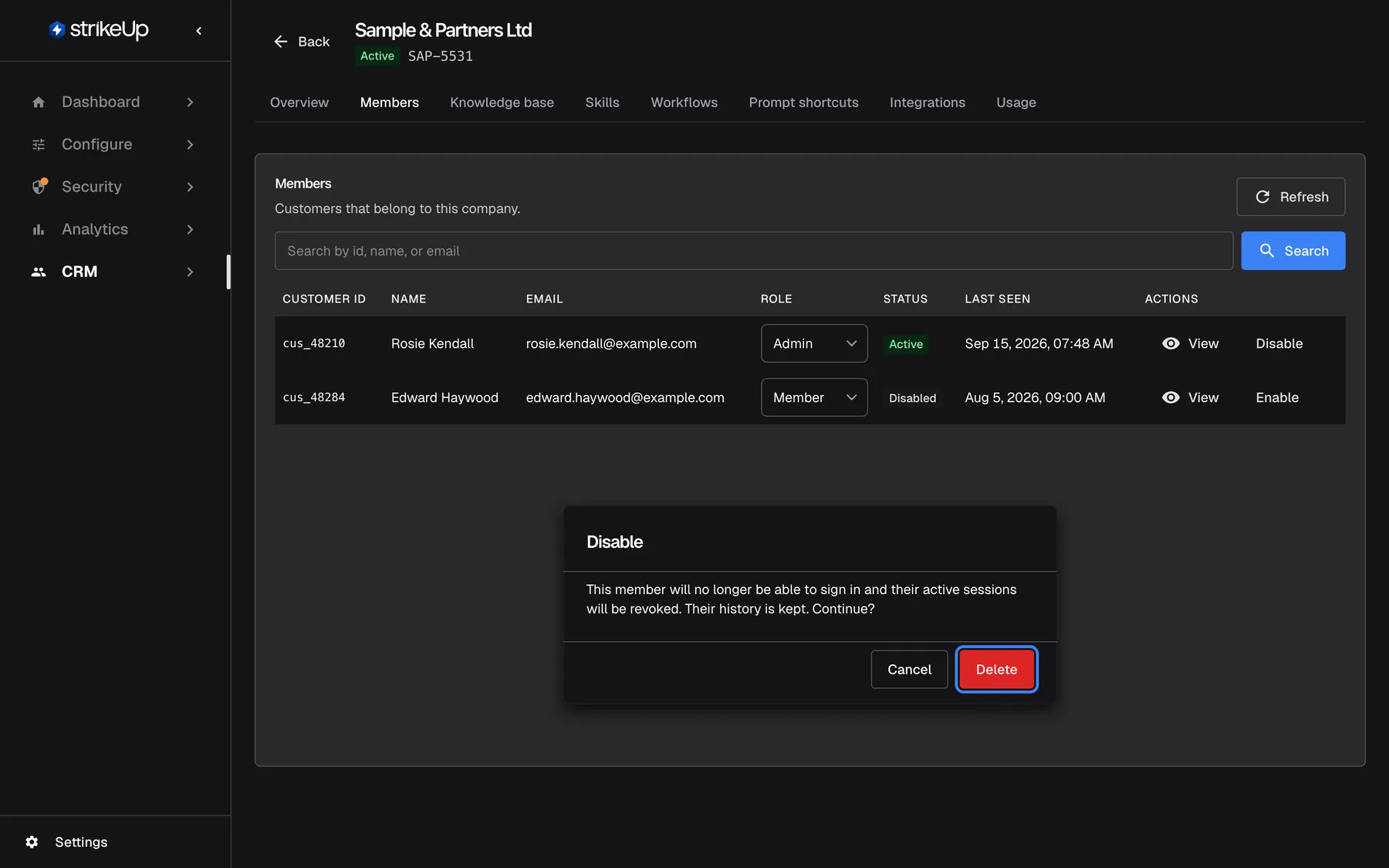
Disabling signs the member out of every session at once; the confirm button is labelled Delete but keeps their data. What this screenshot shows
- Screen
- Members (/admin/customer-companies/:id?tab=members)
- Highlighted
- button “Delete”, inline-dialog, enabled. disables the member and revokes their sessions; nothing is deleted
- Also visible
- Dialog title Disable with the warning text; Cancel and Delete buttons
- Purpose
- confirming that a member is disabled
-
Confirm. The status changes to Disabled and Member access updated. appears.
From that moment the person is signed out of every session and cannot sign in again; the widget tells them their account is unavailable. Their chats, memories and workflows are kept. Their scheduled workflows are skipped: each run that comes due is recorded as “Cancelled” with “The customer is disabled — the run was skipped.” On the company’s Workflows tab they show the badge Owner disabled. Nothing is paused, and the runs go ahead again once you enable the person.
To restore access, select Enable. There is no confirmation. The person signs in again with their existing PIN or password; their old sessions do not come back.
StrikeUp refuses to disable the last active Admin, with “Cannot disable the last active Customer Admin in this customer company.”
Every control, explained
Section titled “Every control, explained”Refresh
Section titled “Refresh”Refresh, at the top right of the members card.
Reloads the list with the current search.
Members are added by sign-ins, imports and the customer portal while you work.
Search
Section titled “Search”Search by id, name, or email, with Search beside it. Applies on Enter or the button.
Matches part of the id, the name or the email, ignoring case. Clear Filters appears while a search is set and empties it.
Large customers can have hundreds of members.
The selector in the Role column. Saves on change.
Admin or Member. The last active Admin cannot be made a Member. Changing it signs the person out on their next request; the new role applies when they sign in again. Needs the Admin role.
Most people at a business customer should use the assistant, not change its set-up. New customers are Admins unless you say otherwise.
Status
Section titled “Status”The badge in the Status column.
Active: the person can sign in. Disabled: they cannot, and were signed out when they were disabled.
See at a glance who has access.
View with the eye icon, in the Actions column.
Opens the customer’s page with their profile, chats, engagement, usage, memories and workflows.
Check what a person asked and what the assistant did before you change their access.
Disable and Enable
Section titled “Disable and Enable”At the end of each row: Disable for active members, Enable for disabled ones.
Disable asks for confirmation, then signs the person out of every session, blocks sign-in and skips their scheduled workflows. Enable restores sign-in at once, without confirmation. The last active Admin cannot be disabled. Both need the Admin role.
When someone leaves the business, their access should end now, not when their session expires.
Who sees what
Section titled “Who sees what”| Part of the screen | Who can use it |
|---|---|
| The list, search and View | Every signed-in user of your workspace |
| The role selector, Disable and Enable | Users with the Admin role. For anyone else the change fails with Request failed |
What you need to know
Section titled “What you need to know”| Topic | Fact |
|---|---|
| Order and paging | Most recently changed first, 10 per page. |
| Last Admin | Here and in the customer portal, the last active Admin can be neither demoted nor disabled. |
| Role timing | A role change signs the person out on their next request; the new role applies when they sign in again. |
| Disable timing | Immediate: every session ends at once. |
| What is kept | Disabling keeps chats, memories and workflows; scheduled runs are skipped until the person is enabled again. |
| Deactivated company | You can still change roles and disable members of a deactivated company. |
Frequently asked questions
Section titled “Frequently asked questions”Members
Section titled “Members”How do I add someone to a company?
Section titled “How do I add someone to a company?”There is no add button on the Members tab. People join when your product passes the company’s reference to the widget as userCompanyId, when you import them on CRMCustomers › Import from CSV, or when they use the company’s registration link.
Why doesn’t Last seen match the person’s last chat?
Section titled “Why doesn’t Last seen match the person’s last chat?”Last seen shows when the customer record last changed: a chat starting, a failed sign-in, a role or profile change. It is not the time of the last sign-in or message. Open the customer with View to see their chats and their last activity.
Can members see each other’s chats?
Section titled “Can members see each other’s chats?”No. In the customer portal, Admins see the list of members and their roles, but not other people’s chats or memories. Your team sees every customer’s chats in the admin app, on the customer’s page opened with View.
Why can’t I make the last Admin a Member?
Section titled “Why can’t I make the last Admin a Member?”StrikeUp keeps at least one active Admin in every company, so someone can always manage it in the customer portal. Make another member an Admin first, then change the first person’s role on the Members tab.
I made someone an Admin, but the customer portal still treats them as a Member. Why?
Section titled “I made someone an Admin, but the customer portal still treats them as a Member. Why?”The role is read when the person signs in. Changing it signs them out on their next request, and they get the new role when they sign in again. A page that is still open shows the old role until it next contacts StrikeUp; ask them to reload it and sign in.
Why is everyone in the company an Admin?
Section titled “Why is everyone in the company an Admin?”New customers get the Admin role unless the import file says Member, and people who register with the company’s link are Admins too. Change regular users to Member in the Role column, or set the Role column to Member in your next CSV import.
Access
Section titled “Access”How quickly is a disabled member signed out?
Section titled “How quickly is a disabled member signed out?”Immediately. Disabling a member on the Members tab ends every session they have, so their next message or page load in the widget fails and they see that their account is unavailable. They cannot sign in again until you select Enable.
Does disabling a member delete their chats or workflows?
Section titled “Does disabling a member delete their chats or workflows?”No. Their chats, memories, persona notes and workflows are kept, and the confirmation button’s “Delete” label is misleading. Their scheduled workflows are skipped while they are disabled and run again once you enable them. To stop a workflow for good, pause it on the company’s Workflows tab.
Can a customer disable themselves or another Admin?
Section titled “Can a customer disable themselves or another Admin?”In the customer portal, a customer Admin can disable other members but not their own account, and nobody can disable the last active Admin. On the Members tab your team can disable anyone except the last active Admin.
Troubleshooting
Section titled “Troubleshooting”| Symptom | What to check |
|---|---|
| “Cannot demote the last Customer Admin in this customer company.” | Make another member an Admin first, then change this person’s role. |
| “Cannot disable the last active Customer Admin in this customer company.” | Make another member an Admin first, or deactivate the whole company on the Overview tab. |
| A promoted customer still cannot manage the company in the portal | The new role applies when they sign in again; the change signs them out on their next request. Ask them to reload the page and sign in. |
| A disabled member’s workflow runs show “Cancelled” | Runs are skipped while the owner is disabled. Enable the member to let them run again, or pause the workflow on the Workflows tab to stop it for good. |
| Failed to load members. | Reload the page; if it persists, sign in again. |
| Changing a role shows Request failed | You may not have the Admin role; ask an Admin. |