

Customer roles and access
When a business uses your assistant, some of its people should run its set-up and most should simply use it, and someone who leaves should lose access the same day. Customer roles and access let you decide, for every person, whether they can sign in to the widget and whether they manage their company in the customer portal, and let you shut out one person or a whole company at once.
What it does
Section titled “What it does”Every customer belongs to at most one customer company and has a role in it. Without control over roles, everyone your product sends to the widget, imports or lets register becomes an Admin of their company, able to change its members, documents, skills and workflows in the customer portal. And without a way to stop access, a person who left a business could keep using its assistant.
StrikeUp gives each customer one of two roles, Admin and Member, an enabled or disabled status, and a company that is active or not. From there:
- You choose who manages each company: on the company’s members list, on the customer’s page, or in a CSV import. Roles: Admin and Member.
- You stop one person at once by disabling them, which ends every session they have. Disable a member.
- You stop a whole company by deactivating it, which signs out all its people, blocks their sign-in and skips its scheduled workflows. Deactivate a company.
- You hand out or replace PINs and passwords by import. Credentials and sign-in.
Every person’s role and status is visible on their company’s Members tab, and the companies list counts each company’s admins, so you can always check who holds which rights.
Before you start
Section titled “Before you start”| Requirement | Details |
|---|---|
| Role in StrikeUp | The Admin role, to change roles, disable members, deactivate companies or import. Everyone else in your workspace can view these screens but their changes are refused. Users are managed on SettingsUsers. |
| Customer companies | Roles apply within a company. Companies are created on CRMCompanies, by imports, or from what your product passes to the widget. |
| A widget that requires sign-in | Disabling and deactivating only matter where customers sign in. The switch Require customer authentication is on ConfigureUser Interface; see End-customer sign-in. |
| The customer portal | Where Admins use their rights. Switched on per widget; see The customer portal. |
| Cost | None. Roles and access make no calls to AI models. |
Understanding roles and access
Section titled “Understanding roles and access”Roles: Admin and Member
Section titled “Roles: Admin and Member”| Admin | Member | |
|---|---|---|
| Chat with the assistant | Yes | Yes |
| Own profile, memories and memory switch in the portal | Yes | Yes |
| Read the company’s prompt shortcuts | Yes | Yes |
| Agent runs in the portal | The company’s | Their own |
| Change the company’s settings (self-registration, credential hint, agent instruction) | Yes | No |
| Manage members: roles, disable, enable | Yes | No |
| Manage the company’s knowledge base, skills, company workflows and schedules, notification channels and prompt shortcuts | Yes | No (Members see company workflows read-only and keep their own personal ones) |
| Rename the company, change its Company ID, deactivate it | No, only your team | No |
A Member who tries a management action in the portal is refused.
Where people get their role
Section titled “Where people get their role”| How the customer came to exist | Role |
|---|---|
| Your product identified them and they chatted | Admin |
| They signed in for the first time | Admin |
| They registered with the company’s registration link | Admin |
CSV import with Role empty | Admin |
CSV import with Role = Member | Member |
| An anonymous visitor on a widget without sign-in | Member |
How StrikeUp decides
Section titled “How StrikeUp decides”- The role is read at sign-in. A role change signs the person out on their next request, so the new role applies when they sign in again.
- Disabling is immediate. All of the person’s sessions end at once.
- Deactivating a company signs everyone in it out. All its people are signed out on their next request and cannot sign in again until you reactivate it.
- The last active Admin is protected on the company’s Members tab and in the portal: they can be neither demoted nor disabled. The protection does not apply to Member type on the customer’s page, or to the
Rolecolumn of a CSV import. - A customer cannot disable themselves in the portal.
Disable, deactivate, delete
Section titled “Disable, deactivate, delete”| Action | Who it affects | Sign-in | Sessions already open | Data | Undo |
|---|---|---|---|---|---|
| Disable a member | One person | Refused | Ended at once | Kept; scheduled workflows are skipped | Enable, then they sign in again |
| Deactivate a company | Everyone in the company | Refused, also registration | Ended on their next request | Kept; scheduled workflows are skipped | Switch Active on |
| Delete | — | Customers and companies cannot be deleted |
In the widget, a disabled person and a person whose company is deactivated see the same screen telling them their account is unavailable.
Setting it up in four steps
Section titled “Setting it up in four steps”-
Give the right people the Admin role. Open the company from CRMCompanies and select Members. Set the role of everyone who should only use the assistant to Member; it saves at once.
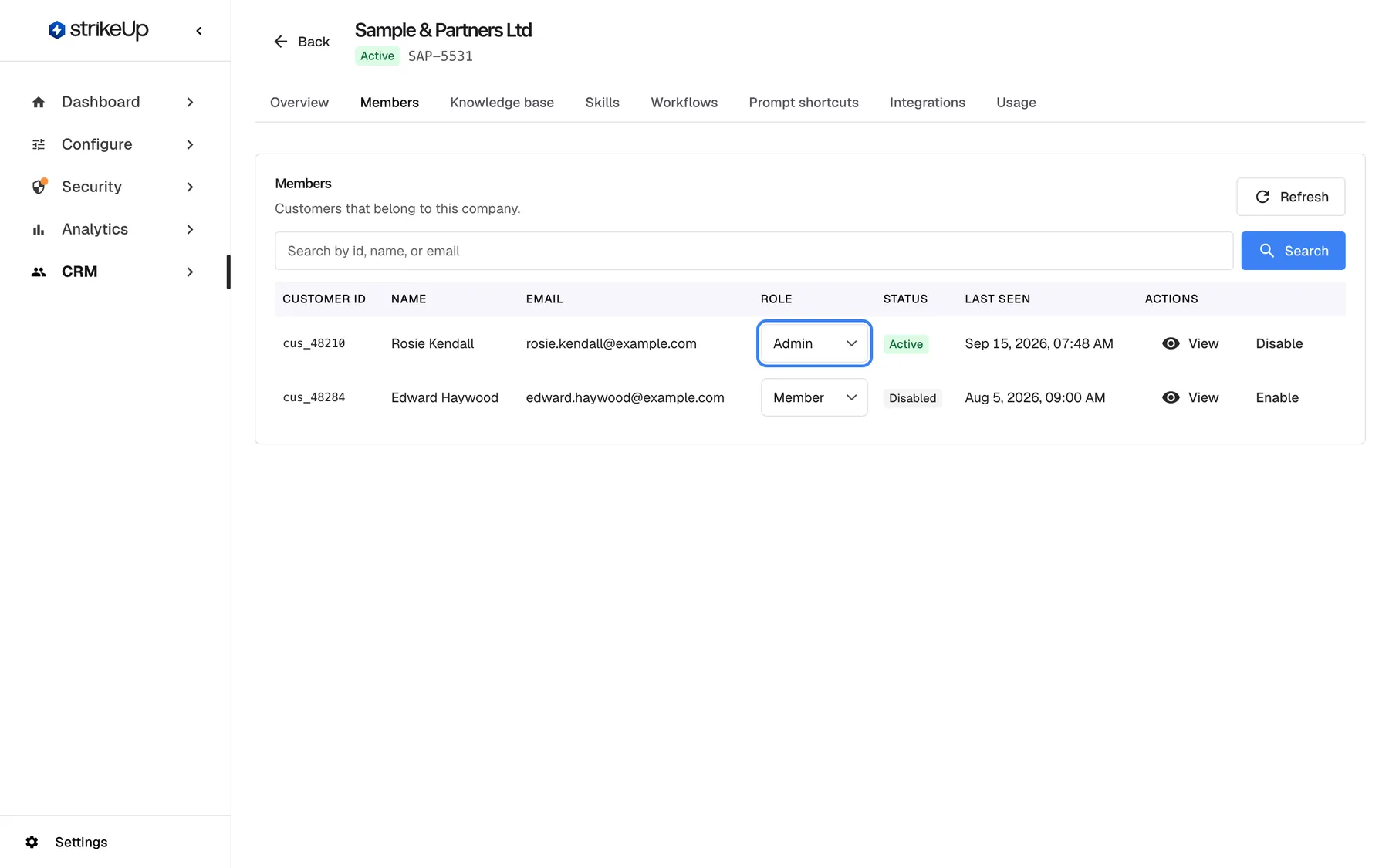
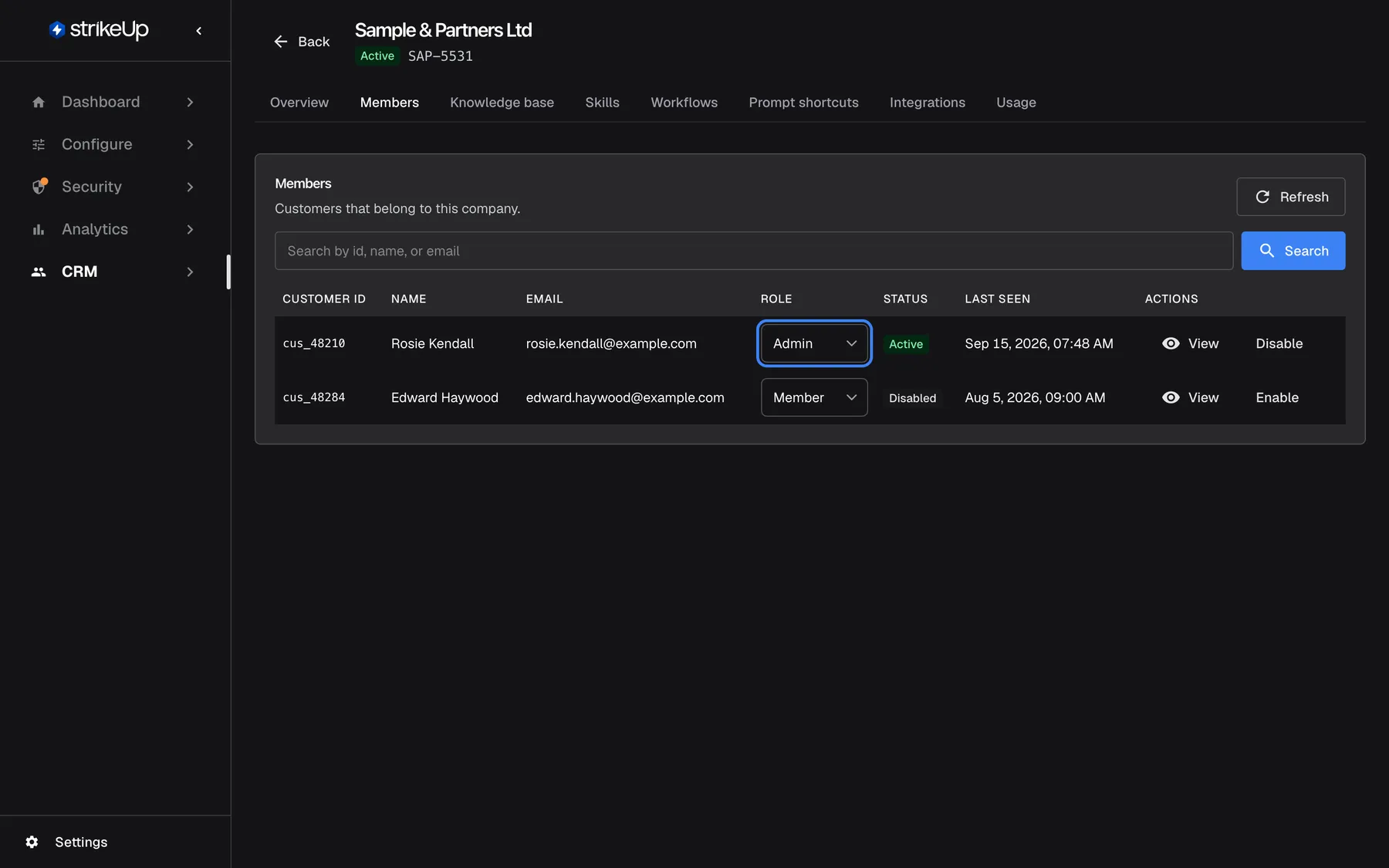
Set each member's role on the Members tab; the last active Admin can be neither demoted nor disabled here. What this screenshot shows
- Screen
- Members (/admin/customer-companies/:id?tab=members)
- Highlighted
- combobox “Role”, table-row, Admin. changes the role immediately; effective at the customer's next sign-in
- Also visible
- Rosie Kendall Admin Active, Edward Haywood Member Disabled
- Purpose
- the main place to manage roles
-
Import new people with their role (optional). When you import, write
AdminorMemberin theRolecolumn for every row; an empty role makes the person an Admin. See Import customers. -
Decide whether people may join on their own (optional). On the company’s Overview tab, leave Allow self-registration off unless anyone with the registration link may join (as a Member, or as the Admin when nobody is in the company yet), and choose a Default credential type (hint) if the business prefers PINs or passwords. Select Save.
-
Check the result. On CRMCompanies, the Admins column shows how many admins each company has.
Every setting, explained
Section titled “Every setting, explained”Each control below says where it is, what it does and why it exists.
Role, on the Members tab
Section titled “Role, on the Members tab”The Role selector in each row of a company’s Members tab. Saves the moment you pick a value, with Member role updated..
Admin or Member. Refused for the last active Admin with “Cannot demote the last Customer Admin in this customer company.” Changing it signs the person out on their next request; the new role applies when they sign in again.
This is the safe place to change roles: it keeps every company manageable.
| Company has | You set | Result |
|---|---|---|
| 2 active Admins | One of them to Member | Saved |
| 1 active Admin and 1 disabled Admin | The active one to Member | Refused: the disabled Admin does not count |
| 1 active Admin | That Admin to Member | Refused |
Member type, on the customer’s page
Section titled “Member type, on the customer’s page”Member type in the customer’s Basic Information card, after Edit Basic Info; saved with Save Basic Info.
The same role. Admins can manage the customer company (KB, workflows, members) in the Portal. Members are read-only. It does not protect the last Admin, so a company can be left without one.
Change one person’s rights while you are looking at their record.
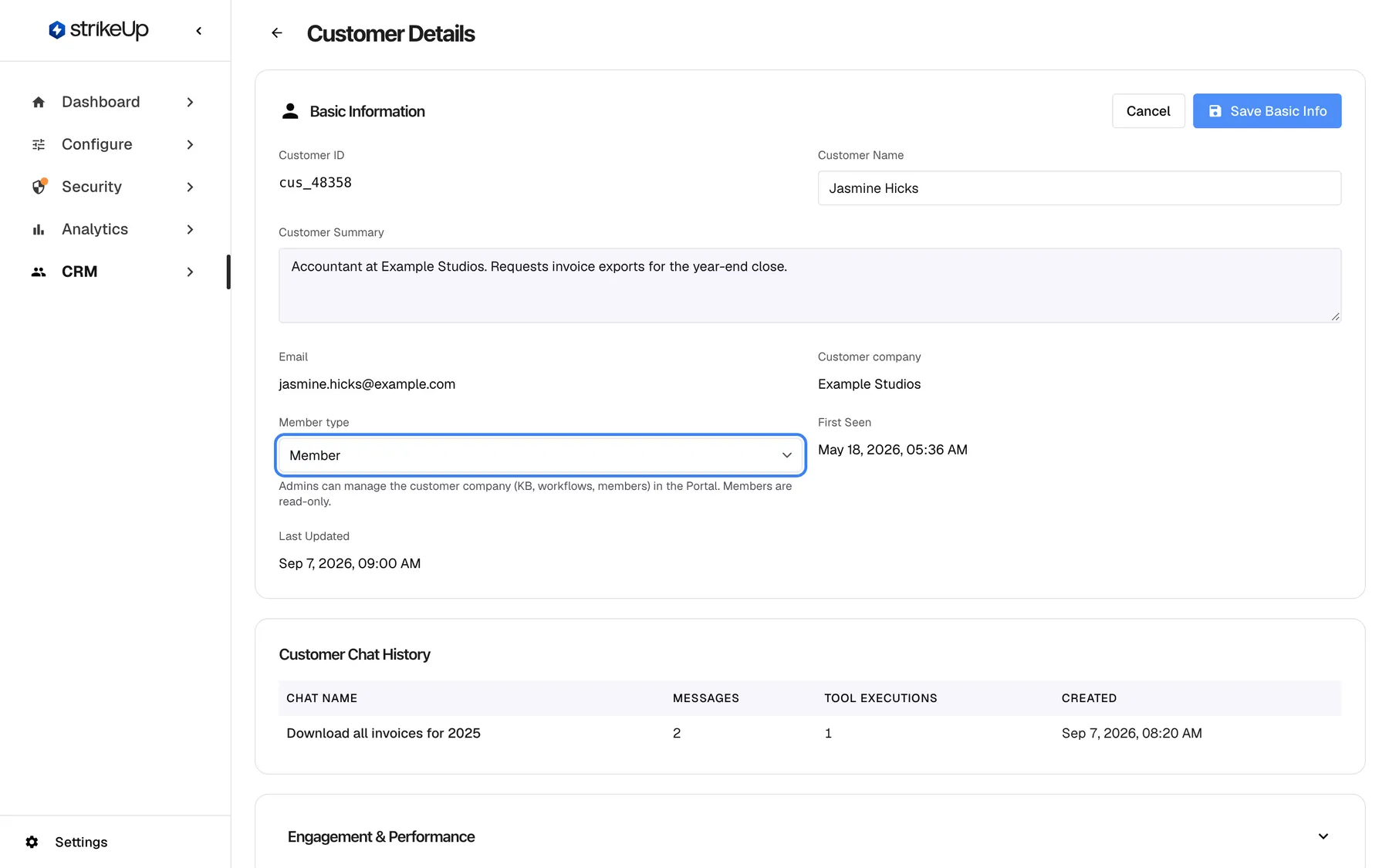
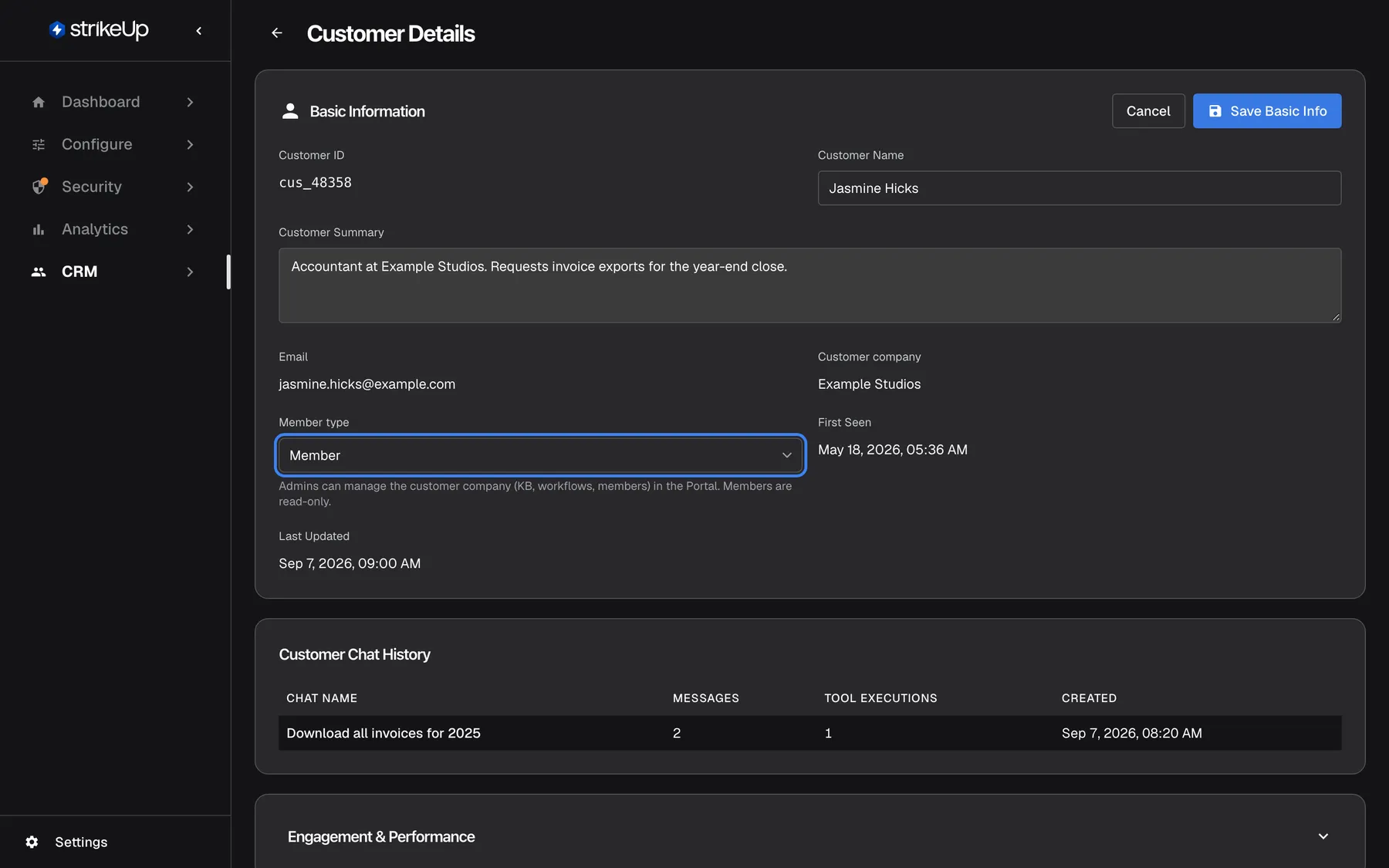
What this screenshot shows
- Screen
- Basic Information (/admin/customers/:id)
- Highlighted
- combobox “Member type”, basic-info-card, Member. saved with Save Basic Info
- Also visible
- Jasmine Hicks, Example Studios
- Purpose
- second place to set a role
Role, in the CSV import
Section titled “Role, in the CSV import”The Role column of the file on CRMCustomers › Import from CSV.
Admin or Member, in any case; empty means Admin. Anything else is refused with “Unknown role ’…’. Use Admin or Member.” For an existing customer, a filled Role replaces their role, without protecting the last Admin.
Set the role of a whole business’s people in one go.
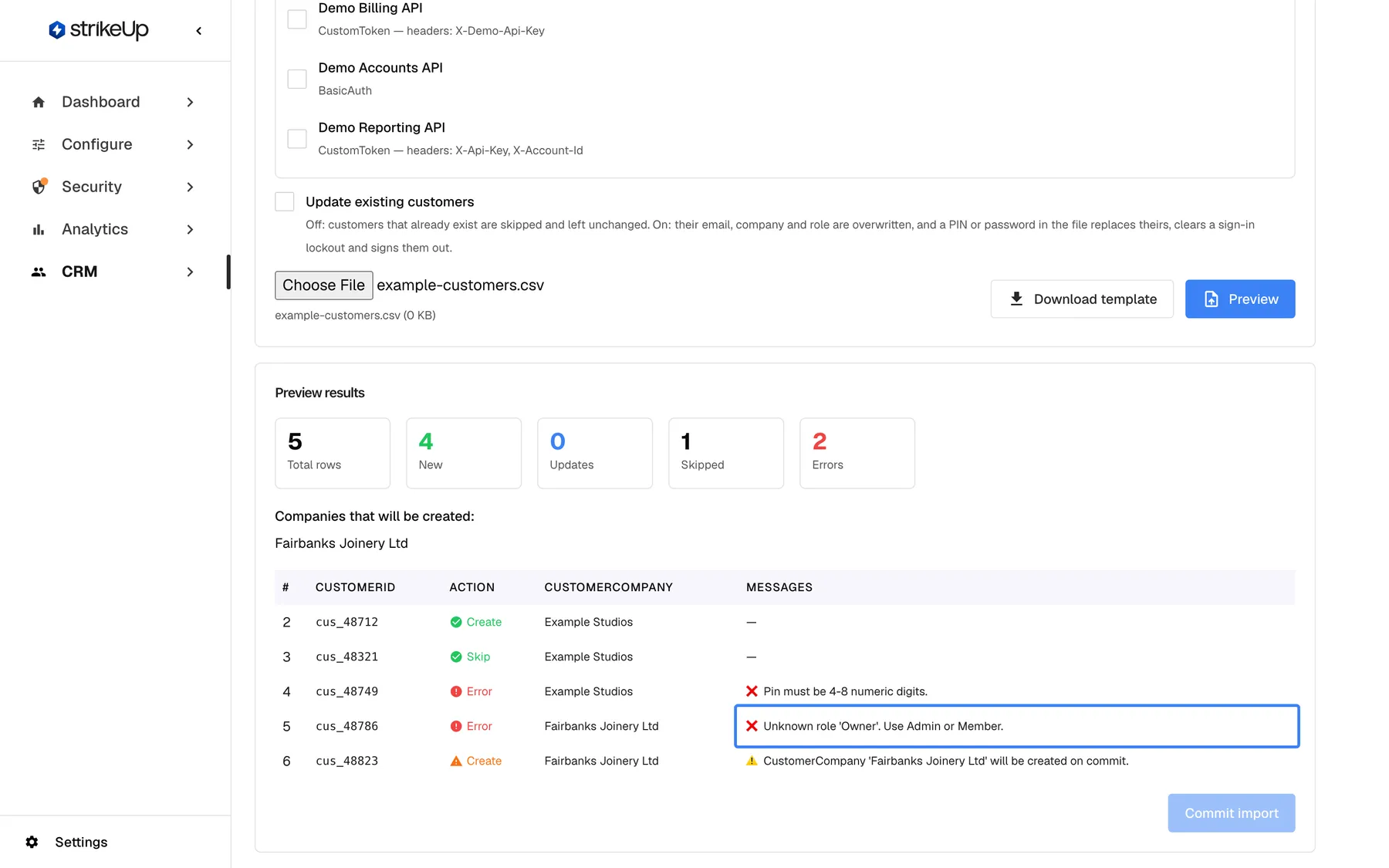
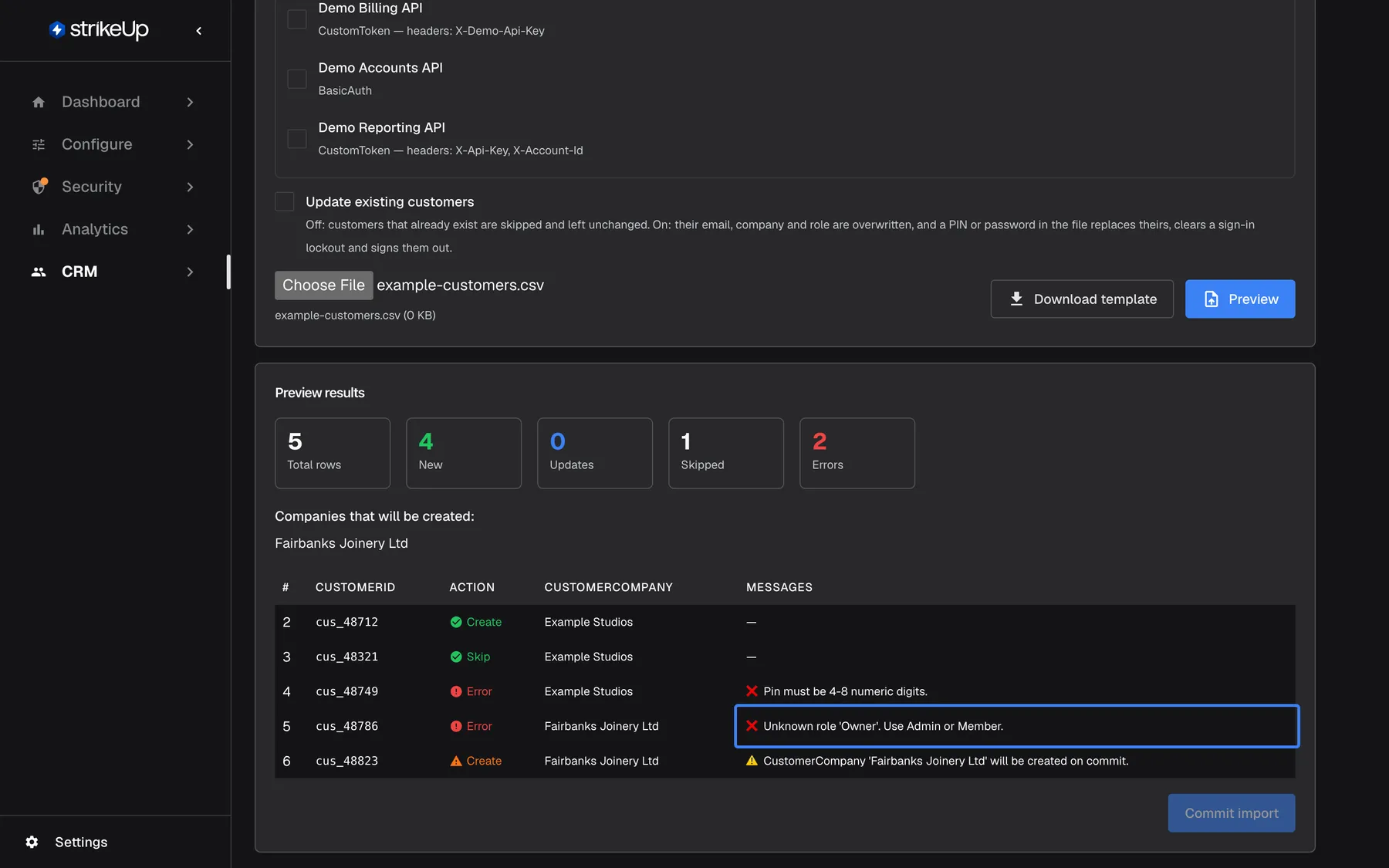
What this screenshot shows
- Screen
- Preview results (/admin/customers-import)
- Highlighted
- cell “”, rows-table, error. none; fix the Role value
- Also visible
- 5 total, 4 new, 1 update, 2 errors; Commit import disabled
- Purpose
- setting roles in bulk by CSV
Disable or enable a member (immediate)
Section titled “Disable or enable a member (immediate)”Disable or Enable at the end of each row on the Members tab.
Disable asks for confirmation (This member will no longer be able to sign in and their active sessions will be revoked. Their history is kept. Continue?; its button reads “Delete” but deletes nothing), then ends all the person’s sessions, blocks sign-in and skips their scheduled workflows. Refused for the last active Admin with “Cannot disable the last active Customer Admin in this customer company.” Enable works at once, without confirmation; the person signs in again with their existing credential.
When someone leaves a business, their access should end now.
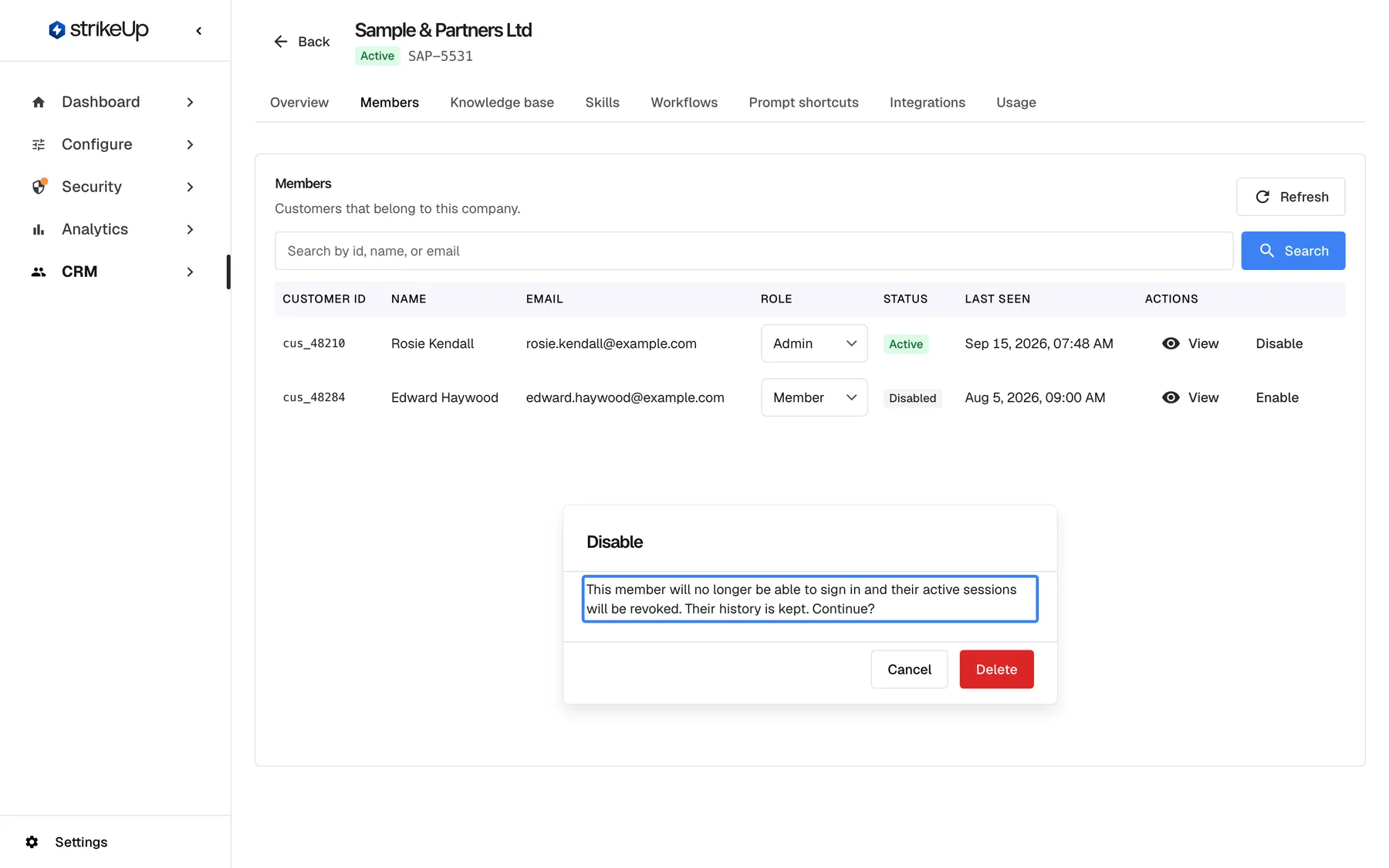
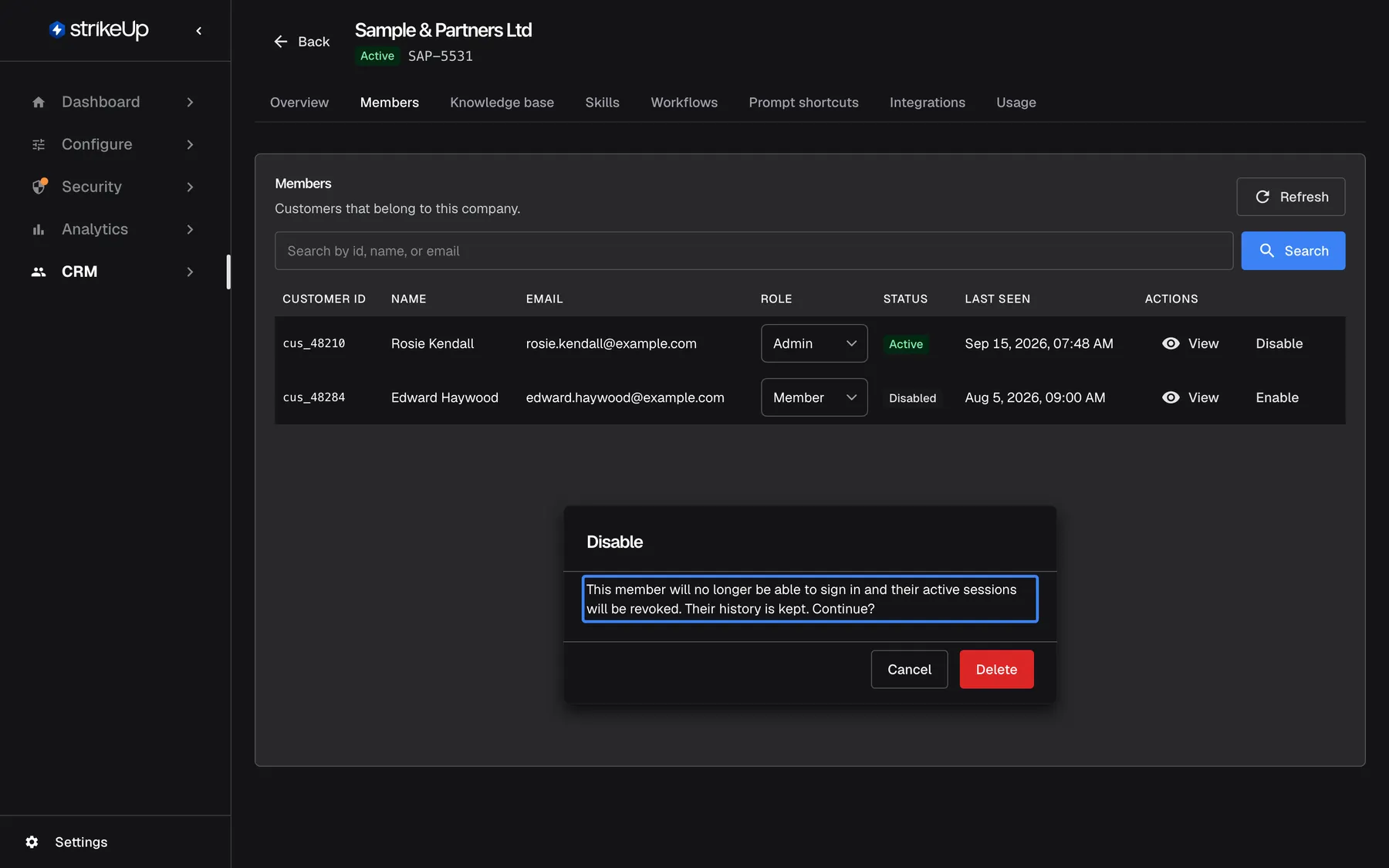
What this screenshot shows
- Screen
- Disable (/admin/customer-companies/:id?tab=members)
- Highlighted
- text “This member will no longer be able to sign in and their active sessions will be revoked. Their history is kept. Continue?”, inline-dialog, shown. none; Delete confirms the disable
- Also visible
- Cancel and Delete buttons
- Purpose
- what disabling does
Active, the company switch
Section titled “Active, the company switch”The Active card on the company’s Overview tab (asks for confirmation), or the Active switch in the companies list (no confirmation).
Off: none of the company’s people can sign in, renew a session or register, anyone signed in is signed out on their next request, and scheduled workflows are skipped. On: sign-in works again, and workflows run from their next due time. Everything is kept.
Stop a whole business at once, for example when its contract ends, and restore it unchanged if it comes back.
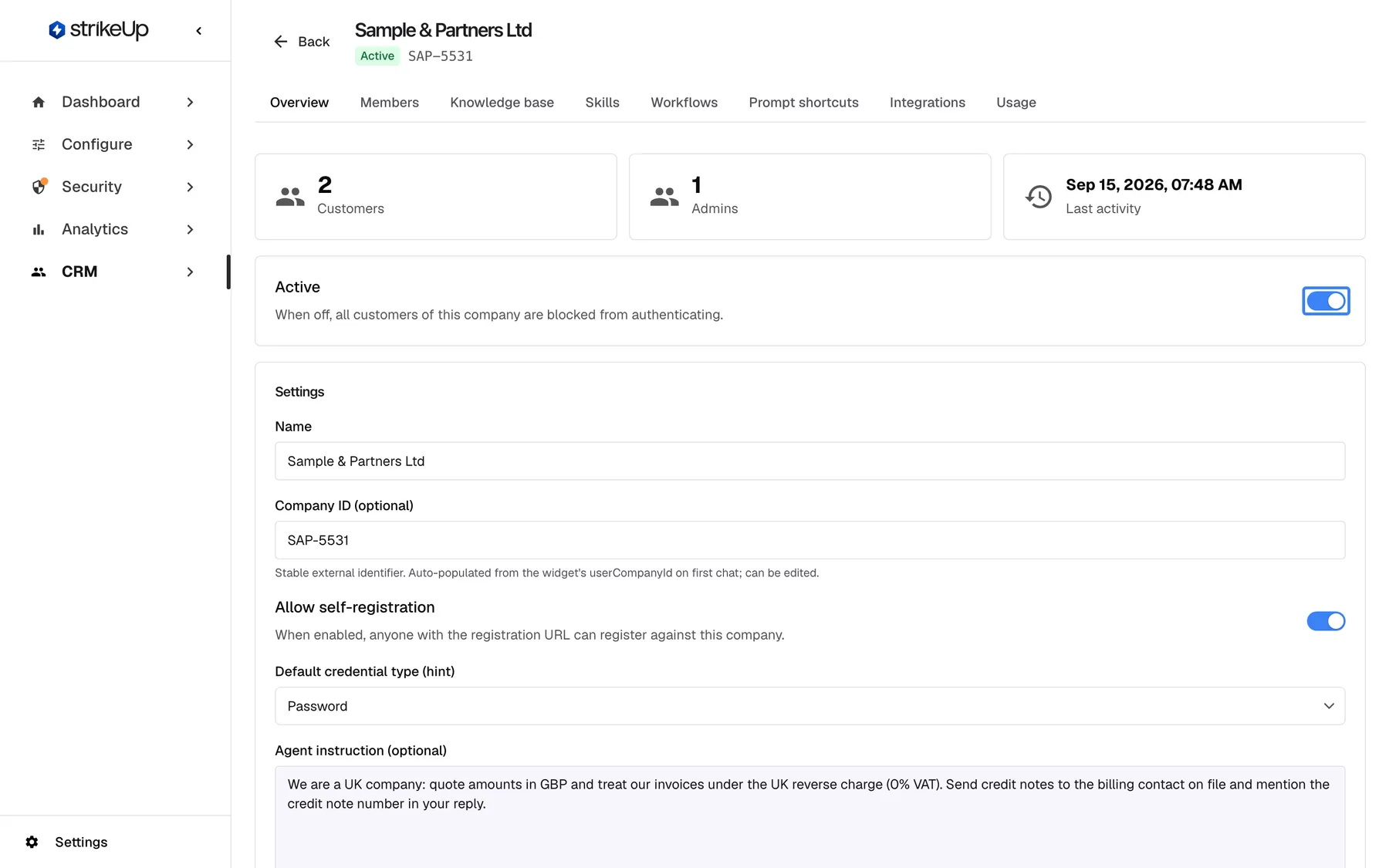
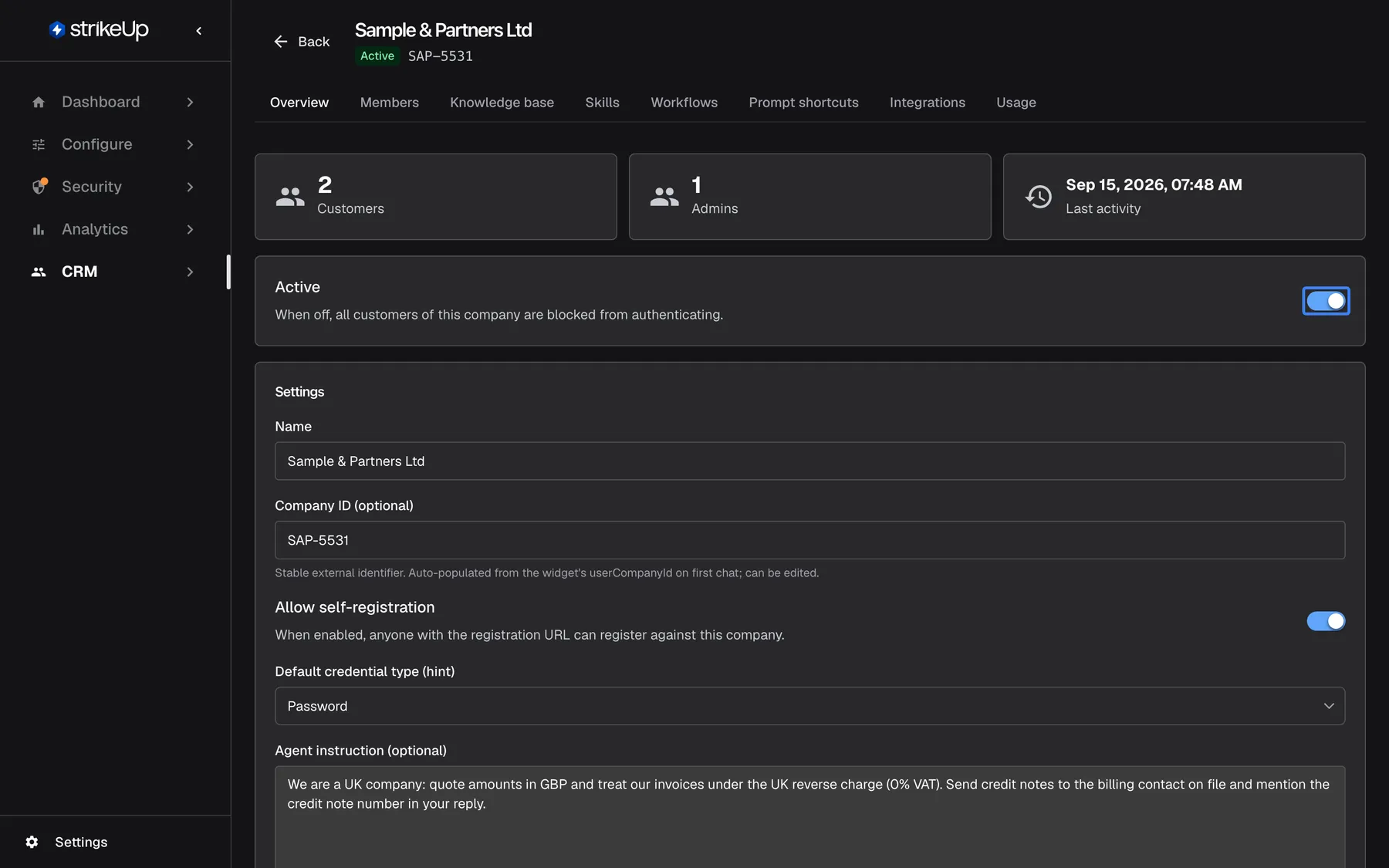
What this screenshot shows
- Screen
- Overview (/admin/customer-companies/:id)
- Highlighted
- switch “Active”, active-card, on. deactivates the company after confirmation
- Also visible
- KPI cards: 2 customers, 1 admin
- Purpose
- company-wide access switch
Allow self-registration and the credential hint
Section titled “Allow self-registration and the credential hint”Allow self-registration and Default credential type (hint) in the company’s settings on the Overview tab, saved with Save. The company’s Admins can change both in the portal.
Self-registration lets anyone with the company’s registration link create an account in it, as a Member, or as its Admin when nobody is in the company yet; it is refused while the company is inactive. The credential hint only pre-selects PIN or password when a customer of this company sets up their sign-in; they can still choose the other. A PIN has 4–8 digits, although the option reads “4-6”; a password at least 8 characters.
Large businesses can let their people join without an import; the hint matches the business’s own policy.
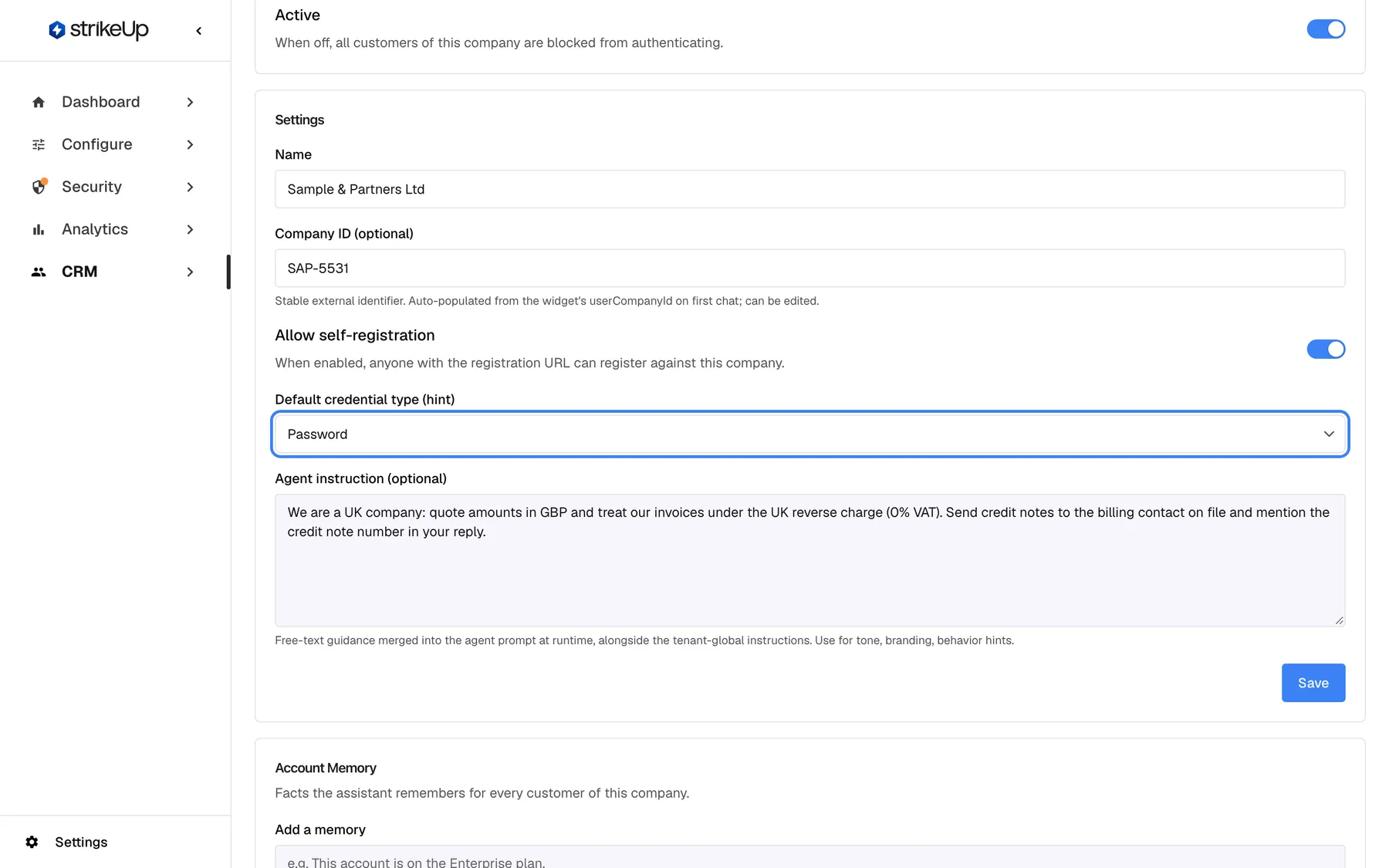
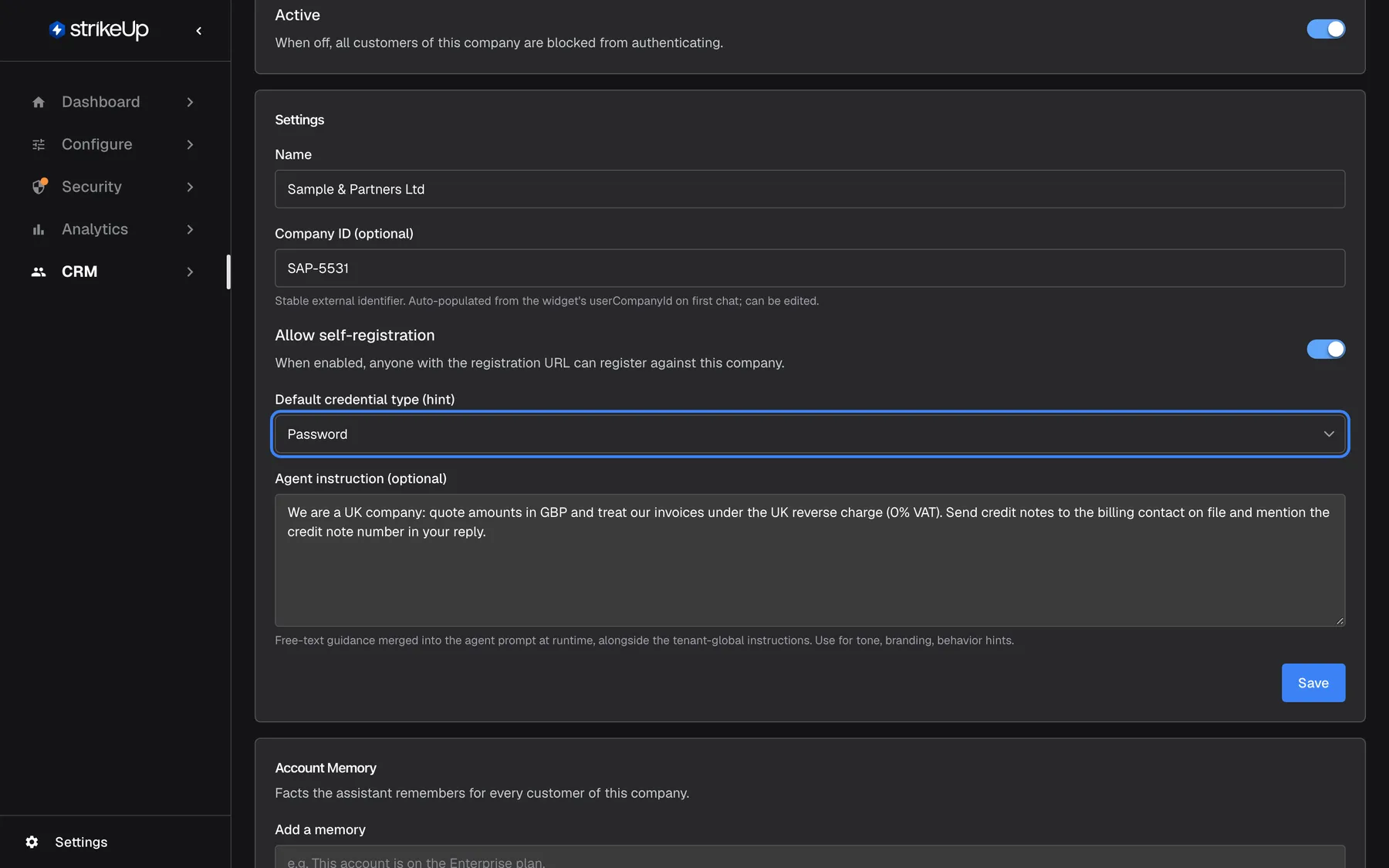
What this screenshot shows
- Screen
- Settings (/admin/customer-companies/:id)
- Highlighted
- combobox “Default credential type (hint)”, settings-card, Password. suggests PIN or password in the widget's credential setup popup
- Also visible
- Allow self-registration on; Save button for the card
- Purpose
- sign-in settings of a company
Credentials in the CSV import
Section titled “Credentials in the CSV import”The Pin and Password columns of the import file.
One of the two per row: a PIN of 4–8 digits or a password of at least 8 characters. For an existing customer, a new value replaces their credential, lifts any lockout and signs them out on their next request. A row without either leaves the customer without a credential; how such customers sign in is in End-customer sign-in.
Hand out credentials in bulk, and reset a forgotten PIN, which has no button anywhere else.
How the settings combine
Section titled “How the settings combine”| Company | Member | Can sign in | Can manage the company |
|---|---|---|---|
| Active | Enabled Admin | Yes | Yes, from their next sign-in |
| Active | Enabled Member | Yes | No |
| Active | Disabled | No; sessions ended | No |
| Inactive | Any | No; signed out on their next request | No changes in the portal |
Roles and access in the CRM screens
Section titled “Roles and access in the CRM screens”| Indicator | Meaning |
|---|---|
| Admins column | Customers with the Admin role, disabled ones included |
| Active / Disabled badge | Whether the member can sign in |
| Inactive badge and This company is deactivated | The company is deactivated |
| Owner disabled | A workflow’s owner is disabled |
Companies list, the Admins column
Section titled “Companies list, the Admins column”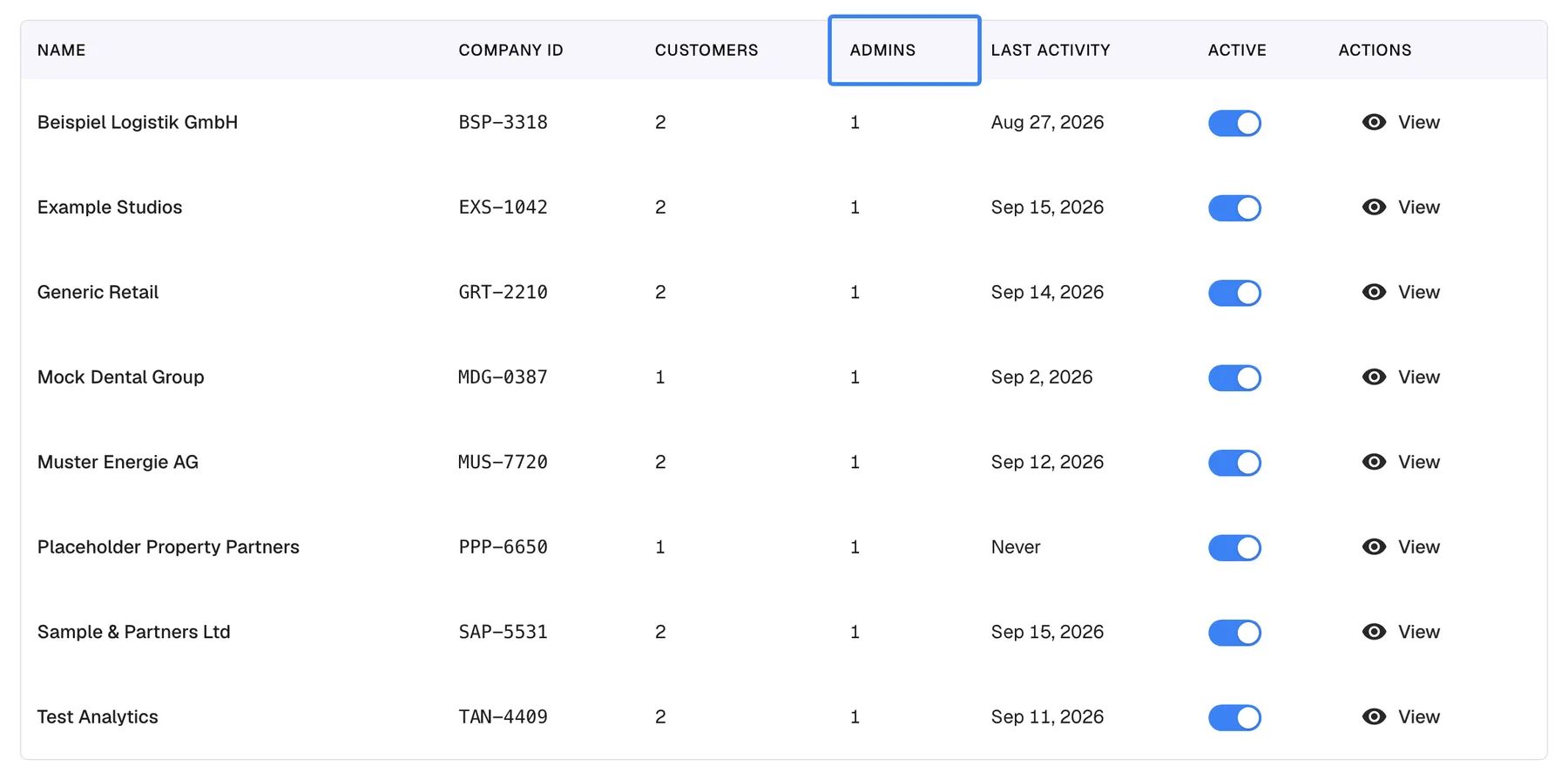
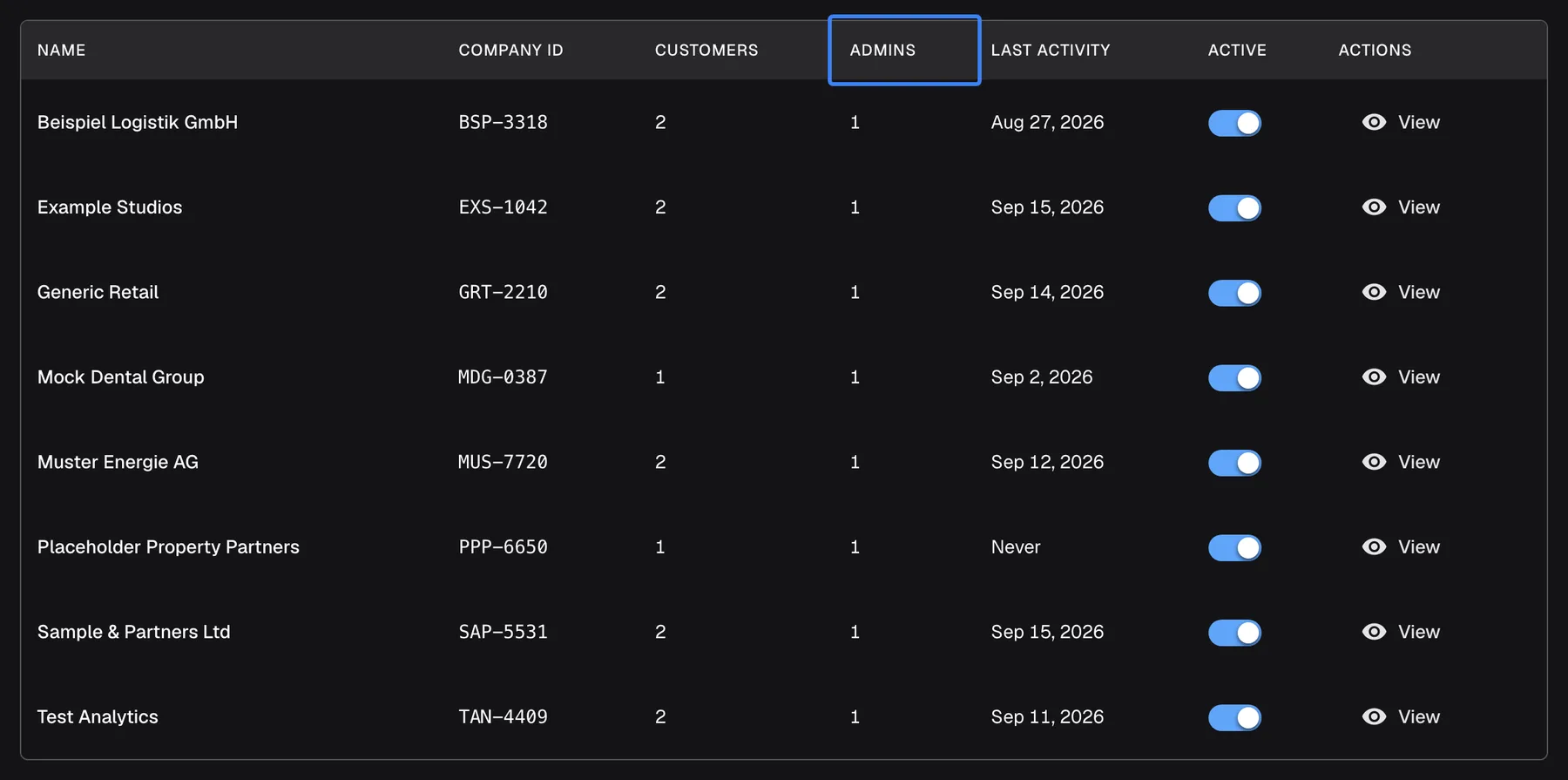
What this screenshot shows
- Screen
- Companies (/admin/customer-companies)
- Highlighted
- columnheader “Admins”, table-header, shown. none
- Also visible
- 8 companies, each with 1 admin
- Purpose
- where admin counts show
Each company’s number of Admins, disabled ones included. Why: a high number means many people can change the company’s set-up.
Members tab, role and status
Section titled “Members tab, role and status”

What this screenshot shows
- Screen
- Members (/admin/customer-companies/:id?tab=members)
- Highlighted
- button “Enable”, table-row-actions, enabled. re-enables the member without confirmation
- Also visible
- Edward Haywood Disabled, Rosie Kendall Active
- Purpose
- re-enabling a member
One row per member with their role selector and a green Active or grey Disabled badge. Why: it is the one place where role and access are visible together and the last Admin is protected.
Company page, the deactivated banner
Section titled “Company page, the deactivated banner”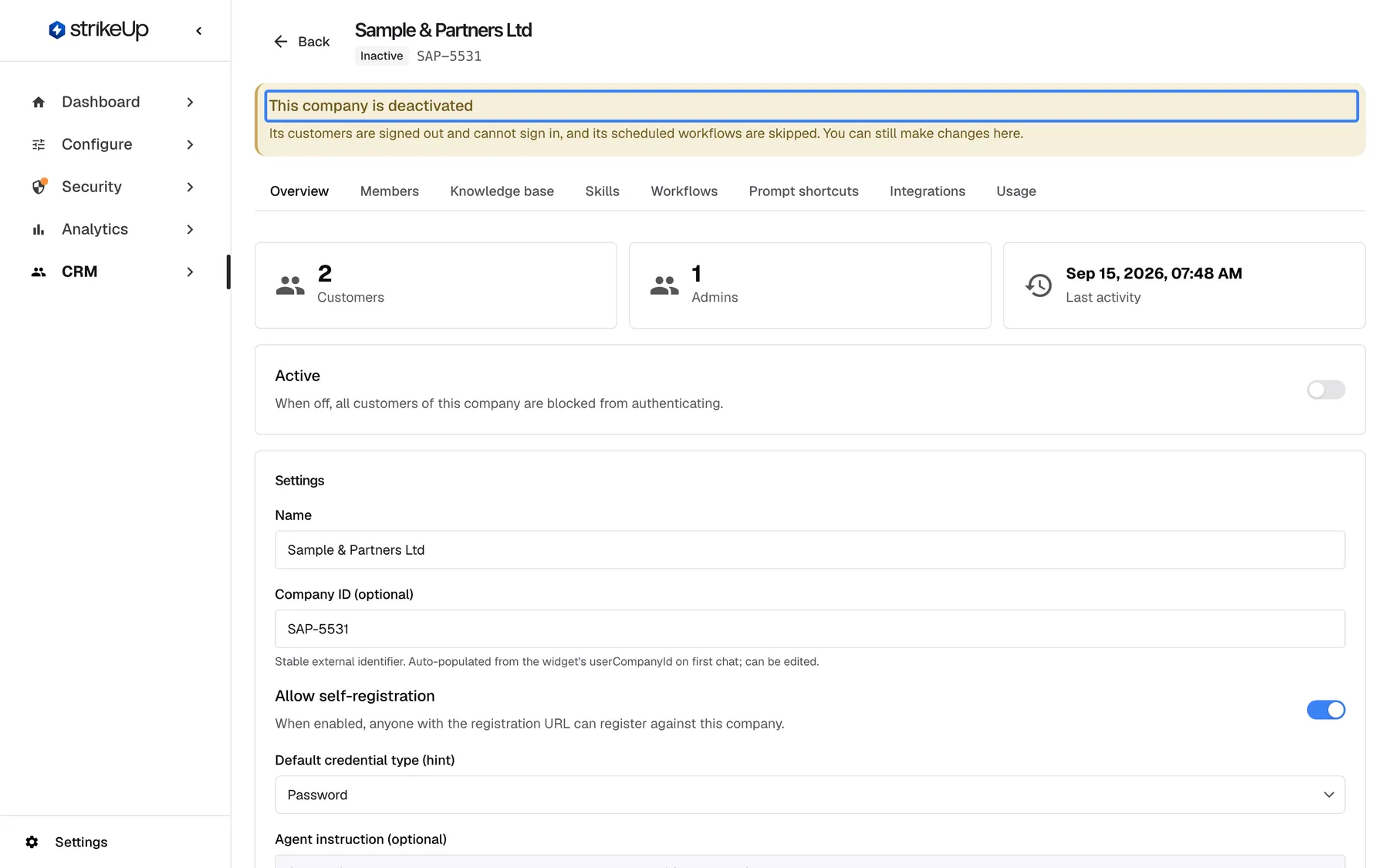
What this screenshot shows
- Screen
- Overview (/admin/customer-companies/:id)
- Highlighted
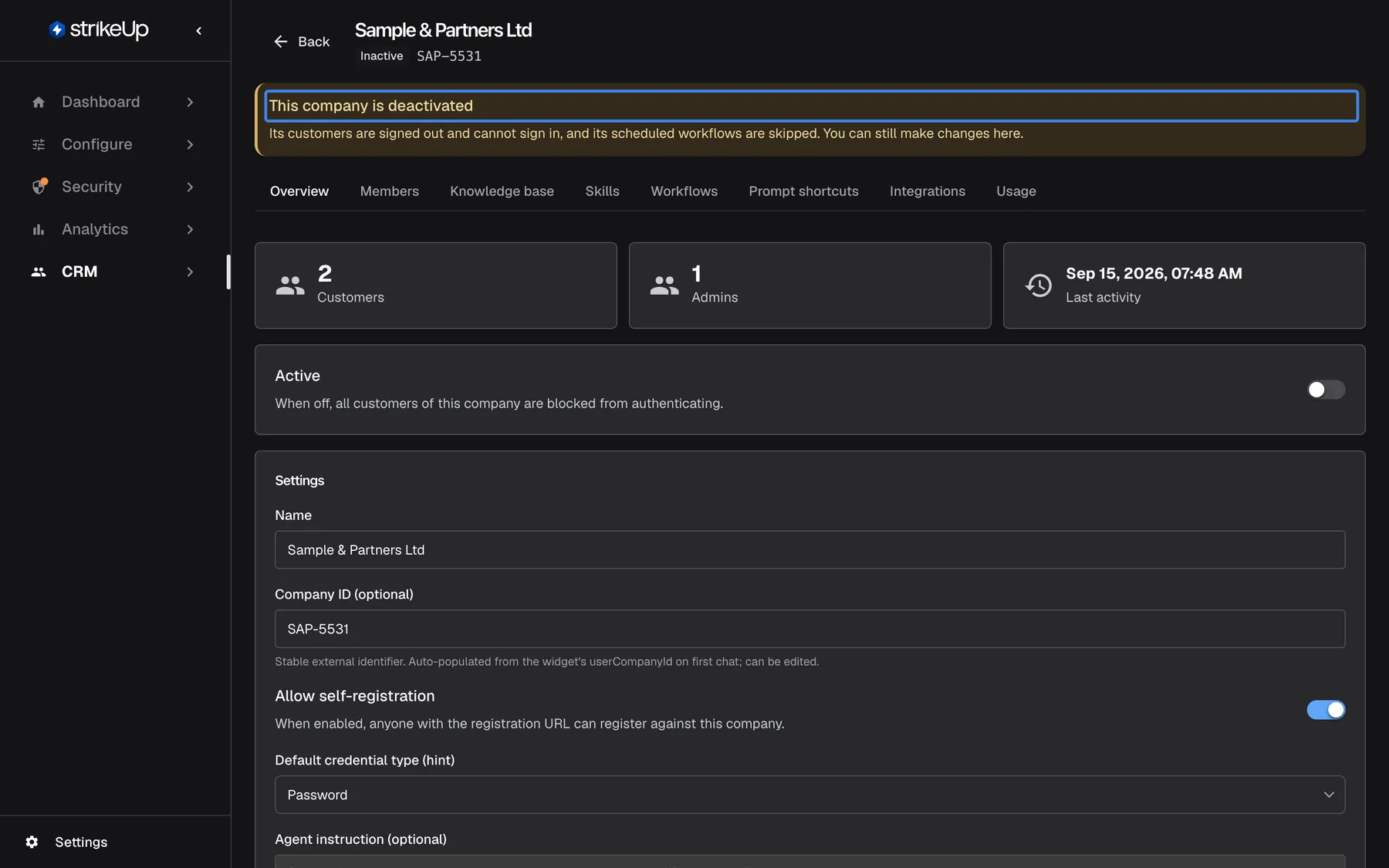
- alert “This company is deactivated”, banner, shown. none
- Also visible
- Inactive badge, Active switch off
- Purpose
- what deactivation looks like
A deactivated company shows the Inactive badge and the banner This company is deactivated on every tab. The banner says its customers are signed out and cannot sign in, and its scheduled workflows are skipped. Why: you see the status before you change anything.
Workflows tab, Owner disabled
Section titled “Workflows tab, Owner disabled”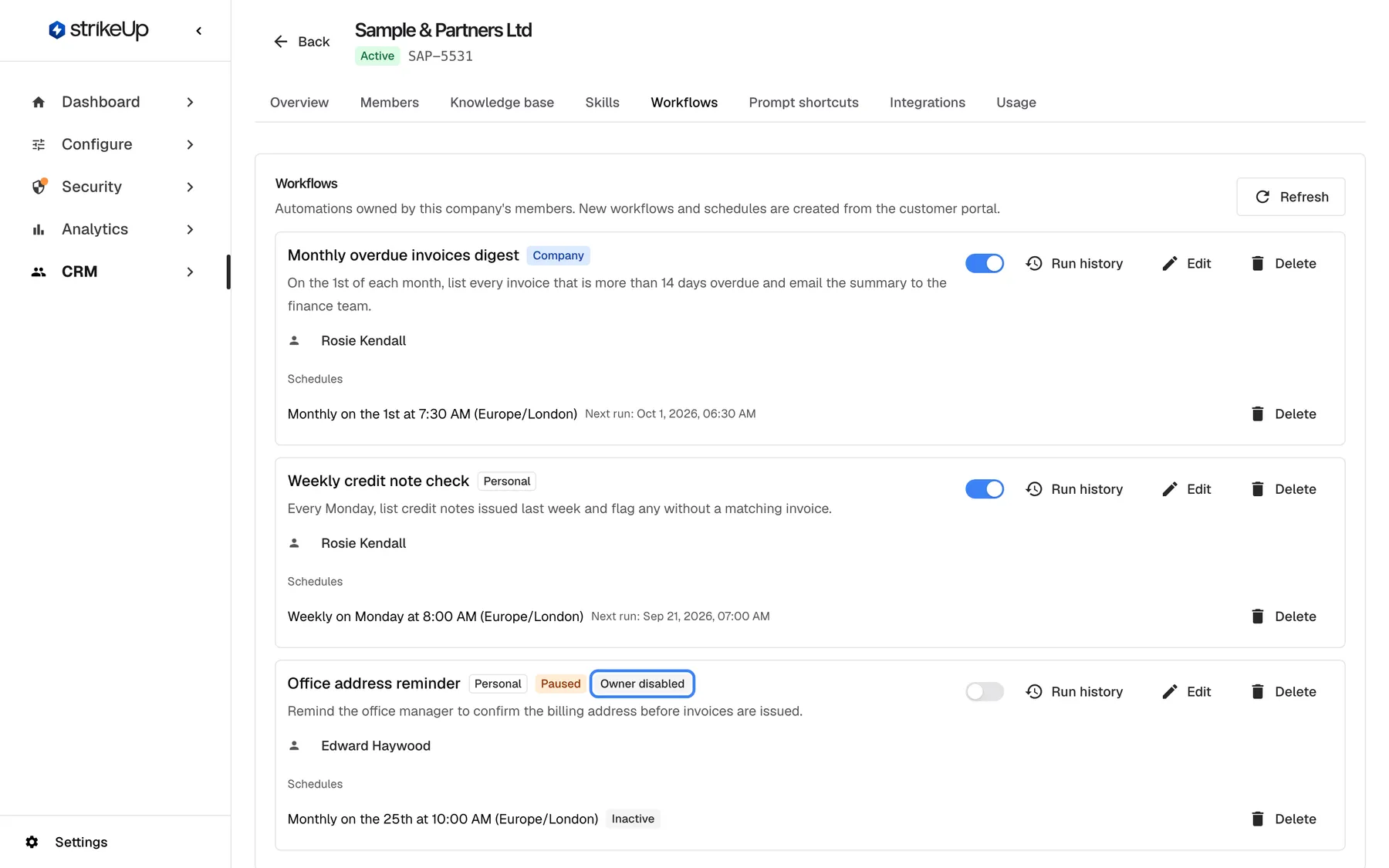
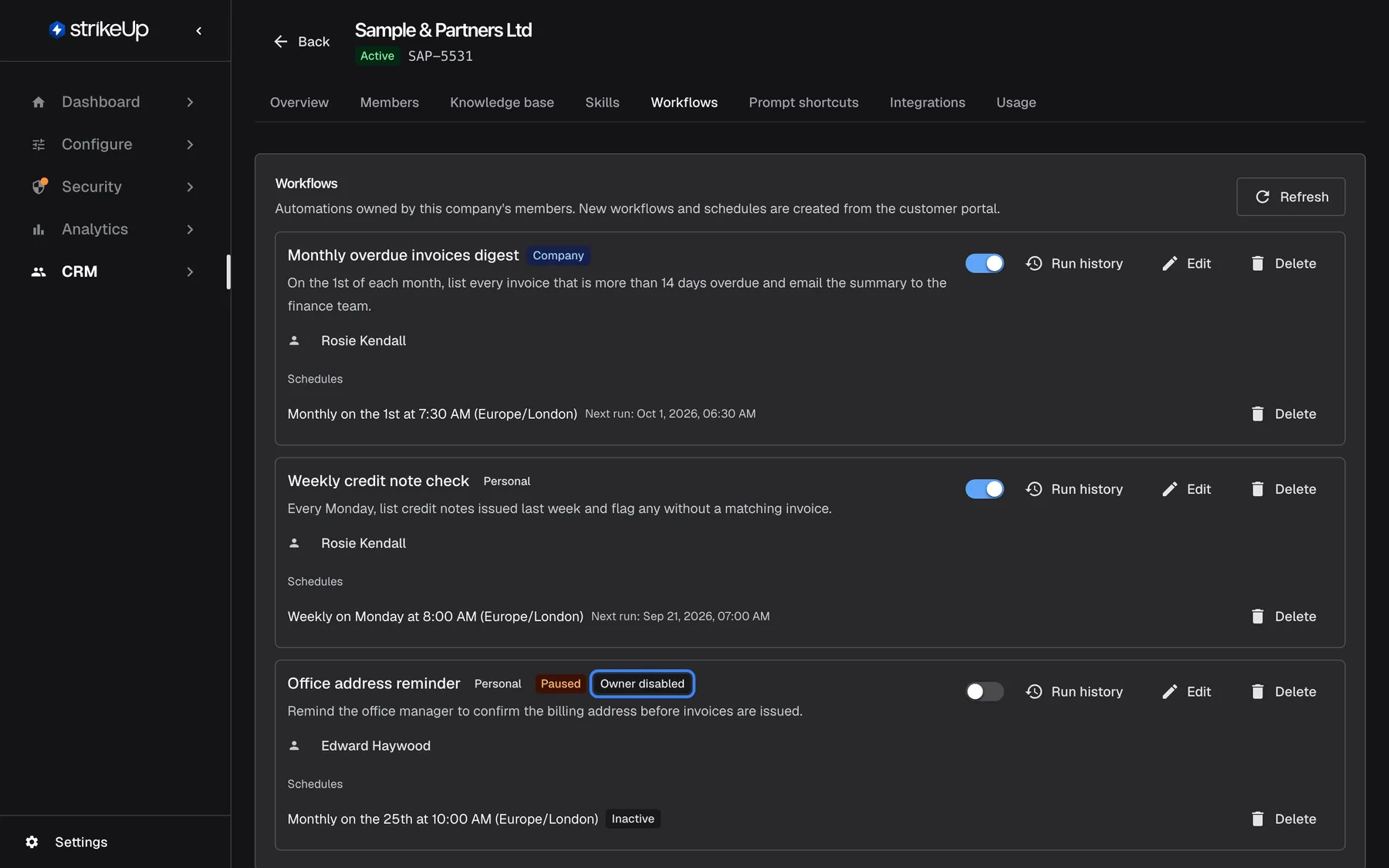
What this screenshot shows
- Screen
- Workflows (/admin/customer-companies/:id?tab=workflows)
- Highlighted
- status “Owner disabled”, workflow-card, shown. none
- Also visible
- Office address reminder: Paused, Owner disabled, schedule Inactive
- Purpose
- effect of disabling on workflows
A workflow whose owner is disabled shows Owner disabled. Its runs are skipped while the owner is disabled, each recorded as “Cancelled” with “The customer is disabled — the run was skipped.” They go ahead again once you enable the owner; to stop the workflow for good, pause it with its switch. Why: disabling a person also holds the automations they set up, without deleting them.
Roles in the customer portal
Section titled “Roles in the customer portal”The customer portal in your widget, on its members page, for the company’s Admins.
Customer Admins can change members’ roles and disable or enable them, with the same protection of the last active Admin; they cannot disable themselves. Their changes appear on the company’s Members tab.
The business manages its own people without asking you.
- A business’s office manager promotes a new colleague to Admin when they take over billing.
- An Admin disables a colleague who left, and the colleague is signed out at once.
- An Admin demotes themselves after handing over, which works only if another Admin remains.
What you need to know
Section titled “What you need to know”| Topic | Fact |
|---|---|
| Default role | Admin, except for anonymous visitors on widgets without sign-in. |
| Role timing | A role change signs the person out on their next request; the new role applies when they sign in again. |
| Disable timing | Immediate; all sessions end. |
| Deactivate timing | At once: sign-in is blocked, and everyone signed in is signed out on their next request. |
| Last Admin | Protected on the Members tab and in the portal, not on the customer’s page or in imports. |
| Workflows | Skipped for disabled members and deactivated companies, and recorded as “Cancelled”; they run again after you enable or reactivate. Pause a workflow to stop it for good. |
| No delete | Customers and companies cannot be deleted. |
| Lockout | After 5 wrong PINs or passwords in a row, the account locks for 1 minute, then 5 minutes, 15 minutes, 1 hour, and 6 hours for every further failure; a correct entry resets the count. |
| Credentials | PIN 4–8 digits, password at least 8 characters. Your team cannot see them. |
| Audit | When and by whom a member was disabled is recorded, but not shown in the admin app. |
Frequently asked questions
Section titled “Frequently asked questions”General
Section titled “General”What role does a new customer get?
Section titled “What role does a new customer get?”The Admin role, whether your product identified them, they signed in for the first time, registered with the company’s link, or were imported with an empty Role. Only anonymous visitors on widgets without sign-in start as Members. Change roles on the company’s Members tab.
Why is everyone in a company an Admin?
Section titled “Why is everyone in a company an Admin?”Because Admin is the default for almost every way a customer is created. Set regular users to Member on the company’s Members tab under CRMCompanies, and write Member in the Role column of future imports.
What can a Member do that an Admin cannot, and the other way round?
Section titled “What can a Member do that an Admin cannot, and the other way round?”Both can chat and manage their own profile and memories in the portal. Only Admins can change the company’s settings, members, knowledge base, skills, company workflows, notification channels and prompt shortcuts in the customer portal. A Member sees only their own agent runs; an Admin sees the company’s.
Who on my team can change customers’ roles and access?
Section titled “Who on my team can change customers’ roles and access?”Everyone signed in to your workspace can see roles and status, but only users with the Admin role in StrikeUp can change them, disable members, deactivate companies or import. For anyone else the change fails with Request failed and “This action requires the Admin role.”
Setting roles
Section titled “Setting roles”How do I make someone a Member?
Section titled “How do I make someone a Member?”On the company’s Members tab, pick Member in their row; it saves at once. You can also use Member type on their customer page, or Role = Member in a CSV import of their id.
I changed someone’s role but the portal still shows their old rights. Why?
Section titled “I changed someone’s role but the portal still shows their old rights. Why?”The role is read when the person signs in. Changing it signs them out on their next request, and they get the new role when they sign in again. A page that is still open shows the old role until it next contacts StrikeUp; ask them to reload it and sign in.
Why can’t I remove the last Admin of a company?
Section titled “Why can’t I remove the last Admin of a company?”On the Members tab and in the portal, StrikeUp keeps at least one active Admin so that someone can always manage the company. Make another member an Admin first, then demote or disable the first one.
Why could I demote the last Admin on the customer’s page?
Section titled “Why could I demote the last Admin on the customer’s page?”Member type on the customer’s page and the Role column of an import do not check for the last Admin, so a company can end up with none. Use the company’s Members tab for role changes; if a company has no Admin, promote someone there.
Can a company’s Admin change roles themselves?
Section titled “Can a company’s Admin change roles themselves?”Yes. Customer Admins can promote, demote, disable and enable members on the members page of the customer portal, with the same protection of the last active Admin. They cannot disable their own account, and they cannot deactivate the company.
Disabling and deactivating
Section titled “Disabling and deactivating”What does disabling a member do?
Section titled “What does disabling a member do?”It ends all of the person’s sessions at once and stops them signing in; the widget tells them their account is unavailable. Their chats, memories and workflows are kept, and their scheduled runs are skipped until you enable them. Enable restores sign-in.
Does disabling delete a member’s data?
Section titled “Does disabling delete a member’s data?”No. The confirmation button reads “Delete”, but disabling keeps the person’s chats, memories, persona notes and workflows. While they are disabled, their scheduled runs are skipped; to stop a workflow for good, pause it on the company’s Workflows tab.
What is the difference between disabling everyone and deactivating the company?
Section titled “What is the difference between disabling everyone and deactivating the company?”Disabling a member affects one person and ends their sessions at once. Deactivating the company affects all its people with one switch: they are signed out on their next request and cannot sign in or register, and the company’s scheduled workflows are skipped.
I deactivated a company. Why is one of its customers still chatting?
Section titled “I deactivated a company. Why is one of its customers still chatting?”Their page was still open. They are signed out on their next request, for example when they send a message, and cannot sign in again. Check that Active is off on the company’s Overview tab.
Can I delete a customer or a company?
Section titled “Can I delete a customer or a company?”No. StrikeUp has no way to delete customers or customer companies. Disable a member to stop their access, deactivate a company to stop all its people, and delete individual memories on a customer’s page if someone asks to be forgotten.
Can a company’s Admin deactivate the company?
Section titled “Can a company’s Admin deactivate the company?”No. Only your team can deactivate or reactivate a company, with Active on its Overview tab or the switch on CRMCompanies. While it is inactive, its Admins cannot change anything in the portal.
Do disabled customers still count in the Admins column?
Section titled “Do disabled customers still count in the Admins column?”Yes. Admins and Customers count disabled customers too. The protection of the last Admin counts only active ones, so a disabled Admin does not keep a company manageable.
Credentials
Section titled “Credentials”How do customers get a PIN or password?
Section titled “How do customers get a PIN or password?”You can give them one by import, in the Pin or Password column, and pass it on through a channel you trust. How customers sign in, including those imported without a credential, is explained in End-customer sign-in.
How long can a PIN be?
Section titled “How long can a PIN be?”A PIN has 4 to 8 digits; a password needs at least 8 characters. The credential hint on a company labels the PIN option “4-6 digits”, but 7- and 8-digit PINs are accepted everywhere.
A customer forgot their PIN. How do I reset it?
Section titled “A customer forgot their PIN. How do I reset it?”Import the customer again with a new Pin or Password on CRMCustomers › Import from CSV. The new credential replaces the old one, lifts any lockout and signs the customer out on their next request.
A customer is locked out. How long does it last, and can I unlock them?
Section titled “A customer is locked out. How long does it last, and can I unlock them?”After 5 wrong entries in a row the account locks for 1 minute, then 5 minutes, 15 minutes and 1 hour for further failures, and 6 hours for each failure after that. It unlocks by itself; re-importing the customer with a new credential lifts it at once.
Can I see a customer’s PIN or password?
Section titled “Can I see a customer’s PIN or password?”No. Nobody on your team can see a customer’s PIN or password, in the admin app or anywhere else. If a customer has forgotten it, replace it with a CSV import.
Self-registration
Section titled “Self-registration”How does self-registration work, and what role do people get?
Section titled “How does self-registration work, and what role do people get?”With Allow self-registration on, anyone who opens the company’s registration link can create an account in the company, as long as it is active. They become Admins. Share the link only within the business and demote regular users afterwards.
Troubleshooting
Section titled “Troubleshooting”| Symptom | What to check |
|---|---|
| The widget tells a customer their account is unavailable | In order: is the member Disabled on the company’s Members tab? Is the company Inactive? |
| “Cannot demote the last Customer Admin in this customer company.” | Make another member an Admin first. |
| “Cannot disable the last active Customer Admin in this customer company.” | Make another member an Admin first, or deactivate the company instead. |
| A promoted customer is refused in the portal | The new role applies when they sign in again; the change signs them out on their next request. Ask them to reload the page and sign in. |
| A company has no Admin | Someone used Member type or an import; promote a member on the Members tab. |
| Customers of a deactivated company still look signed in | They are signed out on their next request, for example when they send a message. Check that the company’s Active switch is off. |
| A disabled member’s workflow runs show “Cancelled” | Runs are skipped while the owner is disabled. Enable the member to let them run again, or pause the workflow on the Workflows tab to stop it for good. |
| A customer is locked out after wrong PINs | Wait for the lock to end, or re-import them with a new credential. |
| Registration is refused | The company must be active and have Allow self-registration on. |
| Import: “Unknown role ’…’. Use Admin or Member.” | Correct the Role value. |
| Any change shows Request failed with “This action requires the Admin role.” | Ask a user with the Admin role in StrikeUp. |