

Notifications
The Notifications page holds your workspace’s notification channels: the mailbox and the chat-app bots StrikeUp sends through. A channel is how a message is sent, not who gets it. One email channel, one Telegram bot, one Slack app and one Teams bot serve all your customers; each person chooses for themselves where they want to be reached. Channels carry two kinds of message: emails the assistant sends on request, and notifications about background jobs that need someone. Open the page from ConfigureNotifications.
What you can do here
Section titled “What you can do here”- Connect a channel for each provider. Add one channel per provider: Email (SMTP), Telegram, Slack and Microsoft Teams. Each needs credentials from that provider. Add a channel.
- Test a channel. An email test sends a message to your own address; a bot test checks the credentials and sends nothing. Test a channel.
- Turn on buttons, replies and commands in chat apps. Telegram, Slack and Teams channels can carry Approve and Deny buttons and let people chat with the assistant. The channel’s editor shows what to set up. Set up the two-way part.
- Change, switch off or delete a channel. Manage channels.
- Let a widget’s assistant send emails. Link the email channel to a widget so the assistant can email a visitor a report. Let the assistant email visitors · AI & UX.
- Understand job notifications end to end. Who is notified, when, and what people can do from Slack, Telegram and Teams has its own guide. Job notifications and chat apps.
The screen at a glance
Section titled “The screen at a glance”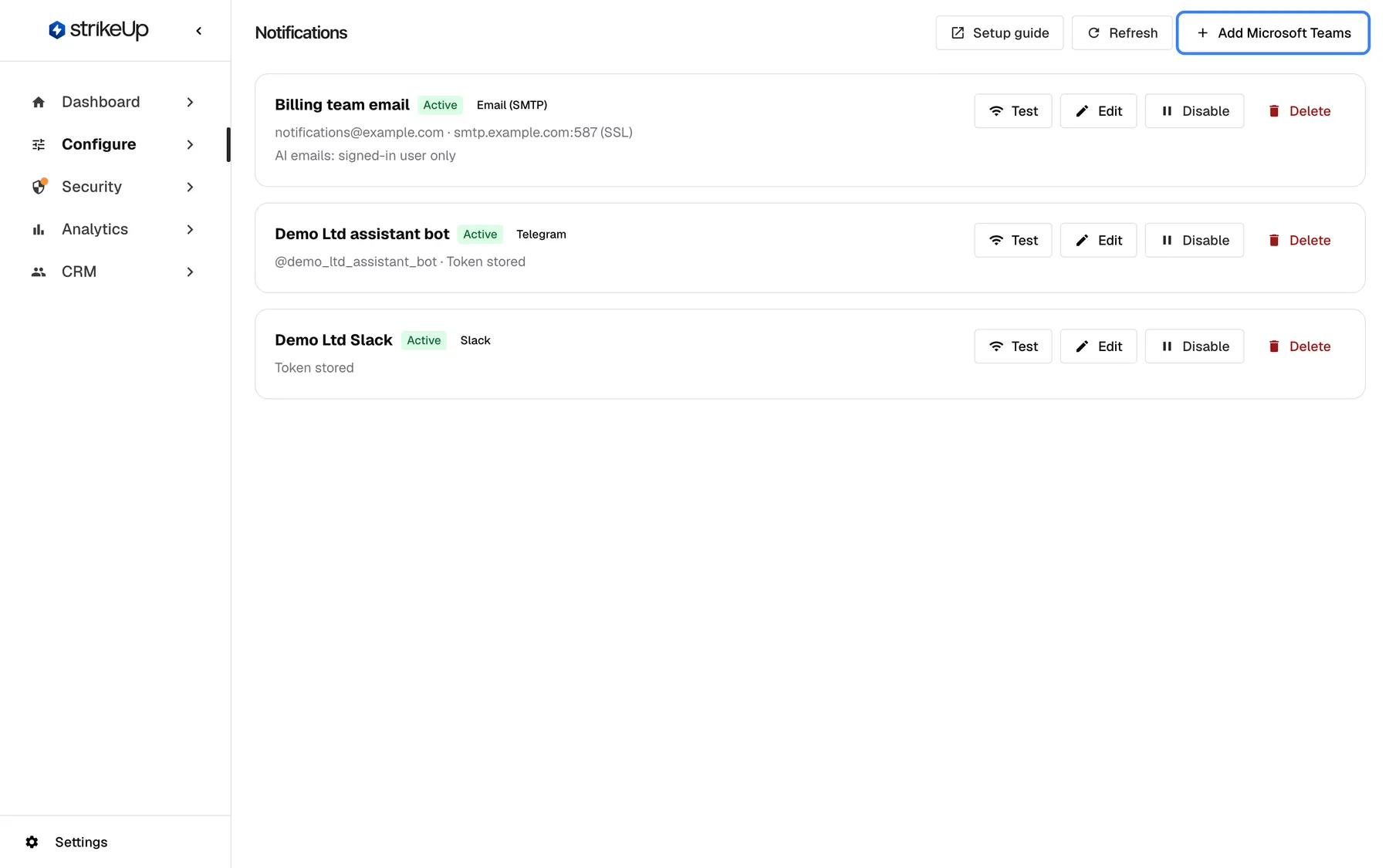
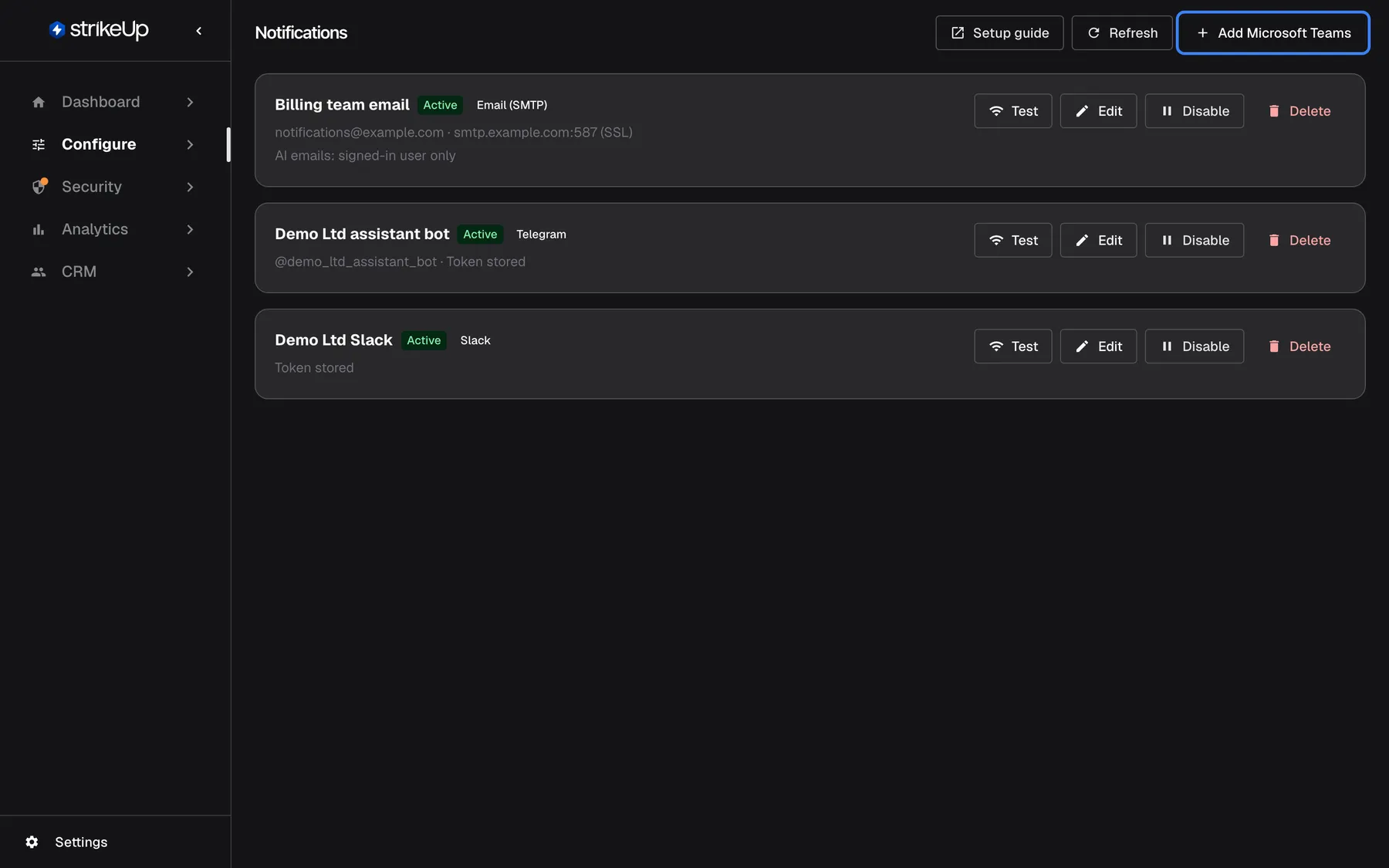
What this screenshot shows
- Screen
- Notifications (/admin/notifications)
- Highlighted
- button “”, header-right, enabled. opens the form for a new Microsoft Teams channel
- Also visible
- Billing team email: Active, Email (SMTP), notifications@example.com · smtp.example.com:587 (SSL); Demo Ltd assistant bot: Active, Telegram, @demo_ltd_assistant_bot · Token stored; Demo Ltd Slack: Active, Slack, Token stored; Header: Setup guide, Refresh, Add Microsoft Teams
- Purpose
- entry point of the Notifications page
| Region | What it shows | What you do there |
|---|---|---|
| Header | The title Notifications, Setup guide, a refresh button and one Add button per provider that has no channel yet | Open the setup guide, reload the list, add a channel |
| Channel cards | One card per channel: its name, a status badge, the provider, a detail line and the result of the last test | Test, edit, disable, enable or delete the channel |
| Empty state | No notification channels configured yet. Add an SMTP channel to let the AI send emails, or a Telegram or Slack bot to notify customers about background jobs. | Add the first channel |
The detail line depends on the provider: the sender address, host and port for email; the bot’s username and Token stored or No bot token yet for Telegram; the token and signing-secret state for Slack; the App ID for Teams. The status badge reads “Active”, “Disconnected” or “Error”, in English in every language. A disabled channel also shows Disabled.
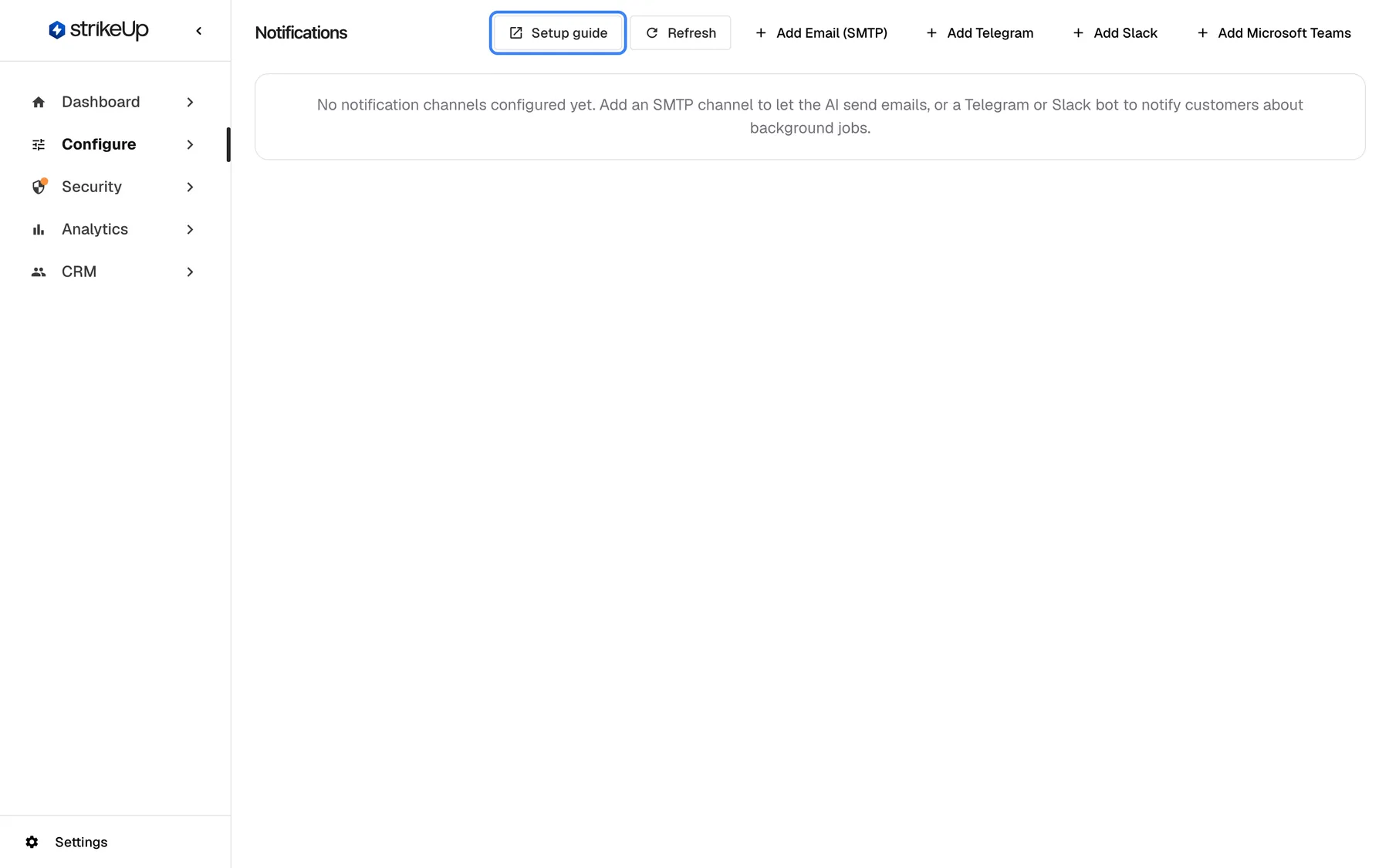
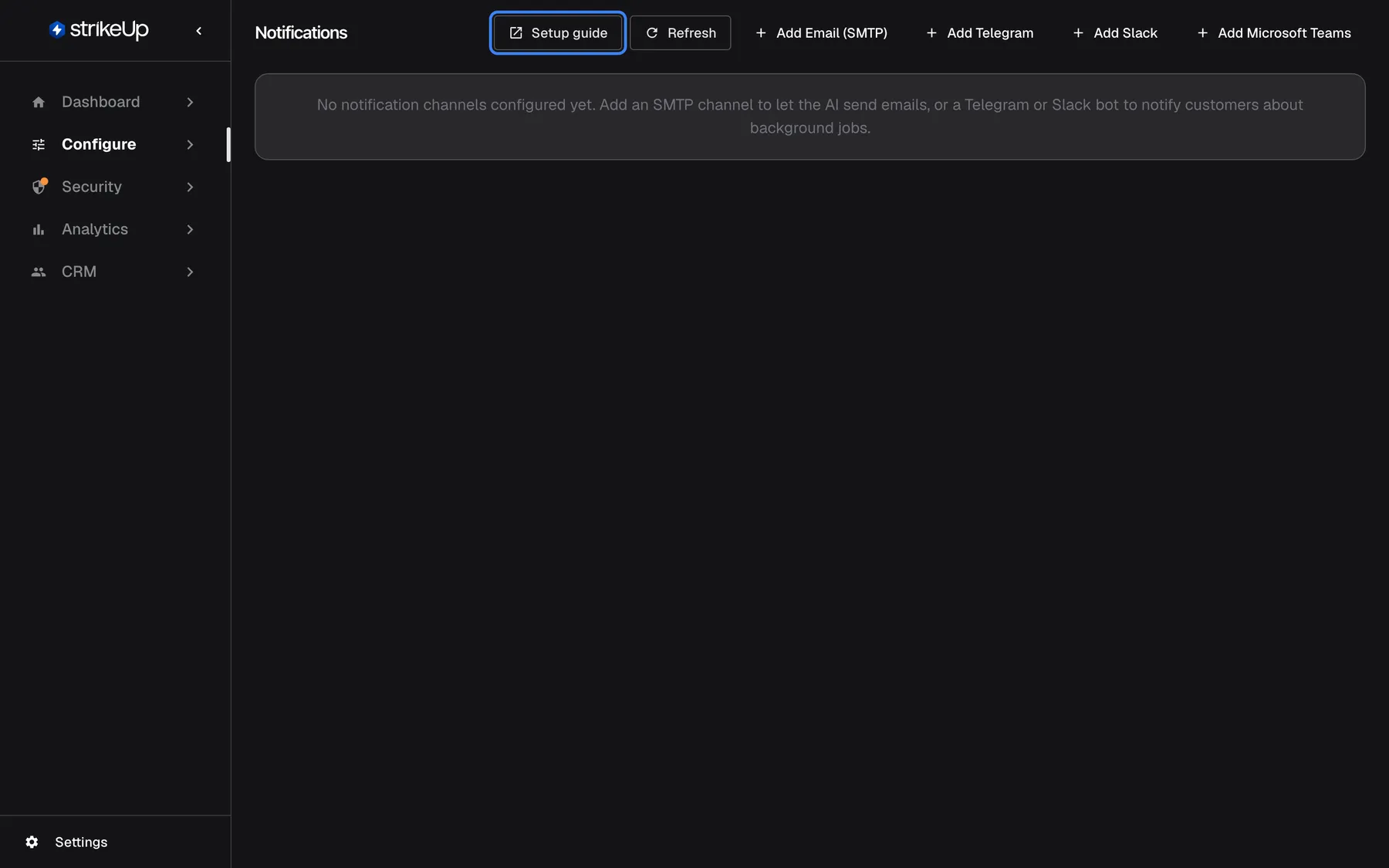
What this screenshot shows
- Screen
- Notifications (/admin/notifications)
- Highlighted
- link “Setup guide”, header-right, enabled. opens the Notification Channels setup guide in a new tab
- Also visible
- Empty state text app.notifications.noChannels; Add Email (SMTP), Add Telegram, Add Slack, Add Microsoft Teams
- Purpose
- what a new workspace sees on this page
Add a channel
Section titled “Add a channel”- Select the Add button of the provider at the top right, for example the one for Email (SMTP). The form for a new channel opens above the list, already named after the provider.
- Change the Channel Name if you like. For Teams the name is also the app’s name in Teams.
- Fill in the provider’s fields. Select Where do I find these? at the top right of the form to open the matching part of the setup guide in a new tab.
- Select Save. The channel appears in the list with the status “Disconnected” until you test it.
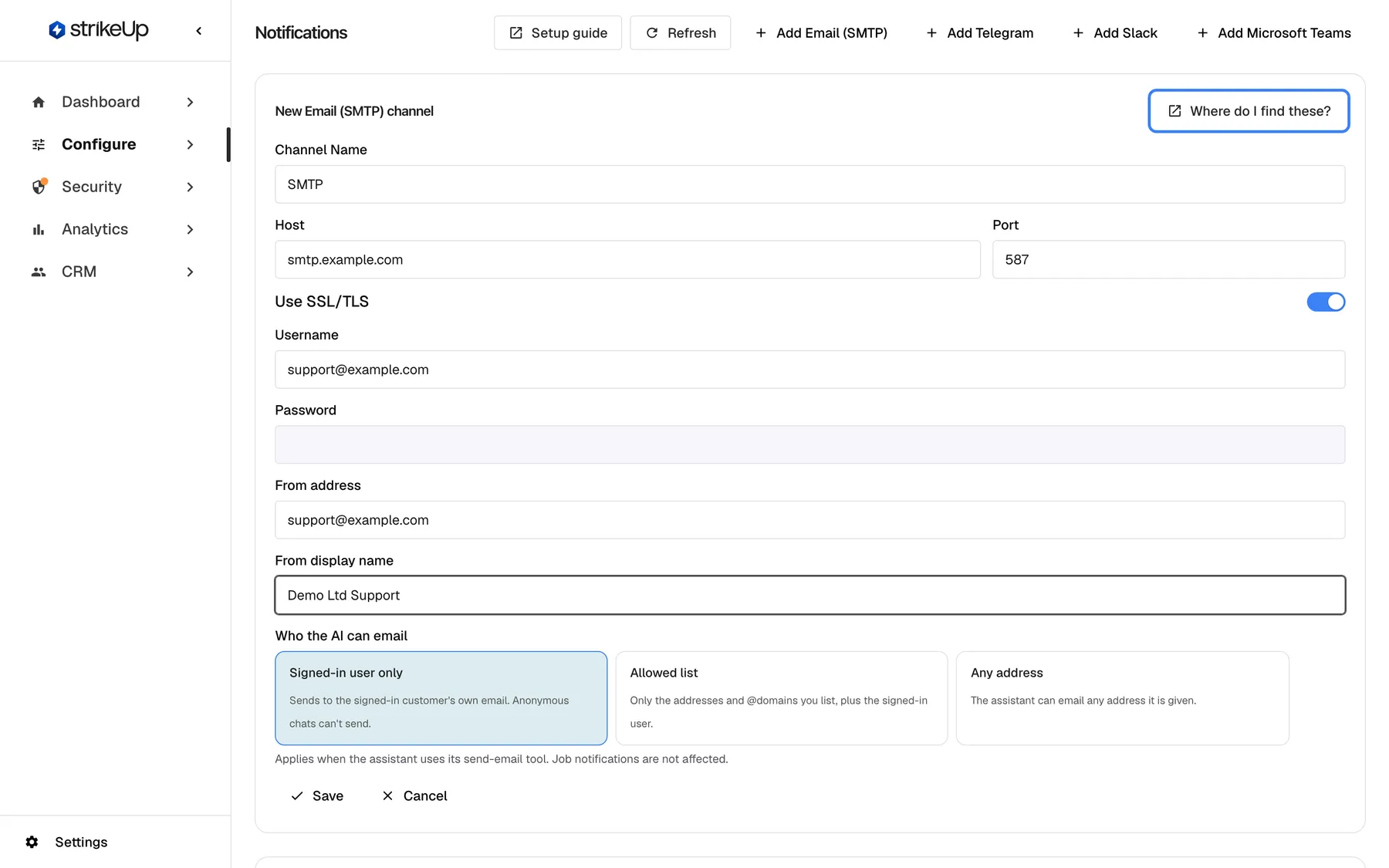
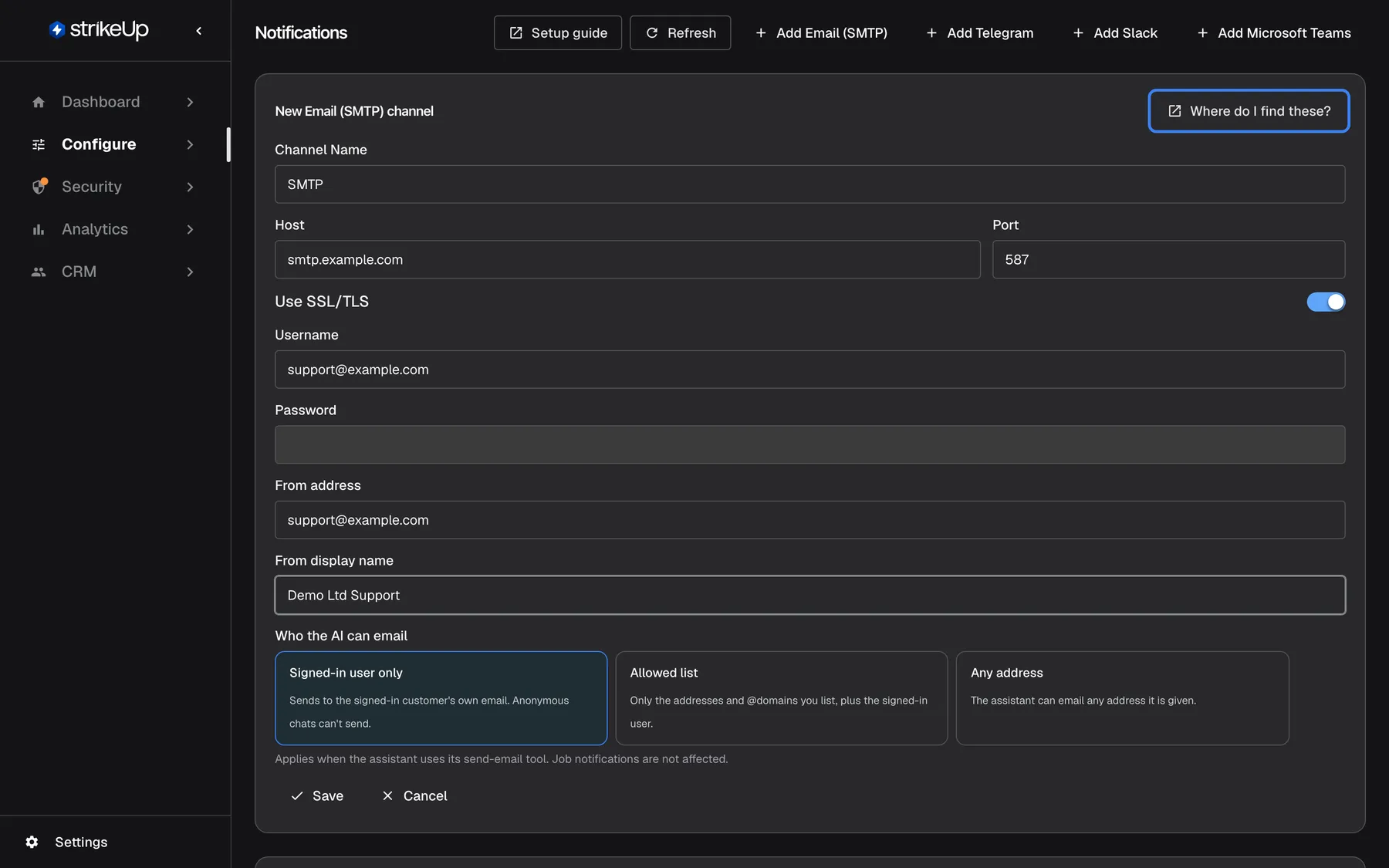
What this screenshot shows
- Screen
- Notifications (/admin/notifications)
- Highlighted
- link “Where do I find these?”, new-channel-form, enabled. opens Help › Technical docs › Notification Channels setup guide at the SMTP section in a new tab
- Also visible
- Channel Name SMTP; Host smtp.example.com; Port 587; Use SSL/TLS on; Username and From address support@example.com; From display name Demo Ltd Support; Password empty; Save, Cancel
- Purpose
- adding an email channel
| Provider | Fields | Required |
|---|---|---|
| Email (SMTP) | Host, Port (587), Use SSL/TLS (on), Username, Password, From address, From display name | The host, and a port from 1 to 65535 |
| Telegram | Bot token from @BotFather, Bot username (optional, read from the bot when blank) | The bot token |
| Slack | Bot token (xoxb-…); the signing secret is added after the first save | Nothing: save without a token to get the app manifest first |
| Teams | Microsoft App ID, Client secret, Directory (tenant) ID | All three; both IDs in the form 3fa85f64-5717-4562-b3fc-2c963f66afa6 |
The form refuses to save with Channel name is required., Channel name and SMTP host are required., Port must be a number between 1 and 65535., A bot token is required., The Microsoft App ID must be a GUID, e.g. 3fa85f64-5717-4562-b3fc-2c963f66afa6. or The Directory (tenant) ID must be a GUID, e.g. 3fa85f64-5717-4562-b3fc-2c963f66afa6.. The server also refuses a second channel for a provider that already has one (“A Smtp notification channel already exists for this company.”), a Telegram bot or an Azure Bot that another channel already uses, and a Teams channel when this installation has no public address that Teams can call.
An email channel only connects to a public mail server on a standard mail port: 25, 465, 587, 2465, 2525 or 2587. A host that resolves to a private or internal address, or any other port, is refused when StrikeUp tests or sends, with the reason on the card. When you edit an email channel and change its host, port or user name, or switch SSL/TLS off, type the password again: StrikeUp keeps a stored password only for the server it was entered for, and otherwise refuses to save with Enter the password again: the host, port or username changed, or SSL was turned off..
Example: an email channel Billing team email on smtp.example.com, port 587 with SSL/TLS, sending from notifications@example.com. Its card reads notifications@example.com · smtp.example.com:587 (SSL).
Test a channel
Section titled “Test a channel”Select Test on a channel card.
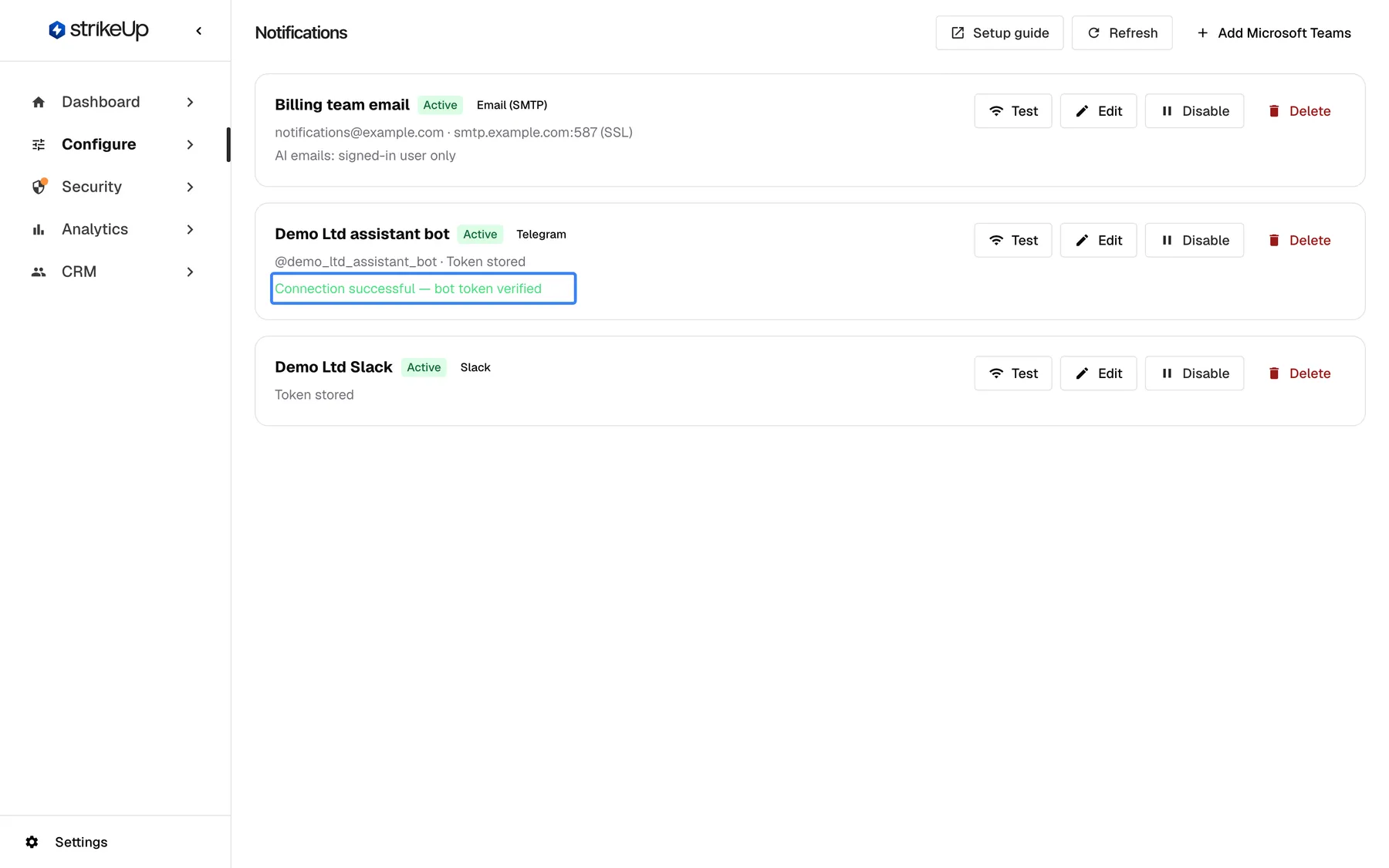
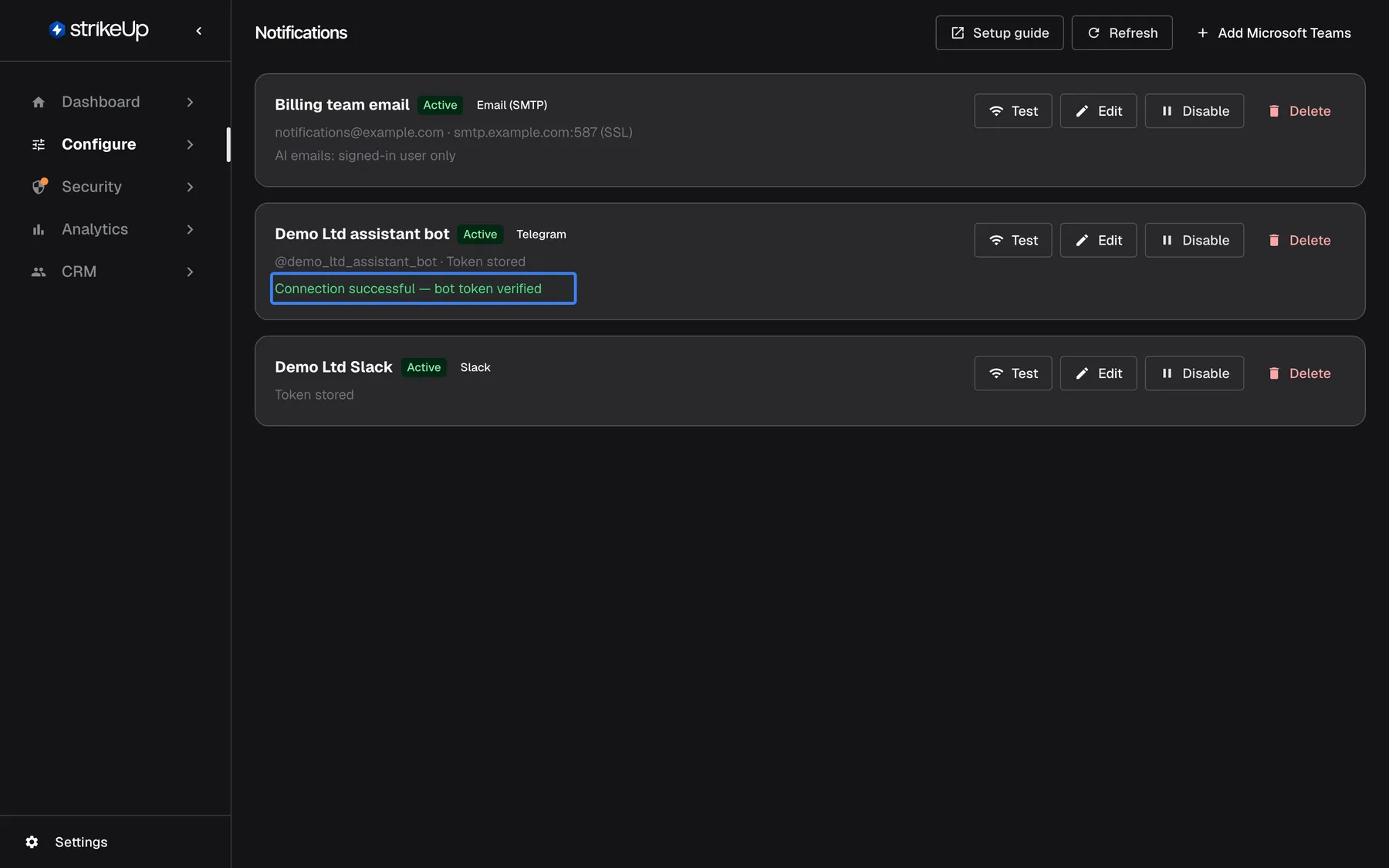
What this screenshot shows
- Screen
- Notifications (/admin/notifications)
- Highlighted
- status “Connection successful — bot token verified”, channel-card-telegram, shown after Test. none (result message)
- Also visible
- Demo Ltd assistant bot card with the success line; Billing team email and Demo Ltd Slack cards
- Purpose
- verifying a chat-app channel
| Provider | What the test does | Success message |
|---|---|---|
| Email (SMTP) | Connects to the mail server and sends “StrikeUp — SMTP connection test” to the email address you sign in with | Connection successful — test email sent |
| Telegram, Slack | Checks the token with the provider; sends no message, because nobody may have connected yet. For Telegram it also sets up the bot’s webhook and command menu | Connection successful — bot token verified |
| Teams | Signs the bot in to Microsoft; sends no message | Connection successful — bot token verified |
A successful test sets the status to “Active”. A failed test shows Connection test failed or the provider’s own reason on the card and sets the status to “Error”. “Active” means the credentials work; it does not mean anyone has opted in to receive notifications yet. The status is information only: StrikeUp sends through any enabled channel whose credentials are filled in.
Set up the two-way part of a chat app
Section titled “Set up the two-way part of a chat app”Open a saved Telegram, Slack or Teams channel with Edit. A panel at the top of the editor shows how the channel takes clicks, replies and commands:
| Provider | What the panel shows | What you do |
|---|---|---|
| Telegram | Buttons, replies and commands: On. The bot's webhook and command menu are set up when this channel is saved or tested., and the Webhook URL | Nothing. StrikeUp registers the webhook and the commands with Telegram |
| Slack | Create the Slack app from this manifest, four steps, the manifest and the request URLs | Copy the manifest, create the app at api.slack.com/apps from it, install it, then paste the bot token and the signing secret and save |
| Teams | Connect the Teams bot, five steps, the Messaging endpoint, a chat link and Download app package | Paste the endpoint into the Azure Bot, add the Teams channel there, and give the app package to your Teams admin |
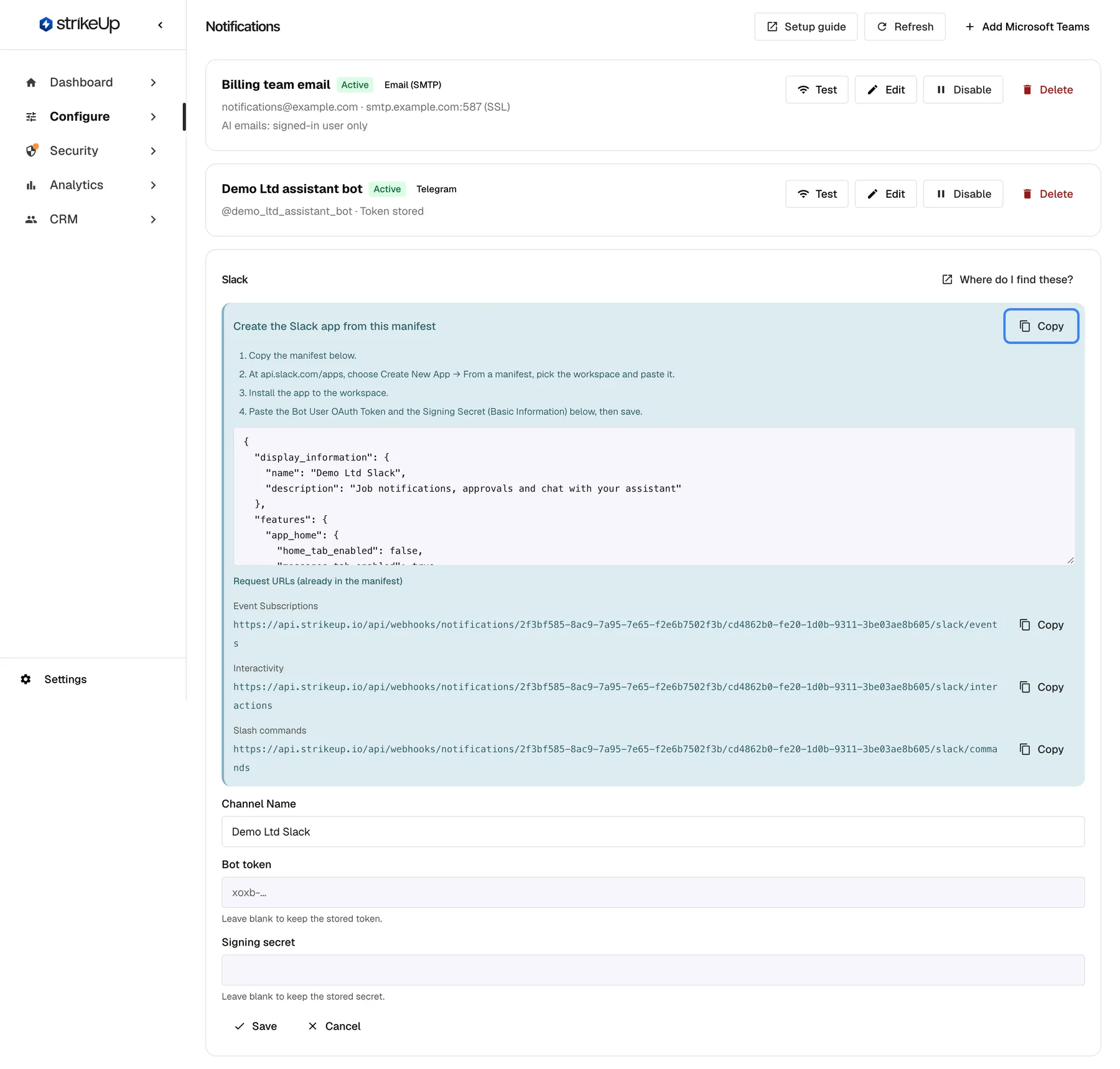
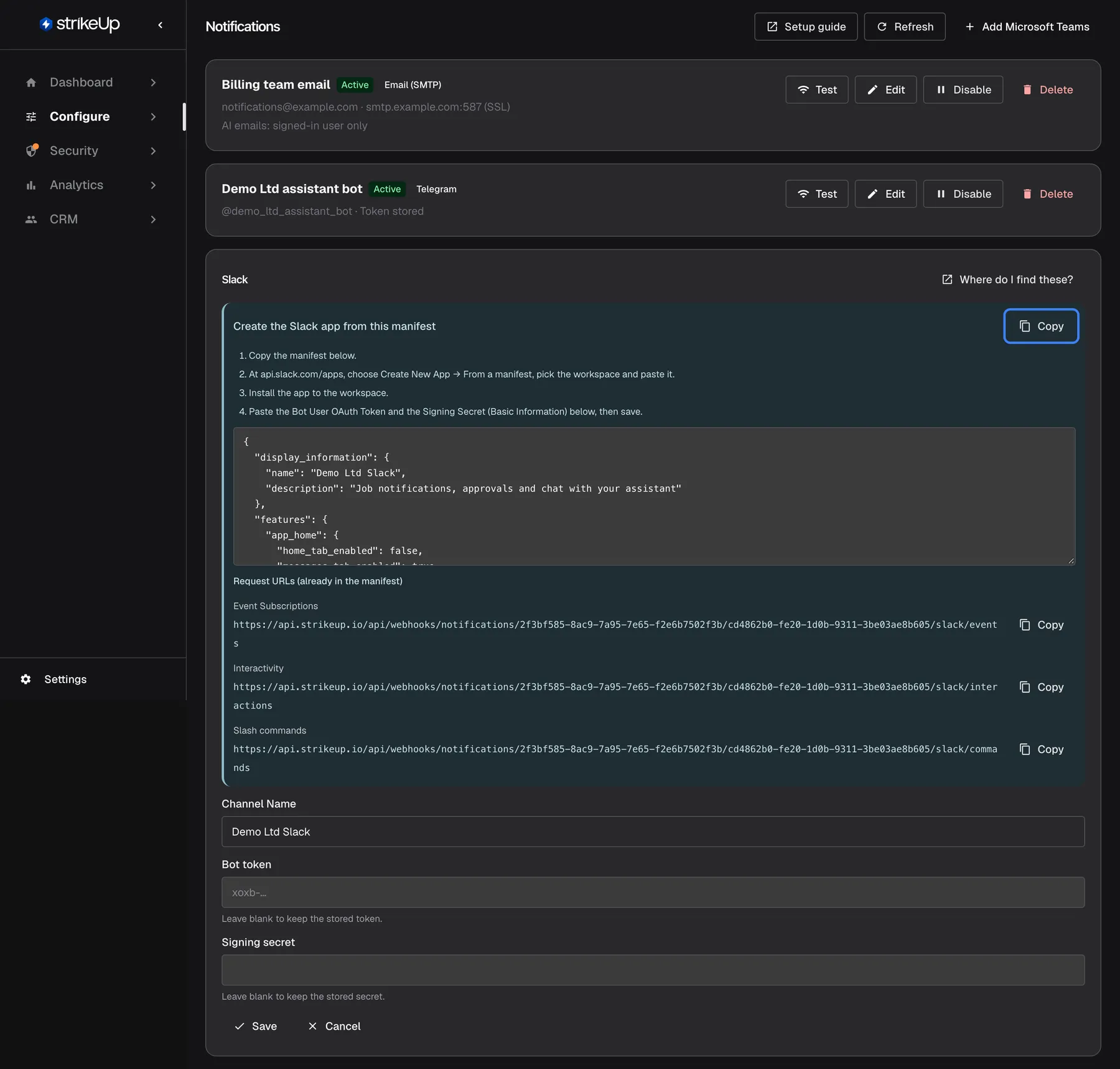
What this screenshot shows
- Screen
- Notifications (/admin/notifications)
- Highlighted
- button “Copy”, inbound-setup-panel, enabled. copies the Slack app manifest to the clipboard
- Also visible
- Create the Slack app from this manifest: four steps and the manifest JSON; Request URLs: Event Subscriptions, Interactivity, Slash commands; Channel Name Demo Ltd Slack, Bot token and Signing secret blank (stored values kept)
- Purpose
- creating the Slack app
The manifest asks Slack for every scope the app needs (chat:write, im:write, im:history, users:read, users:read.email, commands, reactions:write, files:write) and fills in the three request URLs. You do not type them anywhere. Without the signing secret, a Slack channel still sends, but its messages carry no buttons; the card then reads no signing secret, buttons off.
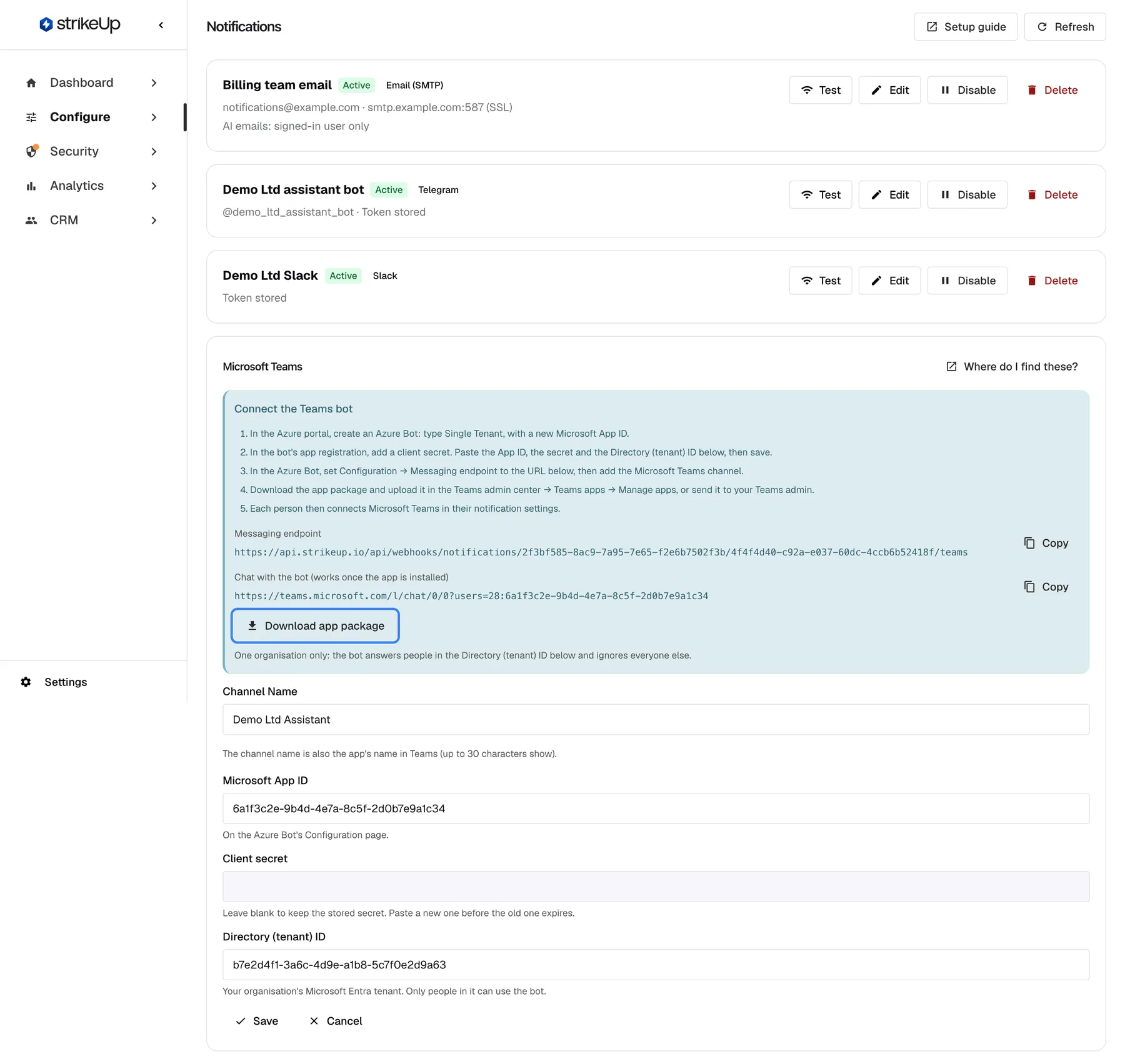
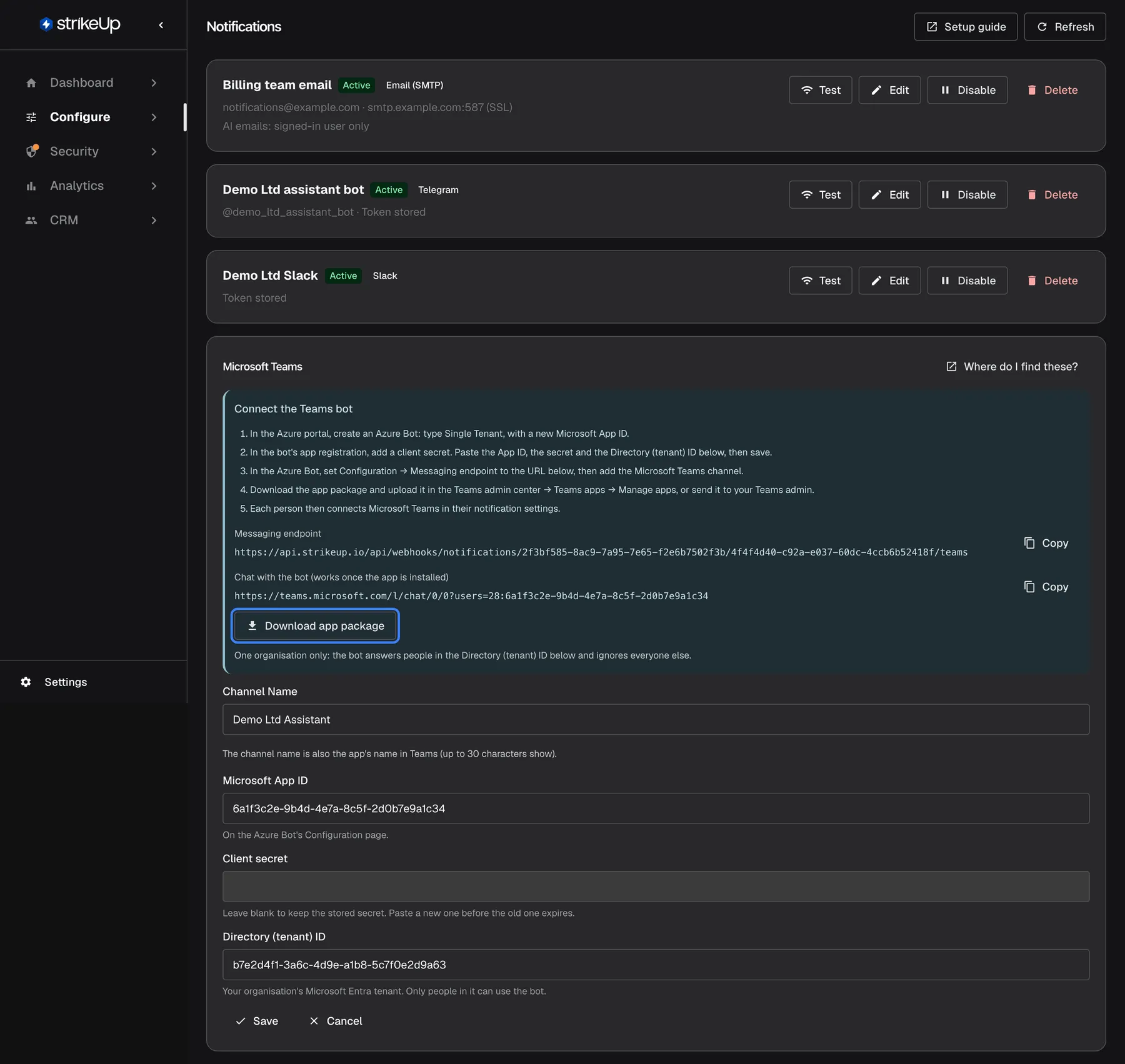
What this screenshot shows
- Screen
- Notifications (/admin/notifications)
- Highlighted
- button “Download app package”, inbound-setup-panel, enabled. downloads the Teams app package (zip) named after the channel
- Also visible
- Connect the Teams bot: five steps, Messaging endpoint, chat link; Channel Name, Microsoft App ID, Client secret, Directory (tenant) ID
- Purpose
- connecting a Microsoft Teams bot
A Teams bot answers people in one Microsoft 365 organisation only, the one in its Directory (tenant) ID. Download app package stays unavailable until the App ID is saved. Download and upload the package again after you rename the channel or change its App ID.
When this installation has no public address, the panel reads Off on this server — messages carry an Open link only. for Telegram, Buttons, replies and commands are off on this server, so this manifest creates a send-only app. for Slack, and Microsoft Teams is off on this server: it has no public URL, so Teams cannot reach it. for Teams.
Manage channels
Section titled “Manage channels”| Action | Button | What happens |
|---|---|---|
| Edit | Edit | The card turns into the editor. Leave a password, token or secret blank to keep the stored one |
| Switch off | Disable | StrikeUp stops sending through the channel. Its details are kept; Enable switches it on again |
| Delete | Delete | After the confirmation Delete this notification channel? Everything sent through it — emails from widgets and job notifications — will stop. the channel is removed |
Stored passwords, bot tokens, signing secrets and client secrets are never shown again, on this page or anywhere else in the admin app.
Let the assistant email visitors
Section titled “Let the assistant email visitors”A channel on its own sends no assistant emails. To let a widget’s assistant use your email channel:
- Open ConfigureAI & UX and pick the widget card.
- In the
Email Notificationssection, switch onEnable AI email notifications. - Under
Connected channels, switch on the email channel. The first one you link becomes the default;Set defaultchanges it. - Select
Save Notification Settings.
From then on a visitor can ask, for example, Email me last month’s invoices as a spreadsheet, and the assistant sends the email through the widget’s default channel. Who it may send to is set on the email channel under Who the AI can email; by default that is Signed-in user only, the signed-in visitor’s own address, whatever address the visitor or the conversation names. When the visitor belongs to a business customer that has its own active email channel, that channel is used instead, and it always sends only to the signed-in visitor.
The visitor’s own address must be confirmed first. An address you imported for the customer counts as confirmed. Any other address, such as one the visitor typed in when registering or one your page passed to the widget, is confirmed in the chat: the first time the assistant wants to email it, StrikeUp sends a 6-digit code to that address, and the assistant asks the visitor to type the code. Up to 3 codes are sent to one address in 24 hours. A scheduled workflow or agent run cannot ask for a code, so its emails to an unconfirmed address wait until the visitor has confirmed it in a chat.
The assistant sends at most 50 emails to one customer and 1,000 emails for your whole workspace in any 24 hours; job notifications do not count. Attachment names are reduced to letters, digits, - and _. A linked Telegram channel lets the assistant send a Telegram message to a chat ID the visitor gives it; Slack and Teams channels add nothing there.
Every control, explained
Section titled “Every control, explained”Setup guide
Section titled “Setup guide”The Setup guide button in the page header, and Where do I find these? in every channel form.
Opens the Notification Channels setup guide under SettingsResources in a new tab. The link in a form opens it at the provider you are adding, so you can keep the form and the guide side by side.
The credentials come from Telegram, Slack, Microsoft or your mail provider; the guide shows where to find each value.
Add buttons
Section titled “Add buttons”At the top right, one per provider that has no channel yet.
Opens the form for a new channel of that provider. The button disappears once the provider has a channel, because each provider can have one channel only.
One bot or mailbox serves every person; who receives a message is decided per person, not per channel.
On each channel card, labelled Test.
For email, sends a test message to your sign-in address and times out after 15 seconds. For bots, checks the credentials without sending. Success sets “Active”; failure sets “Error” and shows the reason.
A wrong port, token or secret is found here, not when a customer is waiting for a message.
On each channel card, labelled Edit. Saved with Save.
Changes the name and the provider’s fields. A blank secret keeps the stored one. For Telegram, Slack and Teams the editor also shows the two-way setup panel. Errors show as Failed to save changes or the server’s reason.
Credentials change, for example after a rotation, without people losing their link to the channel.
Who the AI can email
Section titled “Who the AI can email”In the editor of the email channel, below the mail server fields. Saved with Save. The channel card then reads, for example, AI emails: signed-in user only.
Decides who the assistant’s email tool may send to through this channel. Signed-in user only (the default) sends only to the signed-in customer’s own, confirmed address, and refuses in a chat where nobody is signed in. Allowed list also allows the addresses and whole domains you enter under Allowed recipients, one per line, such as billing@example.com or @example.com; a domain entry matches that exact domain, not its subdomains, and the list holds up to 50 entries. Saving the list empty is refused with Add at least one allowed recipient, or choose another option.. Any address lets the assistant email any single address it is given, and shows a warning. Job notifications are not affected by this setting.
The assistant writes the recipient itself, so a message crafted to trick it could otherwise send your data to a stranger. Keep Signed-in user only unless your team needs reports at fixed internal addresses, and then list those addresses rather than choosing Any address.
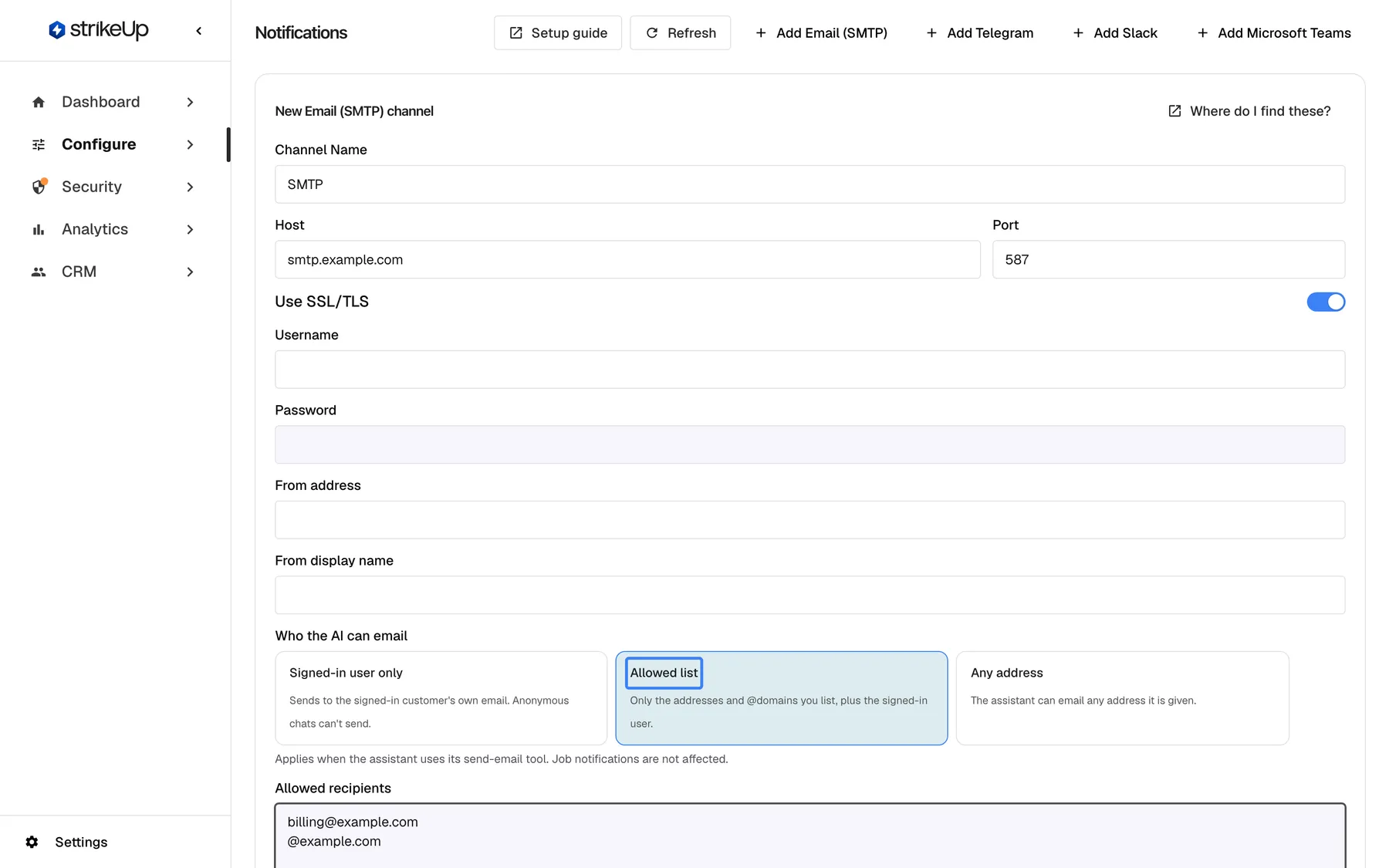
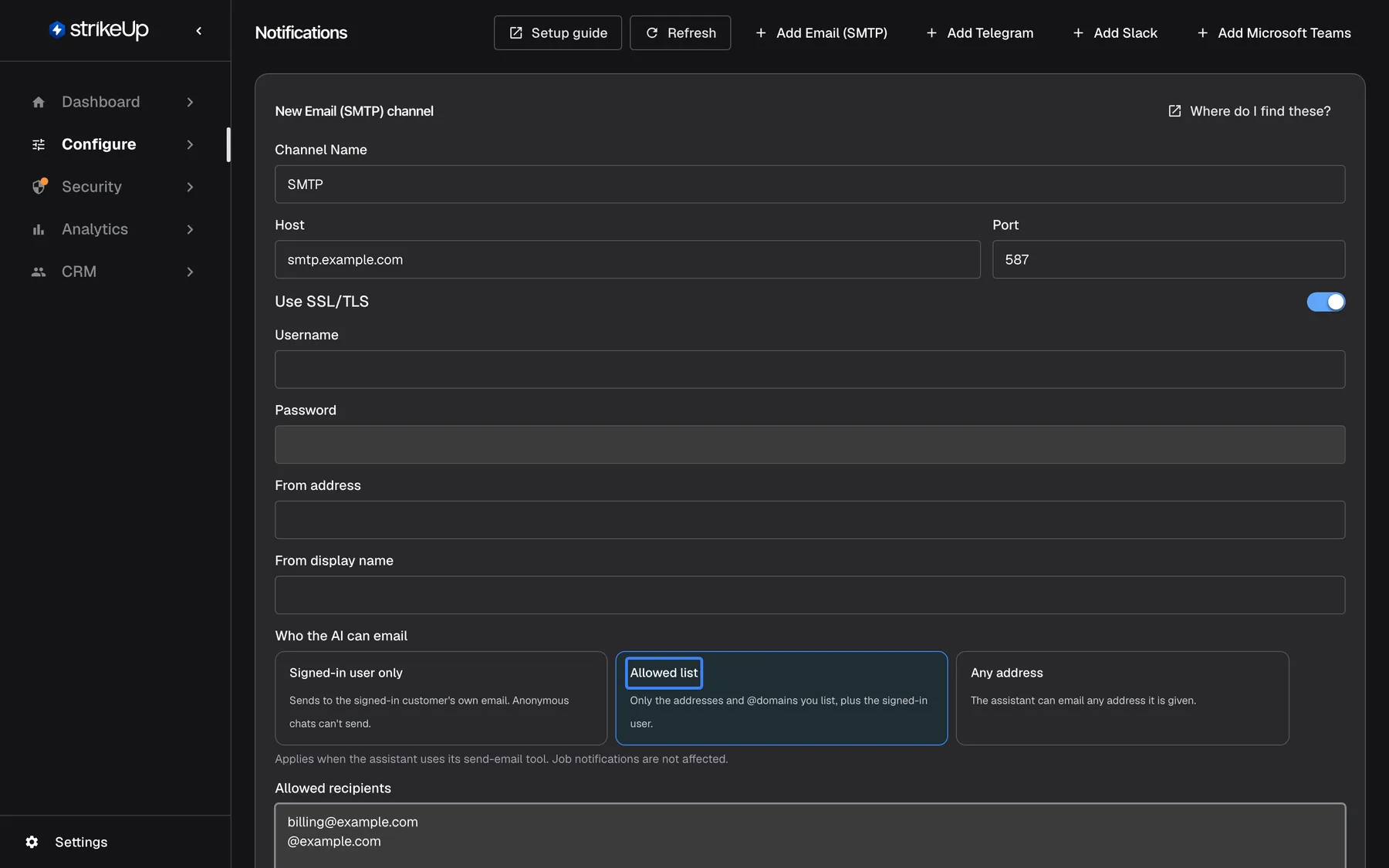
What this screenshot shows
- Screen
- Notifications (/admin/notifications)
- Highlighted
- “Allowed list”, smtp-form-recipient-policy, selected, two allowed recipients. limits the assistant's send-email tool to the listed addresses and domains plus the signed-in customer
- Also visible
- Option cards Signed-in user only, Allowed list, Any address; Allowed recipients: billing@example.com, @example.com
- Purpose
- the recipient policy of an email channel
Disable and Enable
Section titled “Disable and Enable”On each channel card. The button reads Disable for an enabled channel and Enable for a disabled one.
A disabled channel shows Disabled and is skipped for every message. Nothing is deleted.
Pause sending during maintenance, or while you investigate a problem, without losing the setup.
Delete
Section titled “Delete”On each channel card, labelled Delete.
Asks Delete this notification channel? Everything sent through it — emails from widgets and job notifications — will stop., then removes the channel.
Remove a provider you no longer use. To change credentials, edit the channel instead.
What you need to know
Section titled “What you need to know”| Topic | Fact |
|---|---|
| One per provider | Each provider can have one channel on this page. A business customer can have its own set on its Integrations tab. |
| Priority | A business customer’s own active channel replaces yours for its people. A channel of theirs that still lacks its credentials is skipped, and yours delivers meanwhile. |
| Status | “Disconnected” until the first test, then “Active” or “Error”. The status does not decide whether StrikeUp sends. |
| Opt-in | Nobody is notified until they switch a channel on under My notifications in the Customer Portal. |
| Secrets | Never shown again after saving; leave the field blank when editing to keep the stored value. |
| Who can manage | Users with the Admin role add, edit, test and delete channels. Every other signed-in user can see them; their changes fail with “This action requires the Admin role.” |
| No send log here | This page does not list the messages StrikeUp sent. |
| AI email limits | At most 50 assistant emails to one customer and 1,000 for the workspace in any 24 hours; up to 3 confirmation codes per address a day. Job notifications are not counted. |
| Mail servers | Public hosts only, on port 25, 465, 587, 2465, 2525 or 2587. |
Frequently asked questions
Section titled “Frequently asked questions”Setting up
Section titled “Setting up”Which ports can an email channel use?
Section titled “Which ports can an email channel use?”25, 465, 587, 2465, 2525 or 2587, on a mail server with a public internet address. The form accepts other ports, but StrikeUp refuses to test or send through them, and through a host that resolves to a private address, with the reason on the channel card on ConfigureNotifications.
Do I need a separate bot for every customer?
Section titled “Do I need a separate bot for every customer?”No. On ConfigureNotifications you connect one bot or mailbox per provider, and it serves every person. Each person connects their own Telegram, Slack or Teams account to it once, under My notifications in the Customer Portal.
Where does the email test go?
Section titled “Where does the email test go?”Selecting Test on the email channel on ConfigureNotifications sends “StrikeUp — SMTP connection test” to the email address you sign in to StrikeUp with. You cannot choose another recipient for this test.
Why does a Telegram or Slack test not send me a message?
Section titled “Why does a Telegram or Slack test not send me a message?”A bot test on ConfigureNotifications only checks the token with the provider, because nobody may have connected to the bot yet. A pass reads Connection successful — bot token verified. People send themselves a test from My notifications in the Customer Portal.
Why can I not add a second email channel?
Section titled “Why can I not add a second email channel?”Each provider can have one channel on ConfigureNotifications, and the server refuses a second one. Edit the existing channel to change its details, or give a business customer its own channel on its Integrations tab.
Why does my new channel say Disconnected?
Section titled “Why does my new channel say Disconnected?”Every new channel on ConfigureNotifications starts as “Disconnected” and stays so until you select Test. A successful test changes it to “Active”, a failed one to “Error”.
Chat apps
Section titled “Chat apps”Do I have to type the Slack request URLs anywhere?
Section titled “Do I have to type the Slack request URLs anywhere?”No. Open the Slack channel with Edit on ConfigureNotifications, copy the manifest and create the Slack app from it; the manifest already holds the scopes, the slash commands and all three request URLs.
Why do Slack messages arrive without Approve and Deny buttons?
Section titled “Why do Slack messages arrive without Approve and Deny buttons?”The Slack channel has no signing secret, or this installation has no public address. Paste the Signing Secret from the Slack app’s App Credentials into the Slack channel on ConfigureNotifications and save; the card no longer reads no signing secret, buttons off.
What does my Teams admin need from me?
Section titled “What does my Teams admin need from me?”The app package. Open the Teams channel on ConfigureNotifications, select Download app package and send the zip file to your Teams admin, who uploads it in the Teams admin center under Teams apps › Manage apps.
Sending
Section titled “Sending”Does a channel have to be Active to send?
Section titled “Does a channel have to be Active to send?”No. The status on ConfigureNotifications only reports the last test. StrikeUp sends through any channel that is enabled and has its credentials filled in, so test each channel after you set it up.
Who can the assistant email?
Section titled “Who can the assistant email?”By default only the signed-in customer, at their own confirmed address. The setting Who the AI can email on the email channel under ConfigureNotifications can also allow a list of addresses and domains, or any address. An address the visitor names that the setting does not allow is not used.
Why does the assistant ask my customer for a code before sending an email?
Section titled “Why does the assistant ask my customer for a code before sending an email?”Their email address is not confirmed yet. StrikeUp sends a 6-digit code to the address and the assistant asks the customer to type it in the chat; after that, emails go out without a code. Addresses you imported for the customer under CRMCustomers count as confirmed already, and changing a customer’s email makes it unconfirmed again.
Why doesn’t the assistant offer to email anything?
Section titled “Why doesn’t the assistant offer to email anything?”The assistant gets its email tool only when Enable AI email notifications is on for the widget on ConfigureAI & UX and the enabled email channel is linked there. Check both, then select Save Notification Settings.
Managing
Section titled “Managing”What is the difference between Disable and Delete?
Section titled “What is the difference between Disable and Delete?”Disable on ConfigureNotifications keeps the channel with all its details but stops every message through it; Enable brings it back. Delete removes the channel for good.
Can I see which messages were sent?
Section titled “Can I see which messages were sent?”Not on ConfigureNotifications. The page lists only the channels and the result of each channel’s last test; it has no list of sent messages.
Troubleshooting
Section titled “Troubleshooting”| Symptom | What to check |
|---|---|
| Channel name and SMTP host are required. or Port must be a number between 1 and 65535. | Enter the SMTP host and a port between 1 and 65535. |
| Connection test failed on an email channel | Read the reason on the card. Check host, port, the SSL/TLS switch, user name and password; a wrong port or SSL setting is the most common cause. |
| The test says the SMTP port is not allowed, or the host is not a public internet address | Use port 25, 465, 587, 2465, 2525 or 2587 and a mail server reachable from the internet. Internal relays cannot be used. |
| Saving an email channel shows Enter the password again: the host, port or username changed, or SSL was turned off. | You changed the host, port or user name, or switched SSL/TLS off. Type the password again and save. |
| The assistant says it can send only to the signed-in user, or that an address is not on the allowed list | Check Who the AI can email on the email channel. In a chat without a signed-in customer, Signed-in user only cannot send at all. |
| The assistant says a daily limit was reached | 50 assistant emails per customer or 1,000 per workspace were sent in the last 24 hours. It can send again once older emails leave that window. |
| Saving is refused because the bot is already used | Another channel uses the same Telegram bot or Azure Bot. Create a new bot for this channel. |
| A Teams channel cannot be saved | Both IDs must be GUIDs, and this installation must have a public address that Teams can call. |
| “Active”, but nobody receives job notifications | People must switch a channel on under My notifications in the Customer Portal, and for Telegram, Slack and Teams connect their account first. |
| Slack or Telegram messages have no buttons | Check the panel in the channel’s editor: buttons need a public address and, for Slack, the signing secret. |
| A change fails with Request failed and “This action requires the Admin role.” | Changes on this page need the Admin role. Ask an Admin to make the change, or to give you the Admin role under Settings › Users. |