

Performance
The Performance page shows how well your assistant works: whether its calls to your API succeed, how often your guardrails block a visitor’s message, what visitors think of the answers, how long conversations last and how healthy each customer’s relationship with the assistant is. Use it to find what to fix next and which customers to contact. It lives at DashboardPerformance, and everyone in your workspace can open it.
What you can do here
Section titled “What you can do here”- Check tool-call reliability. Successful and failed calls to your API per day, or per hour for a short range. Check tool-call reliability.
- Watch blocked messages. The number of visitor messages your guardrails stopped each day. Watch blocked messages · Guardrails.
- Read visitor feedback. Thumbs-up and thumbs-down votes per day, and the reasons visitors gave for a thumbs-down. Read visitor feedback · Feedback.
- Gauge session quality. Four tiles: average session length, average messages in a session, bounce rate and resolution rate. Gauge session quality.
- Check customer health. A score from 0 to 100 for every customer active in the range, with counters for healthy, at-risk and churning customers and a table of the ten highest scores. Check customer health.
- Change the period. The same date range as on the other Dashboard pages. Change the period.
The screen at a glance
Section titled “The screen at a glance”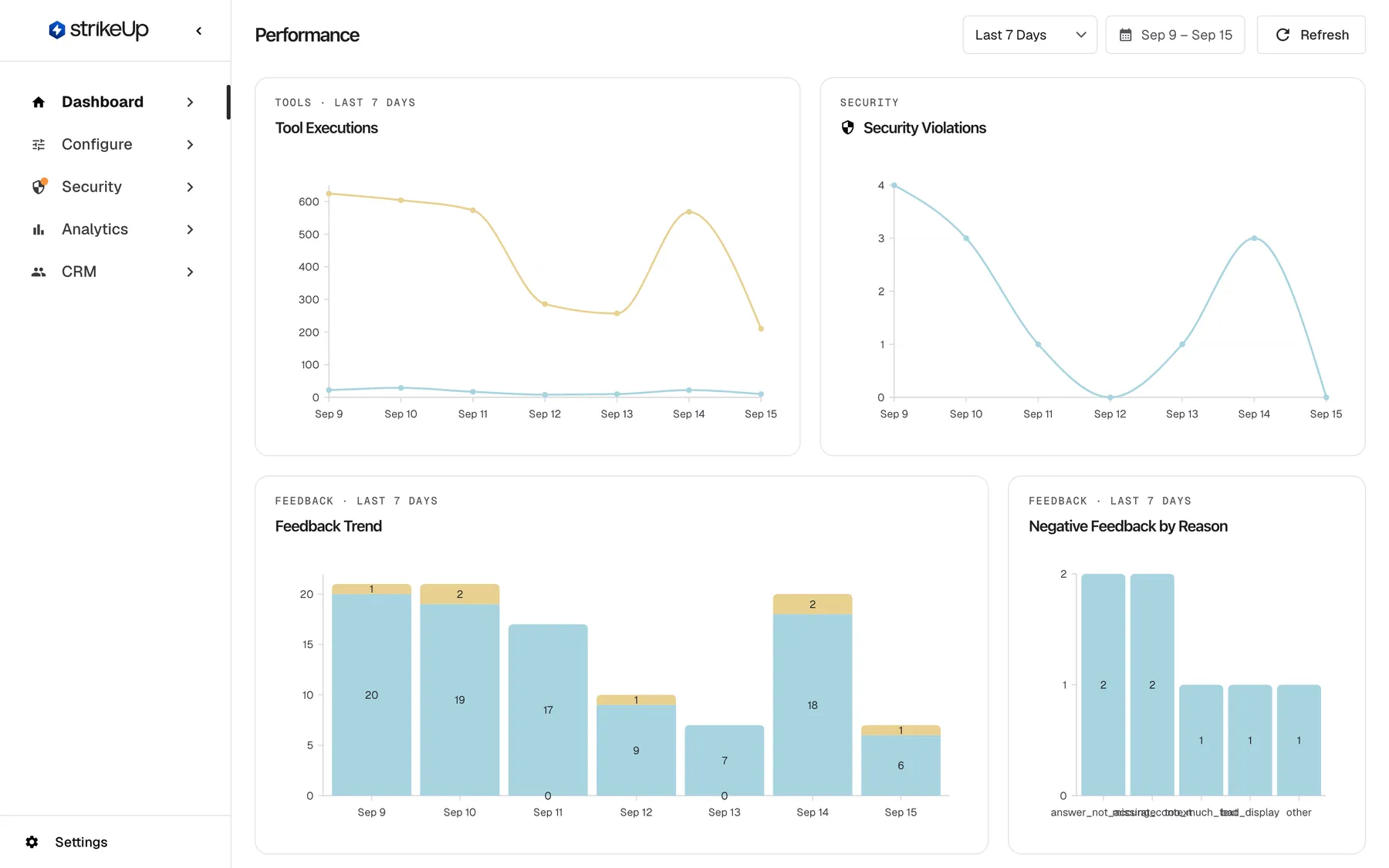
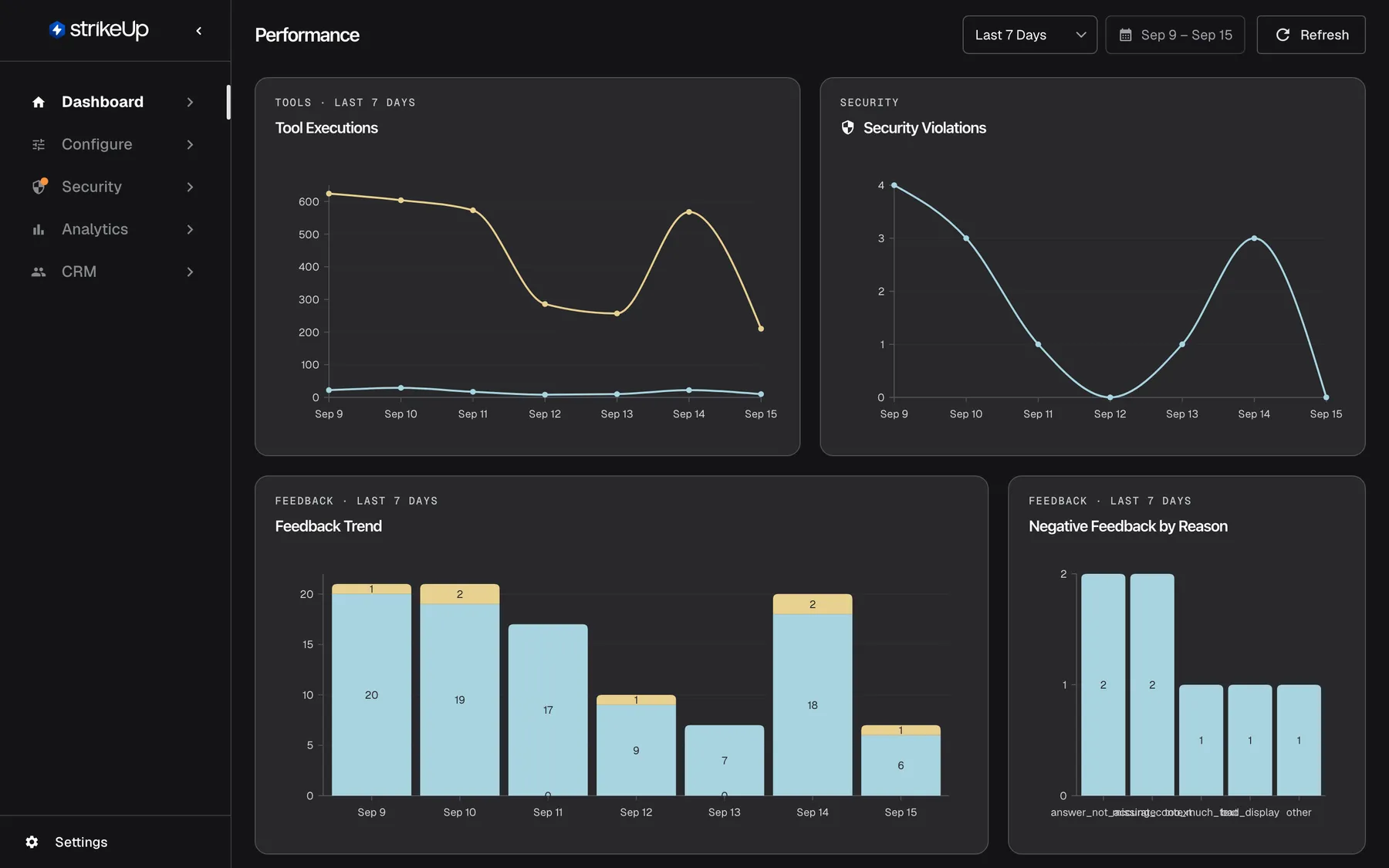
What this screenshot shows
- Screen
- Performance (/admin/dashboard/performance)
- Highlighted
- heading “Performance”, page, loaded with the last 7 days. read-only overview of quality and reliability
- Also visible
- Tool Executions line chart: Successful (yellow) and Errors (blue), no legend; Security Violations line chart, 0–4 per day; Top of Feedback Trend and Negative Feedback by Reason
- Purpose
- the Performance screen as it opens
| Region | What it shows | What you do there |
|---|---|---|
| Header, right | The range drop-down, the calendar button and Refresh | Change the period, reload the data |
| Tool Executions, top left | Successful and failed API calls over time | Hover for a day’s figures |
| Security Violations, top right | Visitor messages blocked by guardrails per day | Spot spikes |
| Feedback Trend | Thumbs-up and thumbs-down votes per day | Hover for a day’s votes |
| Negative Feedback by Reason | Thumbs-down votes by reason | See what visitors complain about |
| Customer & Performance Insights | Four session-quality tiles | Read the averages |
| Customer Health Scores, bottom | Status counters and the ten highest-scoring customers | Find customers to follow up |
Check tool-call reliability
Section titled “Check tool-call reliability”The Tool Executions chart counts every call the assistant made to your API in the range, split into two lines.
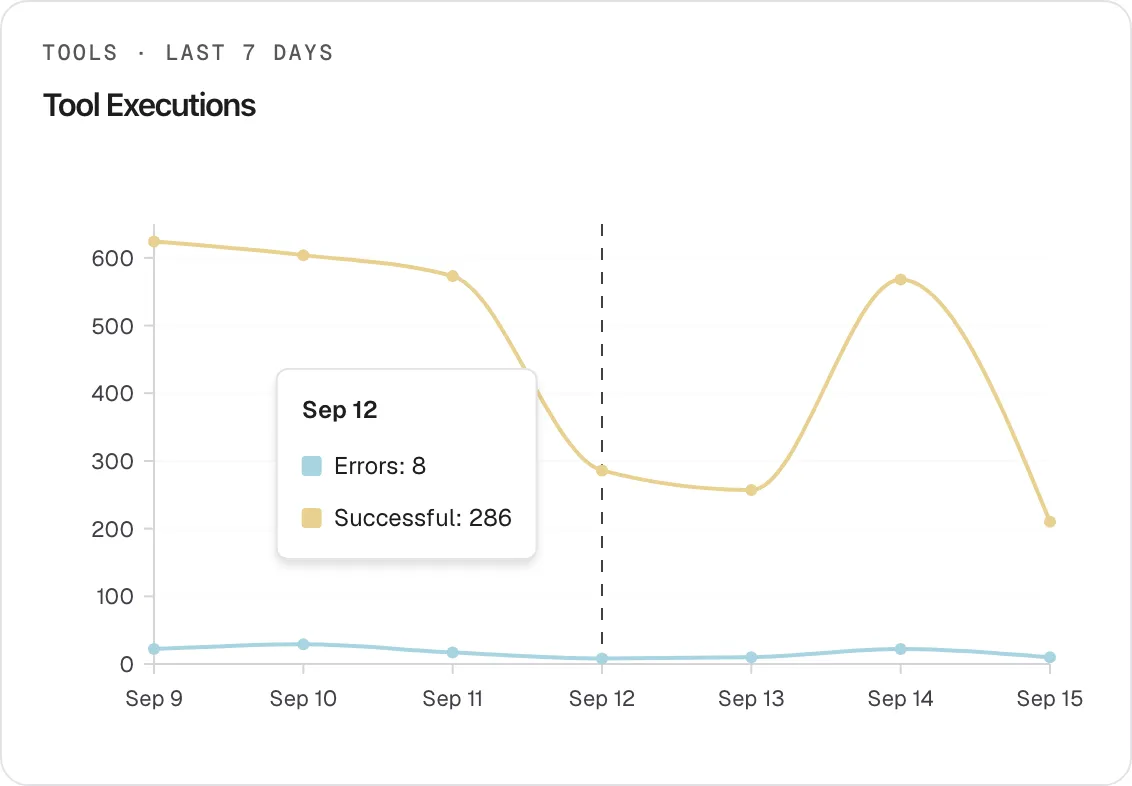
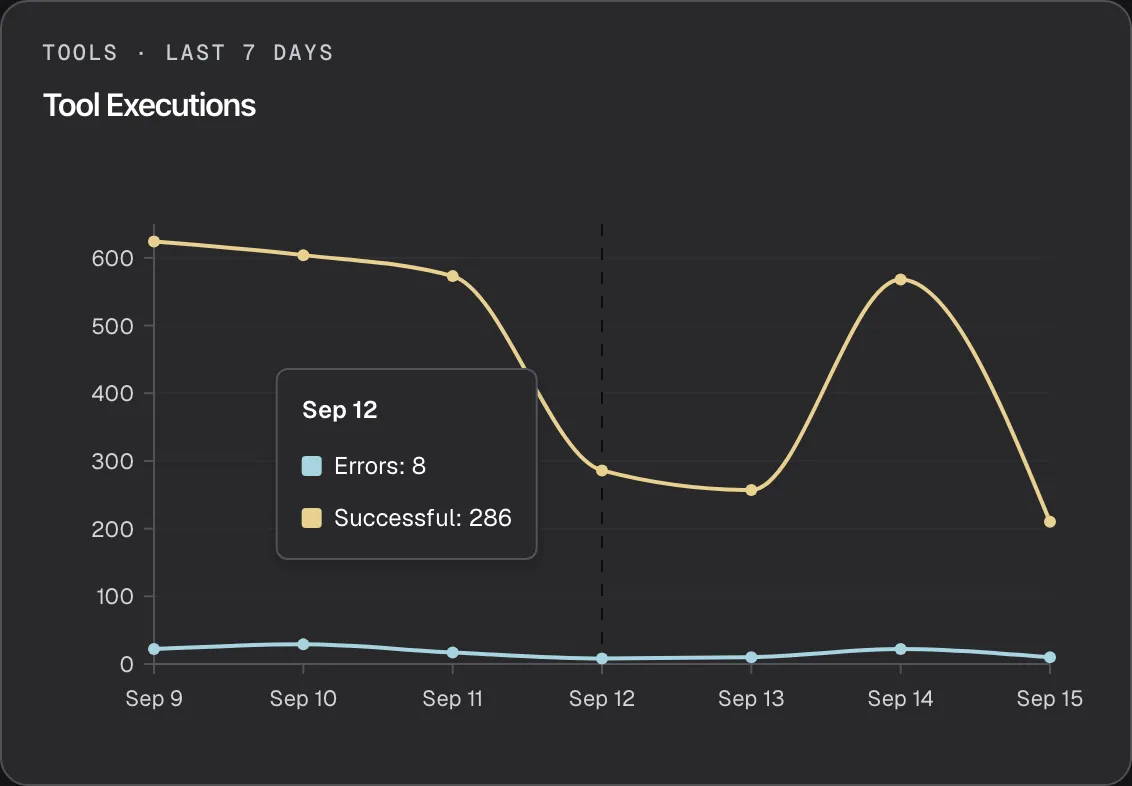
What this screenshot shows
- Screen
- Performance (/admin/dashboard/performance)
- Highlighted
- tooltip “”, tool-executions-card, tooltip shown for Sep 12. lists both series for the hovered day
- Also visible
- Successful (yellow): 624, 604, 573, 286, 257, 568, 210; Errors (blue): 22, 29, 17, 8, 10, 22, 10; Series names are English in every language
- Purpose
- reading successful and failed tool calls per day
- Read the upper yellow line as successful calls and the lower blue line as failed calls. The chart has no legend.
- Hover a day. A tooltip names both lines with their counts, such as
Errors: 8andSuccessful: 286. These series names are in English in every language.
- A call is successful when your API answered with an HTTP status from 200 to 299. Anything else, such as 401, 404, 500 or no answer at all, is an error.
- The chart is hourly for a range of one or two days, daily otherwise. Days are UTC days.
- Every call counts, in chats and after a visitor approved an action.
- With no calls in the range, both lines lie flat at zero.
Example: on Sep 12 the assistant made 294 calls; 286 were answered with 200 OK and 8 with 404 Not Found. The tooltip reads Errors: 8 and Successful: 286. To see which endpoint failed and why, open AnalyticsTool runs.
Watch blocked messages
Section titled “Watch blocked messages”The Security Violations chart counts, per UTC day, the visitor messages your guardrails blocked before the assistant answered. One blocked message is one violation.
- Days without blocks show as zero, so a quiet week is a flat line at the bottom.
- A sudden spike usually means one visitor trying many times, or a guardrail rule that is too strict.
- The chart shows counts only. Each blocked message, with the reason the check gave for blocking it, is listed in AnalyticsViolations.
Read visitor feedback
Section titled “Read visitor feedback”Visitors rate an assistant reply with a thumbs-up or thumbs-down in the chat widget. With a thumbs-down they can pick a reason. Two charts show the result.
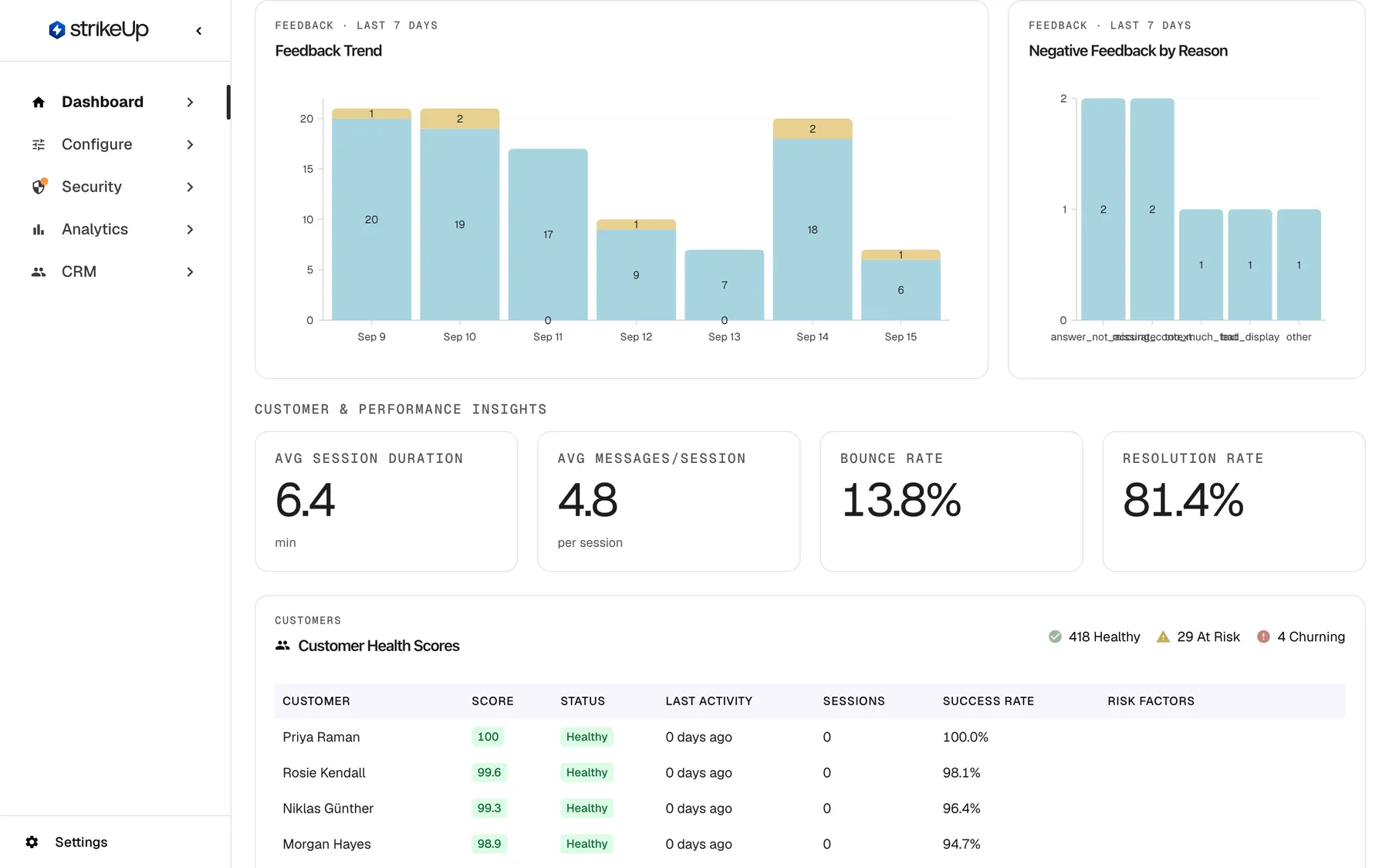
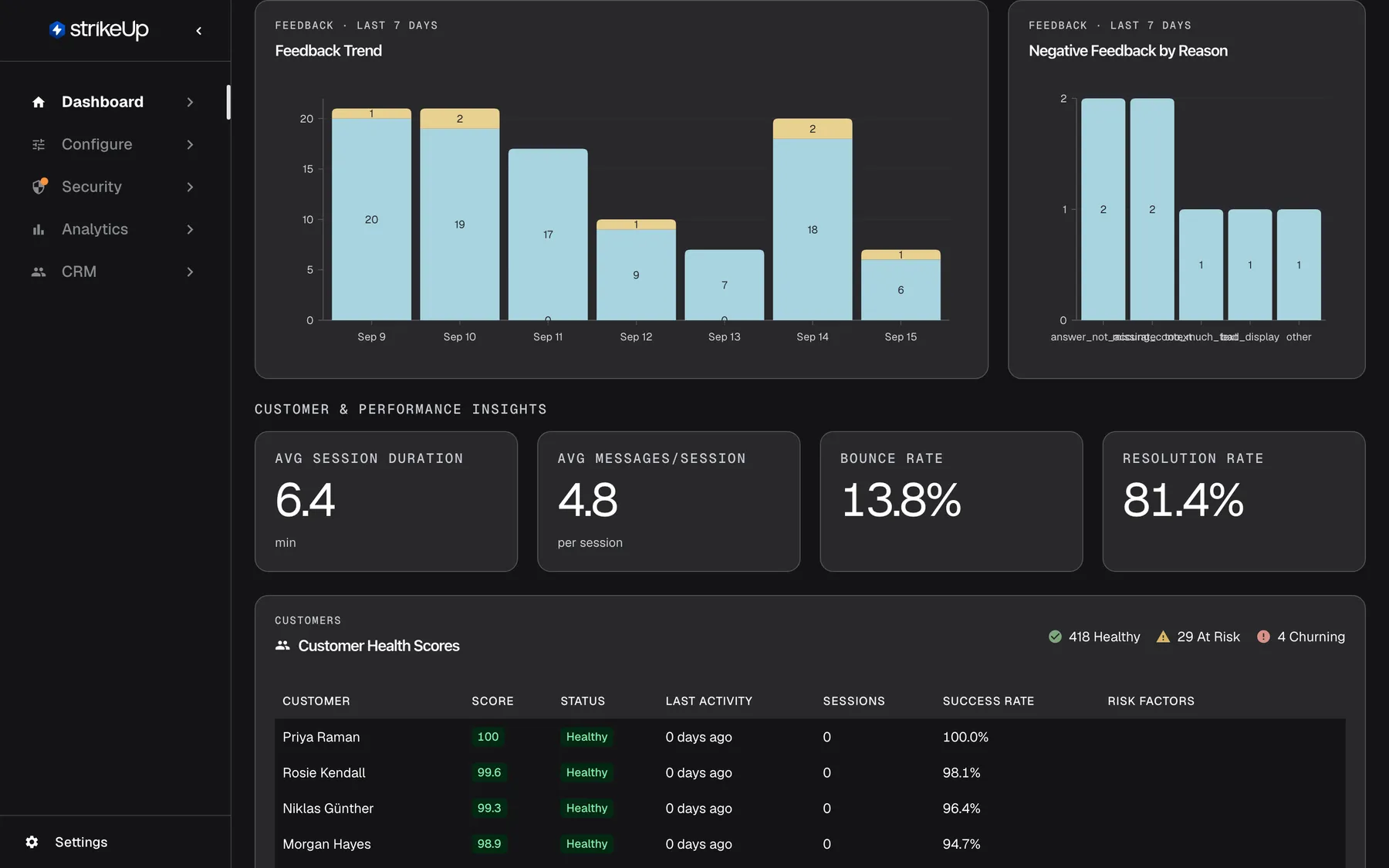
What this screenshot shows
- Screen
- Performance (/admin/dashboard/performance)
- Highlighted
- heading “Feedback Trend”, feedback-and-insights, loaded with the last 7 days. read-only
- Also visible
- Feedback Trend stacked bars, positive (blue) and negative (yellow) per day; Negative Feedback by Reason: answer_not_accurate 2, missing_context 2, too_much_text 1, bad_display 1, other 1 (labels overlap); Insights: Avg Session Duration 6.4 min, Avg Messages/Session 4.8, Bounce Rate 13.8%, Resolution Rate 81.4%
- Purpose
- feedback and session quality at a glance
The Feedback Trend chart stacks, per UTC day, the thumbs-up votes (blue) and thumbs-down votes (yellow) submitted that day. It is always daily. Each visitor can rate each reply once. The tooltip names the series “Positive” and “Negative”, in English in every language.
The Negative Feedback by Reason chart has one bar per reason, most frequent first. The bars are labelled with the reason’s internal name, as the table shows:
| Bar label | What the visitor picked in the widget |
|---|---|
answer_not_accurate | “Answer not accurate” |
bad_display | “Bad display” |
too_much_text | “Too much text” |
missing_context | “Missing context” |
other | “Other”, or no reason at all |
The tooltip calls the value “count”. When many reasons appear, their labels can overlap; hover a bar to read it. The free text a visitor may add is not shown here; read it, vote by vote, in AnalyticsFeedback.
Gauge session quality
Section titled “Gauge session quality”The Customer & Performance Insights row summarises every chat session that started in the range.
| Tile | How it is worked out | Example |
|---|---|---|
| Avg Session Duration | The average time from the start of a session to its last activity, in minutes, one decimal | 6.4 min |
| Avg Messages/Session | The average number of messages, from visitor and assistant, in sessions that have at least one message; empty sessions are left out | 4.8 |
| Bounce Rate | The share of sessions with two messages or fewer, empty sessions included | 13.8% |
| Resolution Rate | The share of sessions whose visitor had at least one successful tool call in the range, one decimal | 81.4% |
- A single question and its answer is a bounce. That is two messages. A visitor who asked once and got what they needed still counts.
- Resolution Rate is the same figure as the tile on Overview, which rounds it to a whole percent.
- With no sessions in the range, every tile shows 0.0.
Check customer health
Section titled “Check customer health”The Customer Health Scores card scores every customer who sent at least one chat message in the range, anonymous visitors included, from 0 to 100.
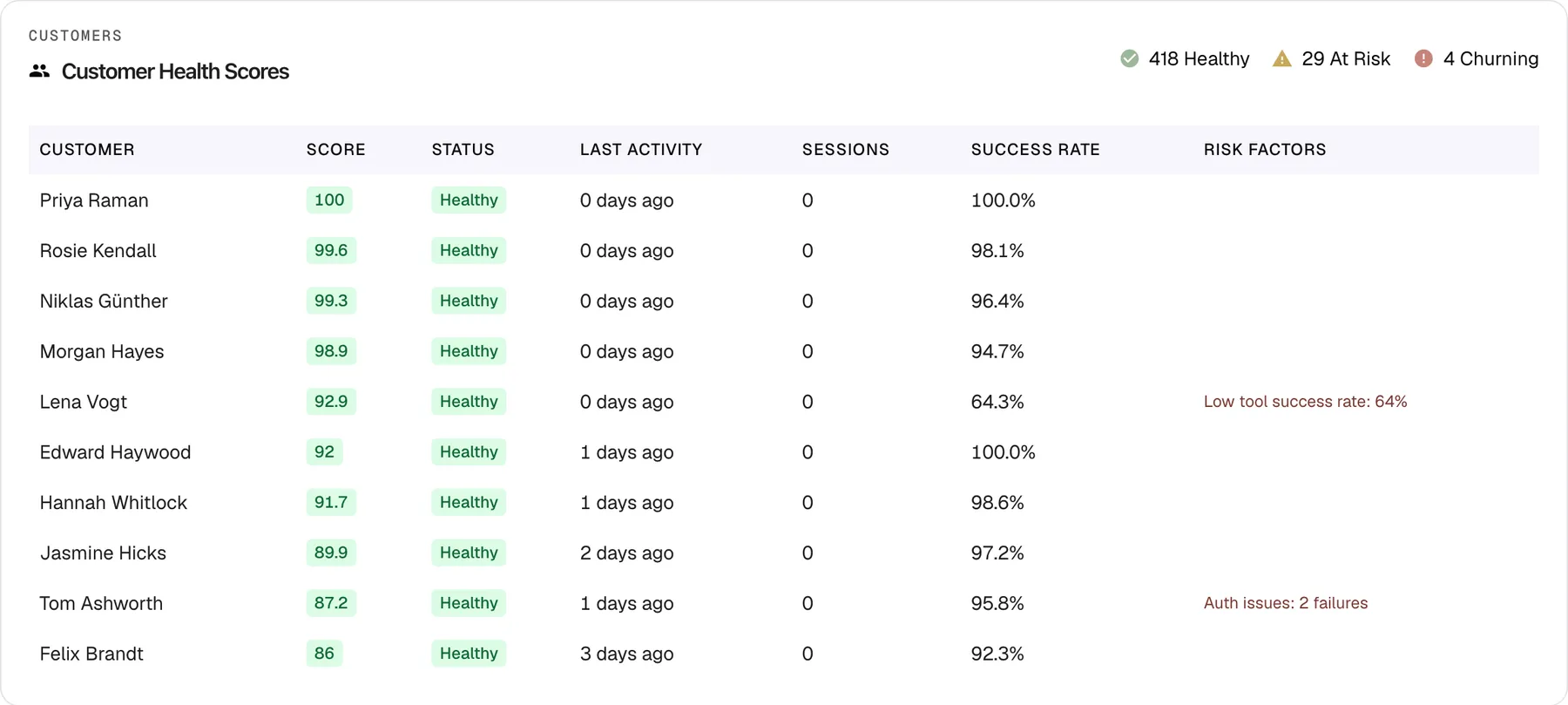
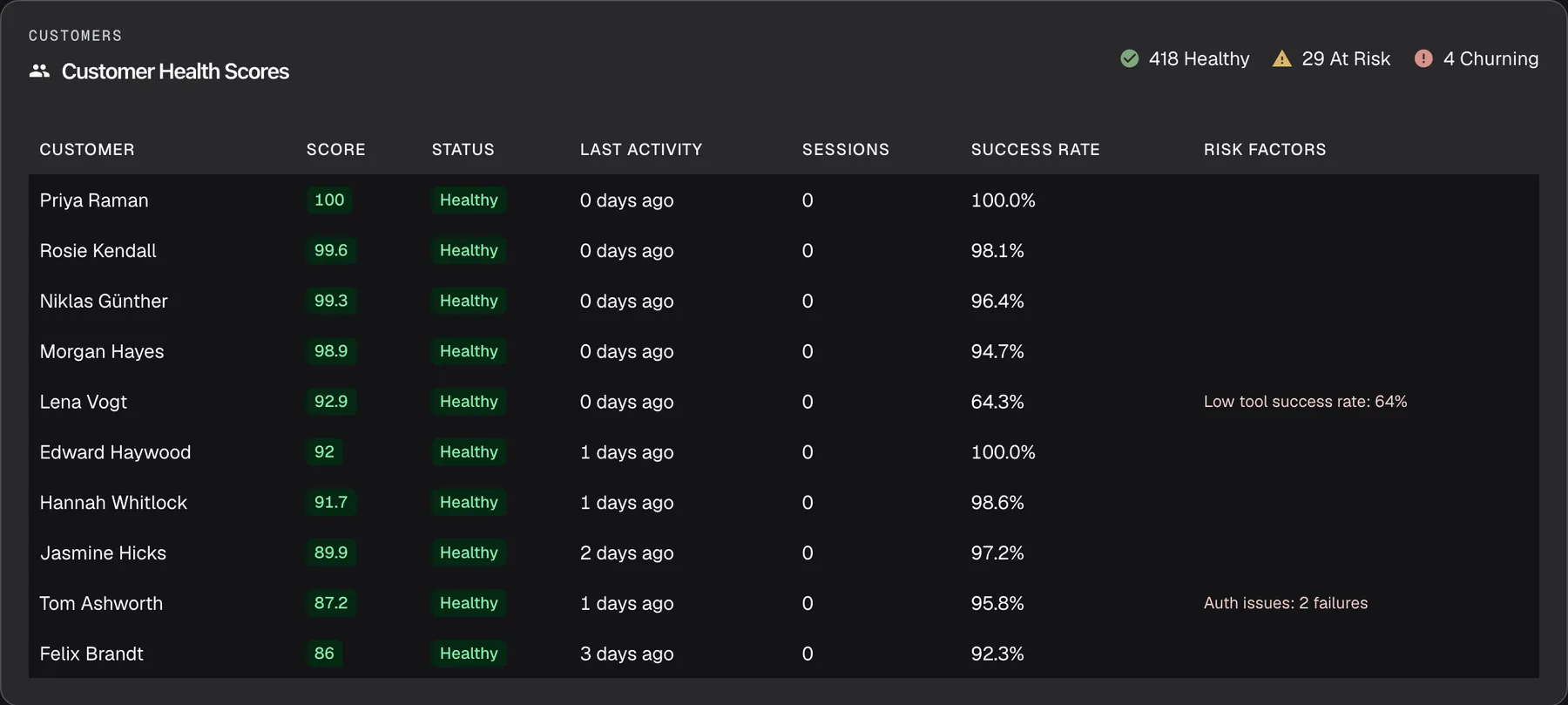
What this screenshot shows
- Screen
- Performance (/admin/dashboard/performance)
- Highlighted
- heading “Customer Health Scores”, customer-health-card, loaded with the last 7 days. read-only
- Also visible
- Counters: 418 Healthy, 29 At Risk, 4 Churning; Ten rows sorted by score, highest first (Priya Raman 100 … Felix Brandt 86); Sessions column 0 in every row; Risk factors in English: Low tool success rate: 64%, Auth issues: 2 failures
- Purpose
- customer health counters and the top-ten table
How the score is calculated
Section titled “How the score is calculated”The score is a weighted sum of four parts, each from 0 to 100, rounded to one decimal:
| Part | Weight | How it is worked out |
|---|---|---|
| Recency | 40% | Whole days from now back to the customer’s last message in the range: today 100; 1–3 days 80; 4–7 days 60; 8–14 days 40; 15 days or more 20 |
| Activity | 30% | 50 plus 5 for every message the customer sent in the range, up to 100, so 10 messages or more give 100 |
| Tool success | 20% | The share of the customer’s tool calls in the range that succeeded; 100 when they had no tool calls |
| Authorisation success | 10% | The share of the customer’s attempts to authorise a toolkit in the range that succeeded; 100 when they made no attempt |
The status follows from the score:
| Status | Score |
|---|---|
| Healthy (green) | 80 or more |
| At Risk (orange) | 50 to under 80 |
| Churning (red) | Under 50 |
Worked examples for customers who used no tools and made no authorisation attempts, so tool and authorisation success are both 100:
| Customer’s activity | Recency + activity + tool + authorisation | Score | Status |
|---|---|---|---|
| 1 message on the current day | 40 + 16.5 + 20 + 10 | 86.5 | Healthy |
| 1 message, 2 days back | 32 + 16.5 + 20 + 10 | 78.5 | At Risk |
| 2 messages, 2 days back | 32 + 18 + 20 + 10 | 80.0 | Healthy |
| 10 messages, 10 days back | 16 + 30 + 20 + 10 | 76.0 | At Risk |
| 1 message, 20 days back | 8 + 16.5 + 20 + 10 | 54.5 | At Risk |
| 10 messages, 20 days back, every tool call failed | 8 + 30 + 0 + 10 | 48.0 | Churning |
Recency is measured from today, not from the end of your range. Looking at a range from last month, every customer is at least as many days inactive as have passed since then. A visitor who sent one message yesterday is already At Risk, so casual and anonymous traffic raises the at-risk count.
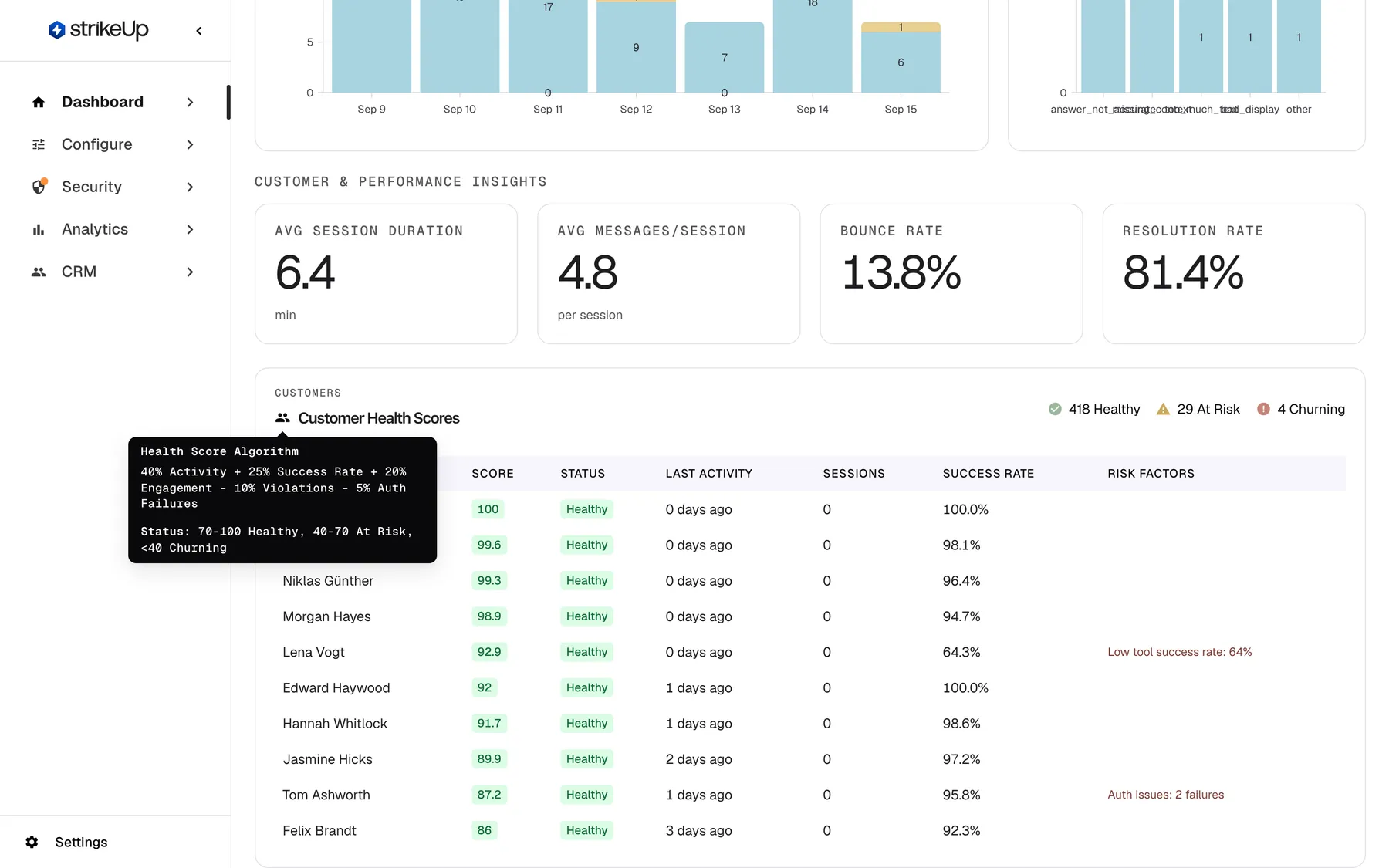
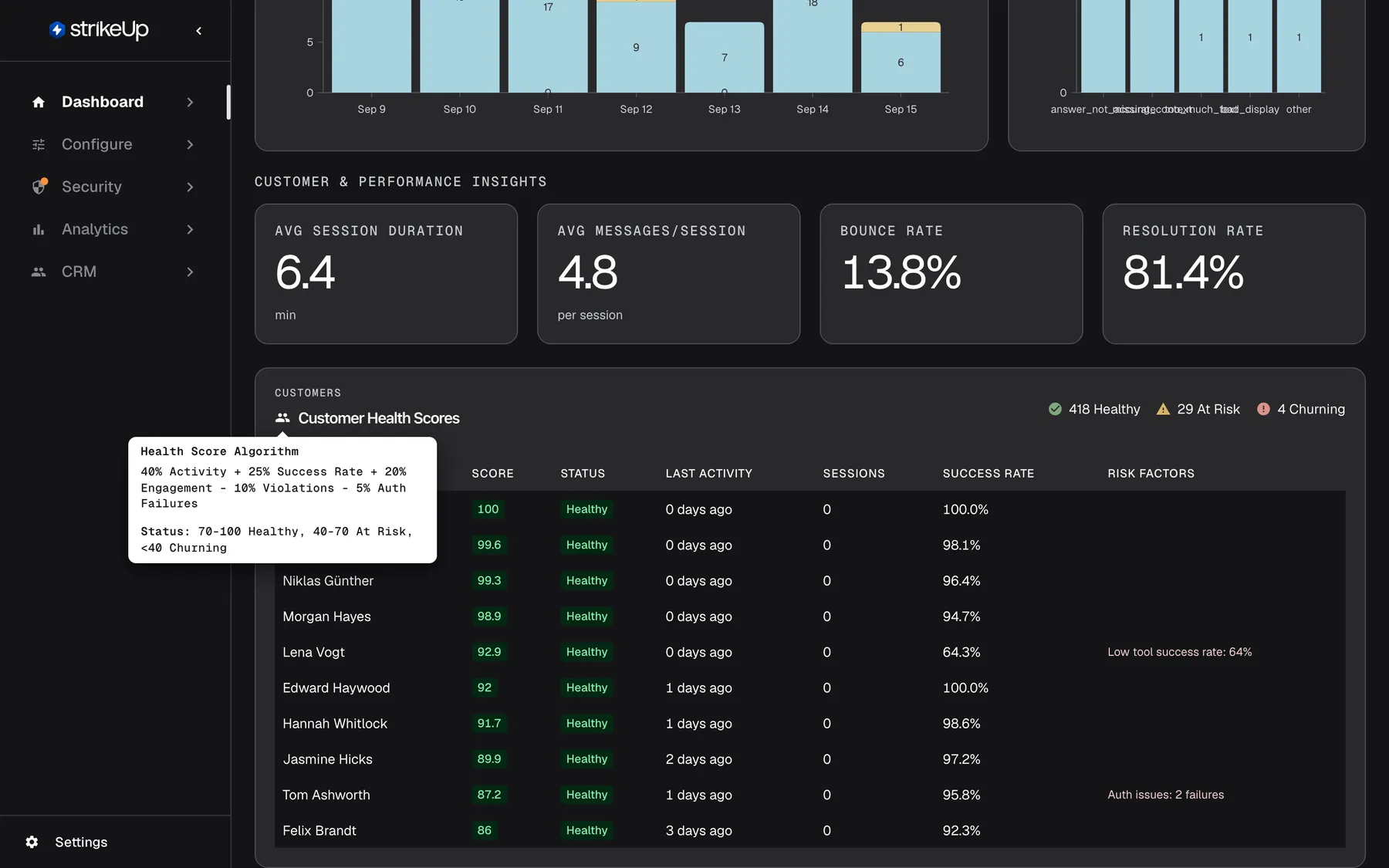
What this screenshot shows
- Screen
- Performance (/admin/dashboard/performance)
- Highlighted
- tooltip “Health Score Algorithm”, customer-health-card-title, tooltip shown. shows the in-app (outdated) health score explanation
- Also visible
- Tooltip: Health Score Algorithm, 40% Activity + 25% Success Rate + 20% Engagement - 10% Violations - 5% Auth Failures; Tooltip: Status: 70-100 Healthy, 40-70 At Risk, <40 Churning; Counters 418 Healthy, 29 At Risk, 4 Churning
- Purpose
- evidence for the troubleshooting entry about the outdated health score tooltip
What the card shows
Section titled “What the card shows”- The counters at the top right count every scored customer: Healthy, At Risk and Churning. The At-Risk Customers tile on Overview is the sum of the last two.
- The table lists the ten customers with the highest scores, highest first. Customers at risk or churning usually do not appear in it, even when the counters show many of them.
- The customer is shown by name, then email, then their raw identity. Anonymous visitors appear with an identity beginning with
anon-. Hover a name to see the identity behind it.
Change the period
Section titled “Change the period”The range drop-down and the calendar button at the top right set the period for every card on the page. Pick Last 7 Days, Last 14 Days or Last 30 Days, or pick a first and a last day in the calendar. The range is remembered in this browser and shared with the other Dashboard pages. Days are UTC days; the full rules are on the Overview page.
Every control, explained
Section titled “Every control, explained”Range drop-down and calendar
Section titled “Range drop-down and calendar”At the top right of the page. Both apply the moment you choose; there is nothing to save.
The drop-down offers Last 7 Days (the default), Last 14 Days, Last 30 Days and Custom; the calendar sets a custom range up to today. The choice is stored in this browser and also applies on Overview, Usage and AI Spend.
Compare a week before and after a change to your toolkit, skills or guardrails.
Refresh
Section titled “Refresh”The Refresh button at the top right.
Fetches every card again for the same range; each card shows a spinner while it reloads. The page never refreshes on its own.
Check the effect of a fix straight away, for example after correcting a failing endpoint.
Charts
Section titled “Charts”| Chart | What it shows | Why |
|---|---|---|
| Tool Executions | Successful (yellow) and failed (blue) API calls per day, or per hour for one or two days; axes Time and Executions | A rising failure line points to an endpoint or credential problem |
| Security Violations | Visitor messages blocked by guardrails per UTC day | Spikes show abuse attempts or rules that are too strict |
| Feedback Trend | Thumbs-up (blue) and thumbs-down (yellow) votes per UTC day | Shows whether answers are getting better or worse |
| Negative Feedback by Reason | Thumbs-down votes per reason, most frequent first | Tells you what kind of fix the answers need |
Insight tiles
Section titled “Insight tiles”| Tile | What it shows | Why |
|---|---|---|
| Avg Session Duration | Average minutes from a session’s start to its last activity | Long sessions can mean engaged visitors or a struggle to get a useful reply |
| Avg Messages/Session | Average messages per non-empty session | Shows how much back-and-forth a conversation takes |
| Bounce Rate | Share of sessions with two messages or fewer | High values mean many visitors leave after one exchange |
| Resolution Rate | Share of sessions whose visitor had a successful tool call | Shows how often conversations reach an action in your product |
Customer Health Scores table
Section titled “Customer Health Scores table”| Column | What it shows | Why |
|---|---|---|
| Customer | Name, else email, else the raw identity; hover for the identity | Know who to contact |
| Score | The score from 0 to 100, one decimal | Rank customers |
| Status | Healthy, At Risk or Churning as a coloured badge | See the band at a glance |
| Last Activity | Whole days since the customer’s last message in the range, shown in English in every language, with 0 for today | Spot customers who went quiet |
| Sessions | Shows 0 for every customer | To count a customer’s chats, open their record under CRMCustomers |
| Success Rate | The share of the customer’s tool calls that succeeded, one decimal; 100.0% when they had no tool calls | Find customers whose actions keep failing |
| Risk Factors | English notes: No activity for N days after more than 7 days; “Low tool success rate: N%” below 70%; “Auth issues: N failures” when under 70% of authorisation attempts succeeded | Tells you why a score is low |
What you need to know
Section titled “What you need to know”| Topic | Fact |
|---|---|
| Read-only | Nothing on this page changes your setup. |
| Who sees it | Every signed-in user of your workspace, whatever their role. Customer names and emails are visible to all of them. |
| Success | The charts call a tool call successful when your API returned a status from 200 to 299. The health score’s tool success uses the result StrikeUp recorded for the call, which can occasionally differ. |
| Recency from today | Health scores measure recency from now, so past ranges score lower. |
| Ten rows | The health table shows the ten highest scores; the counters cover everyone. |
| English values | Series names, reason labels, risk factors and the last-activity text are in English in every language. |
| Loading time | The health card can take longer to load for long ranges with many visitors. |
| Sample data | If StrikeUp has added sample records to your workspace for a demonstration, they are counted on this page. |
| Live data | Every load, range change and refresh reads current data; nothing is cached. |
Frequently asked questions
Section titled “Frequently asked questions”Customer health
Section titled “Customer health”How is the customer health score calculated?
Section titled “How is the customer health score calculated?”On DashboardPerformance, the score is 40% recency, 30% activity, 20% tool success and 10% authorisation success, each from 0 to 100. A score of 80 or more is Healthy, 50 to under 80 is At Risk, and under 50 is Churning.
Why is a customer who wrote yesterday already At Risk?
Section titled “Why is a customer who wrote yesterday already At Risk?”A customer with one message yesterday scores 32 for recency and only 16.5 for activity, because activity reaches its maximum at ten messages. With perfect tool and authorisation success that makes 78.5, which is under 80 and so At Risk.
Why don’t I see my at-risk customers in the table?
Section titled “Why don’t I see my at-risk customers in the table?”The Customer Health Scores table shows the ten customers with the highest scores. The counters above it and the At-Risk Customers tile on DashboardOverview count everyone, so customers at risk usually appear only in those counts.
Why does the tooltip show a different formula?
Section titled “Why does the tooltip show a different formula?”The tooltip on the people icon of Customer Health Scores shows another formula and other ranges. The scores follow 40% recency, 30% activity, 20% tool success and 10% authorisation success, with Healthy from 80 and At Risk from 50.
Why is the Sessions column always 0?
Section titled “Why is the Sessions column always 0?”The Sessions column of Customer Health Scores shows 0 for every customer. To see how many chats a customer had, open the customer under CRMCustomers, where their chat history is listed.
What does a Success Rate of 100% mean for a customer who never used a tool?
Section titled “What does a Success Rate of 100% mean for a customer who never used a tool?”When a customer made no tool calls in the range, Success Rate in Customer Health Scores counts them as 100.0%, and their tool success adds the full 20 points to the score. A low value therefore always means real failed calls.
Why does Last Activity say more days than my range?
Section titled “Why does Last Activity say more days than my range?”Last Activity counts whole days from today back to the customer’s last message within the range. For a range that ended weeks ago, it includes all the days since, so it can be larger than the range itself.
Are anonymous visitors included in customer health?
Section titled “Are anonymous visitors included in customer health?”Yes. Every visitor who sent a chat message in the range is scored in Customer Health Scores, including anonymous visitors, who appear with an identity that begins with anon- unless your product identified them with a name or email.
Tools, violations and feedback
Section titled “Tools, violations and feedback”What counts as a tool error?
Section titled “What counts as a tool error?”In Tool Executions on DashboardPerformance, any call where your API did not answer with an HTTP status from 200 to 299 is an error, including authentication failures, missing records, server errors and calls that got no response.
What is a security violation?
Section titled “What is a security violation?”A security violation in Security Violations is one visitor message that your guardrails blocked before the assistant answered it. Each blocked message, with the reason the check gave for blocking it, is listed under AnalyticsViolations.
What do reason names such as answer_not_accurate mean?
Section titled “What do reason names such as answer_not_accurate mean?”They are the reasons a visitor can pick after a thumbs-down in the chat widget: answer_not_accurate is “Answer not accurate”, bad_display “Bad display”, too_much_text “Too much text”, missing_context “Missing context”, and other covers “Other” and votes with no reason.
Session quality
Section titled “Session quality”What is Bounce Rate?
Section titled “What is Bounce Rate?”Bounce Rate is the share of chat sessions started in the range that have two messages or fewer, empty sessions included. One visitor question with one assistant answer is two messages, so it counts as a bounce even when the answer was helpful.
Why does Resolution Rate have decimals here and not on Overview?
Section titled “Why does Resolution Rate have decimals here and not on Overview?”It is the same figure. Resolution Rate on DashboardPerformance shows one decimal, while the tile on DashboardOverview rounds it to a whole percent.
How is Avg Session Duration measured?
Section titled “How is Avg Session Duration measured?”Avg Session Duration averages, over the chat sessions that started in the range, the time from each session’s start to its last activity, in minutes with one decimal. Sessions without any message are included in this average, unlike in the messages-per-session tile.
Data and privacy
Section titled “Data and privacy”Who can see customer names on this page?
Section titled “Who can see customer names on this page?”Every signed-in user of your workspace can open DashboardPerformance, whatever their role, and sees the names and emails in Customer Health Scores. End customers never see the Dashboard.
Troubleshooting
Section titled “Troubleshooting”| Symptom | What to check |
|---|---|
| The health tooltip’s numbers do not match the scores | The tooltip shows another formula. The scores follow 40% recency, 30% activity, 20% tool success and 10% authorisation success, with Healthy from 80. |
A customer is shown as anon-… or a long identity | The visitor was never identified, so there is no name or email on their customer record. Pass the user’s details from your product; see Identify users and pass context. |
| Security Violations is flat at zero while Violations lists entries | Check the range: the chart counts by the UTC day the message was blocked. Widen the range and compare again. |
| Tool Executions shows many errors | Open AnalyticsTool runs and filter by failed runs to see the endpoint and status. Expired credentials and changed endpoints are common causes. |
| Every insight tile shows 0.0 | No chat sessions started in the range. Widen the range. |
| The health table is empty | No customer sent a chat message in the range; the card shows No data available. |
| A Request failed message appears and cards stay empty | Select Refresh. If it happens again, sign out and in again; your session may have expired. |