

Let the assistant call your API as the user
When the assistant calls your API, it should act as the person it is talking to, with that person’s own key or login, so your API applies their permissions and records their actions. This guide sets that up: the assistant then sends each end customer’s own credentials with every tool call. Customers either enter them once in the widget, or your page hands them over when the widget starts, so they are never asked. Plan about thirty minutes, most of it for reading the credential from your own app in the page.
Before you start
Section titled “Before you start”| You need | Where it lives |
|---|---|
A toolkit whose authorization asks for per-user values: dynamic headers with {{placeholder}} values, a username and password, or an automatic token endpoint | ConfigureToolkits, the toolkit’s Authorization Configuration; see Toolkits |
| That toolkit assigned to the widget (1 to 5 toolkits per widget) | ConfigureEmbed, the widget’s toolkits |
The widget installed, with each user’s own userId | Install the widget in your product and Identify users and pass context |
| Signed-in end customers (recommended) | Saved credentials belong to the customer; End-customer sign-in makes sure the right person uses them |
| To hand credentials over from your page: the user’s credential available in the page | Your own app |
Any signed-in user of your workspace can view the toolkit and Embed screens; changing them needs the Admin role, and for anyone else a save fails with “This action requires the Admin role.” The Authorization Logs screen needs the Admin role even to read.
-
Check what your toolkit asks users for. The toolkit’s authorization type decides whether end customers see an authorization step in the widget, and what your page can hand over instead.
Toolkit authorization Users asked in the widget? What they enter What your page passes in authDataNone - No Authorization Required Never Nothing Nothing; entries are ignored Custom Token - API Key or Bearer Token, static headers only Never Nothing Nothing needed Custom Token - API Key or Bearer Token with Dynamic Authorization Headers Schema (Optional) Yes One field per {{placeholder}}in the header valuesThe final headers: { "<Header-Name>": "<full header value>" }Basic Auth - Username & Password Yes Username and password { "username": "…", "password": "…" }Custom Auth Endpoint - Automatic Token Fetching, no custom placeholders Never: StrikeUp fetches the token when the chat connects Nothing Nothing needed Custom Auth Endpoint - Automatic Token Fetching with Custom Placeholders (Optional) Yes One field per placeholder { "<placeholder key>": "<value>" }When users are asked, the widget shows an authorization step after the chat connects, one toolkit at a time, with “Skip” and “Next” or “Complete”. This is what you avoid by handing the values over.
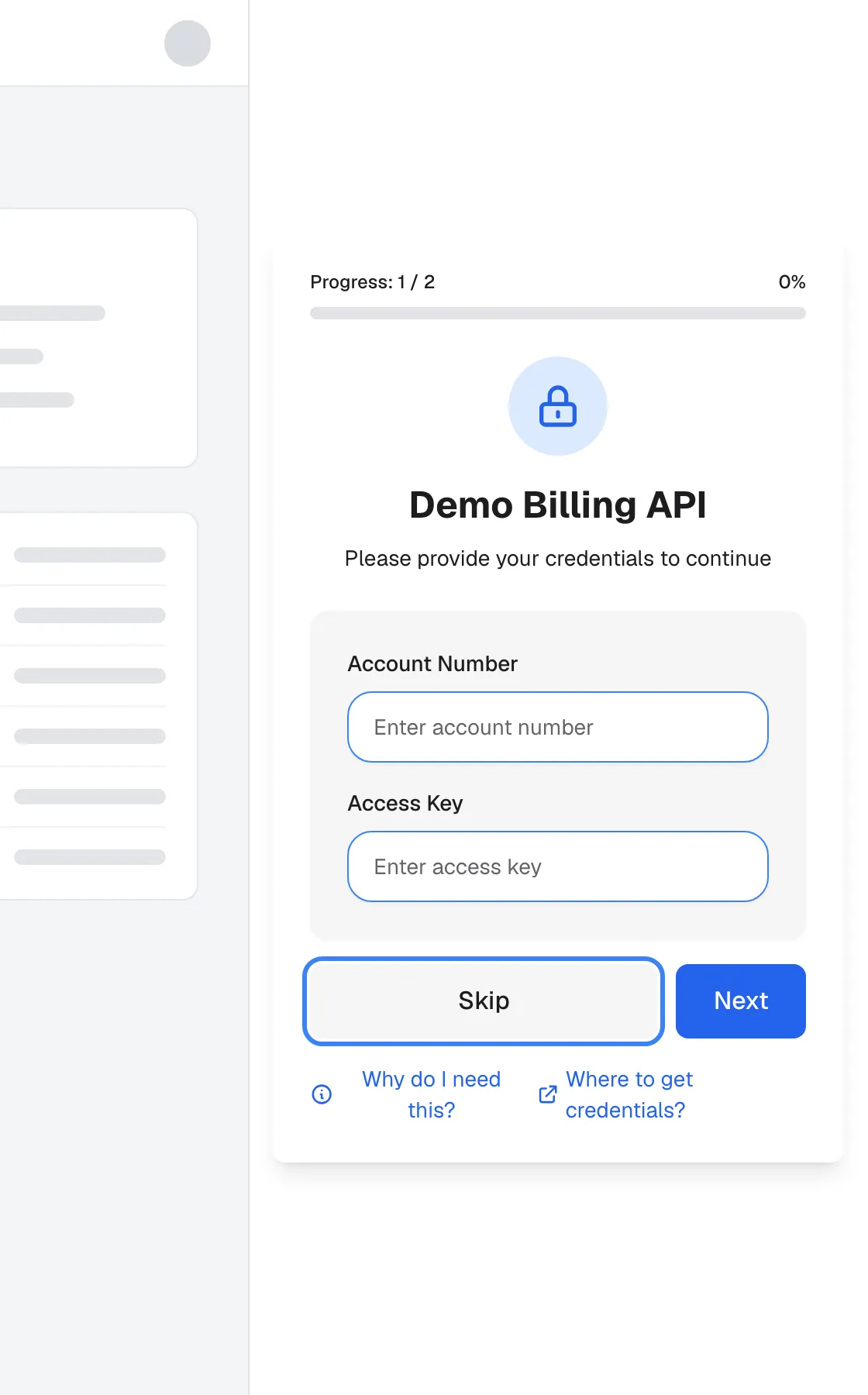
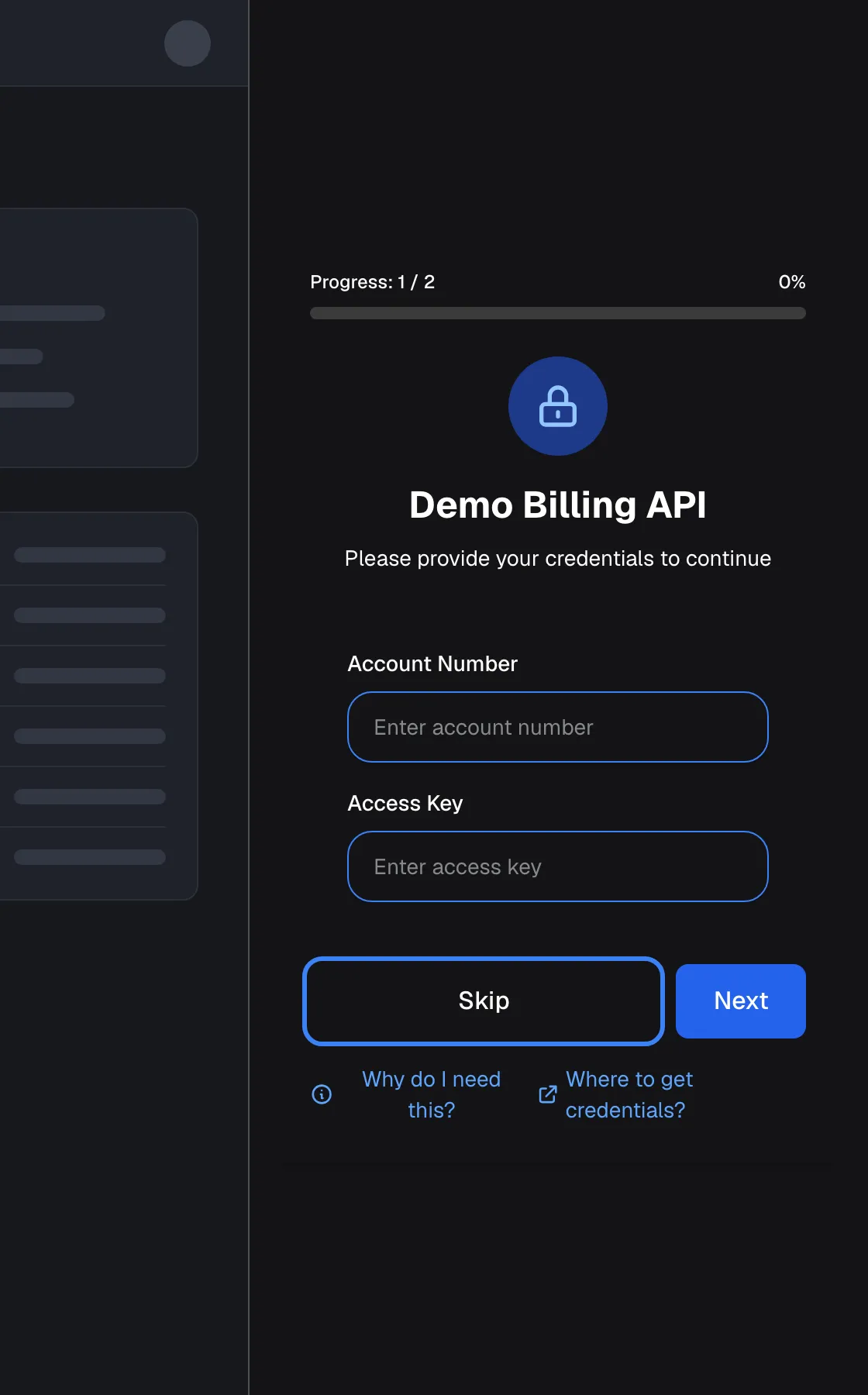
Without injected credentials, the widget asks each user once per toolkit; inject them to skip this step. What this screenshot shows
- Screen
- Authorization Required (host page › widget (panel))
- Highlighted
- button “Skip”, authorization-card-buttons, enabled. skips this toolkit; the assistant cannot use it for this user in this browser
- Also visible
- Progress 1 / 2; Toolkit Demo Billing API; Fields Account Number and Access Key; Next button, links Why do I need this? and Where to get credentials?
- Purpose
- what end users see when a toolkit needs their credentials
-
Make sure the toolkit is on the widget. Open ConfigureEmbed, select the widget’s card and check that the toolkit is among the widget’s toolkits. Credentials for a toolkit that is not on the widget are refused.
-
Add the toolkit to the embed code. On the same screen, in the box headed
Inject Authorization, switch on the toolkit. The embed code gains aserverAuthorizationsarray with one entry per toolkit: itsserverIdand anauthDataobject with example values.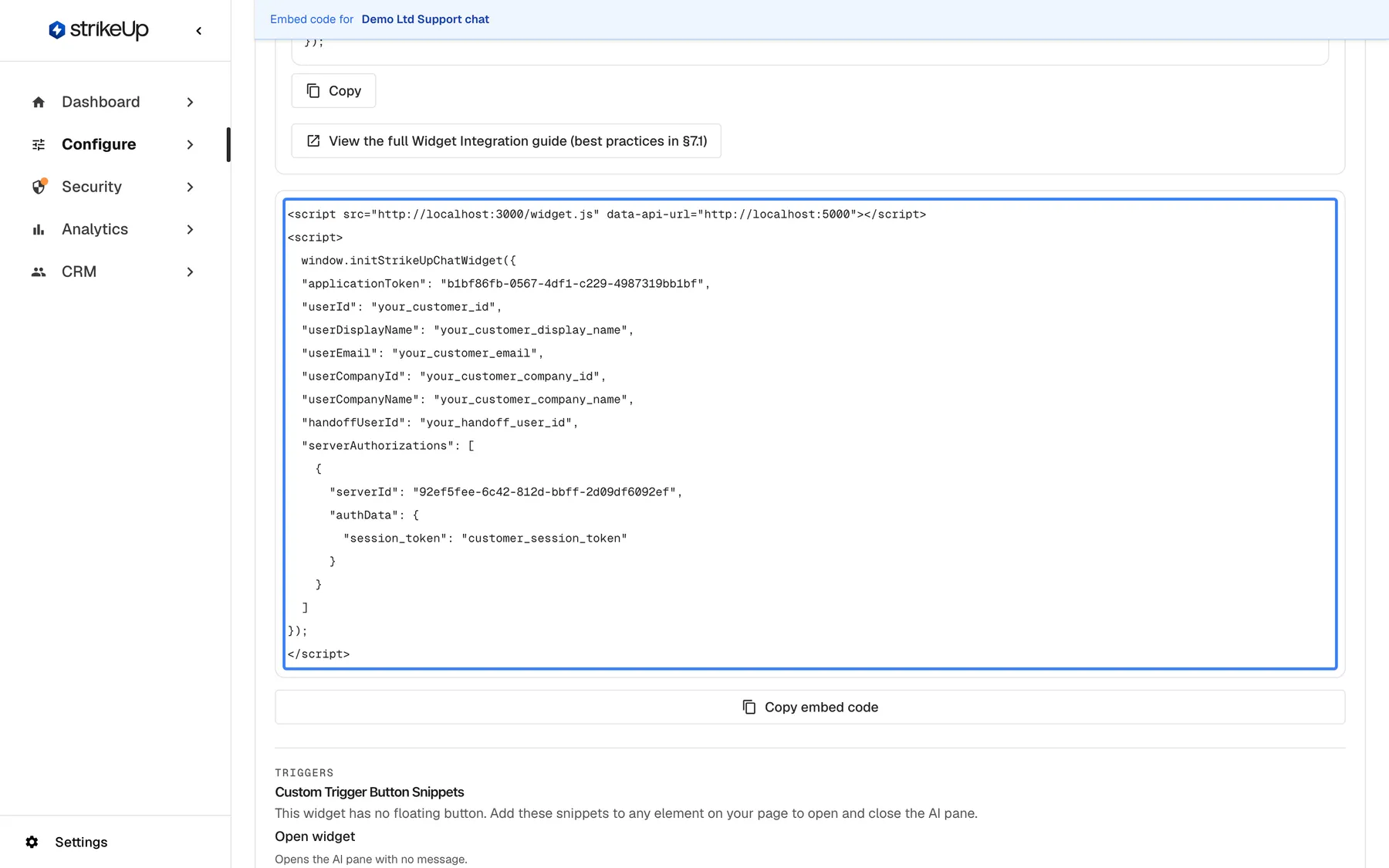
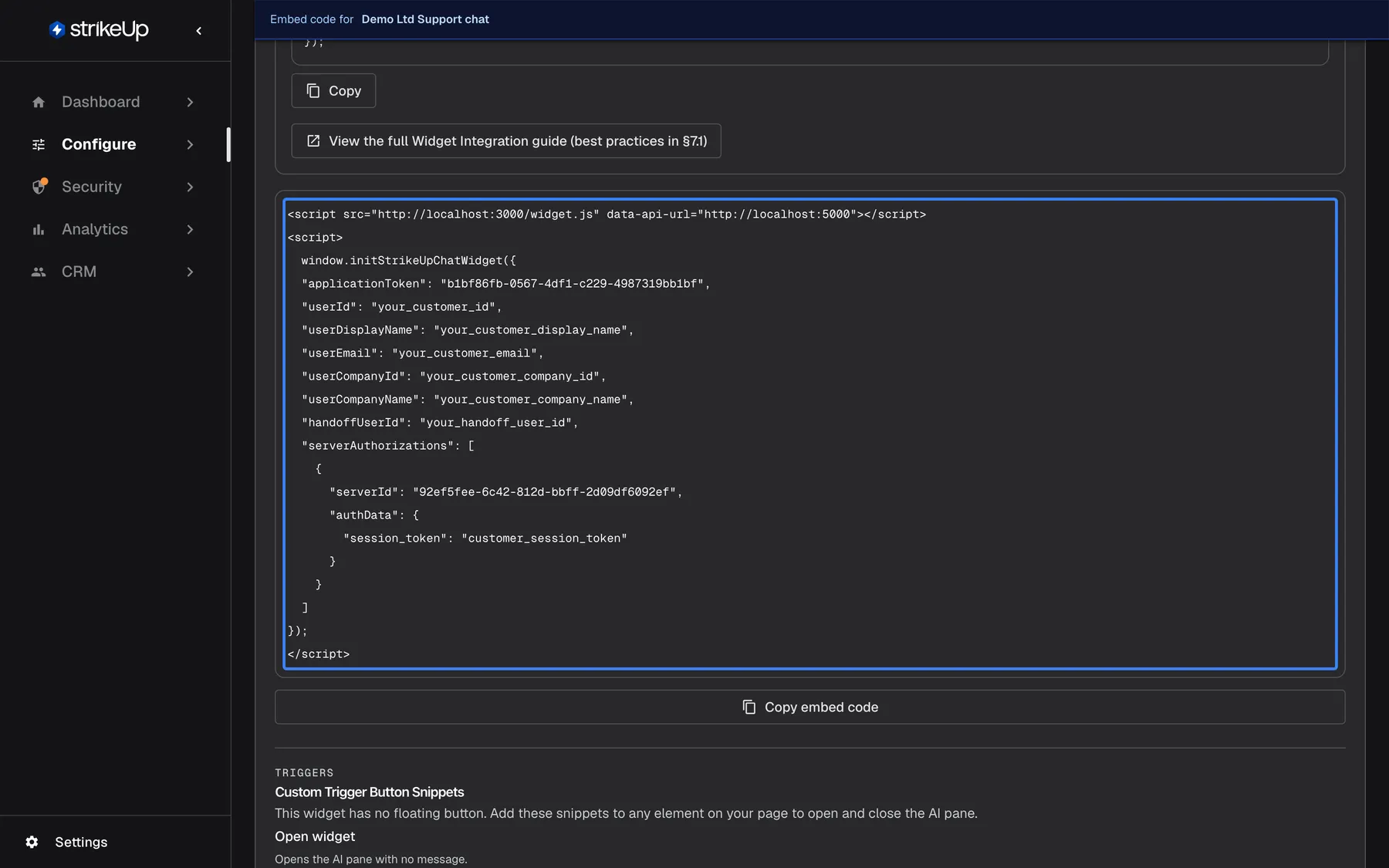
Inject Authorization adds a serverAuthorizations entry per toolkit; fill authData with the signed-in user's own values. What this screenshot shows
- Screen
- Embed (/admin/configure/embed?widgetId=…)
- Highlighted
- code “”, embed-code-block, contains one entry for Demo Billing API. none (copy with Copy embed code)
- Also visible
- initStrikeUpChatWidget with applicationToken and placeholders; serverAuthorizations with serverId and authData; Copy embed code button
- Purpose
- passing a user's toolkit credentials from your page
For toolkits with dynamic headers, the example always shows
"Authorization": "Bearer customer_token". Replace it with your toolkit’s own header names, exactly as they are defined in its Dynamic Authorization Headers Schema (Optional), with the full header value. -
Pass the signed-in user’s own values. In your page, fill
authDatafrom the signed-in user, never with fixed values:window.initStrikeUpChatWidget({applicationToken: "<your widget's application token>",userId: "cus_48210",serverAuthorizations: [// Custom token with a dynamic header "X-Api-Key: {{apiKey}}": pass the final header{ serverId: "<toolkit id from the Embed screen>", authData: { "X-Api-Key": currentUser.apiKey } },// Basic auth: username and password{ serverId: "<toolkit id from the Embed screen>", authData: { username: currentUser.login, password: currentUser.apiPassword } }]});Pass the current value on every page load. Calling
initStrikeUpChatWidgetagain with the sameuserIddoes not send new values; a page reload or a newuserIddoes. -
Test as a user. Open your product as a test user, open the widget and sign in if the widget requires it. The authorization step must not appear for the toolkits you handed over. Ask something that needs your API, such as “Show my last three invoices”, then check the call under AnalyticsTool runs.
What happens next
Section titled “What happens next”Every time the chat connects, the widget hands your serverAuthorizations to StrikeUp before it checks whether the customer needs to authorize. StrikeUp saves each entry as the signed-in customer’s credential for that toolkit, replacing the previous one; for a toolkit with an automatic token endpoint, it fetches a token with your values instead. The authorization step then skips those toolkits. The credential belongs to the customer of the signed-in session, not to whatever userId a later call passes, and it is used by every widget of yours that has the same toolkit.
At each tool call, StrikeUp builds the request headers in two layers: first the toolkit’s static headers, then the customer’s saved credential. A header in the customer’s credential replaces a static header with the same name, whatever the upper and lower case. For username and password, StrikeUp builds the Authorization: Basic … header for you.
Headers your page sends any other way are not used. The old headers option of initStrikeUpChatWidget has no effect, and the widget logs a warning in the browser console when you pass it. If StrikeUp refuses an entry of serverAuthorizations, for example an unknown toolkit or a failed token request, the widget logs Some serverAuthorizations were not saved: in the browser console, with the reason.
When a credential stops working: after three tool calls in a row for the same customer and toolkit fail with HTTP 401 or a failed authorization, or end in an error, StrikeUp deletes the saved credential. The next time the customer uses the chat, the widget shows “Authorization expired” with the authorization step again; a successful call in between resets the count. Scheduled workflows never delete a credential. For a toolkit with an automatic token endpoint and a refresh token, a 401 first refreshes the token and retries the call once.
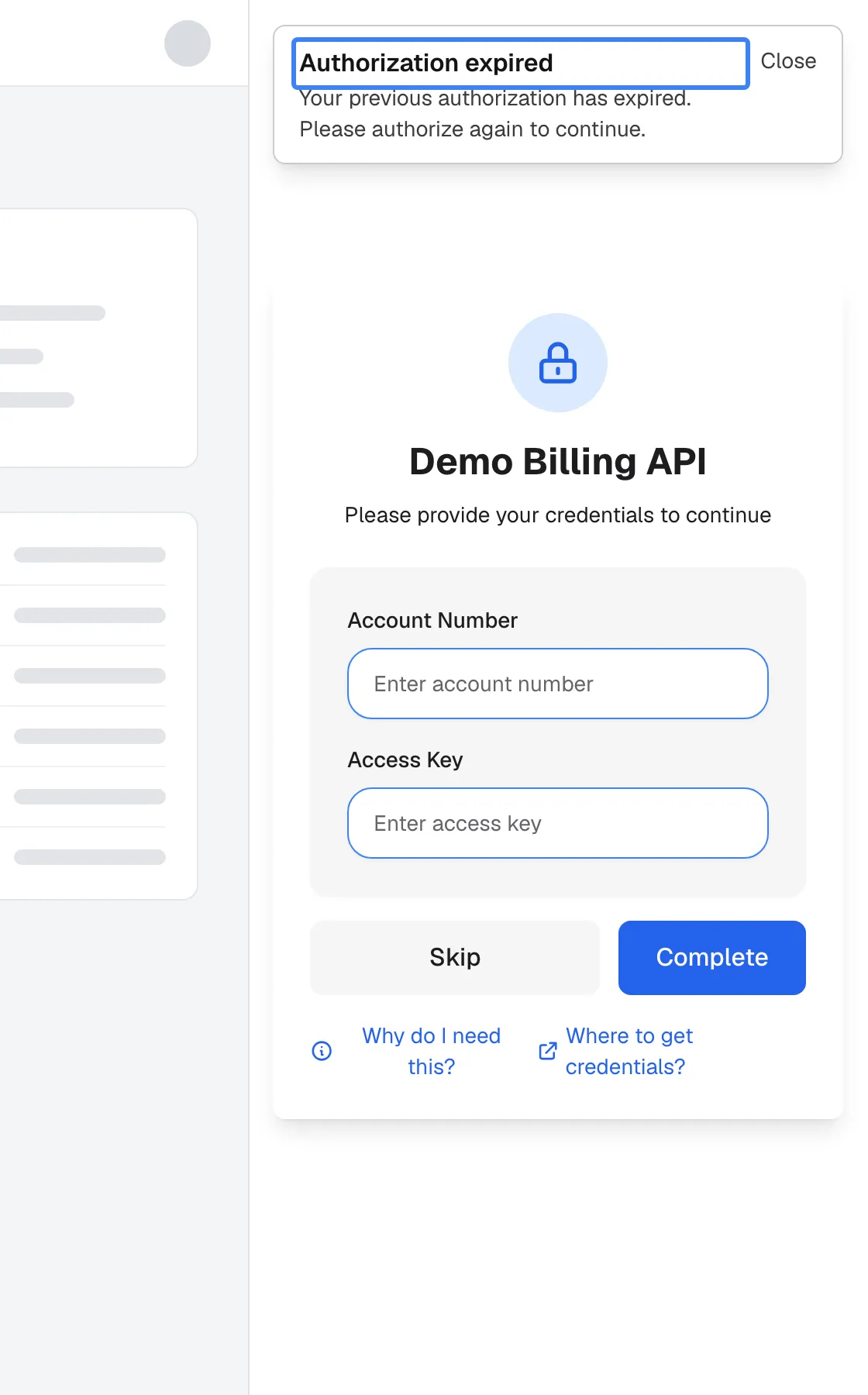
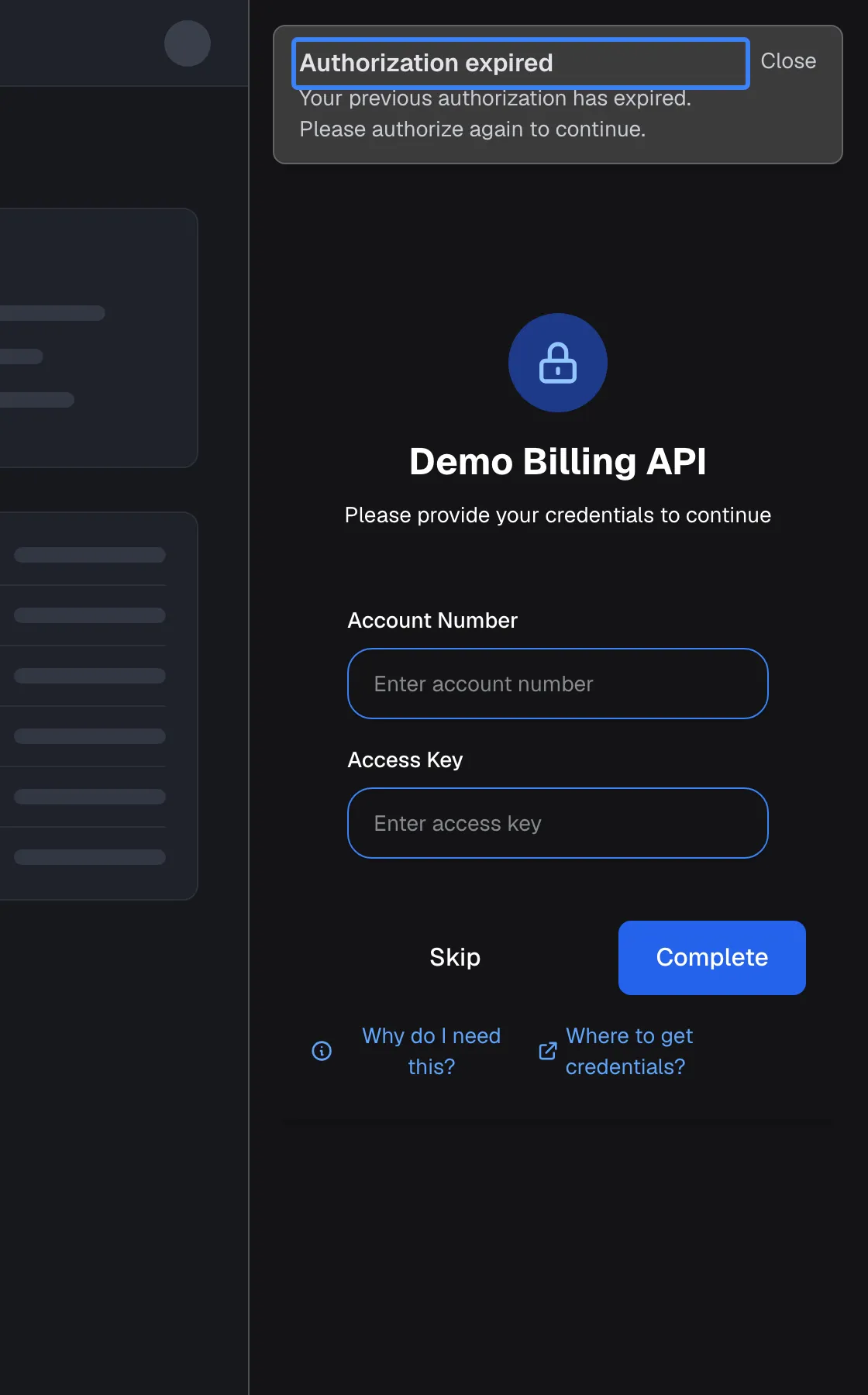
What this screenshot shows
- Screen
- Authorization expired (host page › widget (panel))
- Highlighted
- heading “Authorization expired”, notice-top, shown. none; the form below re-collects the credentials
- Also visible
- Notice that the previous authorization expired (text varies: generic, or with an unfilled {{toolkitName}} placeholder — product defect); Authorization form for Demo Billing API with Skip and Complete
- Purpose
- what happens when a user's stored credential stops working
How to check it worked:
- The authorization step does not appear for the toolkits you handed over.
- The tool call appears under AnalyticsTool runs with your API’s response.
- For automatic token endpoints, each token fetch appears on the toolkit’s Authorization Logs screen, opened with View Authorization Logs from the toolkit, with values masked. Other authorization types do not appear there.
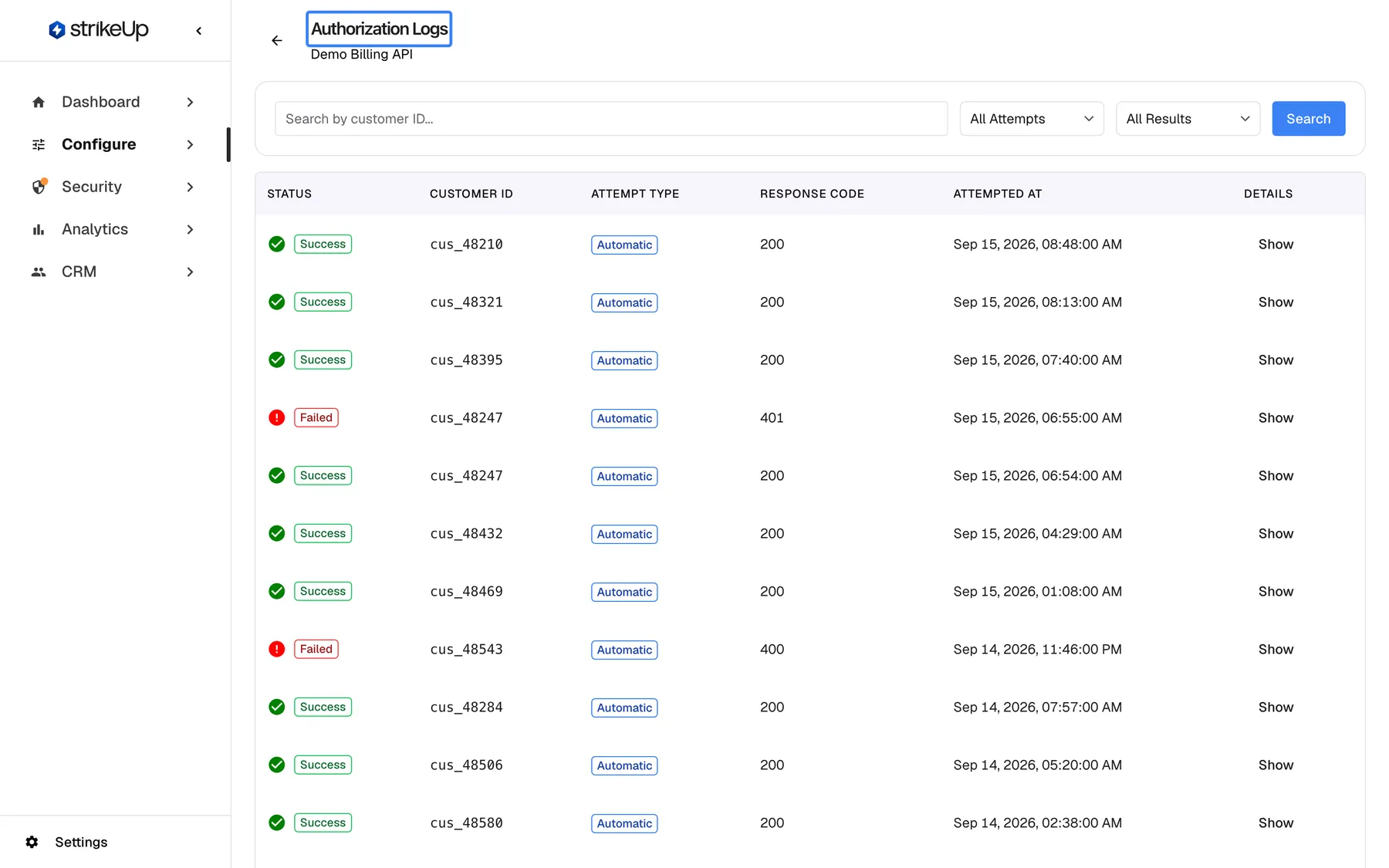
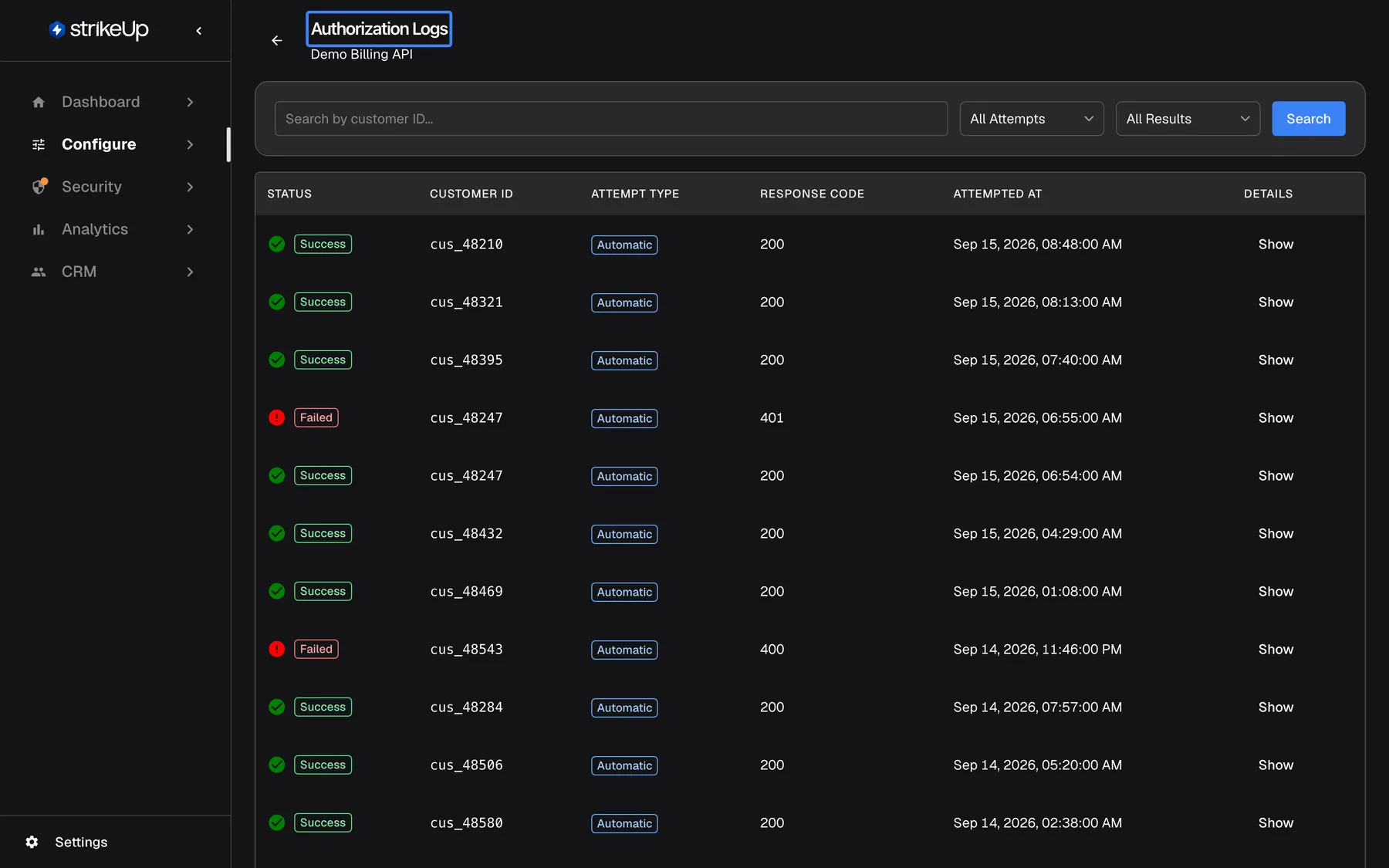
What this screenshot shows
- Screen
- Authorization Logs (/admin/servers/authorization-logs/:serverId)
- Highlighted
- heading “Authorization Logs”, page-header, Demo Billing API. none
- Also visible
- Search by customer ID, All Attempts, All Results, Search; Rows with Success 200 and Failed 401/400
- Purpose
- checking automatic token fetches per customer
How saved credentials are stored: StrikeUp stores each customer’s credentials, whether entered in the chat, handed over by your page or imported, per customer in your company’s own database, encrypted with AES-256-GCM. They are decrypted only on the server when a tool call needs them and are never shown back to the customer in full.
Options
Section titled “Options”| Choice | When to pick it | Effect |
|---|---|---|
| Let users enter credentials in the widget | Users know their own key or login, and your page cannot read it | The authorization step asks once per toolkit; the value is saved for the customer |
Hand them over from your page (serverAuthorizations) | Your app already holds a per-user token | Users are never asked; the saved value is replaced on every page load |
| Pre-fill by import | Many existing users, or credentials only your backend knows | CRMCustomers › Import from CSV, with a column of toolkit credentials per customer |
| An automatic token endpoint without placeholders | Your API can issue a token for a user id | StrikeUp fetches tokens itself; nobody enters anything |
Rotating and expiring tokens
Section titled “Rotating and expiring tokens”Pass the current token on every page load: the saved value is replaced each time the chat connects. If a token rotates while a page stays open, hand over the new value with window.StrikeUpChat.setServerAuthorizations([...]), or call initStrikeUpChatWidget again; both save it at once. Better still, pass a getServerAuthorizations callback at start: the widget asks it for fresh values before every message and tool approval, and when a saved credential is refused it tries your callback before it shows the customer the authorization step. See Widget JavaScript API reference. For an automatic token endpoint, configure a refresh token on the toolkit so StrikeUp renews it on a 401.
What users can do themselves
Section titled “What users can do themselves”A user who selects “Skip” in the authorization step is not asked again in that browser, and the assistant cannot use that toolkit for them. In the chat’s history panel, “Toolkit Status” lists each toolkit with “Authenticate”, to enter credentials later, and “Logout”, which deletes their saved credential.
If something goes wrong
Section titled “If something goes wrong”| Symptom | What to check | Fix |
|---|---|---|
| The authorization step still appears for a handed-over toolkit | In order: the serverId matches the Embed screen; the toolkit is on this widget; authData uses the toolkit’s own header names or placeholder keys; for token endpoints, the token request succeeded on Authorization Logs. The widget does not show why an entry was refused | Copy the entry again from the Embed screen and correct authData |
| Calls reach your API without the user’s header | authData uses Authorization: Bearer … from the example instead of your toolkit’s header name, or the placeholder names instead of header names | Pass { "<Header-Name>": "<full value>" } with the toolkit’s own header names |
| Users see “Authorization expired” | Three calls in a row failed with 401 or an error; the saved credential was deleted | Hand over a valid credential, or let the user authorize again |
| “Failed to authorize. Please verify your input values are correct.” in the widget | The token endpoint refused the user’s values | Check the failed attempt on Authorization Logs |
| A new token is not used until the page reloads | initStrikeUpChatWidget was called again with the same userId | Reload, or pass the token on the next page load |
| A user skipped the step and the assistant cannot use the toolkit | “Skip” is remembered in that browser | The user selects “Authenticate” under “Toolkit Status” in the chat’s history panel |
| A change fails with Request failed and “This action requires the Admin role.” | Changes on this page need the Admin role. | Ask an Admin to make the change, or to give you the Admin role under Settings › Users. |