

From sign-up to an assistant in your product
This guide takes you from no account to an AI assistant that answers your customers inside your own product and calls your API for them. You create your company, connect your API as a toolkit, choose what the assistant may do, give it a voice, style the chat widget, check the security settings and paste one snippet into your product. Each step links to the page that explains it in full. Plan an hour, most of it for the decisions rather than the clicks; generating tools from a large API specification takes longer.
Before you start
Section titled “Before you start”| You need | Where it lives |
|---|---|
| An email address with no StrikeUp account yet | Your mailbox. To join an existing StrikeUp company instead, ask its administrator to invite you. |
| The address of your API’s OpenAPI or Swagger specification (JSON or YAML), or of its Readme.com reference, reachable from the internet | Your API documentation, often ending in openapi.json or swagger.json |
| Your company’s public website | Used to tailor the guardrails to your business |
| Credentials StrikeUp can use to call your API, if your API needs any | Your API’s settings or developer portal |
| Access to the HTML of the product or website where the assistant should appear | Your code base or website builder |
| The Admin role in StrikeUp | You get it automatically when you sign up. Users and Guests can look at every screen but cannot save changes. |
StrikeUp has no plans or feature tiers: everything in this guide is available to every company. The calls to AI models made while generating tools and answering visitors are counted on the AI Spend page of the Dashboard.
-
Create your company. Open the sign-up page from Create an Account on the sign-in page. Enter your email address, your company’s name and its website, and a password the strength meter rates at least Good. Select Sign Up, then open the confirmation link StrikeUp emails you within 24 hours. StrikeUp then creates the company, makes you its administrator and signs you in. See Sign Up.
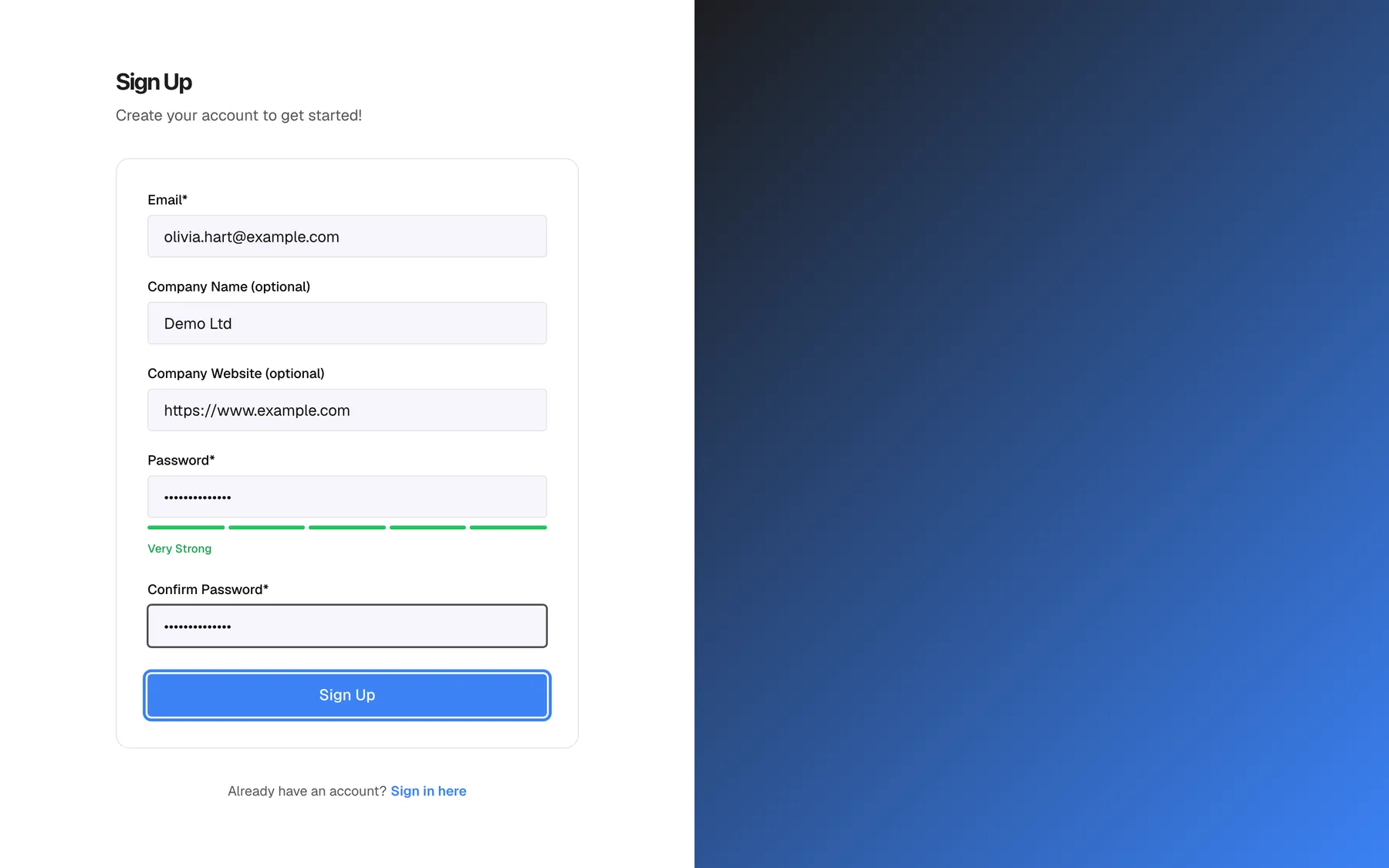
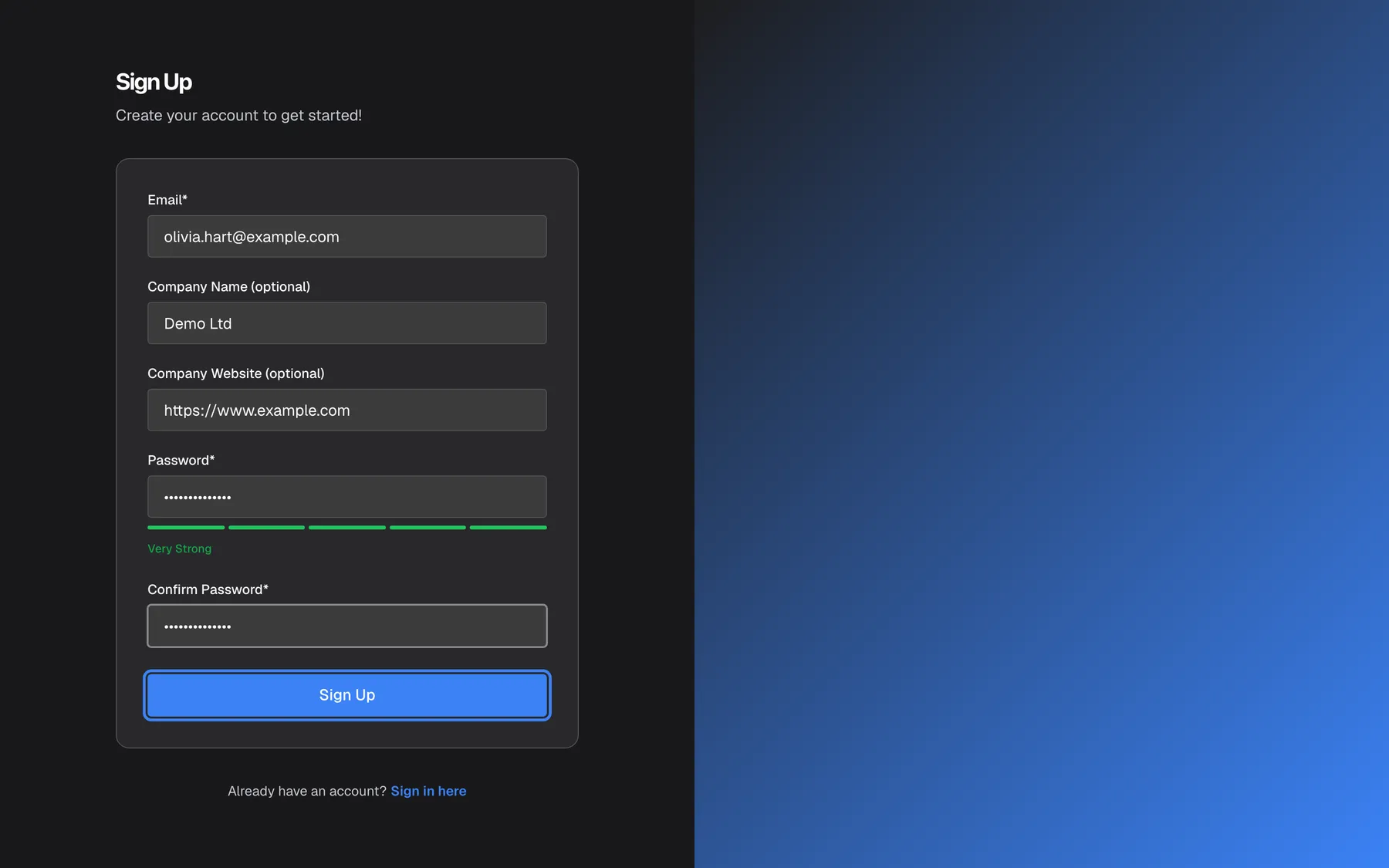
Create your company with Sign Up; adding the website lets StrikeUp tailor guardrails to your domain. What this screenshot shows
- Screen
- Sign Up (/auth/sign-up)
- Highlighted
- button “Sign Up”, sign-up-card-bottom, enabled. creates the company and Admin account, then opens the setup wizard
- Also visible
- Email*: olivia.hart@example.com; Company Name: Demo Ltd; Company Website: https://www.example.com; Password strength: Very Strong
- Purpose
- quick-start step 1, create the account
-
Finish the setup wizard. The wizard Welcome to StrikeUp opens by itself and cannot be closed until you finish it. In it you paste your specification address and select Validate, choose how StrikeUp authenticates against your API, wait while StrikeUp generates one tool per endpoint, review the suggested masking rules, and tick the first tools the assistant may use, for example with Select All GET. The wizard also creates your first chat widget, named after the toolkit with “Copilot” added. Finish with Finish Setup & Go to Dashboard. See The setup wizard.
-
Connect another API (optional). For each further API, open ConfigureToolkits and select the card “Add toolkit” at the end of the row.
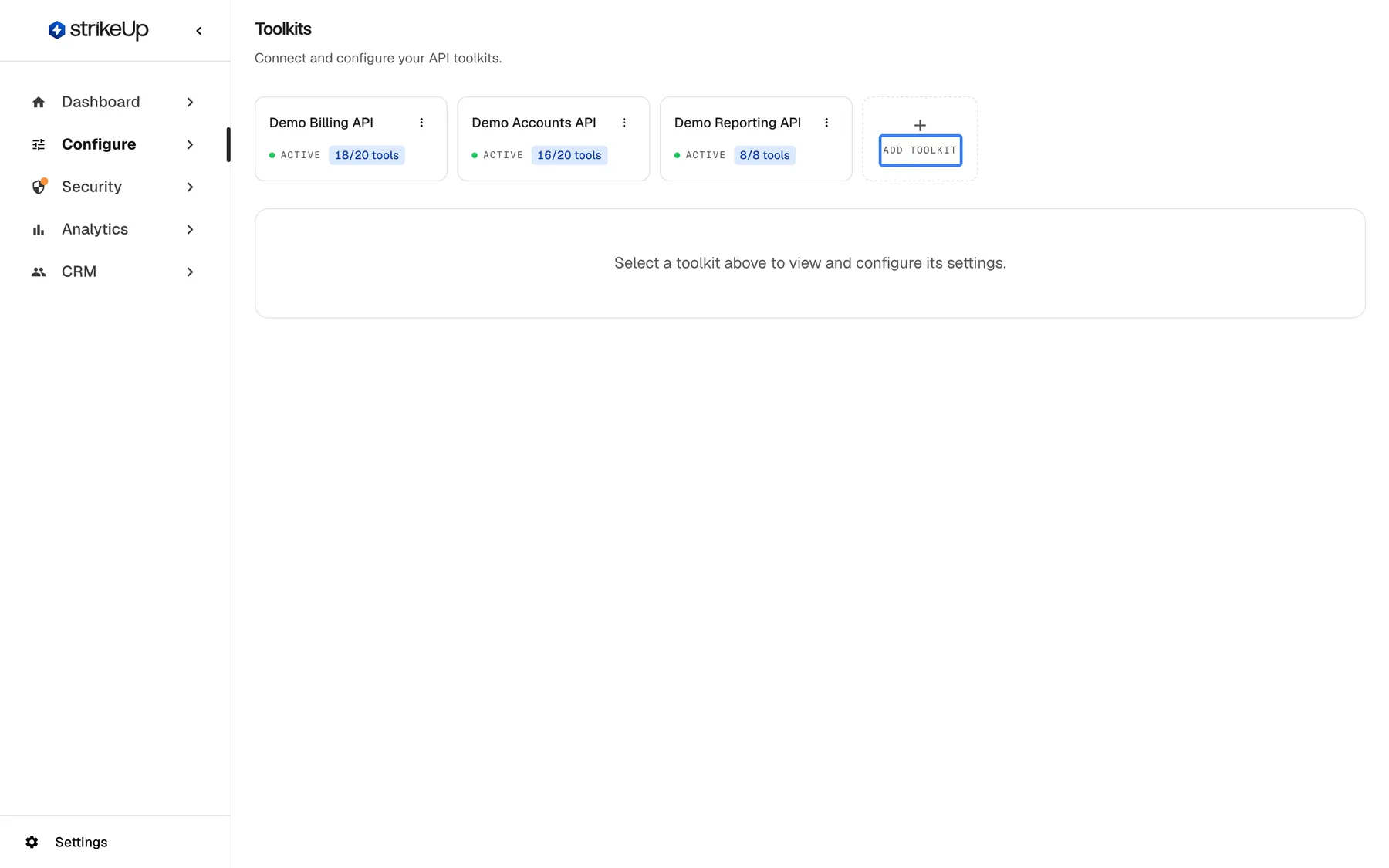
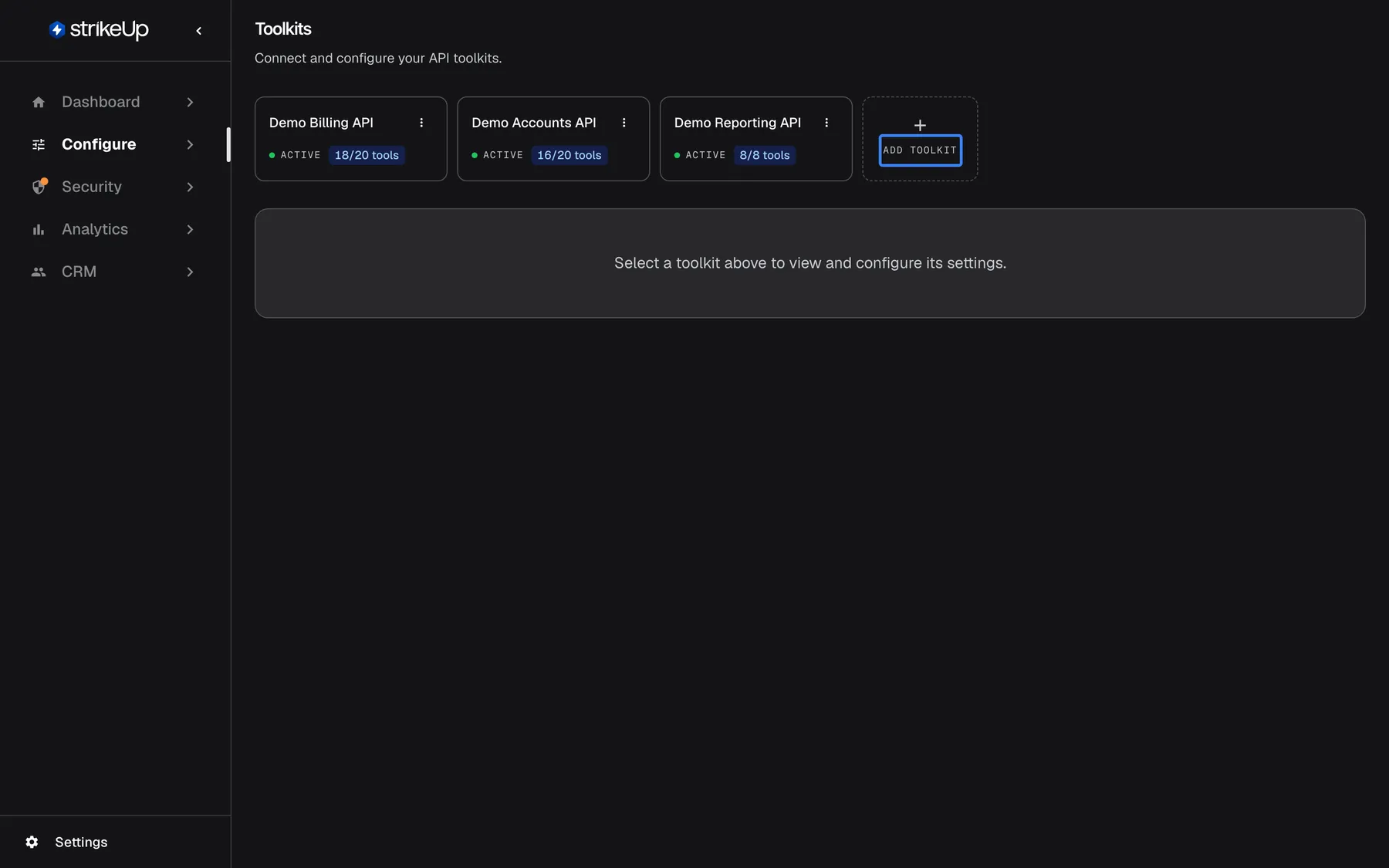
Connect each additional API under Configure › Toolkits with Add toolkit; the wizard already created your first one. What this screenshot shows
- Screen
- Toolkits (/admin/servers)
- Highlighted
- card-button “Add toolkit”, toolkit-cards-right, enabled. opens the Create New Toolkit dialog
- Also visible
- Toolkit cards: Demo Billing API 18/20, Demo Accounts API 16/20, Demo Reporting API 8/8
- Purpose
- quick-start step 2, connect an API
In Create New Toolkit, keep Swagger/OpenAPI or choose Readme.io, paste the address into API Specification URL * and select “Validate”. Check the name and description StrikeUp filled in from the specification, then select “Create Server”. The dialog shows the generation progress and closes when it is done; the toolkit’s card turns active. A notification tells you when StrikeUp suggests masking rules for the new fields. Set the toolkit’s authorization on the same page; Toolkits explains each type.
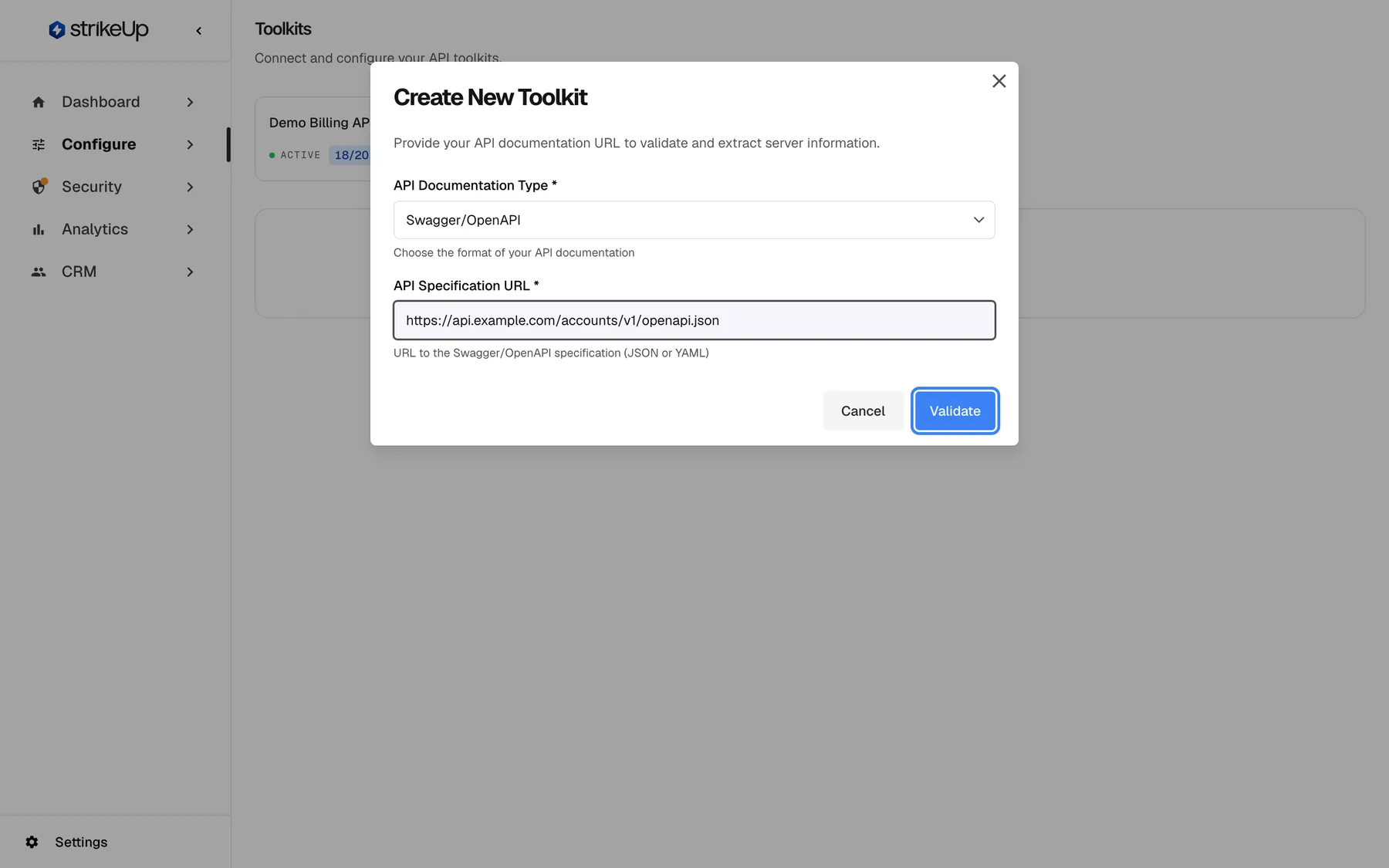
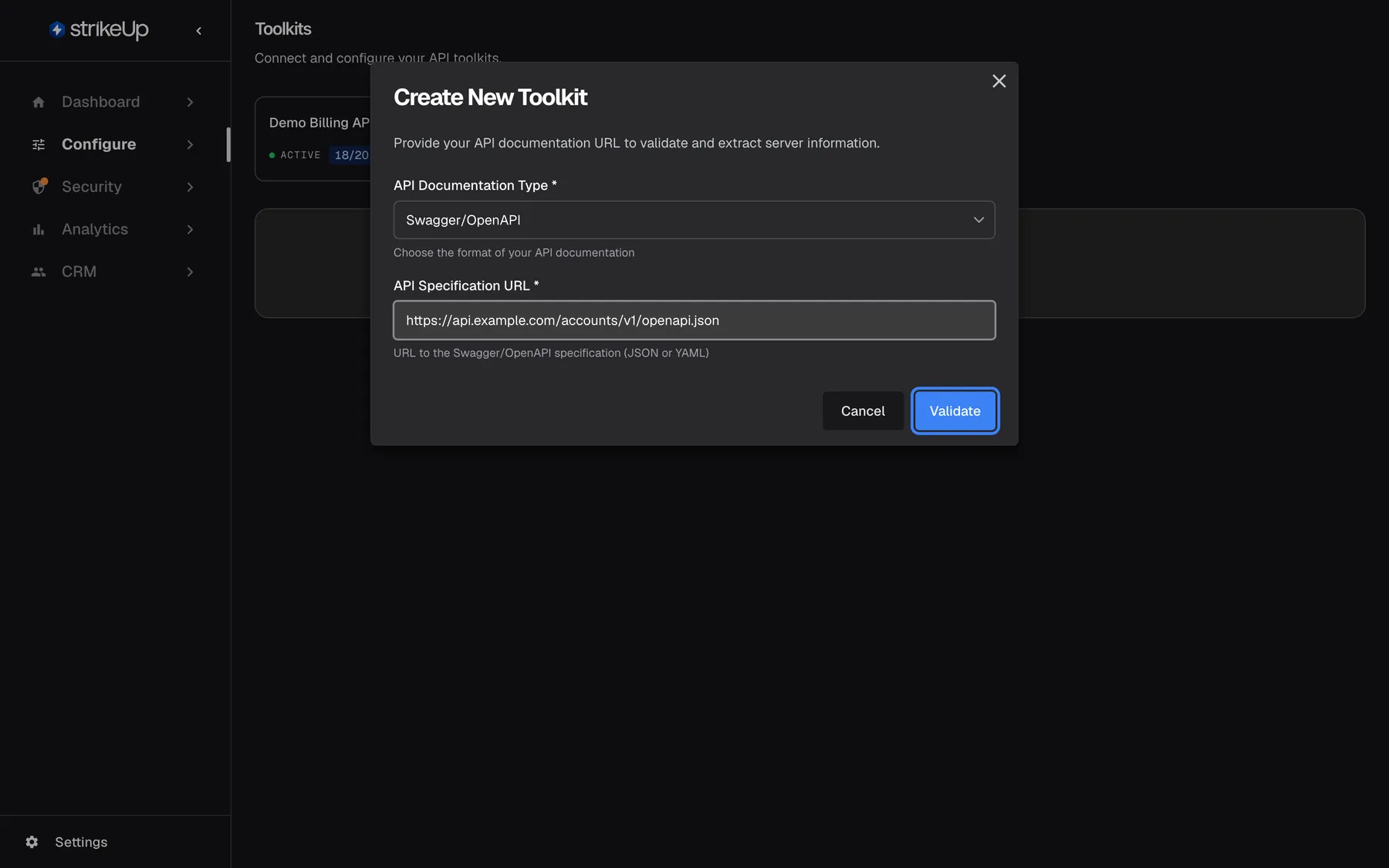
Paste the specification URL and select Validate; StrikeUp then generates one tool per endpoint. What this screenshot shows
- Screen
- Create New Toolkit (/admin/servers)
- Highlighted
- button “Validate”, dialog-footer-right, enabled. validates the specification (POST /api/servers/validate-spec)
- Also visible
- API Documentation Type: Swagger/OpenAPI; API Specification URL: https://api.example.com/accounts/v1/openapi.json
- Purpose
- quick-start step 2, the toolkit dialog filled in
-
Switch on the tools the assistant may call. On ConfigureToolkits, select the toolkit’s card and scroll to its tool list. Every tool generated from a specification starts switched off, and the assistant can only call tools that are on. Switch tools on one by one, per group, or with Bulk Actions, for example Enable Low Risk only. Read-only tools are a safe start; add tools that change data once you have watched the assistant at work. See Toolkits.
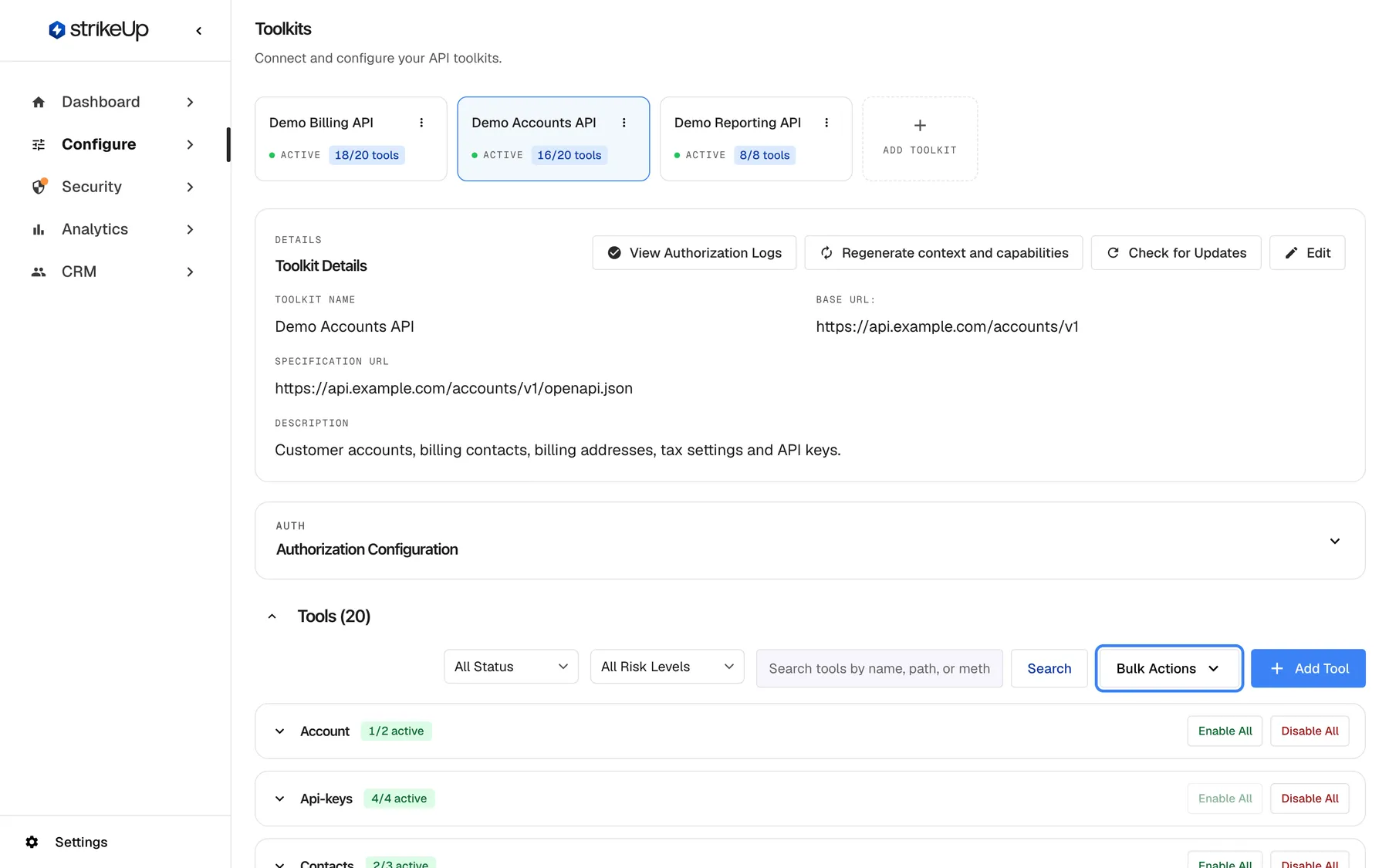
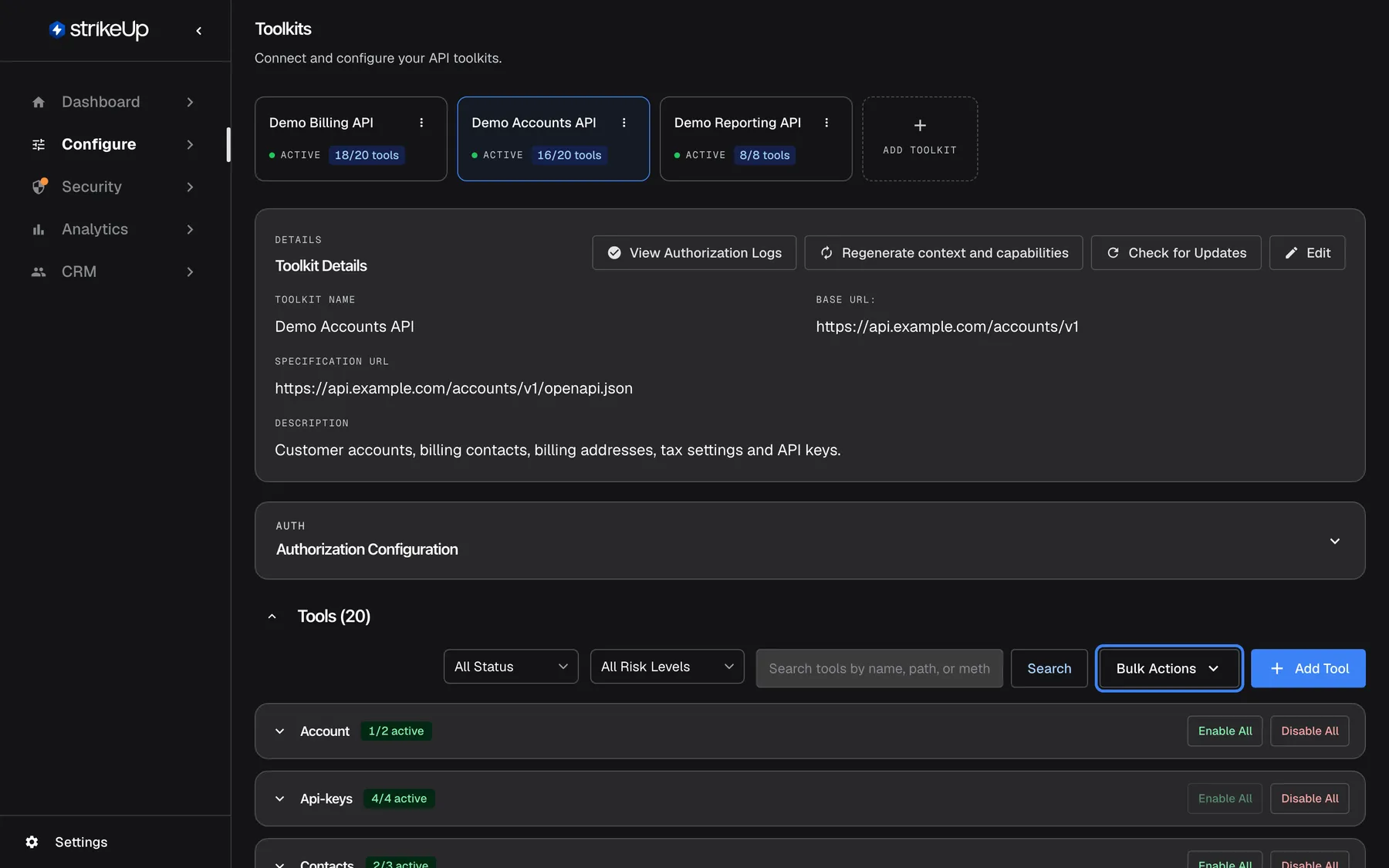
The assistant can only call tools that are switched on; use Bulk Actions or each group's buttons to choose them. What this screenshot shows
- Screen
- Toolkits (/admin/servers?serverId=…)
- Highlighted
- button “Bulk Actions”, tools-toolbar, enabled. opens bulk enable/disable options (by risk level)
- Also visible
- Tools (20); Groups Account 1/2 active, Api-keys 4/4 active; Enable All / Disable All per group
- Purpose
- quick-start step 3, choose which tools the assistant may call
-
Give the assistant its voice. Open ConfigureAI & UX and select your widget’s card. Under “Persona”, fill in “Tone of voice (optional)”, “Behavior instructions (optional)” and “Branding instructions (optional)”, then select the blue save button under these fields. StrikeUp checks the instructions with a safety review before saving them and refuses text that tries to override the assistant’s own rules or contains a password or key. If your company has skills, switch on the ones this widget should use under “Skills”; each switch saves at once. See AI & UX and Skills.
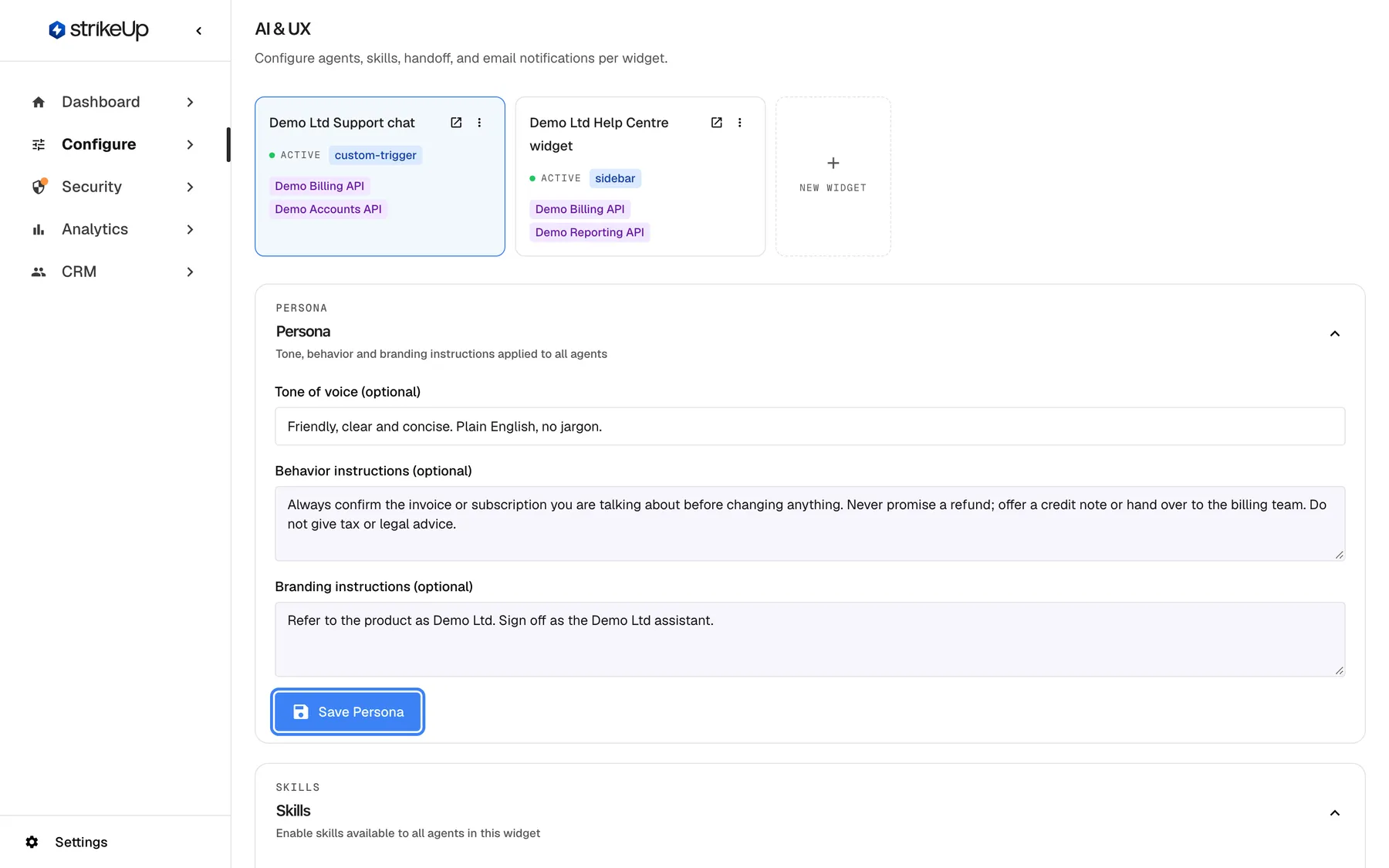
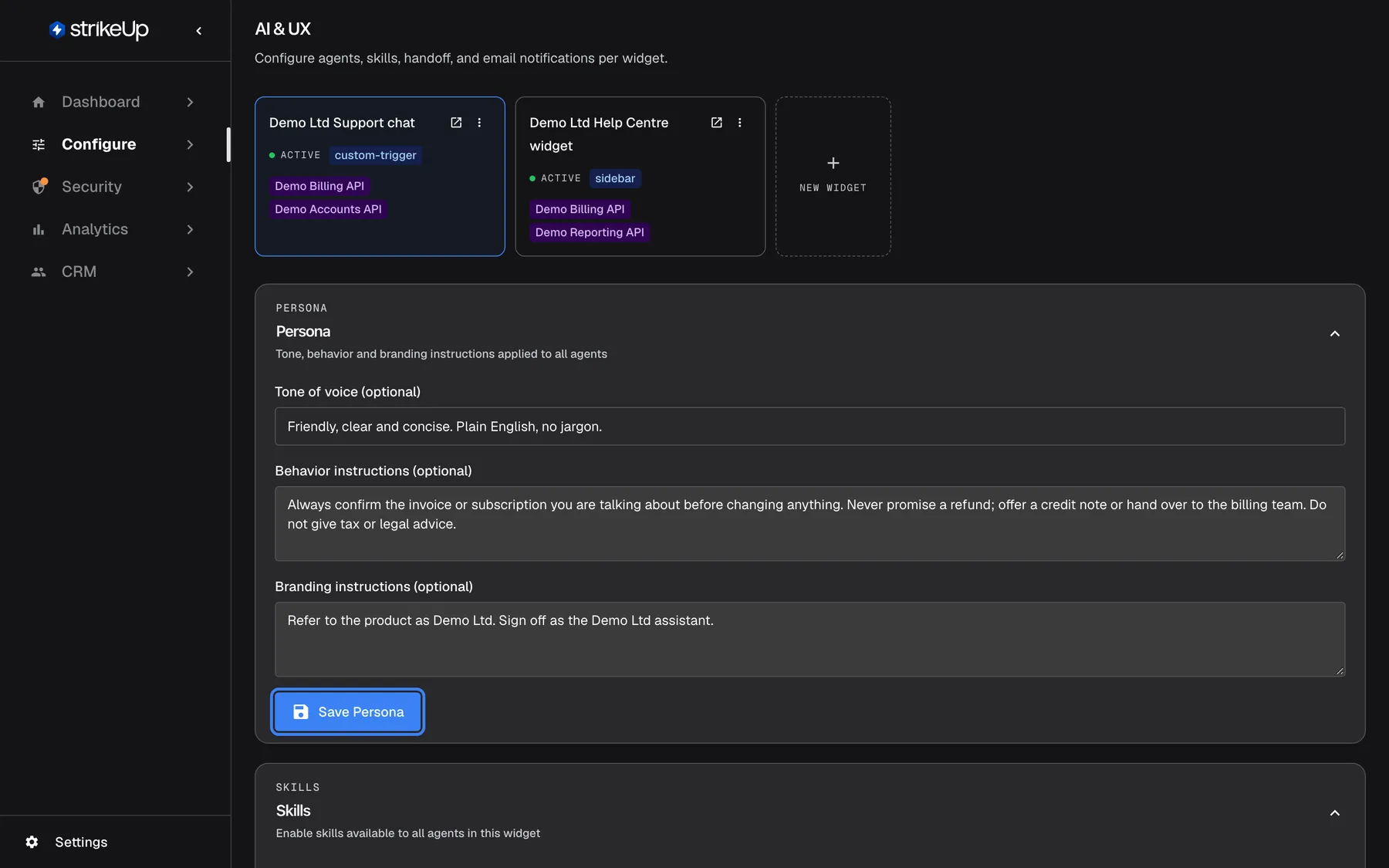
Give the assistant a tone, behaviour rules and branding per widget, then select Save Persona. What this screenshot shows
- Screen
- AI & UX (/admin/configure/agents)
- Highlighted
- button “Save Persona”, persona-section-bottom, enabled. saves tone, behaviour and branding instructions for the widget
- Also visible
- Widget cards: Demo Ltd Support chat (selected), Demo Ltd Help Centre widget; Tone of voice: Friendly, clear and concise. Plain English, no jargon.; Skills section with switches
- Purpose
- quick-start step 4, set up the assistant
-
Style the chat widget. Open ConfigureUser Interface and select your widget. Choose how it appears on your page (a popup button, a sidebar, a panel, or a pane your own button opens), its colours, the customer portal pages, the shortcut cards visitors see first and the URL visibility rules that decide on which pages it shows. Check Require customer authentication: it is on for new widgets, and then each visitor sets a PIN or password the first time they chat. Save everything at once with the save button at the bottom of the page. See User Interface, Display types and custom triggers and End-customer sign-in (PIN or password).
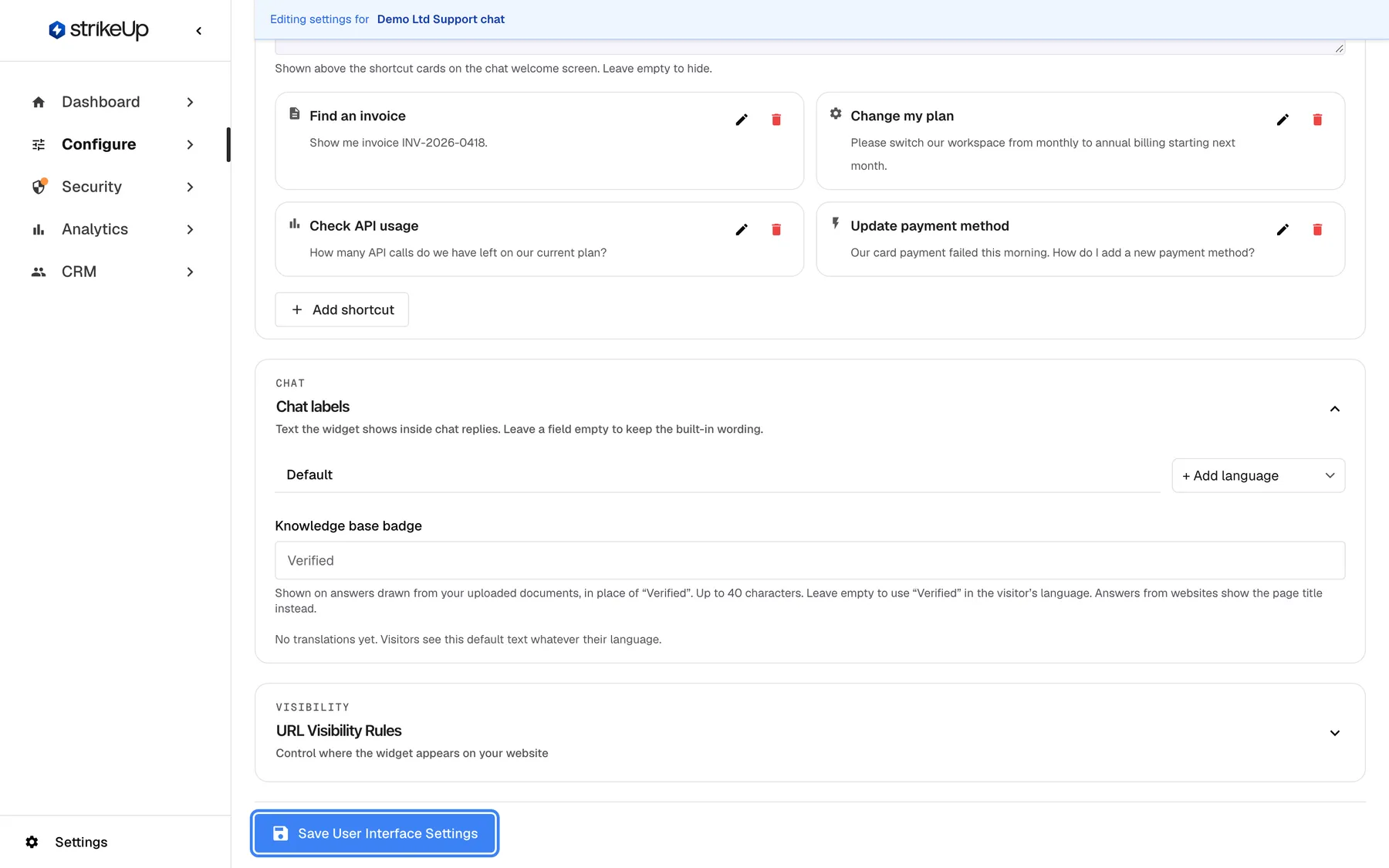
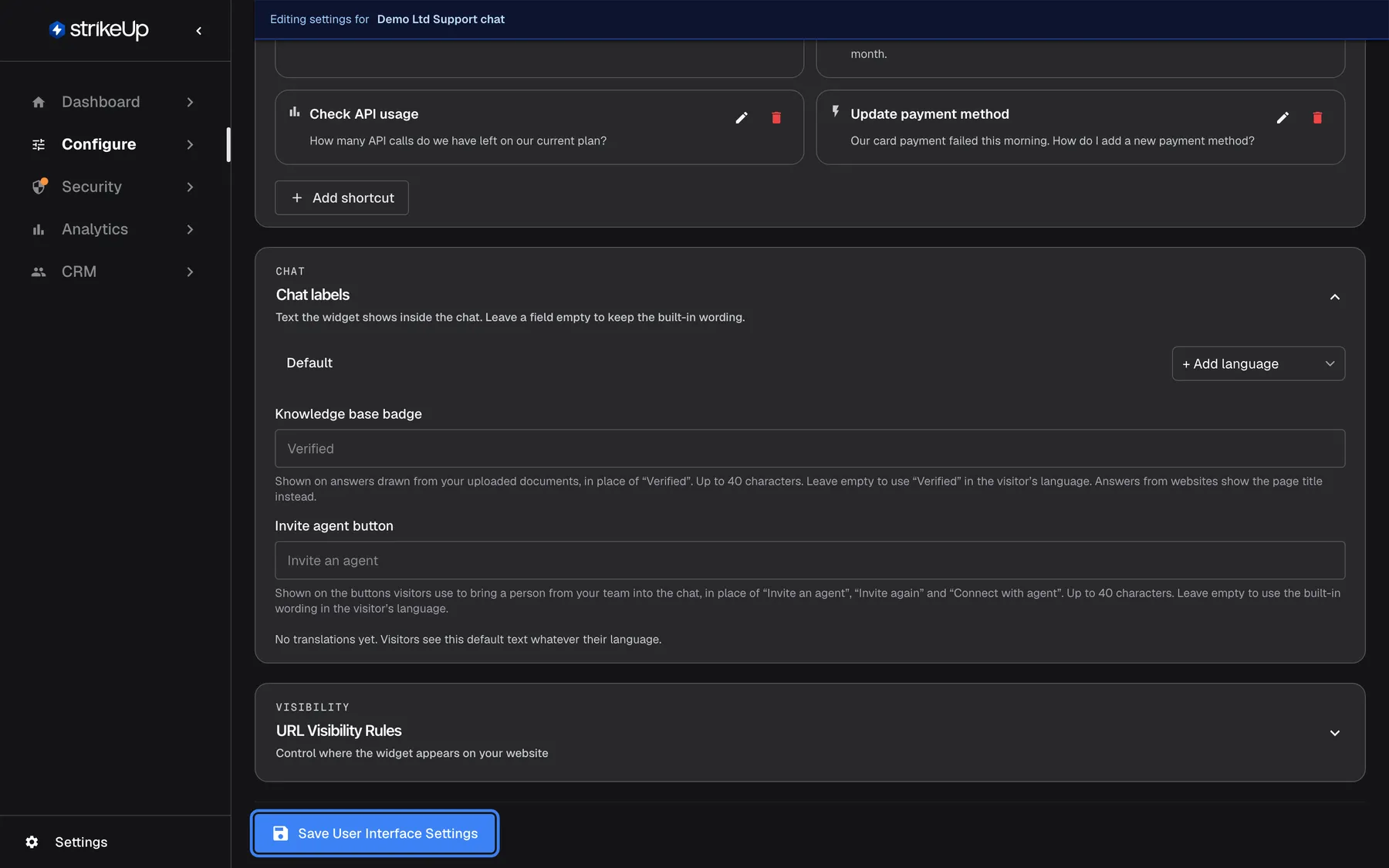
Work through display, colours, portal and shortcut cards, then save everything with Save User Interface Settings. What this screenshot shows
- Screen
- User Interface (/admin/configure/user-interface)
- Highlighted
- button “Save User Interface Settings”, page-bottom, enabled. saves all User Interface settings of the selected widget
- Also visible
- Customer Portal visible pages; Shortcut cards: Find an invoice, Change my plan, Check API usage, Update payment method; URL Visibility Rules (collapsed)
- Purpose
- quick-start step 5, configure the widget's look and behaviour
-
Check the guardrails. Open SecurityGuardrails. The guardrails judge every visitor message before the AI answers and block attacks on the assistant, harmful requests and abuse. During setup StrikeUp wrote a company policy describing your business, from your website address, company name and tools; it is already live. Read it in Company Policy (Editable), adjust it to what your assistant should and should not discuss, and select Save Company Policy. Then type a typical customer question under Test Guardrails and select Send to see whether it is allowed. See Guardrails.
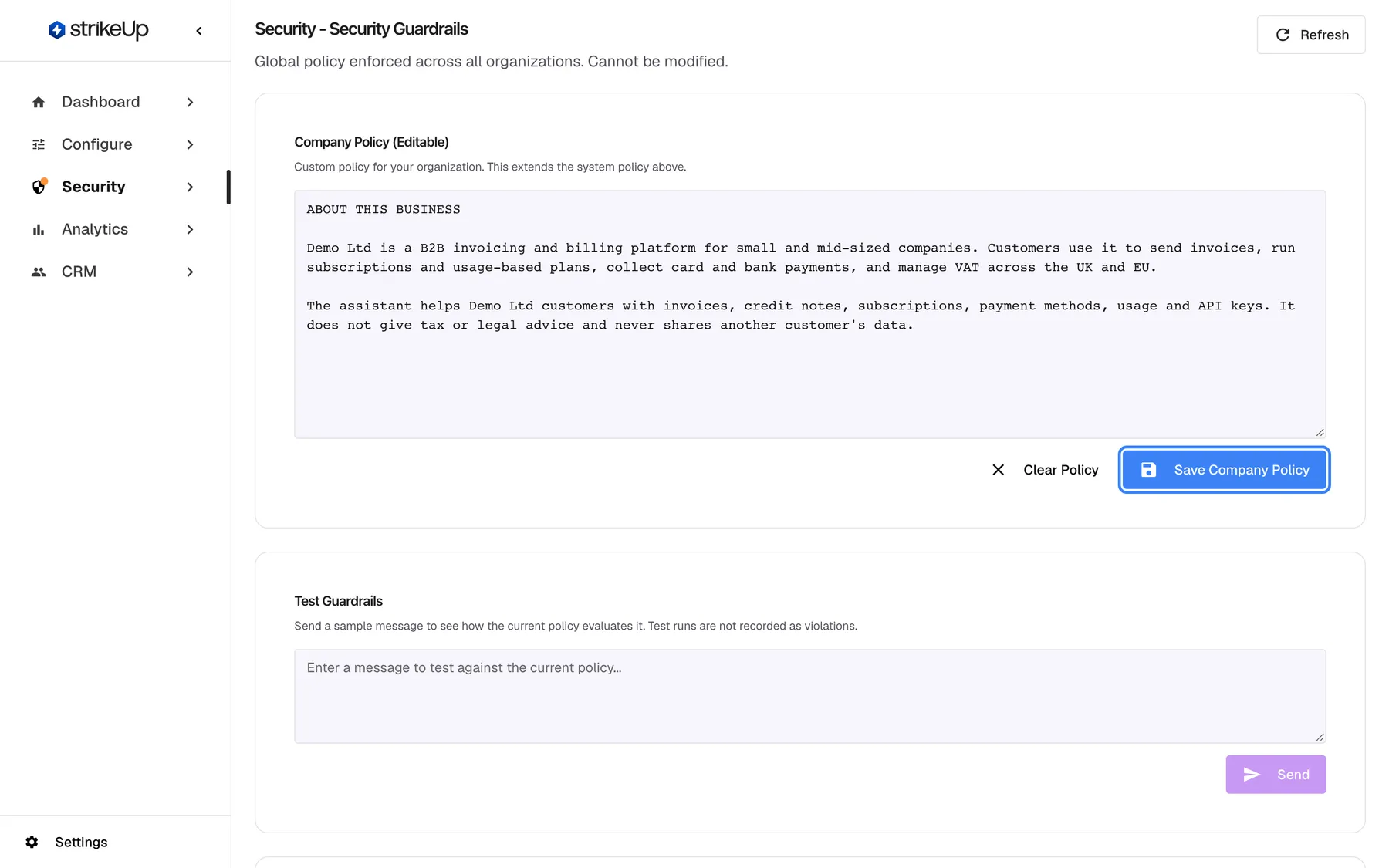
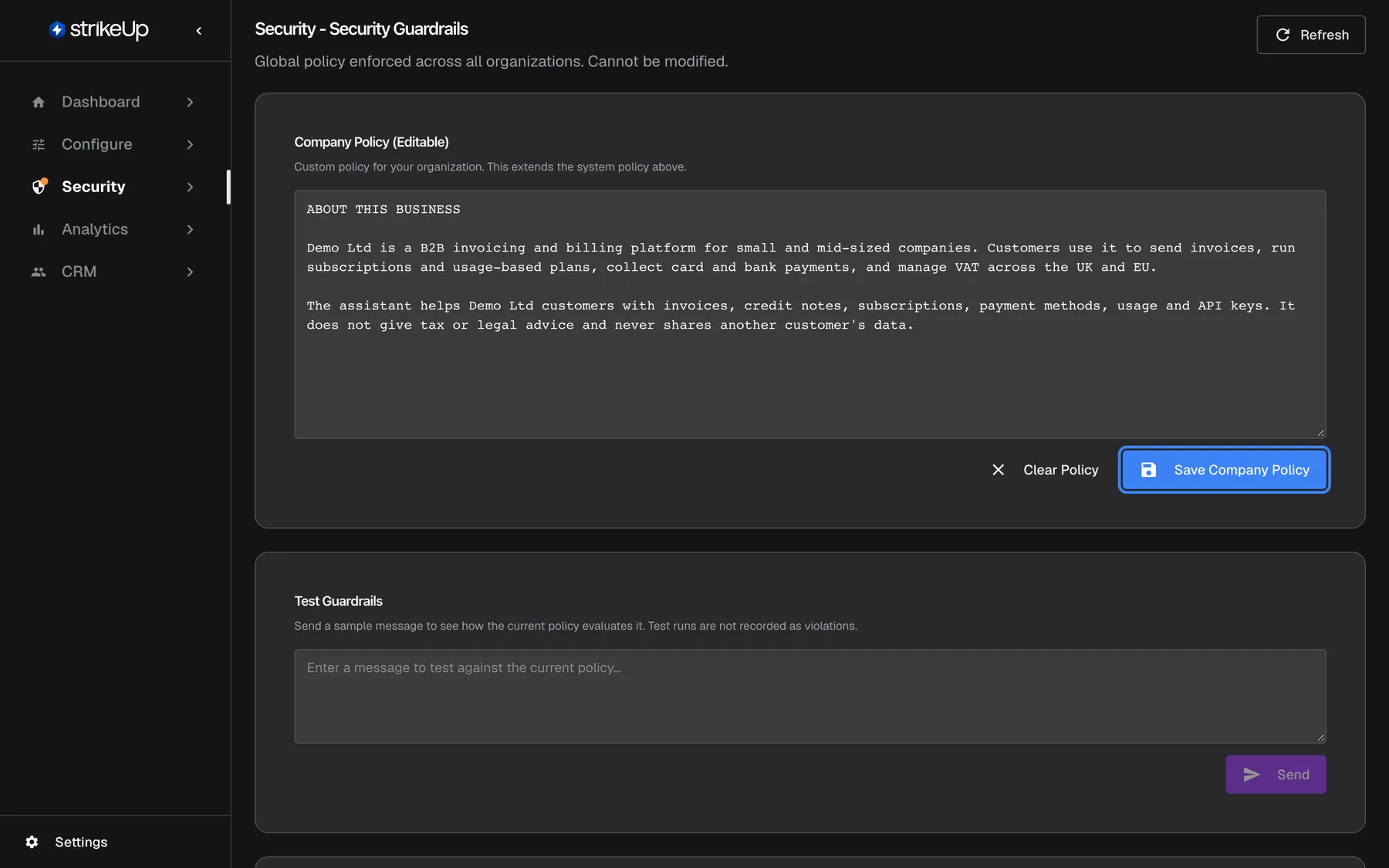
Review the company policy generated from your website, adjust it, then select Save Company Policy and test a message. What this screenshot shows
- Screen
- Security Guardrails (/admin/security/guardrails)
- Highlighted
- button “Save Company Policy”, company-policy-card-bottom-right, enabled. saves the company guardrail policy
- Also visible
- Company Policy (Editable) text: ABOUT THIS BUSINESS, Demo Ltd; Test Guardrails card with message box
- Purpose
- quick-start step 6, switch on guardrails
-
Activate the masking rules. Open SecurityData masking. If StrikeUp found fields such as card codes or IBANs in your APIs, the suggestions are listed at the top. Select Activate All, or activate them one by one. Active rules hide those values in your API’s responses before the AI or the tool-run log sees them. See Data masking.
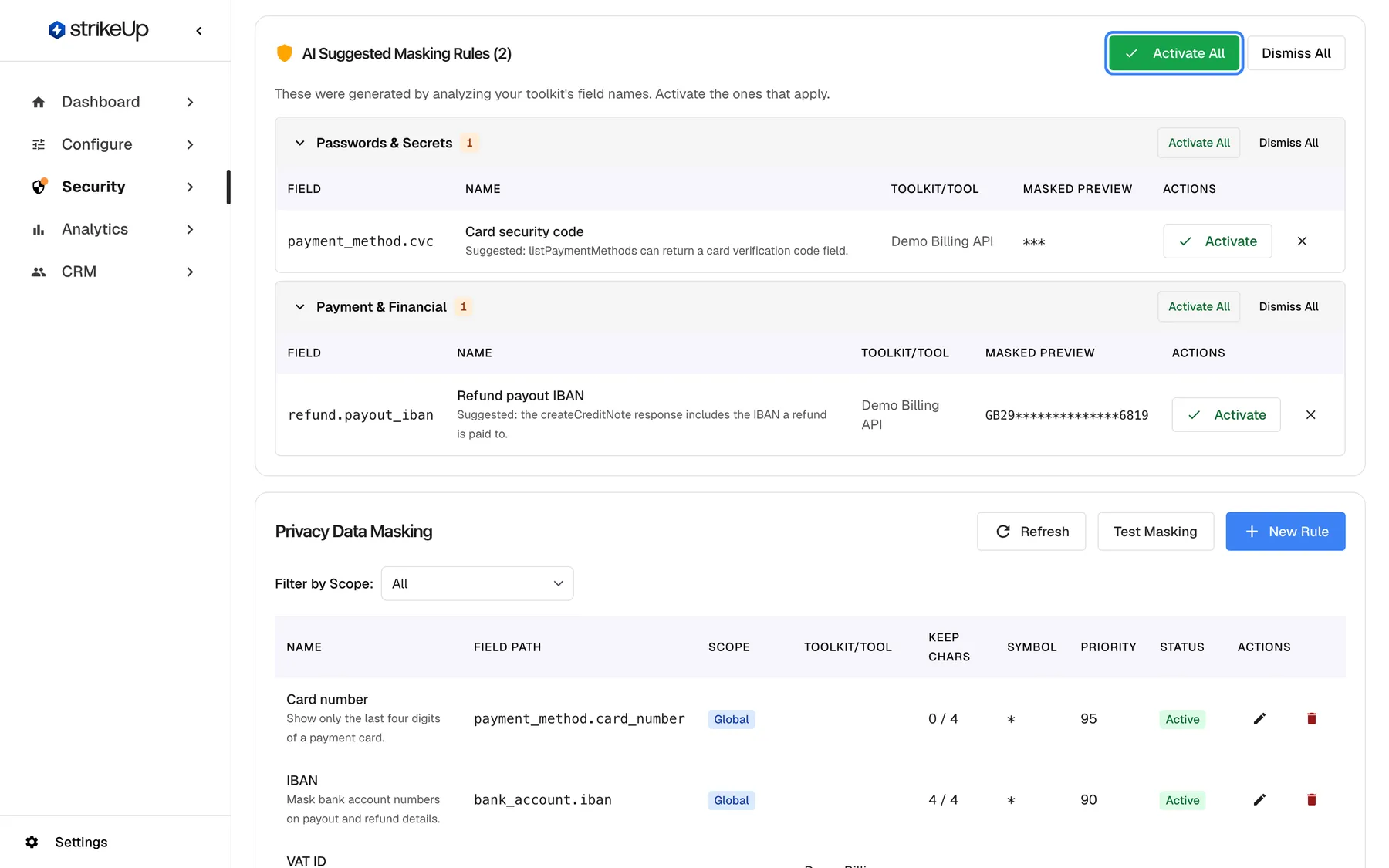
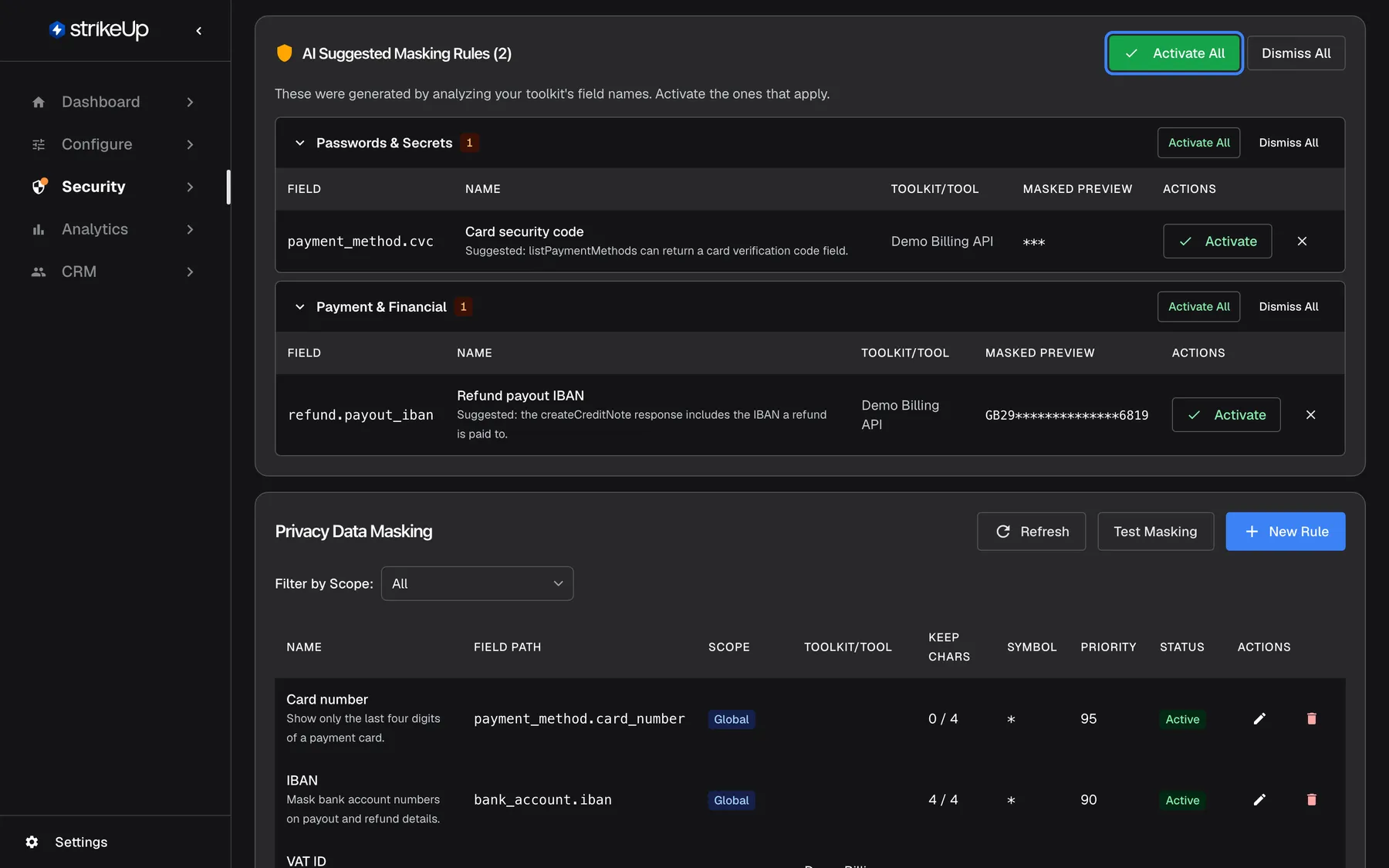
Activate the suggested masking rules so card codes, IBANs and similar fields never reach the AI unmasked. What this screenshot shows
- Screen
- Privacy Data Masking (/admin/security/data-privacy)
- Highlighted
- button “Activate All”, suggestions-header-right, enabled. activates all suggested masking rules
- Also visible
- AI Suggested Masking Rules (2): payment_method.cvc, refund.payout_iban; Privacy Data Masking rules: Card number, IBAN
- Purpose
- quick-start step 7, mask sensitive data
-
Set up tool policies (optional). Under SecurityTool Policies, a policy groups some of your tools under a key, with Create Policy. You can skip this for your first launch: a chat session that carries no policy key can use every tool you switched on in the toolkit. A policy restricts a customer only when your backend signs that customer in with a one-time login ticket that lists its key. Read Tool Policies and Plan and simulate tool policies before relying on policies.
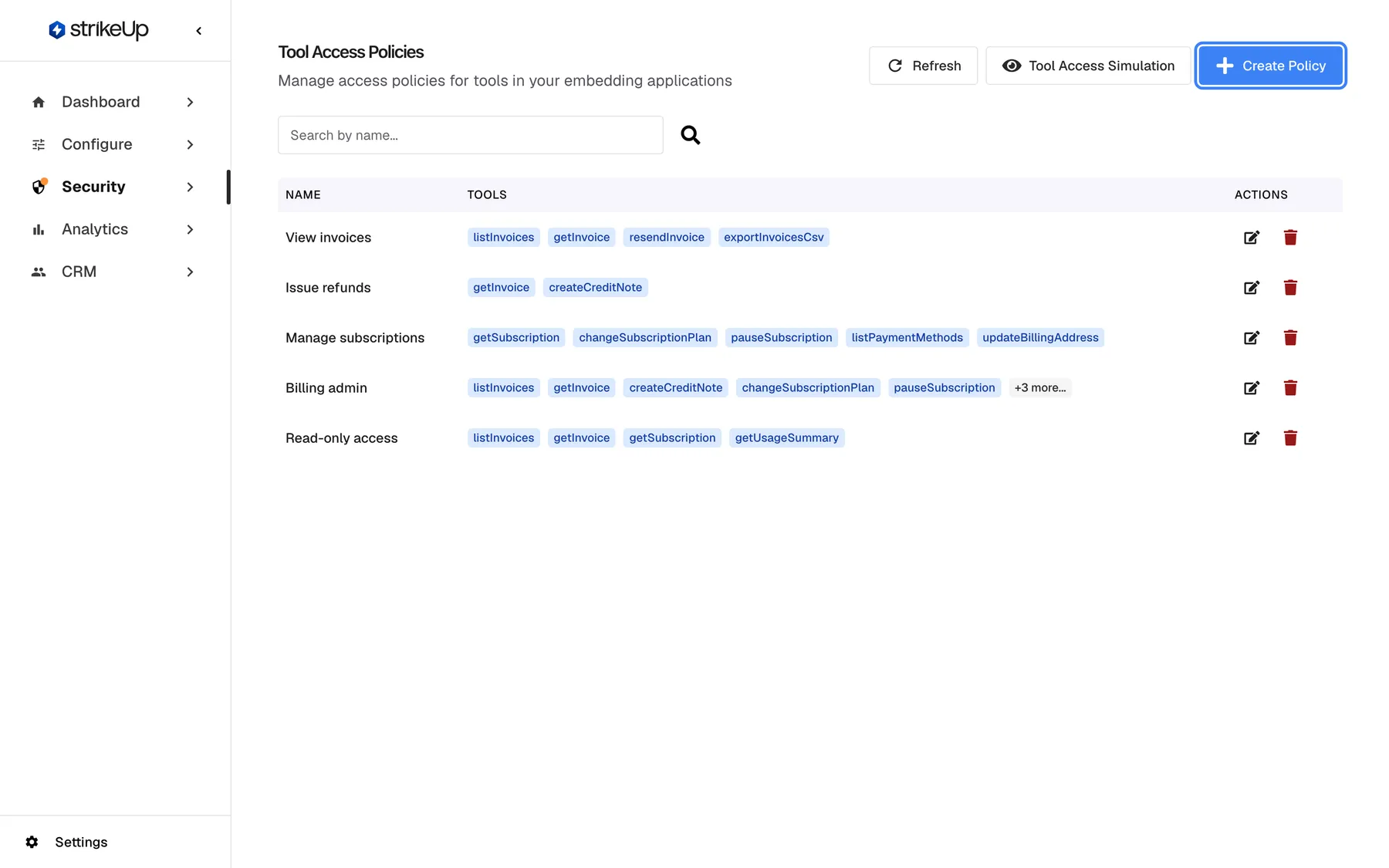
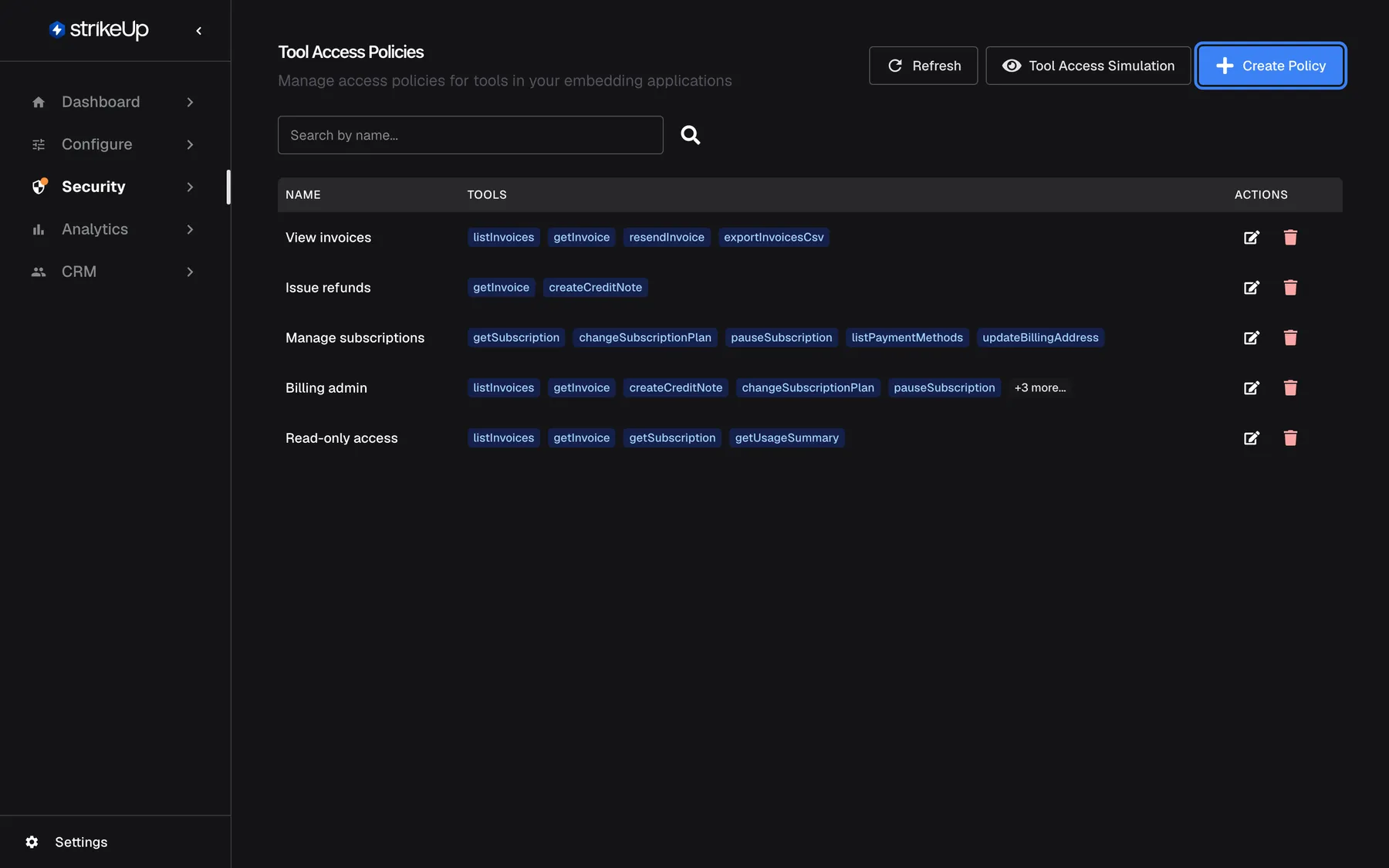
Optionally, use Create Policy to group tools under a named key you can later simulate. What this screenshot shows
- Screen
- Tool Access Policies (/admin/feature-flags)
- Highlighted
- button “Create Policy”, top-right, enabled. opens the new policy form
- Also visible
- Policies: View invoices, Issue refunds, Manage subscriptions, Billing admin, Read-only access; Refresh and Tool Access Simulation buttons
- Purpose
- quick-start step 8, tool policies
-
Embed the widget in your product. Open ConfigureEmbed and select your widget. Copy the snippet from the Embed screen with “Copy embed code”: it is a script tag that loads the widget followed by a call that starts it with your widget’s token. Replace the placeholder values, such as
your_customer_idandyour_customer_display_name, with the details of the user signed in to your product. Paste the snippet into your page’s HTML just before the closing</body>tag. See Embed, Install the widget in your product and Identify users and pass context.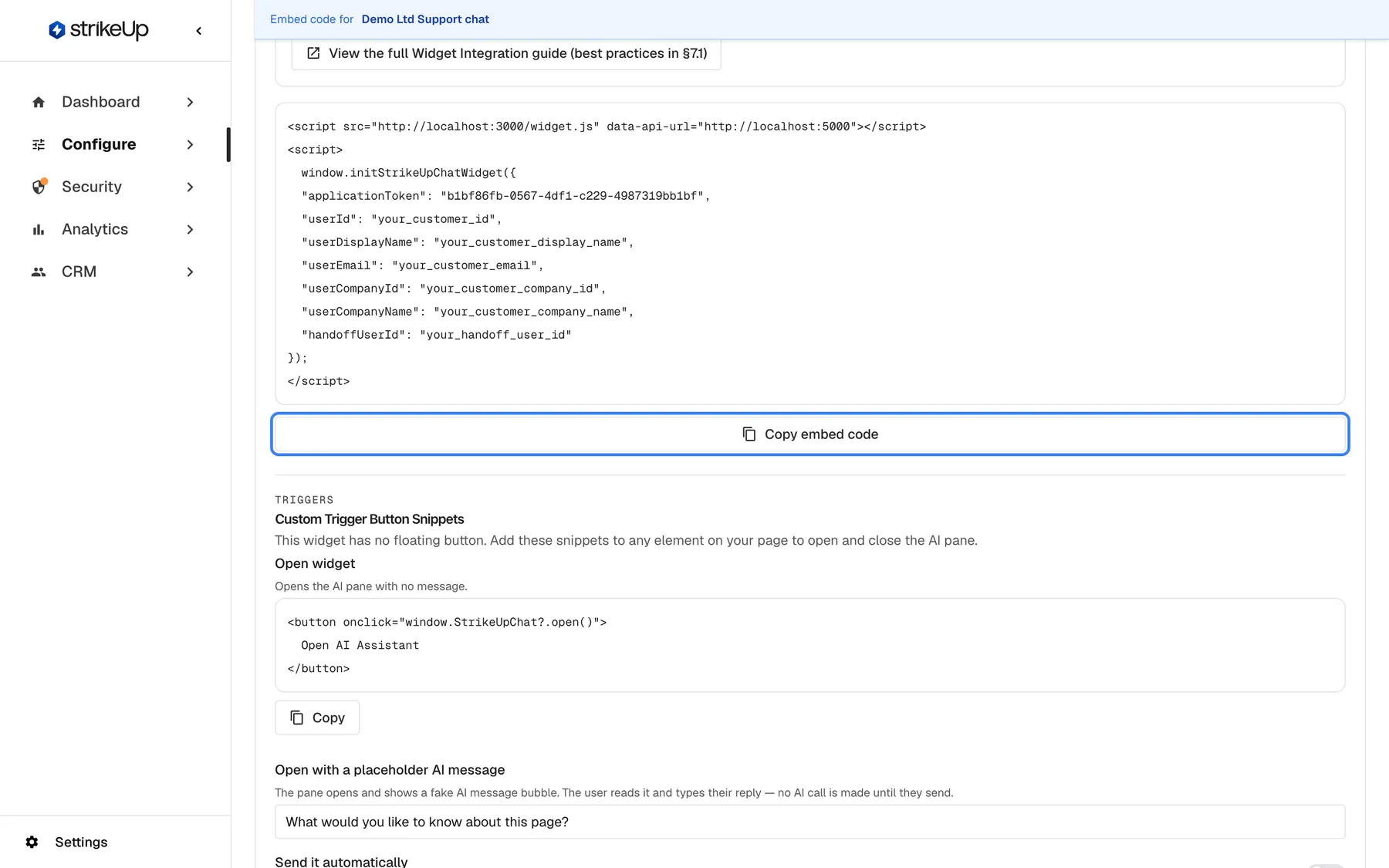
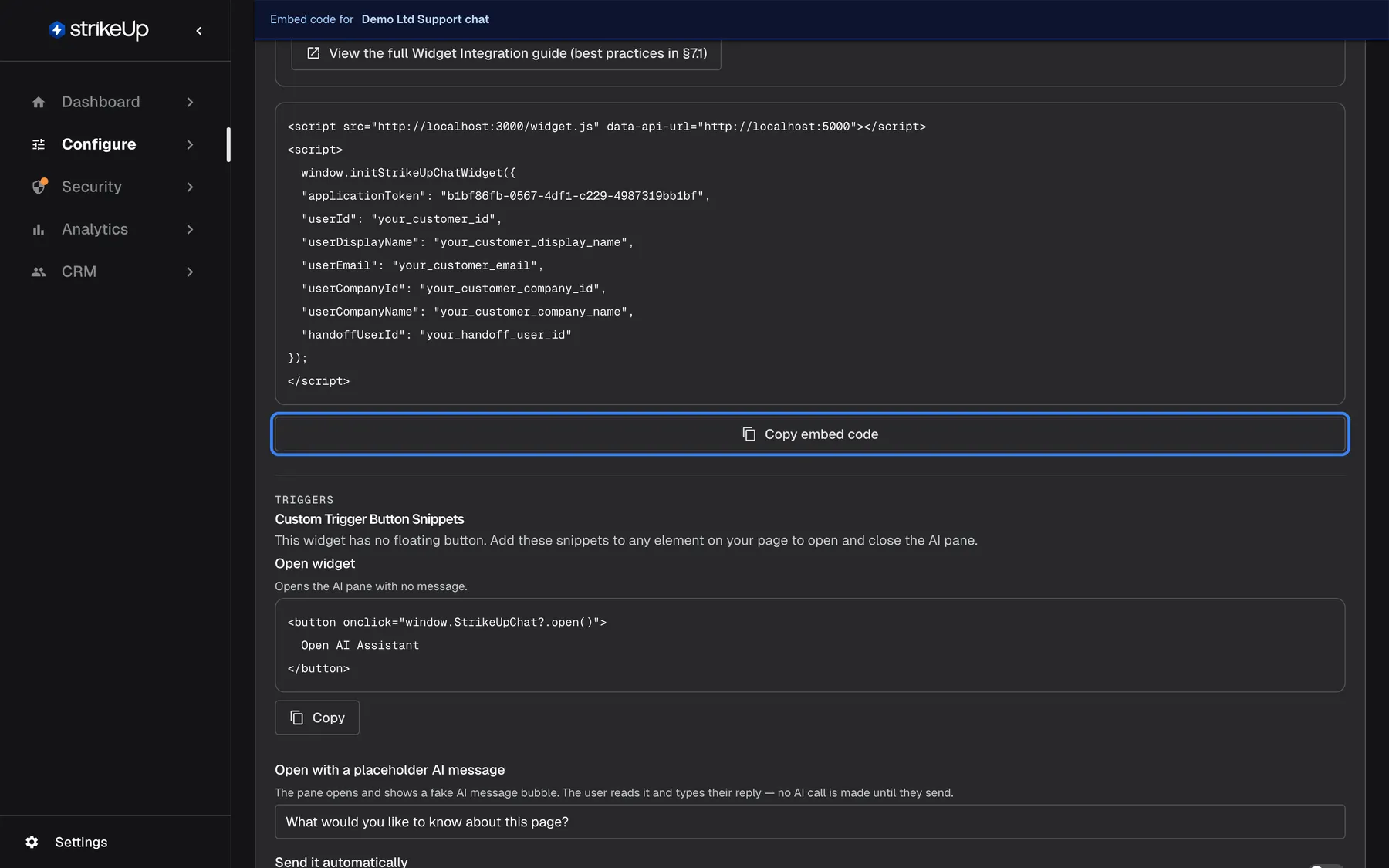
Copy the embed code, replace the placeholders with your signed-in user's details and paste it before the closing body tag. What this screenshot shows
- Screen
- Embed (/admin/configure/embed)
- Highlighted
- button “Copy embed code”, snippet-bottom, enabled. copies the embed snippet to the clipboard
- Also visible
- Script tag loading widget.js; initStrikeUpChatWidget call with applicationToken and user placeholders
- Purpose
- quick-start step 9, embed the widget
-
Try it as a customer. Open the page where you pasted the snippet, open the chat and ask a question one of your switched-on tools can answer, such as “Show me my last invoice”. If the widget asks for a PIN or password, set one: that is Require customer authentication at work. The assistant should answer with data from your API.
What happens next
Section titled “What happens next”Your assistant now runs in your product. Every visitor message passes the guardrails, the assistant plans its reply, calls the tools you switched on through your API with the authorization you set, masks sensitive fields in the responses, and replies in the widget. You do not need to change the snippet when you later change the persona, the look, the tools or the security settings in StrikeUp.
To check it worked and to follow how it is used:
| Where | What you see |
|---|---|
| DashboardOverview | Chat-window opens, successful tool calls and feedback for the period you choose. See Overview. |
| AnalyticsTool runs | Each call the assistant made to your API, with the masked response. See Tool runs. |
| AnalyticsViolations | Messages the guardrails blocked. See Violations. |
| DashboardAI Spend | The estimated cost of the calls to AI models. See AI Spend. |
Before you announce the assistant to all your customers, work through Secure your assistant before go-live.
Options
Section titled “Options”| Choice | When to pick it | Effect |
|---|---|---|
| Finish the wizard with read-only tools only | You want to see the assistant at work before it can change data | The assistant can look things up but cannot create, change or delete anything |
| Add more APIs as toolkits | Your product’s data lives behind several APIs | One widget can use up to 5 toolkits; tool names must be unique across them |
| Leave Require customer authentication on | Visitors see their own data or can trigger actions | Each visitor sets a PIN or password the first time |
| Turn Require customer authentication off | A public assistant that only answers general questions | Visitors chat without any sign-in step |
| A pane your own button opens instead of the floating button | The assistant belongs to a specific place in your product | You add the open and close snippets from the Embed screen to your own buttons |
| Invite your team | Others should watch conversations or help configure | Invite them under SettingsUsers after finishing the wizard, because accepting an invitation ends the wizard for everyone |
If something goes wrong
Section titled “If something goes wrong”| Symptom | What to check | Fix |
|---|---|---|
| The specification is refused | The address is reachable from the internet and points to a JSON or YAML specification, not a page behind a login | Paste the address of the .json or .yaml file; see Toolkits |
| The assistant says it cannot do something your API can | The tool for that endpoint is switched off | Switch it on under ConfigureToolkits |
| Tool calls fail | The toolkit’s authorization and your API credentials | Correct the authorization on the Toolkits page; look at the failed call under AnalyticsTool runs |
| Ordinary questions are blocked | The company policy is too narrow | Widen it under SecurityGuardrails and test the question again |
| The widget does not appear on your page | The snippet is complete, placed before </body>, and the URL visibility rules allow this page | Copy the snippet again from the Embed screen; check the rules under ConfigureUser Interface |
| Saving anything fails with “This action requires the Admin role.” | Your role | Ask an Admin to change your role under SettingsUsers |
| Knowledge Base and Integrations are missing from the menu after setup | Your session started before the setup finished | Sign out and sign in again |