

Feedback
The Feedback page lists every rating your visitors gave the assistant’s answers in the chat widget: a thumbs-up, or a thumbs-down with a reason and an optional comment. Select a rating to read the rated answer and the AI action that produced it, so you can see why a reply went wrong. Support leads and anyone who tunes the assistant use it to find weak answers. It lives at AnalyticsFeedback, and everyone in your workspace can open it.
What you can do here
Section titled “What you can do here”- Turn on ratings in your widget. Visitors only see the thumbs buttons when feedback is switched on for that widget, and it is off by default for every widget. Turn on feedback in your widget.
- Find the ratings that matter. Narrow the list by period (the last 7 or 14 days), by vote, by triage status and by reason. Filter the list.
- See the answer behind a rating. The detail panel shows the visitor’s reason and comment next to the AI action that wrote the answer: the model, the messages, the context and the tools used. Read a rating and the answer behind it · Log Details.
- Keep track of what your team did about it. Each rating carries a triage status (New, Reviewed, Actioned or Ignored) and internal notes that visitors never see. Triage feedback.
The screen at a glance
Section titled “The screen at a glance”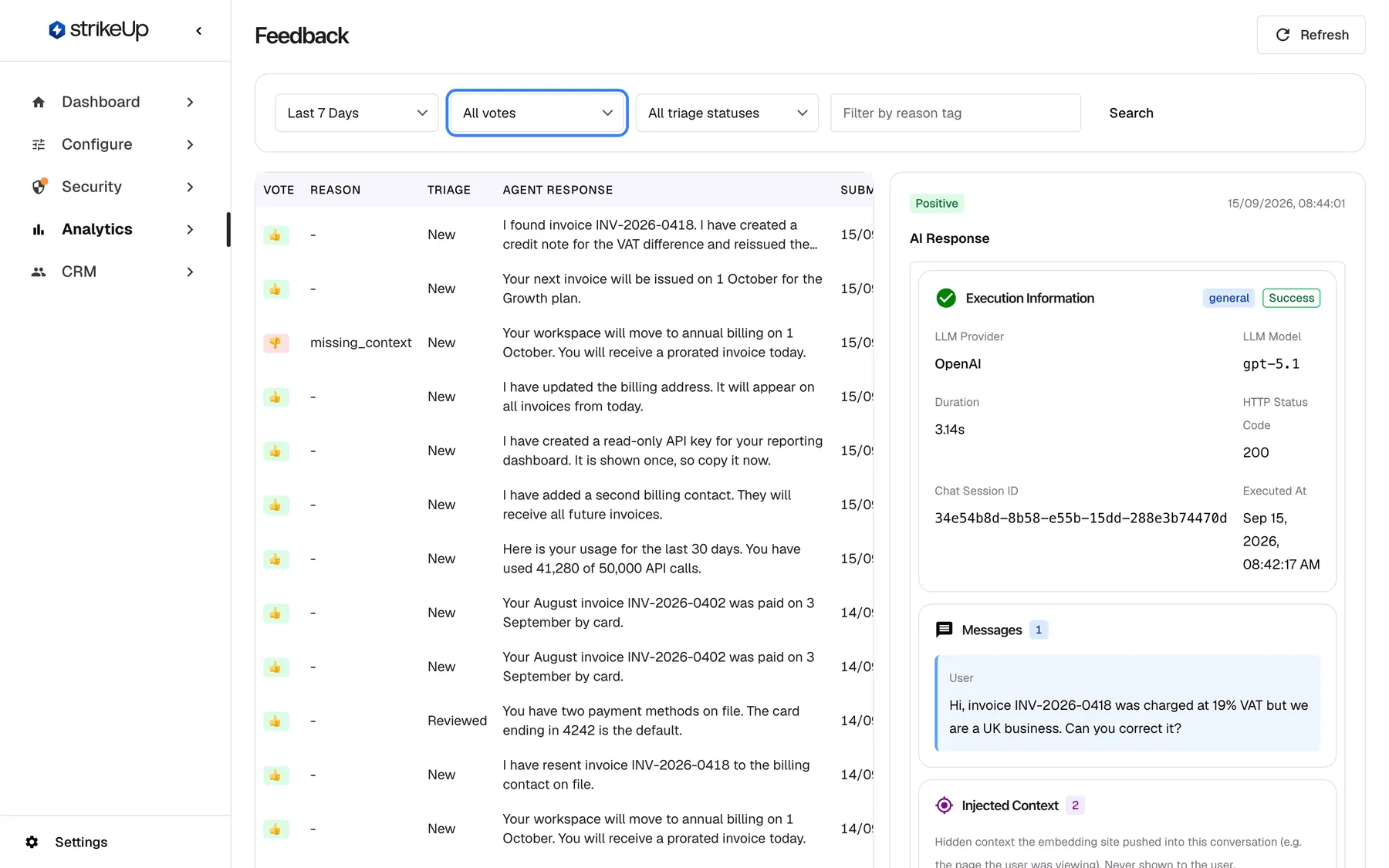
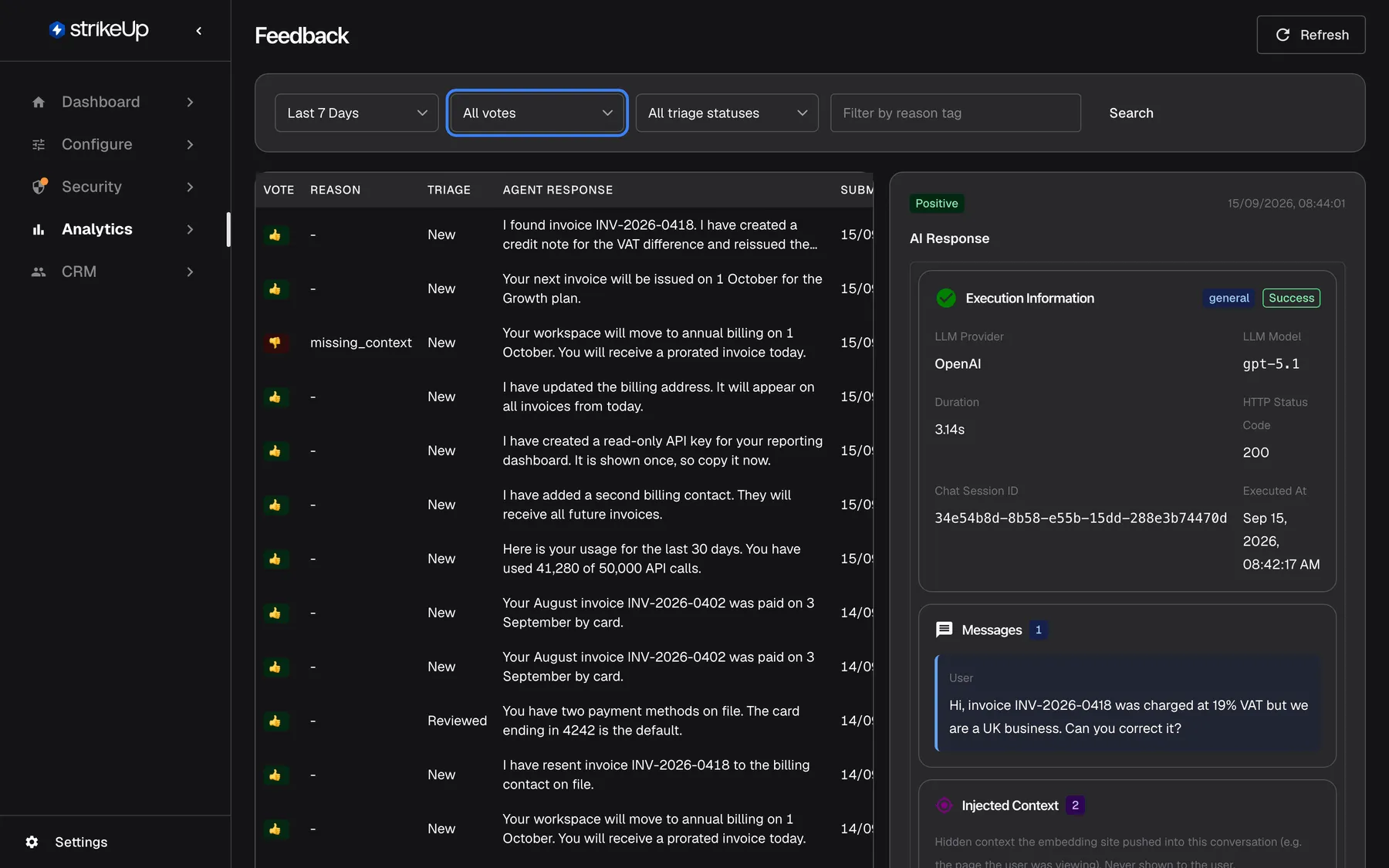
What this screenshot shows
- Screen
- Feedback (/admin/feedback)
- Highlighted
- combobox “All votes”, filter-bar, All votes. filters the list by thumbs up or down
- Also visible
- Filters: Last 7 Days, All votes, All triage statuses, reason tag box, Search; List with vote, reason, triage, agent response; Detail panel: Positive badge, AI Response with execution information
- Purpose
- the feedback list as it opens
| Region | What it shows | What you do there |
|---|---|---|
| Header | The page title, Refresh and, when available, Ask strikeUp | Reload the list, ask the built-in assistant |
| Filter bar | The period, vote and triage drop-downs, the reason box and Search | Narrow the list |
| The list, left | One row per rating, newest first, 20 per page | Select a row to open it |
| Detail panel, right | The vote, the time, the rated answer and its AI action, the visitor’s reason and comment, and the triage fields | Read the rating and record what you did |
| Pagination, bottom | The rows shown, the total and the page number, with previous and next buttons | Move through older ratings |
Turn on feedback in your widget
Section titled “Turn on feedback in your widget”Ratings only reach this page when the widget shows the thumbs buttons. Feedback is switched on per widget and starts switched off.
- Open ConfigureUser Interface and choose the widget at the top of the page.
- Turn on the switch “Enable feedback”, described as “Allow users to rate AI responses with thumbs up/down.” The label is in English in every language.
- Select the save button at the bottom of the page. New answers in that widget now show the rating buttons.
What your visitors see afterwards:
- Below each finished answer, a copy button, a thumbs-up and a thumbs-down. They appear only once the answer is complete and saved, never while it is still being written.
- A thumbs-up is sent at once, with no reason.
- A thumbs-down opens “What was wrong?” with five reasons to choose from and an optional comment box, “Tell us what was wrong…”. The submit button stays disabled until the visitor picks a reason.
- After sending, only the chosen thumb stays visible and the buttons are disabled. A visitor cannot change or withdraw a vote.
| Reason the visitor picks | Shown on this page as |
|---|---|
| “Answer not accurate” | answer_not_accurate |
| “Bad display” | bad_display |
| “Too much text” | too_much_text |
| “Missing context” | missing_context |
| “Other” | other |
The widget shows these reasons in the visitor’s language (English, German or Spanish); this page always shows the internal name in the right-hand column.
Filter the list
Section titled “Filter the list”The filter bar narrows the list to the ratings you want to work on. Every drop-down applies the moment you change it; the reason box applies when you press Enter or select Search.
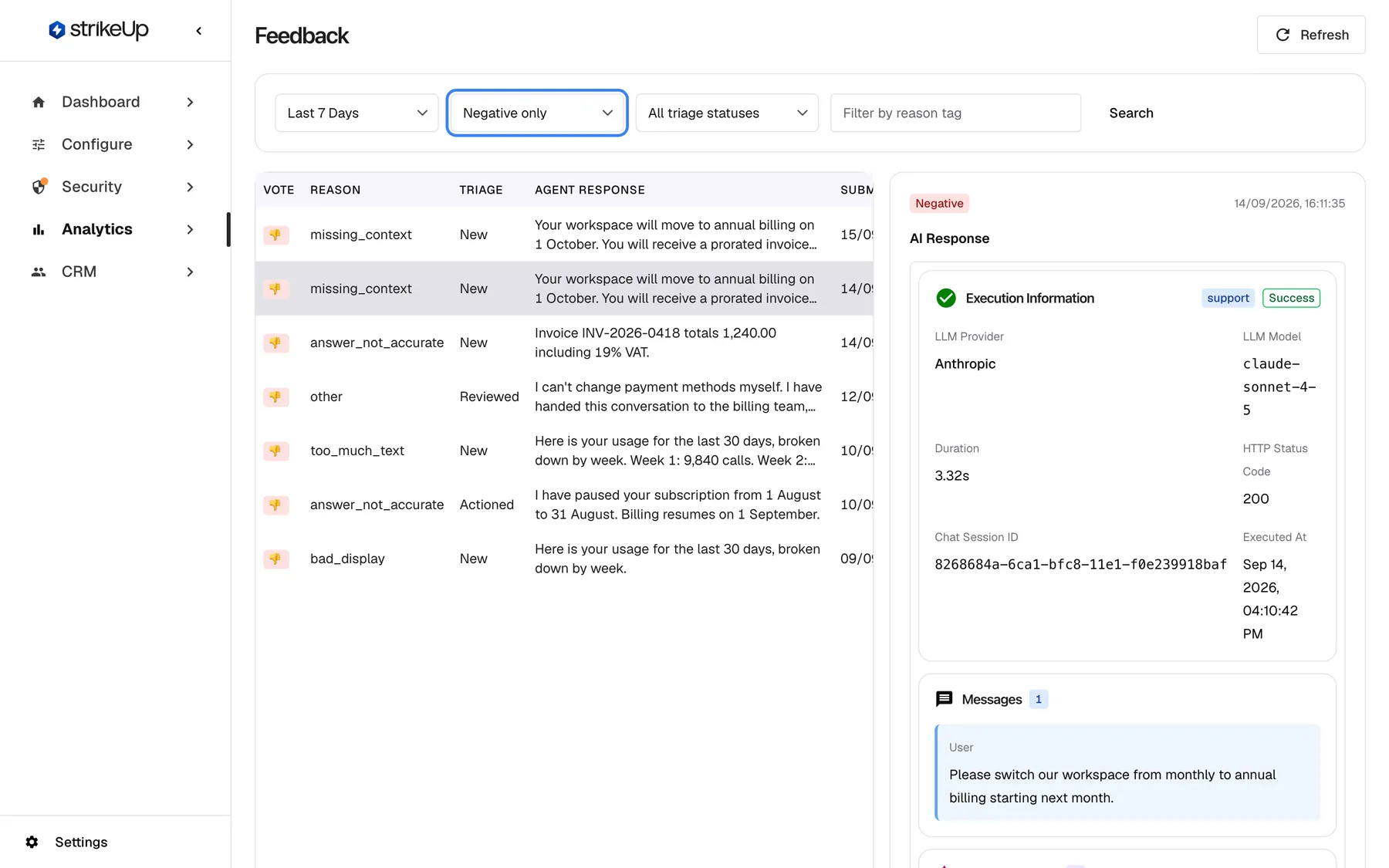
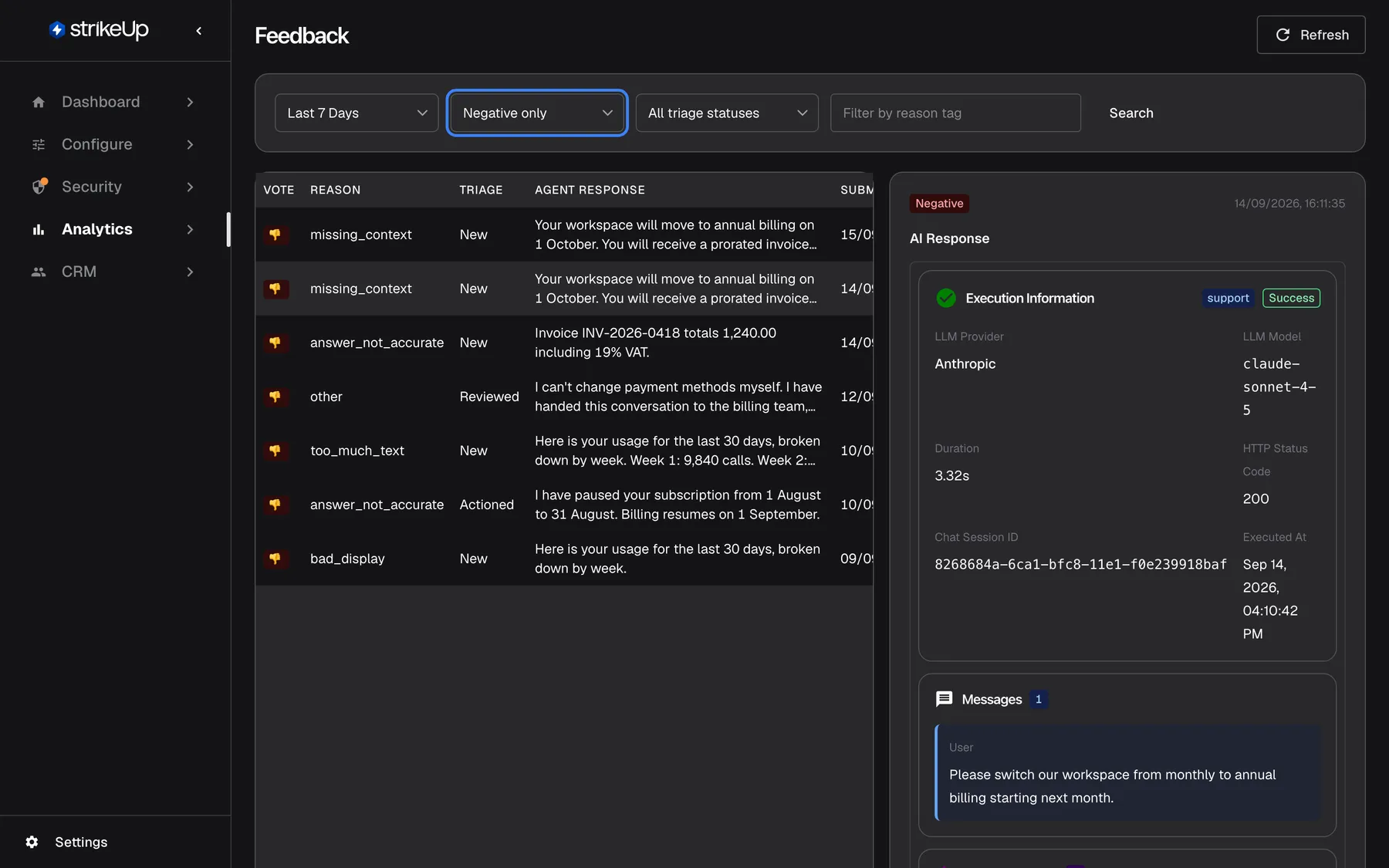
What this screenshot shows
- Screen
- Feedback (/admin/feedback)
- Highlighted
- combobox “Negative only”, filter-bar, Negative only. shows only thumbs-down ratings
- Also visible
- Seven negative rows with reason tags; Selected row: annual billing answer; detail panel with Negative badge and AI Response
- Purpose
- find negative feedback
- Pick the period: Last 7 Days (the default) or Last 14 Days.
- Pick the vote: All votes, Positive only or Negative only.
- Optionally pick a triage status, for example New to see only ratings nobody has looked at.
- Optionally type part of a reason in Filter by reason tag and select Search.
Example: to find this week’s complaints about missing information, choose Last 7 Days, Negative only, and type context in the reason box. The list keeps only thumbs-down ratings tagged missing_context.
- The period counts back from now, to the minute. Last 7 Days means the last 7 × 24 hours, not seven calendar days.
- The reason box matches part of the reason name, in any case.
accuratefindsanswer_not_accurate. It does not search the visitor’s comment. - Any text in the reason box hides every thumbs-up, because thumbs-up ratings have no reason.
- The selected rating stays open when you change a filter, even if it no longer matches. Select a row in the new list to update the panel.
Read a rating and the answer behind it
Section titled “Read a rating and the answer behind it”Select a row to open it in the detail panel on the right. When the page opens, the first row is selected for you.
The panel shows, from top to bottom:
- The vote as a Positive or Negative badge, with the time it was submitted.
- AI Response: the AI action that wrote the rated answer, with the same sections as its own page: provider and model, duration and status, the visitor’s messages, the context the AI received, knowledge base passages, skills, tool results and the answer itself. When StrikeUp cannot find that AI action, the panel shows the full text of the rated answer instead.
- User Feedback: the reason name and the visitor’s comment, when there is one.
- The triage fields, Triage Status and Internal Notes.
Example: a visitor gave a thumbs-down with missing_context and wrote It did not say what happens to the days we already paid for this month. Under AI Response, the knowledge base passage shows that the information about prorating was there, but the answer left it out. The fix belongs in the skill or the knowledge base article, not in your API. Review and improve answer quality walks through this end to end.
- You see the rated answer, not the whole conversation. The panel shows one answer and the AI action behind it. The chat session ID in that AI action identifies the conversation.
- The list shows the first 220 characters of the answer, cut to two lines. The panel shows it in full.
Triage feedback
Section titled “Triage feedback”Triage records what your team did about a rating. It has two fields in the detail panel, and nobody outside your team ever sees them: the visitor gets no notice and cannot read the status or the notes.
| Triage status | Use it when |
|---|---|
| New | Nobody has looked at the rating yet. Every rating starts here. |
| Reviewed | Someone on your team has read it. |
| Actioned | You made a concrete change because of it, such as editing a skill or a knowledge base article. |
| Ignored | You acknowledged it and decided no action is needed. |
- Any status can follow any other. StrikeUp does not enforce an order, so you can move a rating from Ignored back to New.
- Internal Notes is free text up to 2,000 characters, for example the knowledge base article you added and when.
- Changing triage needs the Admin role. Other members can read the fields.
- Filter by triage status to work through a queue: New shows what is still waiting.
To record what you did:
- Select the rating in the list.
- Choose a status in Triage Status.
- Optionally write what you found or changed in Internal Notes.
- Select Save Triage. The panel and the list reload with the new status.
- Saving replaces the notes. To clear them, empty the box and select Save Triage.
Every control, explained
Section titled “Every control, explained”Period
Section titled “Period”The first drop-down in the filter bar. Applies when you change it.
Offers Last 7 Days (the default) and Last 14 Days. Keeps ratings submitted within that many 24-hour periods before now and returns to the first page.
Recent ratings reflect how the assistant answers today, after your latest changes.
The second drop-down in the filter bar. Applies when you change it.
All votes (the default), Positive only or Negative only.
Negative only is the quickest way to the answers visitors disliked.
Triage status filter
Section titled “Triage status filter”The third drop-down in the filter bar. Applies when you change it.
All triage statuses (the default), or one of New, Reviewed, Actioned and Ignored.
Work through untouched ratings, or check which complaints led to a change.
Reason box and Search
Section titled “Reason box and Search”The text box Filter by reason tag and the Search button at the right of the filter bar. Applies on Search or Enter.
Keeps ratings whose reason name contains the text, in any case. An empty box removes the filter. The visitor’s comment is not searched.
Group complaints of one kind, such as too_much_text, to see whether a change to answer length is needed.
List columns
Section titled “List columns”| Column | What it shows | Why |
|---|---|---|
| Vote | A green thumbs-up or red thumbs-down badge | See the verdict at a glance |
| Reason | The reason name, such as answer_not_accurate, or - for none | See what kind of problem it was |
| Triage | The triage status, shown in English in every language (New, Reviewed, Actioned, Ignored) | See what is still waiting |
| Agent Response | The first 220 characters of the rated answer, on two lines | Recognise the answer |
| Submitted | When the visitor rated it, in your browser’s date format | Order and date the rating |
Detail panel
Section titled “Detail panel”| Part | What it shows | Why |
|---|---|---|
| Vote badge and time | Positive or Negative, and when it was submitted | Confirms which rating is open |
| AI Response | The AI action that wrote the answer, or the full answer text when no AI action is found | Shows what the AI was given and what it did |
| User Feedback | The reason name and the visitor’s comment | The visitor’s own words about the problem |
| Triage Status | A drop-down with New, Reviewed, Actioned and Ignored | Records where the rating stands |
| Internal Notes | A four-line text box for your team | Records what you found and changed |
| Save Triage | A button below the notes that saves the status and the notes together | Keeps your change; nothing is saved until you select it |
When no row is selected, the panel reads Select a feedback row to view details.
Pagination
Section titled “Pagination”Below the list, shown when there is at least one rating.
Shows which rows are on screen out of the total, with previous and next buttons and the page number. Each page holds 20 ratings.
Reach older ratings within the chosen period.
Refresh
Section titled “Refresh”The Refresh button at the top right.
Reloads the list with the current filters. The page never updates on its own, so new ratings appear only after a refresh or a filter change.
See ratings that arrived while the page was open.
Ask strikeUp
Section titled “Ask strikeUp”At the top right of the page, when the StrikeUp assistant built into the admin app is set to open from buttons on the page. Labelled Ask strikeUp.
Opens the built-in assistant with an offer to summarise your feedback or find where reactions turned negative.
A quick way to ask about the ratings without leaving the page.
Who sees what
Section titled “Who sees what”| Part of the screen | Who sees it |
|---|---|
| The list, the filters and the detail panel, including the AI action | Every signed-in user of your workspace |
| Changing Triage Status and Internal Notes | Users with the Admin role |
| Ratings, triage statuses and notes | Never your visitors; they only see their own thumb in the widget |
What you need to know
Section titled “What you need to know”| Topic | Fact |
|---|---|
| Off by default | Feedback is switched off for every new widget. Turn it on per widget under ConfigureUser Interface. |
| One vote per answer | Each visitor can rate each answer once. A second attempt is ignored and the first vote stands. |
| Reasons only on thumbs-down | Reasons and comments are kept only for thumbs-down ratings. |
| Comment length | A visitor’s comment can be up to 2,000 characters. |
| Period | The page reaches back at most 14 days. Older ratings are kept but cannot be listed here. |
| Sorting | Newest first, 20 per page. |
| Kept indefinitely | StrikeUp does not delete ratings, notes or the AI records they point to. The only automatic deletion in Analytics is the event history of finished agent jobs: their events are deleted once they are more than 7 days old. |
| What is stored | The vote, the reason, the visitor’s comment as typed, the visitor’s identity in the widget, the conversation and the rated answer. Comments are stored as the visitor wrote them, without masking. |
| English values | Reason names and the triage column show internal English values in every language. |
| Dashboard | The Feedback Trend and Negative Feedback by Reason charts on DashboardPerformance count the same ratings. |
| No effect on the AI | A rating does not change how the assistant answers. It is a signal for your team. |
| Sample data | If StrikeUp has added sample records to your workspace for a demonstration, they appear in this list. |
Frequently asked questions
Section titled “Frequently asked questions”Collecting feedback
Section titled “Collecting feedback”Why is the Feedback page empty?
Section titled “Why is the Feedback page empty?”Feedback is off by default for every widget. Turn on “Enable feedback” under ConfigureUser Interface for each widget and save. The page also only shows the last 7 or 14 days, so a widget with no recent ratings shows No feedback records found.
Why don’t my visitors see the thumbs buttons?
Section titled “Why don’t my visitors see the thumbs buttons?”The buttons appear only when “Enable feedback” is on for that widget under ConfigureUser Interface, and only below a finished, saved answer from the assistant. They never appear under the visitor’s own messages or while the answer is still being written.
Can a visitor change or withdraw their vote?
Section titled “Can a visitor change or withdraw their vote?”No. Each visitor can rate each answer once. After sending, the widget keeps only the chosen thumb and disables the buttons, and StrikeUp ignores a second rating of the same answer by the same visitor.
Why do thumbs-up ratings have no reason?
Section titled “Why do thumbs-up ratings have no reason?”The widget asks for a reason only after a thumbs-down, and StrikeUp keeps reasons and comments only for thumbs-down ratings. A thumbs-up is sent the moment the visitor selects it, so the Reason column shows -.
Where do the reason names come from?
Section titled “Where do the reason names come from?”They are the five reasons the widget offers after a thumbs-down: answer_not_accurate (“Answer not accurate”), bad_display (“Bad display”), too_much_text (“Too much text”), missing_context (“Missing context”) and other (“Other”). You cannot add your own reasons.
Working with the list
Section titled “Working with the list”Can I see feedback older than 14 days?
Section titled “Can I see feedback older than 14 days?”Not on this page. The period drop-down on AnalyticsFeedback offers the last 7 or 14 days only. Older ratings are kept, and the Feedback Trend chart on DashboardPerformance counts them for any range you pick.
Does the reason filter match part of a word?
Section titled “Does the reason filter match part of a word?”Yes. The Filter by reason tag box keeps every rating whose reason name contains your text, in any case, so accurate finds answer_not_accurate. It only searches reason names, not the comments visitors wrote.
Why do I see the answer text instead of the AI action?
Section titled “Why do I see the answer text instead of the AI action?”The detail panel shows the AI action that wrote the answer when StrikeUp can match it to the rating. When no matching AI action is found, for example for a reply whose AI record was erased, the panel shows the full text of the rated answer instead.
Can I see the whole conversation?
Section titled “Can I see the whole conversation?”The detail panel on AnalyticsFeedback shows the rated answer and the AI action behind it, including the visitor’s message. To read the whole conversation, open the customer’s chat under CRMCustomers.
Can I export feedback?
Section titled “Can I export feedback?”No. AnalyticsFeedback has no export button or download. You can read the daily counts and the reasons in the charts on DashboardPerformance.
Triage
Section titled “Triage”What do the triage statuses mean?
Section titled “What do the triage statuses mean?”New means nobody has looked at the rating, Reviewed that someone has read it, Actioned that you made a concrete change because of it, and Ignored that you acknowledged it and need no action. Every rating starts as New.
Who can change a triage status?
Section titled “Who can change a triage status?”Every signed-in user can read the triage fields on AnalyticsFeedback, but only users with the Admin role can change Triage Status and Internal Notes. An Admin can change another member’s role under SettingsUsers.
Do visitors see our internal notes?
Section titled “Do visitors see our internal notes?”No. Internal Notes and Triage Status are visible only to your team in the admin app. The widget shows a visitor nothing but the thumb they chose.
Data and privacy
Section titled “Data and privacy”Does a thumbs-down change how the assistant answers?
Section titled “Does a thumbs-down change how the assistant answers?”No. A rating does not feed back into the AI. It is a signal for your team, counted on DashboardPerformance and listed on AnalyticsFeedback. To improve answers, change the skill, the knowledge base or the toolkit that caused the problem.
How long is feedback kept?
Section titled “How long is feedback kept?”StrikeUp keeps every rating, its comment and its triage notes with no automatic deletion. The page itself only lists the last 7 or 14 days. The only data deleted automatically in Analytics is the event history of finished agent jobs: their events are deleted once they are more than 7 days old.
Troubleshooting
Section titled “Troubleshooting”| Symptom | What to check |
|---|---|
| The list is empty | Is “Enable feedback” on for your widgets under ConfigureUser Interface? Then widen the period to Last 14 Days and clear the vote, triage and reason filters. |
| Visitors say the thumbs buttons are missing | Check the widget’s “Enable feedback” switch and that it was saved. The buttons appear only under a finished answer from the assistant. |
| A visitor sees “Could not submit feedback. Please try again.” | The widget lost its connection, or the comment was over the 2,000-character limit. Ask the visitor to reload the chat and try again with a shorter comment. |
| Failed to load feedback records appears | Select Refresh. If it happens again, sign out and in again; your session may have expired. |
| The detail panel shows a rating that no longer matches the filters | The selection stays when filters change. Select a row in the current list. |
| The triage column shows English words in German | The column shows the internal status names in every language. The drop-down in the detail panel shows them in your language. |
| A change fails with Request failed and “This action requires the Admin role.” | Changing Triage Status and Internal Notes needs the Admin role. Ask an Admin to make the change, or to give you the Admin role under Settings › Users. |
| After Save Triage, the rating disappears from the list | The list is filtered by a triage status, and the new status no longer matches. The rating stays open in the detail panel. Set the triage filter to All triage statuses to see it in the list again. |
| Failed to update triage status appears | Select Save Triage again. If it fails again, select Refresh, or sign out and in again; your session may have expired. |