

Resources
The Help & FAQ page is the help built into the StrikeUp admin app: a step-by-step guide per area, a list of frequently asked questions, a troubleshooting table, the technical guides for your developers and a list of recent changes. Open it from SettingsResources. Everyone who can sign in can use it, and its texts are in English whatever your browser’s language.
What you can do here
Section titled “What you can do here”- Follow a short guide for an area of StrikeUp. The Guide tab starts with a seven-step Quick Start and then has one collapsible topic per area. Read a guide topic.
- Look up a question. The FAQ tab lists the questions of every topic, each labelled with its topic, and one search box filters both tabs. Search the help.
- Check a symptom against known causes. The Troubleshooting tab is a table of symptom, likely cause and what to do. Every control, explained.
- See what changed recently. What's New lists dated changes, newest first. Every control, explained.
- Hand technical guides to your developers. The Technical docs tab has integration guides you can read or download. Technical docs.
The screen at a glance
Section titled “The screen at a glance”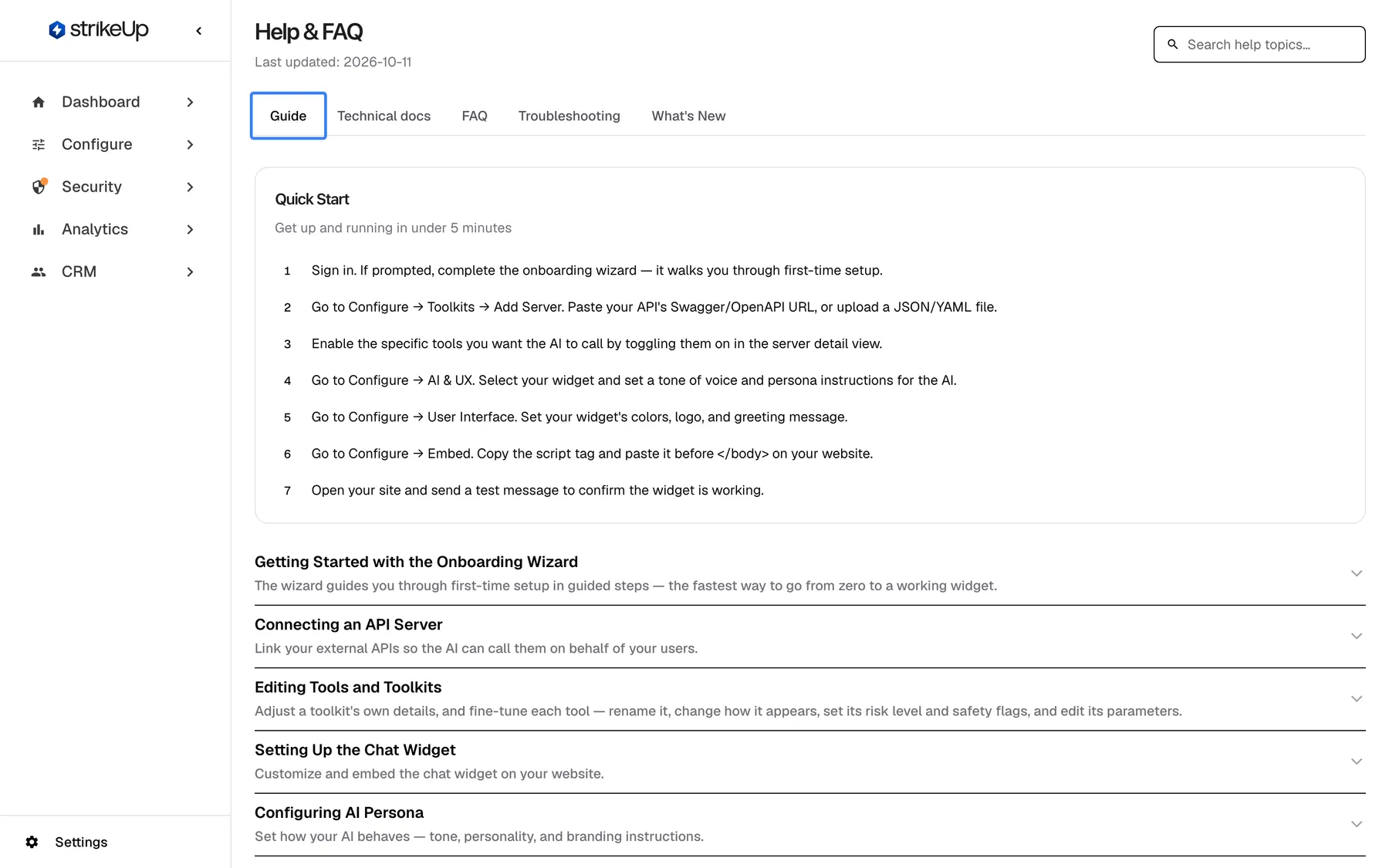
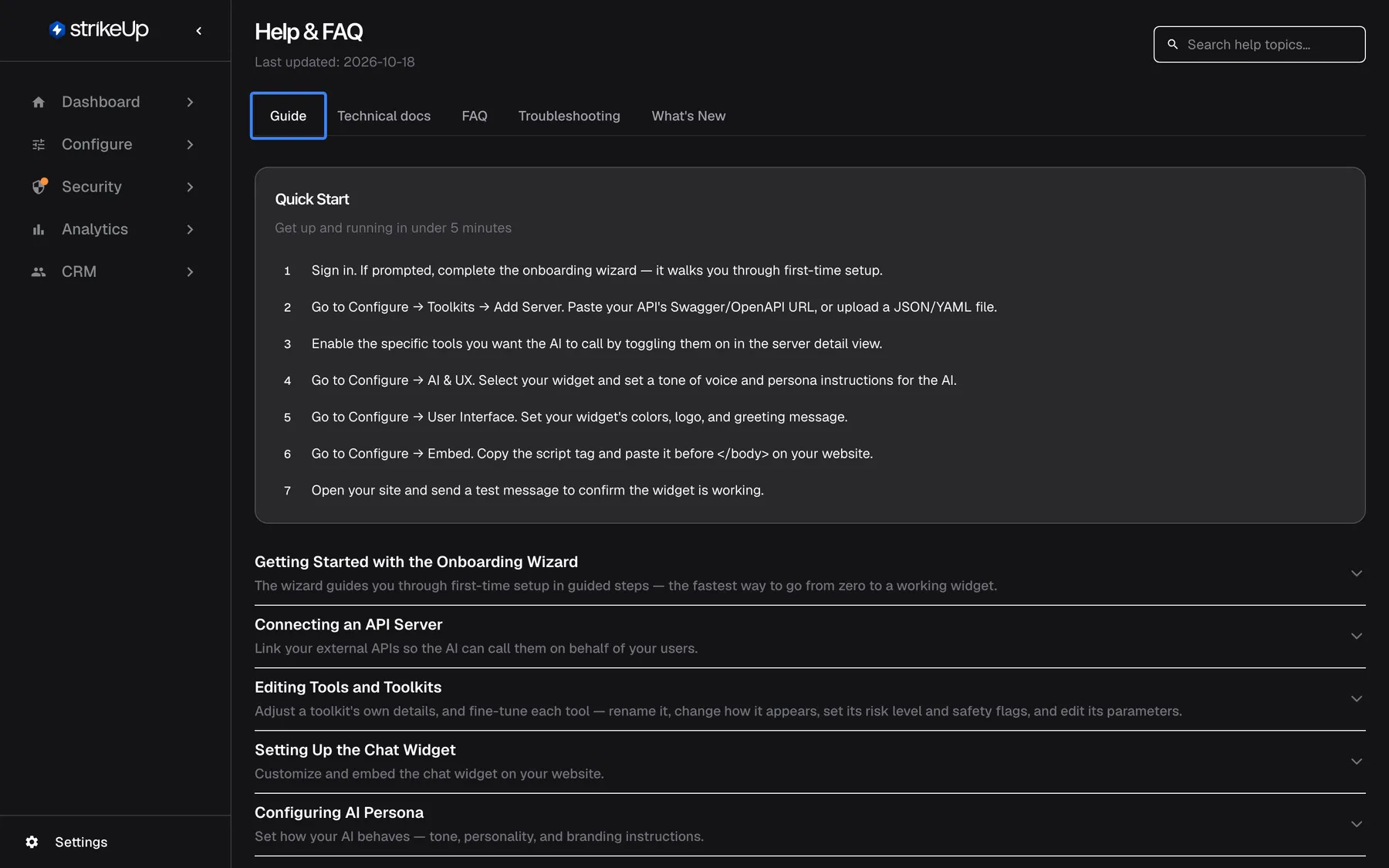
What this screenshot shows
- Screen
- Help & FAQ (/admin/help)
- Highlighted
- tab “Guide”, tab-strip, selected. shows the Quick Start and the topic list
- Also visible
- Last updated 2026-10-06, search box; Quick Start with 7 steps; Topic accordion starting with the onboarding wizard
- Purpose
- the in-app help as it opens
| Region | What it shows | What you do there |
|---|---|---|
| Header, top left | The heading Help & FAQ and Last updated with the date the help texts were last revised | Check how current the help is |
| Header, top right | Ask strikeUp when available, and the search box Search help topics… | Ask the built-in assistant, search |
| Tabs | Guide, Technical docs, FAQ, Troubleshooting, What's New | Switch between kinds of help |
| Tab content | On Guide: Quick Start (Get up and running in under 5 minutes), then the topics | Read |
The page opens on Guide. The in-app help is a separate, shorter text maintained inside the app; this site is StrikeUp’s full documentation.
Read a guide topic
Section titled “Read a guide topic”-
Open SettingsResources. The Guide tab is selected.
-
Select a topic’s title, for example “AI Memory”. It opens to show its numbered steps; some steps have a line that starts with “Tip:”.
-
Select the title again to close it. You can keep several topics open at once.
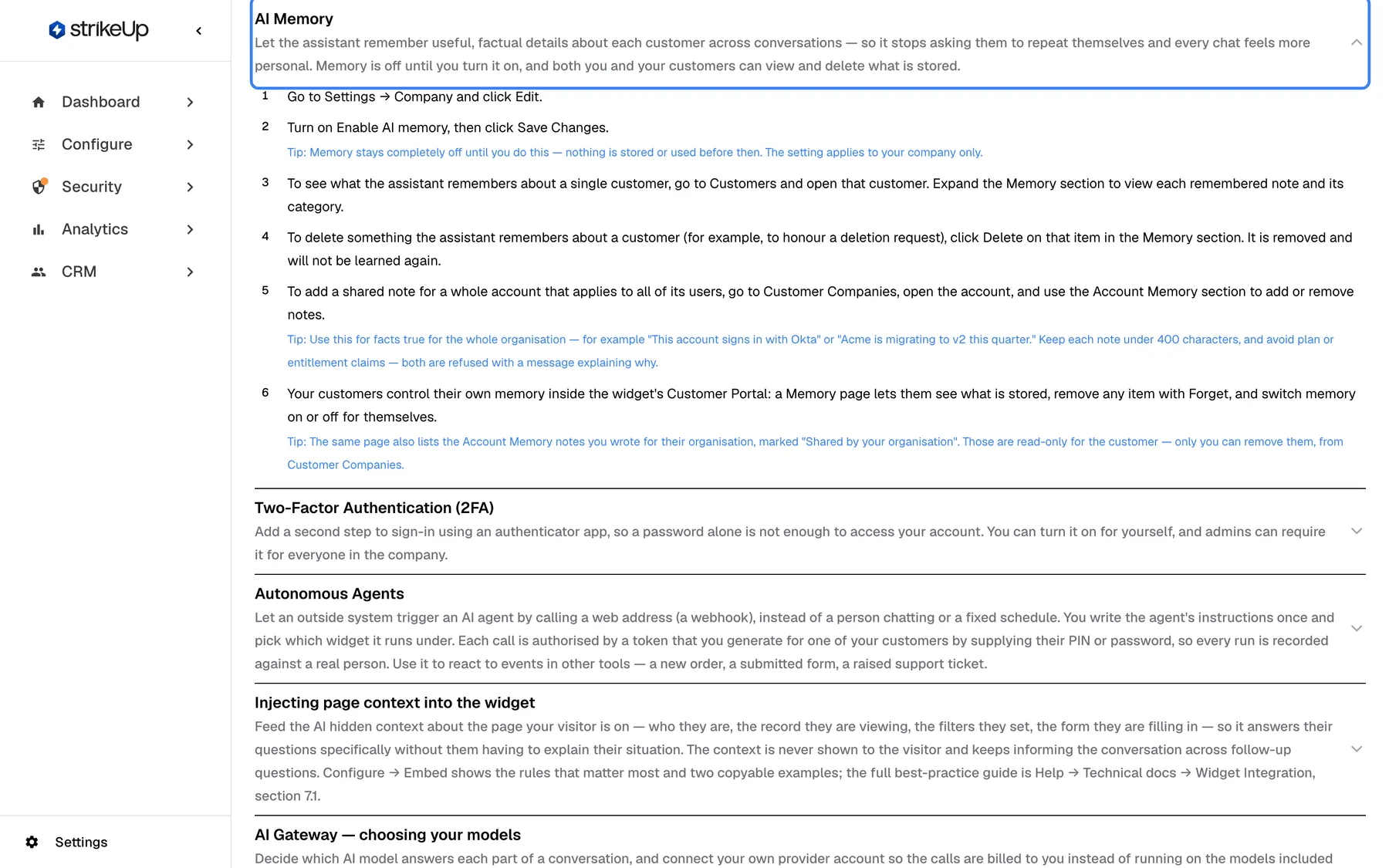
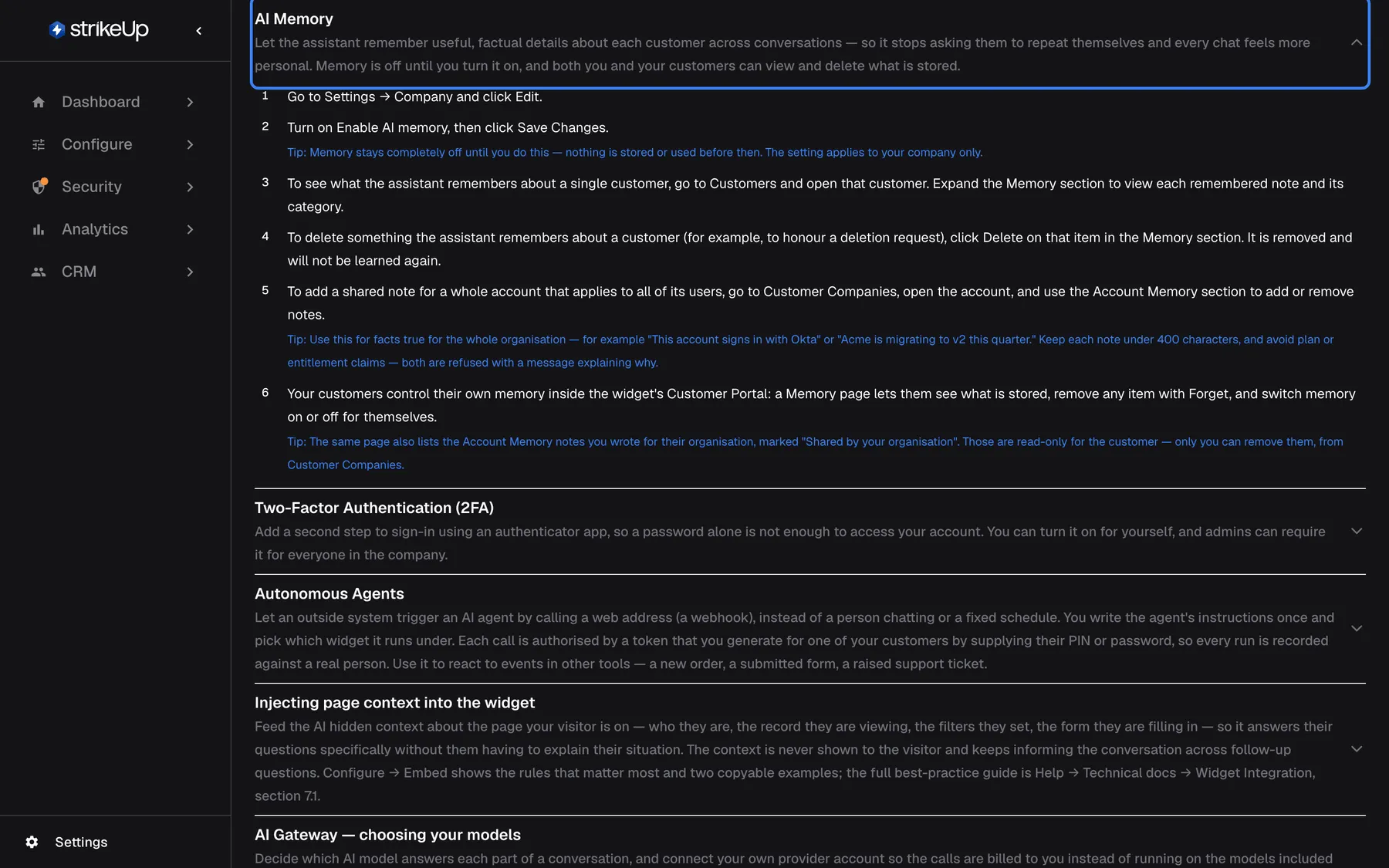
What this screenshot shows
- Screen
- Guide (/admin/help)
- Highlighted
- button “”, accordion, expanded. collapses or expands the topic
- Also visible
- Steps and a Tip line inside the topic
- Purpose
- reading one help topic
Example: a new administrator wants to know where AI memory is switched on. They type “memory” into the search box, open the “AI Memory” topic for a quick overview, and use the AI memory guide on this site for the full behaviour.
Search the help
Section titled “Search the help”-
Type a word into Search help topics… at the top right.
-
Read the result on Guide or FAQ.
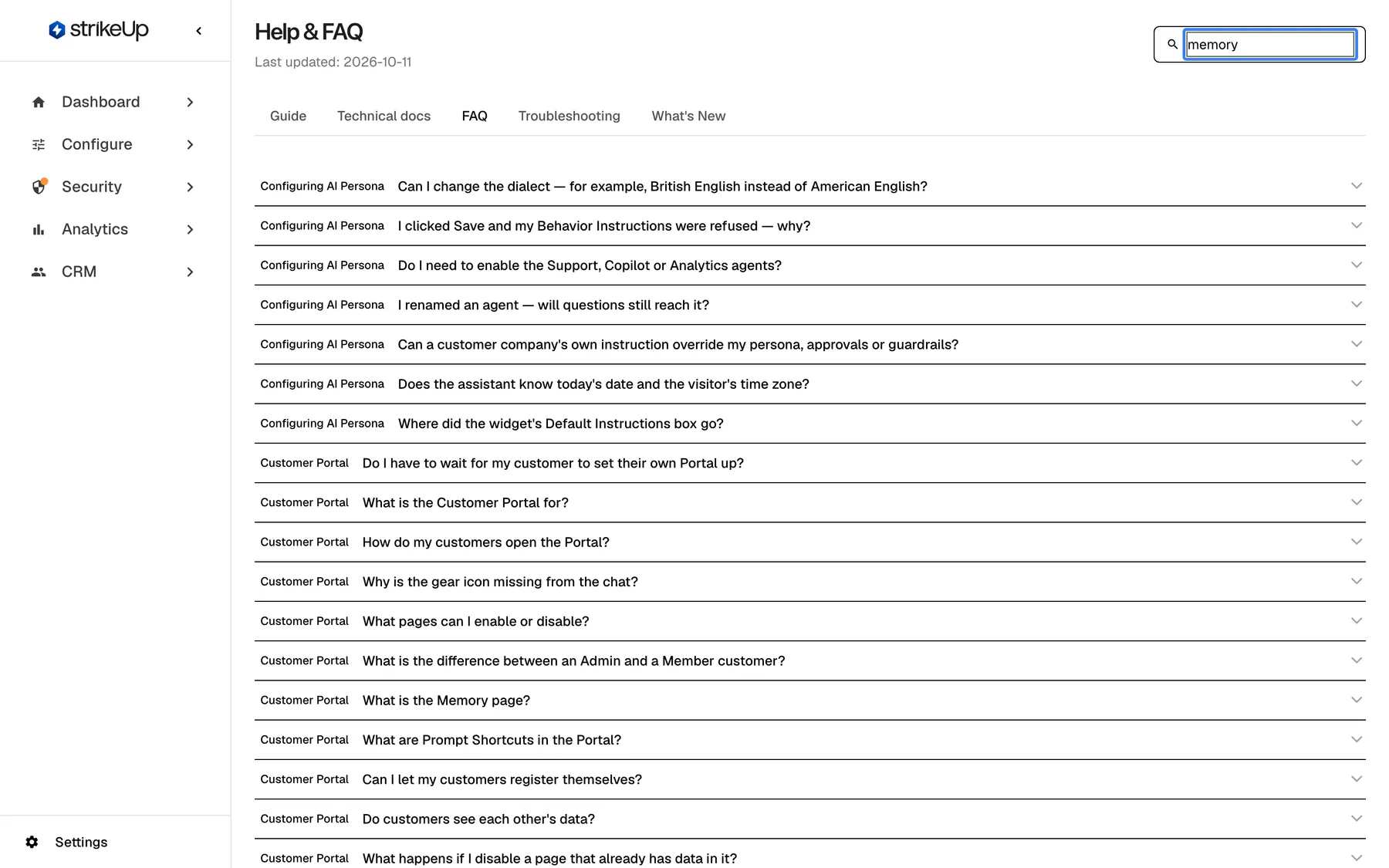
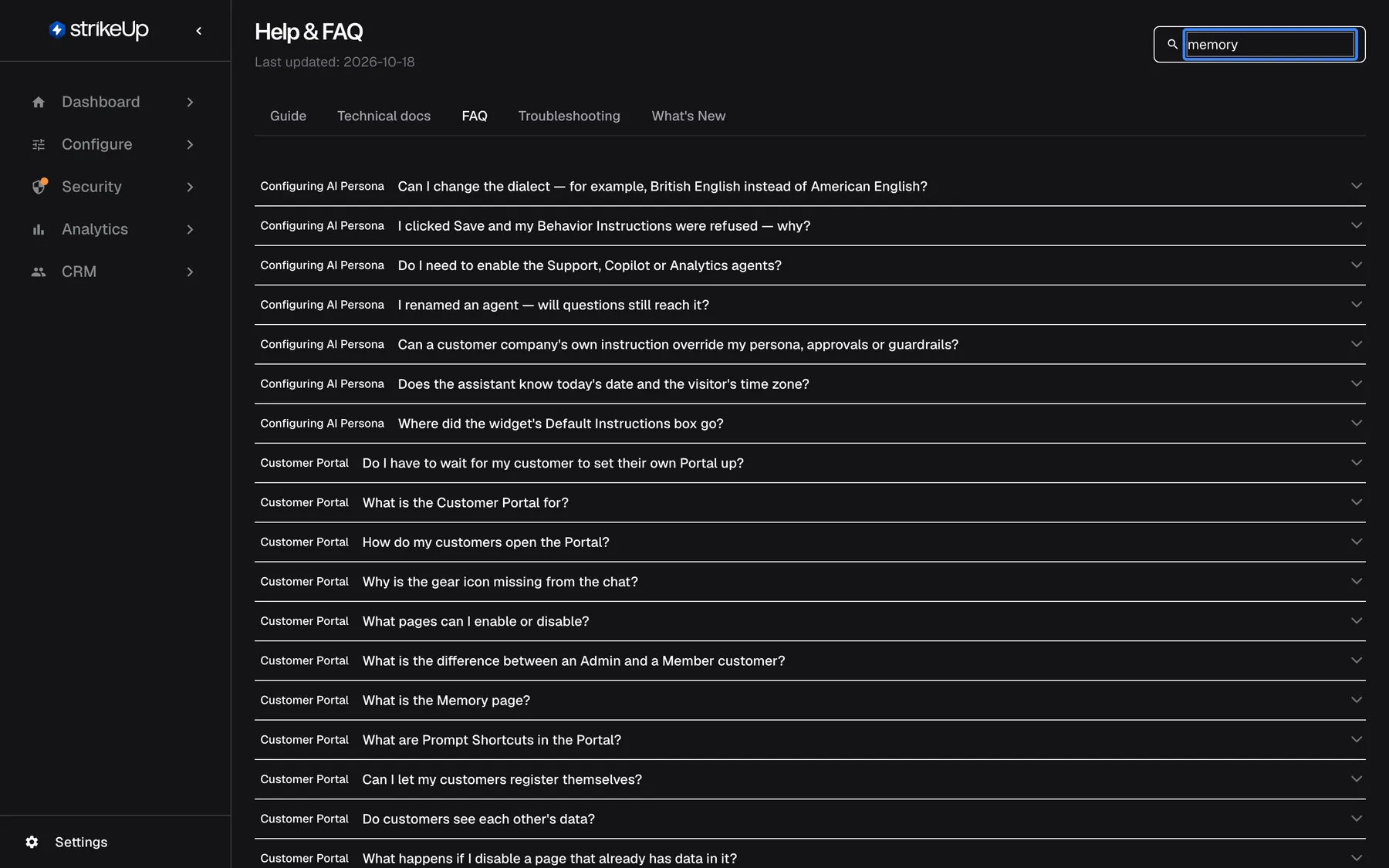
What this screenshot shows
- Screen
- FAQ (/admin/help?tab=faq)
- Highlighted
- searchbox “Search help topics…”, top-bar-right, memory. filters Guide and FAQ entries
- Also visible
- FAQ entries of the topics Configuring AI Persona and Customer Portal
- Purpose
- finding an answer quickly
The search keeps every topic that mentions your word anywhere: in its title, description, steps, questions or answers. Capitals do not matter. On Guide, Quick Start is hidden while you search, and when nothing matches you see No results for with your word. On FAQ, all questions of each matching topic stay, not only the questions that contain the word, so look for the topic label on the left.
The search does not filter Technical docs, Troubleshooting or What's New. Search in English: the help texts are not translated.
Every control, explained
Section titled “Every control, explained”Each control below says where it is, what it does and why it is there, in the order the page shows them.
Ask strikeUp
Section titled “Ask strikeUp”At the top right, before the search box, only when the StrikeUp assistant built into the admin app is set to open from buttons on the page. It is labelled Ask strikeUp.
Opens the built-in assistant with an offer to point you to the right help topic or walk you through a feature step by step. When the built-in assistant opens another way, the button is not shown.
Asking in your own words can be quicker than finding the right topic.
Search help topics
Section titled “Search help topics”The box at the top right with the placeholder Search help topics…. It filters as you type.
Keeps the topics whose title, description, steps or questions contain your text, on Guide and FAQ. Clearing the box shows everything again, including Quick Start.
The guide has a topic for every area of StrikeUp; the search narrows it to the ones about your subject.
| Tab | What it shows | Why |
|---|---|---|
| Guide | Quick Start with seven numbered steps, then one collapsible topic per area with a short description, numbered steps and tips | Learn how an area works |
| Technical docs | Integration guides for developers, each with a date and a summary; see Technical docs | Give your developers the integration details |
| FAQ | The questions of every topic as one collapsible list, each labelled with its topic | Find one answer quickly |
| Troubleshooting | A table with the columns Symptom, Likely Cause and What to Do | Match what you see to a cause |
| What's New | Dated changes to StrikeUp, newest first, each with a name and a one-line description | See what is new since you last looked |
Last updated
Section titled “Last updated”Under the heading Help & FAQ: Last updated followed by a date in the form 2026-10-06.
The date the help texts in the app were last revised. It changes when StrikeUp releases new help texts, not when you open the page.
Tells you how current the in-app help is.
Links to a tab
Section titled “Links to a tab”The address of the page, /admin/help, with ?tab= and one of guide, technical-docs, faq, troubleshooting or whats-new.
Opens the page on that tab, for example /admin/help?tab=faq. Without it, the page opens on Guide.
Lets you send a colleague straight to the FAQ or to the list of recent changes.
What you need to know
Section titled “What you need to know”| Topic | Fact |
|---|---|
| Language | The help texts are in English only, whatever your browser’s language. Tab names and the search box follow your browser’s language. |
| Who can use it | Every signed-in user, whatever their role. |
| Search | Filters topics on Guide and FAQ only. |
| Docs and Resources | Docs in the Settings menu opens StrikeUp’s documentation website in a new tab; Resources opens this page inside the app. |
| Updates | The help texts change with StrikeUp releases; the header date shows the last revision. |
| Export | Only the technical docs can be downloaded. |
Frequently asked questions
Section titled “Frequently asked questions”Using the help
Section titled “Using the help”Is the in-app help available in German?
Section titled “Is the in-app help available in German?”No. The tab names and the search box follow your browser’s language, but the guide topics, questions, troubleshooting rows and change entries on SettingsResources are in English only. Search with English words.
Why does my search show questions that don’t contain my word?
Section titled “Why does my search show questions that don’t contain my word?”The search filters by topic. On the FAQ tab it keeps every question of each topic that mentions your word somewhere, in its steps or another answer. Look at the topic label on the left of each question to see why it appears.
Why doesn’t the search find a troubleshooting row?
Section titled “Why doesn’t the search find a troubleshooting row?”The search box on SettingsResources only filters the Guide and FAQ tabs. The Troubleshooting table and the What's New list always show everything; use your browser’s find-in-page instead.
Where did the Quick Start go?
Section titled “Where did the Quick Start go?”Quick Start is hidden while there is text in the search box. Clear the search box at the top right of SettingsResources and it appears again at the top of the Guide tab.
How do I send a colleague to a particular tab?
Section titled “How do I send a colleague to a particular tab?”Add ?tab= to the page address, for example /admin/help?tab=whats-new or /admin/help?tab=faq, and send them that link. They must be signed in to StrikeUp; the page then opens on that tab.
Content and versions
Section titled “Content and versions”How current is the in-app help?
Section titled “How current is the in-app help?”The date after Last updated under the page heading shows when the help texts were last revised. They change with StrikeUp releases. This documentation site is the full and separately maintained reference.
In what order is What’s New listed?
Section titled “In what order is What’s New listed?”Newest first. Each entry on the What's New tab of SettingsResources has its date, the name of the change and a one-line description. The list is not filtered by the search box.
What is the difference between Docs and Resources?
Section titled “What is the difference between Docs and Resources?”Both are in the Settings menu at the bottom of the sidebar. Docs opens StrikeUp’s documentation website in a new browser tab; Resources opens the Help & FAQ page inside the admin app.
Can I download or print the help?
Section titled “Can I download or print the help?”The other four tabs have no download. Only the technical guides on the Technical docs tab can be downloaded, as Markdown files. Use your browser’s print function for the other tabs.
Why is there no Ask strikeUp button on my help page?
Section titled “Why is there no Ask strikeUp button on my help page?”Ask strikeUp appears only when the StrikeUp assistant built into the admin app is set to open from buttons on the page. When it opens another way, the button is not shown on any page, including SettingsResources.
Troubleshooting
Section titled “Troubleshooting”| Symptom | What to check |
|---|---|
| No results for your word | Try a shorter or English word. The search matches parts of words, so “memor” finds “memory”. |
| A question you expect is missing on FAQ | Clear the search box; the FAQ tab only shows topics that match it. |
| Quick Start is missing | Clear the search box. |
Some help text shows characters such as → or — | Those stand for an arrow and a dash. The rest of the text reads normally. |
| The help describes a screen differently from what you see | Check the date after Last updated and follow the page guide for that screen on this site. |
| Technical docs shows Couldn't load technical docs. Please try again. | Reload the page; see Technical docs. |