

Autonomous agents end to end
Some work for your assistant does not start with a visitor typing. An invoice becomes overdue in your billing system, a payment fails, a weekly report is due. Autonomous agents let that other system start an AI agent with one webhook call: the agent reads the call’s data, works with the same tools and instructions as one of your widgets, and hands the result back.
What it does
Section titled “What it does”Without autonomous agents, every event that needs the assistant’s judgement waits for a person to open a chat and paste the details in. That is slow, and the person has to know which questions to ask and which tools to use.
With autonomous agents, your system calls the agent’s webhook address with a per-user access token and a JSON body. StrikeUp fills the agent’s prompt from the body, runs the agent on behalf of the end-user the token belongs to, and returns the answer straight away, at a status address or at your own callback address. From there:
- You decide what the agent does with a prompt that reads the body. Setting it up in 7 steps.
- Each end-user has their own token, and every run is attributed to them. Tokens per end-user.
- Your system chooses whether to wait for the answer or collect it later. Waiting or collecting later.
- You follow every run on the agent and as a job with steps and events. Autonomous runs in StrikeUp.
Every run is recorded with its status, the customer it ran for, its output or error, and its AI cost, and the job behind it keeps a timeline of each step.
Before you start
Section titled “Before you start”| Requirement | Details |
|---|---|
| Role | Creating agents on ConfigureAutonomous Agents needs the Admin role; every other signed-in user can view them. |
| A widget with a toolkit | The agent works with a widget’s toolkit, skills, instructions, guardrails and budgets. Set them up on the widget first. |
| A company admin’s sign-in | Creating an access token needs an admin token from signing in through the API. |
| An end-user with a PIN or password | Each access token belongs to a customer in your workspace who has a PIN or password and is active. Customers are listed under CRMCustomers. |
| A system that can send HTTPS requests | Your billing system, a script or an automation tool. |
| Cost | Each run’s calls to AI models count as your agents’ usage, attributed to the agent and the end-user, and count towards your budgets. |
Understanding a run
Section titled “Understanding a run”A run moves through these statuses. The agent’s run list and the polling response show them as below; the job under Agent jobs uses its own labels.
| Status | What is happening | Typical example | Poll again after |
|---|---|---|---|
Pending | Accepted, not started yet | Right after the call | 2 seconds |
Running | The agent is working | Looking up the invoice | 2 seconds |
WaitingForApproval | A tool needs approval before the agent continues | Issuing a credit note | 30 seconds |
WaitingForInput | The agent asked a question and waits for a reply | Which billing contact to use | 30 seconds |
Completed | Finished; the output is ready | A drafted payment reminder | — |
Failed | Stopped with an error | The invoice does not exist | — |
How StrikeUp handles a call
Section titled “How StrikeUp handles a call”- The token is checked. It must be valid for your workspace and not revoked; its end-user must be an active customer.
- The agent is checked. It must exist and be active.
- The rate limits are checked. Each end-user can start 5 runs per minute. One calling address can make 300 calls per minute to your workspace, run starts and status checks together; this limit is counted before the token is checked.
- The prompt is filled. Every
{{payload.path}}variable is replaced from the JSON body. Each value is marked as data, so text in the body is never followed as an instruction. - The run starts with its own chat session and a job with the trigger
Webhook, attributed to the token’s end-user. - The agent works through the widget’s normal pipeline: guardrails, planning, the toolkit, skills and the budgets that apply.
- The result goes back in the response, at the status address, or to your callback address.
What does not start a run
Section titled “What does not start a run”- A call without a token, or with a revoked or unknown one (HTTP 401).
- A call for a paused agent (HTTP 403 “Agent is disabled”) or a deactivated end-user, or one whose company is deactivated (HTTP 403 “Customer is not active”).
- A call for an agent or workspace that does not exist (HTTP 404).
- A body over 64 KB (HTTP 413).
- A sixth call for the same end-user within a minute (HTTP 429).
- More than 300 calls in a minute from one calling address to your workspace, run starts and status checks together (HTTP 429 “Too many requests. Please wait a minute and try again.”).
- A call while an enforced budget covering the widget or the end-user’s company is used up: the run is refused.
Setting it up in 7 steps
Section titled “Setting it up in 7 steps”-
Prepare the widget. Make sure the widget you will use has a toolkit with the tools the agent needs, and the skills and instructions that should apply.
-
Create the agent. Open ConfigureAutonomous Agents, select New, enter a Name, choose the Widget and the Response mode, and select Create agent.
-
Write the prompt. Paste an example body into Sample payload JSON, insert its fields as
{{payload.…}}variables and say what the agent should do and return. Save.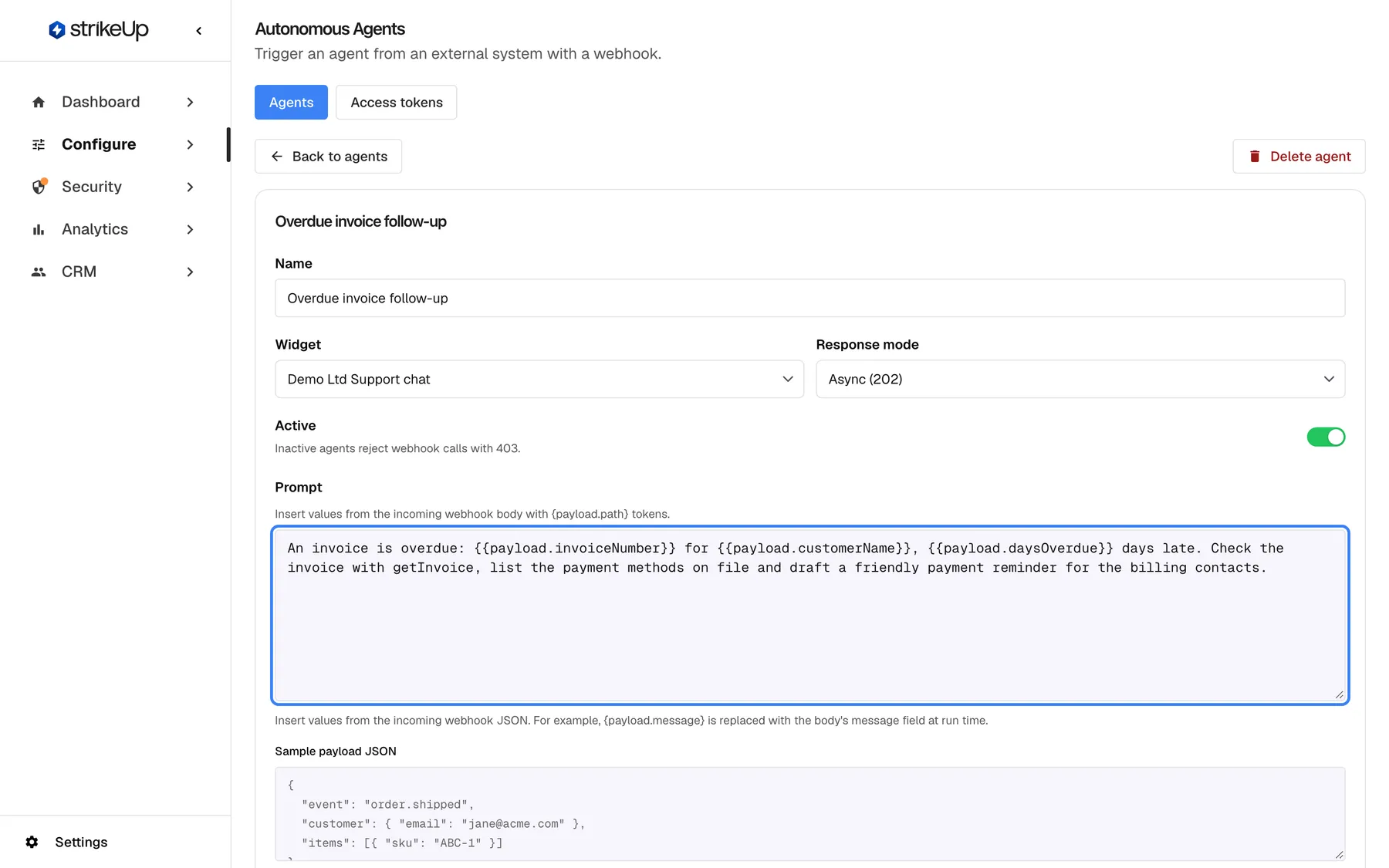
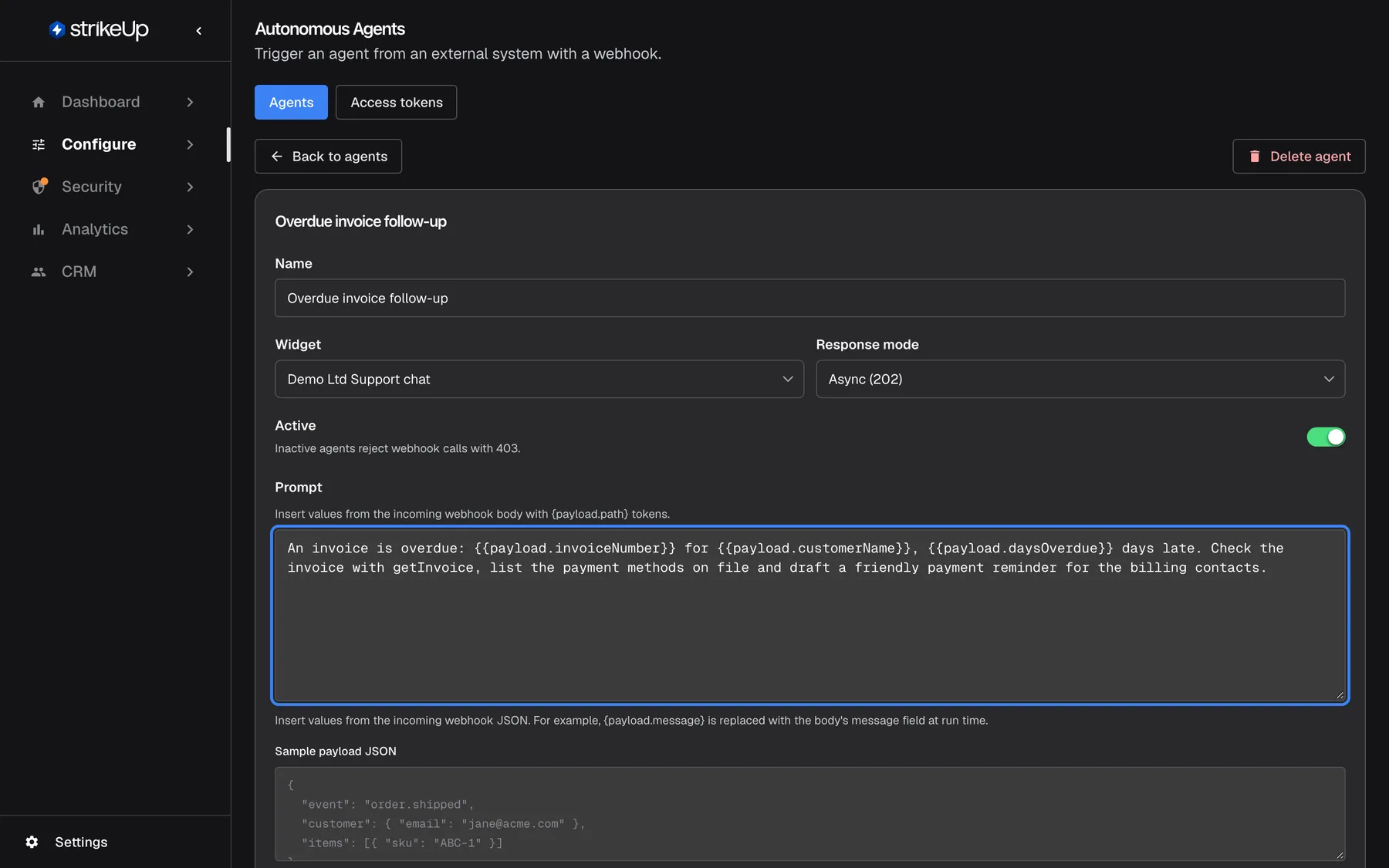
The prompt tells the agent what to do; {{payload…}} variables pull values from the webhook body. What this screenshot shows
- Screen
- Prompt (/admin/configure/autonomous-agents)
- Highlighted
- textbox “”, prompt, filled. defines the agent's task
- Also visible
- Widget Demo Ltd Support chat; Async (202); Active
- Purpose
- step 2 — the prompt
-
Sign in as a company admin. In the agent’s Webhook panel, copy the request under 1. Sign in as a company admin with Copy sign-in and send it with your admin email and password. Keep the
tokenfrom the response; it lasts about an hour. -
Create the end-user’s token. Copy the request under 2. Generate a token (company admin) with Copy exchange, fill in the end-user’s
externalUserIdand their PIN or password ascredential, and send it with the admin token. Store theahu_…token from the response; it is shown only once. -
Call the agent. Copy the request under 3. Trigger the agent with Copy curl, put the end-user’s token in the
Authorization: Bearerheader, add your JSON body and send it. Copy the URL shown in the panel; do not type it by hand. -
Collect the result. For a synchronous agent, the response contains the output. For an asynchronous one, poll the run with the request under 4. Get the result, or send an
X-Callback-Urlheader in step 6.
Every setting, explained
Section titled “Every setting, explained”Each setting below says where it is, what it does, and why it matters for the system that calls the agent.
Widget, what the agent can do
Section titled “Widget, what the agent can do”ConfigureAutonomous Agents › the agent › Widget. Saved with the form.
The agent uses this widget’s main toolkit, skills, instructions, guardrails and budgets. A widget without a toolkit shows a warning in the form, and runs on it fail with “Server ID is required”. Runs do not read or write the end-user’s chat memory.
You set an agent’s abilities up once, on a widget, and the same rules apply as in chat.
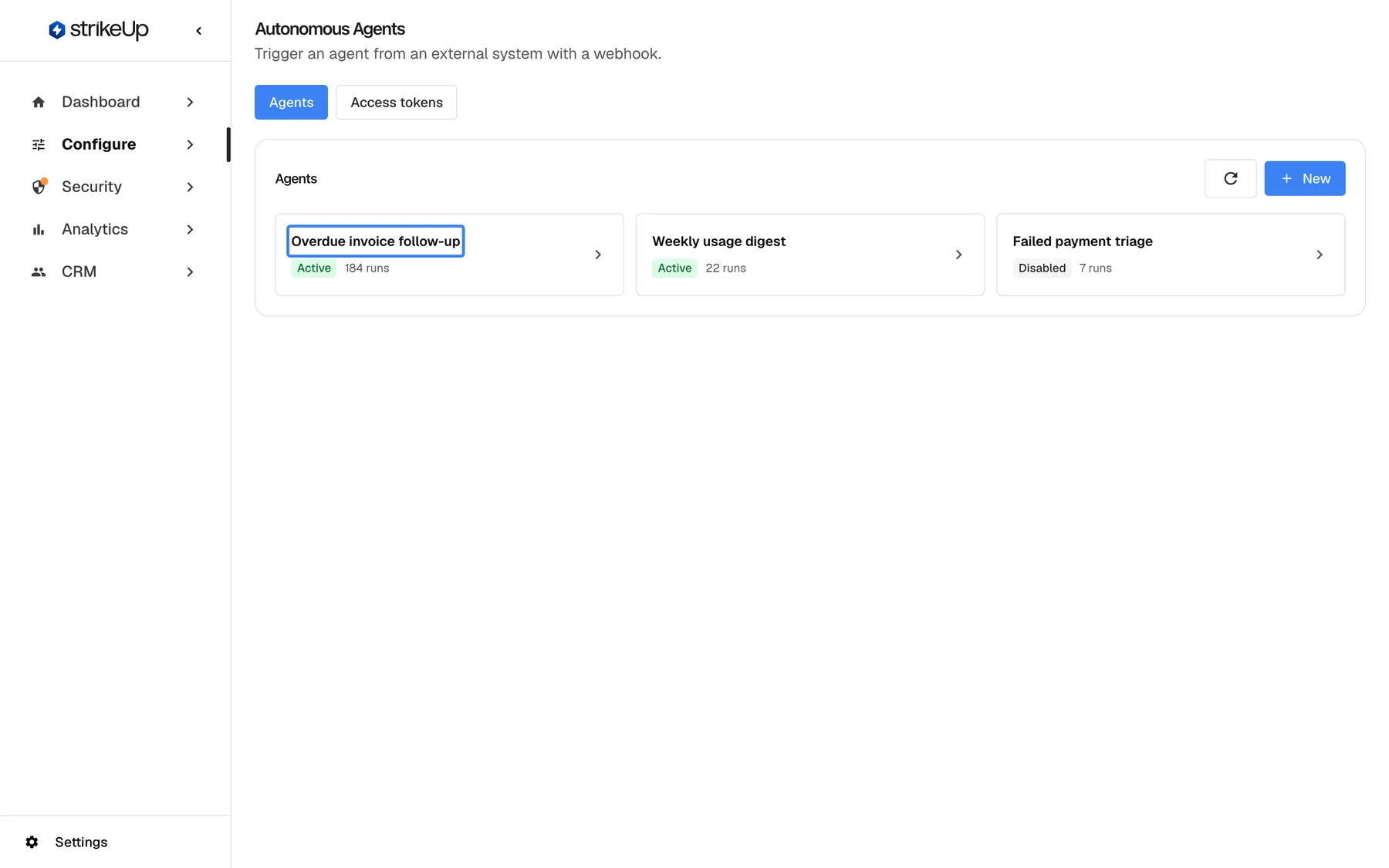
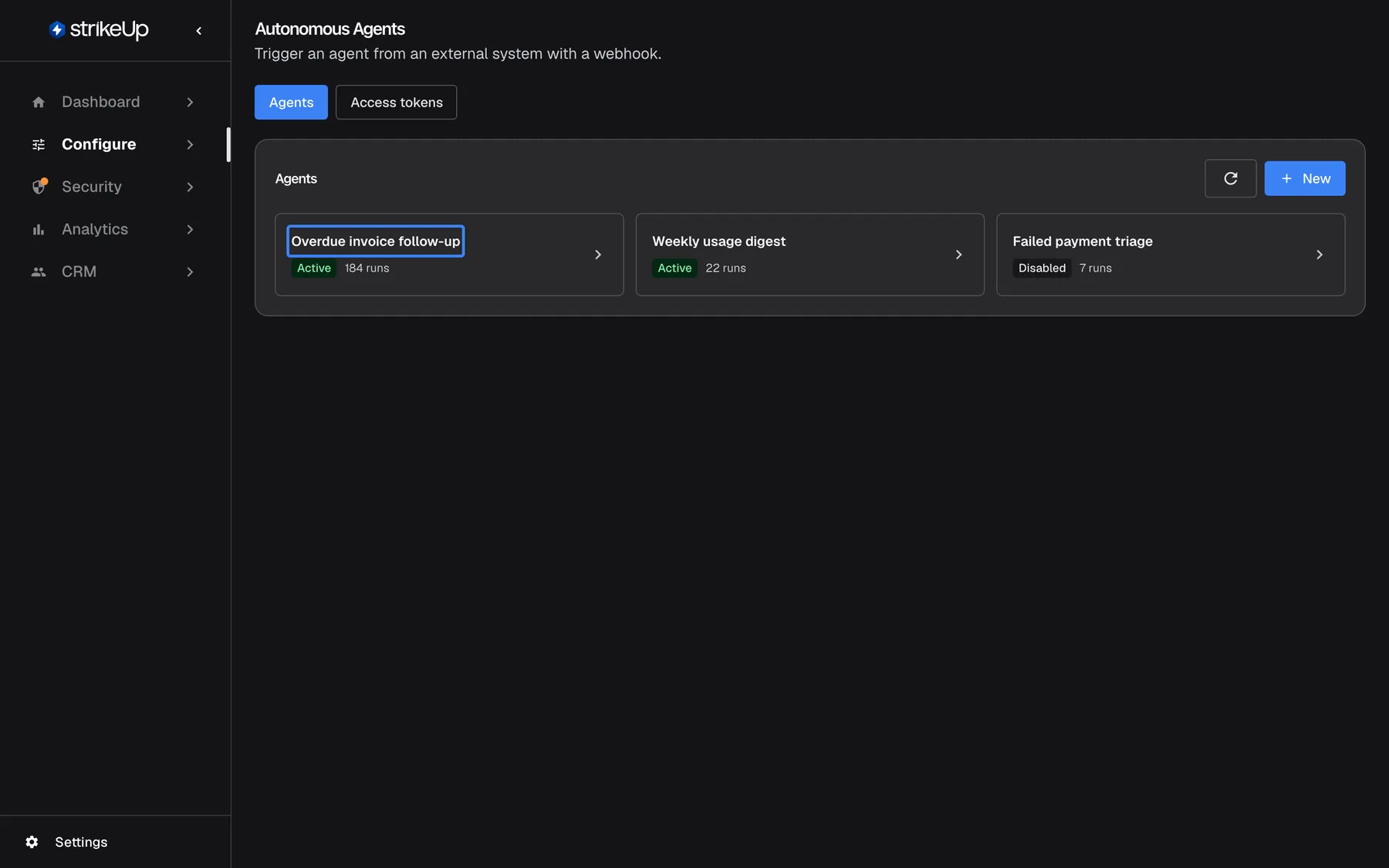
What this screenshot shows
- Screen
- Agents (/admin/configure/autonomous-agents)
- Highlighted
- “”, agent-cards, Active. opens the agent editor
- Also visible
- Weekly usage digest (Active), Failed payment triage (Disabled)
- Purpose
- step 1 — the agent
Prompt, what the agent should do
Section titled “Prompt, what the agent should do”The agent’s Prompt, with Sample payload JSON and the variable buttons. Saved with the form.
Required. {{payload.path}} variables, with double braces, are replaced from the call’s JSON body when the run starts; dot paths and [n] list positions work. A missing field becomes empty. Each value is limited to 4,000 characters. If the body is not valid JSON, the prompt is used unchanged.
One agent handles every event of one kind, with the details of each event filled in.
| Do | Don’t |
|---|---|
| Say what to return: “Reply with the reminder text only.” | Leave the output format open when another system reads it |
| Use variables for every detail that changes per call | Put example values from your test call into the prompt |
| Tell the agent to stop when a key value is empty | Assume every caller sends every field |
Waiting or collecting later
Section titled “Waiting or collecting later”The agent’s Response mode. A caller can also add ?wait=true to the webhook address to wait once.
Async (202) (default): the call returns HTTP 202 at once with executionId, status “Running”, statusUrl and a Location header. Synchronous (200): the call waits up to 6 minutes and returns HTTP 200 with executionId, chatSessionId, status, output and, if the run is waiting, pendingApprovalIds. A failed synchronous run returns HTTP 500 with the error; a run that takes longer returns HTTP 504 “Agent execution timed out” and is cancelled.
Short tasks are simplest when the caller waits. Long tasks, and tasks that may wait for an approval, need the asynchronous mode.
| Situation | Choose |
|---|---|
| The caller needs the answer in the same request and the task takes seconds | Synchronous (200) |
| The task may take minutes or wait for an approval | Async (202) |
| The caller cannot keep a connection open | Async (202) with a callback address |
Tokens per end-user, whose run it is
Section titled “Tokens per end-user, whose run it is”Created through the API in steps 4 and 5; listed and revoked on ConfigureAutonomous Agents › Access tokens.
Each token belongs to one end-user, works for every agent in the workspace, never expires and is shown only once. Send it as Authorization: Bearer ahu_… or in an X-Autonomous-Token header. Every run is attributed to the token’s end-user. Changing the end-user’s PIN does not revoke their tokens; revoking does.
Each run belongs to a real customer, so its cost, its jobs and its approvals belong to that customer too.
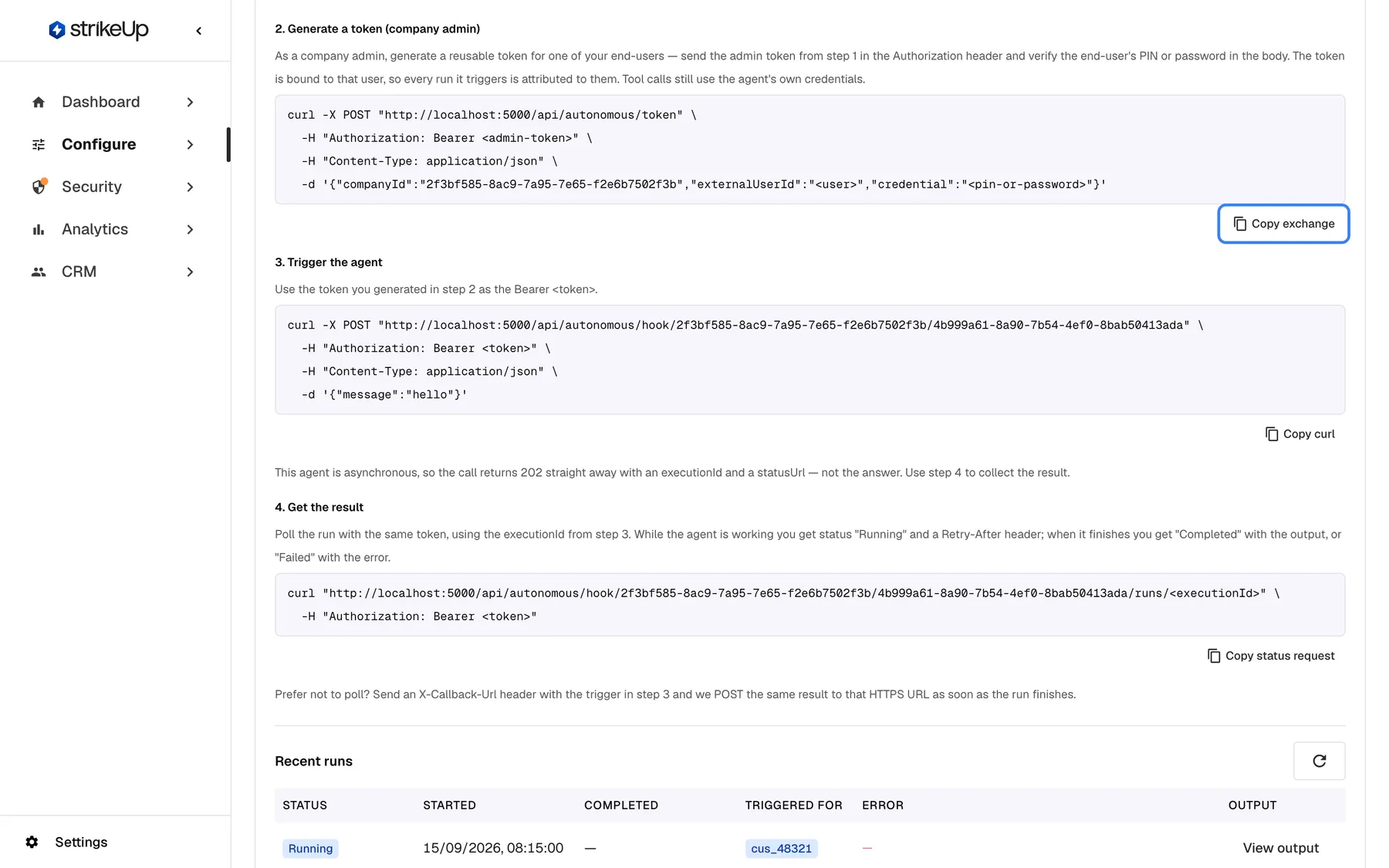
What this screenshot shows
- Screen
- Webhook (/admin/configure/autonomous-agents)
- Highlighted
- button “Copy exchange”, webhook-step-2, enabled. copies the token request
- Also visible
- Steps 2 and 3 with curl commands
- Purpose
- step 3 — the per-user token
Active, the off switch
Section titled “Active, the off switch”The agent’s Active switch, when editing. Saved with the form.
Off: new calls are refused with HTTP 403 “Agent is disabled”. Runs already started stay readable by polling.
Stop an agent at once, for example when the calling system misbehaves, without losing it.
How the settings combine
Section titled “How the settings combine”| Mode | ?wait=true | X-Callback-Url | What the caller gets |
|---|---|---|---|
| Async | No | No | HTTP 202 with a run ID; poll for the result |
| Async | No | Yes | HTTP 202 with a run ID; the result is posted to your address when the run stops |
| Async | Yes | Ignored | The answer in the response, as if synchronous |
| Synchronous | Any | Ignored | The answer in the response, up to 6 minutes |
Getting the result
Section titled “Getting the result”Polling the status address
Section titled “Polling the status address”Poll the statusUrl from the 202 response, or the request under 4. Get the result, with the same token that started the run.
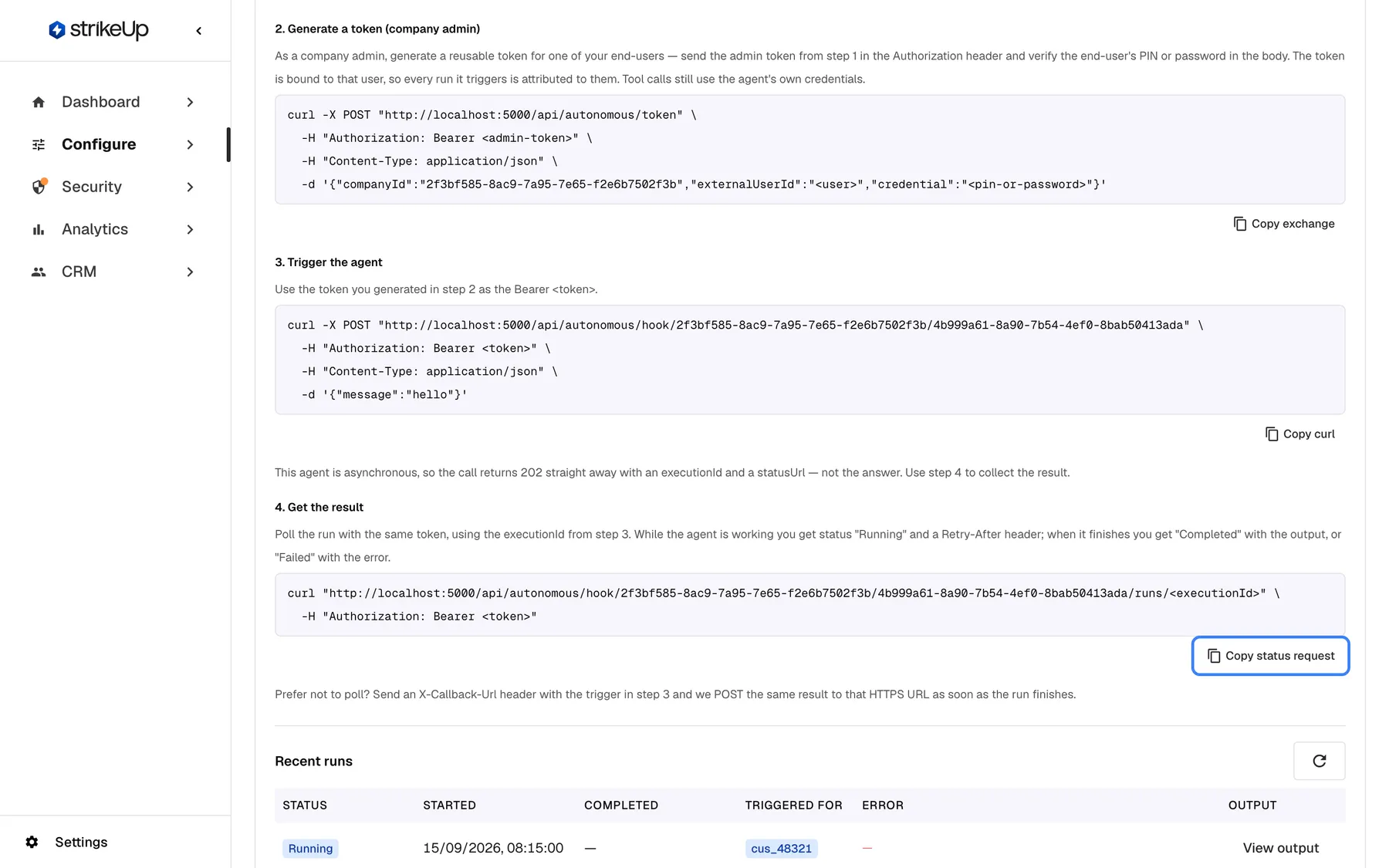
What this screenshot shows
- Screen
- Webhook (/admin/configure/autonomous-agents)
- Highlighted
- button “Copy status request”, webhook-step-4, enabled. copies the status request
- Also visible
- Async note, step 4 and callback note
- Purpose
- step 4 — collecting the result
| Response | Meaning | Next step |
|---|---|---|
HTTP 200, status “Running” or “Pending”, Retry-After: 2 | Still working | Poll again after 2 seconds |
HTTP 200, status “WaitingForApproval” with pendingApprovalIds, Retry-After: 30 | Waiting for an approval | Poll again after 30 seconds |
HTTP 200, status “WaitingForInput”, Retry-After: 30 | Waiting for a reply | Poll again after 30 seconds |
HTTP 200, status “Completed” with output | Finished | Use the output |
HTTP 200, status “Failed” with error | Stopped with an error | Read the error |
| HTTP 404 “Run not found” | Unknown run, another agent’s run, or a run of another end-user | Check the IDs and the token |
A token sees only its own end-user’s runs. A paused agent’s runs stay readable.
Callback to your address
Section titled “Callback to your address”Add an X-Callback-Url header with an HTTPS address to an asynchronous call. When the run stops, StrikeUp sends a POST to it with the same body a poll would return, and the header X-StrikeUp-Event: autonomous.run.finished.
- One callback per run, when it completes, fails or starts waiting for an approval. There is no second callback when it continues.
- 3 attempts, 10 seconds each, with a pause that grows between them. If all fail, poll instead.
- Public HTTPS only. An address that is not HTTPS or not on the public internet is ignored, without an error in the call.
Autonomous runs in StrikeUp
Section titled “Autonomous runs in StrikeUp”| Where | What it shows | Which record |
|---|---|---|
| The agent’s card | {{count}} runs | All runs |
| Recent runs on the agent | Status, customer, error and output | The last 20 runs |
| AnalyticsAgent jobs | One job per run, filterable by trigger | All runs |
| The job’s detail page | Summary, Result, Steps, Approvals, Events | One run |
| AI Spend | Cost by autonomous agent and by customer | The chosen period |
Recent runs on the agent
Section titled “Recent runs on the agent”The agent’s run list shows each run’s status, start and end, the customer it ran for and any error, with View output for the answer.
Why: the quickest check of what an agent did, without opening the calling system.
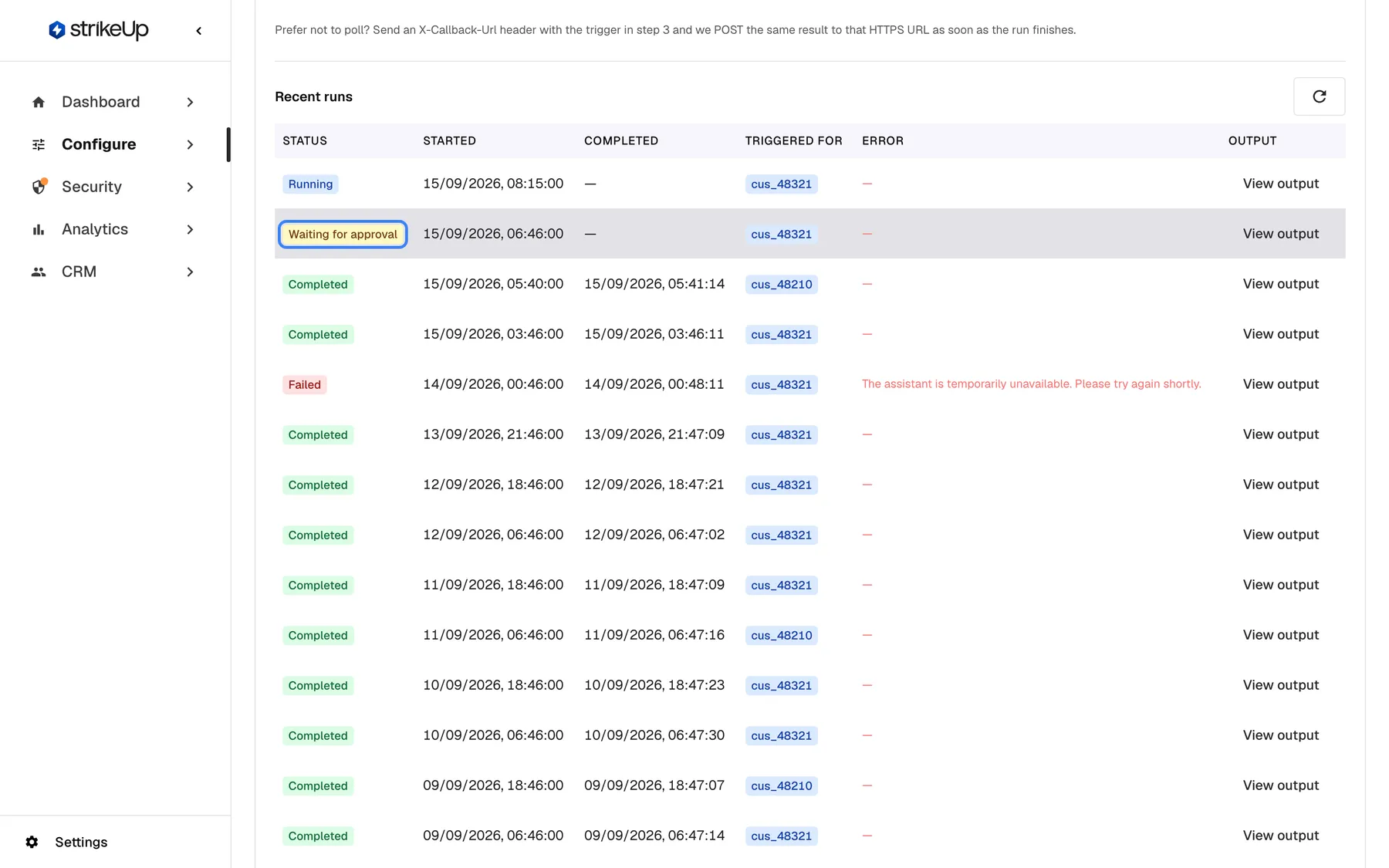
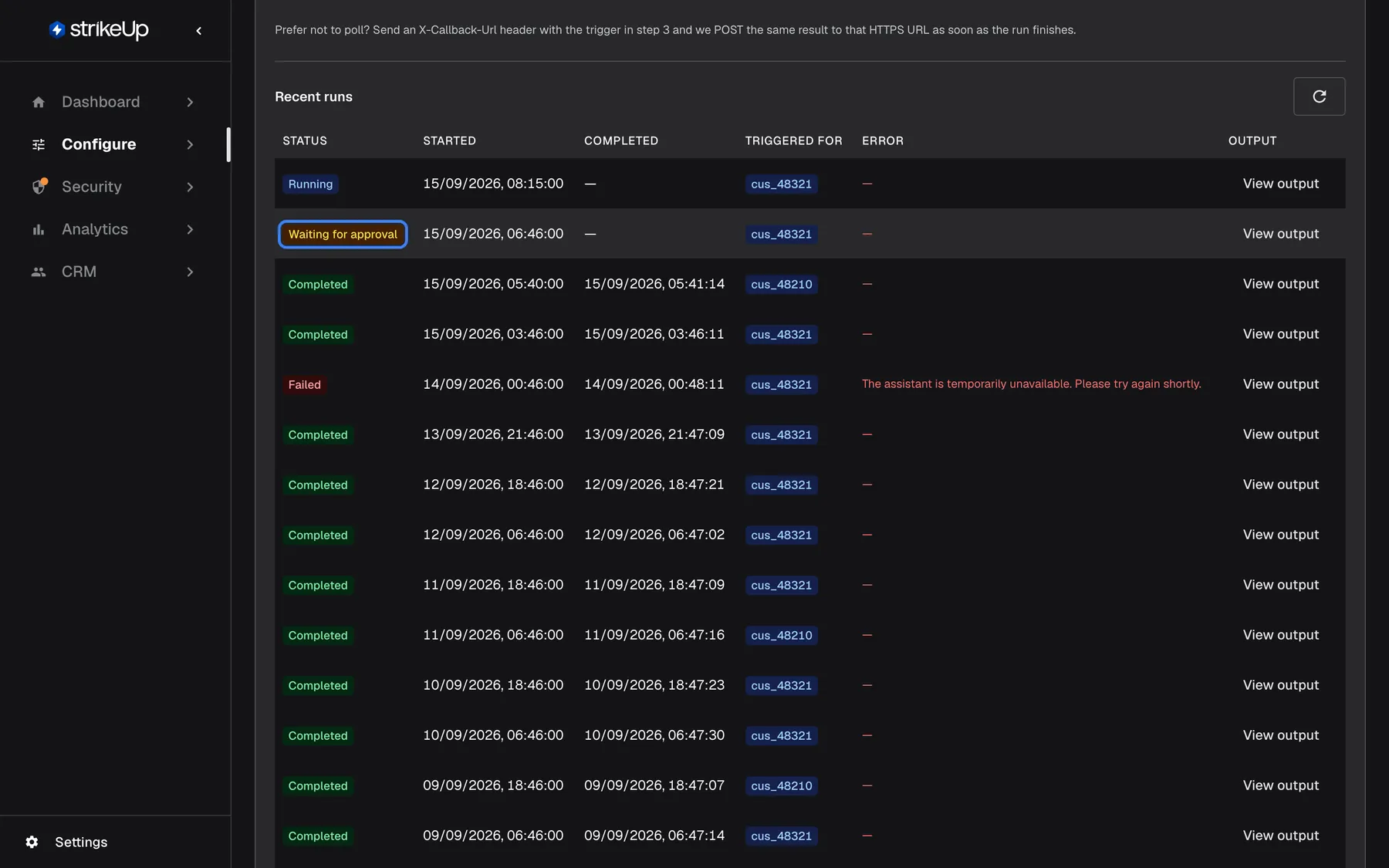
What this screenshot shows
- Screen
- Recent runs (/admin/configure/autonomous-agents)
- Highlighted
- “”, runs-table, waiting. none
- Also visible
- Running, Waiting for approval, Completed and Failed runs with customer IDs
- Purpose
- monitoring runs on the agent
Access tokens tab
Section titled “Access tokens tab”The Access tokens tab lists every token with its end-user’s ID, creation date and last use, and lets you revoke it.
Why: shows which integrations are live and lets you cut one off at once.
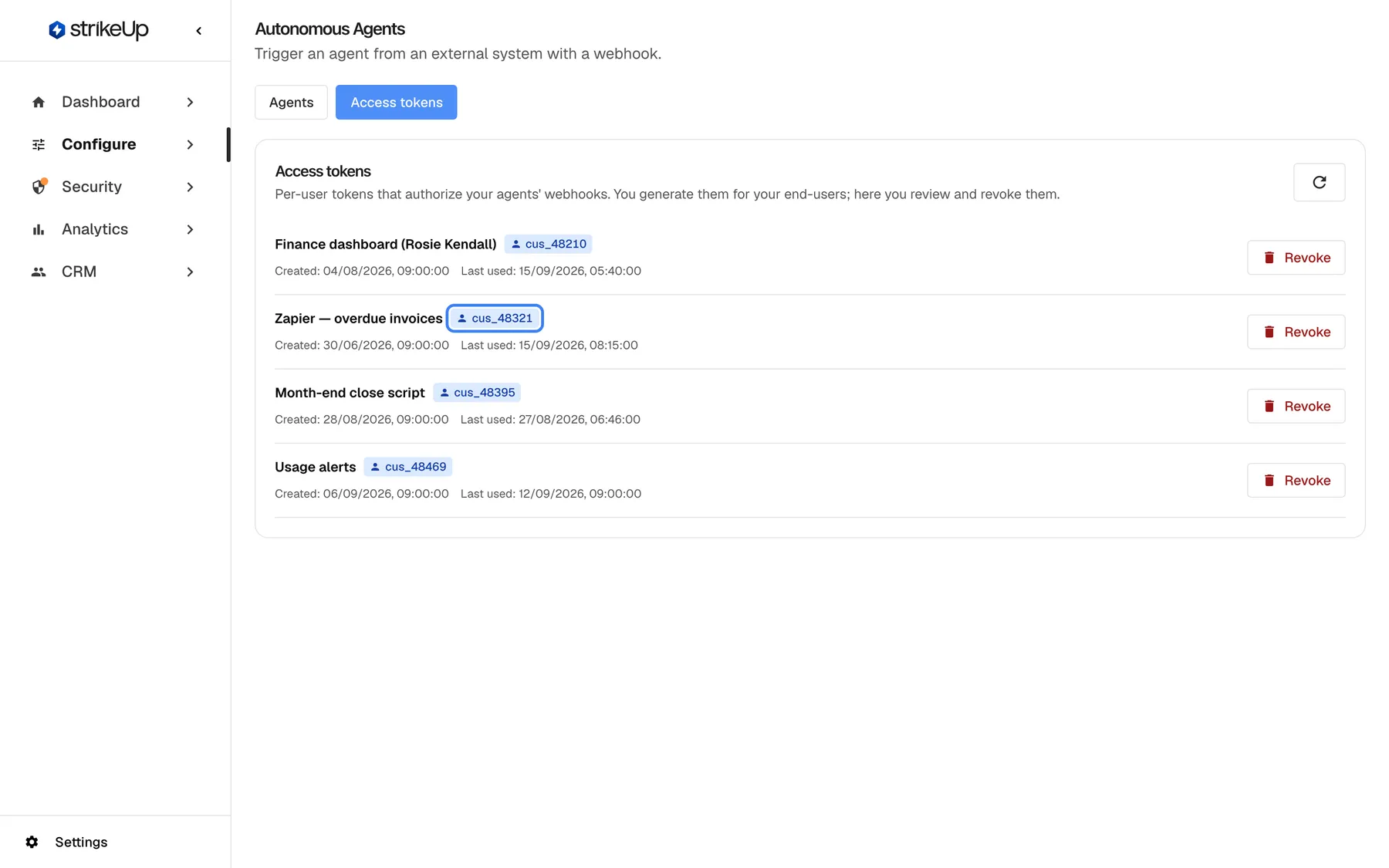
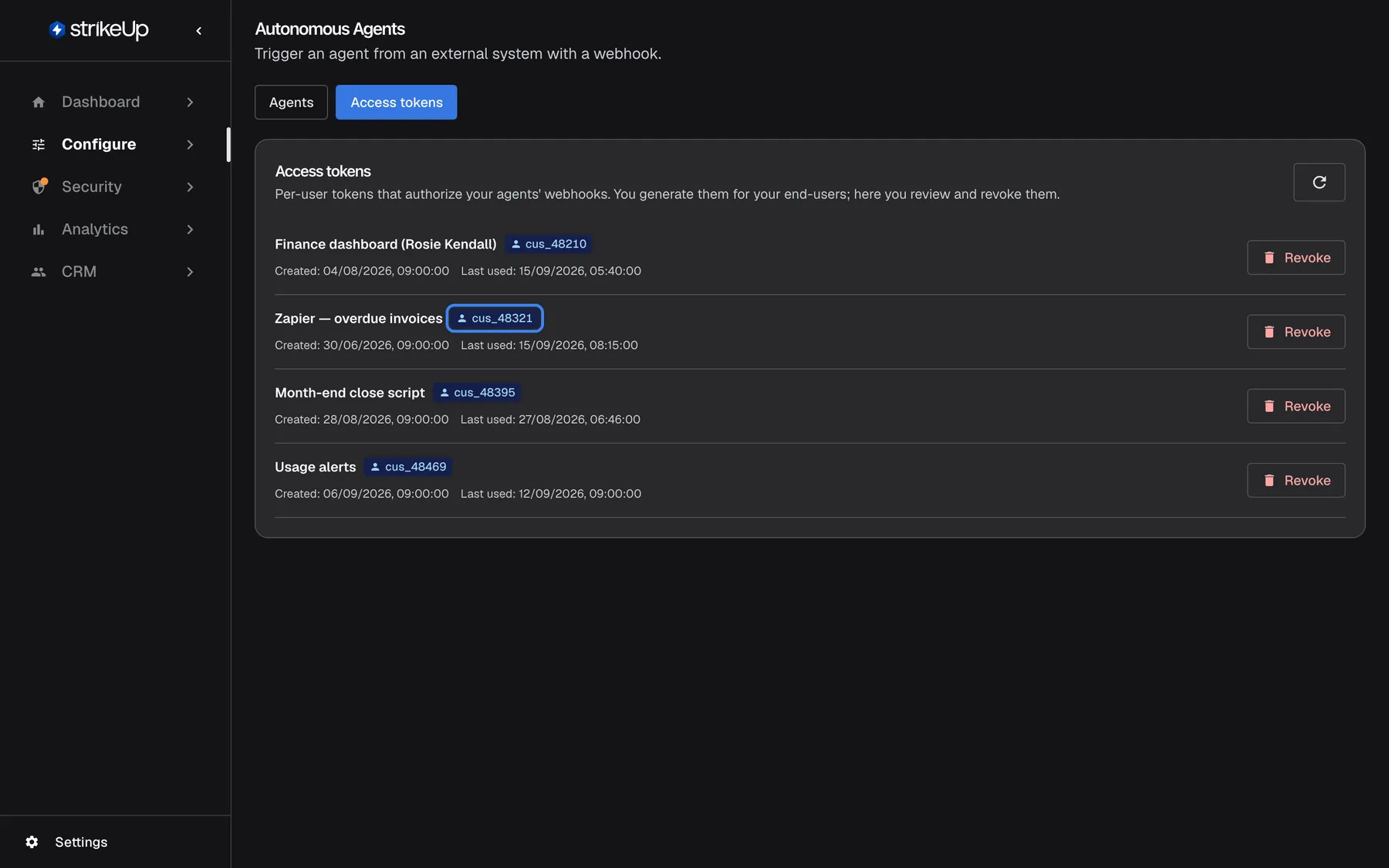
What this screenshot shows
- Screen
- Access tokens (/admin/configure/autonomous-agents)
- Highlighted
- “”, token-list, shown. none
- Also visible
- 4 tokens with Created / Last used and Revoke
- Purpose
- managing tokens
Agent jobs
Section titled “Agent jobs”Under AnalyticsAgent jobs, every run is a job named after the agent with the date and time, with the trigger Webhook, the source Autonomous agent and the end-user as owner. Filter by trigger to see only webhook runs. The list is read-only and refreshes when you ask it to.
Why: all automated work in one place, with the same statuses and costs as chat-started jobs.
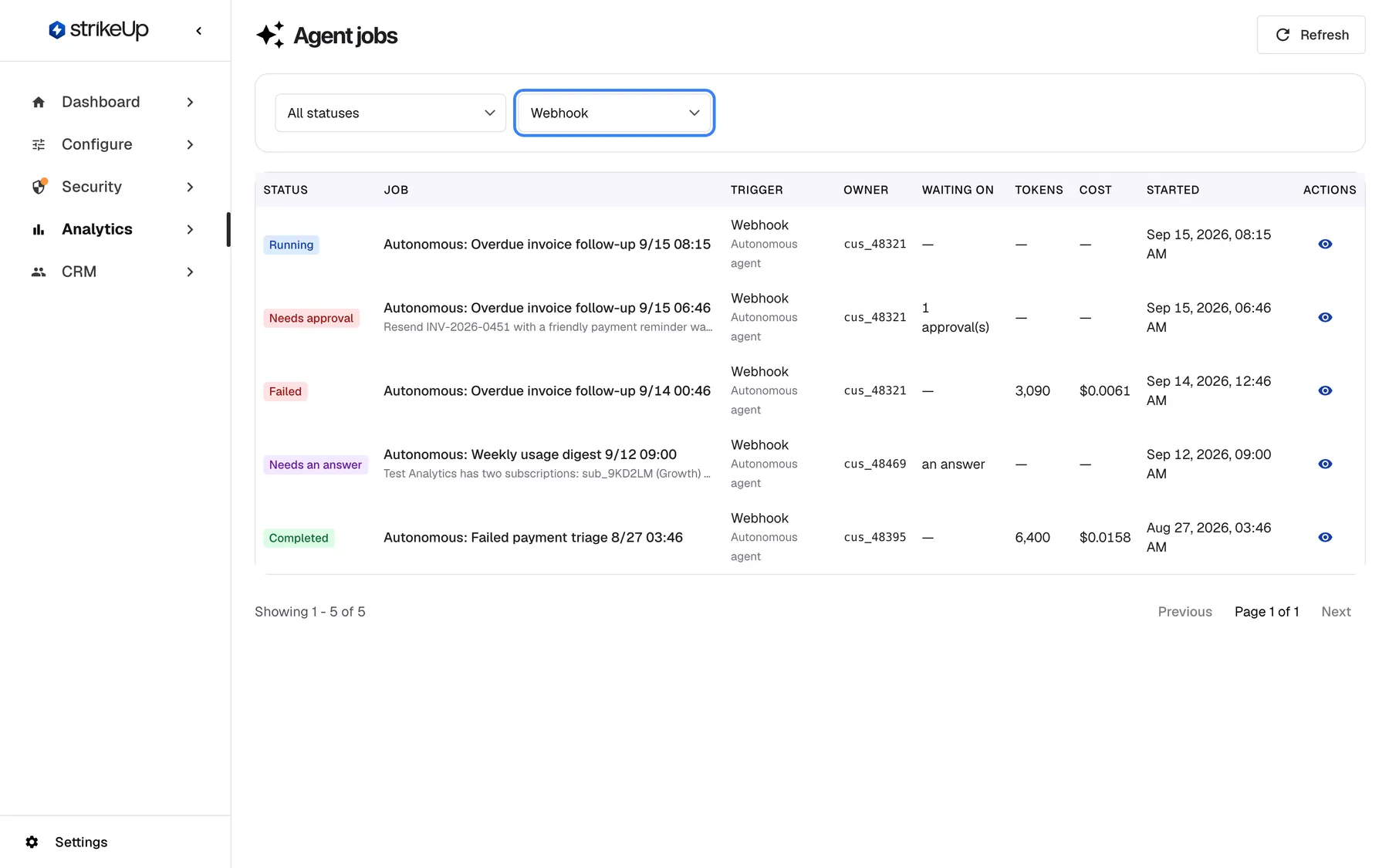
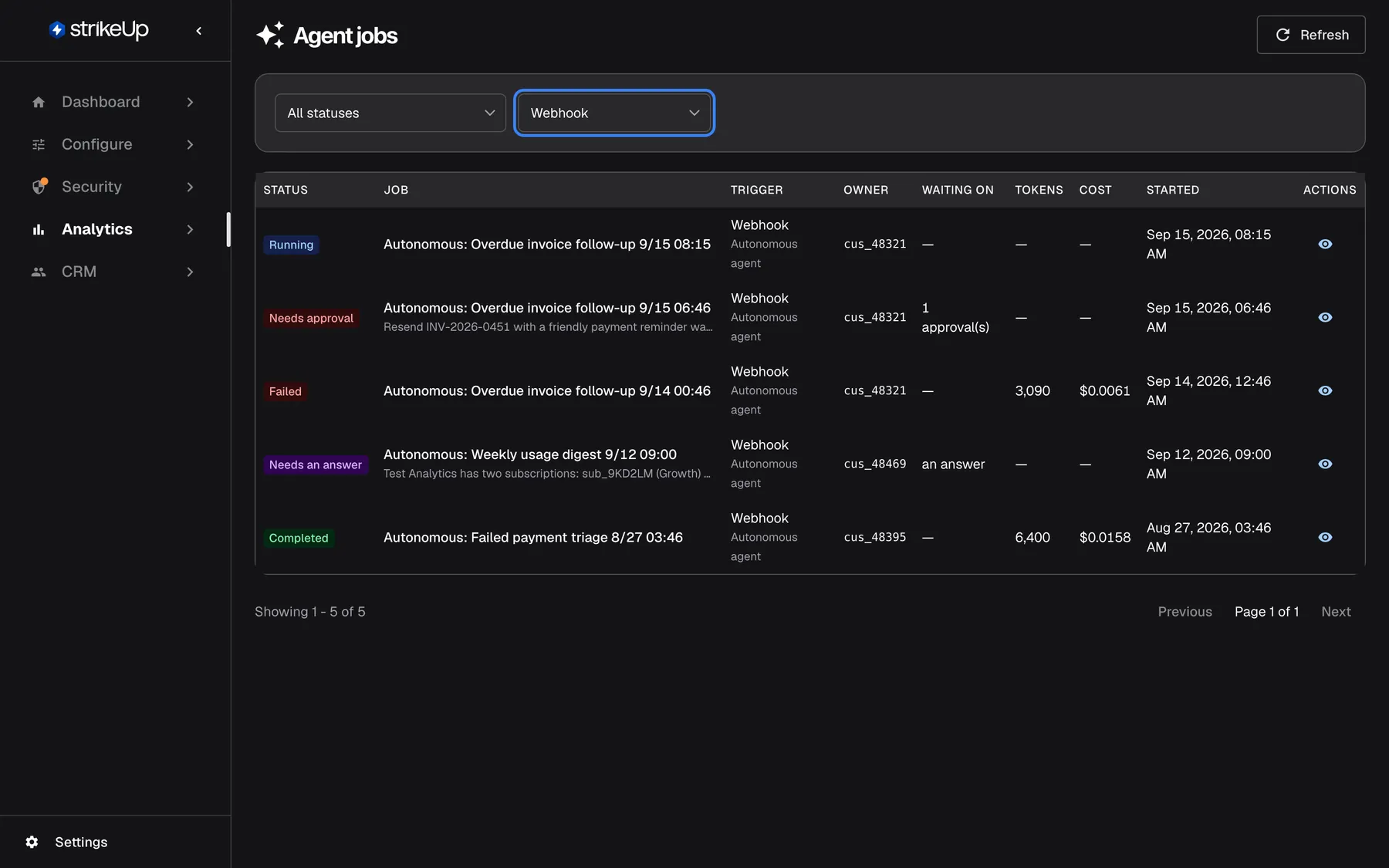
What this screenshot shows
- Screen
- Agent jobs (/admin/agent-jobs)
- Highlighted
- combobox “”, filters, [object Object]. filters jobs by trigger
- Also visible
- 5 webhook jobs: Running, Needs approval, Failed, Needs an answer, Completed
- Purpose
- step 5 — monitoring jobs
Job detail and events
Section titled “Job detail and events”Opening a job shows its summary, Result, Steps, Approvals and the Events timeline: when the run started, the plan it made, each step, and where it is waiting.
Why: when a run fails or waits, the events show the exact step.
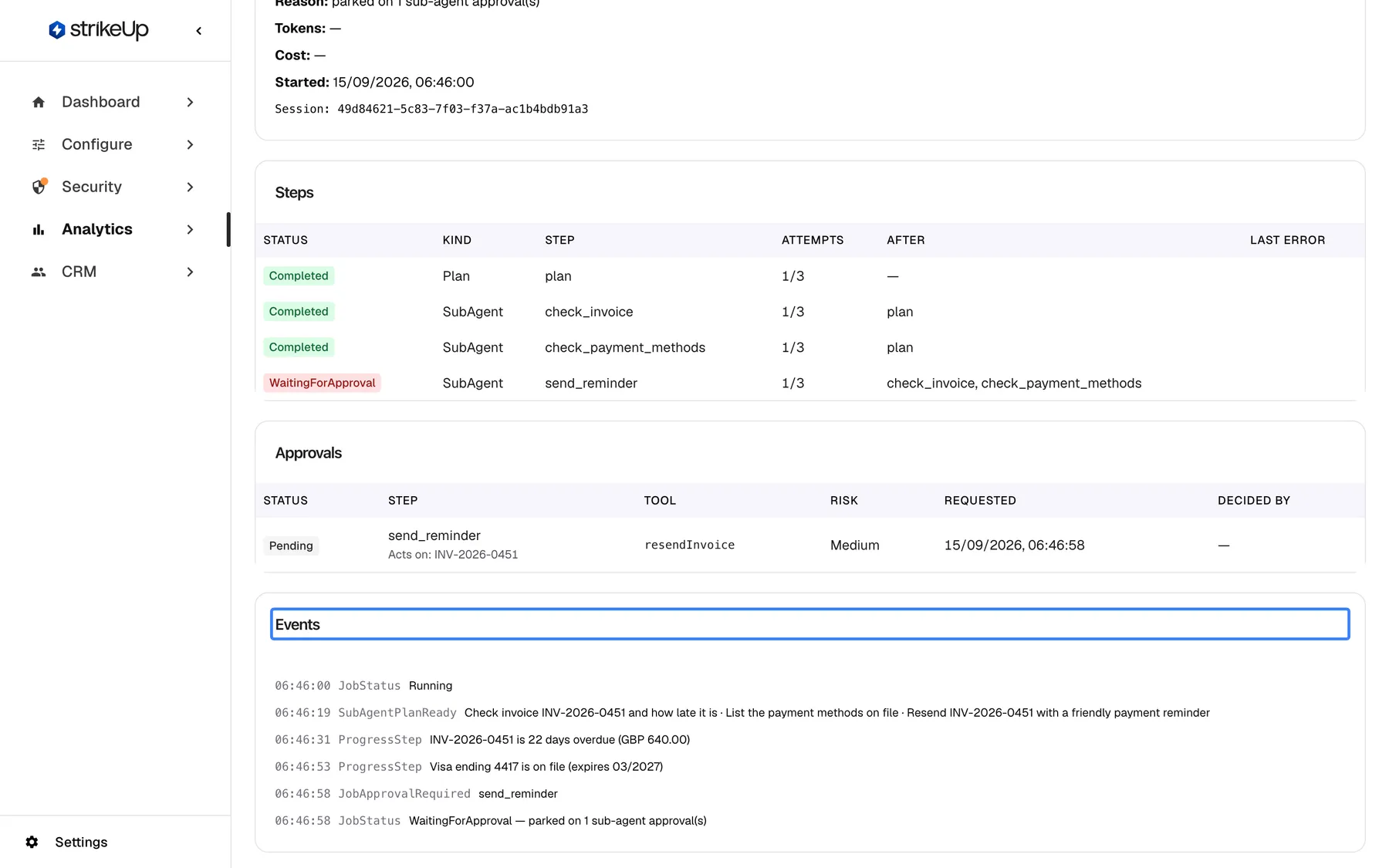
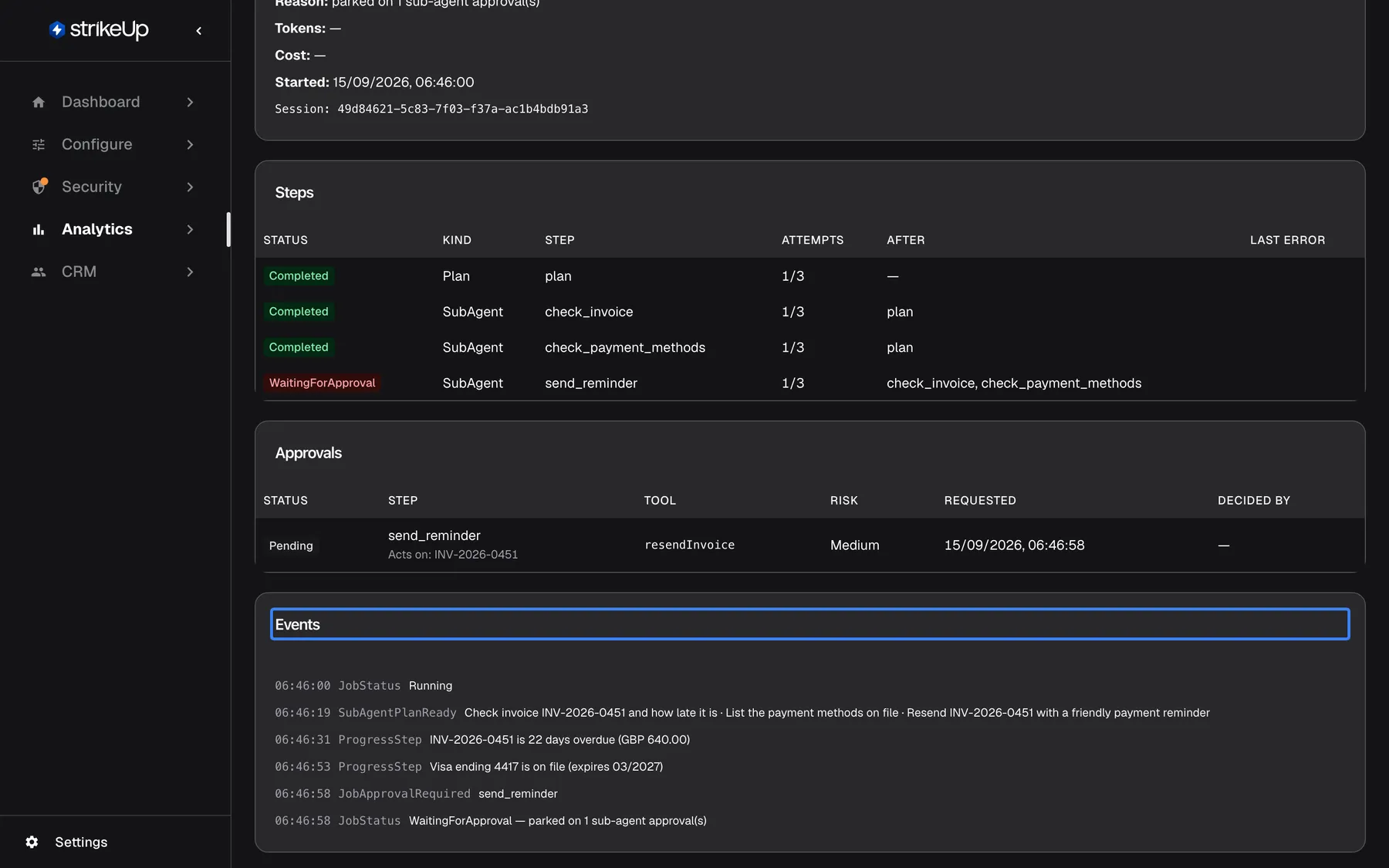
What this screenshot shows
- Screen
- Events (/admin/agent-jobs/:id)
- Highlighted
- “”, events-section, read-only. none
- Also visible
- Running → plan ready → progress → approval required → WaitingForApproval
- Purpose
- reading what happened
Budgets and autonomous runs
Section titled “Budgets and autonomous runs”ConfigureBudgets & limits, a budget with Enforce as a hard limit on.
Runs count towards budgets for the workspace, the agent’s widget and the end-user’s customer company. When an enforced budget is used up, a new run is refused and marked as failed, and a running one pauses with Paused — the AI allowance for this period is used up; the run continues when it resets or the limit is raised. until the period resets or the limit is raised.
An automation can run far more often than people chat. A budget keeps a misbehaving caller from running up costs.
- Give each integration its own end-user, so its cost shows separately by customer on AI Spend.
- Put a daily budget on a widget used only by autonomous agents.
- Watch for runs failing with the used-up allowance after a burst of calls.
What you need to know
Section titled “What you need to know”| Topic | Fact |
|---|---|
| Trigger | Webhook calls only, with a per-user token. |
| Body | JSON, up to 64 KB; each inserted value up to 4,000 characters. |
| Synchronous limit | 6 minutes, then HTTP 504; the run is cancelled. |
| Rate limit | 5 runs per end-user per minute, and 300 calls per minute per calling address and workspace, shared with polling; then HTTP 429 with Retry-After. Creating tokens: 20 requests per minute per address. |
| Polling | Same token; Retry-After 2 seconds while working, 30 seconds while waiting. |
| Callback | Asynchronous calls only, public HTTPS, one per run, 3 attempts of 10 seconds. |
| Tokens | No expiry, shown once, valid for every agent, revoked only on the tokens tab. |
| Memory | Runs never read or write the end-user’s chat memory. |
| Failure | When every AI provider fails, the run fails with “The assistant is temporarily unavailable. Please try again shortly.” |
| Deleting an agent | Removes it and its run list; chat sessions and jobs remain. |
| Cost | Attributed to the agent and the end-user; counts towards budgets. |
Frequently asked questions
Section titled “Frequently asked questions”General
Section titled “General”What is an autonomous agent for?
Section titled “What is an autonomous agent for?”An autonomous agent lets another system start an AI agent with one webhook call, without anyone chatting. Your billing system, a script or an automation tool sends the event’s data; the agent works on it with a widget’s tools and instructions and returns the answer.
Can an autonomous agent run on a schedule?
Section titled “Can an autonomous agent run on a schedule?”No. An autonomous agent runs only when something calls its webhook. To run it every day or week, let the calling system, such as a scheduler or automation tool, send the call at the time you want.
Who can set up autonomous agents?
Section titled “Who can set up autonomous agents?”Users with the Admin role create agents on ConfigureAutonomous Agents; every other signed-in user of your workspace can view them, and their changes fail with “This action requires the Admin role.” Creating an access token needs a company admin’s sign-in through the API and the end-user’s PIN or password.
Calling the agent
Section titled “Calling the agent”Should I use async or synchronous mode?
Section titled “Should I use async or synchronous mode?”Use Synchronous (200) when the task takes seconds and the caller can wait, up to 6 minutes. Use Async (202) for longer tasks and tasks that may wait for an approval; the call returns a run ID at once and you collect the result.
How do I get the result of an asynchronous run?
Section titled “How do I get the result of an asynchronous run?”Poll the statusUrl from the HTTP 202 response with the same token until the status is “Completed” or “Failed”, or send an X-Callback-Url header with the call so StrikeUp posts the result to your HTTPS address when the run stops.
How often should I poll?
Section titled “How often should I poll?”Follow the Retry-After header: 2 seconds while the run is pending or running, 30 seconds while it waits for an approval or a reply. Polling faster gains nothing and still counts as use of the token. It also counts towards the limit of 300 calls per minute from one calling address, which polling shares with run starts.
What is the largest body I can send?
Section titled “What is the largest body I can send?”64 KB. A larger body is refused with HTTP 413. Each value inserted into the prompt is also limited to 4,000 characters and cut with ” …[truncated]” when longer, so send only the fields the agent needs.
How many runs can one end-user start?
Section titled “How many runs can one end-user start?”5 per minute. A sixth call within the same minute is refused with HTTP 429 and a Retry-After header, and nothing is started. Spread bursts out, or give separate integrations separate end-users. One calling address can also make at most 300 calls per minute to your workspace, status checks included.
Can my caller force a synchronous answer from an async agent?
Section titled “Can my caller force a synchronous answer from an async agent?”Yes. Add ?wait=true to the webhook address. That call then waits for the answer, up to 6 minutes, like a synchronous agent, while other calls stay asynchronous.
What happens when a synchronous run takes too long?
Section titled “What happens when a synchronous run takes too long?”After 6 minutes the call returns HTTP 504 “Agent execution timed out” and the run is cancelled. Switch the agent to Async (202) if its tasks can take that long.
Tokens
Section titled “Tokens”Can one token trigger several agents?
Section titled “Can one token trigger several agents?”Yes. An access token is valid for every autonomous agent in your workspace. Every run it starts is attributed to the same end-user, whichever agent it calls.
Does a token expire?
Section titled “Does a token expire?”No. A token works until it is revoked on the Access tokens tab. Changing the end-user’s PIN or password does not revoke it.
What if the end-user is deactivated?
Section titled “What if the end-user is deactivated?”Calls with their token are refused with HTTP 403 “Customer is not active” until the customer is active again. The same applies while their company is deactivated. Their earlier runs stay visible on the agent and as jobs.
Callbacks
Section titled “Callbacks”Do callbacks retry?
Section titled “Do callbacks retry?”Yes, up to 3 attempts of 10 seconds each, with a growing pause between them. If all attempts fail, no further callback is sent for that run; poll the status address to get the result.
Why did my callback never arrive?
Section titled “Why did my callback never arrive?”The address must use HTTPS and be on the public internet; other addresses are ignored without an error. Callbacks are sent only for asynchronous calls. Check that your endpoint answered within 10 seconds with a success status, and poll the run in the meantime.
Is there a second callback when a waiting run continues?
Section titled “Is there a second callback when a waiting run continues?”No. One callback is sent when the run stops, including when it starts waiting for an approval. Poll the status address to follow it after that.
Runs and data
Section titled “Runs and data”What does Waiting for approval mean?
Section titled “What does Waiting for approval mean?”The agent reached a tool that requires approval before it runs, and stopped. The run continues once the approval is decided. The polling response lists the waiting approvals in pendingApprovalIds, and the job shows which tool is waiting.
Can the end-user’s chat memory end up in a run?
Section titled “Can the end-user’s chat memory end up in a run?”No. Autonomous runs never read or write the end-user’s chat memory. Each run starts from the agent’s prompt, filled from the call’s body.
Where do runs show up in StrikeUp?
Section titled “Where do runs show up in StrikeUp?”On the agent under Recent runs, as jobs under AnalyticsAgent jobs, and as cost by autonomous agent and by customer on DashboardAI Spend.
What is the chatSessionId in a synchronous response?
Section titled “What is the chatSessionId in a synchronous response?”Each run gets its own chat session holding its conversation with the tools, named after the agent with the date and time. The chatSessionId identifies it, for example when you contact support about a run.
What happens when the AI providers are down?
Section titled “What happens when the AI providers are down?”StrikeUp retries and tries backup models first. If every model fails, the run fails with the error “The assistant is temporarily unavailable. Please try again shortly.” Call the agent again later.
Does a run count against my budgets?
Section titled “Does a run count against my budgets?”Yes. Each run’s calls to AI models count towards the budgets for your workspace, the agent’s widget and the end-user’s customer company. An enforced budget that is used up refuses new runs and pauses running ones.
Troubleshooting
Section titled “Troubleshooting”| Symptom | What to check |
|---|---|
| HTTP 401 “Missing access token” | Send the token as Authorization: Bearer ahu_… or in X-Autonomous-Token. |
| HTTP 401 “Invalid access token” | The token was revoked, mistyped or belongs to another workspace. Create a new one. |
| HTTP 401 “Invalid credential” when creating a token | The end-user’s ID, PIN or password is wrong, or the customer is disabled or locked. Repeated failures lock the customer for a while. |
| HTTP 429 when creating a token | More than 20 requests with a PIN or password from your network address in a minute. Wait for Retry-After. |
| HTTP 403 “Agent is disabled” | Switch Active on and save. |
| HTTP 403 “Customer is not active” | Reactivate the customer or their company, or use another end-user’s token. |
| HTTP 404 “Agent not found”, or the workspace is not found | Copy the URL shown in the agent’s webhook panel again; the agent may have been deleted. |
| HTTP 413 | The body is over 64 KB. Send fewer fields. |
| HTTP 429 “Too many runs for this customer in the last minute.” | More than 5 runs for this end-user in a minute. Wait for Retry-After. |
| HTTP 429 “Too many requests. Please wait a minute and try again.” | More than 300 calls in a minute from your address to this workspace; run starts and status checks count together. Wait for Retry-After and poll less often. |
| HTTP 504 “Agent execution timed out” | The synchronous run took over 6 minutes. Use asynchronous mode. |
| Run failed with “Server ID is required” | The agent’s widget has no toolkit. Connect one, or choose another widget. |
| Run stays “WaitingForApproval” | A tool is waiting for an approval. Check the job under Agent jobs, or change the agent to use tools that need no approval. |
| No callback arrives | The address is not public HTTPS, the call was synchronous, or your endpoint failed 3 times. Poll instead. |
| Variables stay as typed in the output | Use double braces and a path that exists in the body. |
| A change fails with Request failed and “This action requires the Admin role.” | Changes on this page need the Admin role. Ask an Admin to make the change, or to give you the Admin role under Settings › Users. |