

Customer company: workflows
The Workflows tab of a customer company lists the workflows its members created in the customer portal: instructions the assistant carries out on a schedule, such as a monthly digest of overdue invoices. You can pause them, rename them, read how their runs went and delete them; creating workflows and schedules happens in the customer portal. Open the tab from CRMCompanies: select the company, then Workflows.
What you can do here
Section titled “What you can do here”- See every workflow of the company. One card per workflow, with its owner, its schedules and next run, a badge for company or personal workflows, and badges for paused workflows and owners who left or were disabled. Read a workflow card.
- Stop a workflow without deleting it. Its switch pauses it; scheduled runs are then skipped and recorded as cancelled. Pause or resume a workflow.
- Check how runs went. The history dialog shows the last 20 runs with their status and the reason for any failure. Read the run history.
- Correct a workflow’s name or instruction. Edit a workflow.
- Remove a schedule or a whole workflow. Delete a schedule or a workflow.
The screen at a glance
Section titled “The screen at a glance”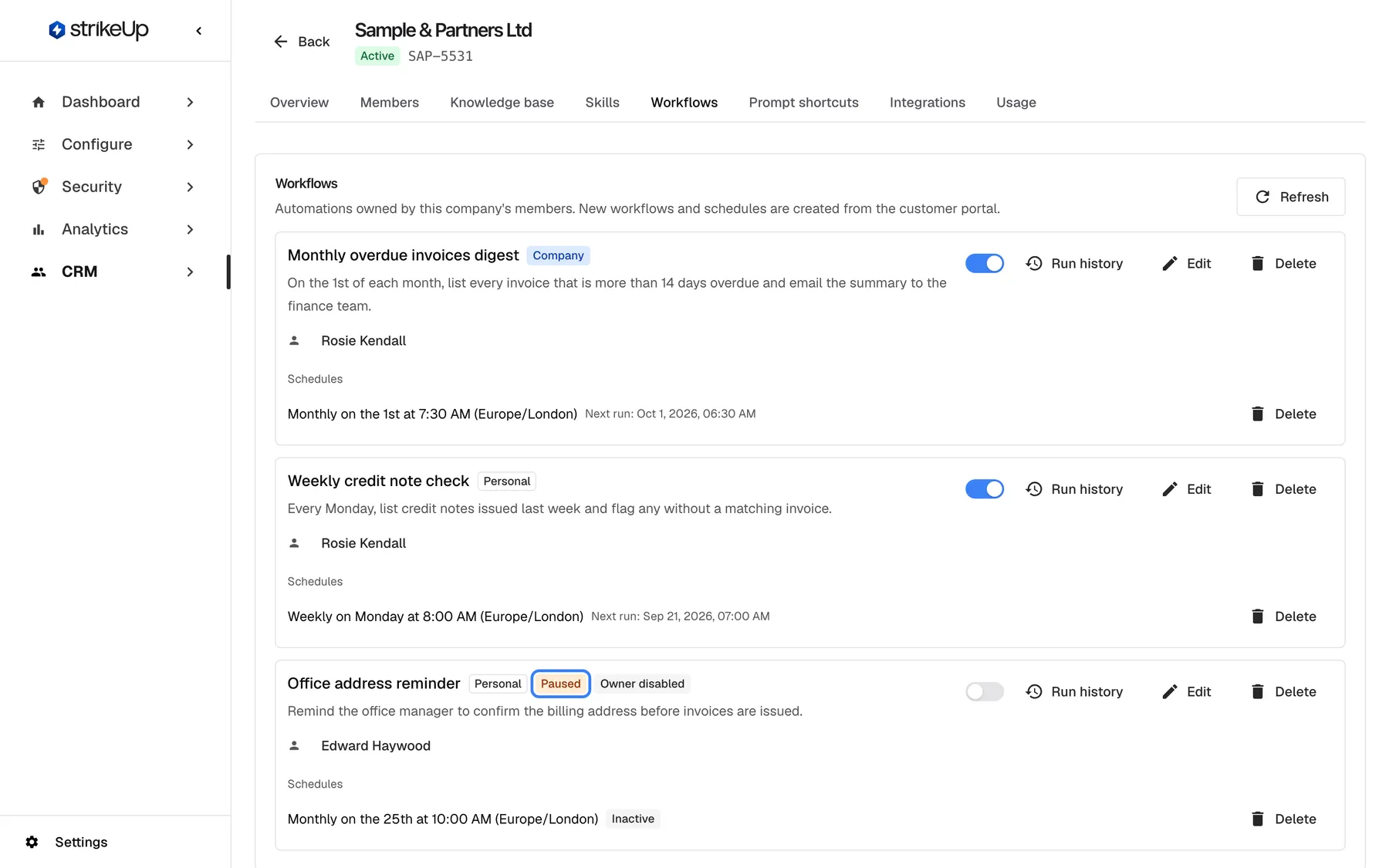
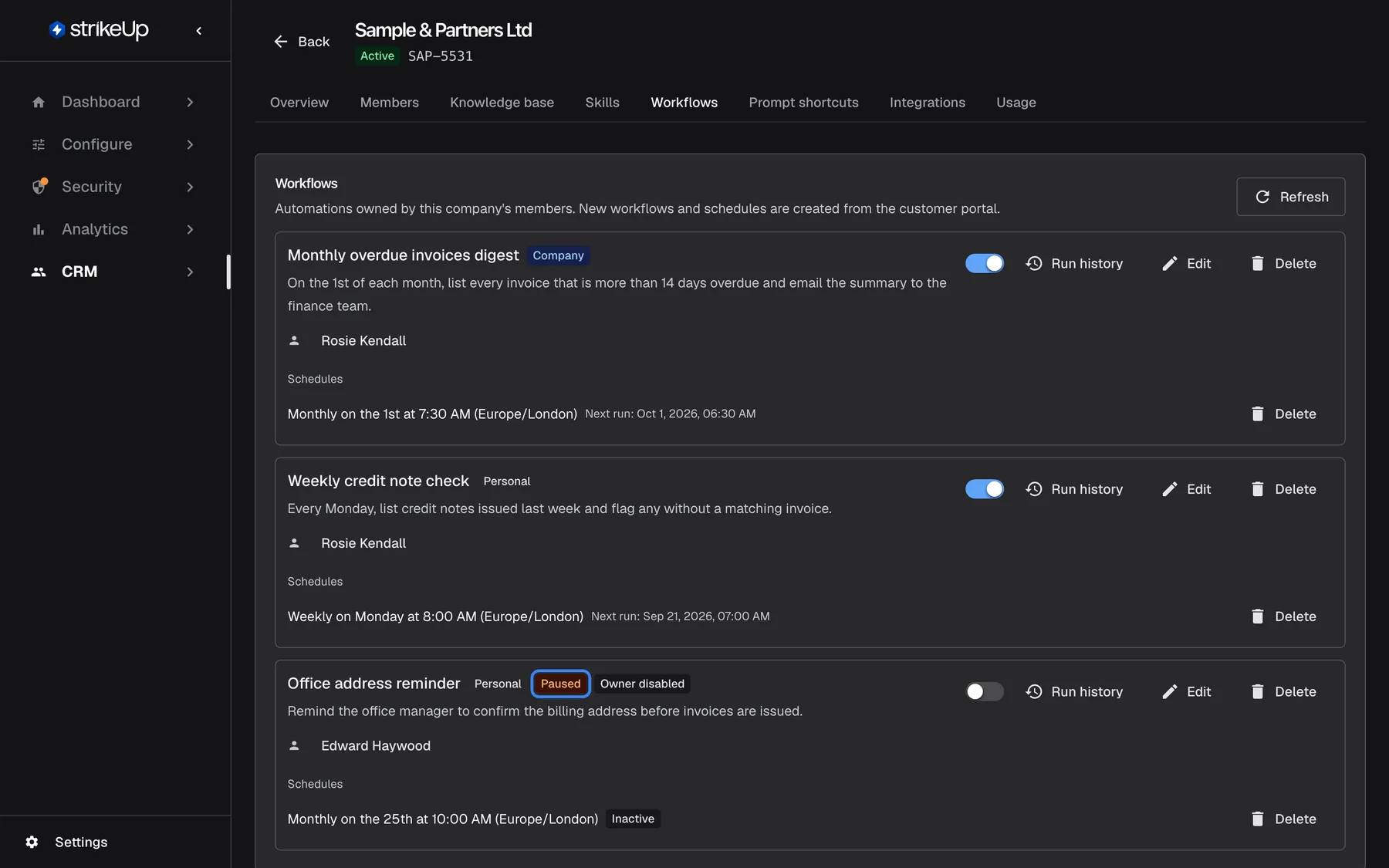
What this screenshot shows
- Screen
- Workflows (/admin/customer-companies/:id?tab=workflows)
- Highlighted
- status “Paused”, workflow-card, shown. none; the card's switch reactivates the workflow
- Also visible
- Monthly overdue invoices digest: monthly on the 1st at 7:30 AM (Europe/London); Weekly credit note check: weekly on Monday at 8:00 AM; Office address reminder: Paused, Owner disabled, schedule Inactive
- Purpose
- the company's workflows and schedules
| Region | What it shows | What you do there |
|---|---|---|
| Card header | Workflows and Automations owned by this company's members. New workflows and schedules are created from the customer portal. | — |
| Workflow cards | Name, badges, description, owner, active switch, Run history, Edit, Delete | Pause, edit, delete, open the run history |
| Schedules, inside each card | Schedules: one line per schedule with its next run and a delete button | Delete a schedule |
Read a workflow card
Section titled “Read a workflow card”Workflows are listed newest first. The tab shows every workflow owned by a member of this company, and workflows created for the company whose owner has since left it.
| Part | What it shows |
|---|---|
| Name and description | The workflow’s name, and the instruction sent to the assistant on every run |
| Company or Personal | A company workflow is shared with every member of the company: all of them see it and its runs and get its notifications, and only the company’s Admins change or run it. A personal workflow is its owner’s alone, hidden even from the company’s Admins in the customer portal. The scope is chosen when the workflow is created and cannot be changed |
| Paused | The workflow is switched off |
| Owner not in this company | The owner no longer belongs to this company |
| Owner disabled | The owner’s access is disabled; due runs are skipped and recorded as “Cancelled” until the owner is enabled again |
| Owner | The owner’s name; select it to open their customer page |
| Schedules | Each schedule in English, such as “Monthly on the 1st at 9:00 AM (Europe/London)”, with Inactive when the schedule itself is off, and its next run |
Schedules can repeat daily, on weekdays, weekly or monthly, each in its own time zone.
Pause or resume a workflow
Section titled “Pause or resume a workflow”Turn the switch on the workflow’s card off. It saves at once and Workflow paused. Scheduled runs will be skipped. appears. The schedules stay in place: every time one comes due, the run is skipped and written to the run history as “Cancelled” with “Workflow is inactive — the scheduled run was skipped.” Turn the switch on again to resume; Workflow activated. appears and the next due run goes ahead.
Pausing is how you stop a workflow for good and keep it. While its owner is disabled on the Members tab, or the company is deactivated, its runs are skipped too, for company workflows as well as personal ones. Each skipped run is recorded as “Cancelled” with “The customer is disabled — the run was skipped.” or “The customer’s company is deactivated — the run was skipped.” Nothing is paused or deleted, and the runs go ahead again once you enable the owner or reactivate the company.
Read the run history
Section titled “Read the run history”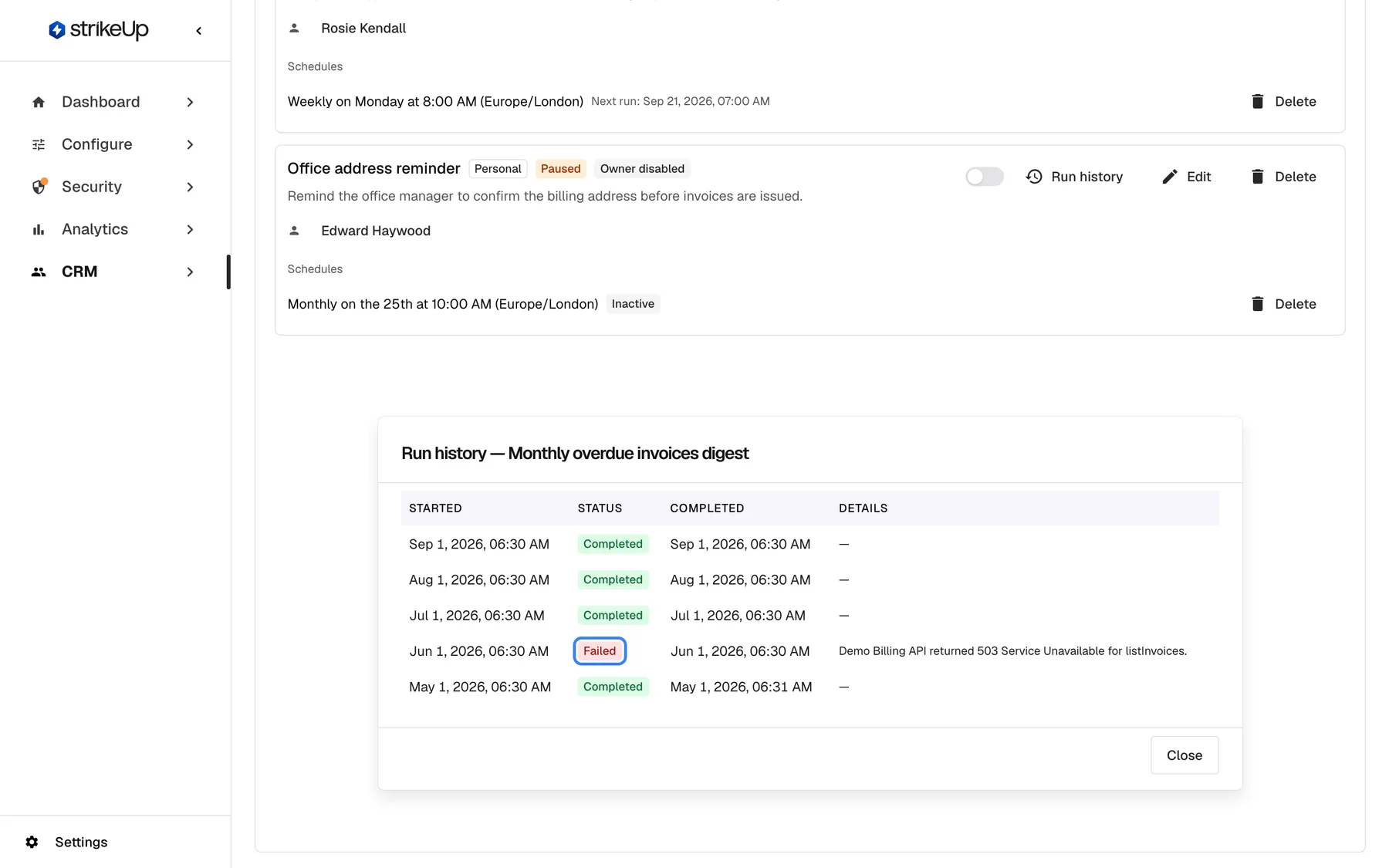
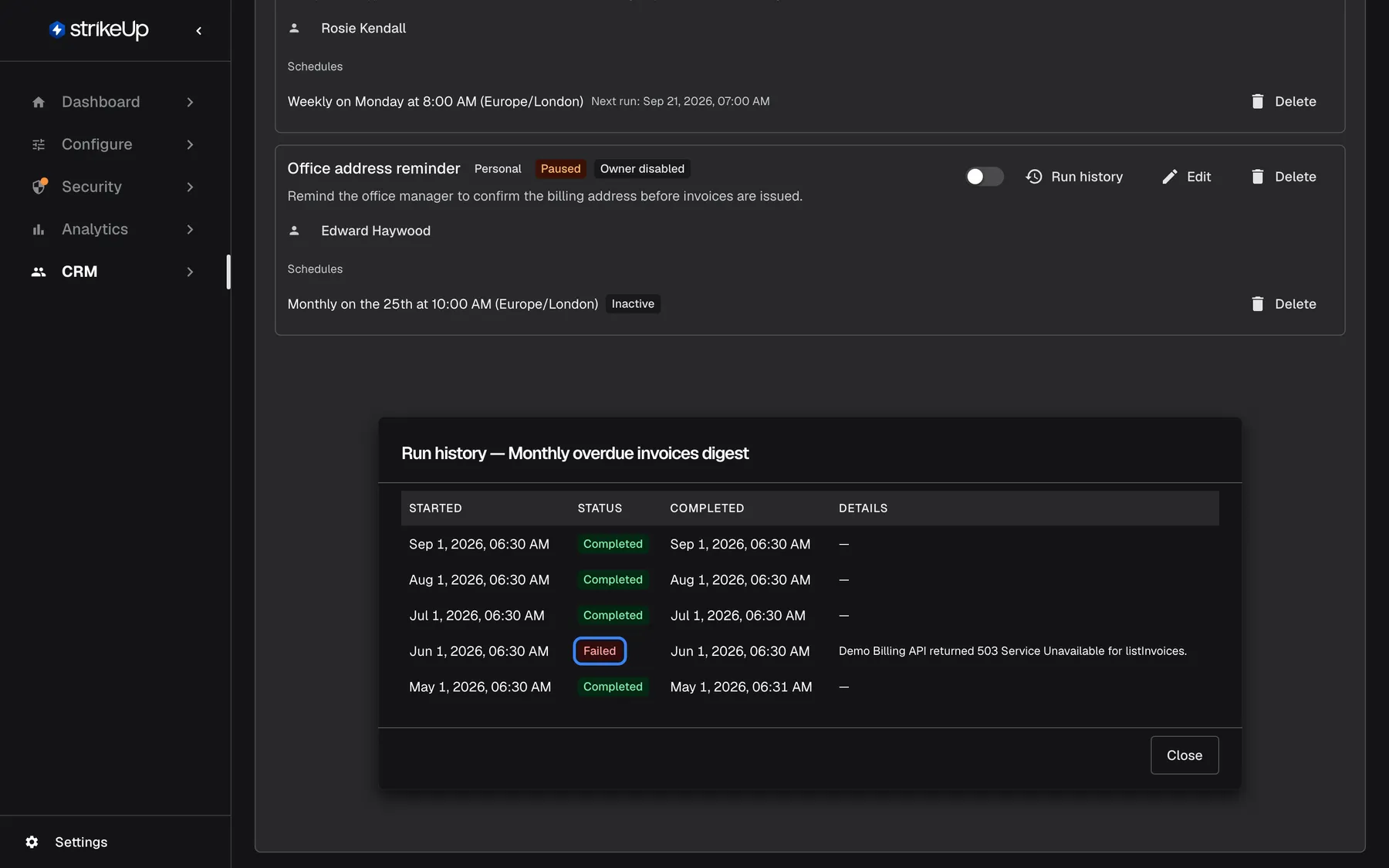
What this screenshot shows
- Screen
- Run history (/admin/customer-companies/:id?tab=workflows)
- Highlighted
- cell “”, inline-dialog, Failed. none; Details explains the failure
- Also visible
- 5 runs, newest first: 4 Completed, 1 Failed on Jun 1, 2026; Close button
- Purpose
- reading a workflow's run history
Select Run history on a card. A dialog lists the last 20 runs, newest first:
| Column | What it shows |
|---|---|
| Started | When the run began |
| Status | In English: “Pending”, “Running”, “Completed”, “Failed”, “Cancelled”, “WaitingForApproval” or “WaitingForInput” |
| Completed | When it ended |
| Details | The reason, when a run failed or was skipped |
Example: the run of Jun 1, 2026 of “Monthly overdue invoices digest” shows “Failed” with “Demo Billing API returned 503 Service Unavailable for listInvoices.” The API was down that day; the next run on Jul 1 completed. A workflow that has never run shows This workflow has not run yet..
Edit a workflow
Section titled “Edit a workflow”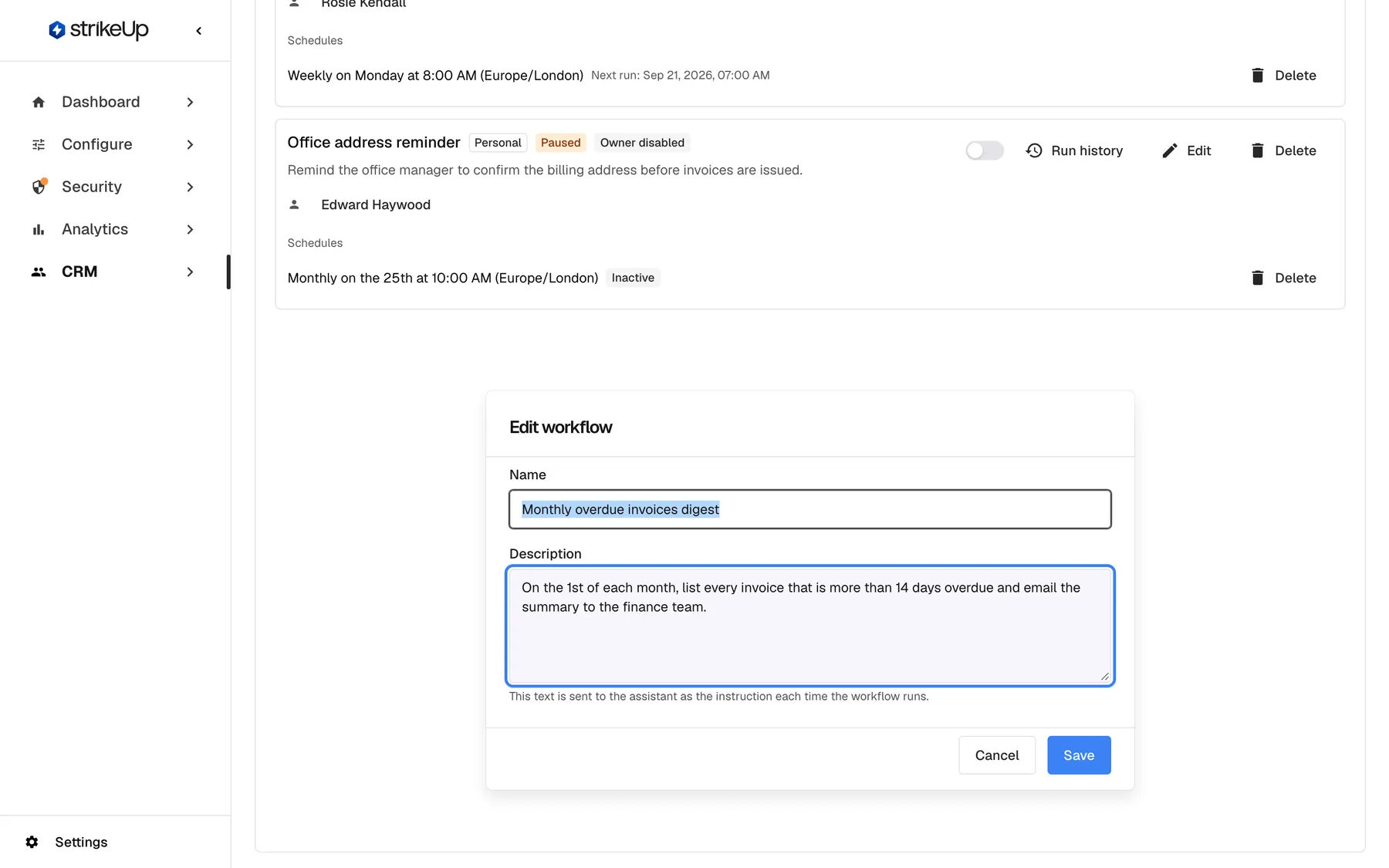
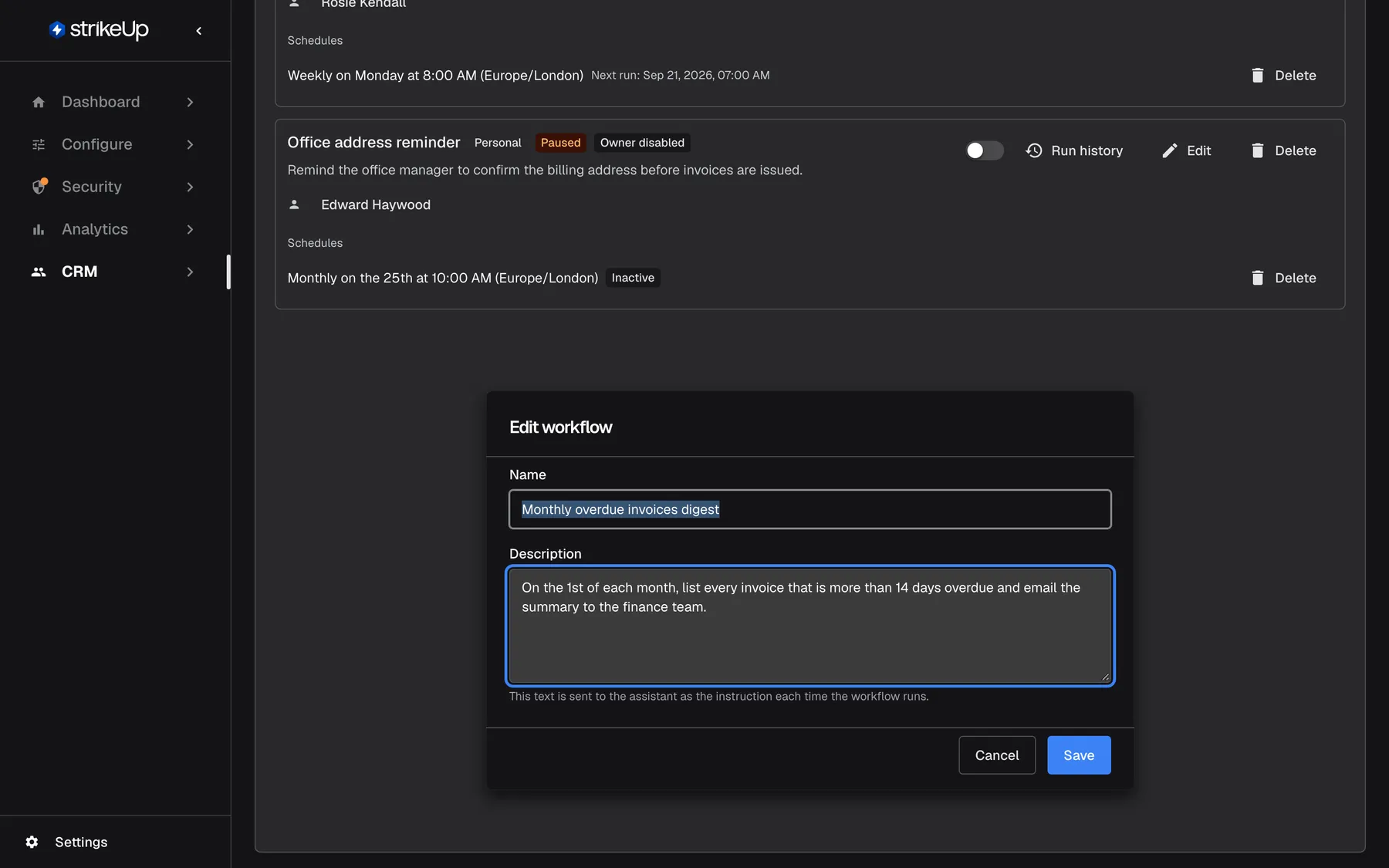
What this screenshot shows
- Screen
- Edit workflow (/admin/customer-companies/:id?tab=workflows)
- Highlighted
- textbox “Description”, inline-dialog, filled. the instruction sent to the assistant on every run
- Also visible
- Name Monthly overdue invoices digest; Cancel and Save
- Purpose
- editing a workflow's name and instruction
- Select Edit on the card. The dialog Edit workflow opens.
- Change Name (required, up to 255 characters) or Description (required). This text is sent to the assistant as the instruction each time the workflow runs.
- Select Save. Workflow saved. appears; the next run uses the new instruction.
An empty field shows Name and description are required.. Schedules cannot be changed here.
Delete a schedule or a workflow
Section titled “Delete a schedule or a workflow”| What | How | What happens |
|---|---|---|
| One schedule | The delete button on its line, then confirm Delete schedule | The schedule stops for good: This recurrence will stop. It can only be recreated from the customer portal. The workflow and its history stay. |
| A whole workflow | Delete on the card, then confirm Delete workflow | The workflow, its schedules and its run history will be removed. To stop it without deleting, pause it instead. |
Every control, explained
Section titled “Every control, explained”Active switch
Section titled “Active switch”On each workflow card. Saves the moment you switch it.
Off pauses the workflow: due runs are skipped and recorded as “Cancelled”. On resumes it. Needs the Admin role.
Stop a workflow that is misbehaving, or whose owner has left, without losing it.
Run history
Section titled “Run history”Run history on each card.
Opens a dialog with the last 20 runs, their status, start and end, and the failure reason.
When a customer says their digest did not arrive, the dialog shows whether it ran and why it failed.
Edit on each card.
Changes the name and the instruction. Not the schedules. Needs the Admin role.
Fix a wording that makes the assistant do the wrong thing, without asking the customer to rebuild the workflow.
Delete workflow
Section titled “Delete workflow”Delete on each card.
After confirmation, removes the workflow, its schedules and its run history. Needs the Admin role.
Remove workflows nobody needs any more.
Delete schedule
Section titled “Delete schedule”The delete button at the end of each schedule line.
After confirmation, stops that schedule for good; only the customer portal can create a new one. Needs the Admin role.
Remove one recurrence, such as an extra weekly run, and keep the rest.
Who sees what
Section titled “Who sees what”| Part of the screen | Who can use it |
|---|---|
| Workflow cards and run history | Every signed-in user of your workspace |
| The active switch, Edit and both deletes | Users with the Admin role. For anyone else the change fails with Request failed |
What you need to know
Section titled “What you need to know”| Topic | Fact |
|---|---|
| Creating | New workflows and schedules are created only in the customer portal, because they are tied to the widget they run through. |
| Pausing | Due runs are skipped and recorded as “Cancelled”. |
| Disabled owners and inactive companies | Due runs are skipped and recorded as “Cancelled”; the workflows are not paused or deleted. |
| History length | The last 20 runs, newest first. |
| Deleting a workflow | Also deletes its schedules and history. |
| Schedule text | Shown in English, with the schedule’s own time zone. |
Frequently asked questions
Section titled “Frequently asked questions”Workflows
Section titled “Workflows”Why can’t I create a workflow here?
Section titled “Why can’t I create a workflow here?”Workflows and their schedules are tied to the widget they run through, so they can only be created in the customer portal by the company’s Admins. On the Workflows tab your team can pause, rename, edit the instruction of, and delete existing workflows and schedules.
Which workflows does the tab show?
Section titled “Which workflows does the tab show?”Every workflow owned by a current member of the company, plus workflows created for the company whose owner has since left it; those carry the badge Owner not in this company. Workflows are listed newest first on the company’s Workflows tab.
Does a disabled customer’s workflow keep running?
Section titled “Does a disabled customer’s workflow keep running?”No. While a member is disabled, or the whole company is deactivated, each of their scheduled runs is skipped and recorded as “Cancelled”. Such workflows show Owner disabled. They run again once you enable the member or reactivate the company; to stop a workflow for good, turn off its switch on the Workflows tab.
What time zone do schedules use?
Section titled “What time zone do schedules use?”Each schedule has its own time zone, chosen when it was created in the customer portal, and the schedule line shows it, for example “(Europe/London)”. The next run is shown on the same line under Schedules.
Why is the run history full of Cancelled runs?
Section titled “Why is the run history full of Cancelled runs?”Each Cancelled run was skipped, and its reason says why. “Workflow is inactive — the scheduled run was skipped.” means the workflow is paused; turn its switch on again on the Workflows tab. “The customer is disabled — the run was skipped.” means its owner is disabled; enable them on the Members tab. “The customer’s company is deactivated — the run was skipped.” means the company is deactivated; turn Active on again on the Overview tab. The next due run then goes ahead.
How many runs does the history show?
Section titled “How many runs does the history show?”Run history shows the last 20 runs of the workflow, newest first, with their start, end, status and failure reason. A workflow that has never run shows This workflow has not run yet..
Does deleting a schedule delete the run history?
Section titled “Does deleting a schedule delete the run history?”No. Deleting one schedule keeps the workflow and all its past runs; only that recurrence stops. Deleting the whole workflow with Delete on its card removes the workflow together with its schedules and its run history.
Where do the results of a run go?
Section titled “Where do the results of a run go?”What a run produces, such as an email or a message, depends on the instruction the customer wrote. The run’s own record, including what it used, appears in the run history here, on the company’s Usage tab and on Agent jobs.
Troubleshooting
Section titled “Troubleshooting”| Symptom | What to check |
|---|---|
| Runs show “Cancelled” | Read the reason: the workflow is paused, its owner is disabled, or the company is deactivated. Turn the switch on, enable the owner, or reactivate the company. |
| A run shows “Failed” | Read Details: usually a tool or API the instruction needs was unavailable. |
| A schedule line shows Inactive | The schedule was switched off in the customer portal; the company’s Admin can switch it on there. |
| Runs show “Cancelled” with “The customer is disabled — the run was skipped.” | The owner is disabled. Enable them on the Members tab, or pause the workflow here to stop it for good. |
| Name and description are required. | Fill in both the name and the description. |
| Failed to load workflows. | Reload the page; if it persists, sign in again. |
| A change fails with Request failed and “This action requires the Admin role.” | Pausing, editing and deleting workflows and schedules need the Admin role. Ask an Admin to make the change, or to give you the Admin role under Settings › Users. |