

AI Spend
The AI Spend page shows what the calls to AI models behind your assistant cost, as an estimate in US dollars, and who and what made them: by model, stage and widget, and by customer company, customer, source, workflow, autonomous agent and run. Use it to see where the money goes, to find unusually expensive customers or runs, and to check how much of an enforced budget is left. It lives at DashboardAI Spend, and everyone in your workspace can open it, whether or not you use the AI gateway.
What you can do here
Section titled “What you can do here”- Read the estimated cost of a period. Four tiles give the estimated cost in US dollars, the number of calls and the input and output tokens, each with the exact dates it covers. Read the spend totals.
- Choose which calls to count. Switch between your own agents, the services StrikeUp runs around them, or everything. Choose which calls to count.
- Follow spend day by day. A chart of the estimated cost per UTC day. Follow daily spend.
- Break the cost down by model, stage and widget. Three tables show which models, agent stages and widgets cost most. Break the cost down · AI models, spend and budgets.
- Check how much of your budget is left. When a workspace budget is enforced as a hard limit, a box shows what it has used in its current period. Check your allowance · Budgets & limits.
- See who used the AI. Tables by customer company, customer, source, workflow and autonomous agent. See who used the AI.
- Find the costliest runs. The 20 workflow and agent runs that cost most. Find the costliest runs.
- Change the period. The same date range as on the other Dashboard pages, capped at 90 days. Change the period.
The screen at a glance
Section titled “The screen at a glance”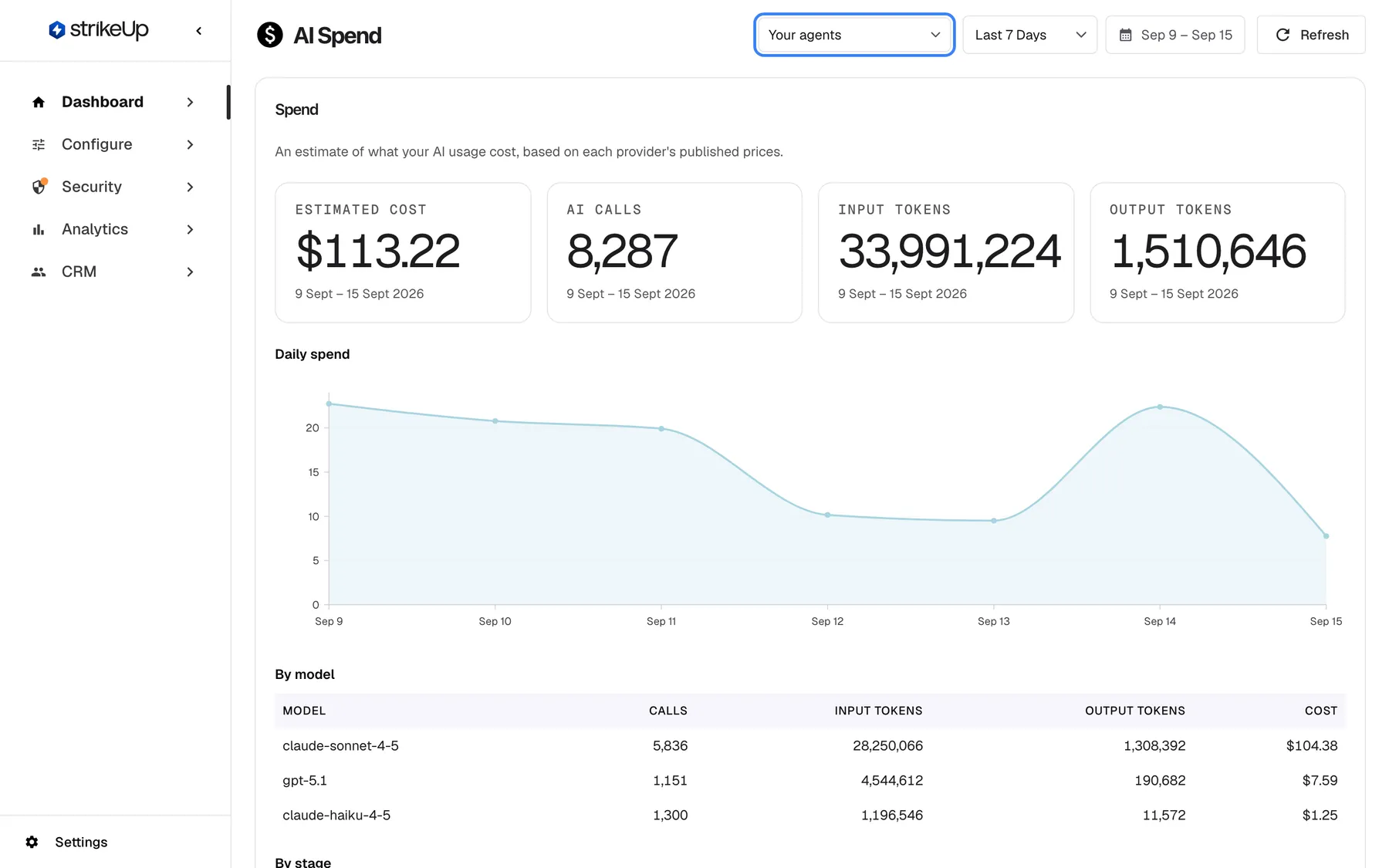
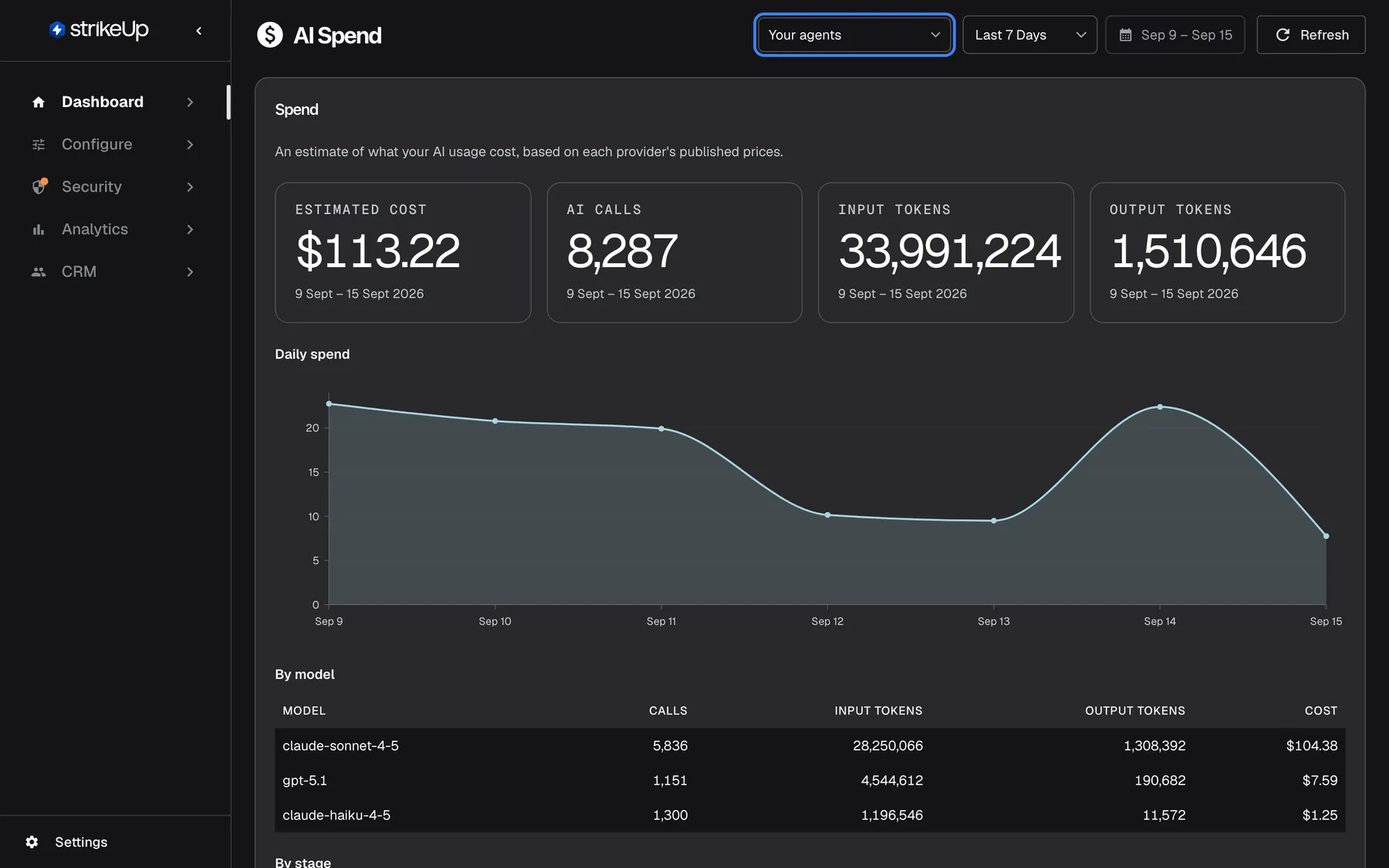
What this screenshot shows
- Screen
- AI Spend (/admin/dashboard/ai-spend)
- Highlighted
- combobox “Your agents”, header-right, Your agents selected (default, not remembered between visits). switches every card on the page between Your agents, StrikeUp services and Everything
- Also visible
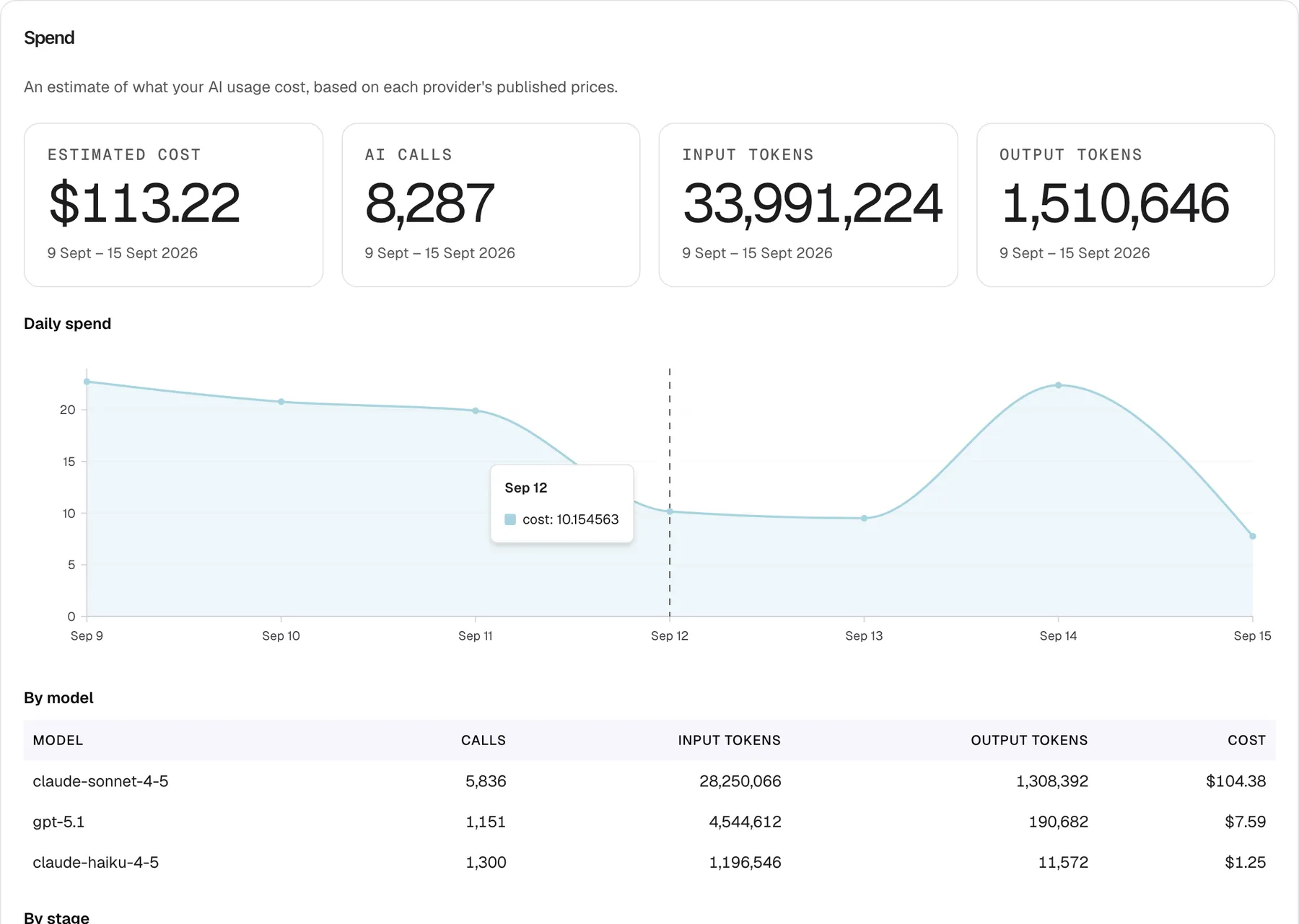
- Tiles: Estimated cost $113.22, AI calls 8,287, Input tokens 33,991,224, Output tokens 1,510,646; Each tile dated 9 Sept – 15 Sept 2026; Daily spend chart (USD)
- Purpose
- the AI Spend screen as it opens and the plane selector
| Region | What it shows | What you do there |
|---|---|---|
| Header, right | The drop-down for which calls to count, the range drop-down, the calendar button and Refresh | Choose what to count and the period, reload |
| Spend card | Four tiles, the Daily spend chart and the tables By model, By stage and By widget | Read the cost and where it comes from |
| Usage by customer and source card | The Allowance box (only with an enforced budget), five usage tables and Costliest runs | See who used the AI and what it cost |
Choose which calls to count
Section titled “Choose which calls to count”The first drop-down in the header has no label on screen. It decides which calls to AI models every tile, chart and table on the page counts.
-
Open DashboardAI Spend. The drop-down shows Your agents.
-
Open the drop-down and pick StrikeUp services or Everything. Both cards reload; the dates under the tiles stay the same.
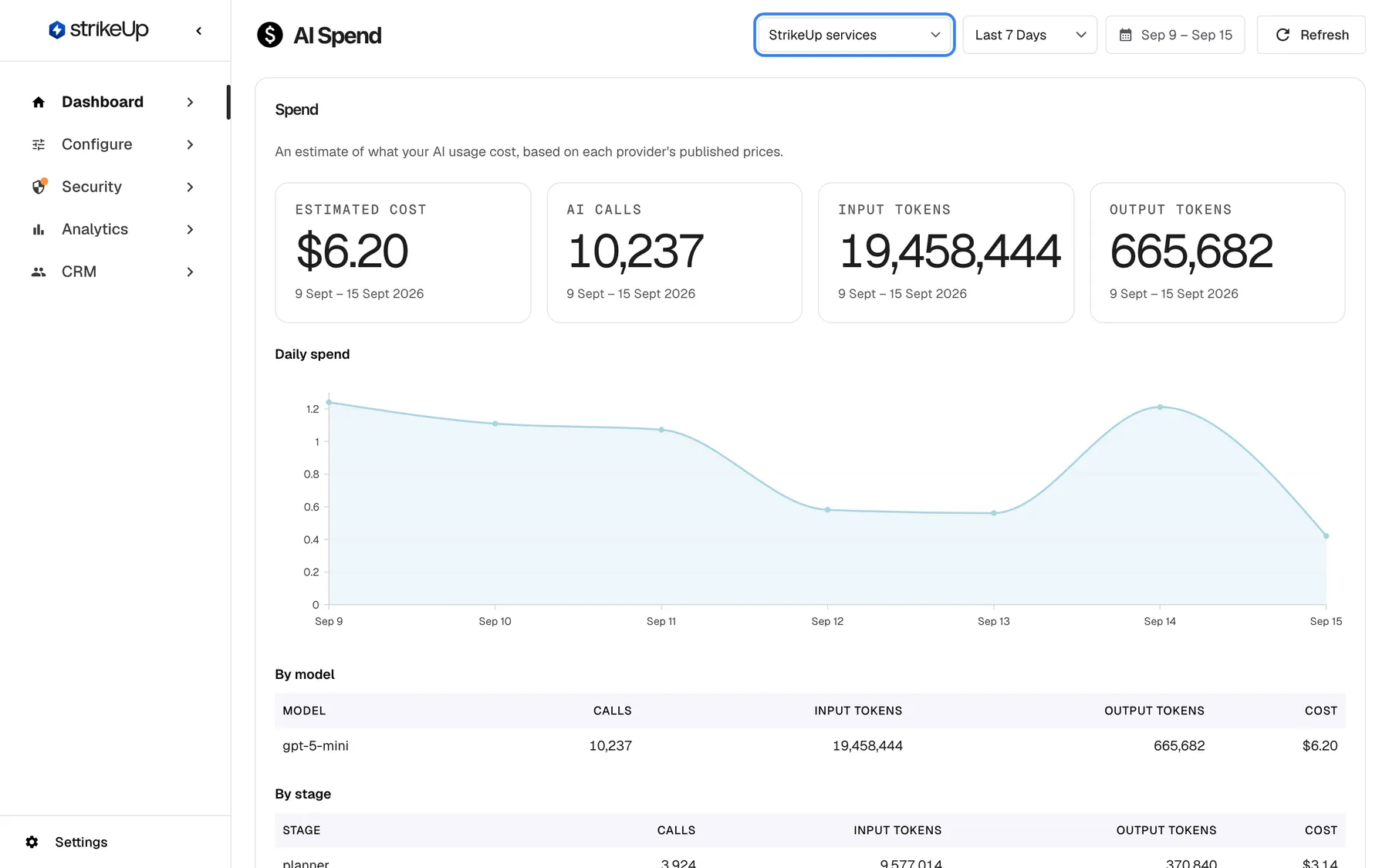
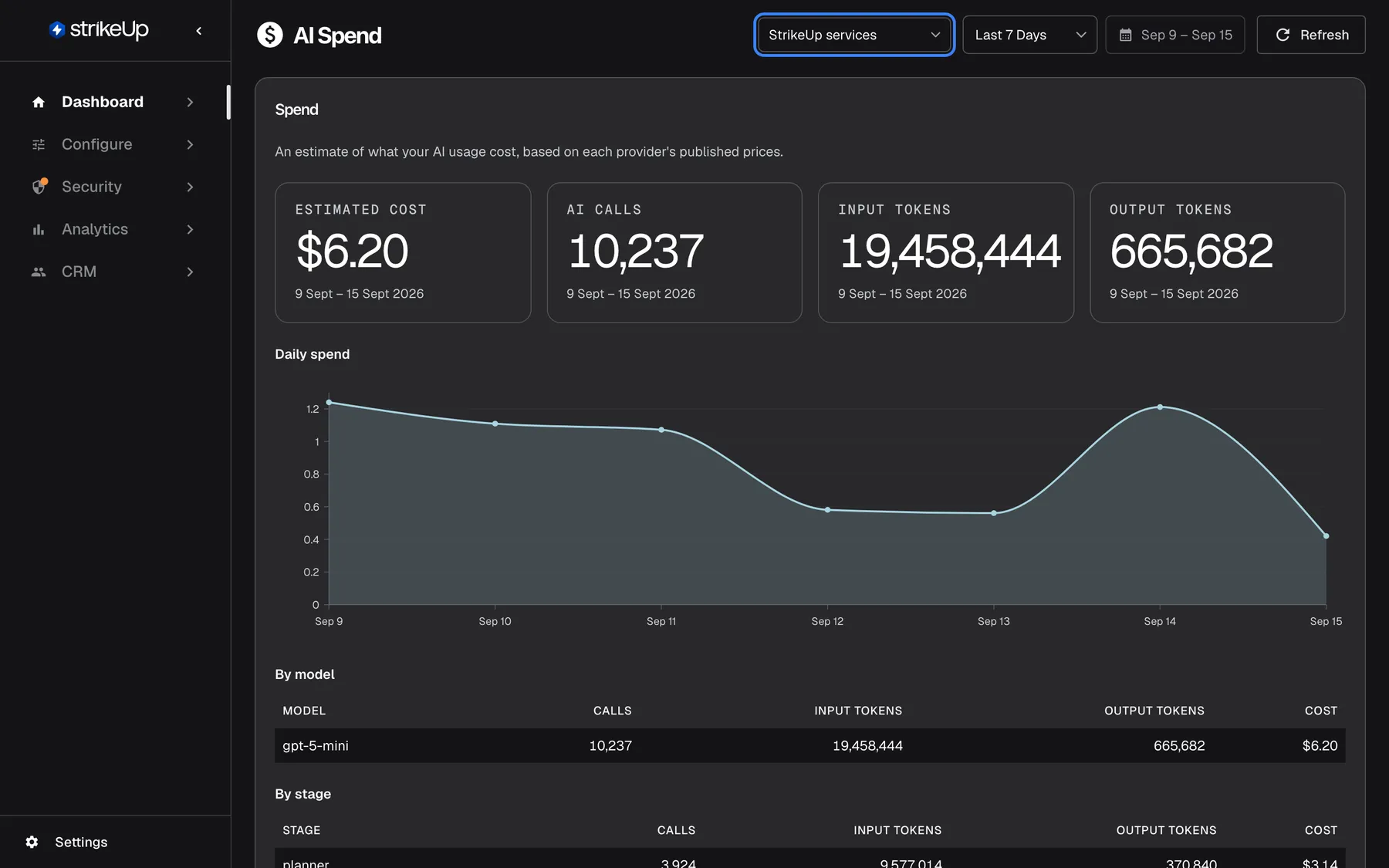
StrikeUp services shows the platform's own calls around your agents, such as planning and safety checks. What this screenshot shows
- Screen
- AI Spend (/admin/dashboard/ai-spend)
- Highlighted
- combobox “StrikeUp services”, header-right, StrikeUp services selected. every card shows only platform calls
- Also visible
- Tiles: Estimated cost $6.20, AI calls 10,237, Input tokens 19,458,444, Output tokens 665,682
- Purpose
- what the StrikeUp services plane counts
| Choice | Which calls it counts |
|---|---|
| Your agents (the default) | The calls your agents make to answer visitors and do their work: the support, copilot, analytics and general agents, their sub-agents and the classifier that judges how difficult a question is |
| StrikeUp services | The calls StrikeUp makes around your agents: planning each answer, checking messages against your guardrails, validating policies, naming chats, summarising long conversations, choosing skills, generating toolkits and their descriptions, and analytics jobs |
| Everything | Every call, including calls recorded before calls were split into these two groups |
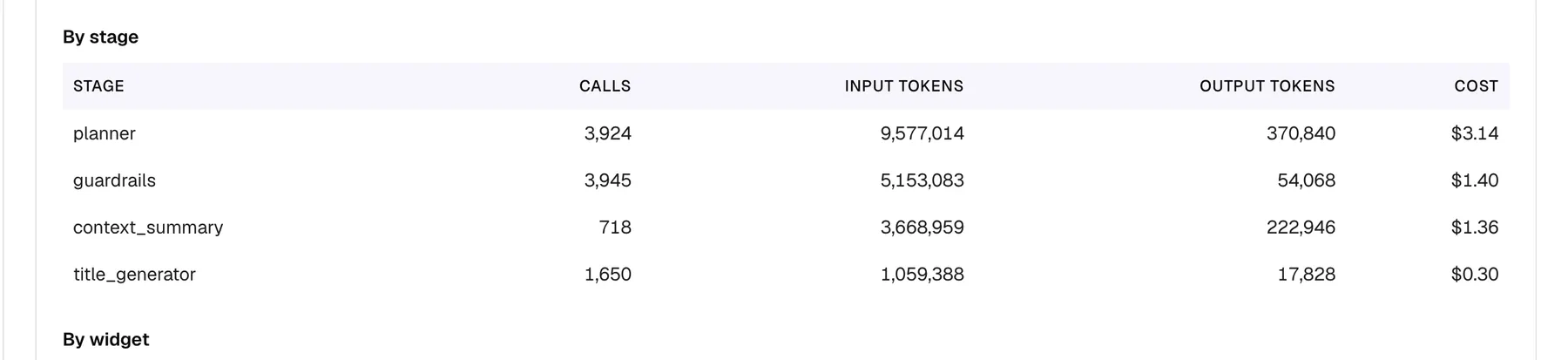
- Guardrail checks and planning belong to StrikeUp services, not to Your agents. Under StrikeUp services, the By stage table lists them as
planner,guardrails,context_summary,title_generatorand similar stages. - Everything can be more than the other two added together, because older calls with no group appear only there.
- The choice is not remembered. Each time you open the page, it starts on Your agents.
What this screenshot shows
- Screen
- AI Spend (/admin/dashboard/ai-spend)
- Highlighted
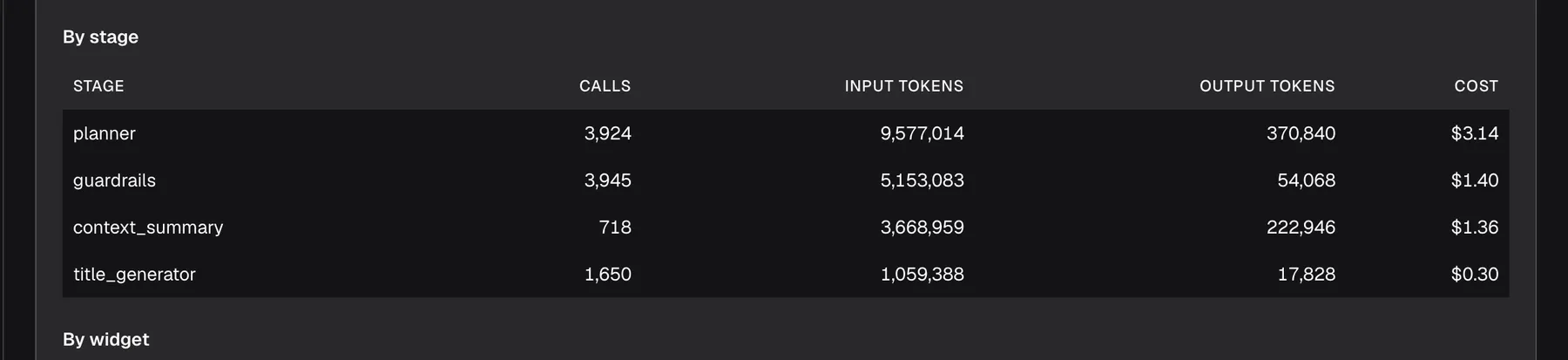
- table “By stage”, by-stage-table, StrikeUp services plane. read-only
- Also visible
- planner 3,924 calls $3.14; guardrails 3,945 calls $1.40; context_summary 718 calls $1.36; title_generator 1,650 calls $0.30
- Purpose
- what StrikeUp services consist of
Read the spend totals
Section titled “Read the spend totals”The Spend card opens with the product’s own summary, An estimate of what your AI usage cost, based on each provider's published prices., and four tiles:
| Tile | What it counts | Example |
|---|---|---|
| Estimated cost | The estimated cost of every priced call in the period, in US dollars | $115.29 |
| AI calls | Every call to an AI model, priced or not | 8,287 |
| Input tokens | Tokens sent to the models | 33,991,224 |
| Output tokens | Tokens the models produced | 1,510,646 |
Under every tile are the exact UTC dates it covers, such as “9 Sept – 15 Sept 2026”. They show when the 90-day limit or the current moment shortened your range.
How the cost is estimated:
- Each call is priced once, when it runs, from the price listed for that model at that moment. Where a connection, such as a model aggregator, has its own price for a model, that price is used.
- The cost is stored with the call. When prices change later, earlier figures stay as they were.
- Some calls have no price. That happens when the provider reported no token usage, for example for a call that failed, or when no price was listed for the model at the time. These calls count in AI calls and in the tokens, but add nothing to Estimated cost, so the total is a minimum. A blue notice tells you how many calls in the period have no price; it appears in both cards.
- Amounts are in US dollars only. Amounts under $0.01 show four decimals; $0.00 means exactly nothing.
- Sample data that StrikeUp may add to your workspace for demonstrations is never counted here.
Follow daily spend
Section titled “Follow daily spend”The Daily spend chart shows the estimated cost per UTC day across the period, in US dollars.
What this screenshot shows
- Screen
- AI Spend (/admin/dashboard/ai-spend)
- Highlighted
- tooltip “”, spend-card, tooltip shown for Sep 12. shows the day's estimated cost in USD
- Also visible
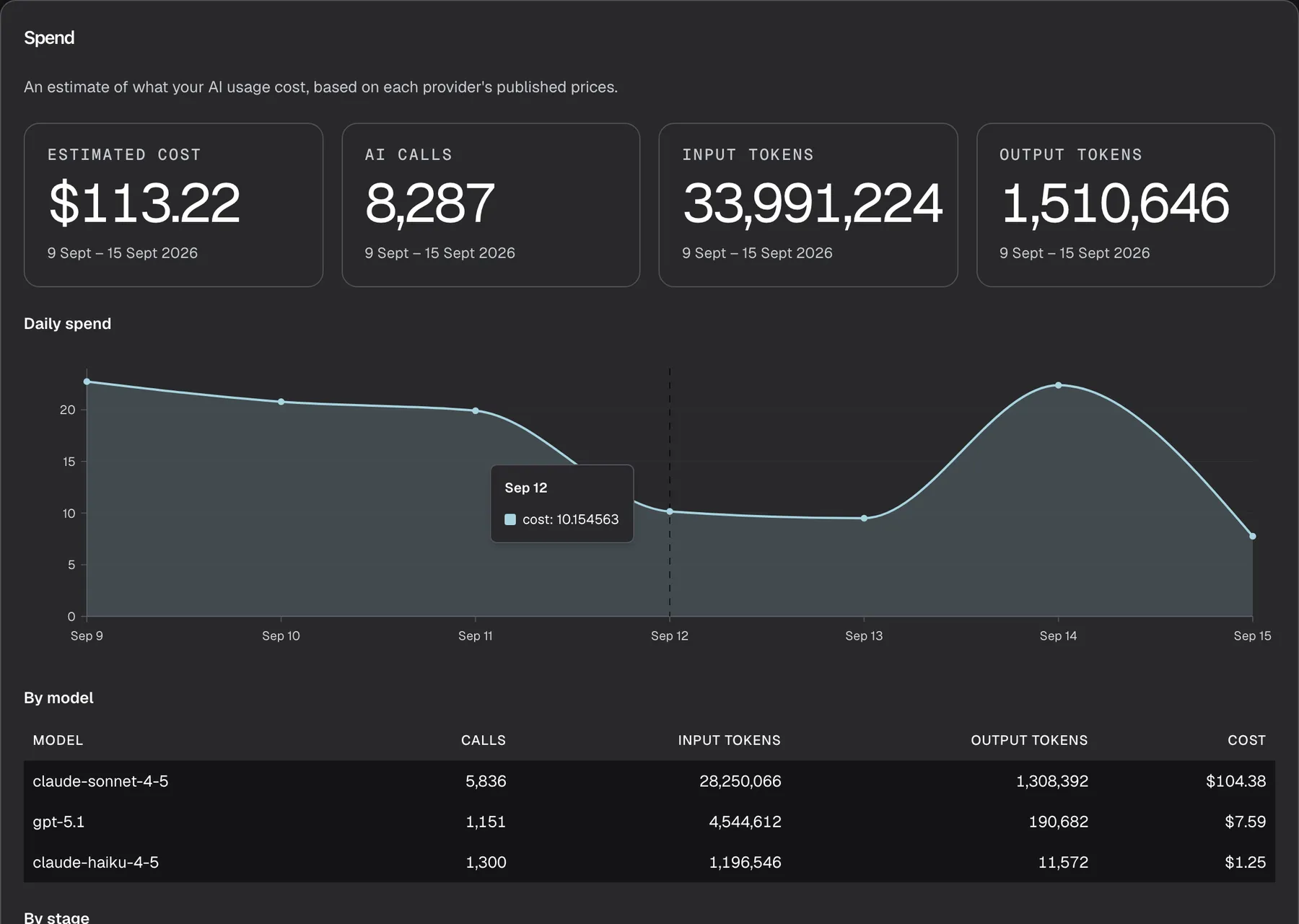
- Tiles: $113.22, 8,287, 33,991,224, 1,510,646; Daily spend Sep 9 – Sep 15: 22.73, 20.78, 19.91, 10.15, 9.51, 22.38, 7.76 USD; Tooltip value unformatted (cost: 10.154563), series name English in every language
- Purpose
- reading daily estimated cost
- Hover the chart. A dashed line marks the day under the pointer.
- Read the tooltip: the day, such as “Sep 12”, and its cost, such as
cost: 10.3350233. The tooltip shows the unrounded amount in US dollars, without a currency sign.
Days without any call show as zero. Day labels are UTC days, so they match the dates under the tiles wherever you are. With no calls at all in the period, the chart area shows No AI usage recorded in this period..
Break the cost down
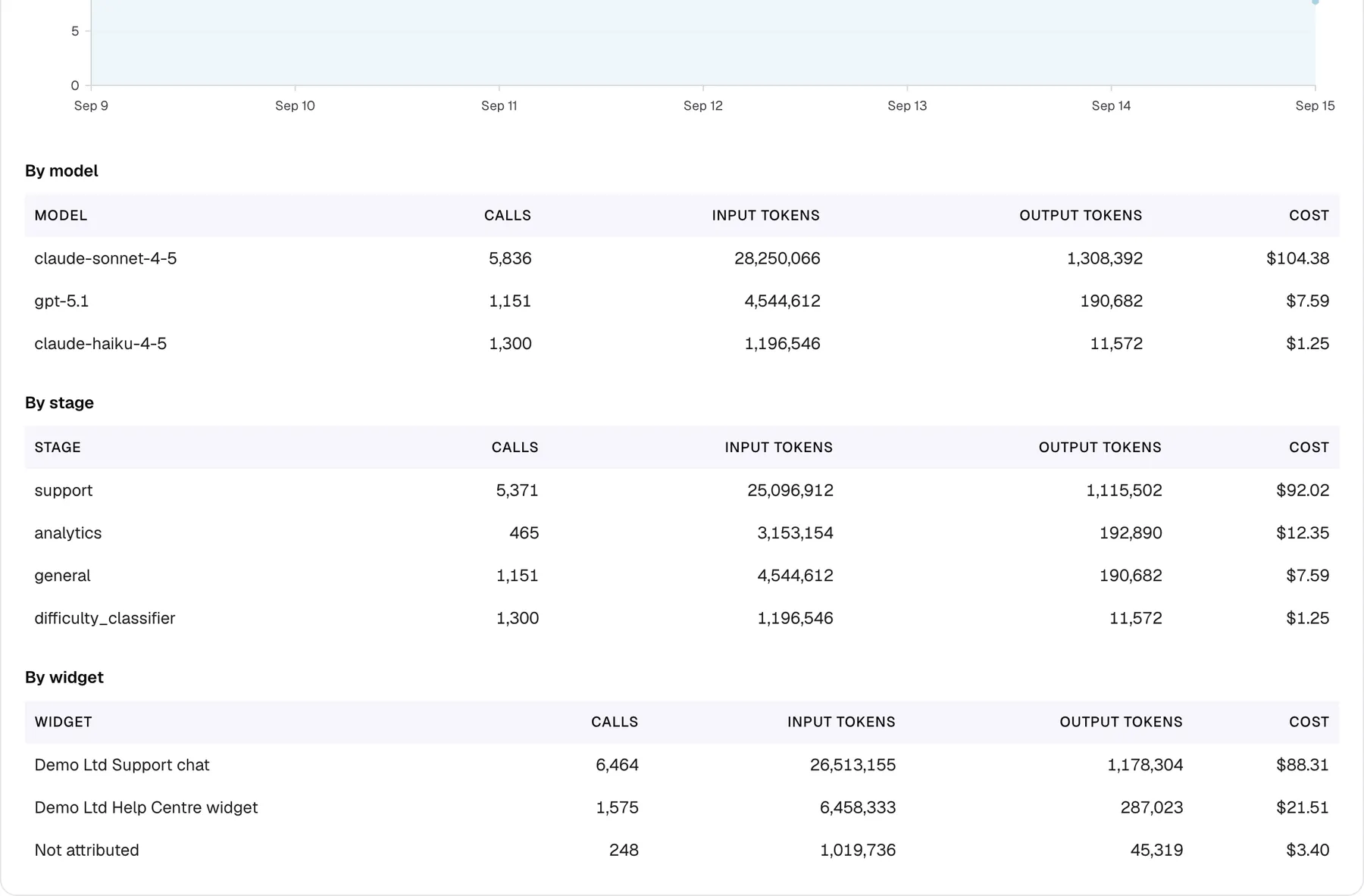
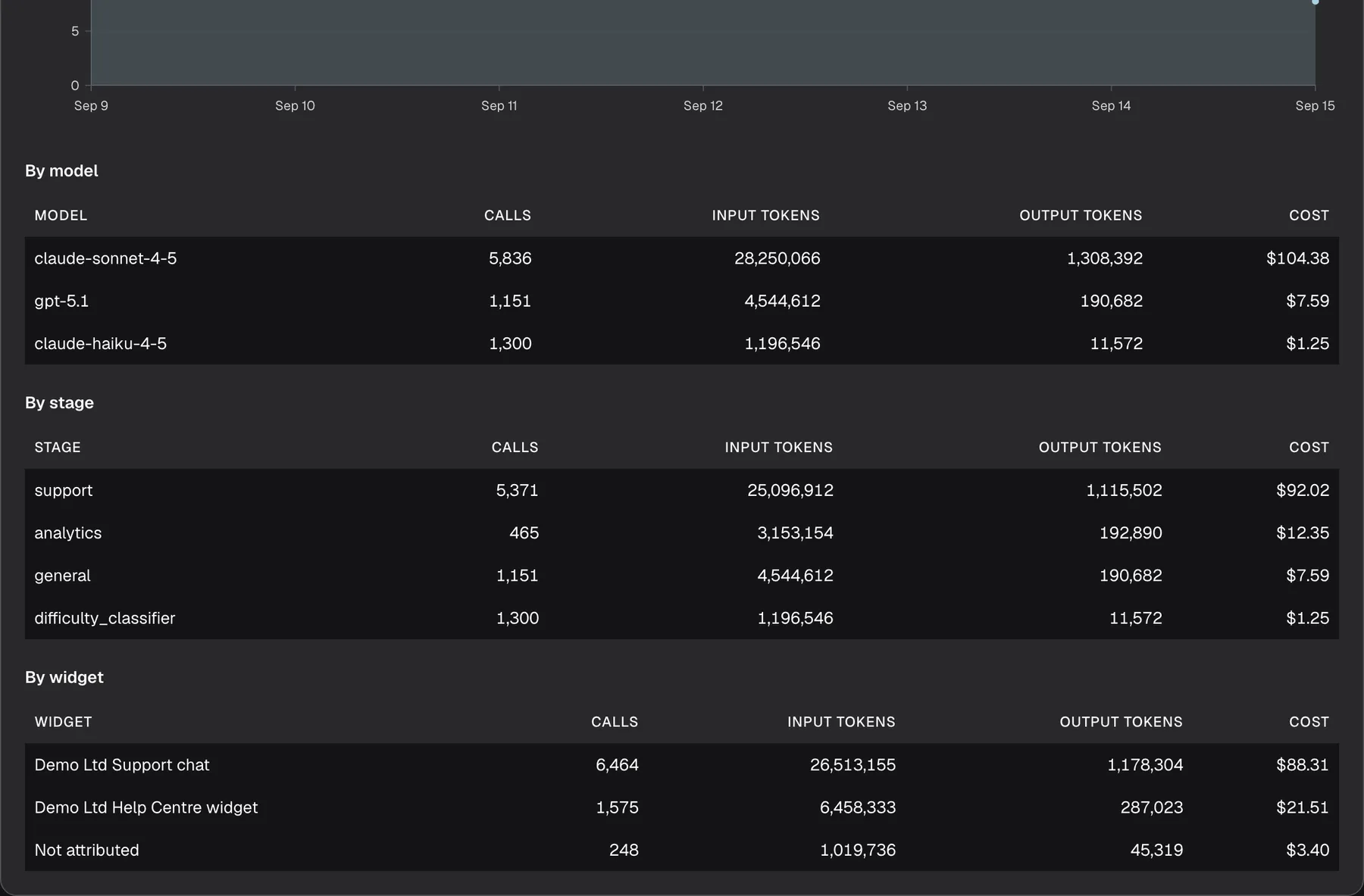
Section titled “Break the cost down”Three tables in the Spend card split the same total. Each has the columns Calls, Input tokens, Output tokens and Cost, sorted by cost, highest first.
What this screenshot shows
- Screen
- AI Spend (/admin/dashboard/ai-spend)
- Highlighted
- table “By stage”, spend-card-tables, Your agents, last 7 days. read-only
- Also visible
- By model: claude-sonnet-4-5 $104.38, gpt-5.1 $7.59, claude-haiku-4-5 $1.25; By stage: support $92.02, analytics $12.35, general $7.59, difficulty_classifier $1.25; By widget: Demo Ltd Support chat $88.31, Demo Ltd Help Centre widget $21.51, Not attributed $3.40
- Purpose
- where the spend went
| Table | One row per | Things to know |
|---|---|---|
| By model | Model and provider | The row shows the model name only, so a model used through two providers or connections appears twice with the same name. |
| By stage | Agent stage that made the call | Stages show their internal names, such as support, general, analytics or difficulty_classifier, in every language. Calls without a stage are grouped as Not attributed. |
| By widget | Widget the call came from | A widget deleted since shows its identifier instead of its name. Calls from outside a widget, such as workflows or features of the admin app, are grouped as Not attributed. |
A row with calls that have no price carries a note such as “12 without a price”. A table with nothing to show reads Nothing recorded in this period..
Example: in the screenshot, claude-sonnet-4-5 accounts for $92.02 of $115.29, the support stage for the same $92.02, and the widget “Demo Ltd Support chat” for $89.93. Most of the cost comes from one model answering visitors in one widget.
Check your allowance
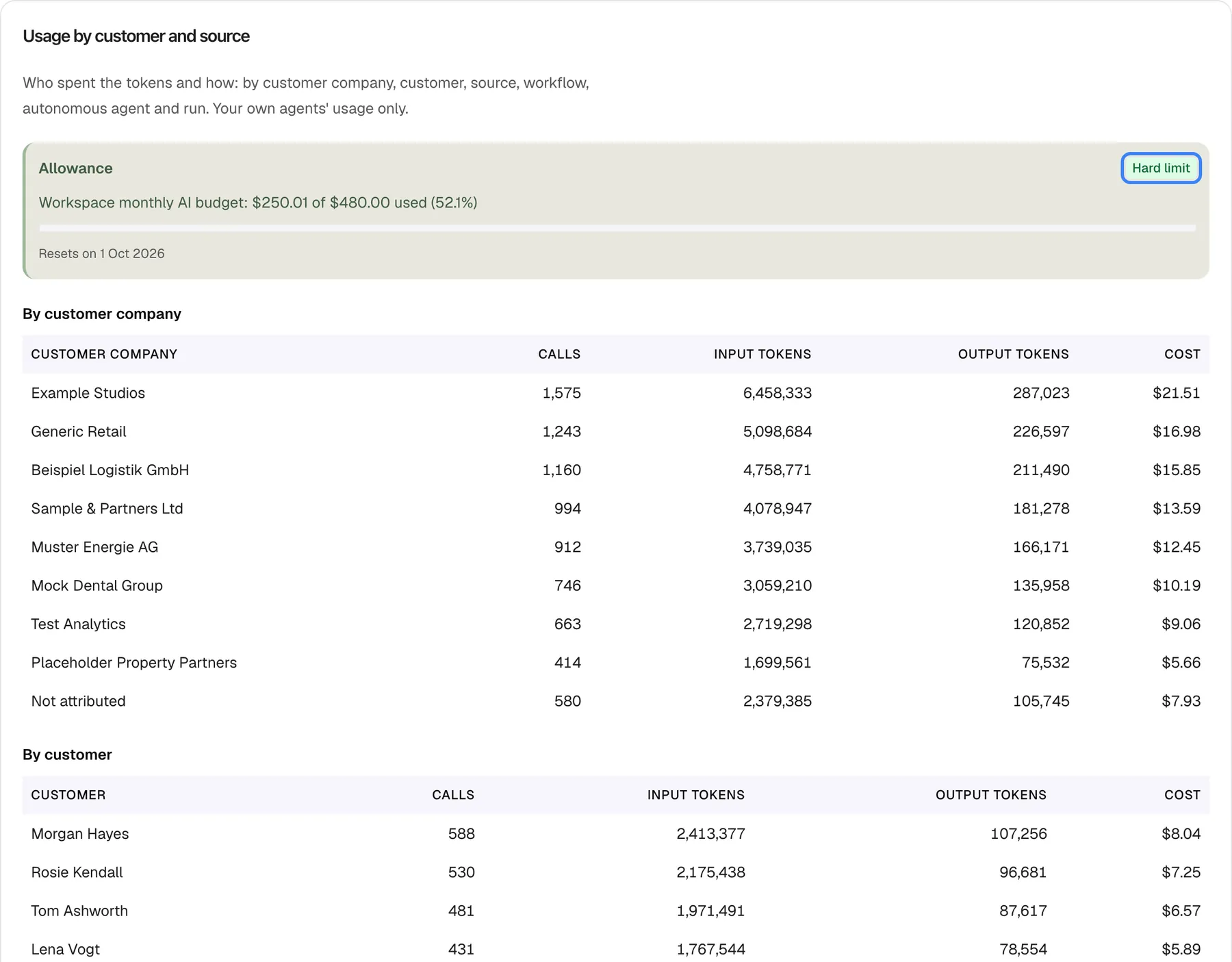
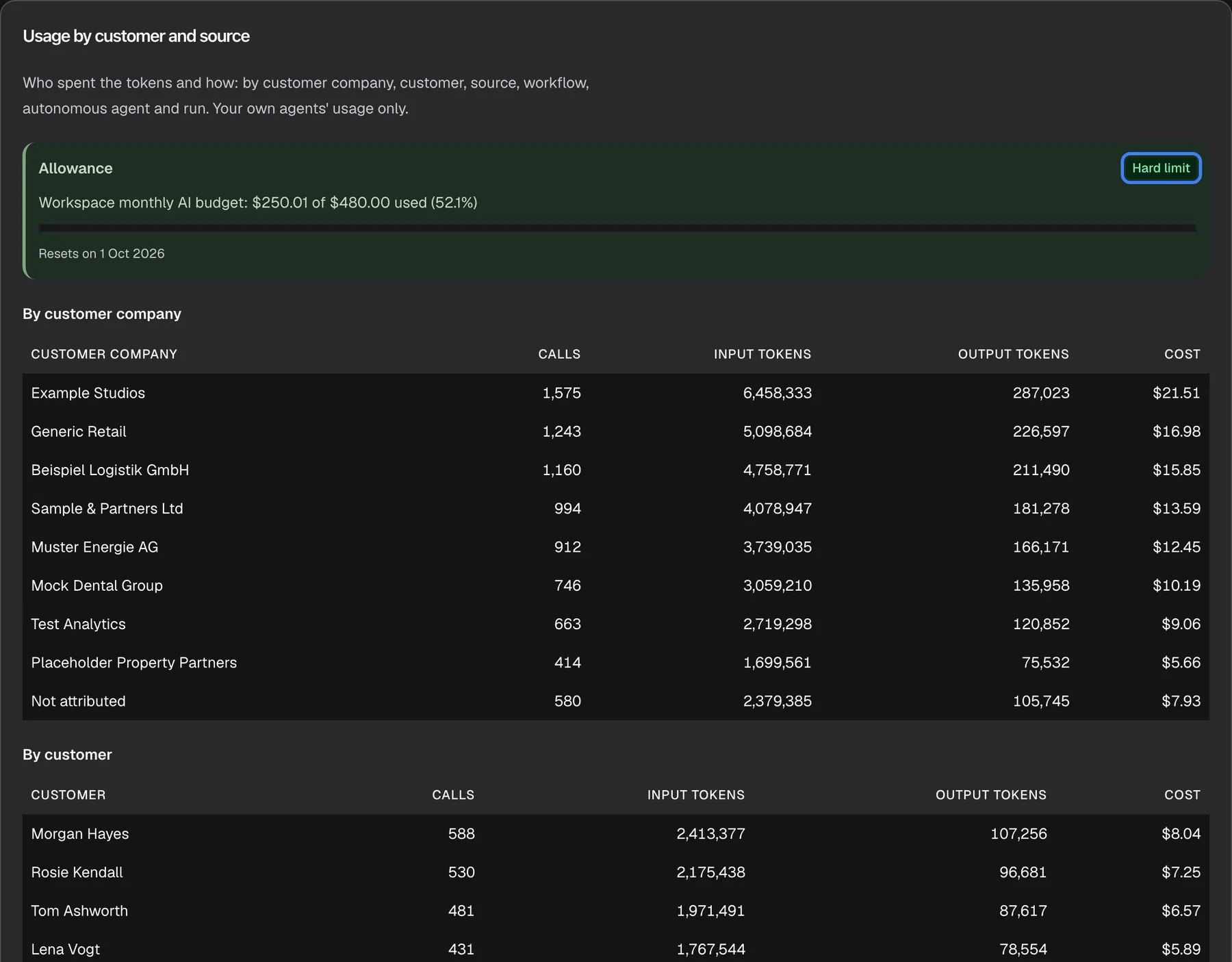
Section titled “Check your allowance”The Allowance box at the top of the Usage by customer and source card appears only when your workspace has an active budget that applies to All AI usage with Enforce as a hard limit switched on. Without such a budget, the box is not shown at all.
What this screenshot shows
- Screen
- AI Spend (/admin/dashboard/ai-spend)
- Highlighted
- status “Hard limit”, usage-card-allowance, enforced budget, 52.1% used. read-only; spending stops for the scope when the hard limit is reached
- Also visible
- Allowance: Workspace monthly AI budget: $250.01 of $480.00 used (52.1%), Resets on 1 Oct 2026; By customer company: Example Studios $21.51 … Not attributed $7.93
- Purpose
- the allowance read-out for an enforced budget
- What it shows: the budget’s name, what it has used of its amount and the percentage, such as “Workspace monthly AI budget: $254.53 of $490.00 used (51.9%)”, a progress bar, and the date it resets, such as “Resets on 1 Oct 2026”.
- The badge: Hard limit while money is left, Used up once the amount is spent.
- The colour: green below 80% used, yellow from 80%, red when nothing is left.
- It ignores your date range and the drop-down. It always shows the budget’s current period and counts only your agents’ calls.
- Resets: a daily budget resets at midnight UTC, a weekly one on Monday at midnight UTC, a monthly one on the 1st at midnight UTC. The date is shown in your time zone, so west of UTC it can read one day earlier.
- Only workspace-wide budgets count here. Budgets for one widget or one customer company do not appear in this box. If several workspace budgets are enforced, the box shows the one with the least money left.
- The figures can lag by up to a minute behind the latest calls.
What happens when an enforced budget is used up, and how to set one, is explained under Budgets & limits.
See who used the AI
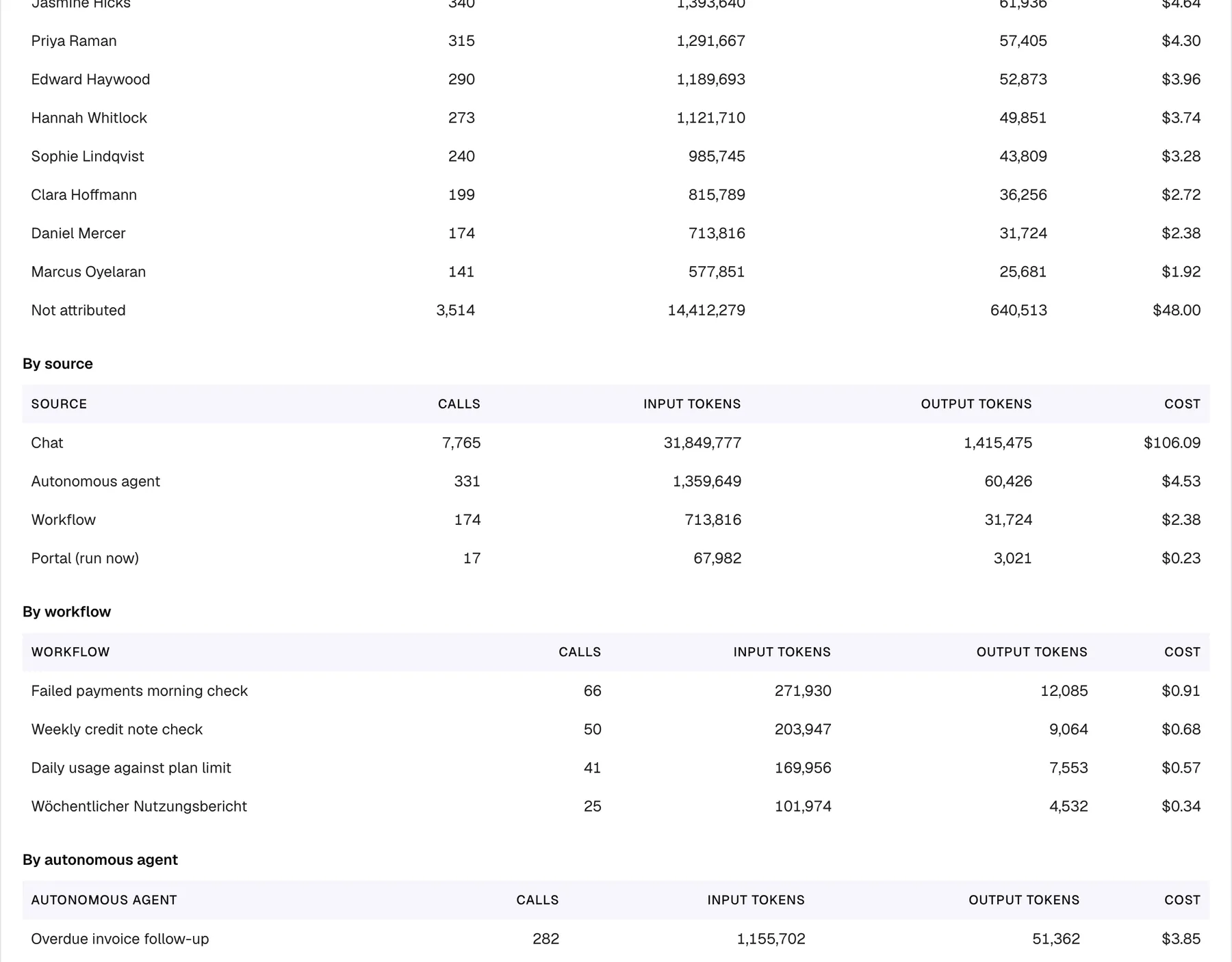
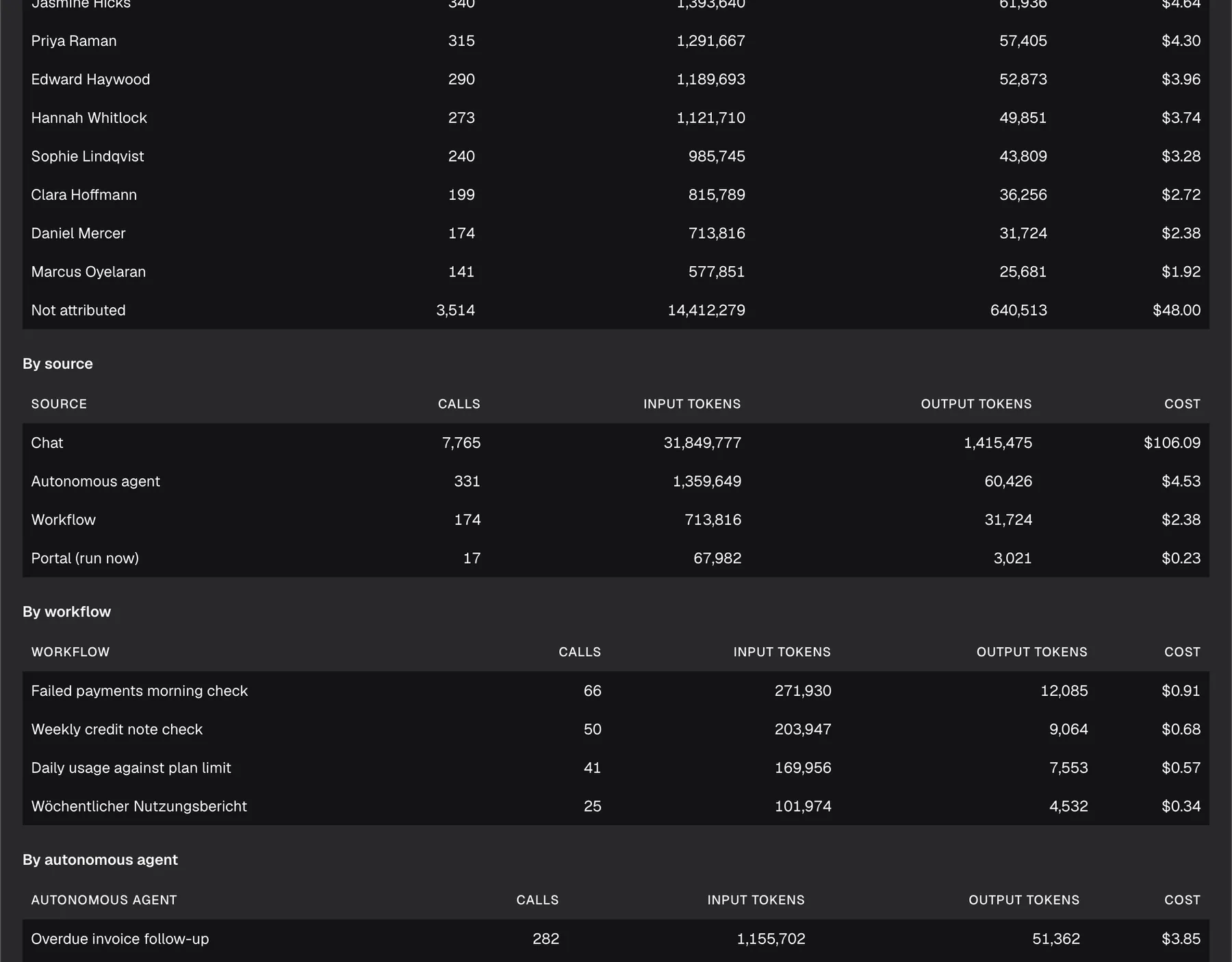
Section titled “See who used the AI”Five tables in the Usage by customer and source card split the cost by who or what made the calls. They have the same columns as the breakdown tables, are sorted by cost, and always list Not attributed last. They follow the drop-down for which calls to count, although the card’s subtitle ends with “Your own agents’ usage only.”
What this screenshot shows
- Screen
- AI Spend (/admin/dashboard/ai-spend)
- Highlighted
- table “By source”, usage-card-tables, Your agents, last 7 days. read-only
- Also visible
- By customer (end): Marcus Oyelaran $1.92, Not attributed $48.00; By source: Chat $106.09, Autonomous agent $4.53, Workflow $2.38, Portal (run now) $0.23; By workflow: Failed payments morning check $0.91, Weekly credit note check $0.68, Daily usage against plan limit $0.57, Wöchentlicher Nutzungsbericht $0.34; By autonomous agent: Overdue invoice follow-up $3.85 (first row)
- Purpose
- spend attribution by source, workflow and agent
| Table | One row per | Things to know |
|---|---|---|
| By customer company | Company in your CRM | Shown by name, else by identifier |
| By customer | Customer | Shown by name, else email, else identity; anonymous visitors appear with an identity beginning with anon- |
| By source | Where the call started | Chat, Workflow, Autonomous agent or Portal (run now) |
| By workflow | Workflow | Scheduled runs and runs started from the customer portal; a deleted workflow shows its identifier |
| By autonomous agent | One of your autonomous agents | A deleted agent shows its identifier |
Not attributed is real spend that could not be tied to a customer, source, workflow or agent: calls made before this information was recorded, calls from features of the admin app, and anonymous chats without a customer. It is included in every total.
Find the costliest runs
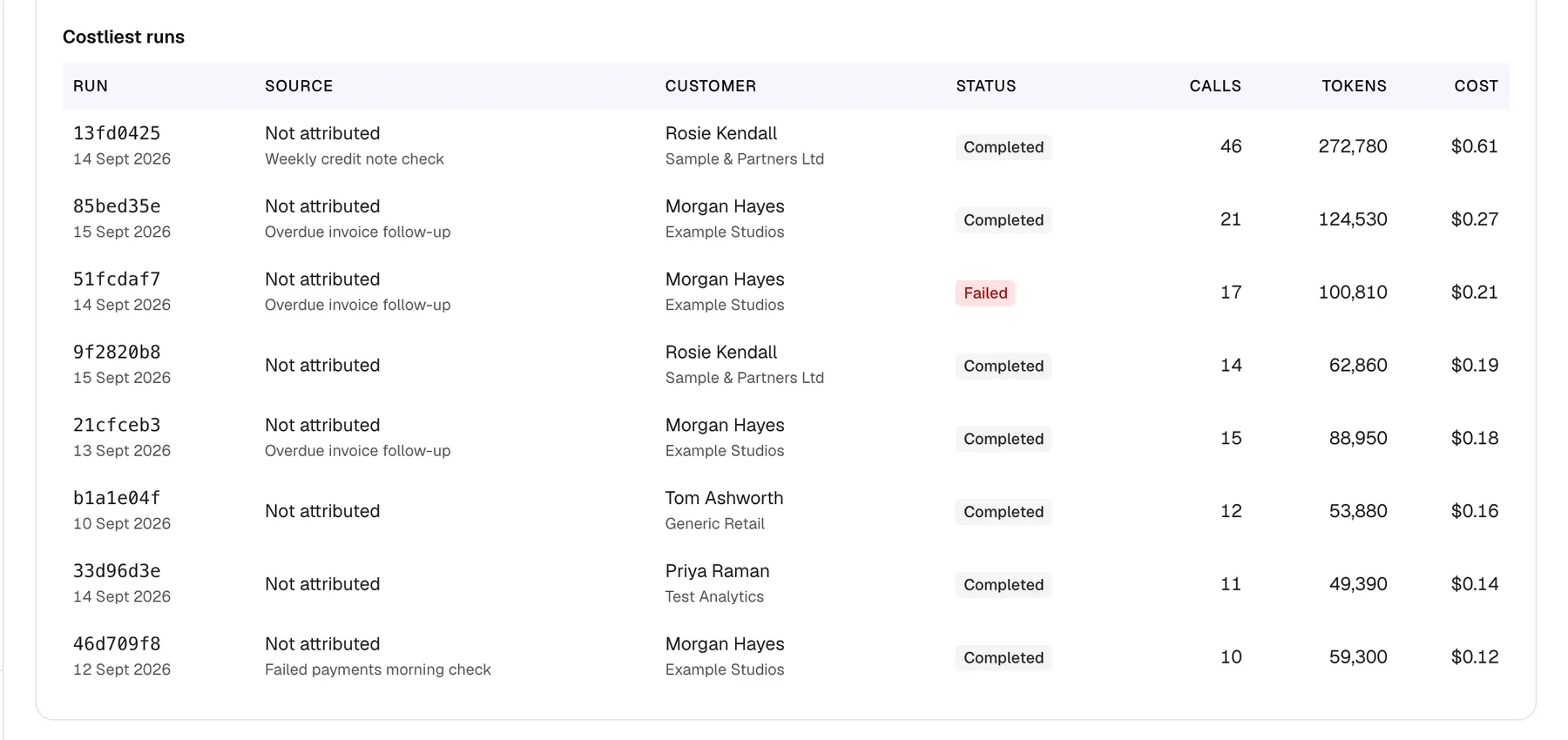
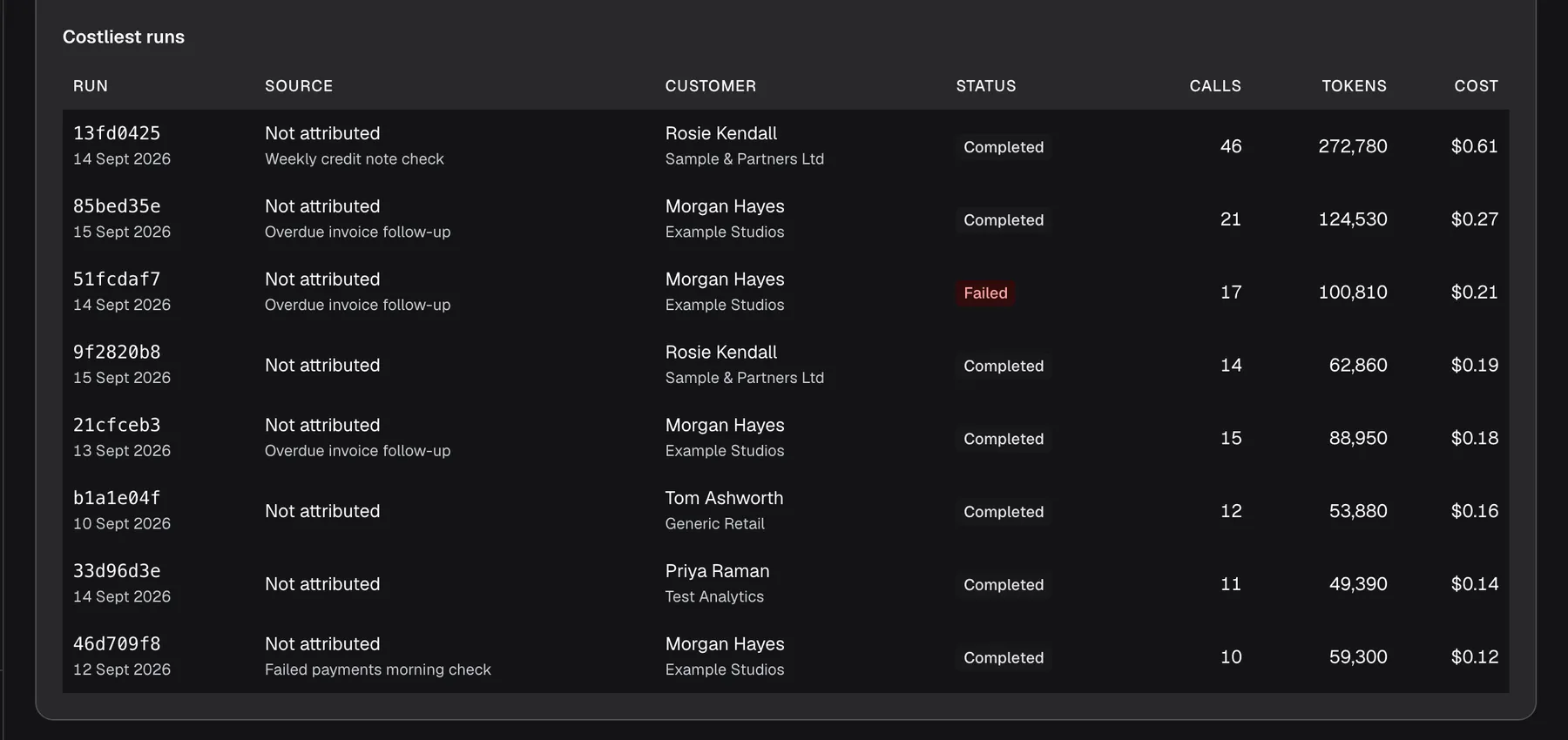
Section titled “Find the costliest runs”The Costliest runs table lists up to 20 workflow and autonomous-agent runs in the period, most expensive first.
What this screenshot shows
- Screen
- AI Spend (/admin/dashboard/ai-spend)
- Highlighted
- table “Costliest runs”, costliest-runs-table, 8 runs listed. read-only
- Also visible
- Columns Run, Source, Customer, Status, Calls, Tokens, Cost; 13fd0425 14 Sept 2026, Weekly credit note check, 46 calls, $0.61; Source shows Not attributed in every row (known defect); Status values in English: Completed, Failed
- Purpose
- the most expensive runs
| Column | What it shows |
|---|---|
| Run | The first 8 characters of the run’s identifier and the date the run was created |
| Source | Not attributed in every row, with the name of the workflow or agent below it |
| Customer | The customer the run worked for, with their company below; Not attributed when there is none |
| Status | The run’s status in English: Planned, Running, WaitingForApproval, WaitingForInput, Paused (yellow), Completed, Failed (red) or Cancelled |
| Calls | Calls to AI models the run made |
| Tokens | Input and output tokens together |
| Cost | The run’s estimated cost |
Read the name under the Source column to see what ran. To follow a run step by step, find it by its identifier in AnalyticsAgent jobs.
Change the period
Section titled “Change the period”The range drop-down and the calendar button set the period for both cards, except the Allowance box. The range is shared with the other Dashboard pages and remembered in this browser. On this page two extra rules apply:
- At most 90 days. A longer range is cut to the 90 days before its end. A range from 1 March to 30 September covers 2 July to 30 September.
- It ends now. A range that ends today stops at the current moment.
The dates under the tiles always show the period actually counted.
Every control, explained
Section titled “Every control, explained”Drop-down for which calls to count
Section titled “Drop-down for which calls to count”The first drop-down at the top right, with no label on screen. It applies the moment you pick an option.
Your agents (the default), StrikeUp services or Everything. It applies to both cards, but not to the Allowance box. It resets to Your agents on every visit.
Your own agents’ calls are the ones your setup controls. The other choices show the full picture of AI use around your assistant.
Range drop-down and calendar
Section titled “Range drop-down and calendar”To the right of the first drop-down. They apply the moment you choose.
Last 7 Days (the default), Last 14 Days, Last 30 Days or a custom range from the calendar, up to today. On this page the range is cut to 90 days and ends at the current moment. The choice is shared with the other Dashboard pages and stored in this browser.
Match the period to the one you are checking, such as a calendar month.
Refresh
Section titled “Refresh”The Refresh button at the top right.
Reloads both cards for the same choice and range; the button spins until both have loaded.
See the cost of calls made since you opened the page.
Spend card
Section titled “Spend card”| Part | What it shows | Why |
|---|---|---|
| Estimated cost, AI calls, Input tokens, Output tokens | Totals for the period, with the UTC dates counted under each | The headline cost and volume |
| Notice about calls without a price | How many calls in the period have no cost estimate | Tells you the total is a minimum |
| Daily spend | The estimated cost per UTC day, axis USD | Spot expensive days |
| By model, By stage, By widget | Cost split by model, agent stage and widget | Find where the cost comes from |
Usage by customer and source card
Section titled “Usage by customer and source card”| Part | What it shows | Why |
|---|---|---|
| Allowance | The enforced workspace budget with the least money left: used amount, percentage, badge and reset date | Know whether work will pause soon |
| By customer company, By customer | Cost per customer company and per customer | Find the customers who use the most AI |
| By source | Cost per source: chat, workflow, autonomous agent or portal run | See which kind of work costs most |
| By workflow, By autonomous agent | Cost per workflow and per autonomous agent | Find automations to tune |
| Costliest runs | Up to 20 runs by cost | Find single runs that cost far more than usual |
What you need to know
Section titled “What you need to know”| Topic | Fact |
|---|---|
| An estimate | Costs are worked out from listed model prices at the time of each call. They are not an invoice. |
| Currency | US dollars only. |
| Frozen prices | A call’s cost is stored when it runs; later price changes do not alter it. |
| A minimum | Calls without a price add nothing to the cost total. |
| 90 days | The period is at most 90 days and ends at the current moment. Other Dashboard pages have no such limit. |
| UTC days | Days and the dates under the tiles are UTC. |
| No sample data | Demonstration records are never counted on this page. |
| Who sees it | Every signed-in user of your workspace, whatever their role, including customer names and costs. |
| No export | The page has no download and rows are not clickable. |
| Live data | Every load, change and refresh reads current data. The allowance box can lag by up to a minute. |
Frequently asked questions
Section titled “Frequently asked questions”Is AI Spend my invoice?
Section titled “Is AI Spend my invoice?”No. DashboardAI Spend shows an estimate in US dollars, worked out for each AI call from the price listed for its model when the call ran. Calls without a price add nothing, so the estimate can differ from what a provider bills.
What currency are the costs in?
Section titled “What currency are the costs in?”Every amount on DashboardAI Spend is in US dollars, and there is no setting for another currency. Amounts under one cent are shown with four decimals, and $0.00 appears only when the cost is exactly zero.
Why do some calls have no price?
Section titled “Why do some calls have no price?”A call has no price when the provider reported no token usage, for example because the call failed, or when no price was listed for that model at the time. Such calls count in AI calls and the token tiles but add nothing to Estimated cost. Your AI budgets still charge them, at a typical rate, so a budget can show more spend than this page. Calls through your own Self-hosted endpoint connector to a model without a price are not unpriced: they are recorded at $0.
Will old costs change when prices change?
Section titled “Will old costs change when prices change?”No. Each call’s cost on DashboardAI Spend is calculated once, when the call runs, and stored with it. A later price change affects only calls made after it, so past periods always show the same figures.
Why does the same model appear twice in By model?
Section titled “Why does the same model appear twice in By model?”The By model table has one row per model and provider, but shows only the model name. When the same model is reached through two providers or connections, for example directly and through an aggregator, it appears in two rows with the same name.
What is counted
Section titled “What is counted”Why is Everything not the sum of Your agents and StrikeUp services?
Section titled “Why is Everything not the sum of Your agents and StrikeUp services?”Everything counts every AI call, including older calls recorded before calls were split into Your agents and StrikeUp services. Those older calls belong to neither group, so they appear only under Everything.
Are guardrail checks part of Your agents?
Section titled “Are guardrail checks part of Your agents?”No. Checking visitor messages against your guardrails, planning answers, naming chats and summarising conversations are counted under StrikeUp services on DashboardAI Spend. Pick that option in the first drop-down to see their cost by stage.
What is a stage?
Section titled “What is a stage?”A stage is the agent or step of StrikeUp that made the AI call, such as support, general, analytics or, under StrikeUp services, planner and guardrails. The By stage table shows these internal names in every language.
What does Not attributed mean?
Section titled “What does Not attributed mean?”Not attributed groups real spend that could not be tied to a stage, widget, customer, source, workflow or agent, such as calls made before that was recorded, calls from admin-app features and anonymous chats. It is included in every total and listed last in the usage tables.
Why is a widget shown as a long identifier?
Section titled “Why is a widget shown as a long identifier?”The By widget table shows a widget’s name while the widget exists. When the widget has been deleted since the calls were made, its cost stays in the table under the widget’s identifier instead of its name.
Does AI Spend include sample data?
Section titled “Does AI Spend include sample data?”No. Sample records that StrikeUp may add to a workspace for demonstrations are never counted on DashboardAI Spend, although the other Dashboard pages do count them.
Why does Costliest runs show Not attributed in every Source cell?
Section titled “Why does Costliest runs show Not attributed in every Source cell?”The Source column of Costliest runs shows Not attributed for every run. The name of the workflow or autonomous agent that ran is shown on the line below it, and By source splits cost by source correctly.
Period
Section titled “Period”Why is my range shorter than I picked?
Section titled “Why is my range shorter than I picked?”DashboardAI Spend counts at most 90 days, the 90 days before the end of your range, and a range that ends today stops at the current moment. The dates under each tile show the period actually counted.
Why do some days in Daily spend show zero?
Section titled “Why do some days in Daily spend show zero?”The Daily spend chart has one point per UTC day of the period. A day with no calls to AI models at all, or only calls without a price, is shown as zero rather than left out.
Why does the drop-down go back to Your agents?
Section titled “Why does the drop-down go back to Your agents?”The first drop-down on DashboardAI Spend is not remembered between visits. Every time you open the page it starts on Your agents, while the date range keeps your last choice.
Allowance
Section titled “Allowance”Why don’t I see the Allowance box?
Section titled “Why don’t I see the Allowance box?”The Allowance box appears only when your workspace has an active budget that applies to All AI usage with Enforce as a hard limit switched on. Budgets that only alert, or that apply to one widget or one customer company, do not show it.
Does the Allowance box follow my date range?
Section titled “Does the Allowance box follow my date range?”No. The Allowance box always shows the budget’s current period, daily, weekly or monthly, counting only your agents’ calls, whatever range or drop-down choice is set on DashboardAI Spend.
When does the allowance reset?
Section titled “When does the allowance reset?”At the start of the budget’s next period in UTC: the next midnight for a daily budget, Monday at midnight for a weekly one, and the 1st of the month at midnight for a monthly one. The Allowance box shows the date in your time zone.
Access
Section titled “Access”Do I need the AI gateway to see AI Spend?
Section titled “Do I need the AI gateway to see AI Spend?”No. DashboardAI Spend is there for every workspace, with or without the AI gateway, because every AI call is costed. Setting up your own models and keys is described in AI models, spend and budgets.
Who can see AI Spend?
Section titled “Who can see AI Spend?”Every signed-in user of your workspace can open DashboardAI Spend, whatever their role, and sees the costs together with the names of customers and customer companies. End customers never see the Dashboard.
Troubleshooting
Section titled “Troubleshooting”| Symptom | What to check |
|---|---|
| A Request failed message and No AI usage recorded in this period. | The page failed to load; it is not an empty period. Select Refresh, and sign out and in again if it happens again. |
| Estimated cost is $0.00 although AI calls is above 0 | Every call in the period has no price; check the blue notice. Under StrikeUp services, models without a listed price produce the same result. |
| The estimate is lower than your provider’s bill | Calls without a price add nothing; the first drop-down may be on Your agents only; and providers can round or charge minimums differently. |
| The Allowance box is missing | No active workspace-wide budget has Enforce as a hard limit on. Check under ConfigureBudgets & limits. |
| The Source column of Costliest runs reads Not attributed | Every row shows this. Read the workflow or agent name below it, or use By source. |
| The period shows fewer days than you picked | The page counts at most 90 days and stops at the current moment. Read the dates under the tiles. |
| A large share is Not attributed | Calls from admin-app features, anonymous chats and older calls have no customer or source. Identify your users in the widget so their chats are tied to a customer. |
| A widget appears as a long identifier | The widget was deleted after the calls were made. |