

Job notifications and chat apps
Background jobs run when nobody is watching: a scheduled workflow, an autonomous agent, a chat someone closed before the reply arrived. When such a job needs an approval or a reply to a question, or fails, the person it belongs to is usually somewhere else. Job notifications reach them there, by email or in Slack, Telegram or Microsoft Teams, and the chat apps let them approve, answer and even chat with the assistant without opening your app.
What it does
Section titled “What it does”Without notifications, a workflow that stops to ask for approval waits until its owner happens to open the Customer Portal. A failed overnight run goes unnoticed until someone asks where the report is.
With channels connected, StrikeUp tells the job’s owner as soon as the job needs them, on every channel they switched on, and stays quiet while they are watching the chat themselves. From there:
- You connect one channel per provider for your whole workspace, and a customer company can have its own. Setting it up in 5 steps · Notifications.
- Each person decides where they are reached and which outcomes they hear about. Who is notified, and when.
- In Slack, Telegram and Teams people approve or deny requests, answer the assistant’s questions, chat and use commands. Job notifications in chat apps.
- Every message carries an Open button to the chat or run in your app. The App page URL.
- You decide per company how risky a request may be to approve from a phone. Approvals from chat apps.
Every delivery attempt, sent or failed, is logged with the channel, the recipient address and the subject, and an approval made from a chat app records where it was decided.
Before you start
Section titled “Before you start”| Requirement | Details |
|---|---|
| Role | The Admin role in StrikeUp, to add channels on ConfigureNotifications, a company’s Integrations tab and ConfigureUser Interface |
| Customer Portal | The widget’s Customer Portal on, because people opt in under My notifications in the portal. The Notifications page is shown to everyone signed in to the portal |
| Credentials | A mailbox (SMTP host, user name, password), a Telegram bot token from @BotFather, a Slack app you can install, or an Azure Bot in your Microsoft 365 organisation |
| Public address | For Approve and Deny buttons, replies, chat and commands, and for Teams at all, this StrikeUp installation needs a public address the chat apps can call. Without it, messages still arrive with an Open button only |
| Cost | Channels cost nothing in StrikeUp. Chats started from a chat app use the AI like any other chat and count towards the same usage |
Understanding who is notified, and when
Section titled “Understanding who is notified, and when”The recipient is the job’s owner: the person who started the chat or owns the workflow. For a run of a company workflow, every active member of that customer company is a recipient. Each recipient is judged on their own: whether they are watching, and what they switched on.
| Event | Sent | Example |
|---|---|---|
| An approval is needed | Always | A workflow wants to issue a credit note for £640.00 |
| The assistant has a question | Always | “Should the final reminder go out?” |
| A job fails, or pauses because the AI allowance is used up | When the person keeps fails or pauses on (on by default) | The month-end export failed: the billing API returned 503 |
| A job finishes, or a chat they left gets its reply | When the person switches finishes on (off by default) | The weekly usage digest is ready |
| A background job starts | When the person switches starts on (off by default) | The overdue-invoice reminders run began |
How StrikeUp decides to send
Section titled “How StrikeUp decides to send”- Presence first. A person who is watching the chat or the run sees the news there and gets no message. For approvals and questions StrikeUp waits 90 seconds, then looks again; if the person has left without answering, the message goes out.
- One per channel they switched on. StrikeUp tries every provider the person switched on and that resolves to a channel: the company’s own channel for that provider first, otherwise your workspace’s. One failing provider never stops the others.
- No repeats. An outcome is announced once; a second “finished” for the same job within 10 minutes is dropped. Each approval and each question is told once per address.
- Shared addresses. Two members who share one address, such as a Slack member ID, get the message once.
What does not get notified
Section titled “What does not get notified”- People who switched nothing on. A new person’s preferences start with every channel off, except fails or pauses, which is on.
- Telegram, Slack or Teams for a person who has not connected that account yet.
- A provider for which neither the company nor your workspace has an active channel with credentials.
- Disabled customers, and jobs that have no customer owner, such as staff-run jobs.
- News the person watched happen in the chat.
Setting it up in 5 steps
Section titled “Setting it up in 5 steps”-
Connect your workspace’s channels. Open ConfigureNotifications and add a channel for each provider you want, then select Test. For Slack, Telegram and Teams, open the channel again and follow the panel at the top.
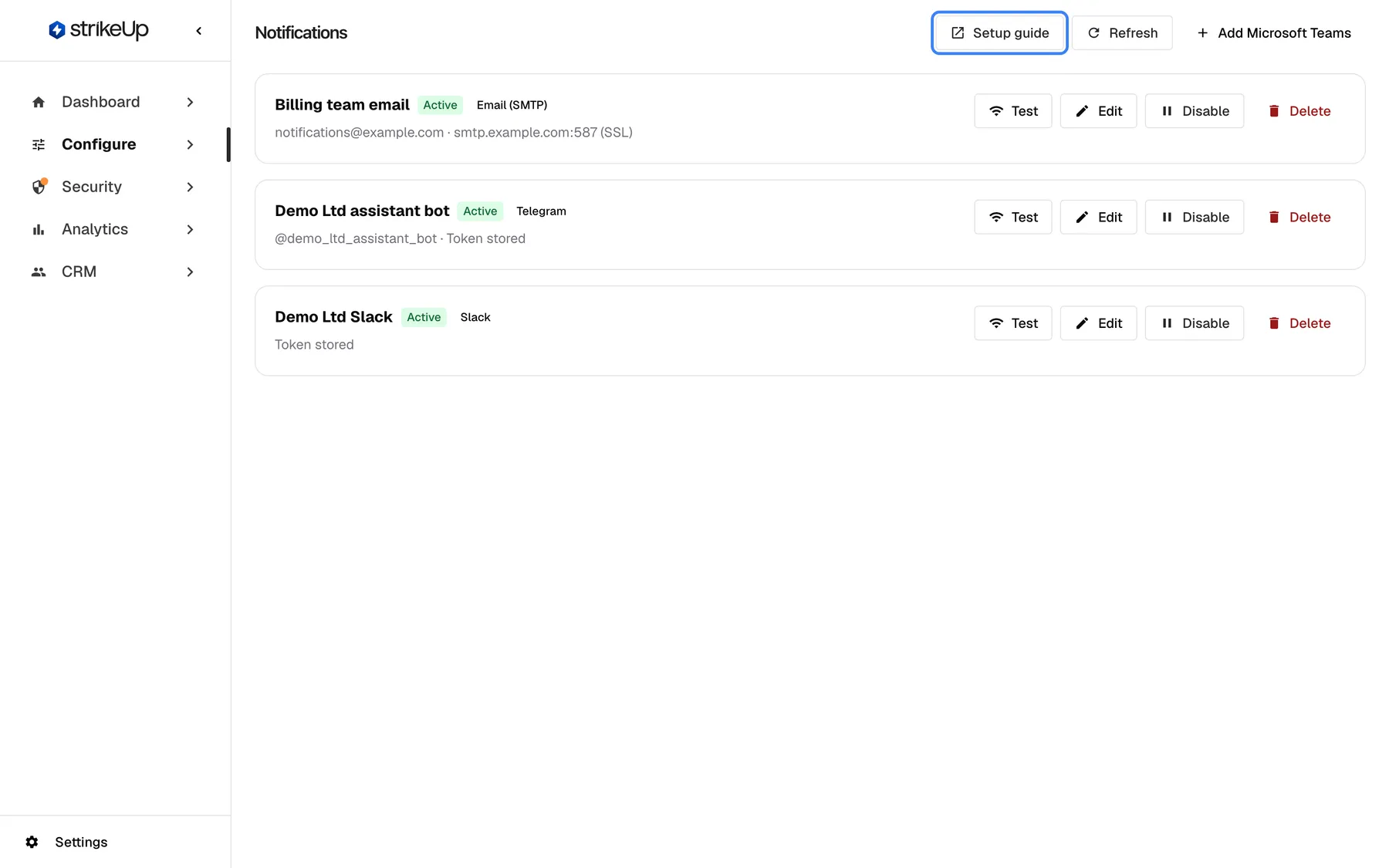
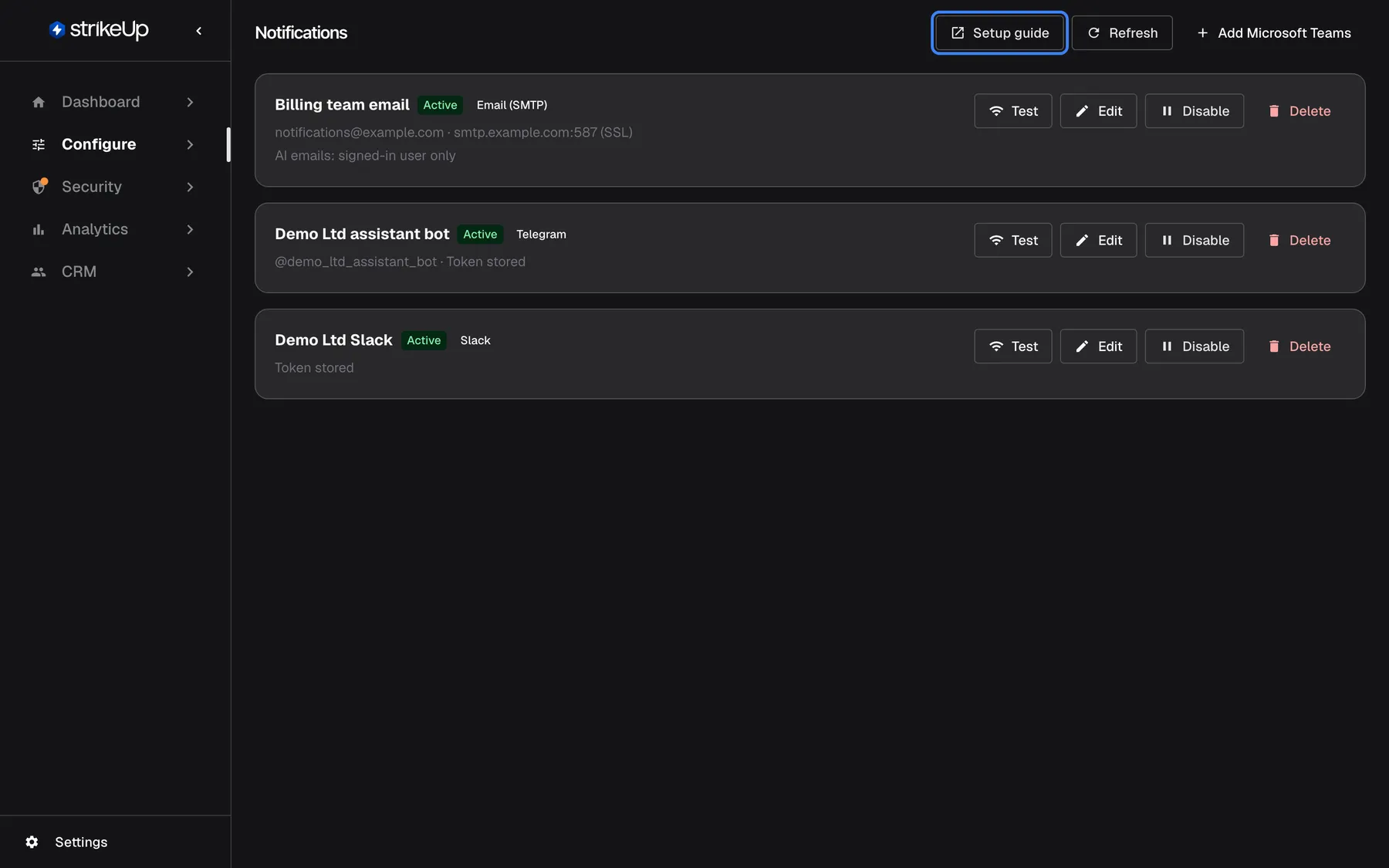
Your workspace's channels deliver for every customer company that has none of its own. What this screenshot shows
- Screen
- Notifications (/admin/notifications)
- Highlighted
- link “Setup guide”, header-right, enabled. opens the Notification Channels setup guide in a new tab
- Also visible
- Billing team email (Email (SMTP)), Demo Ltd assistant bot (Telegram), Demo Ltd Slack (Slack); Add Microsoft Teams
- Purpose
- the tenant-wide channels
-
Give a company its own channels (optional). Open CRMCompanies, the company, then Integrations. Do this when the company wants its own mailbox or bot, or when its people are in their own Microsoft 365 organisation.
-
Set the approval limit (optional). On the same tab, choose Allowed from chat apps under Approvals from chat apps.
-
Set the App page URL. Open ConfigureUser Interface, pick the widget, and in the Customer Portal section enter App page URL: the https page of your app that embeds the widget. Save.
-
Let people opt in. Each person opens the Customer Portal, goes to Notifications and switches on the channels they want under My notifications. For Telegram, Slack and Teams they connect their account there once.
Every setting, explained
Section titled “Every setting, explained”Job notifications are configured in four places: your workspace’s channels, a company’s channels and limit, the widget’s App page URL, and each person’s own choices.
Workspace channels, the default delivery
Section titled “Workspace channels, the default delivery”ConfigureNotifications. One channel per provider; each has Test, Edit, Disable and Delete.
Delivers for every person whose company has no active channel of its own for that provider. A channel that is disabled, or that still lacks its credentials, delivers nothing.
Most workspaces need one mailbox and one or two bots for all their customers.
Company channels, the override
Section titled “Company channels, the override”The company’s Integrations tab, or the company’s own Customer Admins on the portal’s Notifications page.
An active company channel with credentials replaces your workspace’s channel for that provider, for that company’s people only. A company channel waiting for its token is skipped and yours delivers meanwhile.
Some customers insist that messages come from their own address or their own Slack, and a Teams bot only reaches its own organisation.
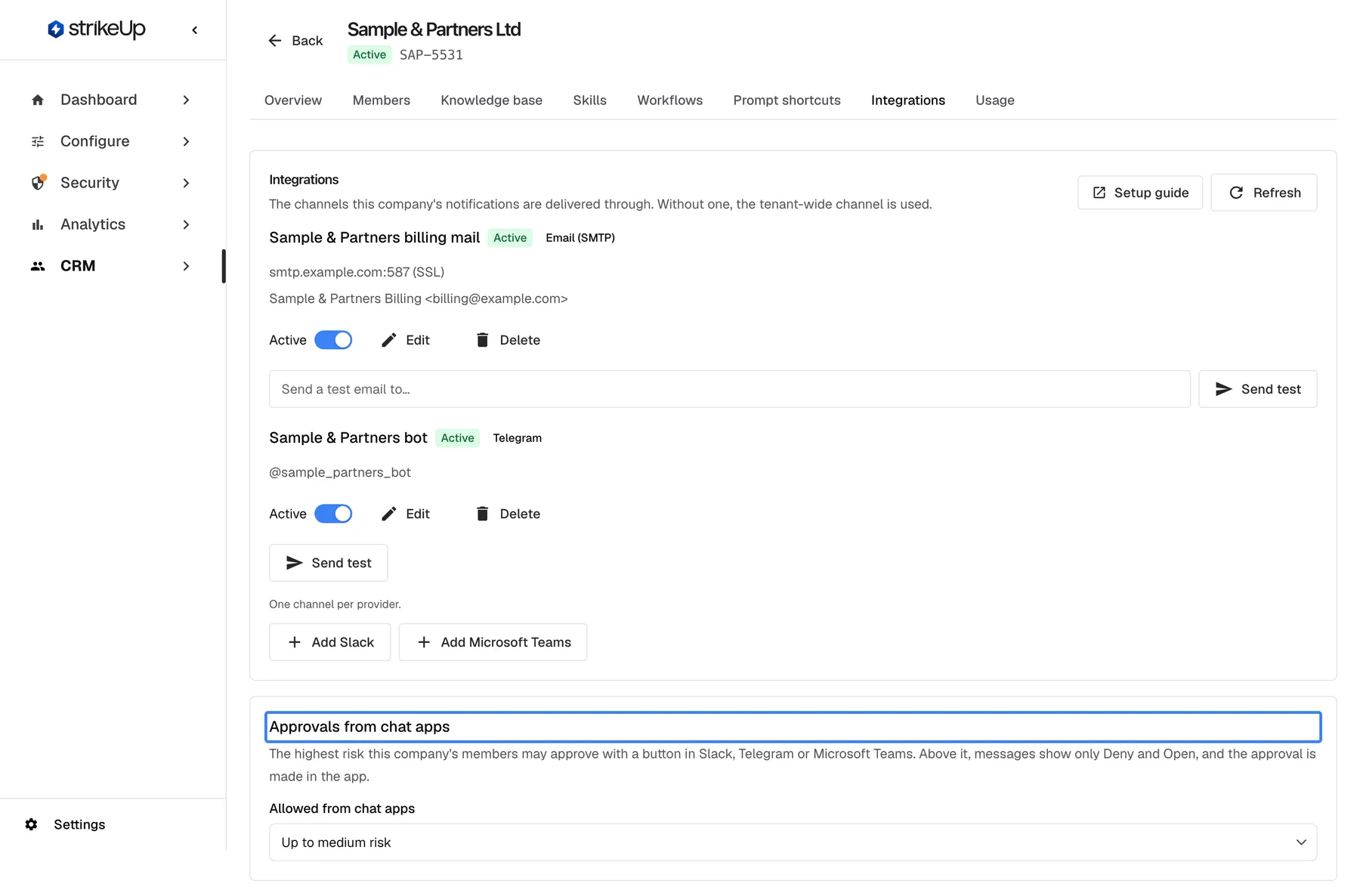
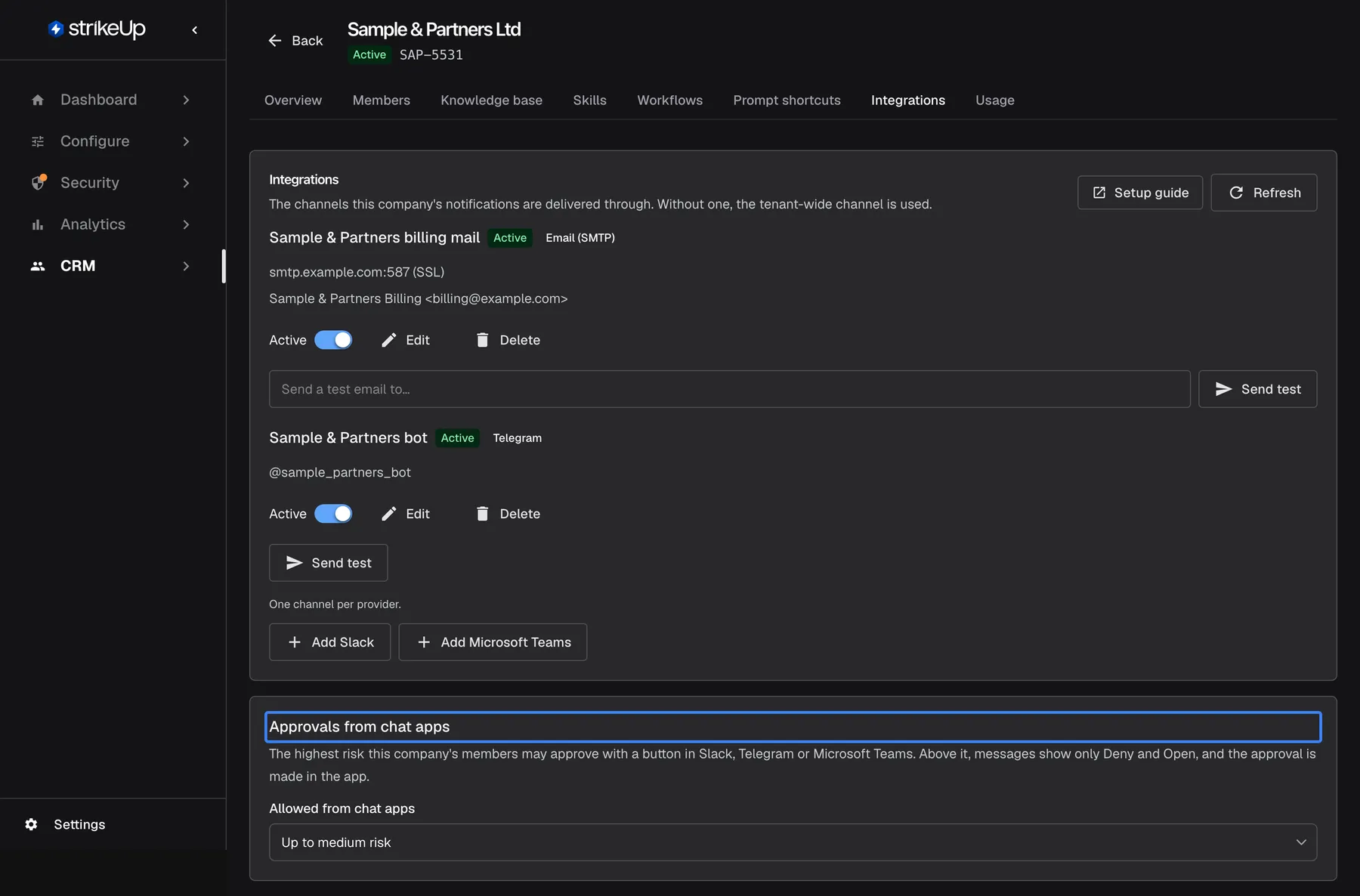
What this screenshot shows
- Screen
- Integrations (/admin/customer-companies/:id?tab=integrations)
- Highlighted
- “Approvals from chat apps”, approval-limit-card, Up to medium risk. choosing a value saves it at once
- Also visible
- Sample & Partners billing mail (Email (SMTP)), Sample & Partners bot (Telegram); Add Slack, Add Microsoft Teams
- Purpose
- per-company channels and approval limit
Approvals from chat apps, the safety limit
Section titled “Approvals from chat apps, the safety limit”The card Approvals from chat apps on the company’s Integrations tab, and the same card for Customer Admins in the portal.
The highest risk the company’s people may approve with a button: Everything (default), Up to medium risk, Low risk only or Deny only. A request that deletes or overwrites data counts as high risk. Above the limit, messages show only Deny and Open. StrikeUp checks the limit again on every click, whatever the message showed.
A tap on a phone is quick; for destructive actions some companies want the full view in the app first.
| Request risk | Everything | Up to medium | Low only | Deny only |
|---|---|---|---|---|
| Low | Approve, Deny | Approve, Deny | Approve, Deny | Deny |
| Medium | Approve, Deny | Approve, Deny | Deny | Deny |
| High or destructive | Approve, Deny | Deny | Deny | Deny |
App page URL, where Open buttons land
Section titled “App page URL, where Open buttons land”ConfigureUser Interface, Customer Portal section, the field App page URL. Saved with the page.
The https page of your app that embeds the widget. Open buttons in notifications go there with the chat or run attached, and the widget opens it once the person is signed in. A run opens only while the Customer Portal is on. A blank field means chat messages carry no Open link. When your installation has a hosted widget page, Open in a chat app signs a person who connected that account straight into the widget for 7 days instead.
People should land on the conversation in your product, not on a login page with nothing to do.
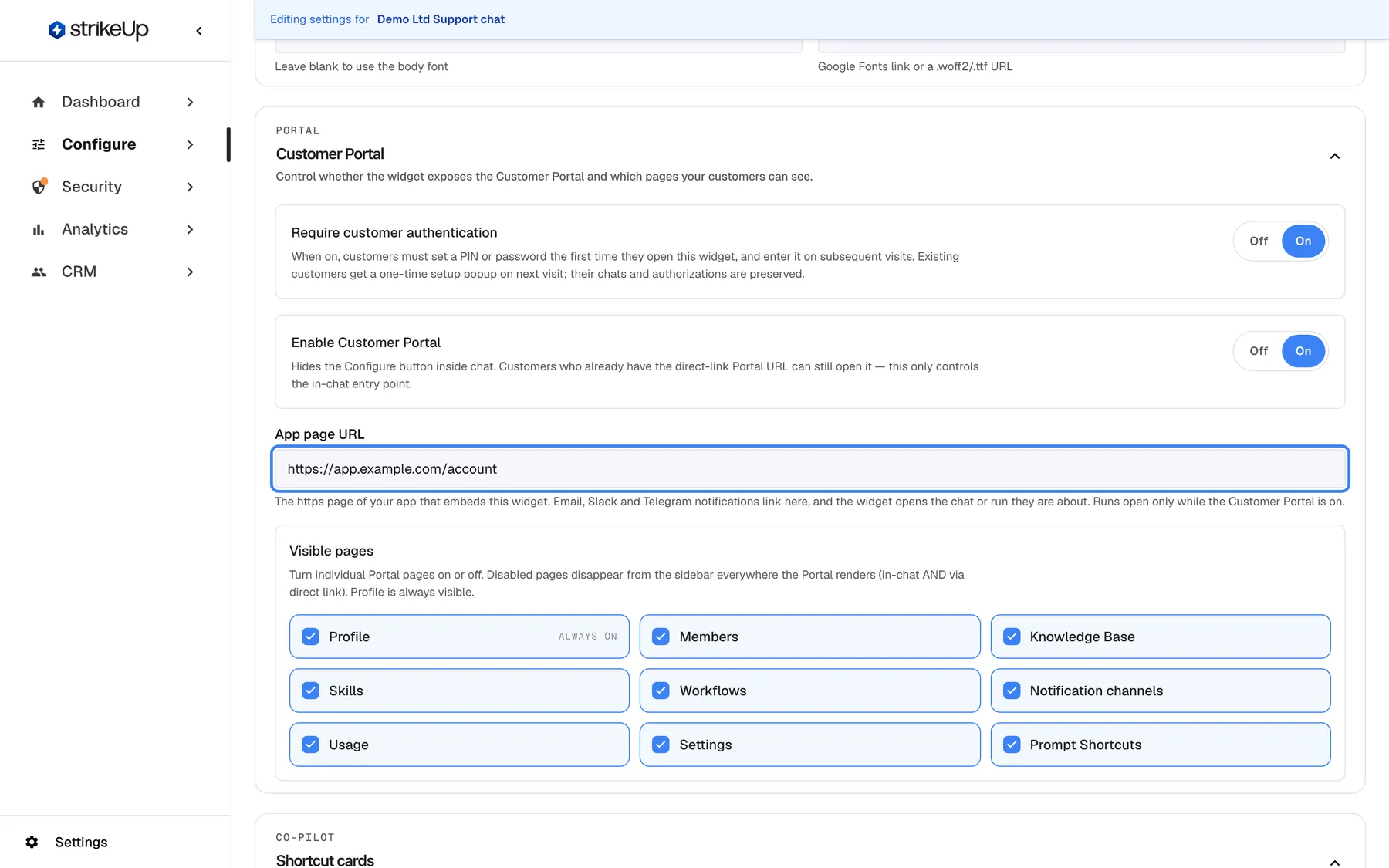
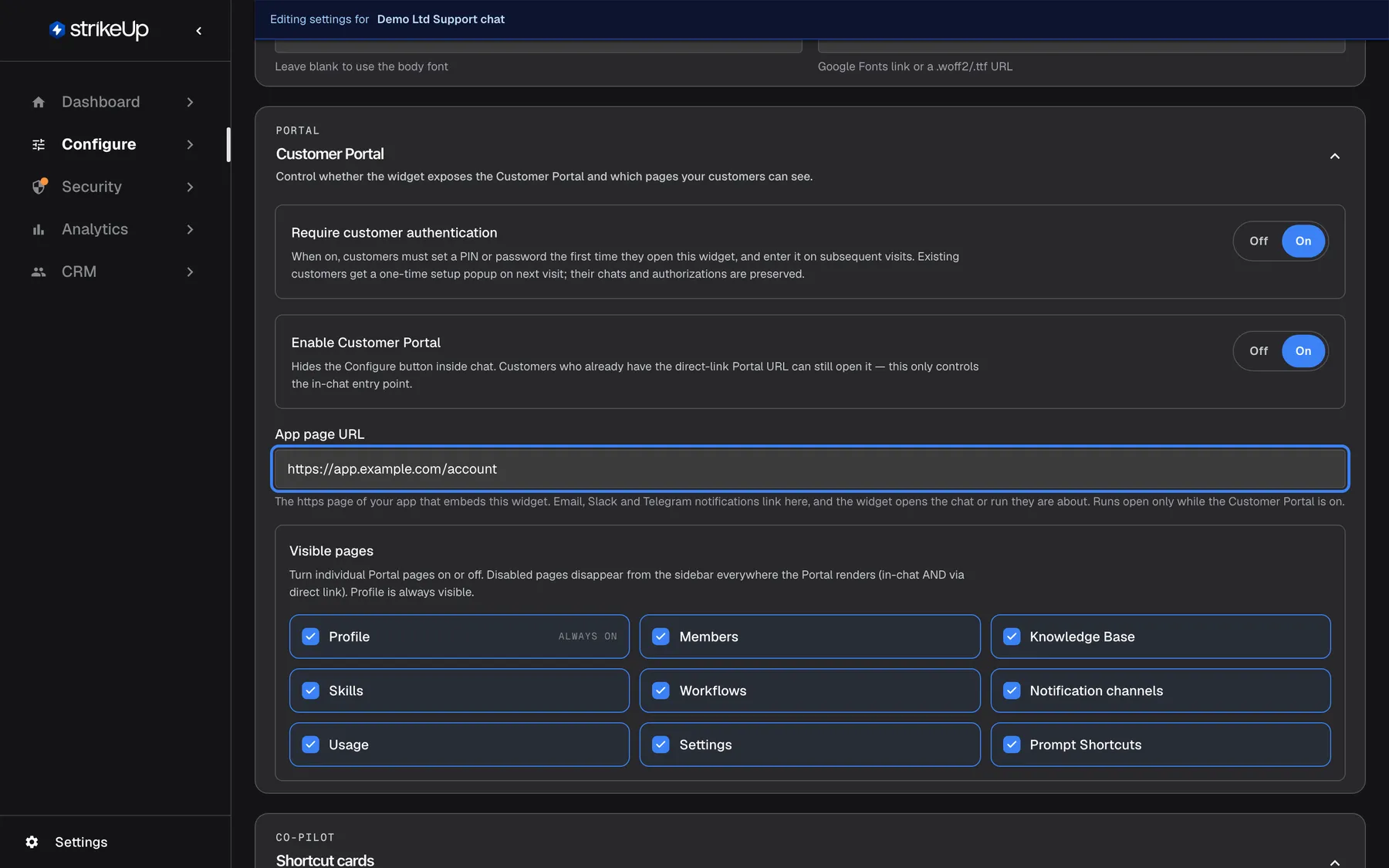
What this screenshot shows
- Screen
- User Interface (/admin/configure/user-interface?widgetId=…)
- Highlighted
- textbox “App page URL”, customer-portal-section, https://app.example.com/account. sets where notification Open links land; saved with the page
- Also visible
- Enable Customer Portal, App page URL, Visible pages
- Purpose
- where Open links land
My notifications, each person’s choice
Section titled “My notifications, each person’s choice”In the Customer Portal, Notifications, My notifications. Every portal role sees it.
One switch per provider the person can be reached through, each with a button to send a test, and three switches for starts (off), fails or pauses (on) and finishes (off). Telegram, Slack and Teams need the account connected first. Saved with Save preferences.
An hourly workflow that messaged everyone every hour would be switched off within a day; people choose what is worth an interruption.
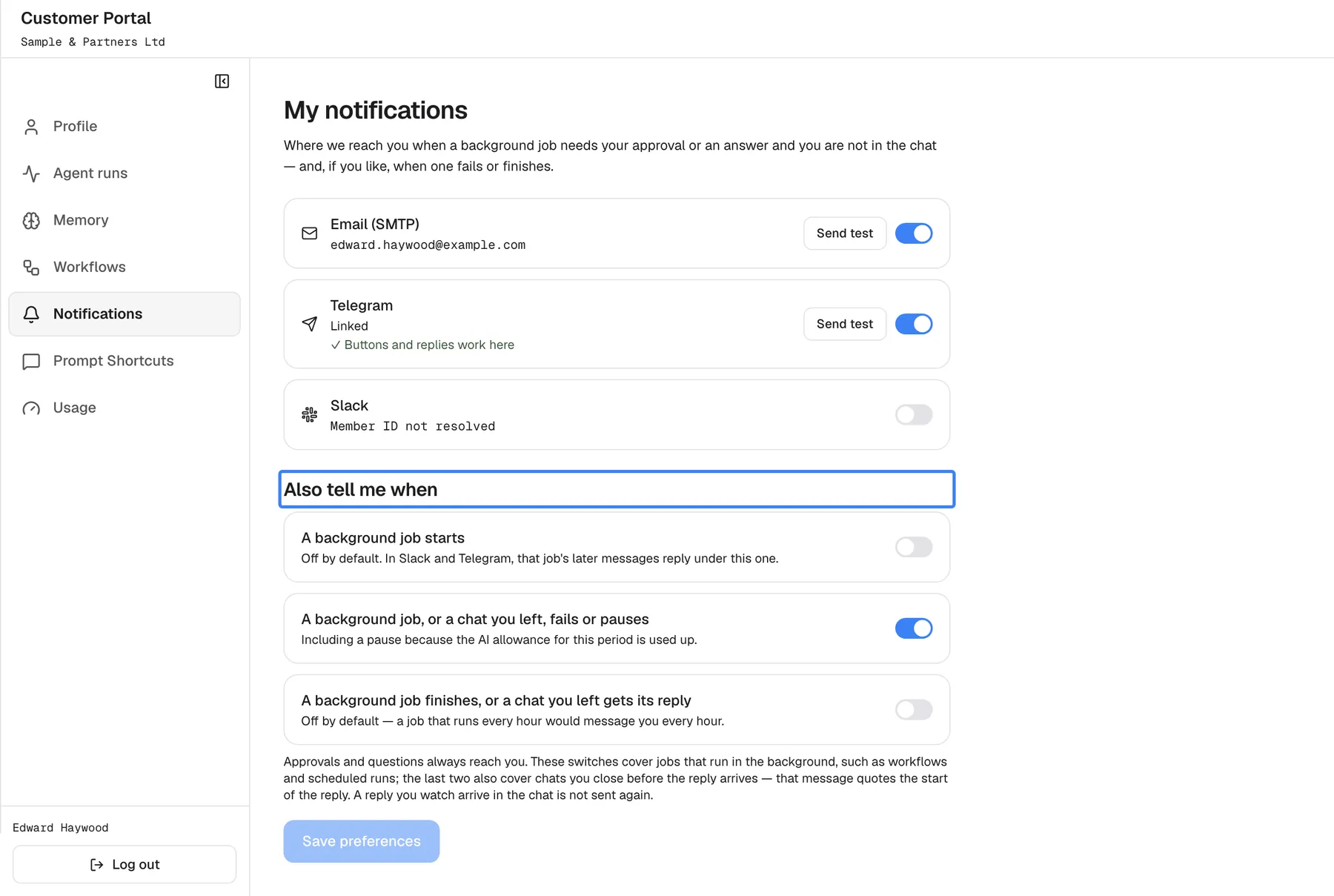
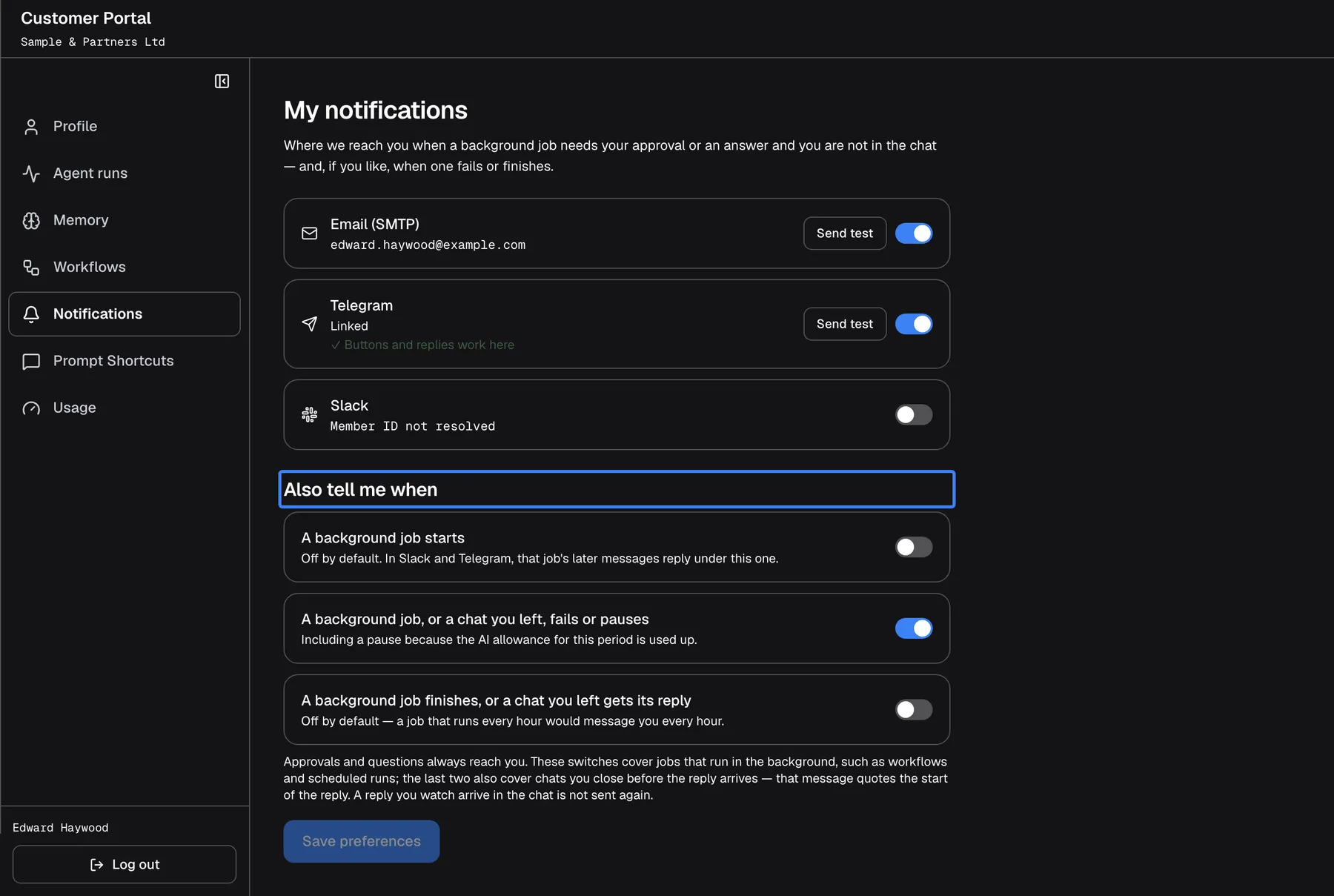
What this screenshot shows
- Screen
- My notifications (/?mode=portal)
- Highlighted
- “Also tell me when”, also-tell-me, starts off, failures on, finishes off. none (section heading)
- Also visible
- Email (SMTP) on, Telegram Linked and verified, Slack off
- Purpose
- a person's opt-in
How the settings combine
Section titled “How the settings combine”| Company channel | Workspace channel | Person switched provider on | Result |
|---|---|---|---|
| Active with credentials | Any | Yes | Sent through the company’s channel |
| None, disabled or no token | Active with credentials | Yes | Sent through your workspace’s channel |
| None | None | Yes | Not sent for that provider |
| Any | Any | No | Not sent for that provider |
Job notifications in chat apps
Section titled “Job notifications in chat apps”When a Telegram or Slack channel’s panel says buttons are on, and always on a Teams channel, a person who connected their account can do more than read.
| What | How |
|---|---|
| Approve or deny | Buttons on the message. Every copy of it then shows who decided and how. Each approval is its own message, up to five at a time, then one message that more are waiting |
| Answer a question | Reply to the question. In Teams, type in the box on the question and press Send answer. Up to eight choices appear as buttons |
| Chat | Send the bot a message, or start one with /start-chat in Slack, /start_chat or /new in Telegram, new in Teams. A plain message continues the chat it follows for 24 hours; the chat also appears in the widget’s history |
| Pick up an earlier chat | /chats (chats in Teams) lists the 10 most recent chats, from the widget or the chat app, each with a button to continue it |
| Slack | Telegram | Teams | What it does |
|---|---|---|---|
/start-chat [message] | /start_chat [message] or /new [message] | new [message] | Starts a new chat |
/chats | /chats | chats | Lists your 10 most recent chats |
/pending | /pending | pending | Lists the approvals and questions waiting for you |
/runs | /runs | runs | Lists your 10 most recent workflow runs |
/run-workflow <name> | /run <name> | run <name> | Starts a workflow you may run; without a name it lists them |
/stop | /stop | stop | Stops the answer being written |
/help | /help | help | Shows the list |
On Telegram and Slack everything about one chat or run arrives as one thread; a Teams chat has no threads. A finished workflow or chat sends the answer itself, with its chart and table, and a table also arrives as a CSV file. Company workflows can be started from a chat app only by the company’s Admins.
Job notifications in the Customer Portal
Section titled “Job notifications in the Customer Portal”My notifications
Section titled “My notifications”Under My notifications each person sees one card per provider their company can deliver through. Email shows their profile address; Telegram, Slack and Teams show whether the account is linked. Connecting works like this:
| Provider | How a person connects |
|---|---|
| Nothing to connect; the address on their record is used once they switch email on | |
| Telegram | Connect Telegram opens the bot with a one-time code; they press Start in Telegram, then I’ve pressed Start in the portal. The code works for 10 minutes |
| Slack | StrikeUp finds them by email in the workspace the app is installed in, or they paste their Slack member ID. For buttons they confirm once with a Confirm button in Slack |
| Teams | Connect Microsoft Teams shows a message such as link 3f9a1c07b2d4 to send to the bot; the card turns to Linked on its own. The code works for 10 minutes |
Company channels in the portal
Section titled “Company channels in the portal”A company’s Customer Admins see the company’s own channels above My notifications, with a Setup guide that opens the steps in a side panel, and the approval limit once the company has a chat-app channel.
What you need to know
Section titled “What you need to know”| Topic | Fact |
|---|---|
| Quiet window | Approvals and questions wait 90 seconds before a message goes out, so someone in the chat can answer first. |
| Watching | A person watching the chat or run gets no message about it. |
| Defaults | Every channel starts off for a new person; fails or pauses is on, starts and finishes are off. |
| Email preview | A finished chat’s email quotes the first 200 or so characters of the reply. |
| Approvals per message | Up to five approvals as separate messages, then one “more are waiting” message; email lists them in one message. |
| Open links | Go to the App page URL. Chat-app sign-in links work for 7 days and open as the person who connected, so treat them like a sign-in link. |
| Teams reach | A Teams bot works only in its 1:1 chat and only for its own organisation. |
| Slack reach | Slack reaches only members and guests of the workspace the app is installed in. |
| Files | A Teams download link for a table works for 24 hours. |
| Without a public address | Messages arrive with an Open button only; no buttons, replies or commands, and no Teams. |
| Secrets | Tokens and secrets are encrypted and never shown again. |
Frequently asked questions
Section titled “Frequently asked questions”General
Section titled “General”Who gets job notifications?
Section titled “Who gets job notifications?”The owner of the job: the person who started the chat or owns the workflow. For a company workflow’s run, every active member of that customer company. Each person is notified only on the channels they switched on under My notifications in the Customer Portal.
Do my own staff get these notifications?
Section titled “Do my own staff get these notifications?”No. Job notifications reach the people of your customer companies who use the widget and the Customer Portal. A job with no customer owner, such as one your staff run, sends no notification.
Why did someone get no notification although the channel is Active?
Section titled “Why did someone get no notification although the channel is Active?”“Active” on ConfigureNotifications only means the credentials work. The person must switch that provider on under My notifications in the Customer Portal and, for Telegram, Slack or Teams, connect their account. A person watching the chat gets no message either.
Does a person get a message while they are in the chat?
Section titled “Does a person get a message while they are in the chat?”No. StrikeUp skips anyone who is watching the chat or the run. For approvals and questions it waits 90 seconds and looks again, and sends the message if the person has left without answering.
Do I need one bot per customer?
Section titled “Do I need one bot per customer?”No. One bot or mailbox per provider on ConfigureNotifications serves all your customers. Each person connects their own account to it once. A company needs its own channel only when it wants its own sender or its people are in another Microsoft 365 organisation.
Which provider should I start with?
Section titled “Which provider should I start with?”Email, because it needs nothing from the recipient except switching it on. Add Telegram for people outside your organisation and Slack or Teams for people inside it: Slack reaches only members of the workspace the app is installed in, and Teams only its own organisation.
What is the App page URL for?
Section titled “What is the App page URL for?”App page URL on ConfigureUser Interface is the https page of your app that embeds the widget. Open buttons in notifications go there, and the widget opens the chat or run. Without it, chat messages carry no Open link.
Why do messages arrive without buttons?
Section titled “Why do messages arrive without buttons?”Buttons need a public address for this installation, the person’s account connected through the bot or confirmed in Slack, for Slack the channel’s signing secret, and a request within the company’s limit under Approvals from chat apps. A message that lists several approvals at once carries no buttons either.
Notifications and outcomes
Section titled “Notifications and outcomes”Can I get a message when a job finishes?
Section titled “Can I get a message when a job finishes?”Yes, each person can. Under My notifications in the Customer Portal, switch on the finishes option. It is off by default, because a workflow that runs every hour would otherwise message you every hour.
Does closing the chat stop the assistant?
Section titled “Does closing the chat stop the assistant?”No. The reply is saved and appears in the chat when the person returns. If they switched on finishes, or fails or pauses, they also get the reply or the failure on their channels.
Why did I get one message for several approvals?
Section titled “Why did I get one message for several approvals?”Email sends one message that lists every waiting approval. Chat apps send each approval as its own message, up to five at a time, then one message saying more are waiting; /pending lists them all.
What does a paused job mean?
Section titled “What does a paused job mean?”The job stopped because the AI allowance for the period is used up. A person with fails or pauses switched on is told; the job continues when the period ends or the allowance is raised.
Chat apps
Section titled “Chat apps”Can people chat with the assistant from Slack, Telegram or Teams?
Section titled “Can people chat with the assistant from Slack, Telegram or Teams?”Yes, once this installation has a public address and the person connected their account. They send the bot a message or use /start-chat in Slack, /start_chat or /new in Telegram, or new in Teams. The chat also appears in the widget’s history.
Which commands are there?
Section titled “Which commands are there?”Start a chat, list recent chats, list what is waiting (/pending), list recent workflow runs (/runs), start a workflow, stop the answer being written and show help. In Slack the workflow command is /run-workflow, in Telegram /run; in Teams the commands are plain words such as chats and pending.
Can anyone start a company workflow from a chat app?
Section titled “Can anyone start a company workflow from a chat app?”No. A company workflow can be started only by that company’s Admins, from a chat app as in the app. Members can start their own personal workflows, and a person who belongs to no company cannot start workflows.
Why does the bot say the account isn’t linked?
Section titled “Why does the bot say the account isn’t linked?”The person has not connected that account through the bot, or connected Telegram by pasting a chat ID. Under My notifications in the Customer Portal they press Connect Telegram, confirm in Slack, or send the link code to the Teams bot.
Why does the bot ask the person to sign in again?
Section titled “Why does the bot ask the person to sign in again?”A chat in a chat app uses the credential StrikeUp stored the last time the person used the widget in your app. When it has expired, they open your app, sign in, and send their message again. A toolkit with Enable Refresh Token renews the credential by itself.
Approvals
Section titled “Approvals”Can I stop risky approvals from a phone?
Section titled “Can I stop risky approvals from a phone?”Yes, per company. On the company’s Integrations tab set Allowed from chat apps. Above the chosen risk, messages show only Deny and Open, and the approval is made in the app.
What counts as high risk?
Section titled “What counts as high risk?”Each tool has a risk level set on its toolkit, and a request that deletes or overwrites data counts as high risk. The limit under Approvals from chat apps compares the request’s risk with the setting each time someone presses Approve.
Data and privacy
Section titled “Data and privacy”What does StrikeUp store about each person?
Section titled “What does StrikeUp store about each person?”Their switches, their Telegram chat, Slack member ID or Teams account once they connect, and a log of each delivery attempt with the channel, the address and the subject. Bot tokens, passwords and secrets of the channels are encrypted and never shown.
Who can open a chat from an Open link?
Section titled “Who can open a chat from an Open link?”An Open link to your App page URL needs the person to sign in to the widget. A chat-app sign-in link opens the widget as the person who connected that account for 7 days, so anyone they forward it to can open it until then.
Troubleshooting
Section titled “Troubleshooting”| Symptom | What to check |
|---|---|
| Nobody gets anything | The person’s switches under My notifications; that a channel for the provider exists, is enabled and has its credentials; for a company with its own channel, that it is enabled and has its token. |
| One person gets nothing on Telegram | They have not connected through the bot. Ask them to press Connect Telegram under My notifications and then Start in Telegram. |
| One person gets nothing on Slack | Their email in StrikeUp differs from their Slack email, or they are not in the Slack workspace. They paste their Slack member ID under My notifications. |
| Teams: the bot never answers | The messaging endpoint in the Azure Bot is missing or the Teams channel was not added there; the app was not uploaded for the person. |
| Messages arrive, but without buttons | No public address, no Slack signing secret, the account not confirmed, the request above the company’s limit, or several approvals in one message. |
| The Open button is missing | The widget has no App page URL. |
| Open lands on the home screen | The chat is not in this person’s list, or a run was opened while the Customer Portal is off. |
| “Your sign-in to … has expired” in a chat app | The person’s stored credential for that toolkit expired; they sign in in your app. Configure a refresh token on the toolkit to avoid it. |
| A finished workflow sent no message | The person keeps finishes off, or was watching the run. |
| A second Telegram or Teams channel is refused | It uses a bot that another channel already uses. Create a new bot. |