

AI & UX
The AI & UX page decides how one widget’s assistant talks and what it may do beyond calling your API: its tone and instructions, the skills it can use, when it offers a person instead, and whether it can send emails. Each setting applies to the widget you select at the top, so two widgets can behave differently. Open it from ConfigureAI & UX. The whole page, including its title, section names and buttons, is in English in every language; this guide quotes those labels as the page shows them.
What you can do here
Section titled “What you can do here”- Pick the widget to configure. A row of cards lists your widgets; the selected one is the widget every section below edits. Choose or create a widget.
- Give the assistant a persona. A tone of voice and behaviour and branding instructions are added to every agent of the widget. They cannot relax its safety, approval or guardrail rules. Set the persona.
- Choose its skills. Switch each of your workspace’s skills on or off for this widget; the change applies at once. Choose the widget’s skills · Skills.
- Let visitors reach a person. Show an
Invite an agentbutton and decide how readily the assistant suggests a handoff to your helpdesk. Set up human handoff · Human handoff. - Let the assistant send emails. Allow it to email reports and data exports through your email channels, and pick the default sender. Turn on AI email notifications · Notifications.
The screen at a glance
Section titled “The screen at a glance”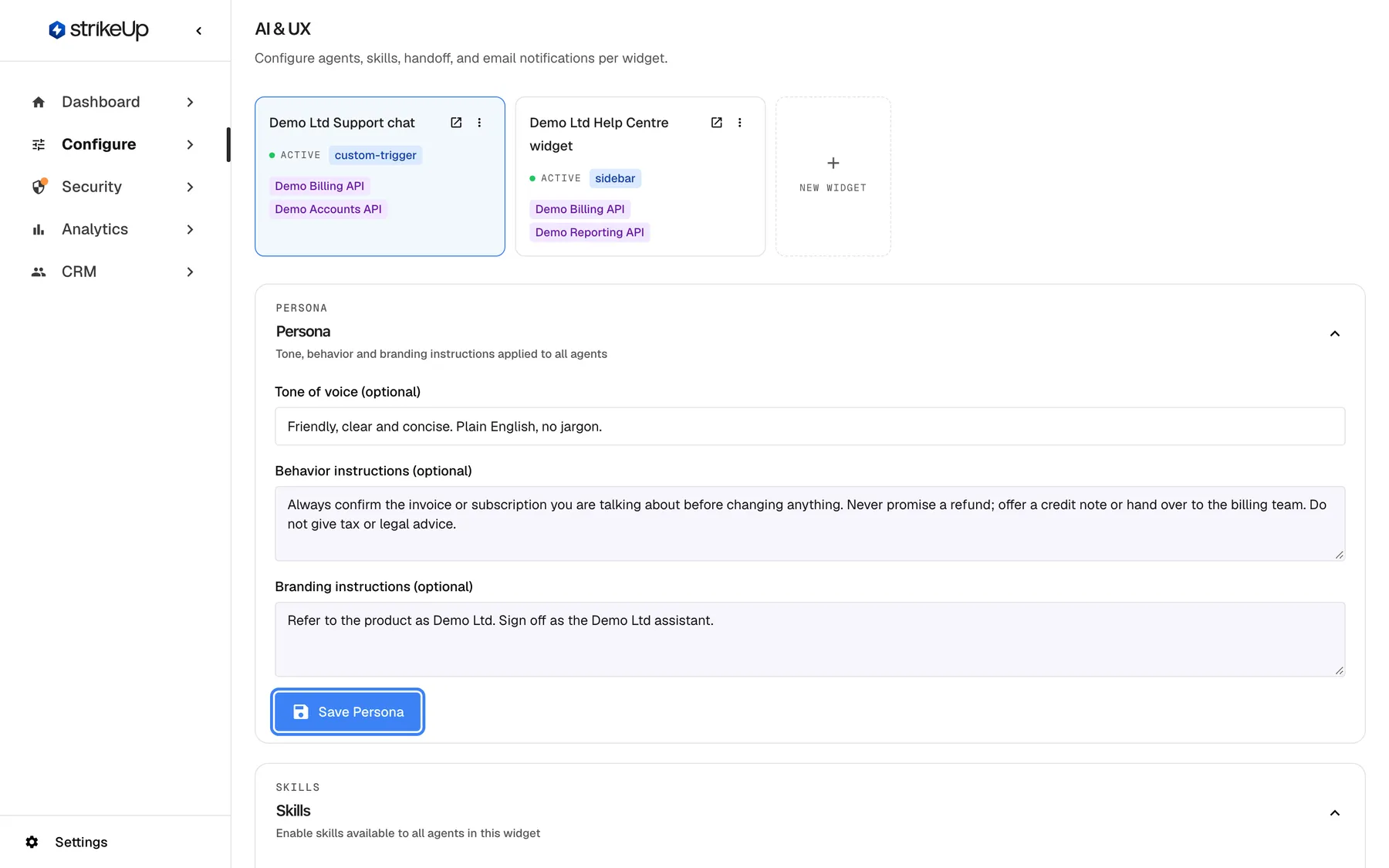
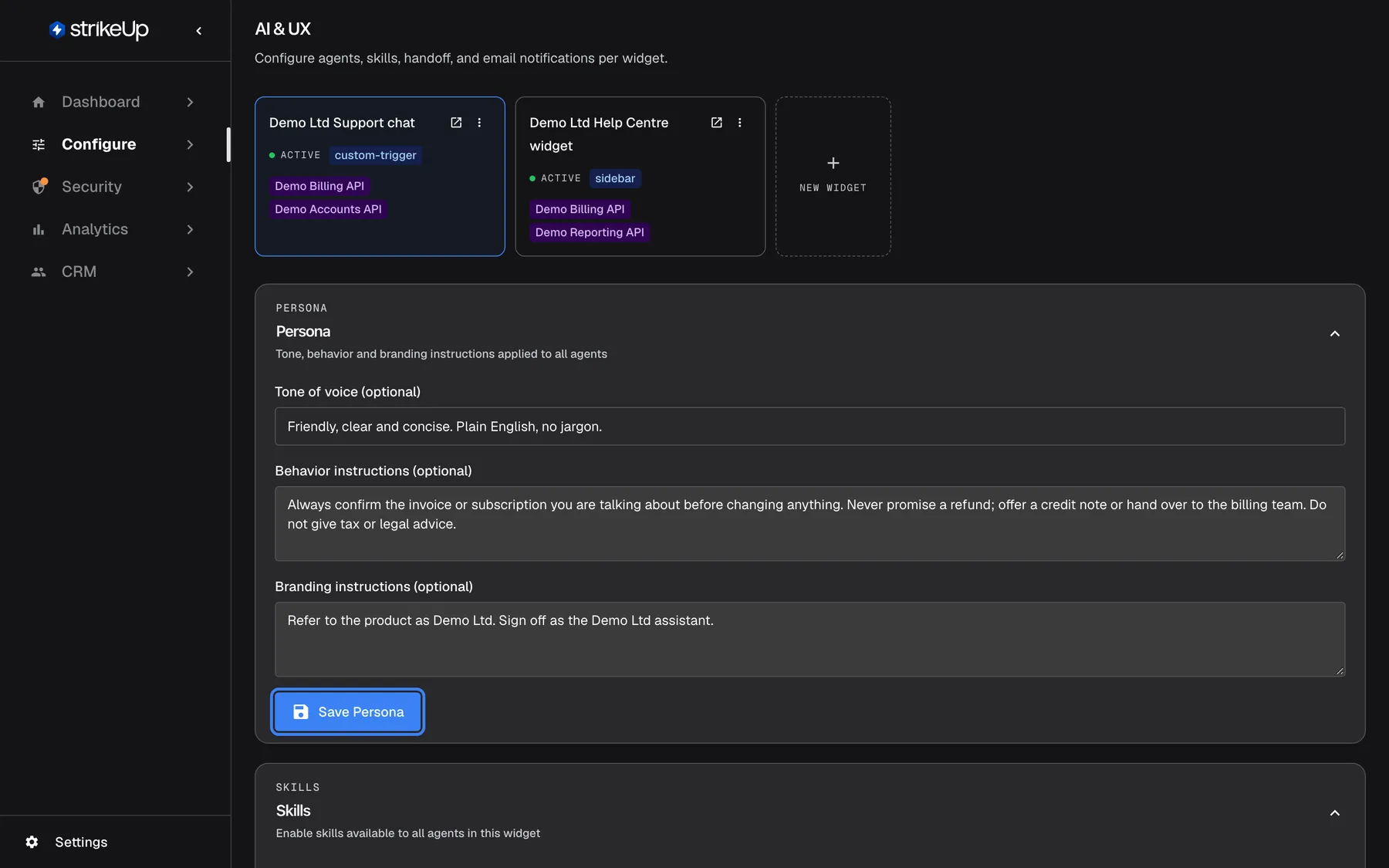
What this screenshot shows
- Screen
- AI & UX (/admin/configure/agents?widgetId=…)
- Highlighted
- button “”, persona-section-bottom-left, enabled. saves tone of voice, behaviour and branding instructions to every agent of the selected widget
- Also visible
- Widget cards: Demo Ltd Support chat (selected), Demo Ltd Help Centre widget, New widget; Tone of voice: Friendly, clear and concise. Plain English, no jargon.; Behavior instructions and Branding instructions filled
- Purpose
- entry point of the AI & UX page and the Persona section
| Region | What it shows | What you do there |
|---|---|---|
| Widget cards, top | One card per widget with its display type and toolkits, plus a dashed New widget card | Pick the widget to edit, create a new one, delete one |
Persona | Tone of voice, behaviour instructions and branding instructions | Write them and select Save Persona |
Skills | One card per skill in your workspace, with a switch | Switch skills on or off for this widget |
Human Handoff | The handoff button switch, handoff sensitivity, integration and inbox or team | Configure handoff and select Save Handoff Settings |
Email Notifications | The AI email switch and the connected mail channels | Link channels, choose the default, select Save Notification Settings |
Each section is collapsible. Until you pick a widget, the page reads Select a widget above to configure its AI settings.
Choose or create a widget
Section titled “Choose or create a widget”The selected widget card is the one you are editing. The choice is kept in the page address (?widgetId=…) and carries over when you switch to User Interface or Embed.
To create a widget:
- Select the dashed
New widgetcard. The Create New Widget Configuration dialog opens. - Enter Widget Name *, and optionally a description.
- Choose a display type, pop-up or sidebar, and whether visitors must sign in. Sign-in is on by default.
- Select the toolkits the widget may use. You can select up to 5 toolkits, although the dialog’s labels speak of one. Only active toolkits are listed, and tool names must be unique across the toolkits you pick.
- Optionally select knowledge base documents and web sources, then select Create Widget.
The new widget gets its own embed token, a set of default agents and two starter shortcut cards on its welcome screen, Get started and Build me a report. It is selected automatically a moment later. Set its colours, size and other display settings on User Interface afterwards; the dialog does not keep them. More on choosing toolkits and knowledge is on Embed.
To delete a widget, open the ⋮ menu on its card, select Delete and confirm Delete this widget?. Every card shows a green Active badge whatever its settings.
Set the persona
Section titled “Set the persona”The persona is the voice of the widget’s assistant. Your three texts are added to the instructions of every agent the widget has, under a heading that tells the assistant they cannot relax its safety, approval or guardrail rules.
- Pick the widget card at the top.
- In
Persona, fill inTone of voice (optional), for example Friendly, clear and concise. Plain English, no jargon. - Add
Behavior instructions (optional), for example Always confirm the invoice number before discussing an invoice. - Add
Branding instructions (optional), for example Refer to the product as Demo Ltd, never as “the platform”. - Select
Save Persona. The message Widget saved successfully confirms the save.
StrikeUp reviews each changed text before saving it. A text is refused, with Request failed and the reason, when it:
| Reason shown | What triggered it |
|---|---|
| “This is 4210 characters; the limit is 4000.” | A text longer than 4,000 characters. The tone of voice has its own limit of 500 characters |
| “This text tries to override or disable the assistant’s own rules…” | Wording such as “ignore your previous instructions” |
| “This text looks like it contains a password, key or token…” | Something that looks like a credential. It would be sent to the AI model in every turn |
| “Remove the [option: …] or [handoff] markers…” | Control markers the chat widget acts on |
The reason starts with the field it concerns, such as Behavior instructions:. A text you did not change is not reviewed again, and when the review itself cannot run, the text is refused rather than saved.
| Do | Don’t |
|---|---|
| Describe behaviour the visitor will notice: tone, what to confirm, what to avoid | Try to switch off approvals or guardrails; persona text cannot do that |
| Name your product and terms the way your customers know them | Put API keys, passwords or internal URLs in the text |
| Keep each instruction to one sentence | Paste long policies; use Knowledge Base for reference material |
On a brand-new widget whose agents are not set up yet, the first Save Persona saves the widget and creates its agents, and the persona texts may not reach them. Select Save Persona a second time to apply them.
Choose the widget’s skills
Section titled “Choose the widget’s skills”A skill is a set of instructions the assistant follows for one kind of request, such as invoice disputes. Skills are written once for your workspace on ConfigureSkills; here you decide which ones this widget’s assistant may use.
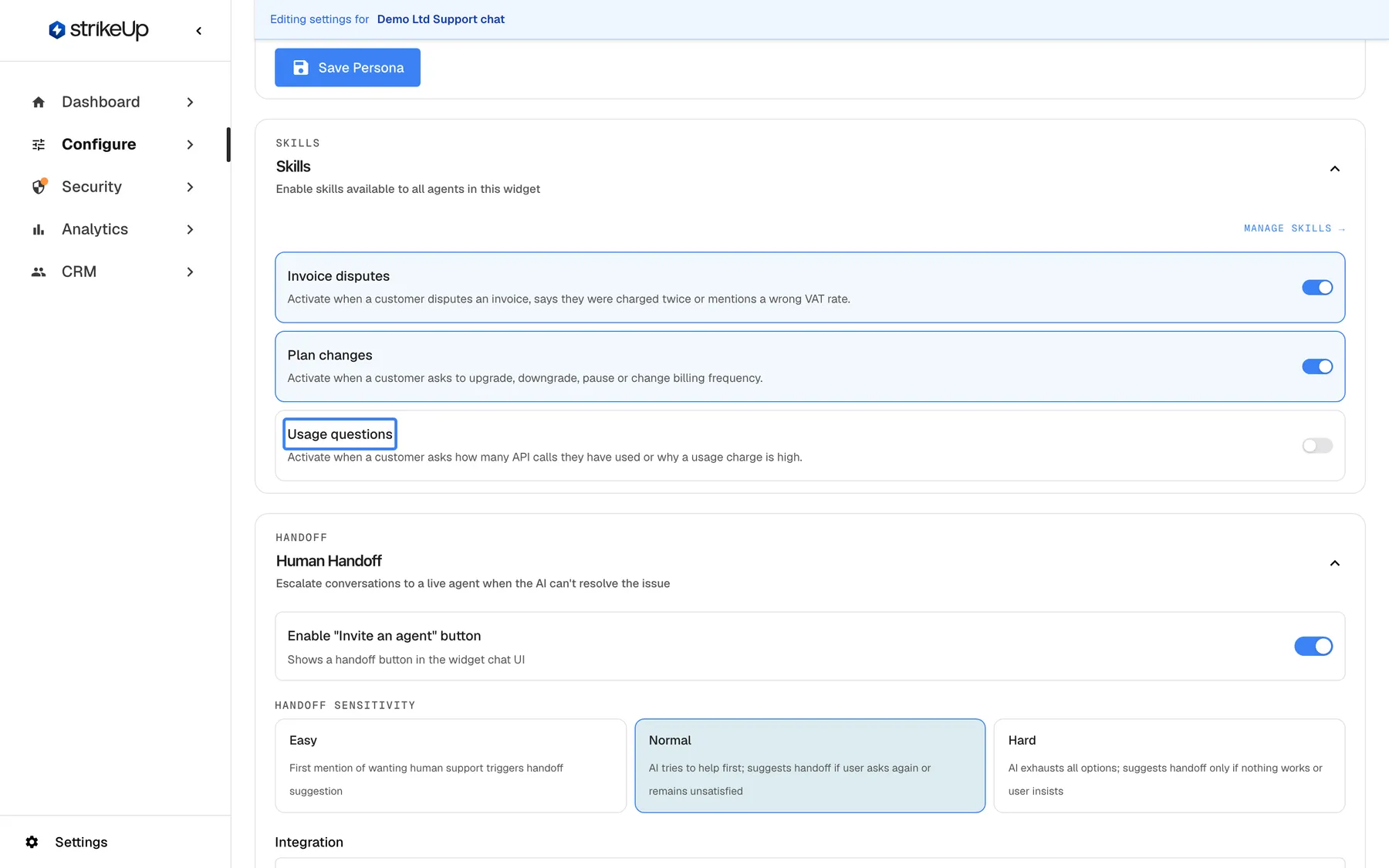
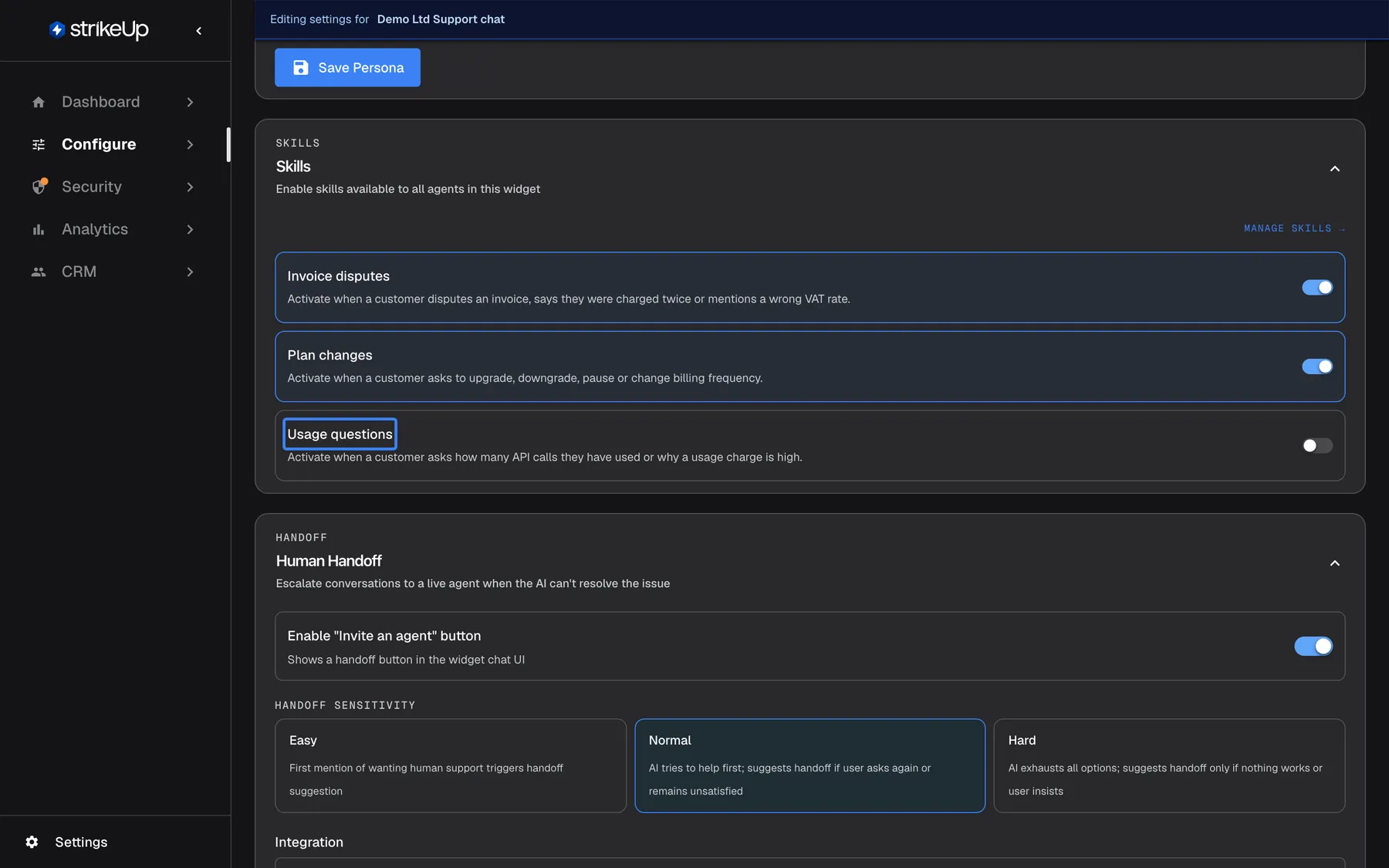
What this screenshot shows
- Screen
- AI & UX (/admin/configure/agents?widgetId=…)
- Highlighted
- switch-card “”, skills-section, switched off. switching it on makes the skill available to the widget's agents immediately
- Also visible
- Skills on: Invoice disputes, Plan changes; off: Usage questions; Manage Skills → link to the Skills page
- Purpose
- choosing which skills one widget's assistant may use
Each card shows the skill’s name, the situation that triggers it and a switch. Flipping a switch saves at once; there is no Save button. Manage Skills → opens the skills page. The Skills section appears only when your workspace has at least one skill.
Set up human handoff
Section titled “Set up human handoff”Human handoff lets a visitor continue the chat with a person in your helpdesk. The Human Handoff section appears only when the helpdesk integrations feature is switched on for your workspace, and it needs a helpdesk connected on Integrations.
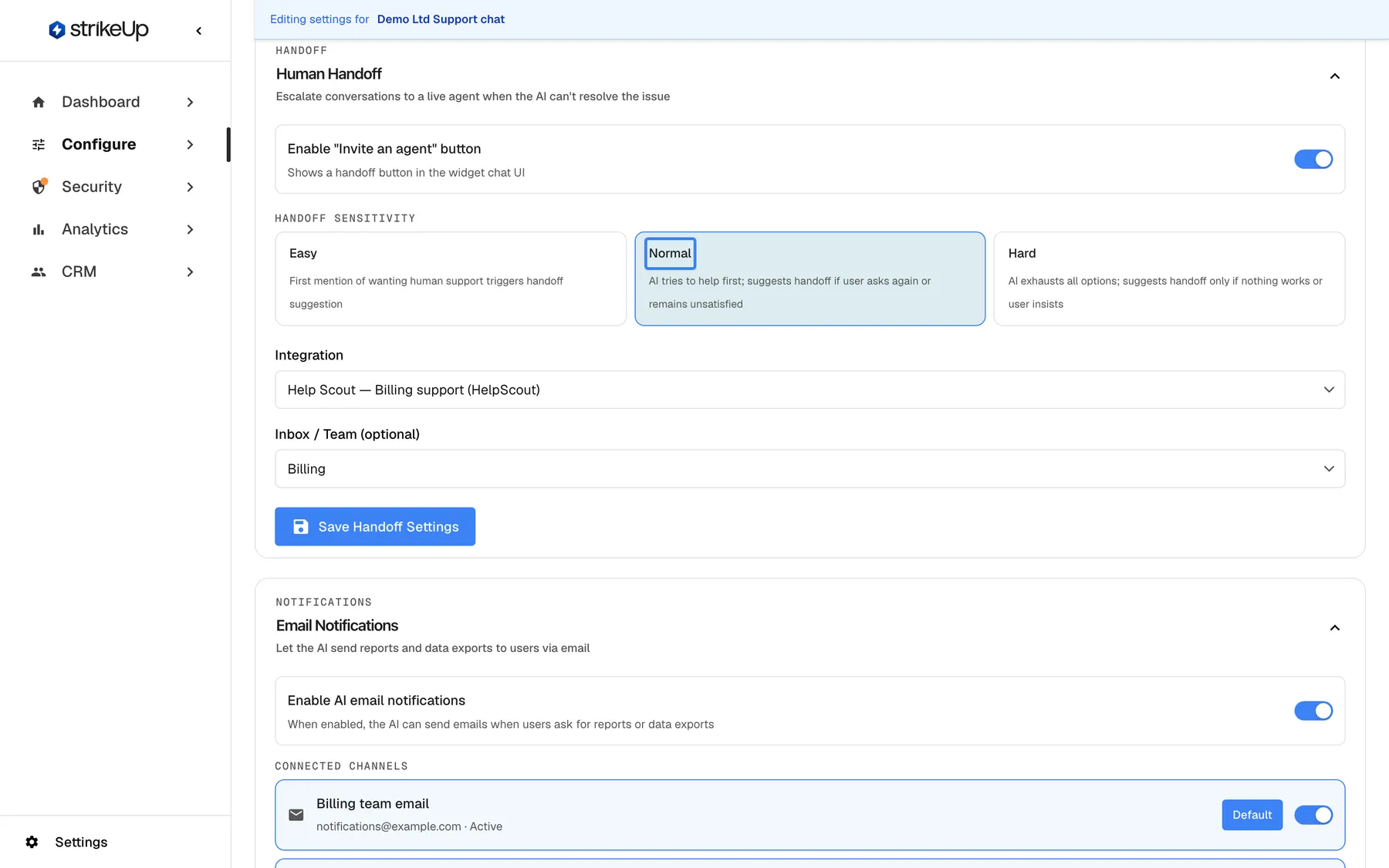
What this screenshot shows
- Screen
- AI & UX (/admin/configure/agents?widgetId=…)
- Highlighted
- radio “”, handoff-section-sensitivity, selected. sets how readily the assistant suggests handing the chat to a human
- Also visible
- Enable Invite an agent button: on; Sensitivity options Easy, Normal, Hard; Integration: Help Scout — Billing support (HelpScout); Inbox / Team: Billing; Save Handoff Settings button
- Purpose
- configuring human handoff for one widget (needs the handoff integrations feature)
- Switch on
Enable "Invite an agent" button. The widget’s chat then shows a handoff button. - Under
Handoff sensitivity, pick how readily the assistant suggests a person. - Under
Integration, pick the connected helpdesk. For Help Scout, pick a mailbox underMailbox;Save Handoff Settingsstays disabled until you do. For Intercom, optionally pick a team underInbox / Team (optional). - Select
Save Handoff Settings.
| Sensitivity | What the assistant does |
|---|---|
Easy | The first mention of wanting human support triggers a handoff suggestion |
Normal (the default) | The assistant tries to help first, and suggests a handoff if the visitor asks again or remains unsatisfied |
Hard | The assistant exhausts all options, and suggests a handoff only if nothing works or the visitor insists |
With no helpdesk connected, the section reads No support integrations connected. Go to Integrations to connect Help Scout. The full behaviour, from the visitor’s request to the helpdesk conversation, is in Human handoff.
Turn on AI email notifications
Section titled “Turn on AI email notifications”With AI email notifications on, the assistant can email a visitor a report or a data export when they ask for one, through one of your email channels.
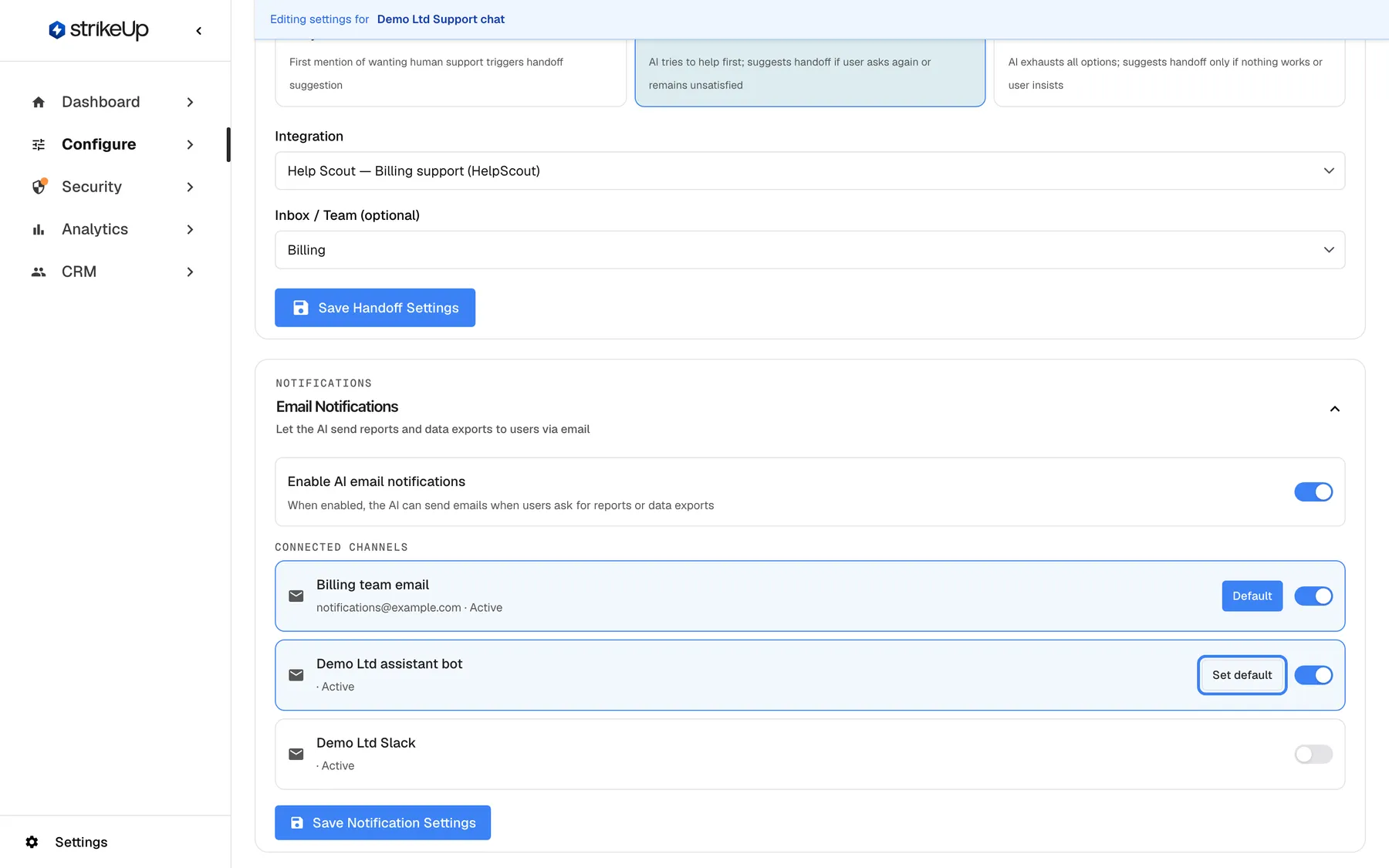
What this screenshot shows
- Screen
- AI & UX (/admin/configure/agents?widgetId=…)
- Highlighted
- button “”, notifications-section-channel-row, enabled (Demo Ltd assistant bot is linked but not default). makes this channel the default sender for AI emails from this widget
- Also visible
- Enable AI email notifications: on; Billing team email: linked, Default; Demo Ltd assistant bot: linked; Demo Ltd Slack: not linked; Save Notification Settings button
- Purpose
- letting the assistant send emails through a configured SMTP channel
- Switch on
Enable AI email notifications. It is off by default. - Under
Connected channels, switch on each channel the assistant may use. The first channel you link becomes the default. - To change the sender, select
Set defaulton another linked channel. The default one readsDefault. - Select
Save Notification Settings.
The channels themselves are created on ConfigureNotifications. Without any, the section reads No notification channels configured yet. Go to Notifications in the sidebar to add an SMTP channel first. A channel that is disabled there shows · Disabled and is not used.
What the assistant can send: an email with a subject, a body and, where the visitor asked for data, a CSV attachment, to at most 5 addresses at once. Who may receive it is set on each SMTP channel on ConfigureNotifications under Who the AI can email: Signed-in user only (the default) sends only to the signed-in visitor’s own confirmed address, Allowed list also allows the addresses and @domains you list, and Any address allows any address the visitor gives. An unconfirmed address is confirmed first with a 6-digit code the visitor types in the chat, and the assistant sends at most 50 emails to one customer and 1,000 for your workspace in 24 hours.
Every control, explained
Section titled “Every control, explained”Widget cards
Section titled “Widget cards”The row at the top of the page. Selecting a card puts its id in the page address and reloads every section.
One card per widget with its name, display type and toolkits. The ⋮ menu offers Delete. A preview icon, where your installation offers it, opens the widget in a new browser tab with a temporary preview visitor. The dashed New widget card opens Create New Widget Configuration.
Every section on the page edits one widget, so you always see which widget you are changing.
Persona
Section titled “Persona”The Persona section, saved with Save Persona.
Tone of voice (optional), up to 500 characters; Behavior instructions (optional) and Branding instructions (optional), up to 4,000 characters each. They are added to every agent of the widget and reviewed before saving. One AI review call is made per changed text.
Visitors notice tone first. A persona lets each widget sound like the product it sits in without touching the assistant’s safety rules.
Skills switches
Section titled “Skills switches”The Skills section; each switch saves the moment you flip it. Manage Skills → opens ConfigureSkills.
One switch per skill in your workspace. On: the assistant of this widget can use the skill when its trigger situation comes up. Off: it cannot. If a switch cannot be saved, a Request failed message appears.
Different widgets serve different audiences; a billing widget needs the invoice skills, a help-centre widget may not.
Human Handoff
Section titled “Human Handoff”The Human Handoff section, shown with the helpdesk integrations feature. Saved with Save Handoff Settings.
Enable "Invite an agent" button shows the handoff button in the chat. Handoff sensitivity is Easy, Normal (default) or Hard. Integration picks the connected helpdesk; Mailbox (Help Scout, required) or Inbox / Team (optional) (Intercom) picks the destination inside it. The chosen sensitivity is added to the assistant’s instructions while handoff is on.
Some visitors need a person. The sensitivity balances solving questions in the chat against making people repeat themselves.
Email Notifications
Section titled “Email Notifications”The Email Notifications section. Saved with Save Notification Settings.
Enable AI email notifications (off by default) gives the assistant an email tool. Under Connected channels, every channel from ConfigureNotifications is listed with a switch and Set default; linking an email channel gives the assistant an email tool, a Telegram channel a tool that sends a Telegram message to a chat ID the visitor gives, and Slack or Teams channels add nothing; the default one is marked Default. The tool is offered only when the switch is on and at least one channel is linked and enabled.
Reports and exports are often too large for a chat message. Email delivers them where the visitor can keep them.
Who sees what
Section titled “Who sees what”| Part of the screen | Shown when |
|---|---|
The page, the widget cards, Persona and Email Notifications | Always, to every signed-in user |
Skills | Your workspace has at least one skill |
Human Handoff | The helpdesk integrations feature is switched on for your workspace |
Everyone sees the same controls, but only users with the Admin role can change them. For anyone else, creating a widget, the Save buttons and the skill switches fail with Request failed and “This action requires the Admin role.”
What you need to know
Section titled “What you need to know”| Topic | Fact |
|---|---|
| Per widget | Every setting on this page belongs to the selected widget only. Skills themselves are shared across the workspace. |
| Saving | Persona, handoff and email each have their own Save button. Skill switches save instantly. |
| Persona limits | Tone 500 characters, each instruction 4,000. Changed texts are reviewed before saving. |
| Safety rules win | Persona text cannot relax safety, approval or guardrail rules. |
| Cost | Each changed persona text costs one AI review call. Emails the assistant sends add no AI review cost. |
| Language | The page itself is in English in every language. |
Frequently asked questions
Section titled “Frequently asked questions”Widgets
Section titled “Widgets”Which widget am I editing?
Section titled “Which widget am I editing?”The widget whose card is selected at the top of ConfigureAI & UX. Its id is also in the page address as ?widgetId=, and the same widget stays selected when you open User Interface or Embed.
How many toolkits can a new widget have?
Section titled “How many toolkits can a new widget have?”Between 1 and 5. The create dialog’s labels mention a single toolkit, but you can select up to 5 active toolkits there and on ConfigureEmbed. Tool names must be unique across the selected toolkits, or the widget is refused.
Why did my new widget ignore the colours I expected?
Section titled “Why did my new widget ignore the colours I expected?”The Create New Widget Configuration dialog saves only the name, description, display type, sign-in choice, toolkits and knowledge. Colours, size and the other display settings start with their defaults; change them on ConfigureUser Interface.
Persona
Section titled “Persona”Why was my persona refused?
Section titled “Why was my persona refused?”StrikeUp reviews every changed persona text on ConfigureAI & UX. It refuses a text over its limit, one that tries to override the assistant’s own rules, one that looks like it contains a password, key or token, and one with [option: …] or [handoff] markers. The error message names the field and the reason.
My persona didn’t take effect on a new widget. Why?
Section titled “My persona didn’t take effect on a new widget. Why?”On a brand-new widget, the first Save Persona on ConfigureAI & UX saves the widget and creates its agents, and the persona may not reach them yet. Select Save Persona a second time; the texts are then applied to every agent.
Can the persona make the assistant skip approvals or guardrails?
Section titled “Can the persona make the assistant skip approvals or guardrails?”No. Persona texts are added under a heading telling the assistant they cannot relax its safety, approval or guardrail rules, and wording that tries to override those rules is refused when you save. Approvals are set per tool on ConfigureToolkits.
Can I write different instructions for each agent?
Section titled “Can I write different instructions for each agent?”Not on this page. Save Persona on ConfigureAI & UX applies the same tone, behaviour and branding texts to every agent of the selected widget. For instructions that apply to one kind of request, write a skill on ConfigureSkills.
Skills, handoff and email
Section titled “Skills, handoff and email”Why is there no Skills section?
Section titled “Why is there no Skills section?”The Skills section on ConfigureAI & UX appears only once your workspace has at least one skill. Create a skill on ConfigureSkills, or accept a suggested one on ConfigureSuggestions, and the section appears.
Why is there no Human Handoff section?
Section titled “Why is there no Human Handoff section?”The Human Handoff section appears only when the helpdesk integrations feature is switched on for your workspace. When it is on, you also need a helpdesk connected on ConfigureIntegrations before you can pick it here.
What is the difference between Easy, Normal and Hard?
Section titled “What is the difference between Easy, Normal and Hard?”They set how readily the assistant suggests a person. Easy suggests a handoff at the first mention of wanting human help, Normal helps first and suggests it if the visitor asks again or stays unsatisfied, and Hard tries every option and suggests it only if nothing works or the visitor insists.
What do I need before the assistant can send emails?
Section titled “What do I need before the assistant can send emails?”An SMTP channel created on ConfigureNotifications. Then, on ConfigureAI & UX, switch on Enable AI email notifications for the widget, link the channel under Connected channels and select Save Notification Settings.
Whom can the assistant email?
Section titled “Whom can the assistant email?”It depends on Who the AI can email on the SMTP channel on ConfigureNotifications. With Signed-in user only, the default, only the signed-in visitor’s own address is used, and an address they have not confirmed yet first gets a 6-digit code to type into the chat. Allowed list adds the addresses and @domains you list, and Any address allows any address, up to 5 in one email. The email goes out through the widget’s default channel set on ConfigureAI & UX, unless the visitor’s customer company has its own active mail channel, which is then used instead.
Troubleshooting
Section titled “Troubleshooting”| Symptom | What to check |
|---|---|
| Request failed when saving the persona | Read the reason in the message. Shorten the text, remove anything that looks like a credential, or remove wording that tries to override the assistant’s rules. |
| The persona is saved but the assistant does not use it | On a new widget, select Save Persona again. Check that you edited the widget you are testing. |
The page reads Select a widget above to configure its AI settings. | Pick a widget card. If there is none, create a widget with the New widget card. |
| No Skills section | Your workspace has no skills yet. Create one on ConfigureSkills. |
| No Human Handoff section | The helpdesk integrations feature is off for your workspace. |
| The assistant never offers to email | Check that Enable AI email notifications is on, a channel is linked and enabled, and Save Notification Settings was selected. |
| In the create dialog, the remaining toolkit switches are greyed out | You have selected 5 toolkits, the limit. Deselect one to pick another; the dialog’s count still reads of 1. |
| A change fails with Request failed and “This action requires the Admin role.” | Changes on this page need the Admin role. Ask an Admin to make the change, or to give you the Admin role under Settings › Users. |