

Give your customers the right question with one keystroke
Customers who do not know how to phrase a request either ask vaguely or not at all. Shortcuts hand them the right question: a visitor types /, picks a shortcut, fills in the blanks and sends it. You write the list once and it serves every widget.
What’s new
Section titled “What’s new”- One list for every widget. Shortcuts you create on ConfigureShortcuts appear in all your widgets straight away.
- Blanks the visitor fills in. Mark the parts that change with curly braces, such as
{invoiceNumber}. The widget asks for each one in a small form before it sends the message. - Pick from the chat. Typing
/in the message box, or the shortcuts icon beside it, opens a filterable list of every shortcut the visitor may use. - Company shortcuts from the portal. A business customer’s Admins add shortcuts for their own people in the customer portal; when a name is the same as yours, theirs wins for their company.
- In your visitors’ languages. Add translations of a shortcut’s name, description and message.
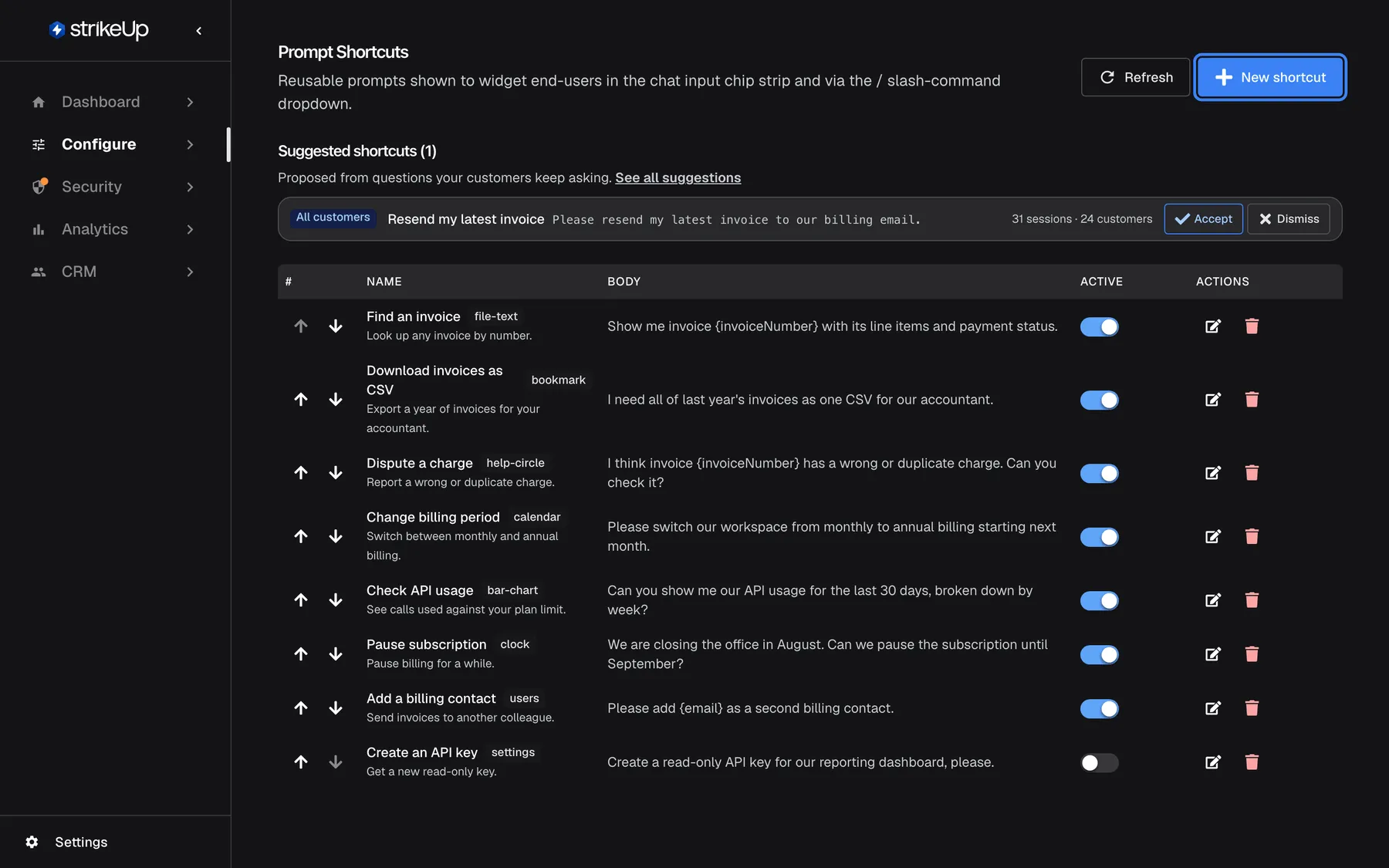
What this screenshot shows
- Screen
- Prompt Shortcuts (/admin/configure/prompt-shortcuts)
- Highlighted
- button “New shortcut”, header-right, enabled. opens the New prompt shortcut dialog
- Also visible
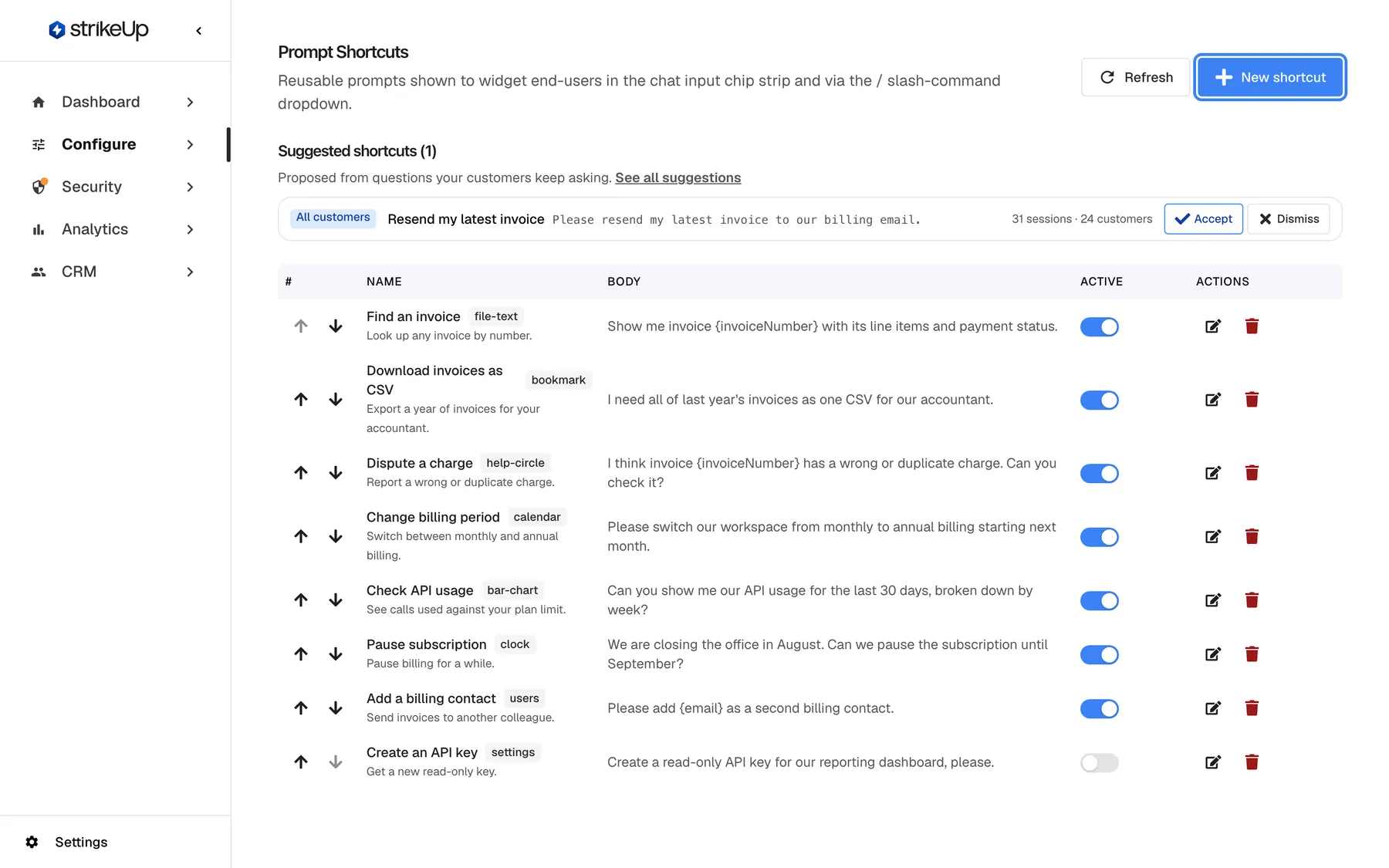
- Suggested shortcuts (1): Resend my latest invoice, with Accept and Dismiss; Eight shortcuts with order arrows, name, icon id, body, Active switch, edit and delete; Create an API key switched off
- Purpose
- hero of the prompt shortcuts release note: the shortcut list
Why it matters
Section titled “Why it matters”A well-phrased request gets a better answer on the first try. Shortcuts turn the questions your customers ask every week into one click, and they show new users what the assistant can do for them.
Get started in three steps
Section titled “Get started in three steps”- Open ConfigureShortcuts and select New shortcut.
- Give the shortcut a name and write its message, for example
Please resend invoice {invoiceNumber} to {email}.Save it. - Open your widget and type
/in the message box to see it.
The details are in Create a shortcut.
Availability
Section titled “Availability”For every workspace and every widget, for signed-in and anonymous visitors alike. Company shortcuts need the customer portal with its prompt shortcuts page switched on for the widget; a company’s Members can read them but not change them.