

Find out what your visitors keep asking for, and fix it in one click
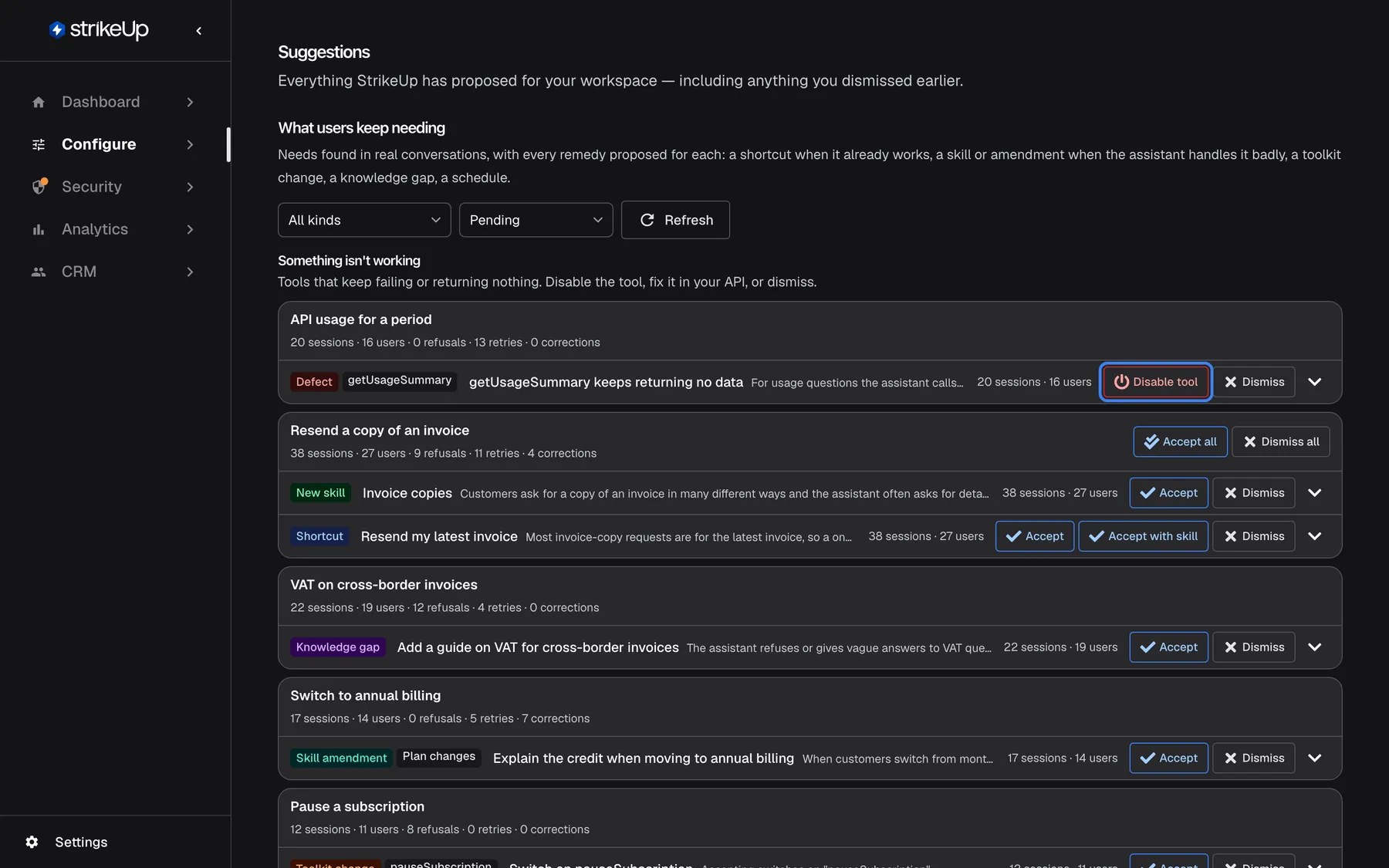
Your conversations already tell you what to improve: the request visitors keep making, the answer the assistant keeps getting wrong, the tool that keeps returning nothing. The Suggestions page turns that into a to-do list, one need at a time, with a ready-made fix for each.
What’s new
Section titled “What’s new”- Needs, not noise. Suggestions are grouped by what visitors kept needing, with the evidence behind each: sessions, people, refusals, retries and corrections.
- A fix that fits. A shortcut when the assistant already handles the request well, a new skill or an addition to an existing one when it handles it badly, a toolkit change, a knowledge gap to fill or a schedule for a request that comes back every week.
- Review before anything is created. A new skill opens as a draft you can edit before you create it; nothing in your workspace changes until you accept.
- Broken tools first. Tools that keep failing or returning nothing are listed at the top, with one click to switch them off.
- Nothing is lost. Dismissed suggestions are kept, never proposed again, and can be restored if you change your mind.
- Did it help? About two weeks after you accept a suggestion, it shows how the friction around that need changed.
What this screenshot shows
- Screen
- Suggestions (/admin/suggestions)
- Highlighted
- button “Disable tool”, defects-section, enabled. switches off the getUsageSummary tool that keeps returning no data
- Also visible
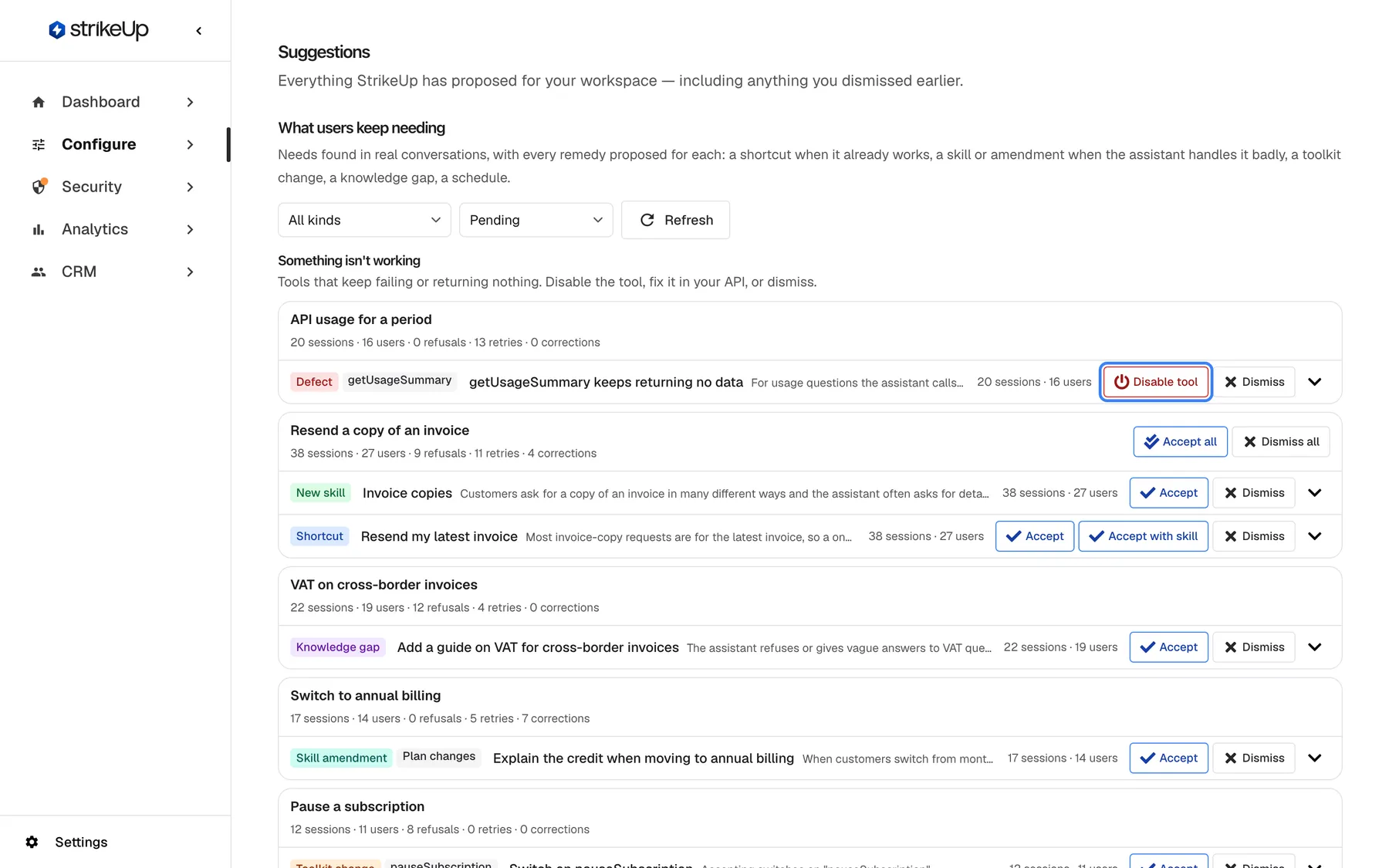
- Filters All kinds and Pending, Refresh; Defect: getUsageSummary keeps returning no data, Disable tool, Dismiss; Need group Resend a copy of an invoice with Accept all, Dismiss all, New skill and Shortcut rows; Knowledge gap, Skill amendment and Toolkit change rows
- Purpose
- hero of the suggestions release note: the needs list
Why it matters
Section titled “Why it matters”Improving an assistant usually means reading transcripts by the hundred. The Suggestions page reads them for you, ranks what matters by how much friction it caused, and gives each finding a concrete next step, so an hour a week keeps your assistant getting better.
Get started in three steps
Section titled “Get started in three steps”- Open ConfigureSuggestions.
- Start with the tools listed as not working, then open a need and read the conversations behind it.
- Select Accept on the fix you want, or Dismiss on one that does not fit.
The details are in Accept a suggestion.
Availability
Section titled “Availability”For every workspace, with no feature flag. Anyone signed in can read the page; accepting, dismissing and restoring need the Admin role. A need is proposed once it involves at least 2 different people and enough friction. Masking rules proposed from your toolkit imports are approved on the same page.