

Your customers can now work with the assistant in Slack, Telegram and Teams
Your customers spend their day in Slack, Telegram or Microsoft Teams, not in your app. Now the assistant meets them there: they approve what it wants to do, answer its questions and hold a whole conversation with it, from the same chat they already have open. Teams joins Slack and Telegram today.
What’s new
Section titled “What’s new”- Approve and deny from the message. Approve and Deny buttons sit on every request, so a waiting job moves on with one tap, and every copy of the message then shows who decided.
- Conversations, not just alerts. People write to the bot and get a full answer back. Everything about one chat or run stays together in one thread in Slack and Telegram, and quick-answer choices arrive as buttons.
- Commands for the everyday.
/pendingshows what is waiting,/runslists recent workflow runs,/run-workflowstarts one and/stopstops the reply being written. In Teams the same commands are plain words such aspending. - Pick up any earlier chat.
/chatslists the 10 most recent chats, including ones started in your app, and one button carries the conversation on in the chat app. - Charts, tables and a live status. A status line shows what the assistant is doing until the answer arrives. Charts and tables come with the answer, and each table also arrives as a CSV file.
- Open signs them in. Where your installation has a hosted widget page, Open takes a connected person straight into that chat or run, already signed in, for 7 days.
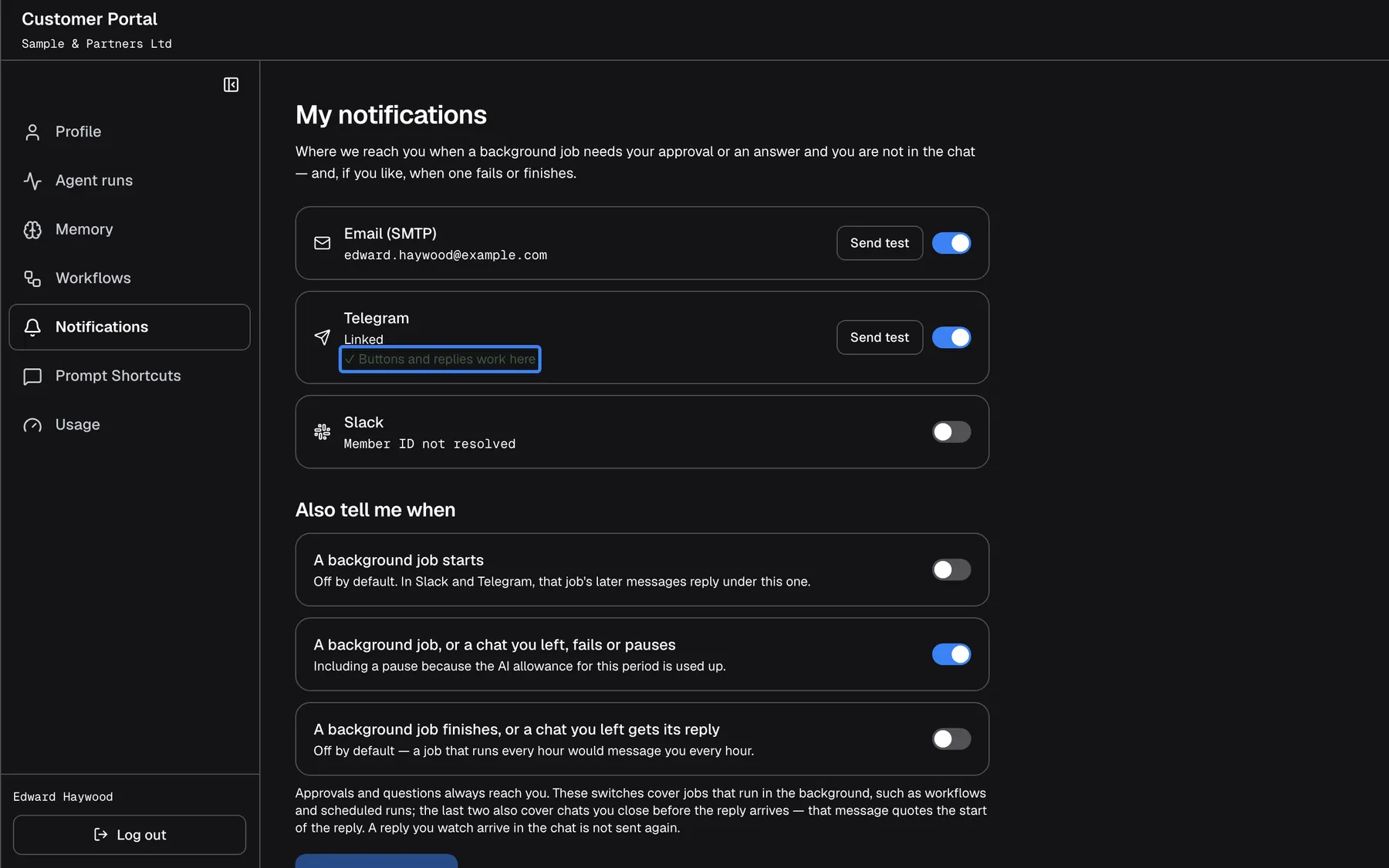
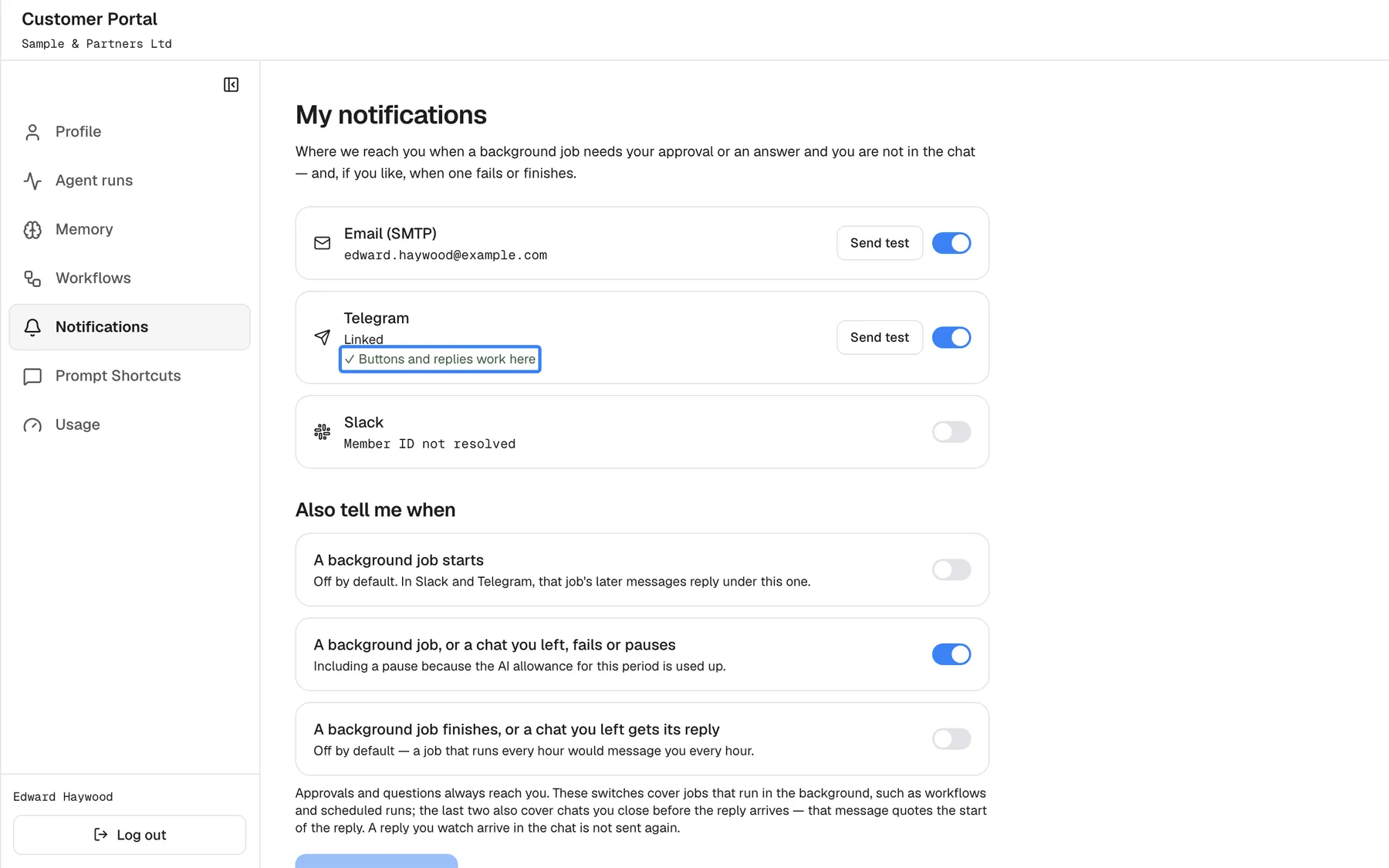
What this screenshot shows
- Screen
- My notifications (/?mode=portal)
- Highlighted
- “✓ Buttons and replies work here”, telegram-card, linked and verified. none (status)
- Also visible
- Email (SMTP) on; Telegram Linked; Slack off
- Purpose
- hero of the chat apps release note: a linked and verified chat-app account
Why it matters
Section titled “Why it matters”A request that waits for someone to open a browser waits for hours. When the person can approve it, ask a follow-up or check a figure from the app on their phone, the work finishes the same morning, and the conversation still lands in the assistant’s history in your product.
Get started in three steps
Section titled “Get started in three steps”- Open ConfigureNotifications and add a Slack, Telegram or Microsoft Teams channel for your workspace. Follow the panel at the top of the channel to switch on buttons and replies.
- On ConfigureUser Interface, set the App page URL of each widget, so Open leads to your product.
- Ask your customers to open the customer portal, go to Notifications and connect their chat-app account under My notifications.
The full walkthrough is in the chat-app section of the job notifications guide. Share the guide for your end customers with the people who will use it.
Availability
Section titled “Availability”For every workspace, with no feature flag. Adding channels needs the Admin role. Buttons, replies, chat and commands in Slack and Telegram, and Microsoft Teams as a whole, need a public address for your StrikeUp installation. Each person connects their own account once in the customer portal, and what they can approve from a chat app follows the limit you set per customer company. A Teams download link for a table works for 24 hours.