

Reach your customers in Slack, Telegram and Teams when work needs them
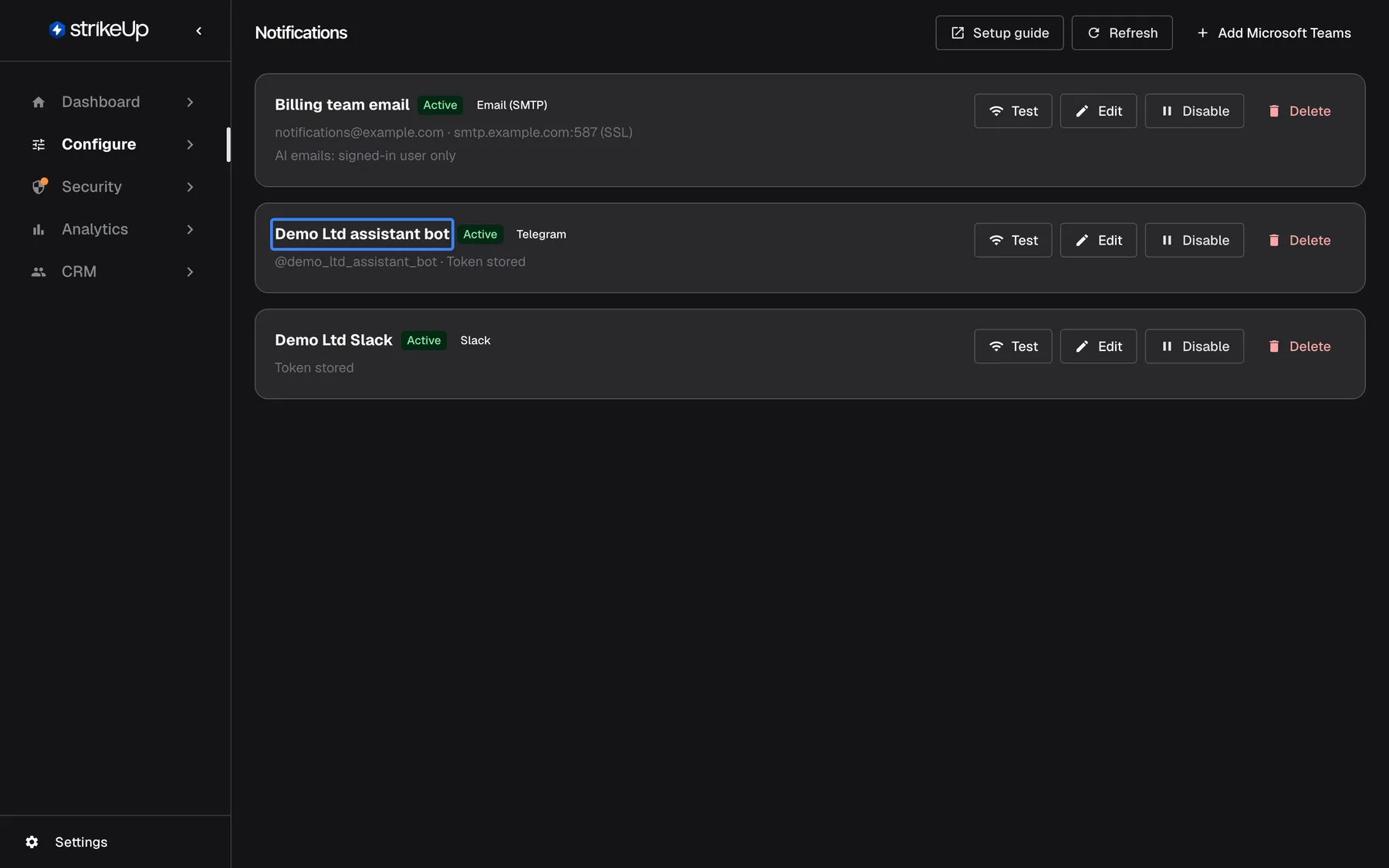
A workflow that waits for an approval is no use if its owner never opens the portal. Now the assistant reaches people where they already are: by email, or in Slack, Telegram or Microsoft Teams, the moment a background job needs them.
What’s new
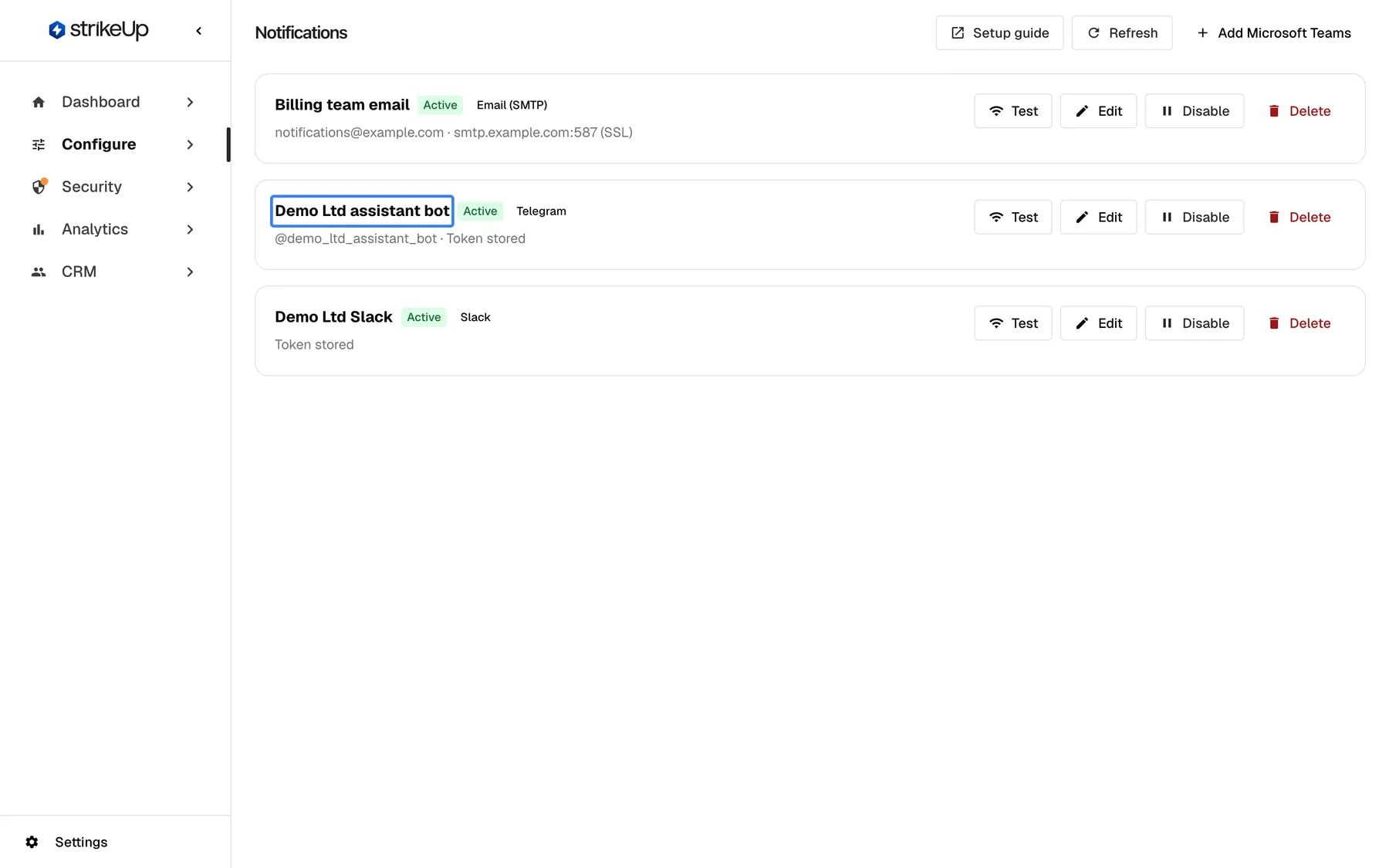
Section titled “What’s new”- Four ways to reach people. Connect one mailbox, Telegram bot, Slack app and Teams bot for your whole workspace, so every customer can be notified there.
- Approve where the message lands. Approve and Deny buttons in Slack, Telegram and Teams unblock a job from a phone, within a limit you set per company. What else people can do in those apps, from commands to charts, is in Your customers can now work with the assistant in Slack, Telegram and Teams.
- No noise while they watch. Nobody gets a message about a job they are looking at, and each person chooses which outcomes reach them.
- Their own channels for big customers. A customer company can send from its own mailbox or bot instead of yours.
What this screenshot shows
- Screen
- Notifications (/admin/notifications)
- Highlighted
- “”, channel-card-telegram, Active. none (channel card)
- Also visible
- Billing team email (Email (SMTP)), Demo Ltd assistant bot (Telegram), Demo Ltd Slack (Slack)
- Purpose
- the feature in its best light
Why it matters
Section titled “Why it matters”Jobs that wait for a person finish sooner when the person hears about it straight away. Approvals that used to sit until someone logged in now take one tap, and a failed overnight run reaches its owner before anyone asks where the report is.
Get started in three steps
Section titled “Get started in three steps”- Open ConfigureNotifications and add a channel for email, Telegram, Slack or Teams. Setup guide shows where each value comes from.
- On ConfigureUser Interface, enter the App page URL, so Open buttons lead to your product.
- Ask your customers to switch on their channels under Notifications in the customer portal.
The details are in the setup steps of the feature guide.
Availability
Section titled “Availability”For every workspace, with no feature flag. Setting up channels and approval limits needs the Admin role. Approve buttons, replies and commands in chat apps, and Microsoft Teams, need a public address for your StrikeUp installation. Your customers need the customer portal to choose their channels.