

Choose which AI model answers each part of a conversation
A support assistant that runs every message through the most capable model gives good answers and an unpredictable bill; one that runs everything through the cheapest model is predictable and often wrong. The AI Gateway lets you decide, stage by stage, which model answers and whose account pays for it.
What’s new
Section titled “What’s new”- Your own provider accounts. Add a connector with the provider, the request format and your key. The key is stored encrypted and never shown again, and a test button checks the connection.
- Models by difficulty level. On Standard Mode, choose a model for each of three levels and move each stage, and the sub-agents it starts, to the level it needs.
- One exact model where it matters. On Advanced Mode, pin a single stage to a model; the pin overrides its level.
- Cheaper answers for easy questions. StrikeUp can judge how hard each message is and answer simple ones at a lower level, or raise difficult ones when you allow it.
- Outages handled for you. Failed calls are retried, then a backup model takes over, and a connector that keeps failing is set aside for a while. A health badge on each connector shows what has been happening.
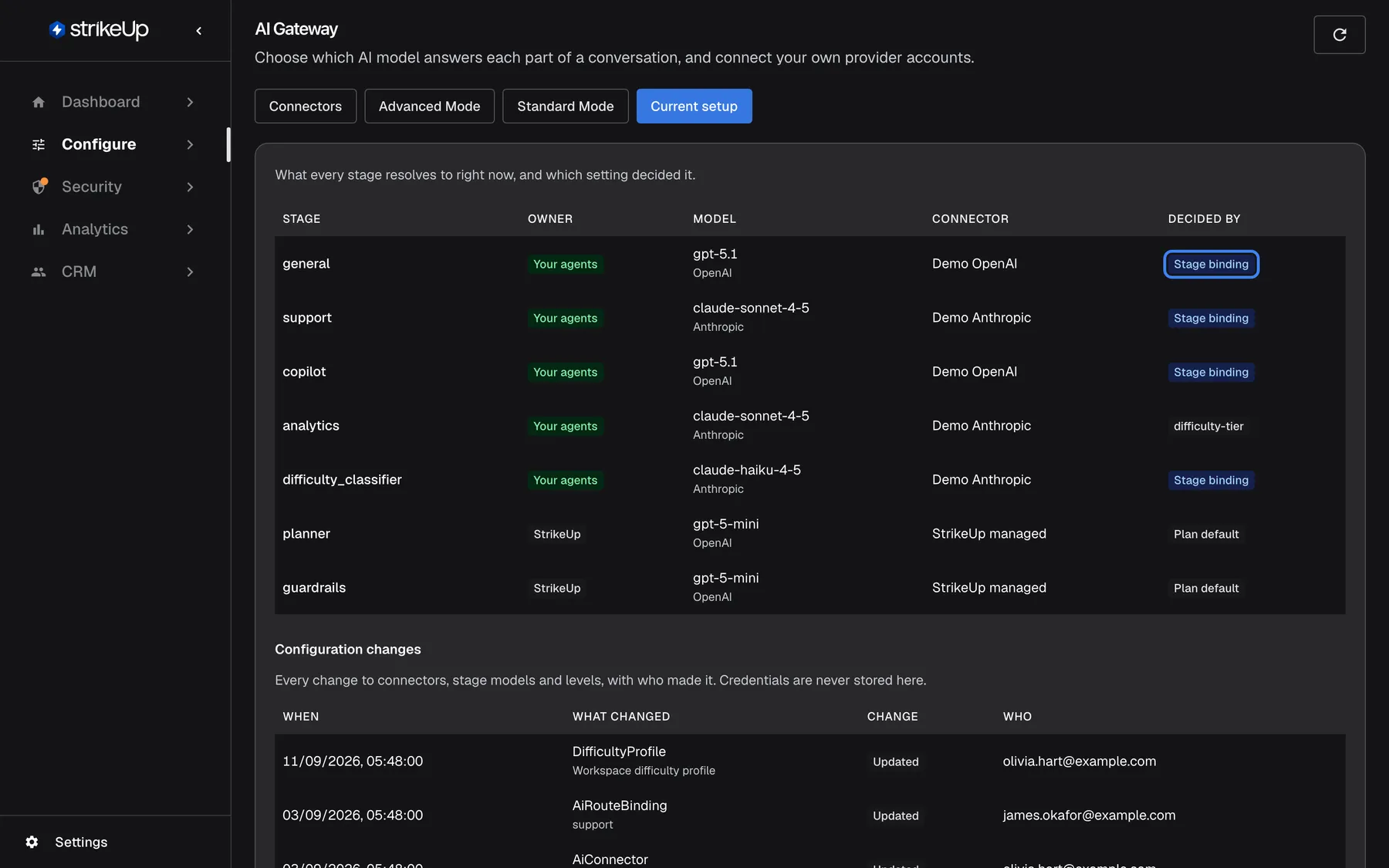
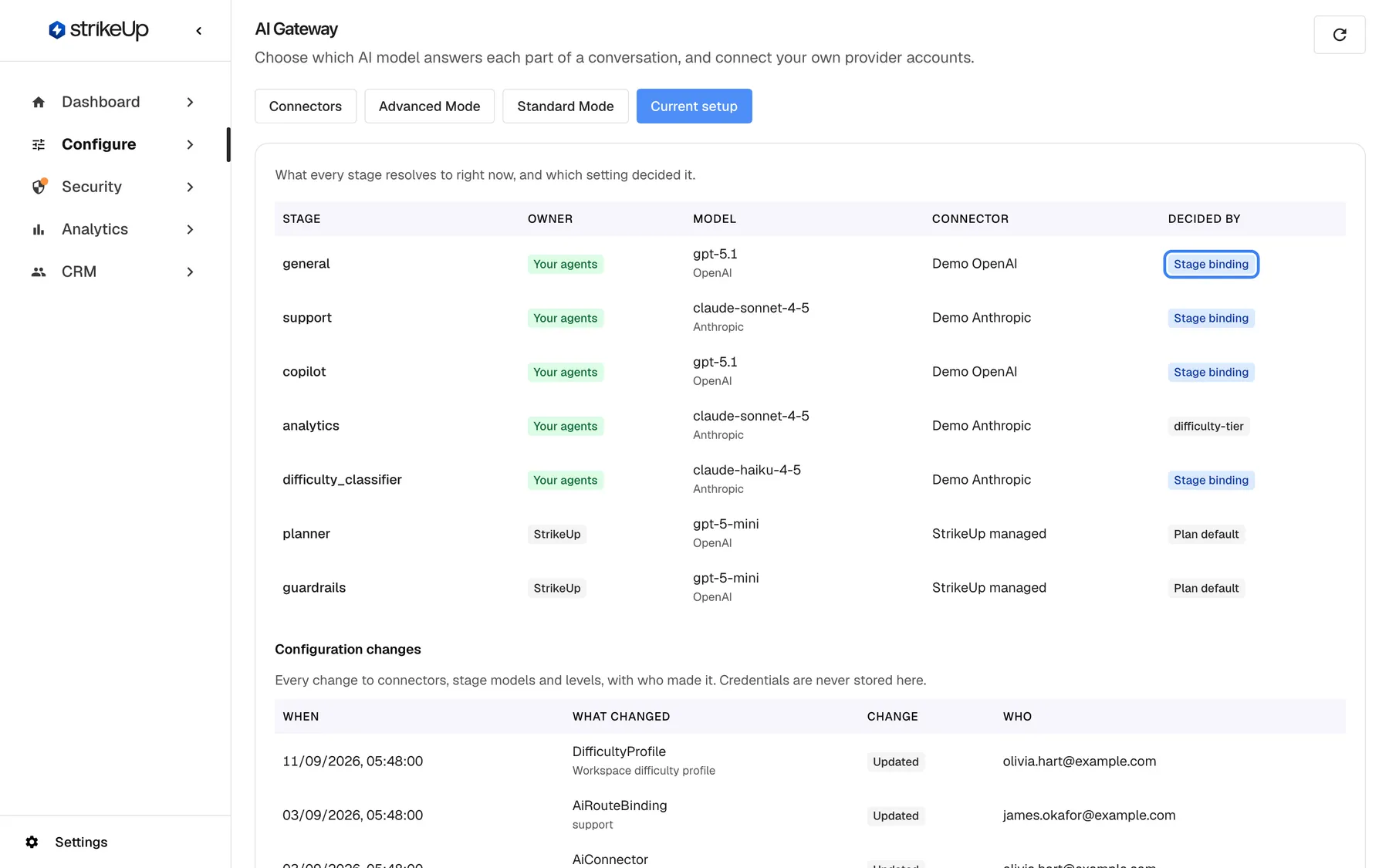
- See the result. Current setup shows the model every stage uses right now and which setting decided it, with a list of every configuration change and who made it.
What this screenshot shows
- Screen
- Current setup (/admin/configure/ai-gateway)
- Highlighted
- “”, decided-by-column, shown for general. none (explains the decision)
- Also visible
- Owner badges: Your agents / StrikeUp; Decided by: Stage binding, difficulty-tier (analytics), Plan default
- Purpose
- hero of the AI Gateway release note: the Current setup tab
Why it matters
Section titled “Why it matters”Most conversations need both a quick model and a strong one. Putting each where it belongs keeps answers good where it counts and the bill low everywhere else, and bringing your own keys lets you use the provider contracts you already have.
Get started in three steps
Section titled “Get started in three steps”- Open ConfigureAI Gateway and, if you want to use your own account, add a connector on Connectors and test it.
- On Standard Mode, choose a model for each level and the level for each stage, then save.
- Check Current setup to see what every stage now uses.
The details are in Setting it up in 6 steps.
Availability
Section titled “Availability”The AI Gateway is an optional extra that StrikeUp switches on per workspace; ask StrikeUp if you would like it. Without it, the page is not in your menu and your agents run on the models included with your plan. Once it is on, every signed-in user can view it and changes need the Admin role. Estimated spend and budgets do not need it: they live on the Dashboard and under Configure for every workspace.