

See how your assistant is doing, page by page
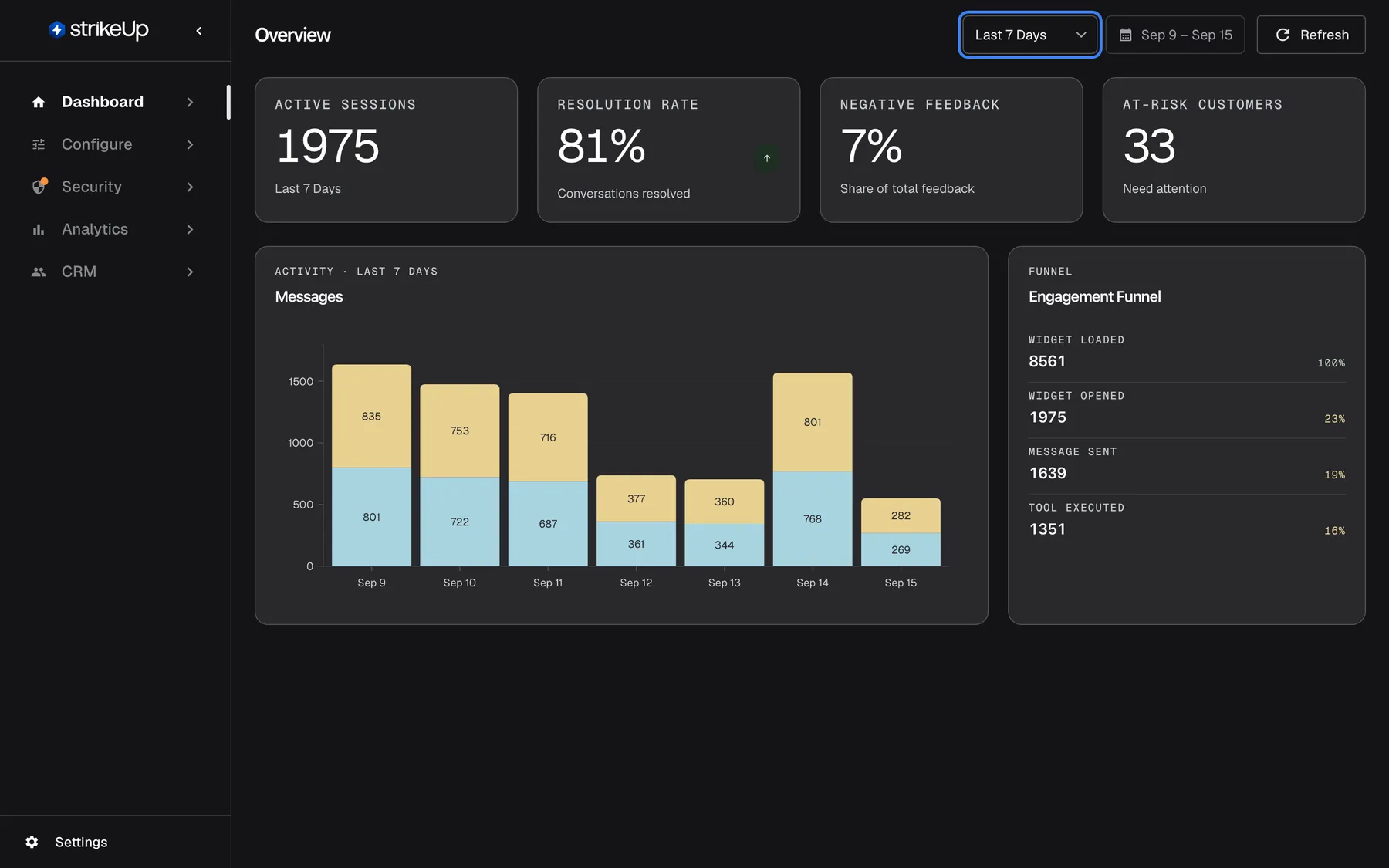
One long dashboard answers every question a little and none of them well. The Dashboard is now split into focused pages, each answering one question about your assistant, so you find the figure you came for and each page loads faster.
What’s new
Section titled “What’s new”- Overview: how is it doing right now? Four headline tiles, the daily message chart and the engagement funnel from widget loaded to tool executed. It is where the app opens after sign-in.
- Usage: how much is it used, and for what? Daily active users, messages, the ten busiest API endpoints, the most-used skills and autonomous agent runs.
- Performance: is it working well? Successful and failed tool calls, blocked messages, visitor feedback, session quality and a health score per customer.
- One date range for every page. Pick the last 7, 14 or 30 days or your own dates in the calendar, and the choice follows you from page to page in your browser.
- Every skill as a spreadsheet. The skills table on Usage downloads every skill used in the range, with its number of uses, as a CSV file.
What this screenshot shows
- Screen
- Overview (/admin/dashboard/overview)
- Highlighted
- combobox “Last 7 Days”, header-right, Last 7 Days selected. switches the period to the last 7, 14 or 30 days, or to a custom range picked in the calendar
- Also visible
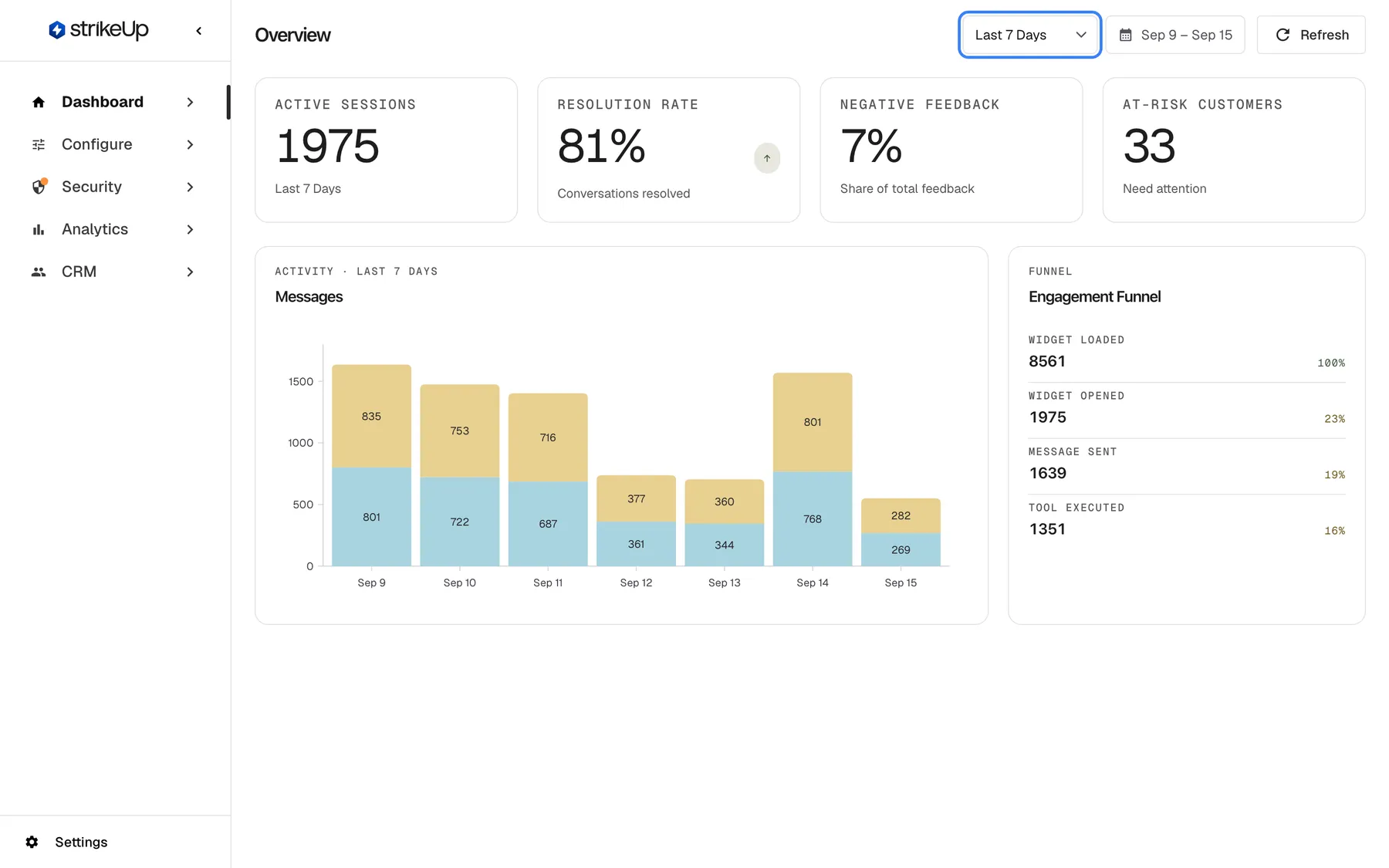
- KPI tiles: Active Sessions 1975, Resolution Rate 81%, Negative Feedback 7%, At-Risk Customers 33; Messages stacked bar chart, Sep 9 – Sep 15; Engagement Funnel: Widget Loaded 8561, Widget Opened 1975, Message Sent 1639, Tool Executed 1351; Sidebar: Dashboard section active
- Purpose
- hero of the dashboard release note: the Overview page
Why it matters
Section titled “Why it matters”A support lead wants to know whether customers are drifting away; a product owner wants to know which skills do the work. With one page per question, each of them gets there in one click, and the shared range means the numbers on every page always cover the same days.
Get started in three steps
Section titled “Get started in three steps”- Sign in: the app opens on DashboardOverview.
- Choose the period in the range drop-down at the top right, or open the calendar for your own dates.
- Switch to DashboardUsage or DashboardPerformance; the same period applies.
The details are in the Dashboard section.
Availability
Section titled “Availability”For every workspace and everyone in it. The Dashboard only reads data, so nothing you do there changes your setup or what your visitors see. The date range is remembered per browser, for you only.