

Put the assistant inside your page, not on top of it
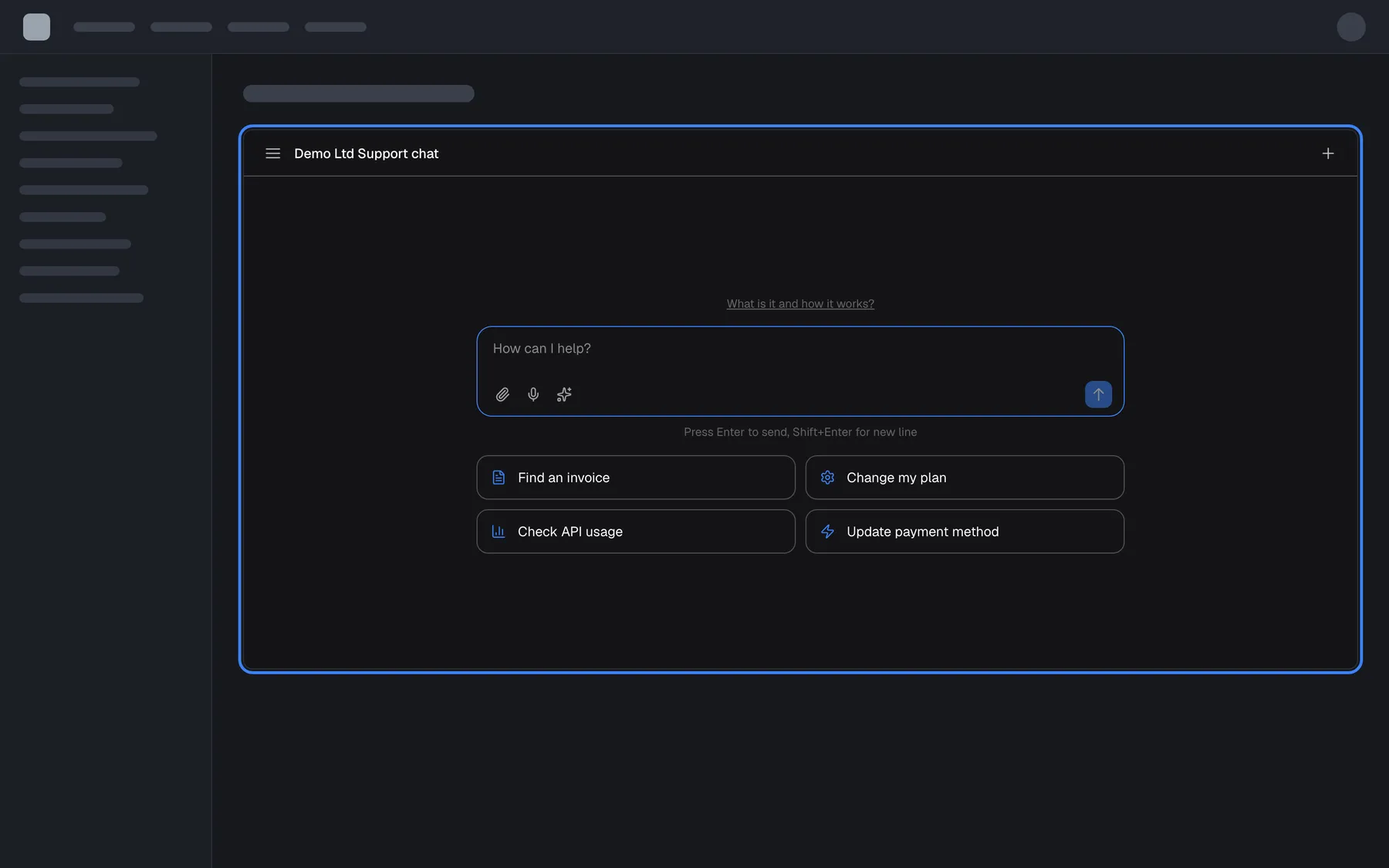
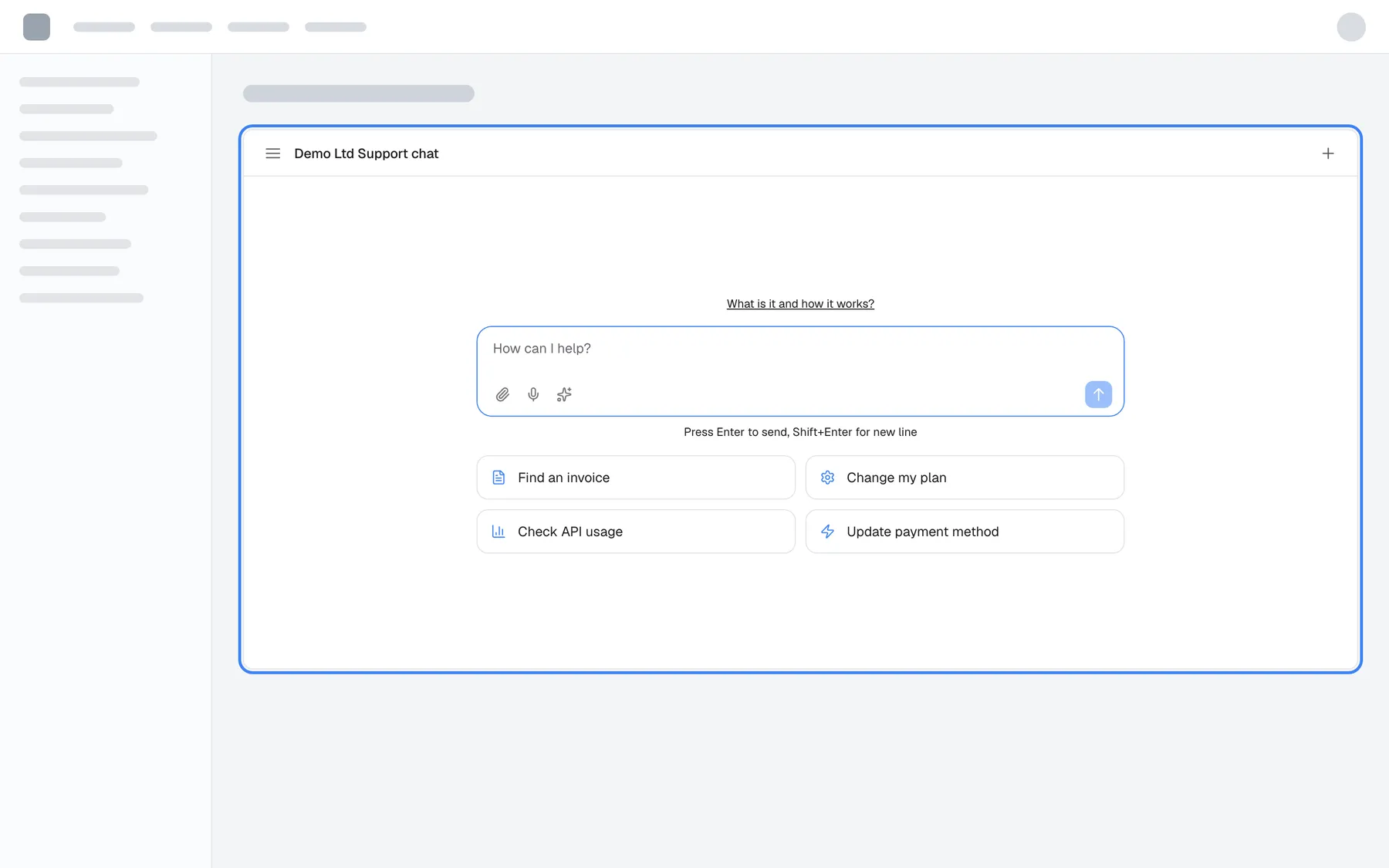
A floating chat bubble suits help that should be one click away on every page. A dedicated help or support page wants something else: the assistant as part of the layout. The inline widget mounts the chat inside an element of your own page, so your design decides its size and place.
What’s new
Section titled “What’s new”- The chat as part of your page. The widget fills the container you name, in the normal page flow, with no launcher, no shadow and no backdrop.
- Code generated for you. Switch on Embed inside a container on the Embed screen, enter the container’s CSS selector and copy the container element and script.
- The portal in the same place. With Open Customer Portal inline, the customer portal replaces the chat inside your container instead of opening a window over the page.
- One widget, several forms. Pass the inline type on your help page only and keep the pop-up everywhere else; the saved display type still applies to every other page.
What this screenshot shows
- Screen
- (host page (https://app.example.com/))
- Highlighted
- region “”, main-content, widget mounted, 560 px high. none (the host's container)
- Also visible
- Widget inside a page section, no launcher; Title bar, message box and shortcut cards
- Purpose
- hero of the inline widget release note: the chat inside a page element
Why it matters
Section titled “Why it matters”When the assistant is the main thing on a page, it should look like it belongs there. An inline chat reads as part of your product, takes the space you give it, and stays open, so visitors on a support page start typing instead of looking for a button.
Get started in three steps
Section titled “Get started in three steps”- Open ConfigureEmbed, pick the widget and switch on Embed inside a container.
- Enter the Container selector, for example
#strikeup-widget, and switch on Open Customer Portal inline if customers should reach the portal there. - Copy the generated code into your page and give the container an explicit height.
The details are in Inline.
Availability
Section titled “Availability”For every widget. The inline type is set in your page’s code, not on ConfigureUser Interface, and it ignores the saved width and height: it fills your element, which needs an explicit height. The portal opens inline only for widgets that have the customer portal switched on and only for signed-in customers.