

Know what your AI costs, who spends it, and cap it when you need to
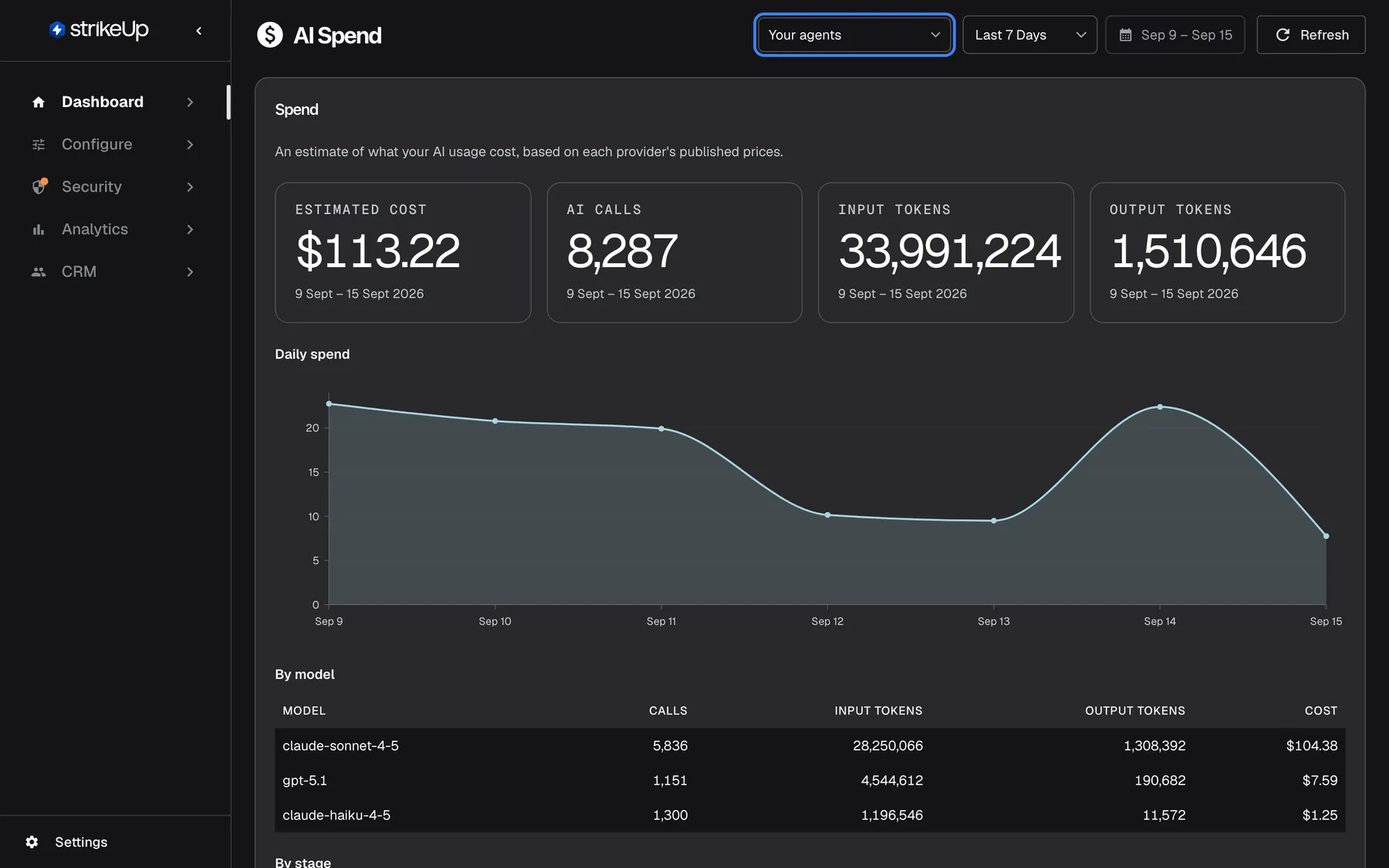
AI cost is easy to ignore until the invoice arrives. AI Spend puts the estimate and the people and processes behind it on one Dashboard page, and budgets warn you, or stop new work, before a month gets out of hand.
What’s new
Section titled “What’s new”- One page for cost and usage. DashboardAI Spend shows the estimated cost in US dollars by model, stage, widget and day, for the same period as the rest of the Dashboard.
- Who spent it. Tables by customer company, customer, source, workflow and autonomous agent, plus the 20 costliest runs. The same view sits on each customer company’s page and on a customer’s details.
- Budgets for every workspace. Set an amount per month, week or day under ConfigureBudgets & limits for your whole workspace, one widget or one customer company, and get an email as spend passes levels such as 50, 80 and 100 per cent.
- A hard limit when you need one. Enforce a budget and, once it is used up, new conversations in its scope get a short notice and running agent jobs pause until the period resets or you raise the amount.
- An allowance your customers can see. A Usage page in the customer portal shows them only whether an allowance applies and how much of it is left, as a percentage.
What this screenshot shows
- Screen
- AI Spend (/admin/dashboard/ai-spend)
- Highlighted
- combobox “Your agents”, header-right, Your agents selected (default, not remembered between visits). switches every card on the page between Your agents, StrikeUp services and Everything
- Also visible
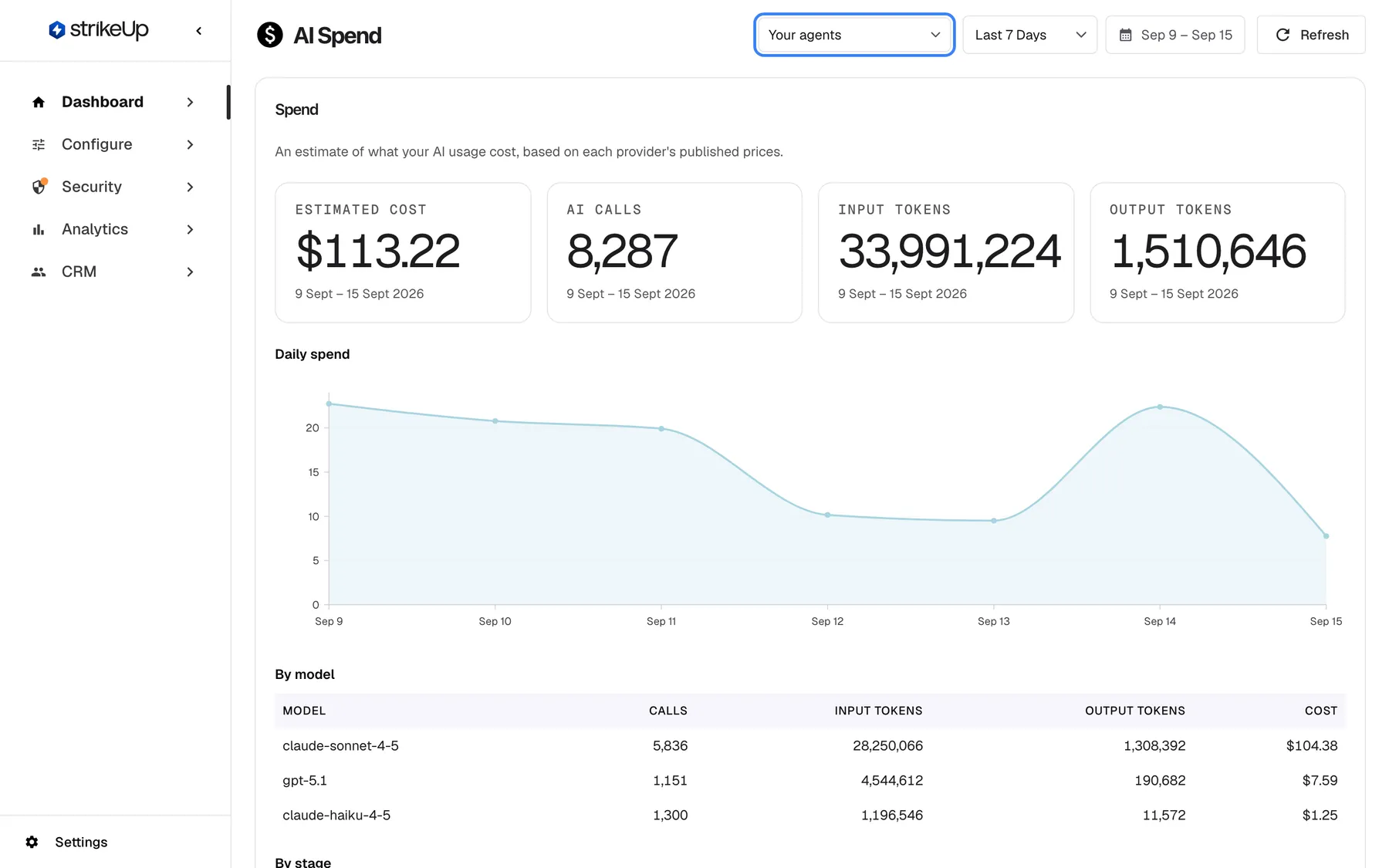
- Tiles: Estimated cost $113.22, AI calls 8,287, Input tokens 33,991,224, Output tokens 1,510,646; Each tile dated 9 Sept – 15 Sept 2026; Daily spend chart (USD)
- Purpose
- hero of the AI Spend and budgets release note: the AI Spend page
Why it matters
Section titled “Why it matters”When you can see that one customer company or one runaway workflow drives most of the cost, you can talk to that customer, fix that workflow or give it its own budget, instead of cutting the assistant back for everyone.
Get started in three steps
Section titled “Get started in three steps”- Open DashboardAI Spend and read the cost by model and the usage by customer company.
- Open ConfigureBudgets & limits, select Add budget and enter a monthly amount with the alert levels you want.
- Leave the hard limit off for the first month, then enforce it with headroom above what a normal month costs.
The details are in Add a budget and the spend page guide.
Availability
Section titled “Availability”For every workspace, with or without the AI Gateway. Everyone in your workspace can open AI Spend; creating and changing budgets needs the Admin role. Figures are estimates from each provider’s published prices, and the page looks back at most 90 days. Nothing is capped until you enforce a budget. The customer portal’s Usage page can be switched off per widget.