

Crawl bigger documentation sites, and see exactly what made it in
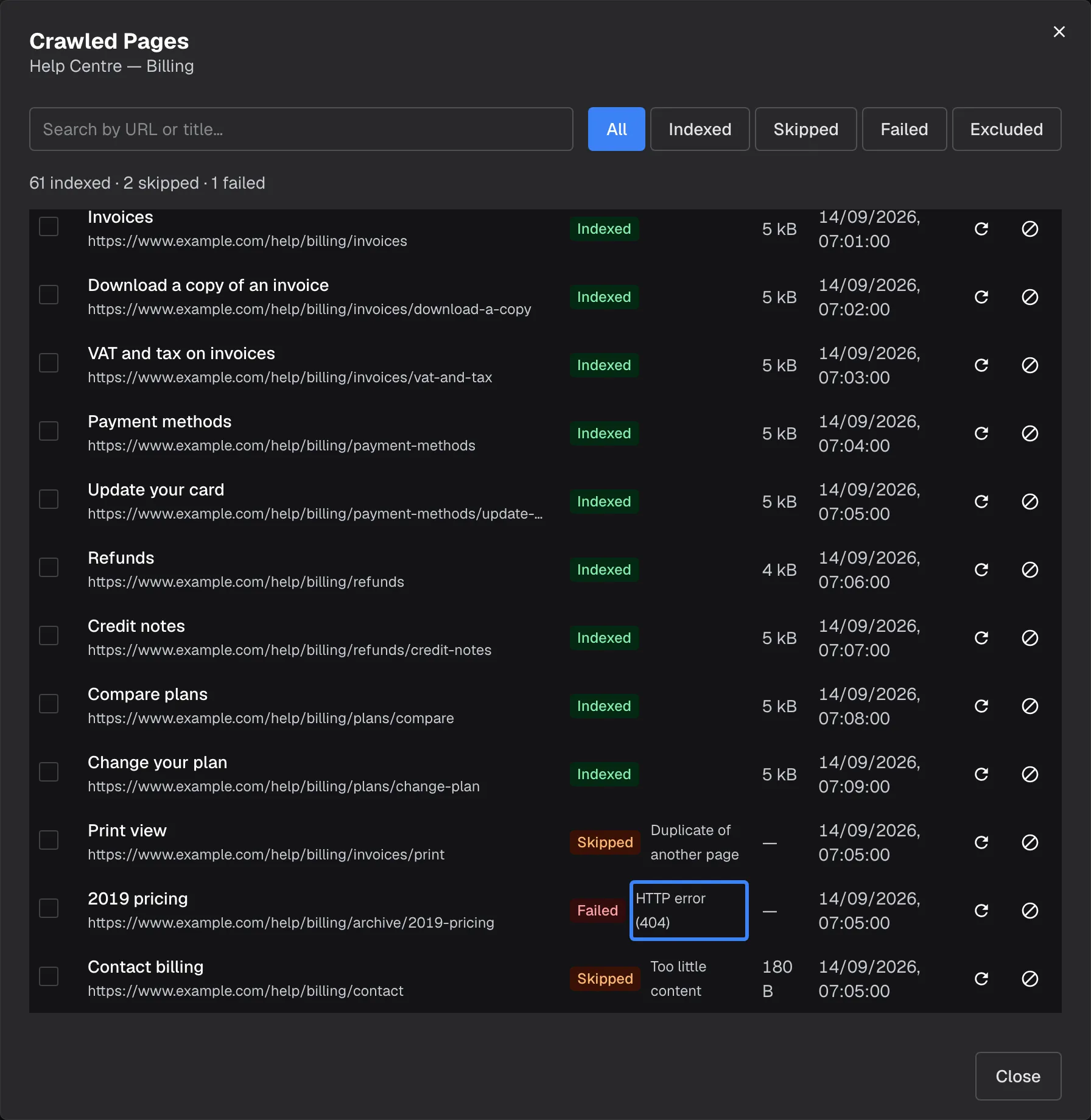
When the assistant answers from your documentation, you need to know which pages it actually has. Web sources now read more kinds of documentation site, cover larger ones, and show you every page the crawler found and what happened to it.
What’s new
Section titled “What’s new”- AI-friendly documentation sites. When a site publishes AI-friendly Markdown versions of its pages, StrikeUp reads those instead of the cluttered web page, and a page that duplicates another is skipped rather than stored twice.
- Up to 500 pages per source. Set the page limit as high as 500, so a large help centre fits in one web source.
- Every page, with its result. View Pages lists each address the crawler found, whether it reached the knowledge base, and why not when it did not: a duplicate, too little content, an error or the page limit.
- Refresh one page. Re-crawl this page fetches a single page again without re-crawling the whole site.
What this screenshot shows
- Screen
- Crawled Pages (/admin/knowledge-base)
- Highlighted
- “”, pages-table, failed page. none
- Also visible
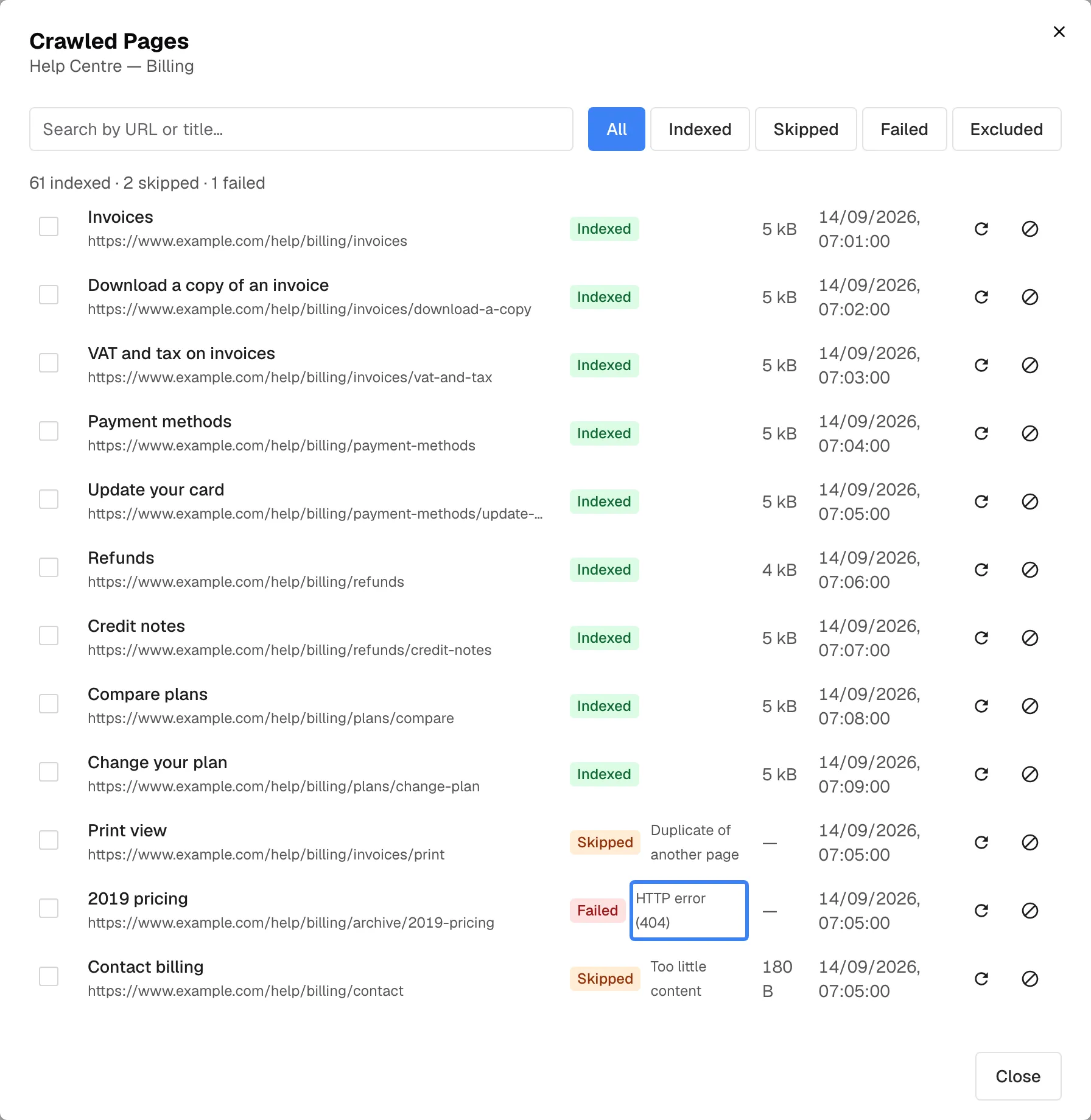
- Summary 61 indexed · 2 skipped · 1 failed; Reasons: Duplicate of another page, Too little content, HTTP error
- Purpose
- hero of the web sources release note: the crawled pages list
Why it matters
Section titled “Why it matters”A page that silently failed is a question the assistant cannot answer. Seeing every page with its reason tells you what to fix on your site or in the source’s filters, and refreshing one updated page takes seconds instead of a full crawl.
Get started in three steps
Section titled “Get started in three steps”- Open ConfigureKnowledge Base and add a web source with your documentation’s address, or edit an existing one to raise its page limit.
- When the crawl has run, select View Pages on the web source and filter for skipped or failed pages.
- After you change a page on your site, select Re-crawl this page on its row.
The details are in Check crawled pages.
Availability
Section titled “Availability”For every workspace with the knowledge base. Web sources accept public http and https addresses only. Crawls do not repeat on their own: sync a source, or refresh single pages, after your site changes. At the default speed of 20 pages a minute, a 500-page crawl takes about 25 minutes.