

Let your other systems put the assistant to work
Some work for your assistant does not start with someone typing. An invoice becomes overdue in your billing system, a payment fails, a weekly report is due. Autonomous agents let that other system start an AI agent with one webhook call: the agent reads the call’s data, works with the same tools and instructions as one of your widgets, and hands the result back.
What’s new
Section titled “What’s new”- Triggered by a webhook. Each agent has its own address. Your billing system, a script or an automation tool calls it with a JSON body.
- A prompt that reads the call. Paste an example body and insert its fields as
{{payload.…}}variables, so every call fills in the invoice number, the customer or whatever your system sends. - Runs for a real customer. Each call carries a personal access token that belongs to one of your customers, so every run is recorded against that customer and uses their saved connections.
- Wait, or collect later. A synchronous agent answers in the same call. An asynchronous one returns a run id at once; your system polls the status address or receives the result at its own callback address.
- Every run on record. The agent lists its recent runs with status, customer and output, and each run is a job you can follow step by step under AnalyticsAgent jobs.
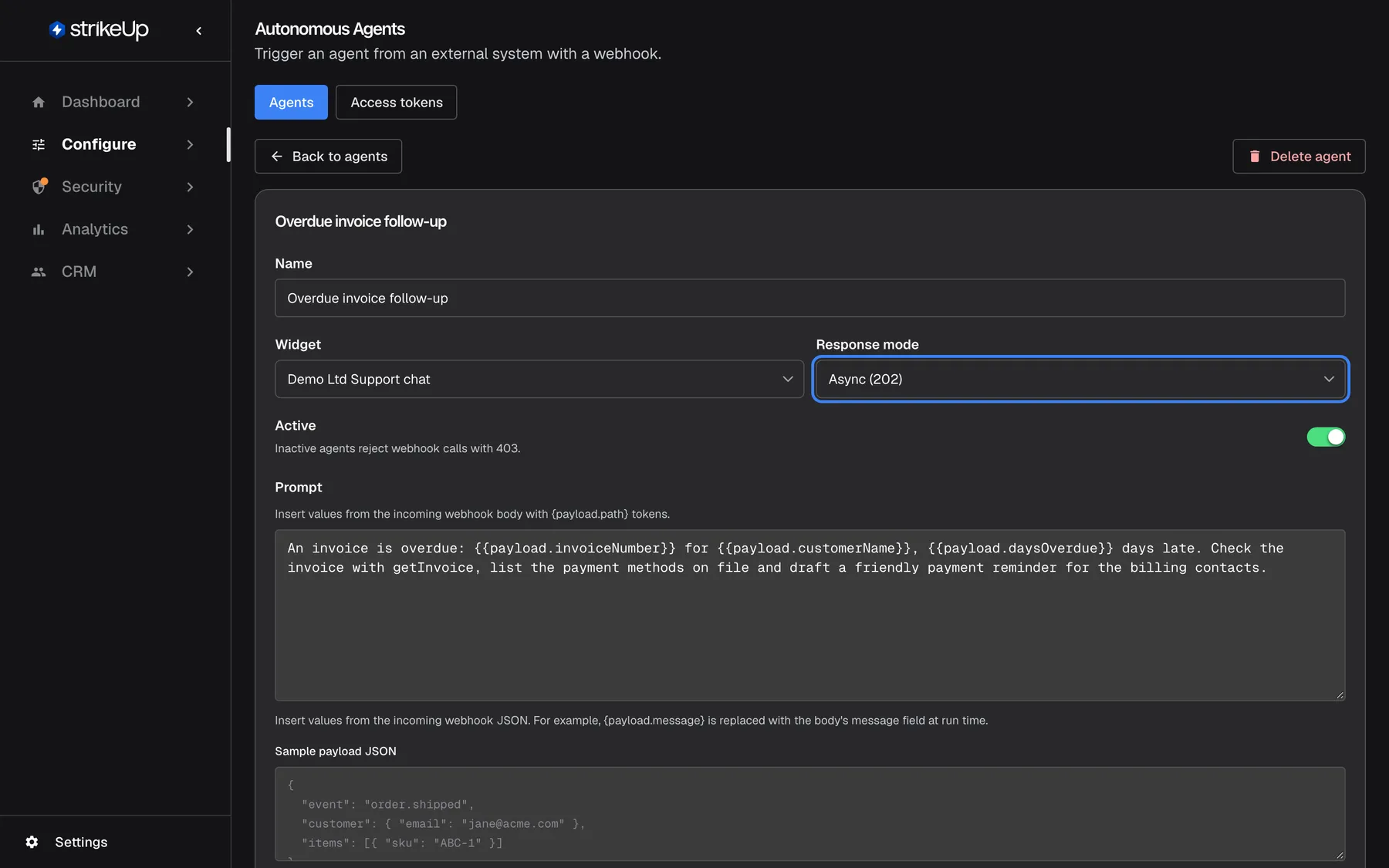
What this screenshot shows
- Screen
- Agents (/admin/configure/autonomous-agents)
- Highlighted
- combobox “”, form-top-right, Async (202). chooses whether the webhook waits for the answer
- Also visible
- Name, Widget Demo Ltd Support chat, Active on; Prompt with {{payload.*}} variables
- Purpose
- hero of the autonomous agents release note: the agent editor
Why it matters
Section titled “Why it matters”Events that need judgement no longer wait for a person to open a chat and paste in the details. The agent picks them up the moment they happen, uses the same tools and guardrails as your widget, and leaves a full record of what it did and for whom.
Get started in three steps
Section titled “Get started in three steps”- Open ConfigureAutonomous Agents, select New, pick the widget whose tools the agent uses and the Response mode, and write the prompt.
- Signed in as a company admin, create an access token for one of your customers with their PIN or password, using the request shown in the agent’s webhook panel.
- Call the agent’s address with that token and a JSON body, and read the answer under View output.
The details are in Setting it up in 7 steps.
Availability
Section titled “Availability”For every workspace. Creating and changing agents needs the Admin role. Every access token belongs to one active customer with a PIN or password, and creating one needs a company admin’s sign-in; the Access tokens tab is for reviewing and revoking tokens. Runs use the AI like any other conversation and count towards your usage and budgets.