

Set up and look after a customer company from one page
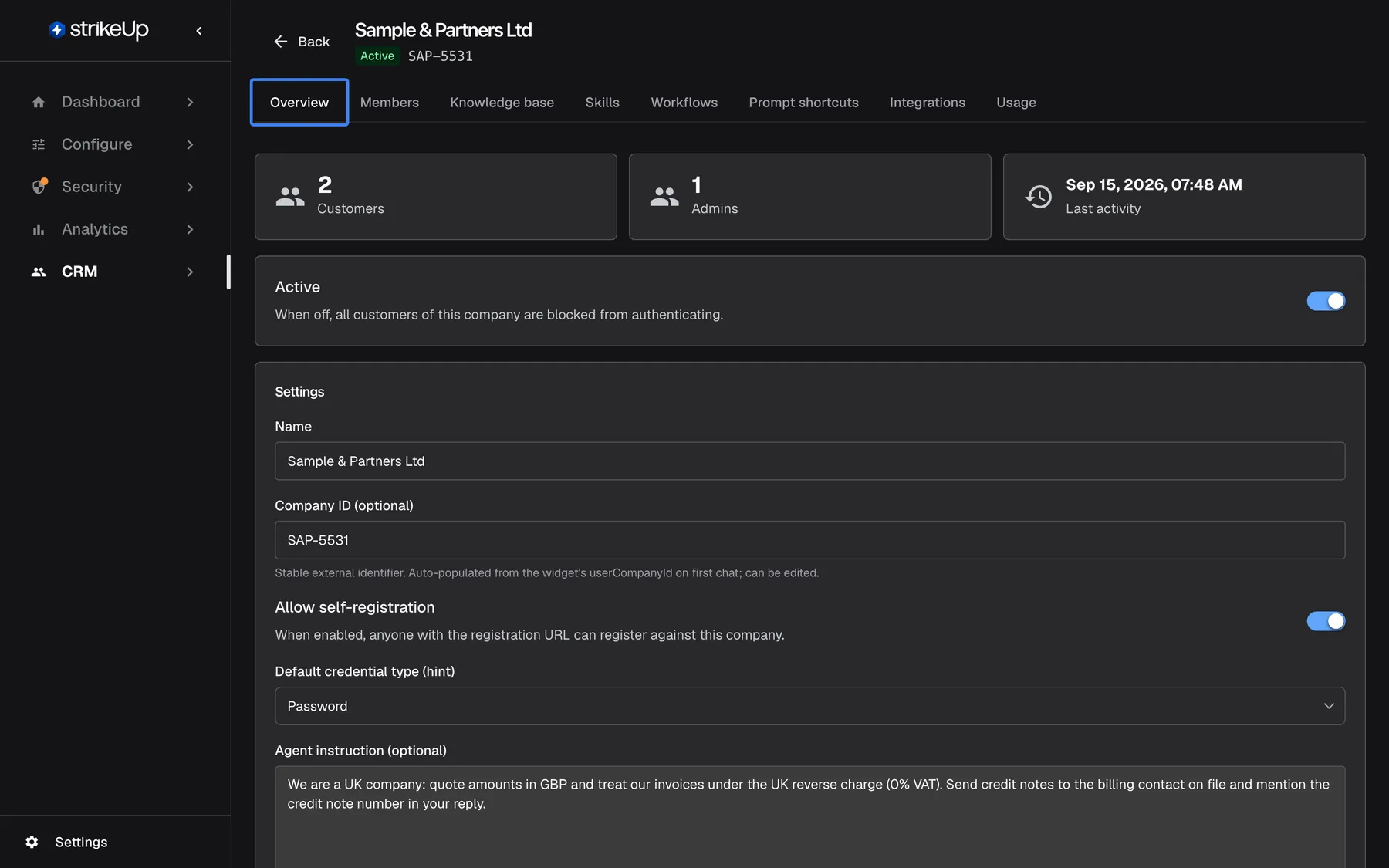
A new business customer often wants you to set things up for them, and an established one sometimes needs a hand. Until now that meant asking their Admin to click through the customer portal. Now you manage the same things yourself, from the company’s own page in CRM.
What’s new
Section titled “What’s new”- One page per company, organised in tabs. Overview, Members, Knowledge base, Skills, Workflows, Prompt shortcuts, Integrations and Usage.
- Everything their Admins can do. Upload the company’s documents, create its skills and workflows, write its shortcuts, connect its own notification channels and change its people’s roles.
- Settings and facts in one place. Rename the company, set its Company ID and self-registration, give the assistant a company-specific instruction and add account memories.
- What it costs. The Usage tab shows the company’s AI use by customer, source, workflow and run, with its allowance.
- Deactivated, not locked out. A deactivated company keeps all its data, and you can still edit it before switching it back on.
What this screenshot shows
- Screen
- Company (/admin/customer-companies/:id)
- Highlighted
- tab “Overview”, tab-strip, selected. shows KPI cards, the Active switch, Settings and Account Memory
- Also visible
- Header: Sample & Partners Ltd, Active badge, SAP-5531; KPI cards: 2 customers, 1 admin, last activity Sep 15, 2026; Eight tabs from Overview to Usage
- Purpose
- hero of the company page release note: a company's Overview tab
Why it matters
Section titled “Why it matters”Onboarding a business customer goes faster when you can prepare their knowledge base, skills and shortcuts before their first login. And when someone asks for help, you fix it on their page instead of walking them through the portal on a call.
Get started in three steps
Section titled “Get started in three steps”- Open CRMCompanies and select a company.
- Check the settings and the agent instruction on Overview and save.
- Work through the other tabs: add documents on Knowledge base, workflows on Workflows, and the company’s own channels on Integrations if it needs them.
The details are in Onboard a business customer and the company page guide.
Availability
Section titled “Availability”For every workspace. Changes need the Admin role in StrikeUp. Everything you change is what the company’s own Admins see in the customer portal, and the other way round. Company documents and skills apply only to that company’s customers.