

Your assistant now knows which page your user is looking at
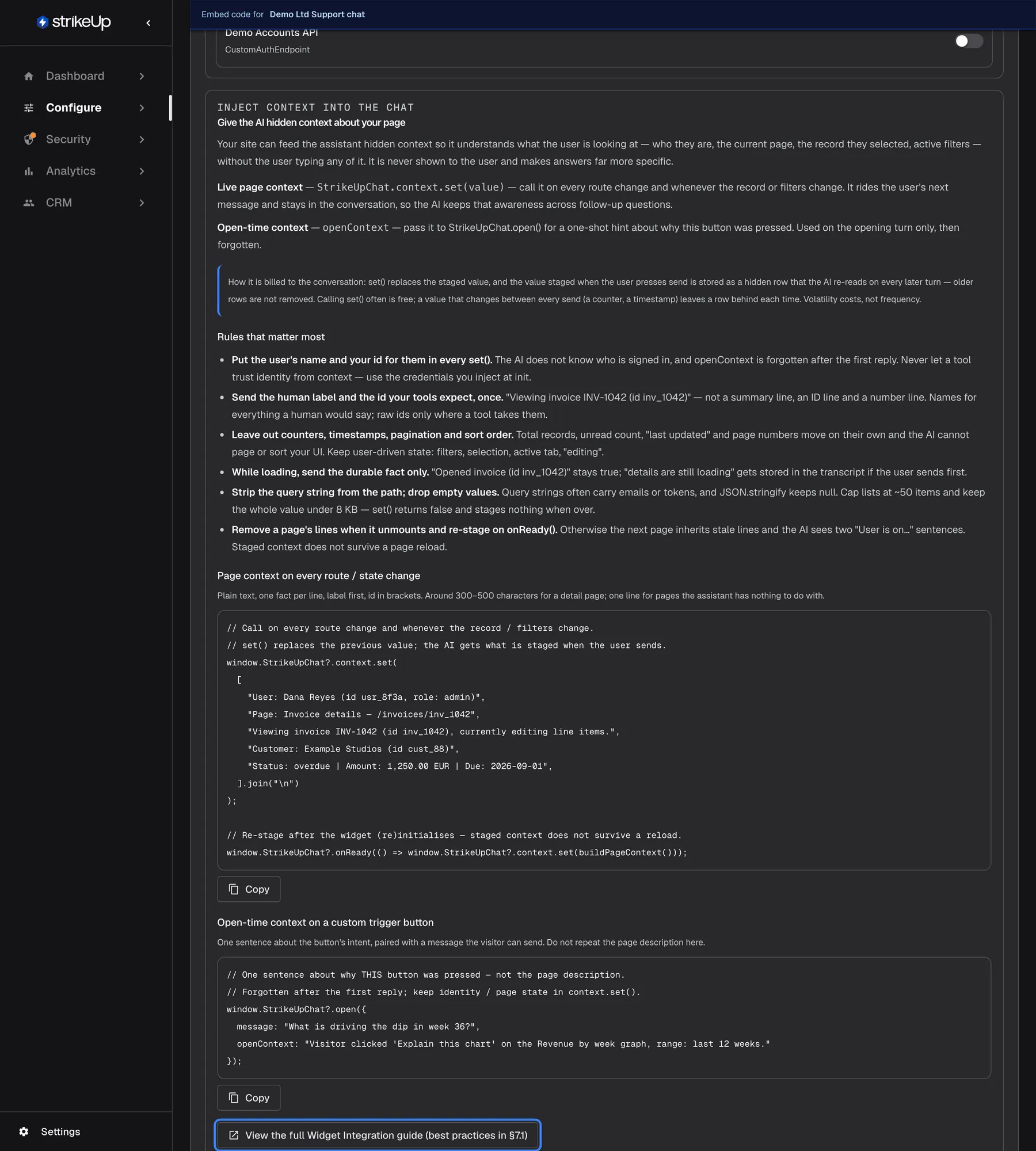
“Is this invoice right?” is an easy question when you can see the invoice. Your product knows which record is on screen; until now the assistant did not, and had to ask. Page context lets your page tell the widget what the user is looking at, without the user typing it.
What’s new
Section titled “What’s new”- Context for the page on screen. Call
window.StrikeUpChat.context.set()on every route or record change. The context rides along with the user’s next message and the assistant keeps using it in follow-up questions. - Build it up or clear it.
add()appends a line,clear()empties it andget()returns what is staged, up to 8192 characters. - A reason for every button.
openContextonStrikeUpChat.open()tells the assistant why your own button was pressed, for its first answer only. - Never shown, always traceable. The visitor never sees the context; your staff check exactly what reached the assistant under Injected Context in an AI action’s details.
- Best practice built in. The Embed screen explains what to send and what to leave out, with two examples to copy.
What this screenshot shows
- Screen
- Embed (/admin/configure/embed?widgetId=…)
- Highlighted
- link “View the full Widget Integration guide (best practices in §7.1)”, context-panel-bottom, enabled. opens the Widget Integration technical guide in Help
- Also visible
- Live page context and Open-time context explanations; Cost note about staged context rows; Rules that matter most; Two code examples with Copy buttons
- Purpose
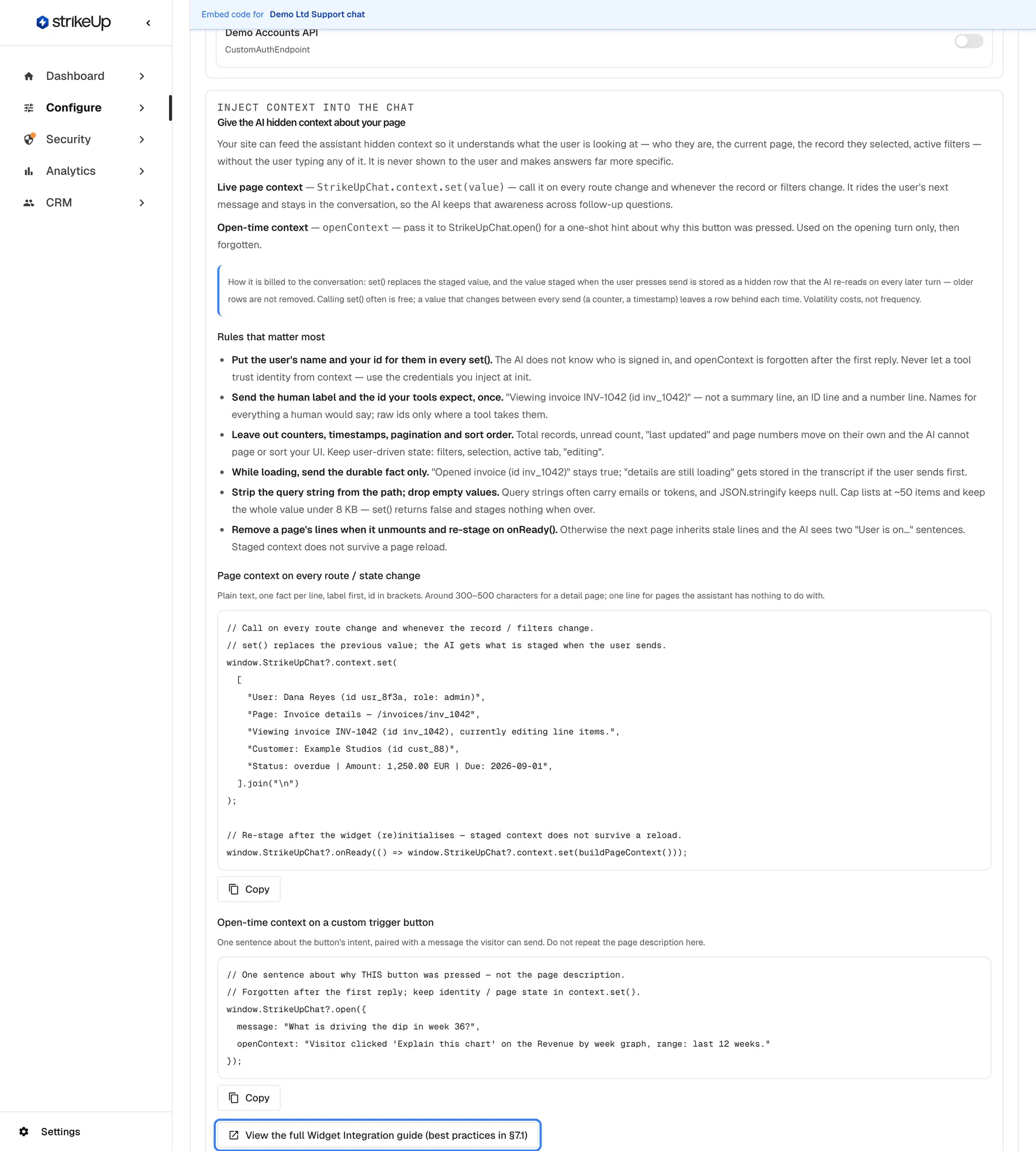
- hero of the page context release note: the context injection panel
Why it matters
Section titled “Why it matters”Every follow-up question the assistant does not have to ask is a faster answer. With the record’s label and id in context, “can you resend this one?” just works, and the answers fit the page your customer is on.
Get started in three steps
Section titled “Get started in three steps”- Open ConfigureEmbed, pick the widget and scroll to Give the AI hidden context about your page.
- Copy the Live page context example and call it from your page whenever the route, record or filter changes, one fact per line with the label first.
- Ask the assistant about the page, then open the AI action under AnalyticsAI actions to see the context it received.
The details are in Identify users and pass context.
Availability
Section titled “Availability”For every widget, with no plan gate. Context is text the assistant reads on later turns, so large or constantly changing context uses more AI tokens: leave out counters, timestamps and page numbers. Staged context that has not been sent is lost on a full page reload. The older name developerContext still works for openContext.