

Let your business customers run their own corner of the assistant
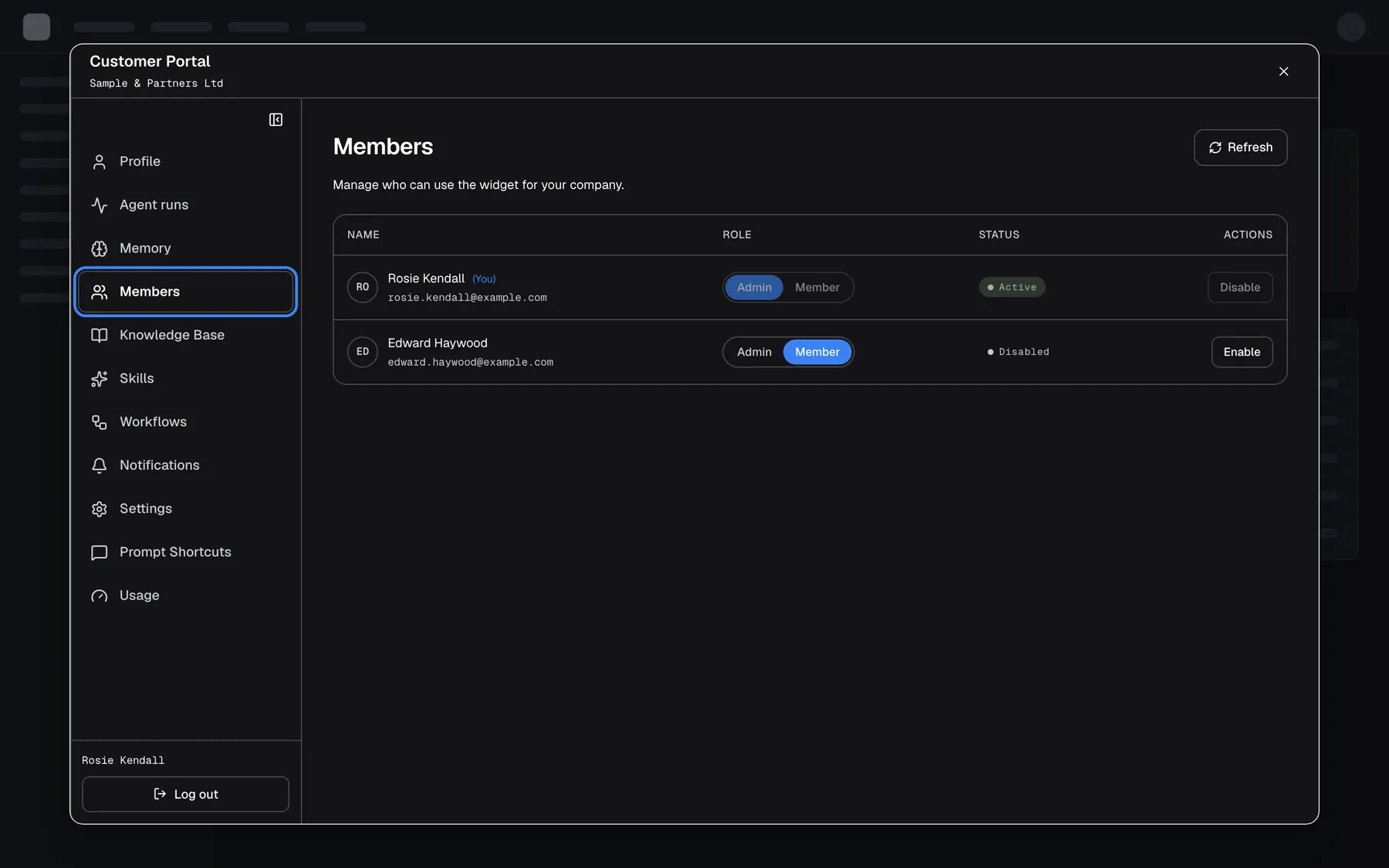
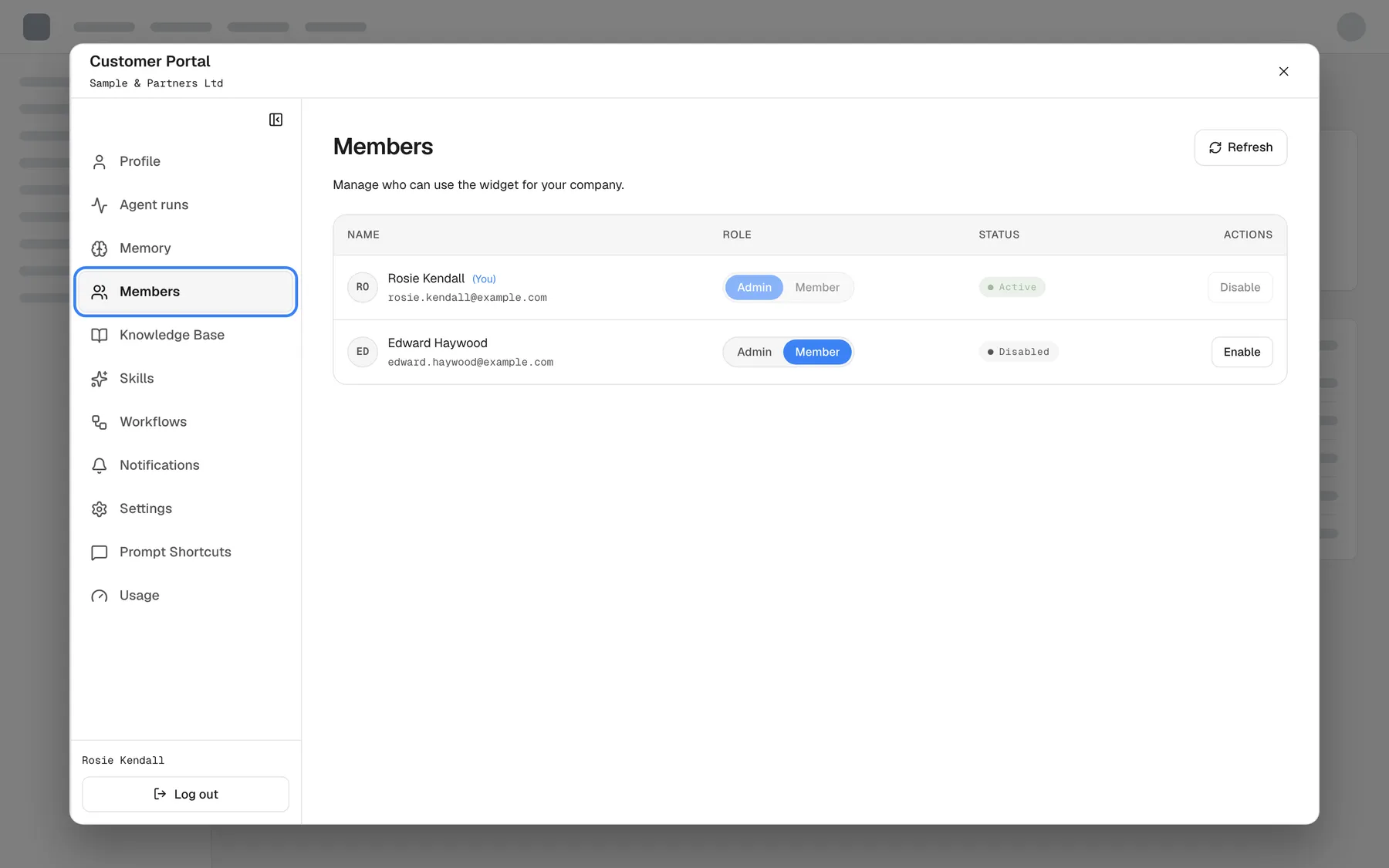
Every “please add my colleague” or “can you upload our new price list” lands on your support team when your business customers cannot do it themselves. The customer portal hands them the controls: a self-service area inside the chat where they look after their own part of the assistant, on the pages you decide they may see.
What’s new
Section titled “What’s new”- One gear, a whole portal. A gear in the chat’s top bar opens the portal over your page for signed-in customers; closing it takes them straight back to the chat.
- Self-service for company Admins. A customer’s Admins manage their company’s members, knowledge base, skills, workflows, settings and prompt shortcuts without opening a ticket.
- Something for everyone. Every signed-in customer sees their profile, their agent runs, their memories and their notifications, and Members read their company’s shortcuts.
- You choose the pages. Switch the portal on per widget and tick the pages your customers may see.
- Your staff keep the overview. Everything a customer changes is a record your team sees and can manage under CRM.
What this screenshot shows
- Screen
- Members (host page › widget › Customer Portal › Members)
- Highlighted
- button “Members”, portal-sidebar, selected. shows the company's members
- Also visible
- Portal window over the dimmed host page; Four members with role switch and Disable/Enable; Rosie Kendall and Log out at the bottom of the sidebar
- Purpose
- hero of the customer portal release note: the portal open on Members
Why it matters
Section titled “Why it matters”Your customers know their own team and their own documents best. When they can keep them up to date themselves, the assistant stays accurate without your staff in the loop, and requests that used to wait a day in a queue take a minute.
Get started in three steps
Section titled “Get started in three steps”- Open ConfigureUser Interface, pick the widget and switch on Require customer authentication, so every customer has a session the portal belongs to.
- In the Customer Portal section, switch on Enable Customer Portal and tick the Visible pages. Save.
- Group your customers into companies under CRMCompanies and make one person per company an Admin.
The details are in Setting it up in four steps.
Availability
Section titled “Availability”For every workspace, with no plan gate. The portal needs signed-in customers grouped into customer companies. Changing the portal switches needs the Admin role in StrikeUp. The page switches decide what customers see, not what they may do, so do not use them as a security boundary. Skills, workflows and knowledge used by the assistant count towards your usage like any other chat.